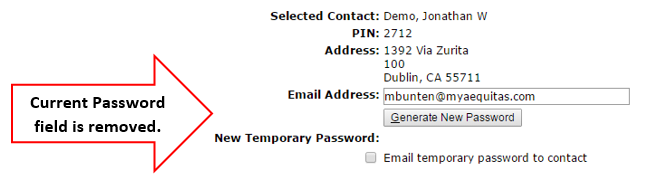
The User Manager is an application that allows password retrieval for staff, students, and contacts if a password is forgotten.
User Manager is located under the System menu in Q.
Once the Staff tab is selected, users can search for a staff member either by their local ID number, or last name and first name.
Note: if you are unsure of exact spelling, entering the first couple letters of the last name and/or first name will bring up possible results. 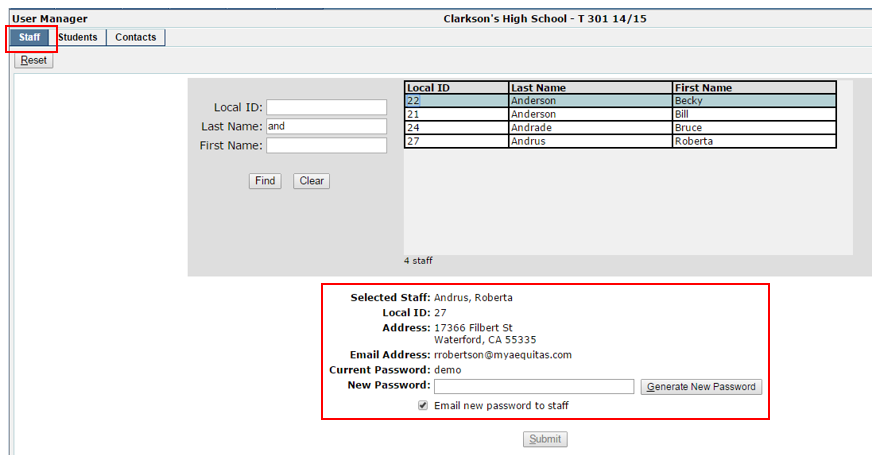
- The information displayed on this page shows the selected staff member’s name, local ID, address, email address, and current password.
- If requested, a new password can be generated and emailed to the selected staff member by checking the “email new password to staff” box ON.
When the student tab is selected, users can search for a student either by their local ID number, state ID number, or last name and first name. Results can be further filtered by grade, gender, group, track, advisor, and/or counselor.
Note: if you are unsure of exact spelling, entering the first couple letters of the last name and/or first name will bring up possible results.
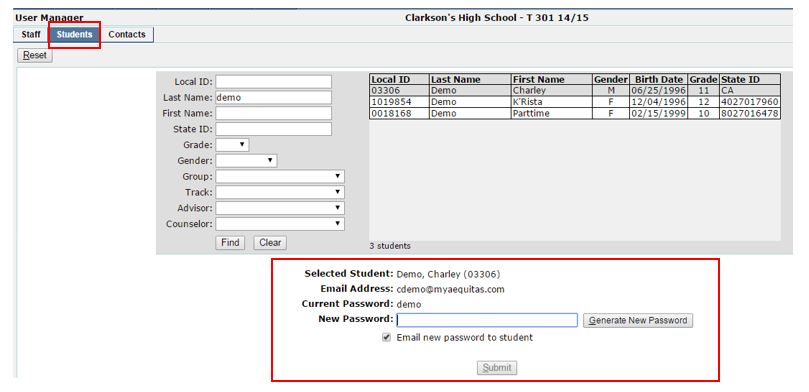
- The information displayed on this page shows the selected student’s name, email address, and current password.
- If requested, a new password can be generated and emailed to the selected student by checking the “email new password to student” box ON.
When the contacts tab is selected, users can search for a contact either by their assigned Pin, or last name and first name.
Note: if you are unsure of exact spelling, entering the first couple letters of the last name and/or first name will bring up possible results.
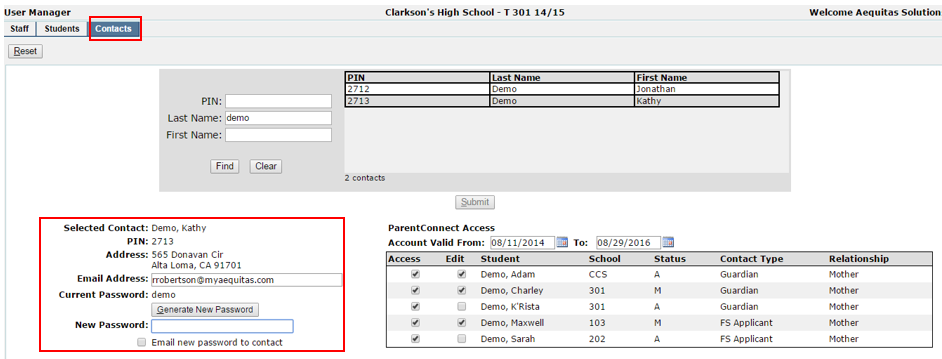
- The information displayed on this page shows the selected contact’s name, PIN, address, email address, and current password.
- If requested, a new password can be generated and emailed to the selected contact by checking the “email new password to contact” box ON.
This page also displays ParentConnect Access for the students that are associated with the selected contact, as well as the school that student is located at, their status, and the contact type and relationship of the contact and the student.
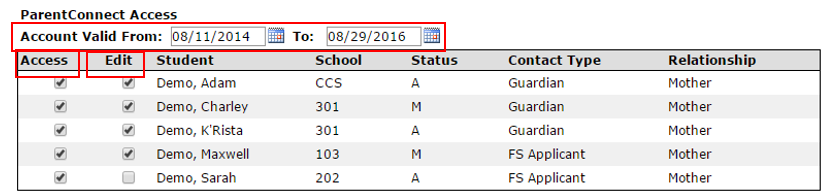
- Account Valid From: displays how long this contact will have access to their associated student’s information on ParentConnect.
- The Access checkbox determines whether or not this contact has the ability to access student information on ParentConnect for each student they are associated with.
- The Edit checkbox determines whether or not this contact has the ability to edit student information under the Re-Enrollment tab on ParentConnect for each student they are associated with.
The Setup Tab only appears when you are logged in at the District level.
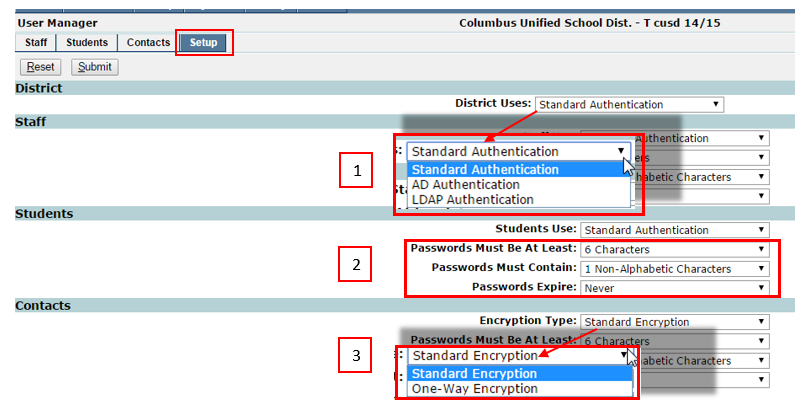
- There are three types of authentication that can be selected to use for District access, as well as Staff and Student access. These three types are Standard Authentication, AD (Active Directory) Authentication, and LDAP (Lightweight Directory Access Protocol) Authentication.
- Standard Authentication: a three-line login (User ID, name, and Password) that is used when the login information is stored to the database.
- Active Directory Authentication: uses AD to authenticate users. When enabled enter the name of the domain (e.g. myaequitas.com) that you want to authenticate against. For more information please refer to the Q External Authentication Guide.
- Q supports the use of a single domain.
- StudentConnect supports the use of multiple domains separated by a comma (e.g. domain1.com,domain2.com).
- Users can use their username or their email address to authenticate.
- LDAP Authentication: uses any LDAP v3 compliant system to authenticate users. When enabled enter the name or IP address of your LDAP server. You can also modify the default attribute used for authentication, configure search parameters and set a default context for LDAP searches. For more information please refer to the Q External Authentication Guide.
- Further requirements can be set for Staff, Student, and Contact passwords such as a minimum number of characters (alphabetic and numeric), as well as a time frame before their password expires.
- There are two different encryption types that can be chosen for contacts, Standard Encryption and One-Way Encryption.
- Standard Encryption: when standard encryption is selected, users with permission to the User Manager are able to see the contact’s current password.
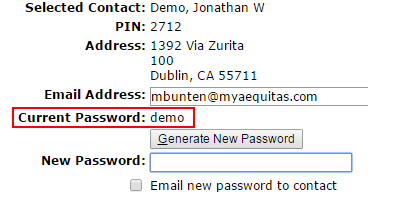
- One-Way Encryption: when One-Way Encryption is selected, users with permission to the User Manager are not able to see the contact’s current password.