
The Staff Notifications application allows users to send emails and push notifications to staff members. Push notifications are sent to the Q Mobile app for iOS/Android.
Staff Notifications is located under the Staff menu in Q.
The following fields are required to send either an email or a push notification.
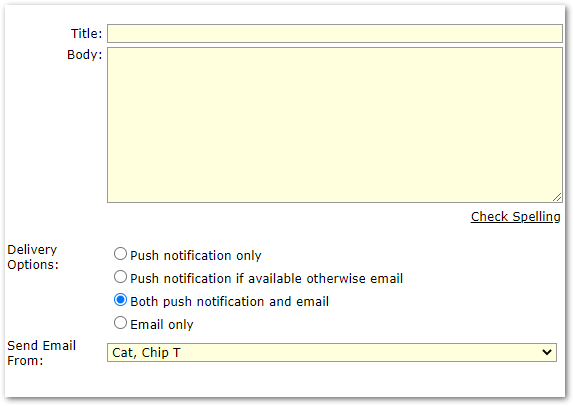
- Title – When the message is delivered as an email this will be the subject line. When the message is delivered as a push notification this will be the title.
- Body – The body of the email and push notification. Click the Check Spelling button to run your message through the Spell Check.
- Delivery Options
- Push notification only – The message will be sent as a push notification to all recipients using the Q Mobile app.
- Push notification if available otherwise email – The message will be sent as a push notification to all recipients using the Q Mobile app. The message will be sent as an email to all recipients not using the Q Mobile app.
- Push notification and email – The message will be sent as a push notification to all recipients using the Q Mobile app. The message will also be sent as an email to all recipients.
- Email only –The message will be sent as an email to all recipients.
Note: The first three Delivery Options may be grayed out if no staff members are available for push notifications. To be available for push notifications a staff member must install the Q Mobile app, accept push notifications, and login. Notifications will be sent to the first staff member that is logged in after installing the app. You may reinstall the app and login as a different user if you wish to receive push notifications as a different user.
- Send Email From – The email address of the user selected here will be used as the From address when a message is sent as an email. If the Push notification only Delivery Option is selected this field will not be visible since it is not used when sending a push notification.
Use the Staff Selection and Select Recipients areas to build a list of staff members to deliver the message to.
Start to build a recipient list by using the filters in the Staff Selection area to narrow down the list of potential recipients:

You may leave the filters set to All if you wish. If you have made selections and want to start over, you can click the Filter – Reset All button and it will clear the Staff Selection filters.
Once you have made your selections in the Staff Selection area, click the Refresh List button in the Select Recipients area:

The Select Recipients area will refresh and display a list of potential recipients based off the filters in the Staff Selection area.
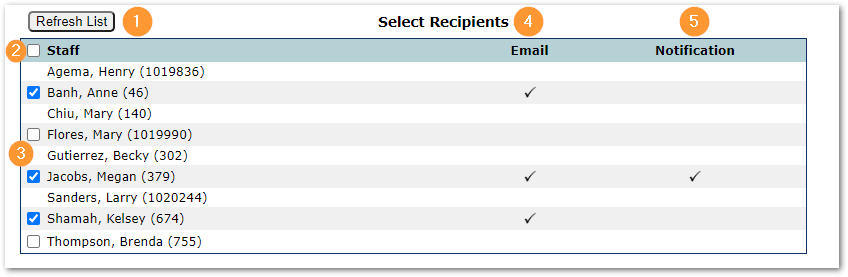
- Refresh List – This button will clear all checkboxes and update the Staff column if any changes have been made to the Staff Selection filters.
- Check All – Checking the checkbox next to the Staff header will check all boxes below it.
- Checkboxes – Check the box for every staff member you wish to send the message to. A box will only be visible if the Staff member is available to receive the message based off the Delivery Options you have selected. Ex: If you choose the Delivery Option for Email only then a Staff member would have to have an email address in Staff Editor to show a checkbox here. If you choose the Delivery Option for Push notification only then a Staff member would have to be using the Q Mobile app to show a checkbox here. In the screenshot above the user has selected the Delivery Option for Both push notification and email. So, the Staff members without checkboxes are not using the Q Mobile app and they are also missing email addresses in Staff Editor. The Staff members that show checkboxes next to their name either have an email address in Staff Editor, are using the Q Mobile app, or both.
- Email – A check may display in this column for users that you have checked to receive the message. For a check to display the user must have an email in Staff Editor and you must have selected a Delivery Option that includes email.
- Notification – A check may display in this column for users that you have checked to receive the message. For a check to display the user must be using the Q Mobile app and you must have selected a Delivery Option that includes push notifications.
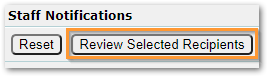
Once you have composed the message and selected the recipients that you want to receive the message, click the Review Selected Recipients button.
The Notification Recipients window will display giving you one final step to review the recipients and delivery methods:

Click the printer icon if you would like to print out the Notification Recipients window.
Click the Send button to send the messages.
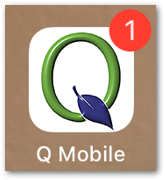
Q Mobile app icon showing one unread push notification.
A push notification viewed in the Q Mobile app.
