
Notifications are defined in the Notification Editor under the System menu. Notification Recipients may be composed from faculty groups and/or individual faculty users. The Q Notification Recipients application enables a user to define the recipients of notifications as defined in the Notification Editor. The recipients of Notification messages are notified of incoming messages on the Q Home screen.
Notification Recipients is located under the Staff menu in Q.
The screen shows for the selected school, by Notification Type, the set of possible recipients on the left, and those selected on the right. 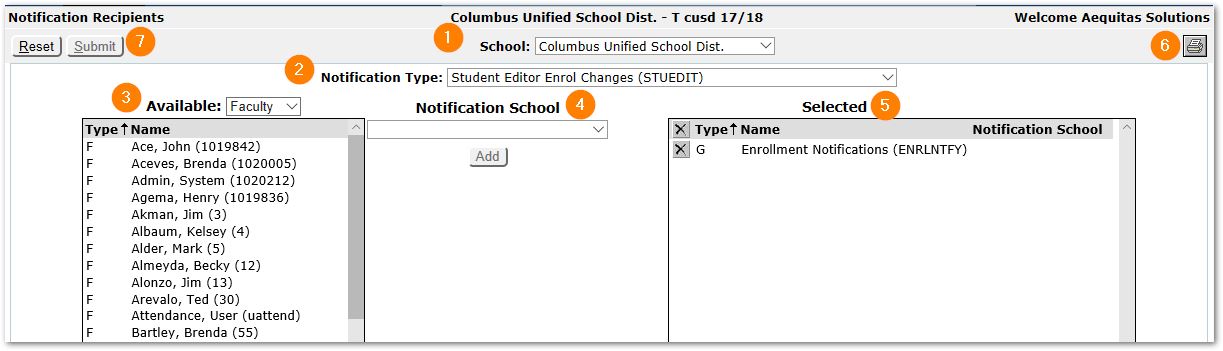
- The School filter at the top of the page will filter the list of staff in the Available column at left.
- Select the Notification Type for which you wish to adjust or set recipients.
- The available recipients may either be individual faculty members or members of a faculty group. The drop-list at the top of the Available column defaults to Faculty. Open it to change the setting to Group or All. Either double-click on desired faculty or groups, or select them and click the Add button.
- Setting a school in the Notification School drop-down only applies to notification types that have an associated school. For example, the associated school for the Remote Withdrawal notification type is the school from which a student is transferred. If a value other than 'None' is selected for the Notification School field, the recipient will receive a notification of the selected Type only if the school associated with the notification matches the one specified in the Notification School field and the recipient has an active status record for the school. If the Notification School field is set to 'None', this filtering is not done. This option is useful in cases where a faculty member is active in more than one school simultaneously but has different roles in each school (such as teacher, clerk, counselor, etc.). Note that in either scenario; other filtering may be applied based on the 'filter by school' and 'filter by track' flags in the Notification Type table.
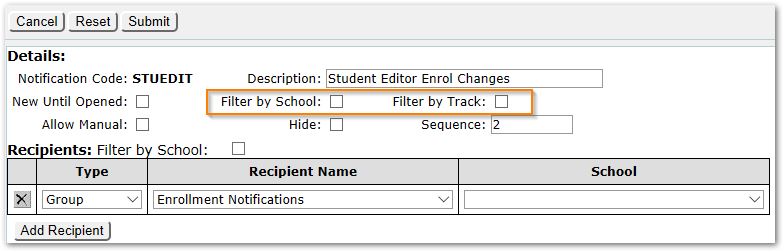
From the Notification Editor
When logged in at the District Office level you will have the option of selecting 'None' or a particular school from a list of all schools. But, when logged in at the school level your options are more limited: you can only select 'None' or the current school.
- Selected recipients will appear on the Selected list at right. To remove a recipient, click the small X to the left of the recipient name.
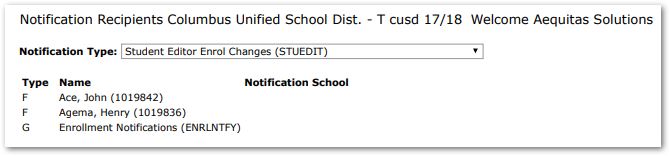
- Print a report of the selected recipients by clicking the Printer icon at top right.
- Click Submit to save your changes.
