
The Q Transportation application allows the user to define transportation routes, assign students to specific routes, keep logs of service and track transportation billing status.
Transportation is located under the Programs menu in Q.
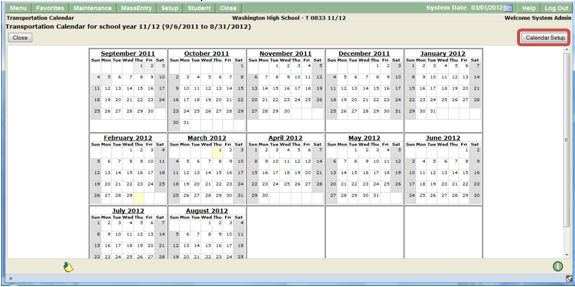
A calendar is provided for the district to set transport dates independent of the District’s SIS calendar, allowing for transportation on non school days. Non transportation dates are indicated on the calendar in a different color from actual transportation days and are not available for selection when recording services.
- Click Calendar

- Calendar displays.
- Click Calendar Setup.
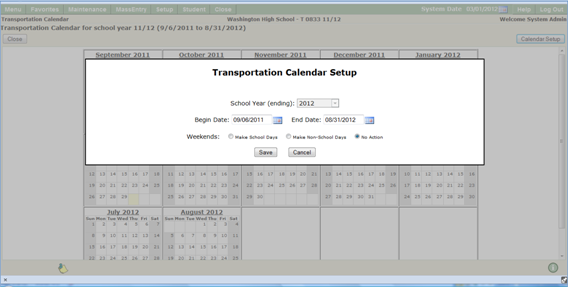
- Select School Year.
- Enter begin and end dates.
- Make desired selections.
- Save.
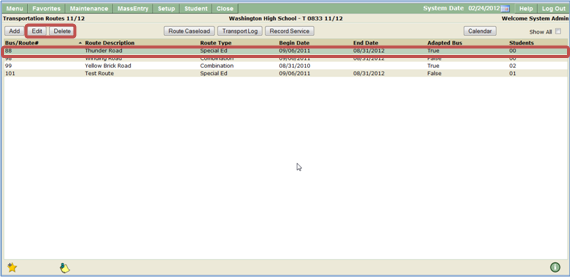
When first opened the Transportation application displays all current Bus/Routes. Routes may be added, deleted or edited from this screen.
Add a new route:
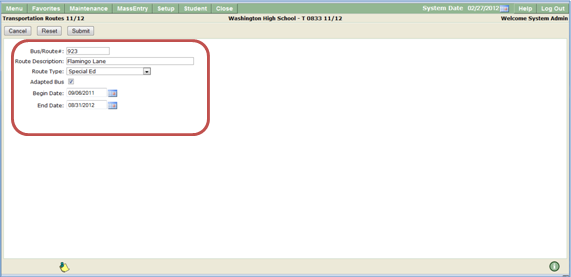
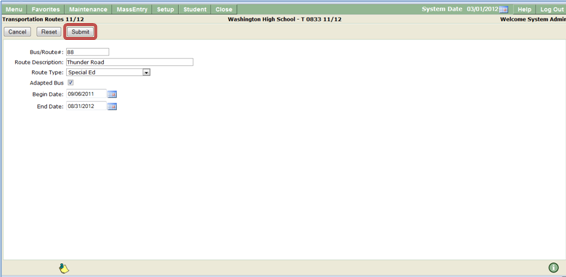
- Click Add.

- Enter Bus route number and description.
- Select route Type from drop down list.
- Indicate if bus is Adapted.
- Enter begin and end dates.
- Submit.
Edit and Delete Routes
Bus routes are edited and deleted from the main Transportation screen.
- Select Bus/route.
- Click Edit to open record for editing.
- Make desired changes.
- Click Submit to save changes.
Delete Routes
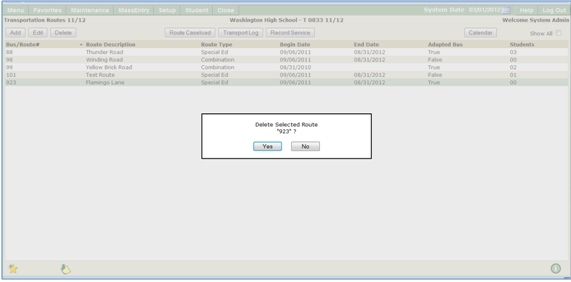
- Select Bus/route.
- Click Delete to delete route.
- Click Yes.
Once routes have been defined students need to be added to the route.
- Select Bus/route to highlight.
- Click Route Caseload button to access Route Caseload screen.

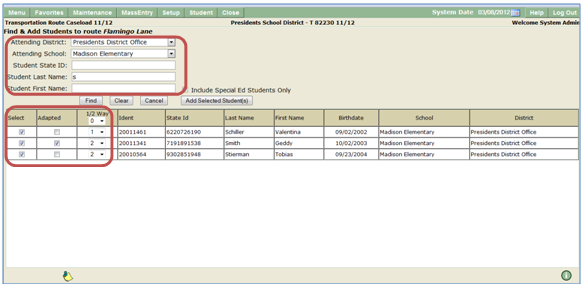
- Click Find/Add Students button
.
- Select Attending School.
- Search for student using Student ID or partial student name. (Hint: entering a single letter in last name will display several students at once)
- Search results may be filtered to return Special Ed Students Only by checking box.
- When students are displayed, click Select box and fill out information.
- Add selected students.
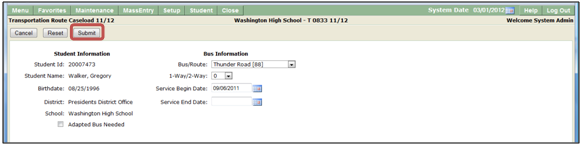
Edit Route Caseload
- Select Route.
- Click Route Caseload.

- Select student.
- Edit.
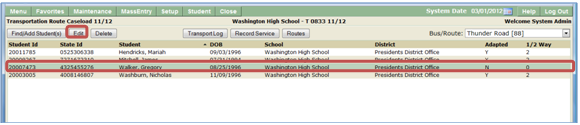
- Submit.
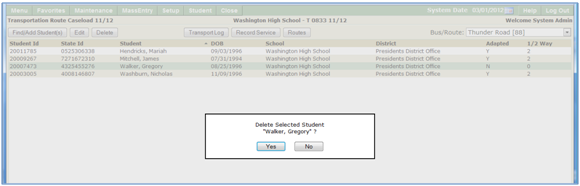
Delete Student from Caseload
- Select student name.
- Click Delete.
- Select Yes.
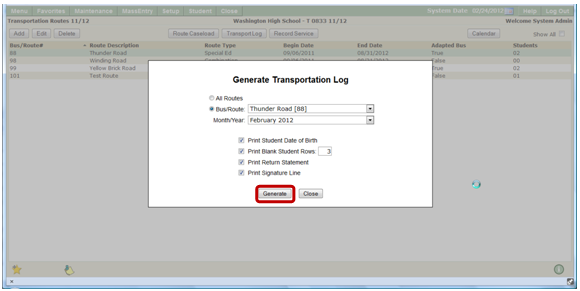
Once students have been added to a route, a log may be created for the driver to record student service. The log will only show transport days as defined in the calendar.
- Click Transport Log.

- Enter information in Generate Transportation Log.
- Select Bus/Route.
- Select Month.
- Select items you wish to print on log.
- Select Generate.
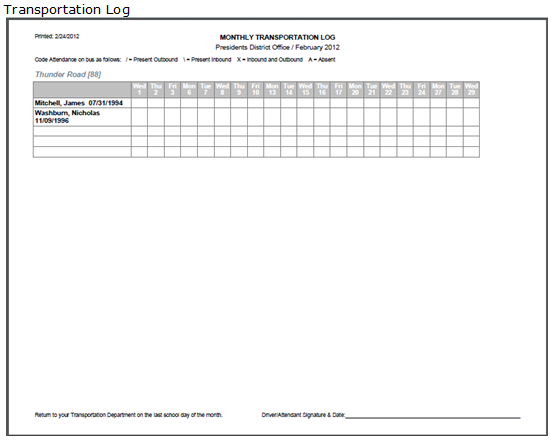
Information may be added for student caseload to be used for billing.
- Highlight Bus/Route.
- Select Record Service.

- Select desired Bus/Route from drop down list.
- Select Month/Year.
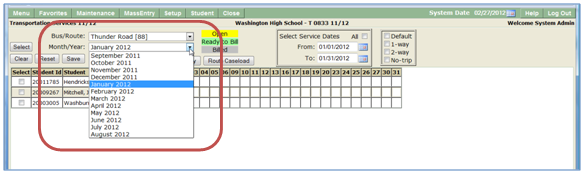
- Route Caseload list displays.
- Place checkmark in the select box for each student.
- Information may be added for individual students and days.
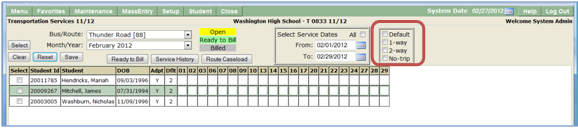
- Fill options for the entire month are also available.
- Default—will enter trip information as defined when student was added to the route caseload.
- 1 Way.
- 2 Way.
- When Reset is clicked, information that has been changed (but not saved), is reset to the previously saved value. If data has been entered into a cell in which data had not been previously saved, the information is cleared from the cell.
When Save is clicked, new or changed information entered into the service date fields is saved.
Open / Ready to Bill / Billed Service Status
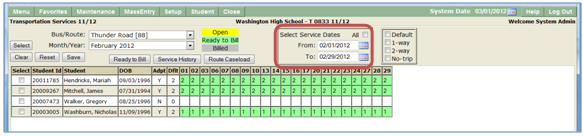
- When service information is entered and the Save button is clicked, the status of the service(s) is flagged with an “Open” status. These cells are highlighted with a yellow background and may be edited.
- When the Ready to Bill button is clicked, all services with an “Open” status are flagged as “Ready to Bill”. These cells are highlighted with a green background and may be edited.
- If the cell is edited and the Save button is clicked, the status changes to “Open”. The Ready to Bill button must be clicked to change the status back to “Ready to Bill”.
- Transportation services are processed for billing (and designated as 'Billed') by an external application. When the services are processed for billing, the status of these services is changed to “Billed”. These cells are highlighted with a gray background and cannot be edited. No further updates can be made on services that are processed for billing.
The Bus/Route service history may be viewed.
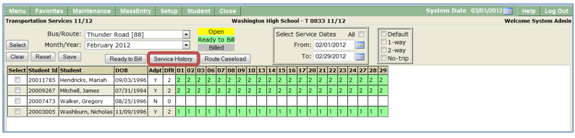
- When the Service History button is clicked, the Transportation Service History screen displays.
- Enter desired Service Dates to view.
- The user may define the sort order as desired for the route service history by selecting sort items and order using drop down lists:
- Student Name
- Bus/Route
- Month/Year
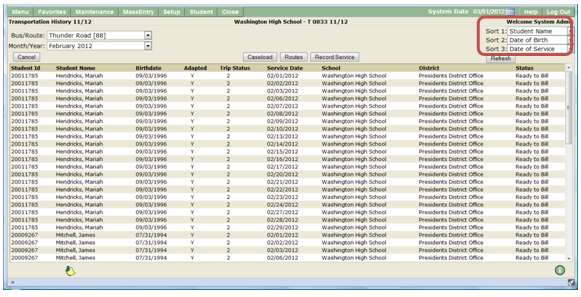
- Click Refresh to refresh Service History display after selecting sort options.
