
The Mass Screenings application enables a user to record screenings for multiple students at one time.
Mass Screenings is located under the Health menu in Q.
The Screening Information section allows users to enter detailed information for the screening. 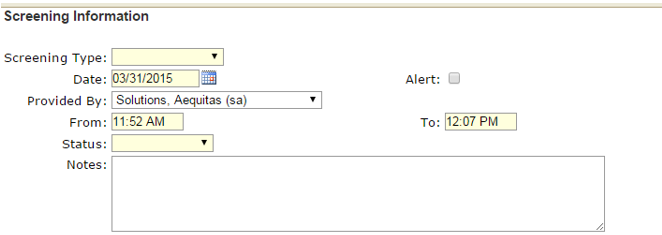
- Screening Type: This field is required and defaults to be blank. Users can select the type of screening by clicking the drop down arrow.
- Date: This field defaults to today’s date. Users can enter a specific date manually or by clicking on the calendar icon to select the desired date.
- Alert: Check this box ON to set this screening as a health alert for a student. This alert will show in places such as student banner applications.
- From/To: The “From” field will default to the time when the user opens Mass Screenings, and the “To” time will default to 15 minutes after the “From” time.
- Status: This field is required and defaults to be blank. Users can select the status of the screening by clicking the drop down arrow.
- Results: This field only appears when a screening type is selected that could potentially have more detailed results than Pass, Fail, or Re-Test, such as a Hearing Test, Physical Exam, TB Skin Test, Chest X-Ray, or Vision Test.
- Notes: The notes field is optional. Users have the ability to enter any details here that could be beneficial to others viewing the screening.
This application utilized Selection Filters.
If a student already has a screening of the same type being entered, and if their name is included in the Student Selection list, information from the screening will be changed to reflect the most recent screening except the date, type, and status.
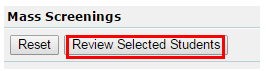
Once a user has selected the students who received a provided screening, press the “Review Selected Students” button to verify the students selected.
Here, a user can change a screening status, results, add notes, or flag alerts for an individual student before submitting the results to be processed.
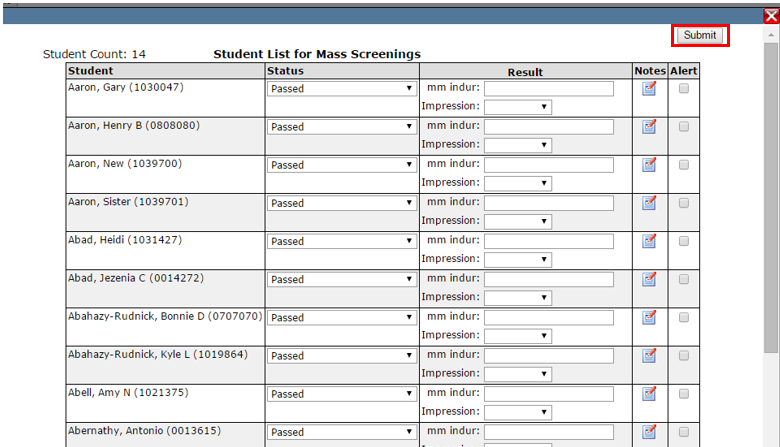
- Once you click submit, you will be returned to the main screen and will be notified that processing has been completed:

