
This application enables the user to record Medical Consents for multiple students in one instance.
Mass Consents is located under the Health menu in Q.
This application utilizes Selection filters. Users can learn more about this in the Selection filters documentation.
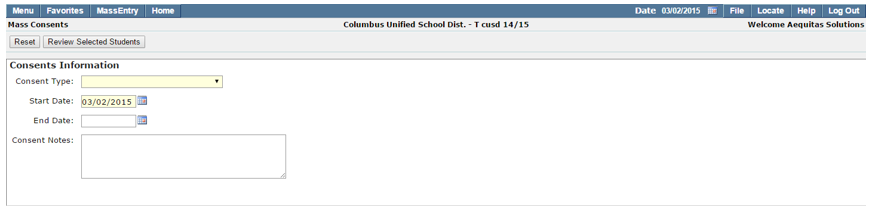
The Consents Information section allows you to enter detailed information for the consent you want to set.
- Consent Type: This field is required and defaults to be blank. Click the drop down menu and select the type of consent.
- Start Date: This field defaults to today. To select a date, enter it using an MM/DD/YYYY format or click on the calendar icon and select the desired date.
- End Date (Optional): This field defaults to be blank. To select a date, enter it using an MM/DD/YYYY format or click on the calendar icon and select the desired date.
- Consent Notes (Optional): Fill in the consent notes field with any details that might be helpful for others viewing the consent.
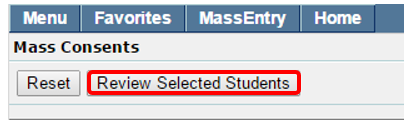
Once you have selected the students for which you want to give medical consents, and wish to review and process them, press the “Review Selected Students” button.
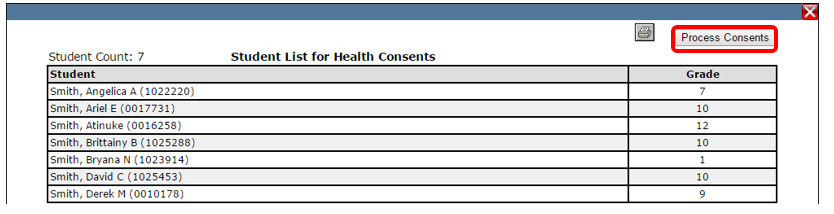
Review your selections for your Medical Consent. If changes must be made, click the red X and make changes in the Select Information section. If your selections are correct, click “Process Consents,” and the consent is submitted.
If the consent was processed, you will see the following when you are returned to the Mass Consents main menu:

To view the consent that you just set, view the student(s) in the Student Health app, under the Health Consents window.
