
The Assign Counselor application allows users to mass assign counselors and/or advisors to students. Counselors and advisors can be assigned based on student criteria defined within the application, or only to students who currently have no counselor or advisor assigned.
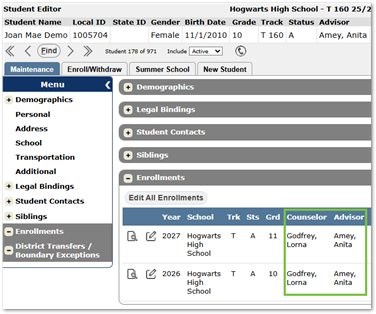
Once a student has been assigned a counselor/advisor, they can be viewed in the Enrollments section of Student Editor.
Assign Counselor is located under the Enrollment menu in Q.
Select Counselor/Advisors
To select Counselors/Advisors:
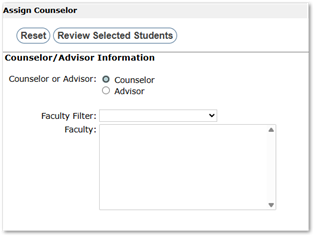
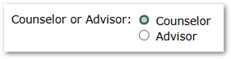
- Select either Counselor or Advisor using the radio button using the Counselor or Advisor section.
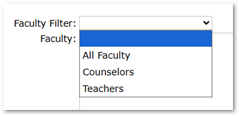
- Use the Faculty Filter drop-down list to filter faculty types. Types may include, but are not limited to: Teachers, All Faculty, and Counselors.
Note:
Faculty types are filtered based on assigned job type.
- After selecting a faculty type, the Faculty box will populate with names matching the criteria.
- Select the desired name by clicking on it. To select multiple names, hold down the CTRL key while clicking.
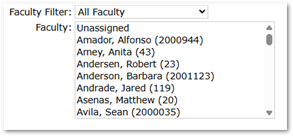
- To remove a selected name, hold down the CTRL key and click the name again.
Select Students
The Selection Information section determines which students will be assigned to the selected counselor/advisor.
- Choose desired option for the Change Counselor/Advisor For section:
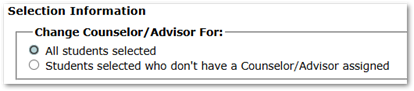
- All Students Selected – All Students who meet the criteria, in the below filters, will be assigned the selected Counselor/Advisor
- Students selected who don’t have a Counselor/Advisor assigned will be assigned a Counselor/Advisor.
- Choose desired students through Student Selection filters, if needed. Users can learn more about Selection Filters in the Selection Filters Documentation.
Review Selected Students
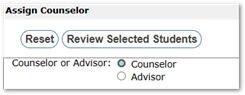 Once students are filtered, click Review Selected Students. To clear filters and start again, click Reset.
After clicking Review Selected Students the Student List for Counselor/Advisor Change window will appear.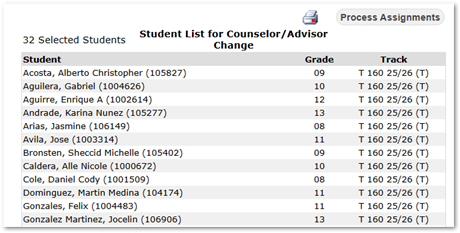
- The number of selected students will appear above the table, and the table of students will be displayed with Student Name & ID, Grade, and Track.
- To print a list of students whose counselor/advisor will be changed, click the Printer Icon in the upper-right corner of the list.
- To return to the Student Selection screen without processing, click the Red X in the upper-right corner.
- To complete the process, click the Process Assignments button.
- Once assignments are complete, the message "Processing Complete" will display at the top of the application.

- Users can also utilize the Counselor List Report to view students assigned to each counselor or advisor.
