
Advisory Schedules provide an option for schools to create weekly advisory meetings and enable students scheduled into a home advisory class to select, in Student Connect, from the available advisory meetings for the week. In addition, teachers may assign students to advisory meetings with other teachers.
Teachers may set a subject, category and focus for the meeting to help students determine which meetings to attend. If needed, teachers may set a class size for the day’s meeting if they want to work more intensively with the students who attend.
Teachers take attendance in the advisory meetings using the Advisory Class Attendance application. Based on a district preference, the attendance taken in the advisory meeting may be posted back to the student’s scheduled class for the period. This way, if the student attends a meeting with another teacher who takes attendance, their attendance will be posted back to their home advisory class scheduled in the period. If they do not have a regularly scheduled class in the period, no attendance will be posted back.
Advisory Schedules is located under the Schedule menu in Q.
Advisory meetings are created on a weekly basis on the Create Meetings tab. This tab is available based on role permissions. Access to it may be given only to administrators to create advisory meetings.
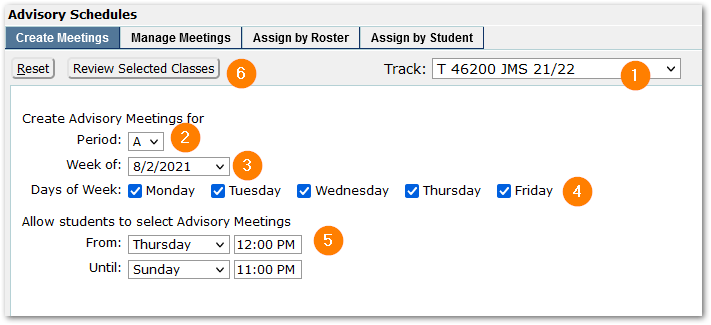
- Track – Defaults to the logged in track but may be changed.
- Period – Select the period for advisory meetings. The selected period will be used to filter classes available when ‘Review Selected Classes’ is selected.
- Week of – Select the week. Values of settings will apply to all subsequent weeks until changed (and saved through ‘Review Selected Classes.’)
- Days of Week – Check the days the advisory meeting will meet.
- Allow students to select Advisory Meetings - Set the From and Until Dates and Times for students to be able to access selecting advisory meetings for the upcoming week in Student Connection.
- Review Selected Classes – With values in the settings in place, click ‘Review Selected Classes’. A list of meetings will appear in a dialog for each teacher and class section scheduled in the selected period. De-select any unwanted meetings. The list may be printed using the printer icon in the upper right corner. Click Submit.
NOTE: Whenever settings are changed on the Create Meetings tab, click ‘Review Selected Classes’ to submit and save the changes.
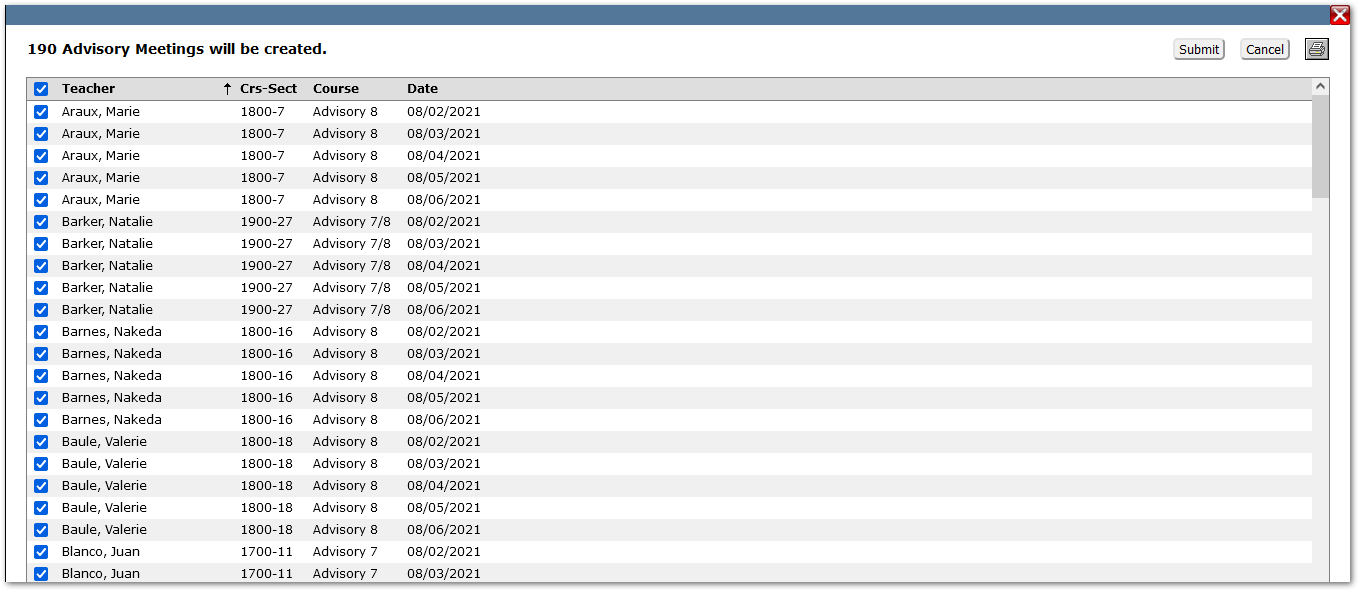 Advisory meetings will be created for each selected class, for each day checked in the selected week.
This tab is the default opening tab for the application. Teachers will only see their own classes under Manage Meetings.
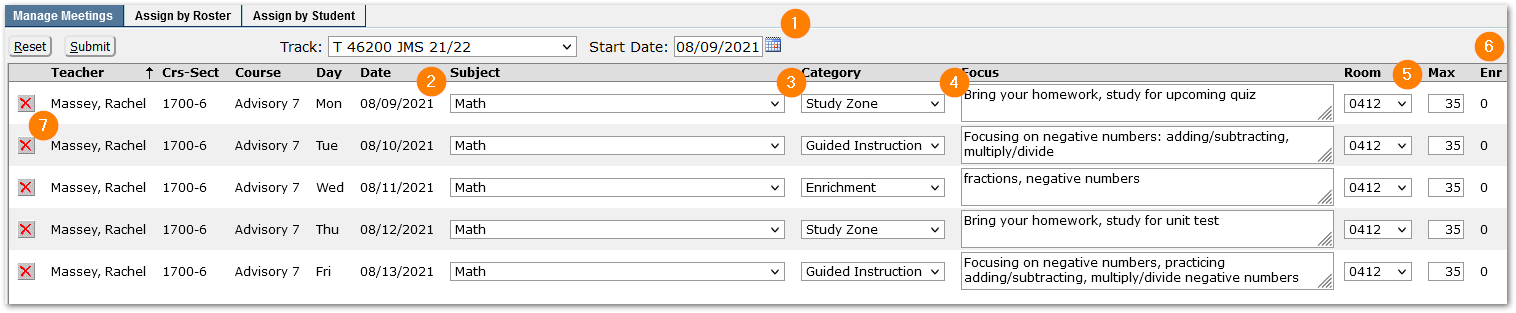
Teachers need to adjust or set:
- Select the Start Date.
- Set the Subject.
NOTE: Since the scheduled class which is the basis for the advisory meetings has a subject, such as the one shown below ‘Non-Departmental / Elective’, that may not reflect the subject matter taught or supported in the advisory meeting, it is recommended that teachers set the advisory meeting subject to better reflect the nature of the material covered in their meetings.
- Choose a Category.
- Enter a Focus for the meeting.
- The room and maximum size will come from the home course, but may be adjusted and reduced for more in-depth focused work, for example.
- ‘Enr’ column shows the number of students enrolled in the meeting. Students may be assigned to meetings or select meetings through Student Connection.
- The red X at left may be used to remove the meeting. It will only appear if no students are enrolled in the meeting. Once students are enrolled in the meeting, the meeting may not be removed.
Students will see the information entered for Subject, Category and Focus and be able to use this information to filter and select the meetings they feel they need or want to attend.
Teachers with permission to assign students (recommended) will have the Assign By Roster tab. From this tab, teachers may optionally assign students from their Home Advisory Section to specific advisory meetings for the meeting date.
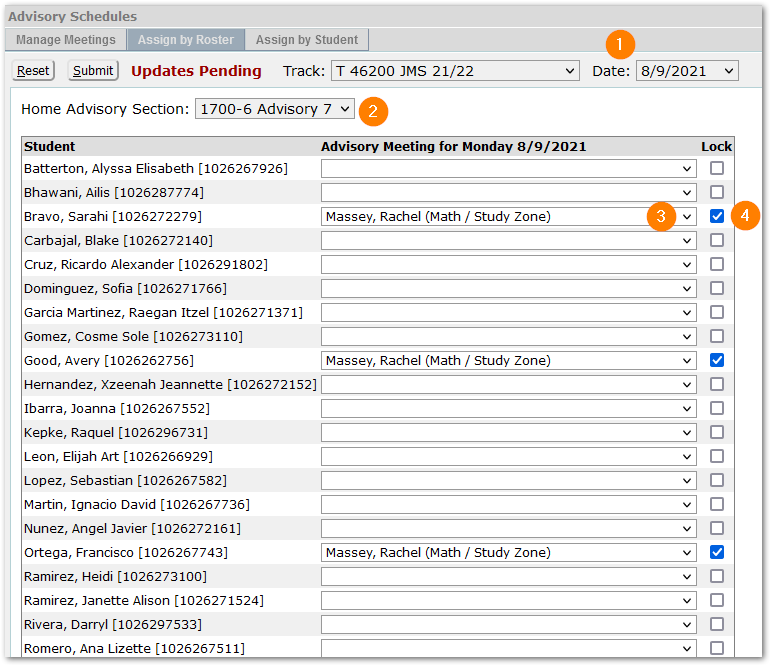
Teachers:
- Select the Meeting Date.
- The roster shows the students scheduled in the selected Home Advisory Section.
- Students may select their meetings using Student Connection, if configured for them to do so. Optionally, teachers may assign students to specific meetings with themselves as the teacher or with another teacher. For the selected student, open the ‘Advisory Meeting’ drop-list and select a specific meeting from the list. In this example, the teacher has assigned three students to her own Meeting where the Subject is ‘Math’ and the Category is ‘Study Zone.’
- When a student is assigned a meeting by a teacher, the Lock defaults on. This means when the student accesses their meetings in Student Connect, the teacher-assigned meetings will appear as scheduled, and they will not be able to change those that are locked.
In this tab, teachers will be able to search only for students they teach and assign meetings to an individual student, if needed.
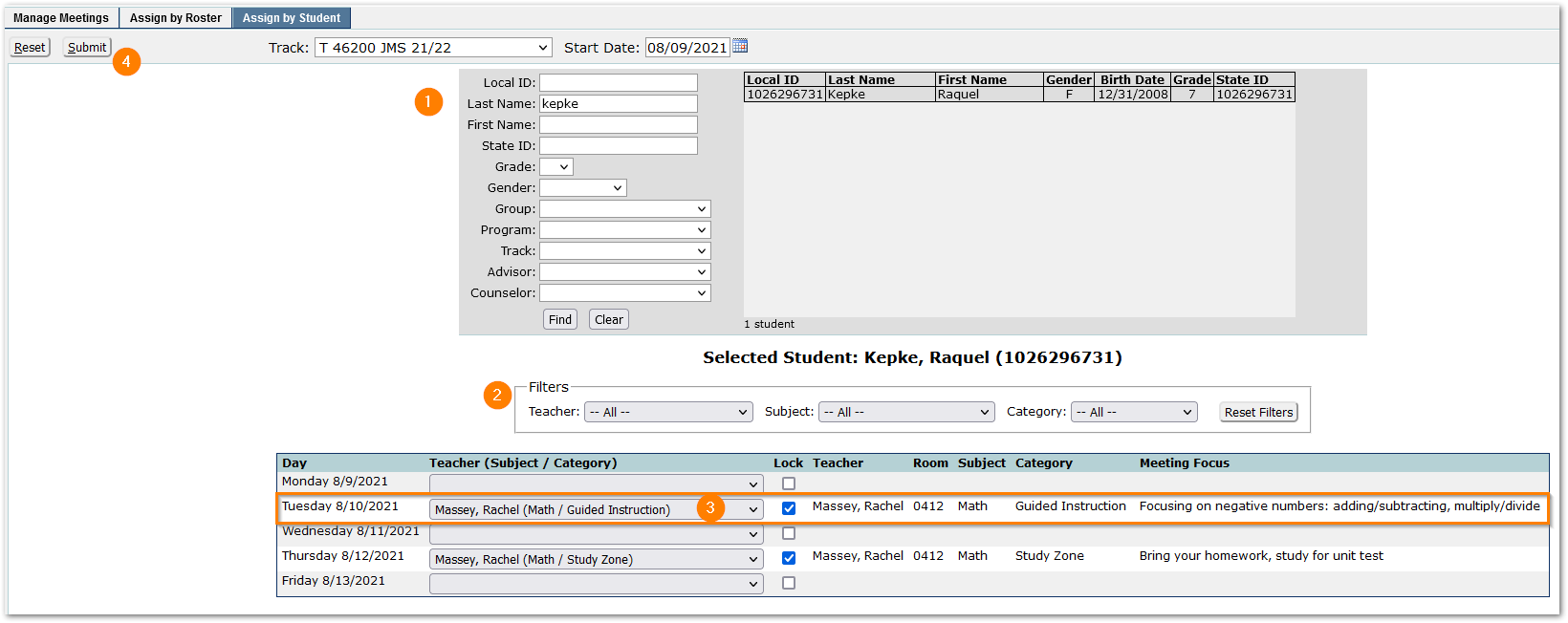
After searching to find the student, use either the filter fields to find the desired meeting to assign, or open the drop-list for the meeting date and select a meeting.
- Search for the student using the filter criteria.
- Use Filter fields to narrow the advisory meetings to assign.
- For a specific meeting date, open the drop-list and select the desired meeting. The meeting will default to locked and display meeting information.
- Click submit to save the changes.
A student’s view when an advisory meeting is assigned:
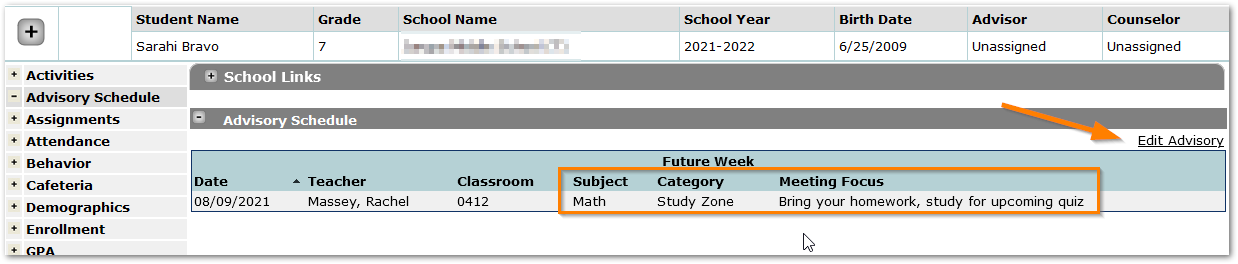
The advisory meeting appears under ‘Advisory Schedule’. Notice the Subject, Category and Focus notes.
To edit their advisory meetings, students click ‘Edit Advisory’.
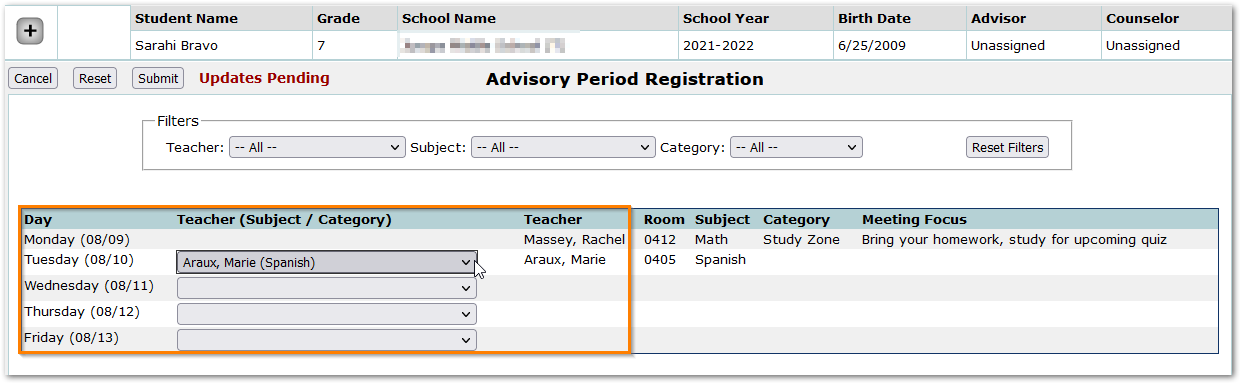
Their assigned meetings appear in the list, and those that are locked may not be changed. For any meetings that are not yet assigned, the student may drop open the list for the day and select a meeting or use the filter fields above to filter by Teacher, Subject or Category, select the meetings and click submit to save their meetings.
