
Q reports with the word Analysis in the report name produce pivot tables. A pivot table is an interactive spreadsheet used to quickly summarize large amounts of data. Users may manipulate the pivot table and “drill down” to view the detailed data that makes up the summarized report.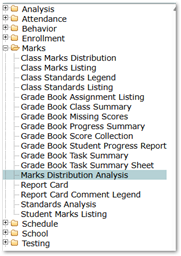
All Q pivot table reports allow users to select from several fields to be displayed as pages, rows, or columns in the report. Once the report is displayed, it can be manipulated to change rows, columns, and filters.
Pivot Table reports are available in the Reports menu. Any report with Analysis in the title opens as a pivot table.
This documentation will utilize the Marks Distribution Analysis report as an example. Marks Distribution Analysis, when run with default settings, displays all marks awarded by a teacher for all students in all of their classes for the selected term.
To generate the report:
- Select a Term and click Export Report.
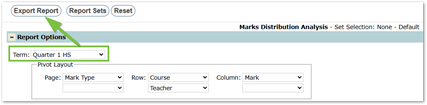
- Once the report is downloaded and displayed, the information may be manipulated.
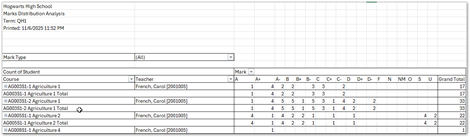
- In this example, a teacher’s class will be selected to display all students who received a mark of C or below.
- To view this information:
- Click the Enable Editing button in Excel.
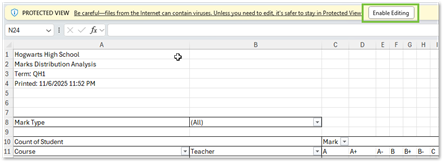
- Click the drop-down arrow next to Course to display the list of all classes.
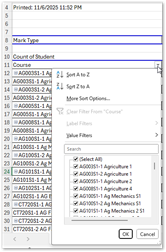
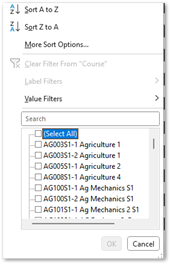
- Uncheck the Select All box.
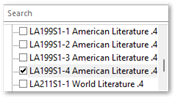
- Check the desired class.
- The report will now show only the selected class and the marks awarded in that class.
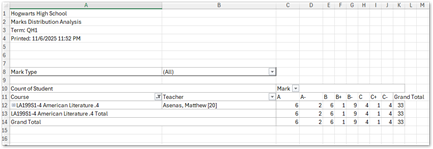
- To filter the marks shown, open the Mark drop-down list and uncheck any marks that should not be displayed.
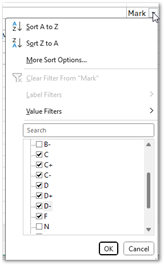
- In this example, only marks of ‘C’ and below remain checked.
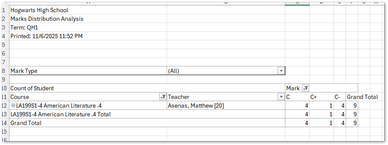
- Double-click any number in the pivot table to “drill down” and display detailed information.


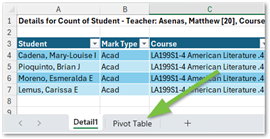
- After double-clicking the cell with ‘4’ highlighted, the student detail will appear on a new sheet.
- At the bottom of the worksheet, click the Pivot Table tab to return to the report.
- Whenever users click on a cell in the pivot table, the Pivot Table Field List displays on the right. This tool may be used to change the rows, columns, and filters of the report by checking a field to select it and dragging it to the desired position among the filter, row, and column areas below the list.
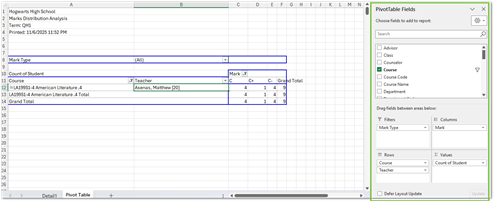
- In this example, Grade has been selected. When checked, it appears in the Rows area at the bottom but can be dragged between the Course and Teacher fields.
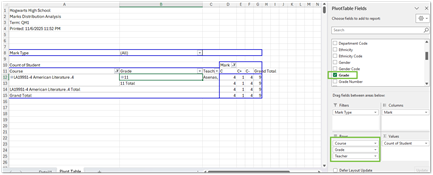
- Tip:
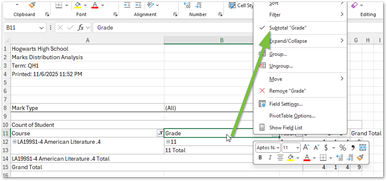
- To declutter the report and remove field subtotals (such as “11 Total,” which is a subtotal of Grade):
- Right-click one of the field subtotals and uncheck Subtotal.
- Click the Enable Editing button in Excel.
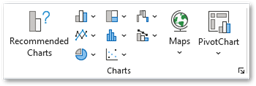
- A chart may be added by highlighting any Total number in the report and clicking a chart type within the Insert Tab. Click the Recommended Charts or Pivot Chart to see the various charts available
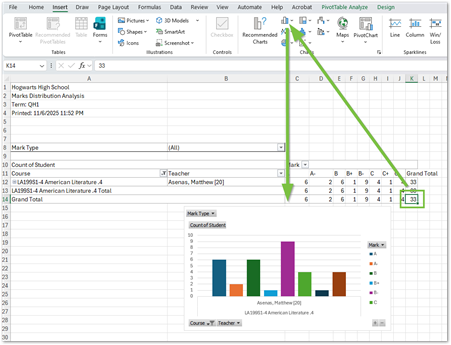
- The chart can also be used to filter results by opening any of the fields that display drop-down arrows.
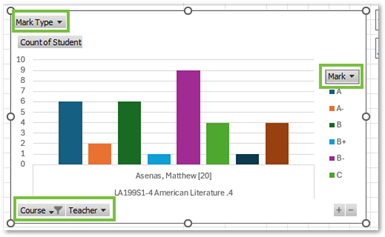
- In the example below, the Marks field is filtered to display only As, Bs, and Cs.
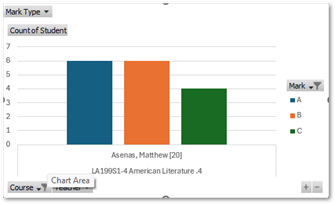
- Users can delete and recreate the chart using a different chart format until they are satisfied with the output.
- Additionally, the chart object may be sized by dragging the corners and copied and pasted into other documents, such as Word or PowerPoint, etc.
