Student Visits allows users to record when a session or interaction occurs between school personnel and a student. These visits can include virtually any type of meeting, interaction, or intervention. Tracking visits helps provide insight into the time spent supporting students across various needs.
Once the application has been launched, users must retrieve and select a student through the Student Banner.
Note
For recording the same type of visit for multiple students (e.g., a coach distributing practice schedules), the Mass Visits application may be more efficient.
Student Visits is located under the Enrollment menu in Q.
After locating the student for whom a visit should be recorded, users can enter the visit details by clicking Add Visit: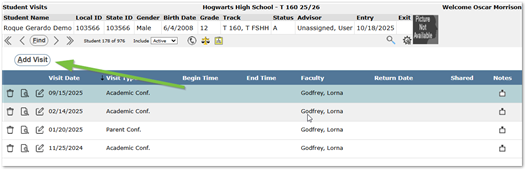
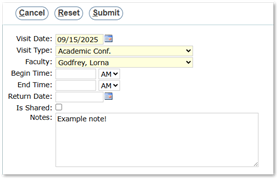
- Visit Date – Defaults to today’s date.
- Visit Type – Available visit types are determined by the user’s permissions.
- Faculty of Record – Defaults to the logged-in user.
- Begin Time and End Time – Enter times in HH:MM AM/PM format (e.g., 02:15 PM).
- Set a Return Date – Allows scheduling a follow-up visit. This field can be used to filter or run reports, such as viewing all scheduled visits for the following week.
- Is Shared – Defaults to off. When unchecked, other users cannot see Notes for the visit, although general visit fields remain visible to users with student access. When checked, Notes and visit details are visible to users.
- Notes – Enter any relevant details for future reference.
Additional district-defined extension data may appear below the notes field.
Once all desired information has been entered: Click Submit to save the visit, Reset to clear all entered data, or Cancel to exit and discard any changes made since the last Submit.
To view a submitted Student Visit:
- Click the record’s row or click the View button.
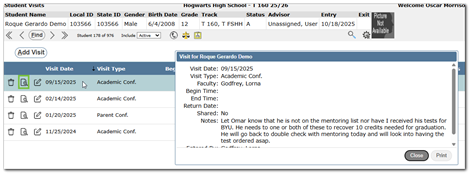
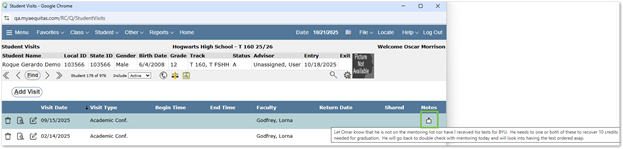
- If a note is present, users can hover over the Note icon to see the attached note.
To edit a submitted Student Visit:
- Click the Edit button, and submit the needed changes
To delete a submitted Student Visit:
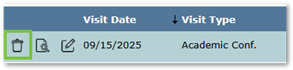
- Click the Delete icon
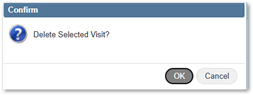
- A message prompt will appear. Users can click OK to delete or Cancel to cancel the deletion process.