
The Staff Manager application allows administrators to manage staff status records and alternate faculty assignments en masse.
The Staff Manager application is located under the Staff menu.
The Track Assignment tab allows users to add or edit status records for multiple staff at once. Records may also be deleted if they are not associated to any classes in the track's master schedule.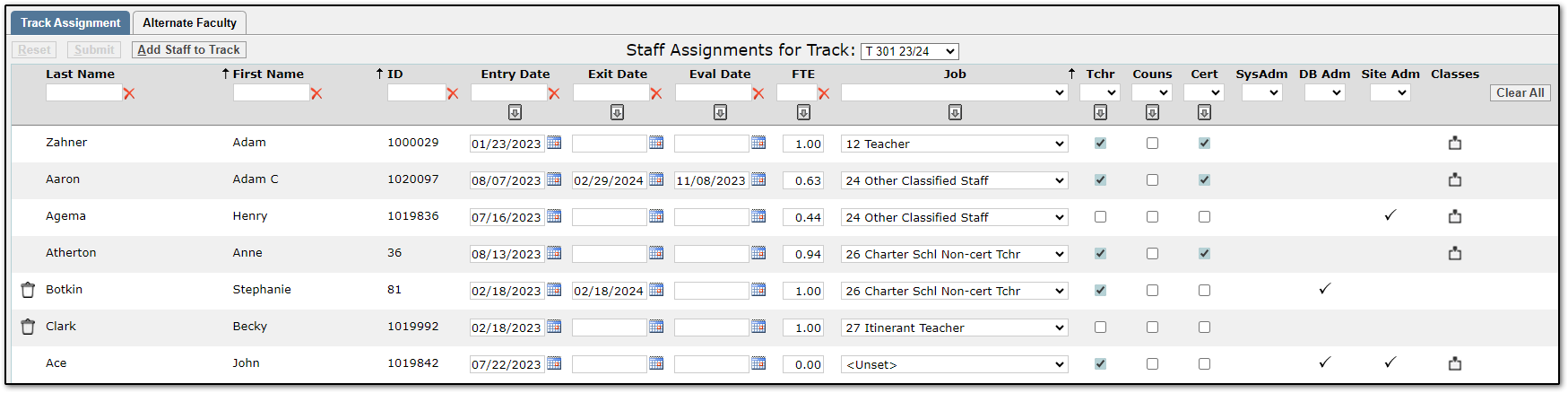
The Staff Assignments for Track drop-down menu at the top controls which track's status records are displayed.
To edit multiple records at once, first use the filters at the top of the columns to filter the display down to the records you want to edit. Then, click the Fill Values button at the top of the column you are editing. The Fill Values window will display:
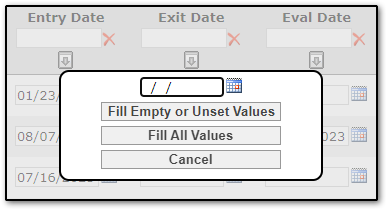
Enter the new value for the records. Click the Fill Empty or Unset Values button if you do not want to override any existing values. Click the Fill All Values button if you want the edits to be applied to every record that you have displayed, regardless of whether a value already exists for a record.
Once you have clicked either Fill button, the Fill Values window disappears and the changes are pending. You can make additional changes or click the Submit button to save your updates.
Status records not associated to classes in the track's master schedule will have a trash icon at the left of the record. Click the trash icon to delete the status record.
Add Staff to Track
To add status records, first select the track you want to add the records to using the Staff Assignments for Track drop-down menu on the Track Assignment tab.
Next, click the Add Staff to Track button. Clicking the button displays the Add Staff Assignments screen and the selected track is displayed at the top:
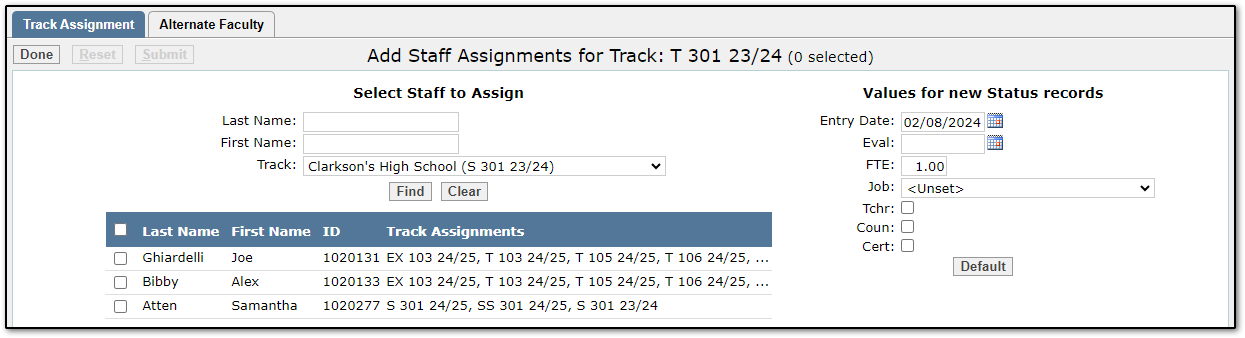
The screen initially loads without any staff members displayed. To display staff, use the Last Name, First Name, and Track filters under Select Staff to Assign. Then, click the Find button. A list of staff members and their current track assignments will display.
Check the box at the left for each staff member that you want to add a status record for. Fill out the 'Values for new Status records' section. The values entered here will be applied to the new status records. If you wish to reset the 'Values for new Status records' section click the Default button.
Once you have selected all the staff members that should receive a status record and completed the 'Values for new Status records' section, click Submit to add the status records. A window displays to confirm the number of records added.
To return to the Track Assignment tab, click the Done button.
The Alternate Faculty tab allows users to add and edit alternate faculty assignments for classes (i.e. long-term substitutes, job share, etc.).
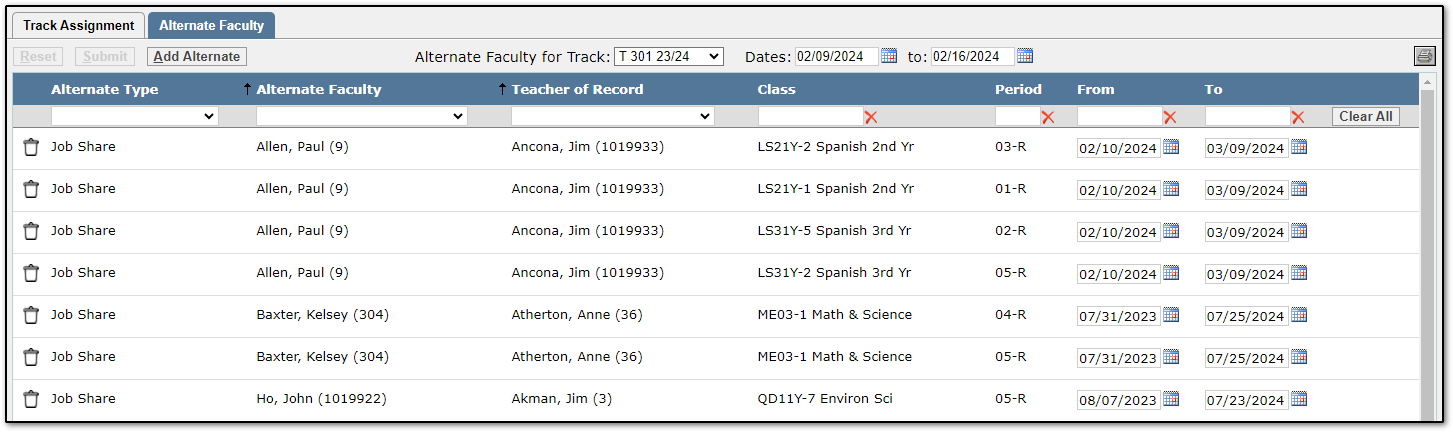 The alternate faculty records to display may be filtered using the Alternate Faculty for Track drop-down menu and date boxes at the top of the application. There are additional filters at the top of each column.
Records may be deleted using the trash icon on the left of each record. The From and To dates may be edited using the date boxes on the right of each record.
Add Alternate
To add alternate faculty to a class click the Add Alternate button. The Add Alternate Faculty screen will load without any classes displayed. To display classes, select the teacher for the classes you want to display from the Teacher of Record drop-down menu at the top.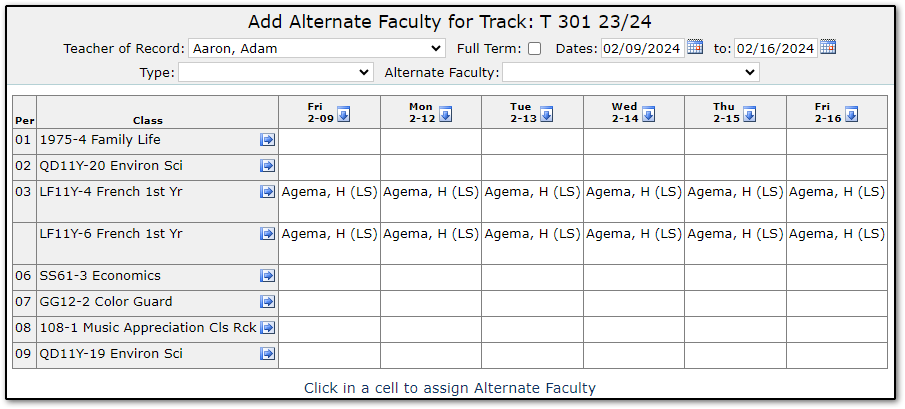
Check the Full Term box if the alternate faculty should be assigned for the full duration of the section. Otherwise, leave the box unchecked and select the dates you wish to display in the grid.
Select the Type and Alternate Faculty member from the drop-down menus at the top.
Note
The Types of Alternate Faculty available to select may be controlled by a District Preference for Staff Manager.
Once you have selected a Teacher of Record, Type, and Alternate Faculty from the drop-down menus, you can click a cell in the grid and the Alternate Faculty will be assigned: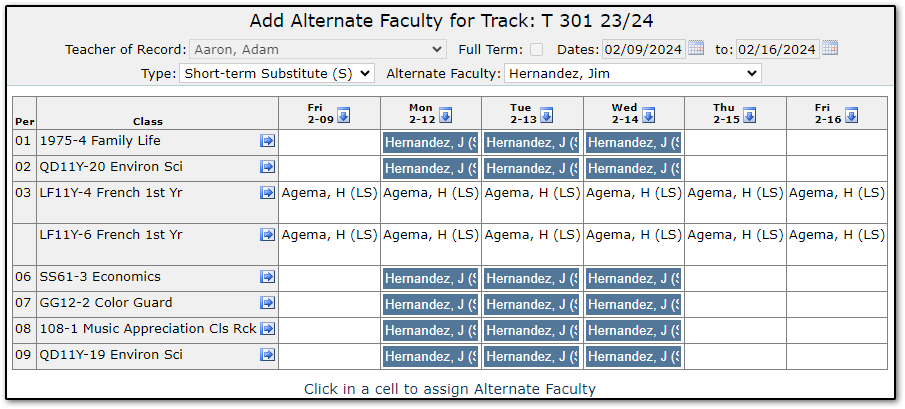 Pending faculty assignments for a short-term substitute. The assignments are for Mon, Tue, and Wed in all periods except period 3.
Cells with pending assignments will change background color. If you wish to unassign a pending assignment, click the cell again and the name and highlighting will be removed. To fill entire rows or columns use the blue arrow fill buttons. Once the assignments are complete click Submit to save the assignments.
