
Today’s Q-tip is looking at Alerts found in the Student Banner. We will take a look at Alert preferences and also how to determine if an Alert is new.
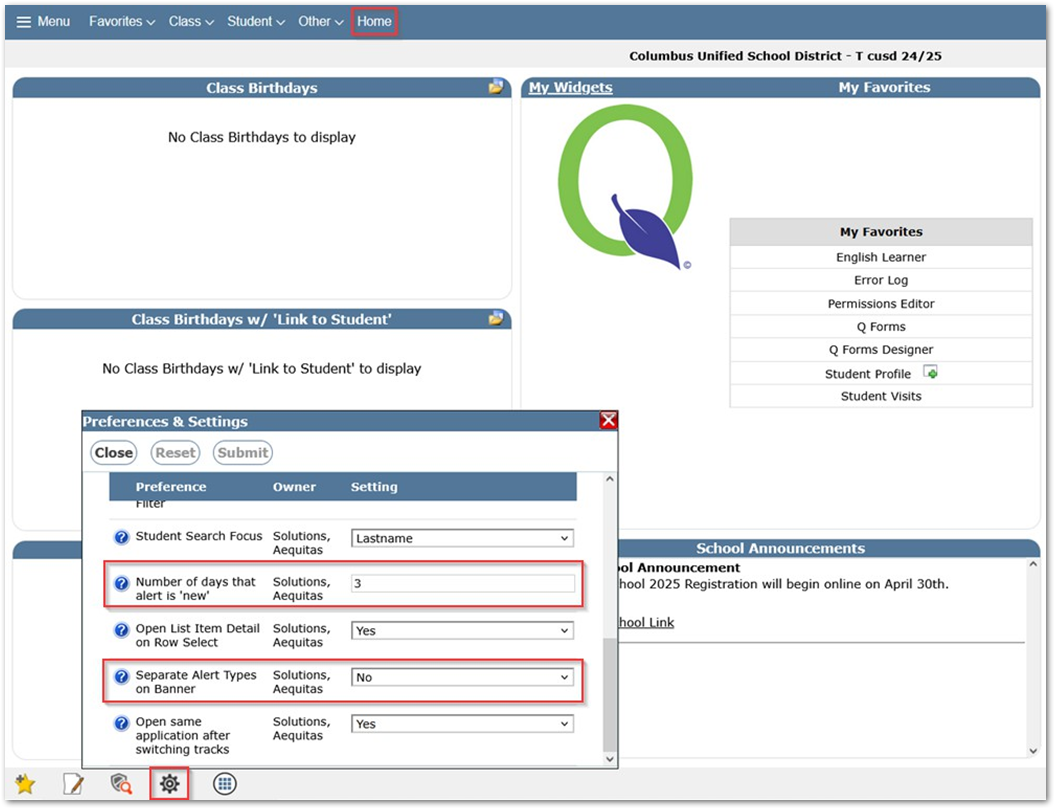
Alert Preferences: On the Home screen in Q, The preference icon (bottom left Gear icon) can be accessed to make changes to Alert preferences.
The ‘Separate Alert Types on Banner’ preference (Yes/No) when set to ‘Yes’ will display Alerts of different kinds in separate icons such as Health or Behavior alerts. When this preference is set to ‘No’, alerts are combined into a Red Stop Sign that groups all alerts of different types. In either case, clicking on the alert symbol will show alert details.
The ‘Number of days that alert is New’ preference will control the number of days an alert is flagged as ‘New’ for users.
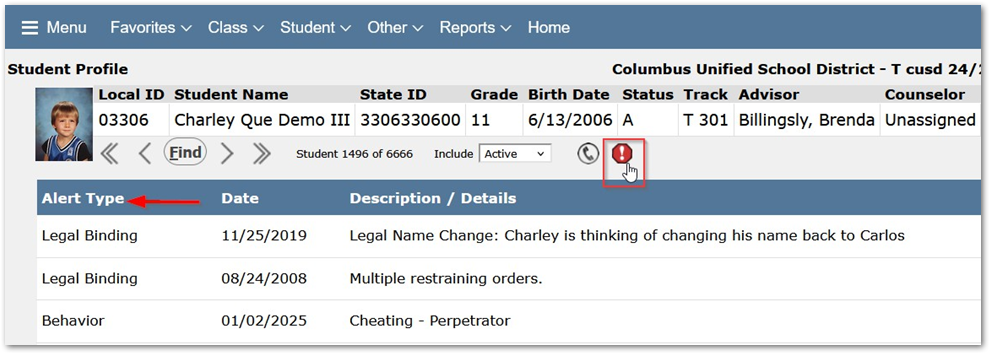
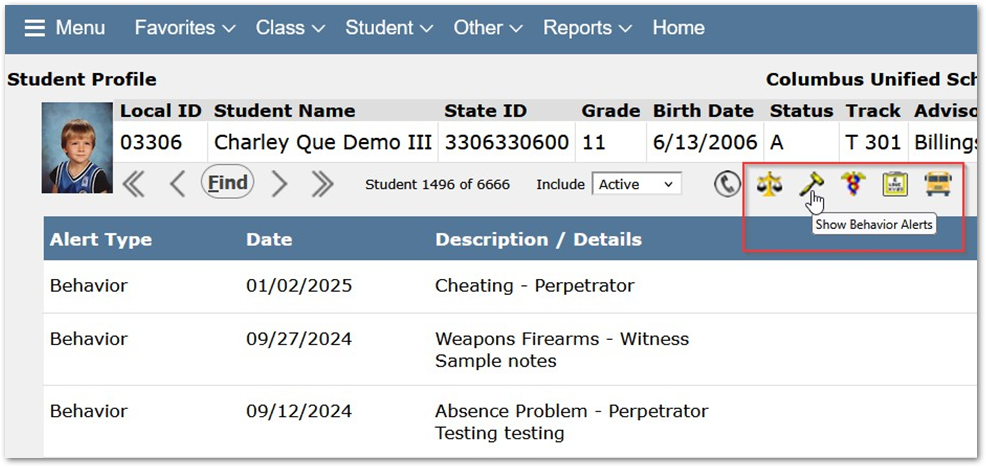
New Alerts: If alerts are combined, the exclamation point in the stop sign icon will appear Yellow instead of White to show that there is a new alert. When alerts have been set to be separated icons, a small red asterisk will appear in the lower right hand corner of a new alert.


