The Student Editor is the key application for managing student enrollment. A student banner application, it is used to enroll new students, edit demographic information for existing students, add and update contacts, and withdraw or transfer students.
Districts may manage enrollment centrally from the district track where they are able to access all students and enroll students in any school. Alternatively, enrollment may be managed at a school level.
Please be aware that each district’s configuration and a user’s permissions may cause some screens to appear differently from those shown below.
Student Editor is located under the Enrollment menu in Q.
Upon launching the Student Editor, we can select from four tabs:
- Maintenance – View & edit information of current students
- Enroll/Withdraw – Manage the enrollment of current students
- Summer School – Manage Summer School enrollment of current students*
- New Student – Enroll new students.
*NOTE: The presence of a Summer School Tab is a district configuration decision. If your screen does not include this tab, then summer school records will be interspersed on the Enroll/Withdraw Tab. 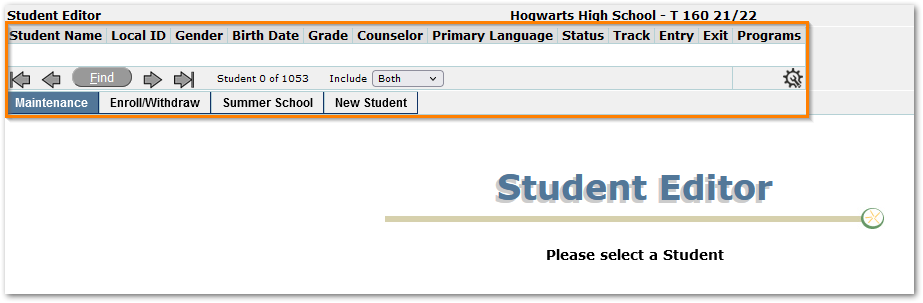
The Student Editor is a student banner application with all the functionality of the student banner. To search for a student, use the ‘Find’ button or use arrow keys to scroll through the students. The Student Editor defaults to showing actively enrolled students. Change the ‘Include’ setting in the banner to select from ‘Active’ Students, ‘Inactive’ Students, or ‘Both’ (Active and Inactive). This setting will be remembered each time the application is launched.
When the Student Editor is opened after working with a student’s record in another Student Banner application, the application will default to that student and open to the Maintenance tab displaying the selected student’s demographic information.
Information areas at left (Demographics, Legal Bindings, etc.), which appear based on the user’s permissions, may be expanded by clicking the plus (+) and collapsed by clicking the minus (-) sign. Once you have maximized an information area, it will remain open as you scroll through students. Click the area name on the left to show detailed corresponding information on the right.
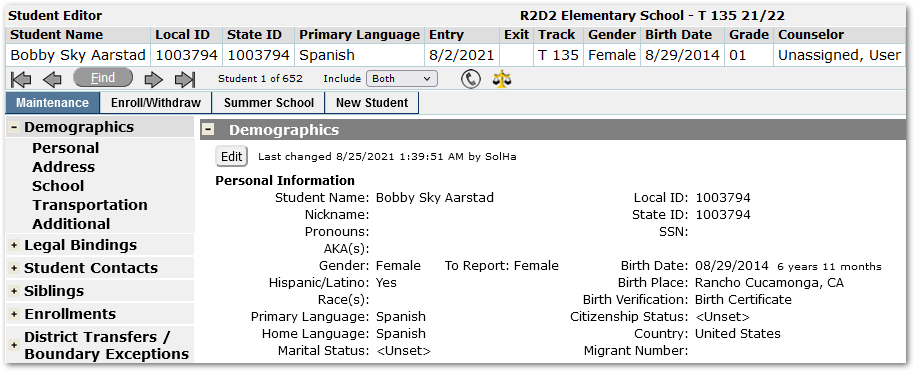
Demographics
To edit a student’s demographic information:
- Select ‘Demographics’ from the list on the left.
- Click the Edit button.
If an Edit button does not appear, the logged-in school may not be the school primarily responsible for the student. This can be verified by comparing the logged in school with the school track showing in the banner ‘Track’ segment and/or reviewing the ‘Enrollments’ data area on the Maintenance tab.
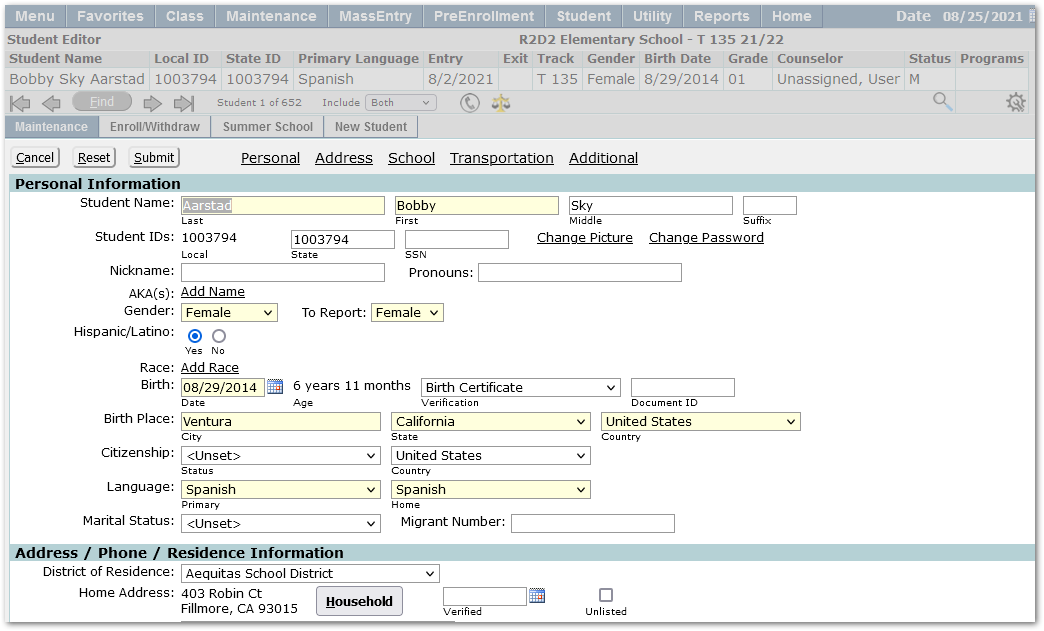
Links (Personal, Address, etc.) across the top are provided for easy access to the different areas of demographic information. Required fields are highlighted. Each district designates required fields during configuration, so the highlighted fields you see may be different from the ones shown here.
Make any desired changes and click submit to save changes.
Add/Edit Student Picture
Individual student photos may be added or changed in Edit mode.
- Click the ‘Change Picture’ link.
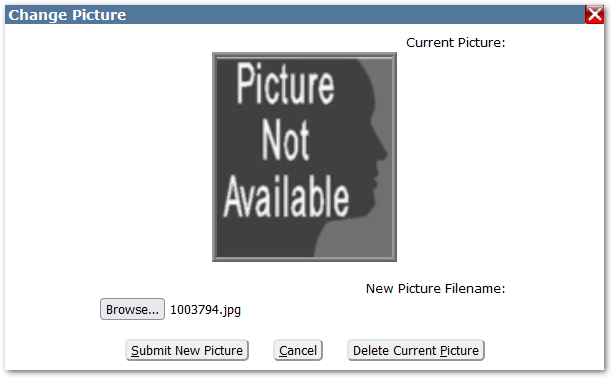
- Browse to find the photo file.
- Click ‘Submit New Picture’.
The photo will appear in the Student Banner when the banner area ‘Student Photos’ is selected using the Configure Banner gear wheel to adjust the visible areas.
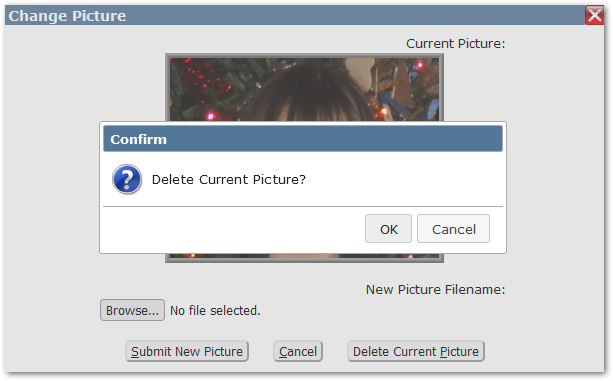
To remove a photo:
- Click ‘Delete Current Picture’ and click OK to confirm the deletion or Cancel to leave the current photo in place.
Legal Bindings
Legal Bindings may be added to convey to staff any legal information such as name change information, adoption, custody, etc. Alerts may be set on Legal Bindings which causes an alert icon to appear in the banner for the date range specified in the record.
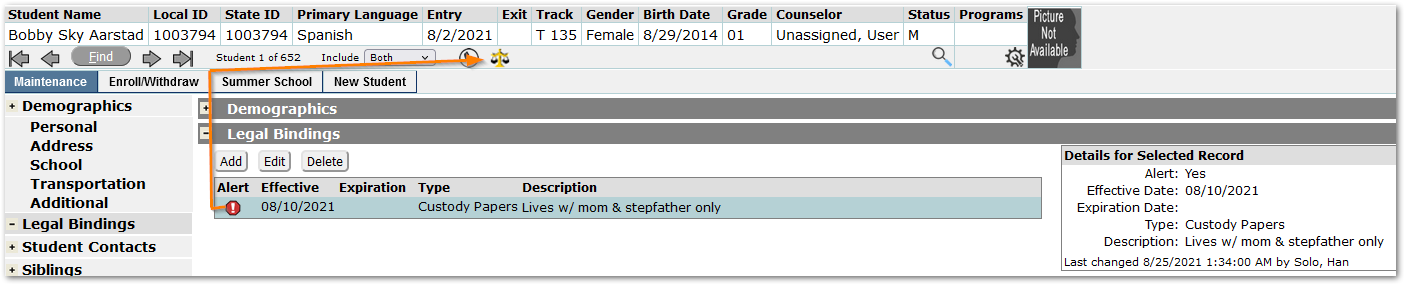
- Click Add.
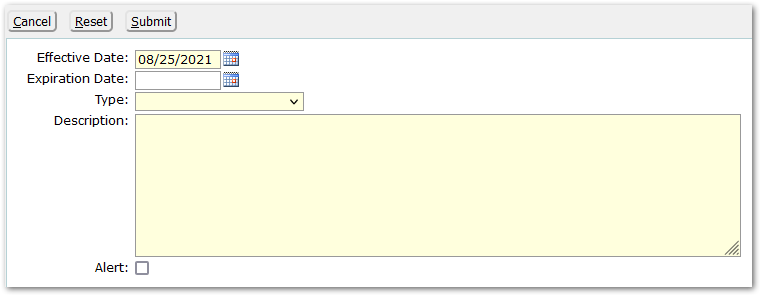
- The Effective Date will default to today’s date. Adjust if appropriate.
- Set an Expiration Date if appropriate.
- Select a Type.
- Legal Binding Types may be specifically set to appear (or not) in the portal. In addition, they may be used to affect the display of nicknames in the banner. See Quick Reference Guide: Name Options.
- Enter a Description.
- Alert - Some Legal Binding Types will automatically have the Alert checked on, others will not. Set the Alert checkbox to have an alert icon appear in the banner. When the Alert icon appears in the banner, the information is visible when the user elects to see it for the period covered by the Effective and Expiration Dates in the record.

Student Contacts
Student Contacts data area may be used to view, add, edit, or delete information for a student’s Primary and Emergency Contacts.
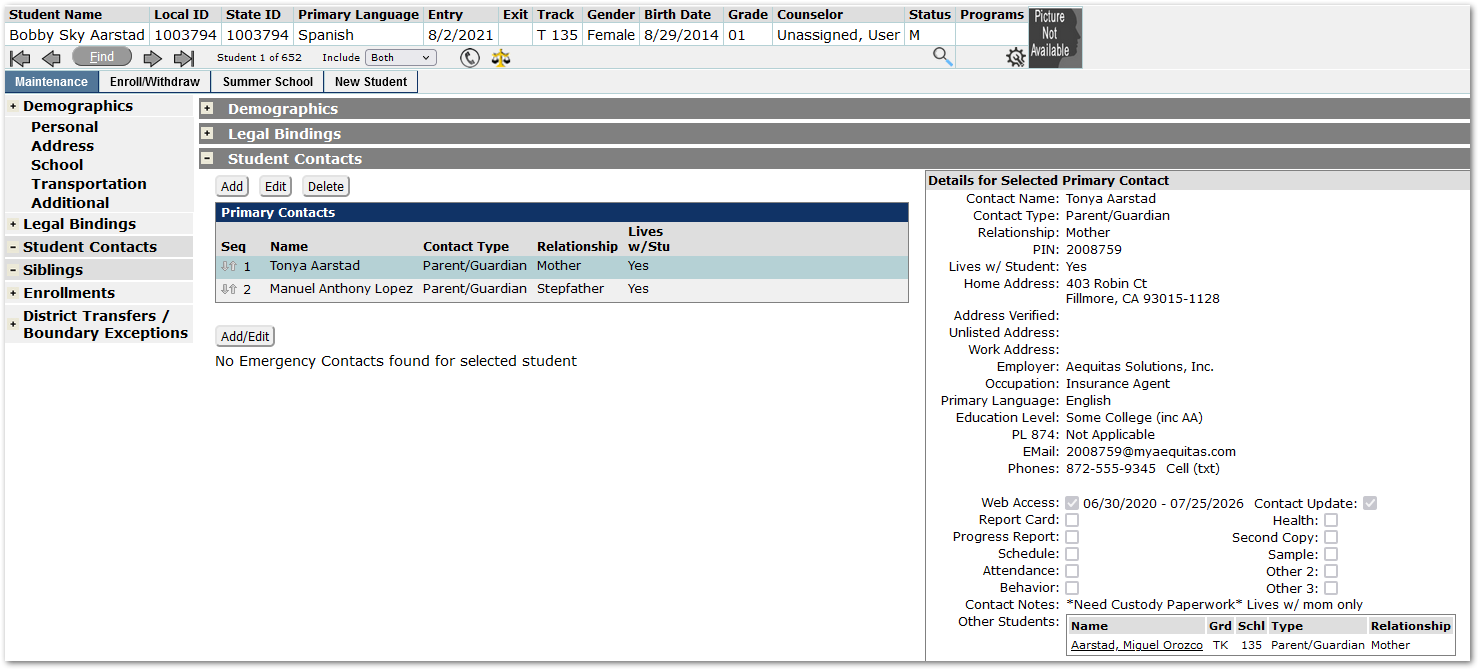
Primary Contacts
A student’s primary contacts are generally their parent or guardian. Each primary contact will have one record in the system and may be associated with multiple students. For each contact, their relationship to the student is defined, and their access to the student’s information through the portal – Parent Connection is established. Contact information forms the basis for identifying siblings.
Sequence
The primary contacts listed for a student have a sequence, which may be changed using mover arrows. Highlight and select a contact, position the cursor over the recorder icon or directional arrows to the left of the contact’s name and drag the record to the desired position. The Primary Contact in the first position, Seq #1 (Tonya) is considered by the sytem to be THE primary contact in situations where only one primary contact is used.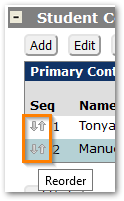
At the bottom of the detail pane for the contact on the right, other students associated with the contact are shown. Clicking the ‘Name’ link will select the linked student.
Use the Edit or Delete buttons to perform those actions for the selected contact.
Add Contact
To add a new primary contact, click Add.
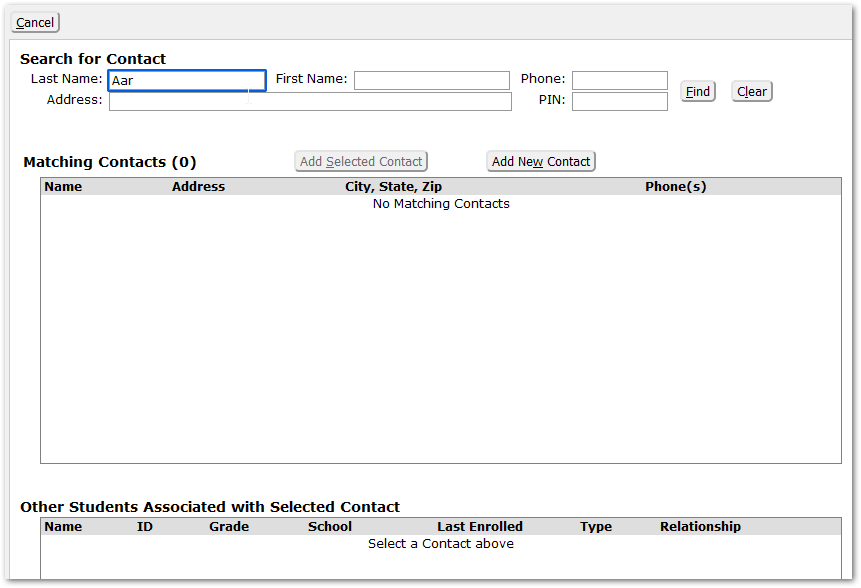
Search for the contact to add by entering a portion of the contact’s name or address or phone or PIN in the appropriate search fields.
- If a matching contact is found, highlight the contact and click ‘Add Selected Contact’ and review their data, making any adjustments needed.
- If no match is found, click ‘Add New Contact’ button and complete the data entry form.
No Matching Contact: Add New Contact Option
When adding a new contact, complete the data entry ensuring that the highlighted required fields are complete.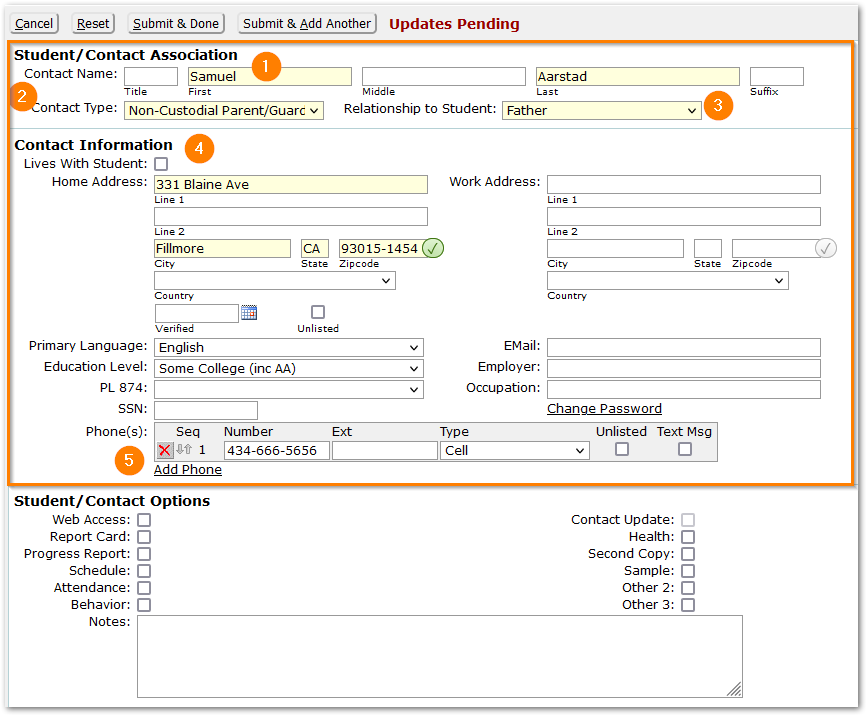
- The name fields will be filled from the data entered during the search for a contact. Check to be sure first letters are capitalized, etc.
- Select the Contact Type.
- Students that have matching contacts where for each student the Contact Type is configured as a ‘Parent/Guardian’ type will be considered siblings.
- Select Relationship.
- Contact Information:
The Contact Information section contains information tied to the contact that when changed, will apply for any associated student.
Home Address:
- If the contact lives with the student, check the ‘Lives With Student’ box. The address will auto populate with the same address information attached to the student.
- If the contact does not live with the student, enter the contact’s address information.
- Additional phone numbers may be added by clicking the ‘Add Phone’ link.
Complete additional Contact Information as directed by your district.
The Student/Contact Options portion of the screen controls communication aspects for the contact.
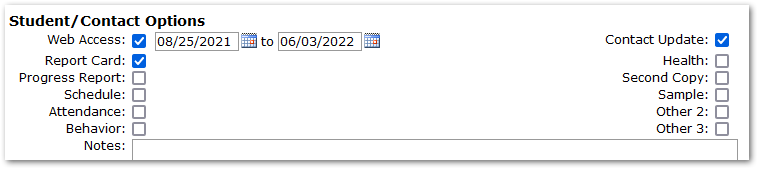
For contacts who are to have access to the student’s information through Parent Connect, check ‘Web Access’ and adjust the dates for access.
The Contact Update flag will default on when Web Access is given. This means the contact is able to update student information in the parent portal. If this is inappropriate for the contact, uncheck it.
The remaining checkboxes are configured by each district to facilitate report mailings for reports like Mailing Labels and Report Cards based on the contact flags. Truancy Tracking and other attendance letters, such as Excessive Absence, allow the user to select which contacts to mail letters to by selecting the flag names.

When finished, either click ‘Submit & Done’ or ‘Submit & Add Another.’
Matching Contact: Add Selected Contact Option
After clicking ‘Add’ to add a contact, and searching for the contact, when a match is found:
- The matching contact is displayed with their information, and
- Other students associated with the contact display below. Use this information to verify it’s the correct match.
- When sure, click ‘Add Selected Contact’.
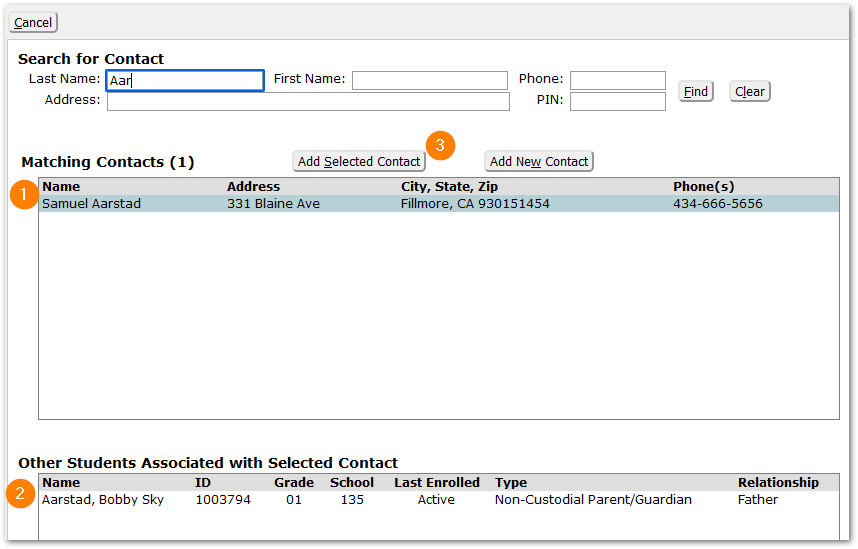
As discussed above under the ‘Add New Contact’ Option:
- Specify ‘Contact Type’ and ‘Relationship’.
- Ensure the ‘Home Address’ and phone numbers are correct.
- Adjust any other Contact Information.
- Set the Student Contact Options indicating:
- Whether the contact is to have Web Access, the dates of access, and ability to update information.
- Set checkboxes for mailing.
- Click either ‘Submit & Done’ or ‘Submit & Add Another’.
Adjust the sequence as needed, discussed in the ‘Sequence’ segment above.
Emergency Contacts
To add or edit Emergency Contacts click the ‘Add/Edit’ button in the Emergency Contacts area. These contacts are usually updated annually, often using Re-Enrollment.
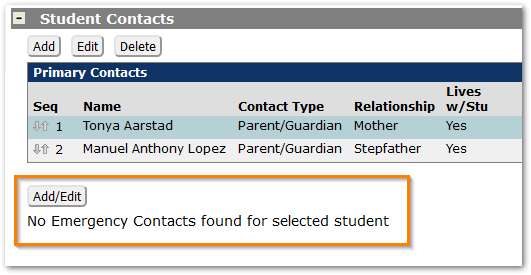
Enter the contact information including name, phone number information, relation, and any notes.
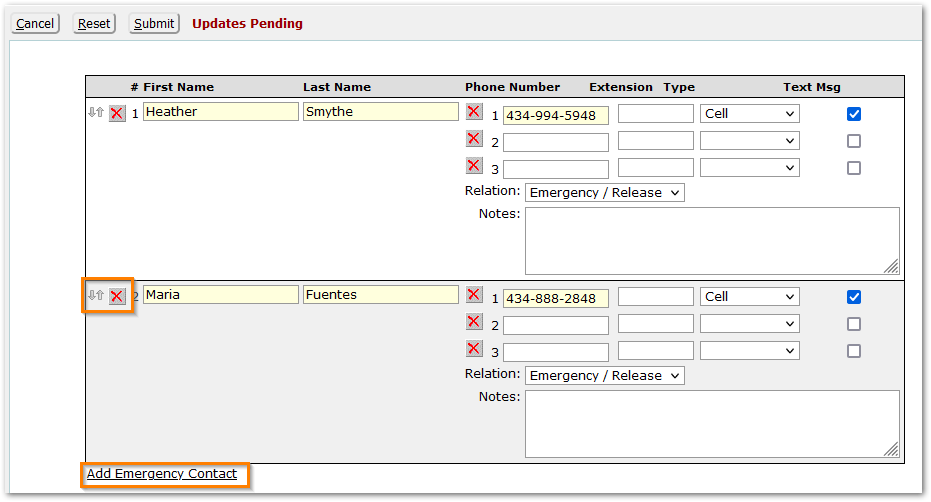
Click the ‘Add Emergency Contact’ link at the bottom to add another.
Use the red X to remove a contact.
Emergency Contacts may be re-sequenced by hovering over the reorder icon (double arrows) to the left of the red X) and dragging the contact into the desired order.
Click ‘Submit’ to save the changes.
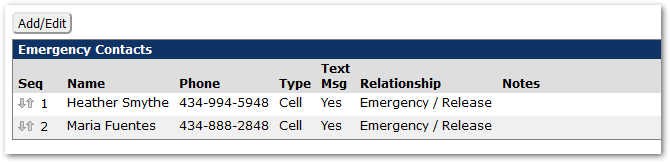
When working with Emergency Contacts for a student with a sibling, a ‘Sibling Emergency Contact’ button appears at the top right after clicking ‘Add/Edit’.
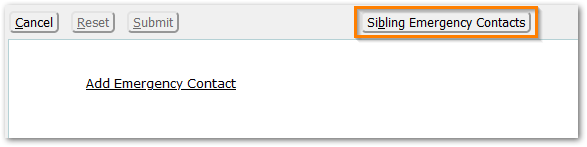
Click ‘Sibling Emergency Contact’ to view and add emergency contacts for the student from their sibling’s set of contacts.
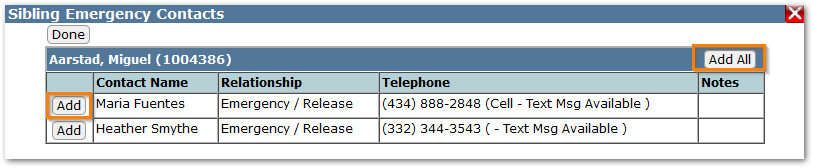
Click ‘Save All’ to save all contacts listed or click individual ‘Save’ buttons to save individual contacts.
Click ‘Done’ when complete. And then click ‘Submit’ again when working with Emergency Contacts is complete.
Siblings
The Siblings band appears automatically whenever multiple students have the same contact and the Contact Type of the contact for each student is configured as a Parent/Guardian.
Note: ‘Other Students’ are listed and linked in the Primary Contact detail pane at right. Click the link in that location to move easily to the linked student.

Enrollments
The Enrollments band shows the history of the student’s enrollment in school tracks over their life in the district. The default sort order of Enrollment records may be set based on a preference. Typically, most recent enrollments default to show at the top, and may be for a future year, as is the case in this example. Clicking on the column headers in the grid, as with most grids in Q, will change the column on which to sort, and clicking it again will change the order from ascending to descending or vice versa. Details for the selected row appear at right.
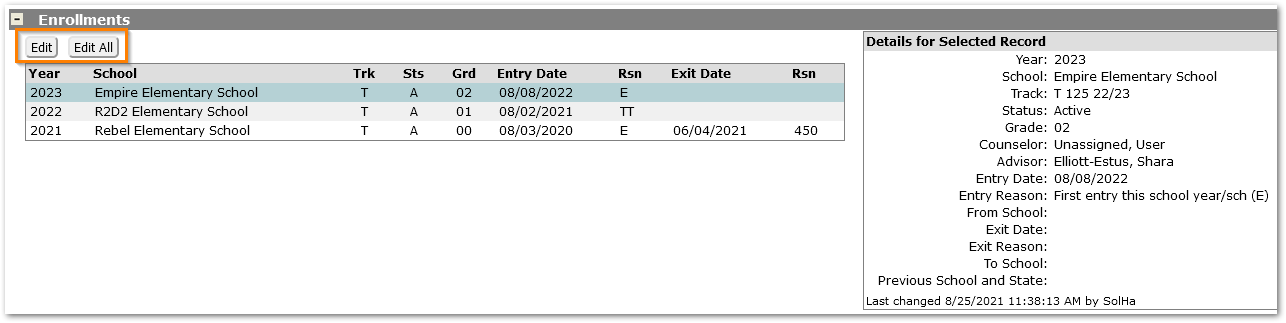
To edit enrollment information for the current year, such as setting the advisor or counselor, changing the entry code, use the ‘Edit’ button.
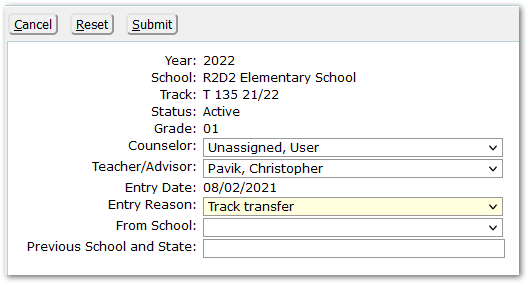
In Edit mode critical enrollment information including year, grade, status, and school is not editable.
If attempting to edit more detailed enrollment information for current year, or if historical enrollment information needs to be changed, select the ‘Edit All’ button. The ‘Edit All’ button is available based on permissions.

When in ‘Edit All’ mode, a student’s enrollment status, grade, and entry/exit dates can be changed if needed. The school year, school, and track may not be edited.
Within the Edit All screen, any completed enrollment record can be deleted after careful review if necessary.
Historical Enrollment records may be added for a student within the Edit All screen by clicking the ‘Add Historical Enrollment’ link. Please be aware the ability to delete enrollment records and add historical enrollment records is available based on permissions.
Status
Active Status vs Part Time Status
Within the enrollments area of the Student Editor, students will have primary enrollment records with a status of ‘A’ signifying ‘Active’ and if there are part-time records, they will have a status of ‘P’, signifying ‘Part-time’.
Note: In the past, to attend more than one school (one as a primary site and another as a part-time student) a student’s status needed to be set to ‘M- Primary site of Multiple Sites’ but this is no longer the case. Any ‘A-Active’ student may have a ‘P-Part-time’ enrollment at another school. So, ‘M’ status may still exist in district records, but no longer needs to be used.
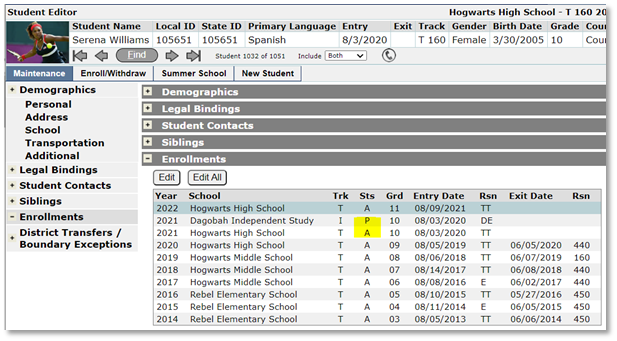
When assigning part time enrollments, it is important to remember all part-time enrollments must be wholly contained within a student’s primary enrollment, unless the part-time track is a Summer School track.
District Transfers / Boundary Exceptions
When a district is using Address Validation and a student’s lives at an address outside the school boundary, the user will be presented with a dialog to add a boundary exception if the student should truly be enrolled at the school while living outside the school’s boundary.
All boundary exceptions that get added for a student can be found in the District Transfers / Boundary Exceptions area in Student Editor.
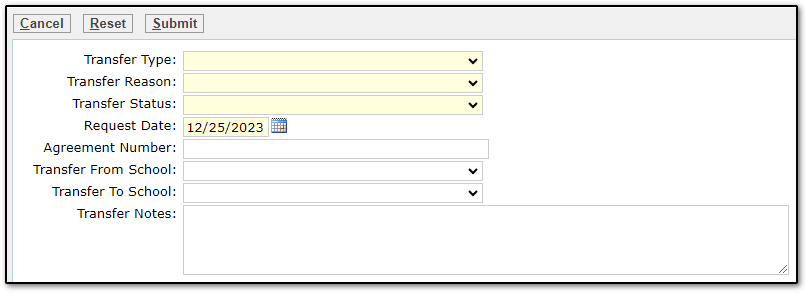
Complete the record ensuring all highlighted required fields are entered and click submit.
Some districts define a pattern for Agreement numbers and others use the date as a code for Agreement numbers.
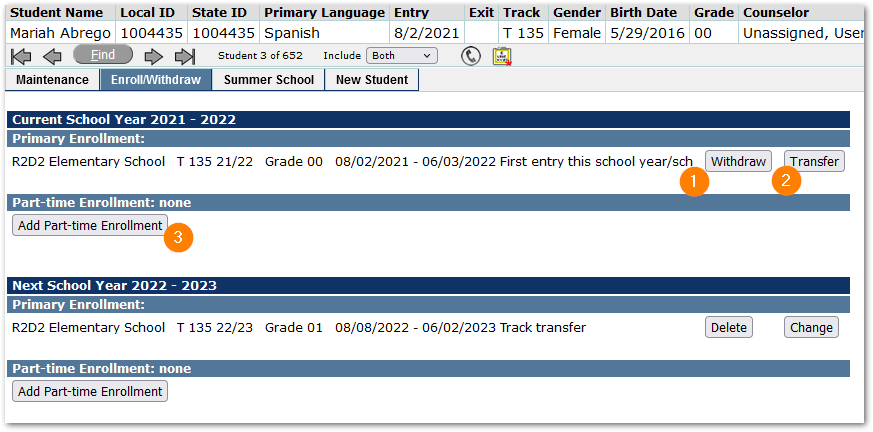
The Enroll/Withdraw tab is used to manage the current and next year enrollments for the student selected in the banner.
- The Withdraw option will close both the primary and any part time enrollment records.
- The Transfer feature allows for a single step transfer of a student’s primary enrollment to another track while maintaining existing part-time record(s) and schedules. When logged into a school, transfer only enables selection of another track from that school. When logged into the district office, all school tracks are available.
- Part-time records may be added for the student at another school.
Withdraw
Students may be withdrawn from an enrollment in a school track from the Student Editor Enroll/Withdraw Tab. Withdrawing a student will close out their enrollment, their schedule records and any program records set to withdraw on exit. Schools may use the Withdrawal Checklist report found under Enrollment Reports to have the student get sign-off from their teachers, library etc. prior to withdrawing.
To withdraw the selected student from their primary enrollment, on the Enroll / Withdraw Tab, for their Primary Enrollment, click Withdraw. 
NOTE: Withdraw/Transfer or Delete/Change
When the student’s entry date for the track is on or prior to Today’s date and the student’s enrollment has already begun, the buttons available are ‘Withdraw’ and ‘Transfer’. But when the entry date is in the future, the buttons will be ‘Delete’ and ‘Change’. In this way, it is possible to delete or change an enrollment that has not yet started for the current year.

Complete the withdrawal:
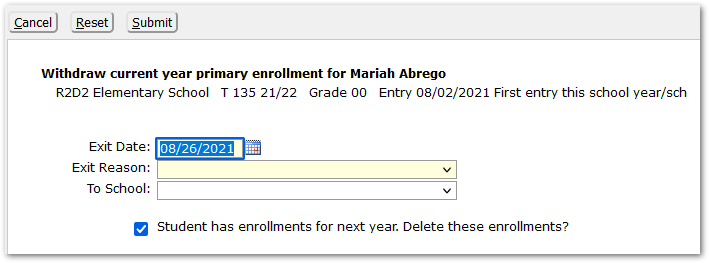
- Adjust the ‘Exit Date’. It will default to today’s date. It should be set to the last day of attendance. If the student’s exit is planned for a future date, enter their planned last day of attendance.
- Enter an ‘Exit Reason’.
- Select a ‘To School’ if known.
- To remove enrollments for next year, accept the checkbox set to delete the enrollments. If the student plans to return for next year, uncheck the box.
The Withdrawal exits the student from all tracks including active and part-time enrollments effective the exit date selected.
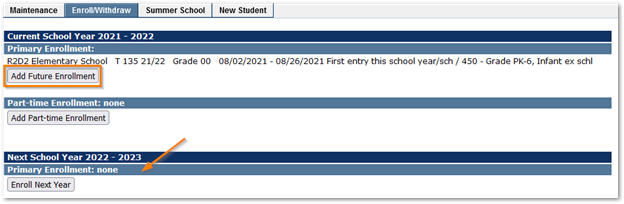
In order to work with a student subsequent to their withdrawal in any Student Banner application, set the ‘Include’ setting to ‘Inactive’ or to ‘Both’ to see both active and inactive students for the current year.
Add Future Enrollment
After saving the withdrawal, note that a new button appears ‘Add Future Enrollment’, shown in the ‘After Withdrawal’ image above.
When a future enrollment is added, the Delete / Change options become available.

Enroll Next Year
To add an enrollment for next year, click the ‘Enroll Next Year’ button under the Next Year band (shown in the After Withdrawal image above) and complete the enrollment form.
Other Withdrawal Scenarios
Part-Time Enrollments
When students have a part-time enrollment, withdrawing their primary enrollment will also withdraw their part-time enrollment. Optionally, only their part-time record may be withdrawn if needed.
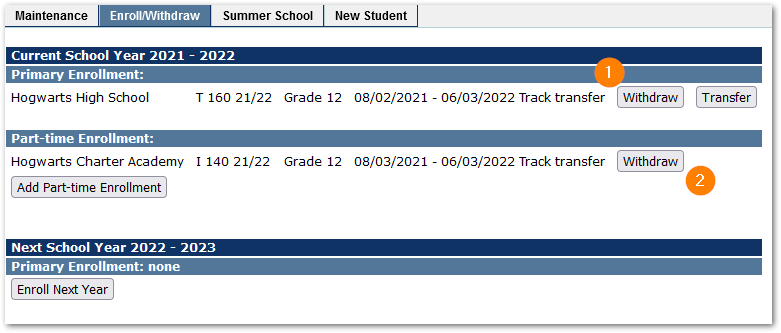
- To withdraw both the primary and part-time enrollment, just click ‘Withdraw’ on the Primary Enrollment band. This step will withdraw both primary and part-time enrollments.
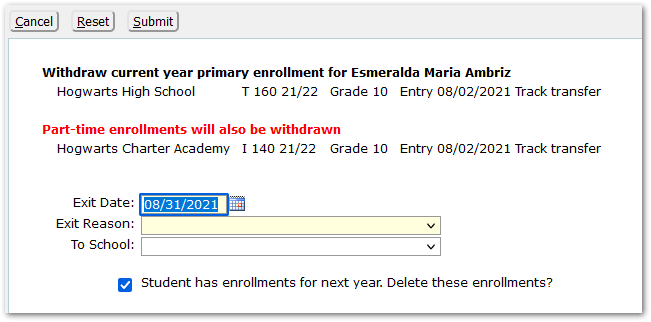
- For a student with a part-time enrollment where only the part-time enrollment needs to be withdrawn, click ‘Withdraw’ on the Part-Time enrollment band and complete the form.
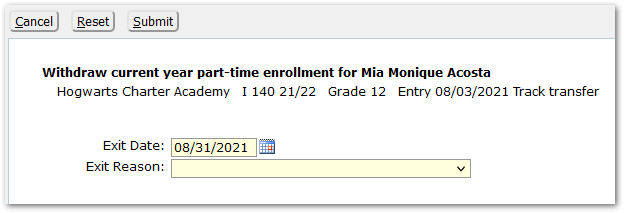
Correcting a Mistake or Change of Plan
If a withdrawal was done in error, or the parents change their minds, it is possible to correct and undo or re-open the enrollment. There are multiple ways to begin to re-open the student’s enrollment. If the student is available in your banner: on the Enroll/Withdraw tab, there will be an ‘Add Future Enrollment’ button if the exit date is today’s date or later, or there will be an ‘Enroll’ button available if the exit date was prior to today. Click either ‘Enroll’ or ‘Add Future Enrollment’, whichever appears.
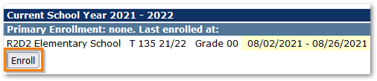
Alternatively, if the student is not available in your banner, from the New Student tab, search for and select the student, click ‘Continue with Selected Student’, and proceed as you would to enroll any existing student, moving through the demographic page to the primary enrollment page.
On the ‘Add Current Year Primary Enrollment’ screen, set the entry date to the day following the exit date, i.e., 8/27 in this example. The application will recognize that you may be attempting to correct a mistaken withdrawal and ask if you want to reopen the previous enrollment along with any schedule and program records that were closed, or if you want to add the new enrollment as it is.
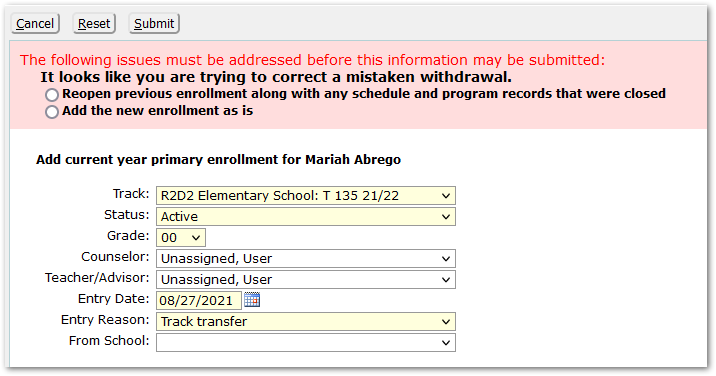
Select the appropriate option and submit to save changes.
Withdrawing a Student Effective on their Entry Date
If we withdraw a student with an exit date matching their entry date, a dialog will ask if you want to withdraw showing the student enrolled for one day, or delete the enrollment record completely. Select the desired option and complete the form.
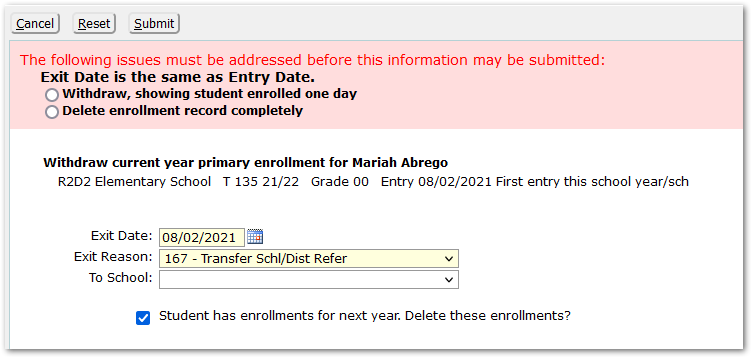
Related Report
The ‘Withdrawal Checklist Report’ is located under Enrollment Reports and may be used as a checklist to gather information on the status of a student who is withdrawing from a school, such as 'Reason for Leaving', 'New Address', 'Next School', latest marks in each class, current standing with the librarian, etc. The form has blank lines for manual entry and the student is typically asked to fill out the form and return it to the office before withdrawing.
Transfer
Traditionally at a school level a student transfers from one school to another in a district by withdrawing from their current school and then enrolling in their new school, but using the Enroll / Withdraw tab, a student may be transferred from one school track to another using the ‘Transfer’ button and completing the Enrollment form for the transfer. Using this method, it is only possible to transfer a student from one school to another when logged into the district track.
If the student has an existing part time enrollment in another track, it does not need to be closed before transferring the student. The student’s existing part time enrollment will remain with the schedule intact.
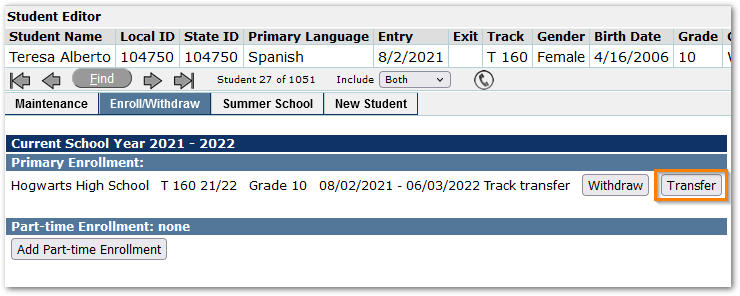
For the selected student, from the Primary Enrollment band, click ‘Transfer’.
When the Transfer button is clicked, a screen displays with Track information for the school the student is transferring ‘From’ on the left-hand side. Fill out the information for the school the student is transferring ‘To’ on the right-hand side.
The Entry date for the student’s new enrollment will default to the system date but may be changed. The exit date for the ‘From’ school track will be the previous day.
Complete the Transfer form, adjusting the track, grade, date, and reasons as needed.
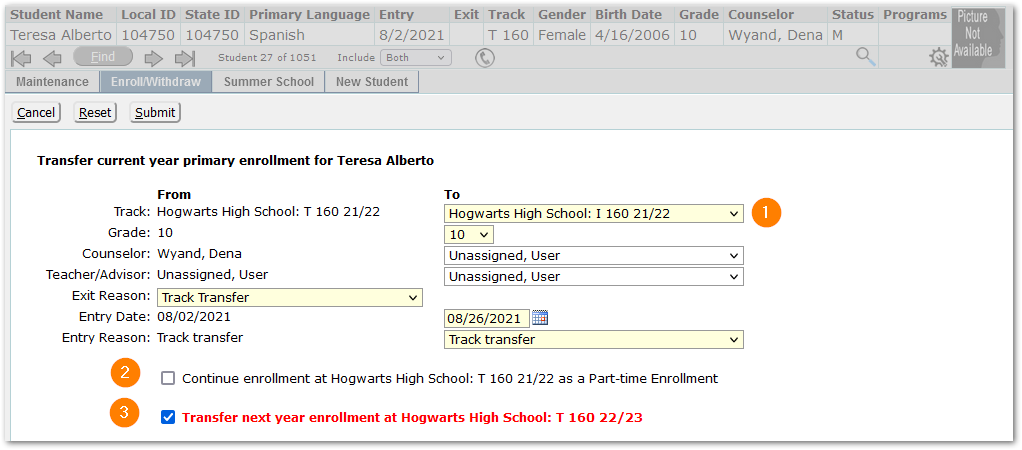
- Select a ‘To’ Track
When logged into a school track
- The only tracks available under ‘To’ will be tracks for the logged-in school.
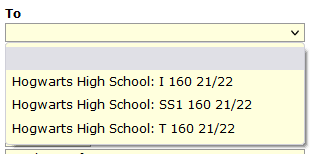
This option may be used in a school, such as a secondary school with multiple tracks, when a student is moving from one track within the school to another.
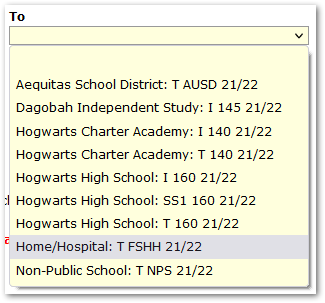
When logged into the District Track
- All school tracks will be available.
- ‘Continue Enrollment at…’ - To enable the student to continue as a part-time student in the current track, check the box ‘Continue enrollment at…’
If the student is not continuing in the current track, the student’s schedule records will be exited as of the date prior the transfer date set.
- ‘Transfer Next Year Enrollment’ - To transfer next year’s enrollment record with the student, leave the ‘Transfer…’ box checked, but if the student is to return to the current track next year, uncheck the transfer box.
- Change of Address - When logged into the District track, the transfer screen will include an option to enable changing the student’s address, if applicable. Click the Household button to change the address.
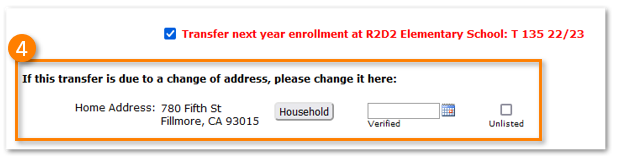
For information on changing household addresses, please see the Quick Reference Guide: Changing Household Addresses.
For districts validating enrollment in a school based on the student’s address and grade, when the student’s address is outside the boundary of the new school, a message like the one below may appear: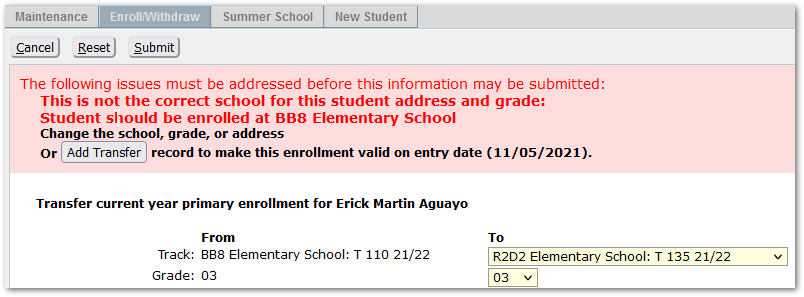
Check and verify that the school, grade, and address are correct, and make appropriate adjustments.
To add a transfer record to make the enrollment valid, click the ‘Add Transfer’ button and complete the form.
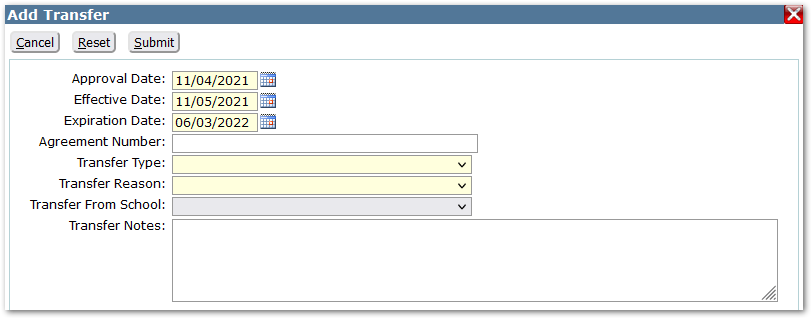
Required fields are highlighted. When the record is completed, the message will indicate that it’s complete, and prompt the user to submit the school transfer record.
After completion, the student’s enrollment records may be viewed or adjusted from the Maintenance Tab / Enrollments area.

The transfer record may be accessed from the District Transfers area at the bottom of the Maintenance Tab. The record may be edited or deleted, and new records added from this area.

See Remote Transfer for information on other options for transferring students.
Add a Part-Time Record
A part-time record for a student in another school may be added for the current or future year by clicking ‘Add Part-time Enrollment’ for the appropriate band and completing the form.
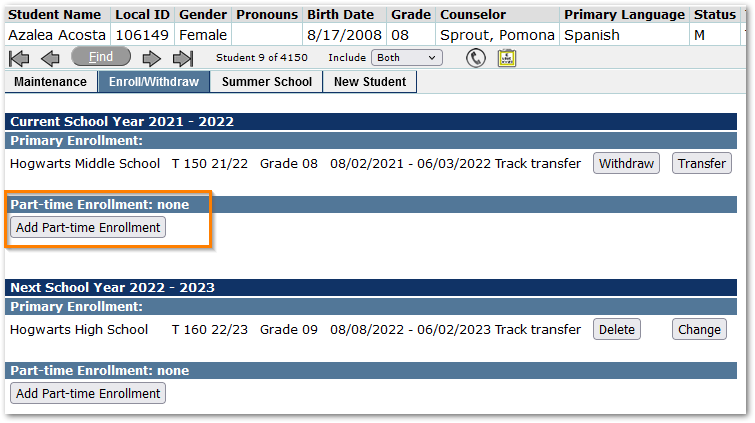
Complete the form. Highlighted fields are required.
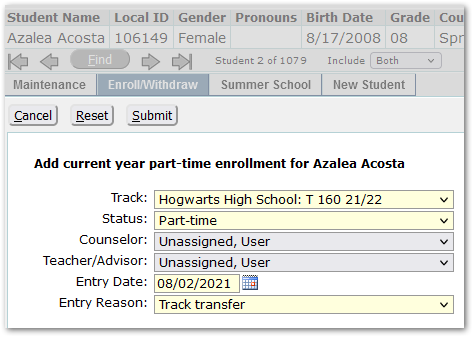
Select a ‘Track’ from the list. While logged into one school, the user is able to select another school for the part-time enrollment. In our example, we are creating a part-time record in the high school for a middle school student who will attend one high school class.
Set the ‘Entry Date’. This will be the first day the student is expected to attend class in the part-time track.
When completed, click ‘Submit’ to save the changes.
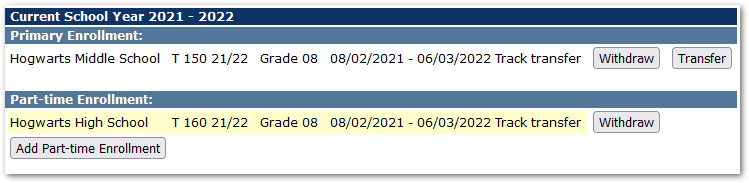
The record will display on the Enroll / Withdraw tab, shown below, as well as on the Enrollment band of the Maintenance tab.
Districts may elect to have a Summer School tab to separate summer school enrollments from other enrollments. This tab has its own permissions and supports districts running summer school either at the beginning or end of a school year by not organizing summer school enrollments based on a Current Year / Next Year timeframe.
If there is not a Summer School tab, these enrollments are interspersed on the Enroll/Withdraw tab.
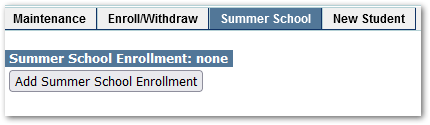
To add a summer school enrollment, from the Summer School tab, click the ‘Add Summer School Enrollment’ button.
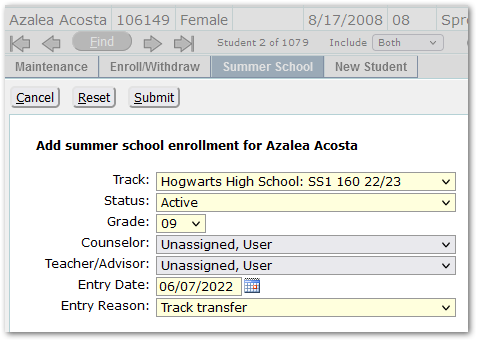
Select the summer school track from the Track drop-down. Only tracks flagged as Summer School tracks will appear in this list.
Set the required fields:
- Status – Enrollment in a summer school track may be an Active enrollment. This was a change from requiring them to be part-time.
- Grade – Set the student’s grade for Summer School.
- Entry date – The first date the student is expected to attend summer school.
- Entry reason – The entry reason for the student attending Summer School.
Optionally set Counselor and Advisor.
Submit the changes when complete.
Enrolling Students
Enroll a Pre-Enrolled Student Video
The first step to enroll a student is to search to find the student in case they had been enrolled in the district in the past, transferred and now may be returning.
It is imperative to do a careful search to avoid adding duplicate students to the database.
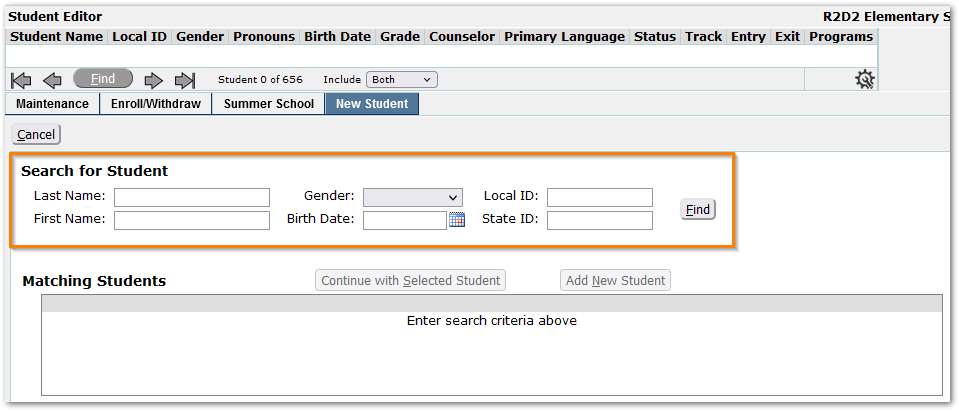
In the Search for Student area, enter a part of the student’s name information in the name fields.
Each district determines the fields required for a new student search. These are set as a preference. It is common to specify Last Name or Last Name and First Name as required. If no preference is set, at least one search field will be required.
NOTE: The percent sign % may be used as a wildcard. For example, ‘%ill’ returns names with ‘ill’ anywhere in the name, so ‘Bill’, ‘Will’ and ‘William’ would all be included in the results.
Use a ‘Less is Best’ approach to searching to ensure seeing results that could include the new student.
To narrow the results, input more criteria, if needed.
Results returned will show:
- Pre-Enrolled students
- Current or previous students that match the criteria entered
- Students with names that sound like the name criteria entered.
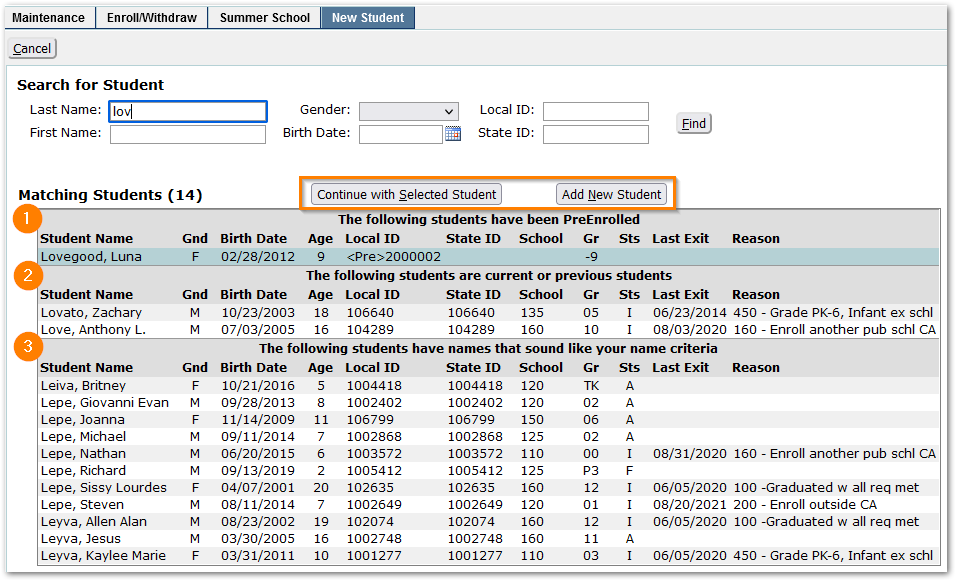
Be sure to review all aspects shown of the student data including Birth Date, Age and Status (Sts).
Status (Sts) Legend
A – Active on the system date. If Last Exit is shown on an Active record, the exit date will be in the future.
I – Inactive on the system date. Last Exit date is prior to the system date.
F – Future enrollment record. Entry date after Today’s date.
N – Non-Student has been registered but is not enrolled in a school track.
A pre-enrolled student will have a blank status and will appear with a <Pre> prefix in the Local ID column.
- When you find a match, highlight the student, and click ‘Continue with Selected Student’ button.
If after thoroughly searching, the student is not found, click ‘Add New Student’.
When is ‘Continue with Selected Student’ Button Enabled?
The ‘Continue with Selected Student’ button is enabled based on the status of the student and the permission of the staff member.
It will be enabled when the student’s status is:
- Inactive
- Pre-Enrolled
Only enabled for staff with permission:
- Future – with permission to Remote Transfer in Next Year
- Active – with permission to Remote Transfer in This Year
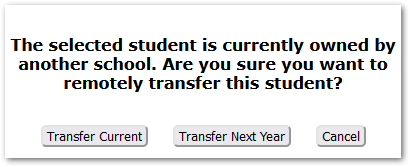
With Remote Transfer permission, when the ‘Continue with Selected Student’ button is clicked, a dialog will appear with options for ‘Transfer Current’ and / or ‘Transfer Next Year’ based on the staff member’s permission. Choose the appropriate option for the transfer.
‘Remote Transfer This Year’ permission is rarely given because it means the user may transfer a student from their current school to another school. But, after districts have run the New Year Initialization process to prepare for next year’s schedules, they may give permission to ‘Remote Transfer in Next Year’. One example of how this is used is for elementary schools who may use ‘Transfer Next Year’ for preschool students who may not be attending a preschool in their neighborhood, and will need to attend their local neighborhood school for kindergarten.
Remote Transfer This Year Permission
With this permission the ‘Transfer Current’ button is available. Using this button will transfer a currently active student from their current school to the selected school track.
Remote Transfer Next Year Permission
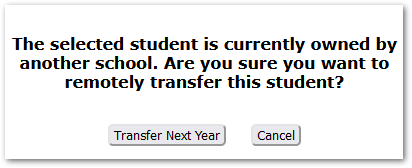
With only this remote transfer permission, only the ‘Transfer Next Year’ button is available and using it will change their next year enrollment record from their current school to the selected school track.
The next step, no matter which option was selected (‘Continue with Selected Student’, any Transfer option, or Add New Student) will involve either entering or reviewing and adjusting the student’s information.
Personal Information
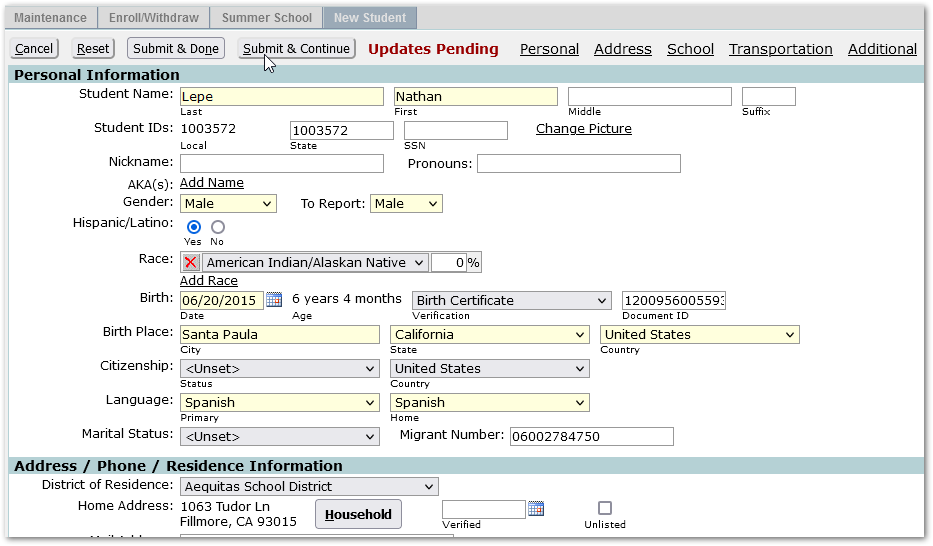
Required fields are highlighted. District policy may affect the way some of these fields are populated. Each district designates required fields during configuration, so the highlighted fields you see may appear different from the ones shown here.
Student Name & Related Fields
- The sequence of student name fields depends on a district preference, so your screen may appear different from the one shown here.
- AKA, or ‘Also Known As’, name may be used to record a student’s legal name, which makes it possible to set in the name fields the name the student would prefer to go by.
- Additionally, Nickname may be used to indicate the student’s nickname and used in conjunction with a legal binding option, their nickname may be made to appear in the banner in parenthesis.
See the Name Options Quick Reference Guide for discussion of these various methods.
Gender Fields
- The Gender set in the Gender field is shown throughout Q and the Gender ‘To Report’ field may be used for State and Federal reporting. It prints on the transcript and may be used by other third-party systems.
ID related fields
- Student ID is automatically set when a student is enrolled.
- State IDs are typically managed by State Reporting processes.
- SSN is rarely used but may be set.
Hispanic/Latino and Race:
- Indicate whether Hispanic/Latino.
- If ‘No’ is chosen, a race field appears with drop down choices. Additional Races can be added as needed by clicking the ‘Add Race’ link.
- Percentages for races may be specified.
Picture
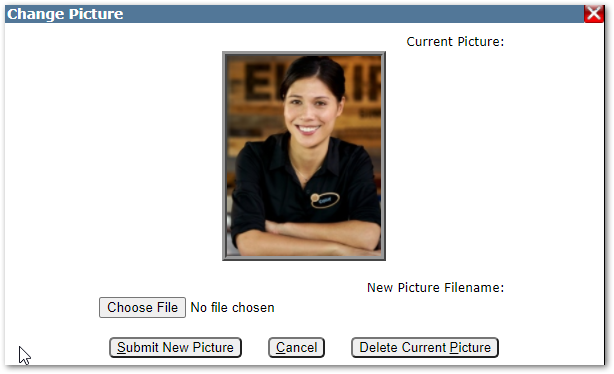
Student images may be mass loaded by districts using the Image Loader application, but in the event of a need to add or update an individual student’s photo, such as for an incoming transfer student:
- Use the ‘Change Picture’ link to add or upload a student photo for the student. The current photo may be removed by clicking ‘Delete Current Picture’ and a new photo uploaded by clicking ‘Choose File’ navigating to and selecting the desired photo and clicking ‘Submit New Picture’.
Birth-related fields
- When birthdate is entered, age is automatically calculated.
- Complete birth-related fields including verification, birthplace information,
Fill in the remaining Personal Information fields with text or select from the drop-down menus.
Address Information
The first field under Address is ‘District of Residence’. It will default to your district. If the student lives outside the district, select the district in which they live, then enter or update the student’s address.
Districts may use different address features including implementing ‘Households’. When the ‘Households’ option is being used, a Household button will appear next to the address like the image shown below, right. In Q a household is a group of people, including students and contacts, living as a family unit at an address.

If there is no Household button, enter or update the address, as appropriate.
If there is a Household button, to enter or update the student’s address click Household.
Using Households
For a new student without an address:
- Search for the address by entering a portion of the address and click ‘Find’. Use the ‘less is best’ approach in this search and just enter a portion of the street name to catch as many matches as possible.
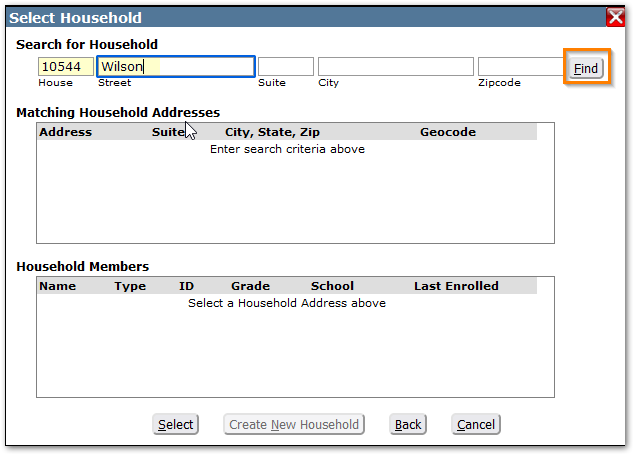
- If matches are found, review household members for all matching addresses to find the student’s family unit, if it exists. In our example, the student’s siblings and parents are associated with the second of two households for this address:
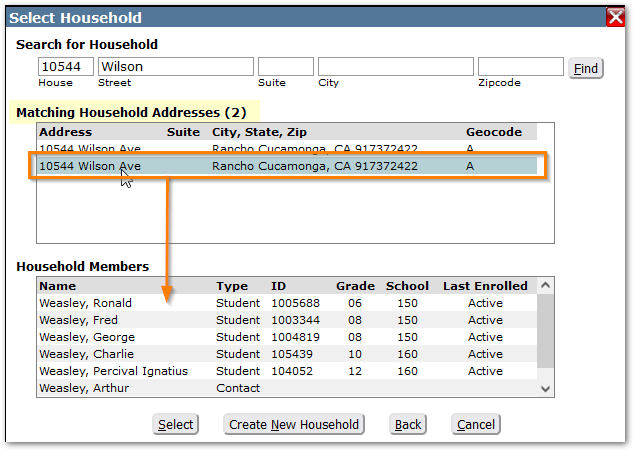
- If the members coincide with the student’s family members, click ‘Select’ to choose the selected household.
Or,
- If no matches were found for the address, or if none of the matched households reflect the student’s family members, click the ‘Create New Household’ button.
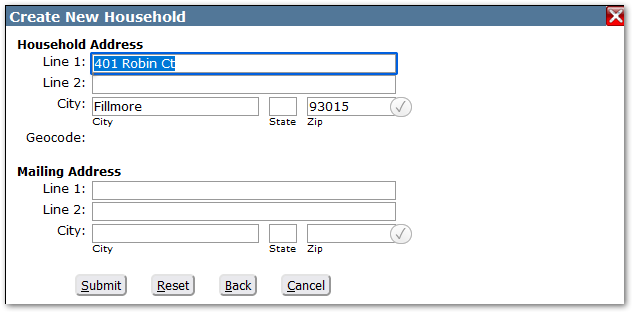
For districts using SmartyStreets, the address will be verified as a valid US Postal address. As the address is entered, valid addresses will appear: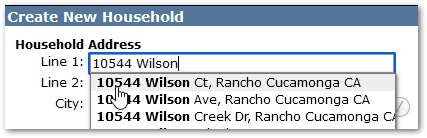
When the address entry is complete, a checkmark will appear to the right of the zip code. If not checked, check it to verify. It will turn green to indicate a verified USPS address is entered.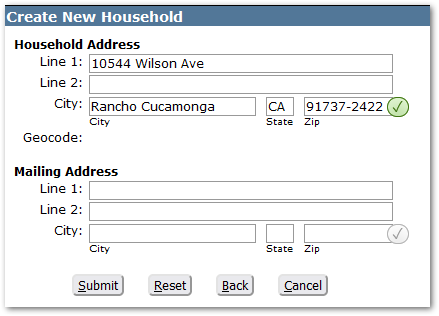
Enter a mailing address if it is different from the street address for the household.
Click Submit when the household address is complete.
For a student with an existing address that needs to be updated:
See Quick Reference Guide: Changing Household Addresses for detailed options.
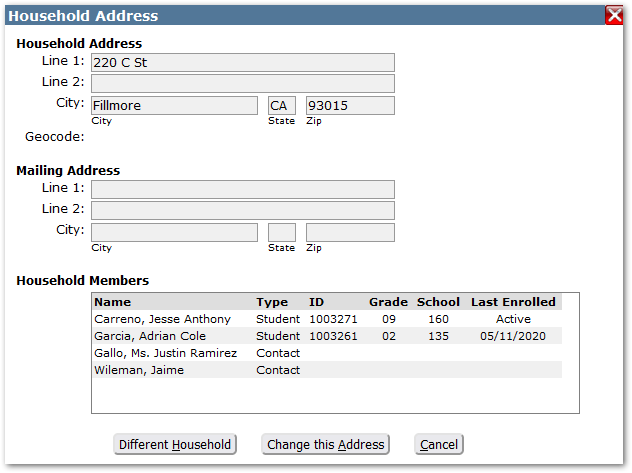
If the entire family has moved or the address needs to be corrected:
- Click ‘Change This Address’ and enter the new address. Addresses for all members of the household and contacts will be changed unless Enrollment Validation is on. When Enrollment Validation is ON, and there are multiple students in the household, changing the address could invalidate other student’s enrollment and each student will need to be moved individually. See Changing Household Addresses for details.
If the student is moving from one household to another, such as in the event of a divorce, then:
- Click ‘Different Household’ and search for the new household address. When matches are found, be sure to verify the members of the household are the expected members before selecting the household. If no household is found, follow the steps outlined above to create a new household.
When the address is complete, notice at the bottom it shows an attendance area for the student's address, in this case ‘Geocode A’. The ‘Geocode’ is also known as the ‘School Attendance Area’. At this stage, ‘School of Residence’ is not yet populated. It will be populated when we enroll the student in a school.
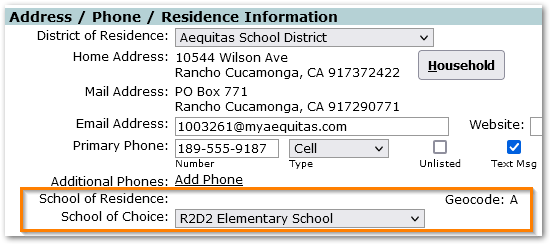
Add or update the remaining fields, including email address, phones, etc.
School and Transportation Information
Complete entering or updating the remaining information.
- ‘Registration Date’ is set automatically when the student first enrolls in the district.
- ‘Graduation Year’ is calculated when the student is enrolled based on their grade. District preferences control whether it’s updated when the grade level changes, and whether it is editable.
- ‘Course Plan’ – Optionally select the Course Plan the student will follow. Course Plans are typically assigned later by a counselor using the Student Course Plan application.
- ‘Graduation Requirement’ – Select the graduation requirements rule the student will follow if known. Counselors may set this later in Student Academic History.
- ‘Membership’ – Membership may optionally be set when applicable. Districts use membership to group students.
- ‘To Be Retained’ – If at the end of the year a student is not to be promoted to the next grade level, check the retain flag.
- ‘Restricted Information’ – Select the type of data that may not be released for the student per parent or guardian instructions.
- ‘Not Ranked’ – Set this flag to exclude the student from all calculations of class rank.
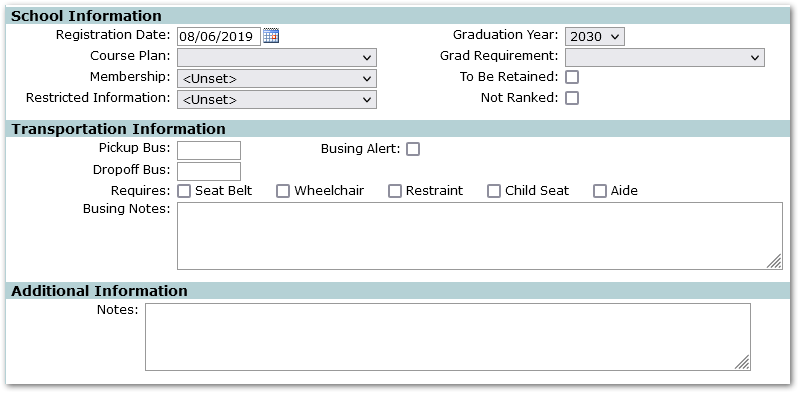
Your screens may show additional fields below ‘Additional Information’. These will be specific to your district.
Submit Options
When all data has been reviewed, updated, and completed, select ‘Submit & Continue’ to save the changes and continue with the student’s enrollment.

‘Submit & Done’ will save the student’s record with your updates, but the student will not yet be enrolled in a school and will be considered a ‘Non-Student’. If you clicked ‘Submit & Done’ and would like to continue later, from the New Student tab search for the student and select ‘Continue with Selected Student’ and proceed again.
Primary Enrollment
The sequence of steps during enrollment may be customized by districts during configuration. Typically, the next step is enrolling the student in a school.
Complete the Primary Enrollment by filling in required, highlighted fields:
- ‘Track’ will default to the logged in track. If logged into the district, select the desired school track.
- ‘Grade’ will be calculated based on the student’s age and the selected track.
- Optionally select ‘Counselor’ and ‘Teacher/Advisor’.
- ‘Entry Date’ will default to the system date. It should be set to the student’s first expected day of attendance.
- Select an appropriate ‘Entry Reason’.
- And optionally select the student’s prior school as their ‘From School’.
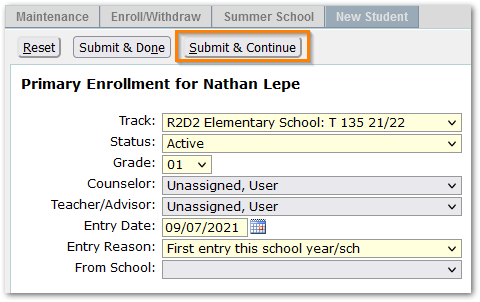
When complete, click ‘Submit & Continue’ to move to the next step in the enrollment process.
NOTE: If Enrollment Validation is on, and the student’s address is outside the boundary for the selected school track, a message like this one will appear: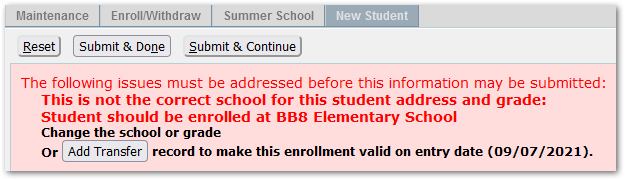
If the address entered was correct, verify the selected school track and grade are correct.
If all is correct, click ‘Add Transfer’ to create a District Transfer record to make the enrollment valid.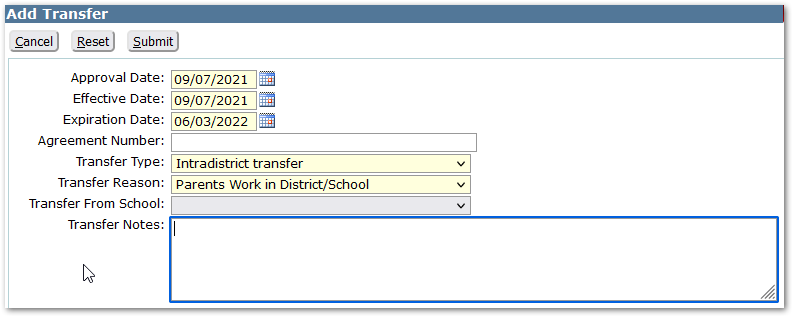
Complete the form, ensuring all required highlighted fields are completed and click submit to save the record.
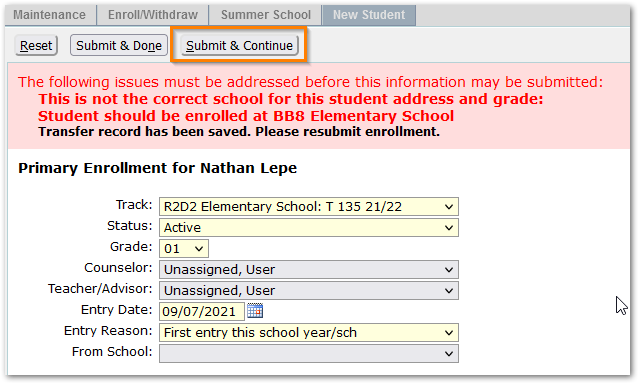
As the message indicates, when the record has been saved, resubmit the enrollment record. Click ‘Submit & Continue’ to proceed to the next enrollment step.
Contacts
The next step in our sample flow, is adding contacts:
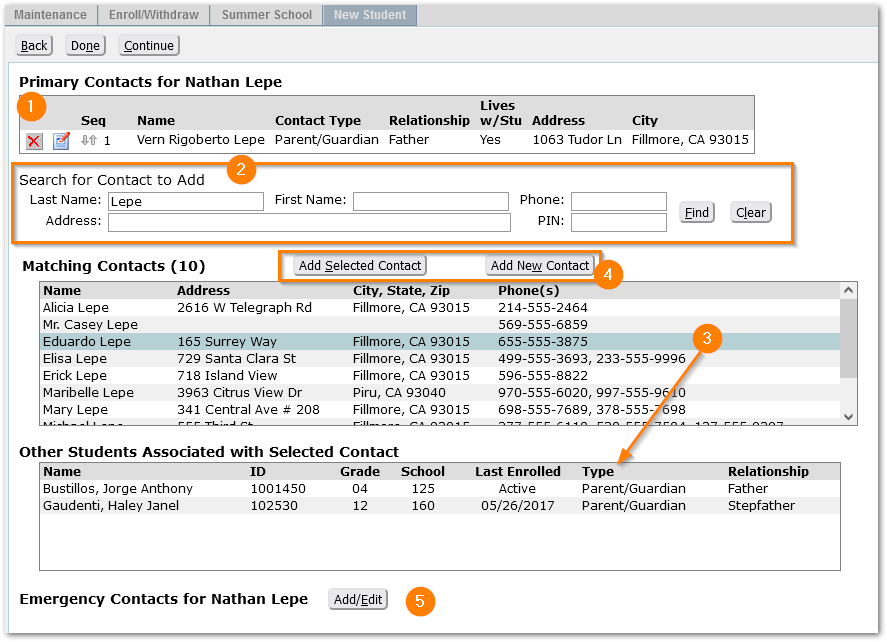
In our example, the student has one primary contact already (1). To add another primary contact, search for the contact using the ‘less is best’ approach (2). Any matching contacts will appear below the search area (3). Be sure to select each match to verify that other students associated with the contact are siblings, etc.
If a correct match is found, use the ‘Add Selected Contact’ button to add the contact to the student’s set of Primary Contacts. If no correct match is found, click ‘Add New Contact’ and proceed to create the contact record (4).
Use the ‘Add/Edit’ button to add Emergency Contacts for the student (5).
See Student Contacts section above for details.
See Quick Reference Guide – Enrolling a Pre-Enrolled Student for information about processing Contacts for Pre-Enrolled students.
Click ‘Continue’ at the top when finished adding / updating all contact information.
Student Documents
If configured, student documents may be added during the enrollment process.
When students have been pre-enrolled, documents parents uploaded may be processed during this step. Quick Reference Guide – Enrolling a Pre-Enrolled Student.
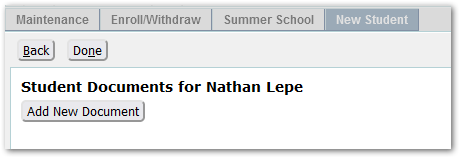
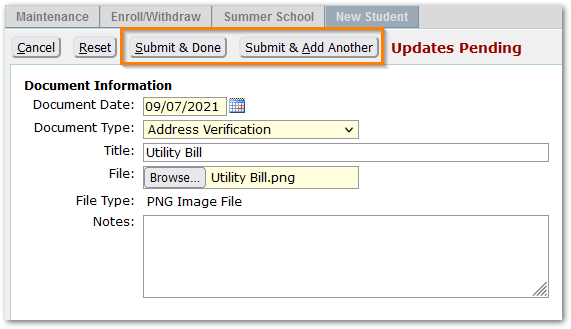
Click ‘Add New Document’ and proceed to complete the form. The ‘Document Date’ will default to the system date but may be adjusted. Select the ‘Document Type’ and enter a ‘Title’. Click the Browse link and navigate to and select the file for uploading. Add any notes.
To submit and add another document, click ‘Submit & Add Another’, or if all documents have been uploaded, click ‘Submit & Done’.
When all documents have been added, click ‘Done’.
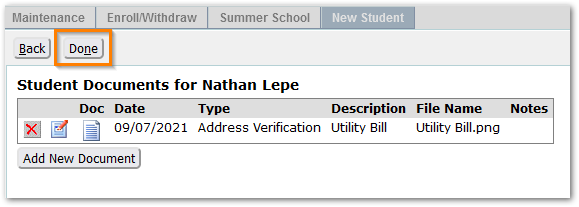
Documents may be accessed from the Student Documents application after the enrollment process is complete.
When ‘Done’ is clicked, the enrollment process is complete.
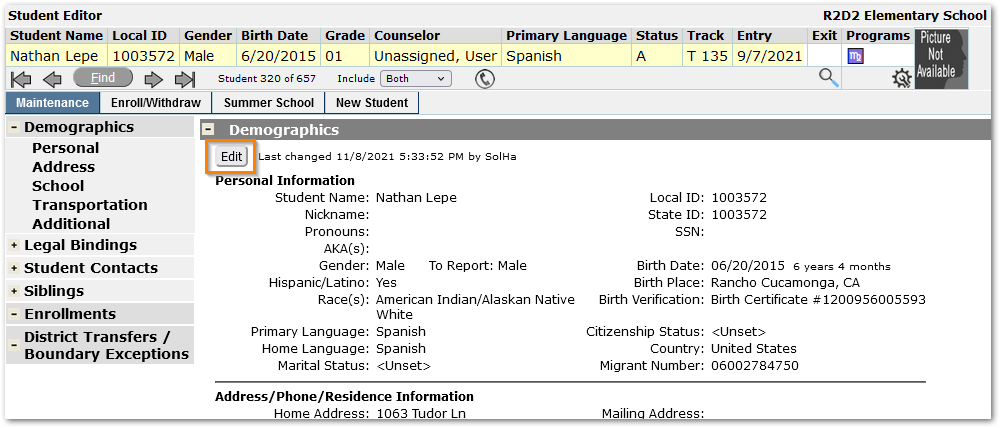
When complete, the student will appear in the banner and their information may be edited by clicking ‘Edit’ in the Demographics area, or from any of the data areas on the Maintenance tab.
NOTES:
Districts may opt to sequence the enrollment steps slightly differently from those documented here and may or may not add any of the following steps:
- Student Documents
- Health Information including Health History, Immunizations, and/or Screenings.
- Programs
| Permission Items | Description | Edit Checkbox |
| Q – StudentEditor [Application] | Provides the Student Editor banner with navigation and the 'Maintenance' tab label but no access to student data. | Not applicable. |
| Q - StudentEditor [Administrator] | This permission item is intended to provide all the other subrights for the Student Editor, except:
In order to provide an Administrative level user ALL rights to the Student Editor, the additional items above need to be added to the permission role also. | When unchecked, edit buttons are removed. User is still able to Enroll/Withdraw existing students and Enroll New Students. |
| Q - StudentEditor [DemographicExtension2] | Provides the ability to permission view and edit access to the data fields on Demographic Extension 2 | When unchecked the data is visible through the Demographics panel, but when in Edit mode, the data fields associated with this Demographic Extension panel are not visible. |
| Q - StudentEditor [DemographicExtension3] | Provides the ability to permission view and edit access to the data fields on Demographic Extension 3 | When unchecked the data is visible through the Demographics panel, but when in Edit mode, the data fields associated with this Demographic Extension panel are not visible. |
| Q - StudentEditor [DemographicExtension4] | Provides the ability to permission view and edit access to the data fields on Demographic Extension 4 | When unchecked the data is visible through the Demographics panel, but when in Edit mode, the data fields associated with this Demographic Extension panel are not visible. |
| Q - StudentEditor [DemographicExtension5] | Provides the ability to permission view and edit access to the data fields on Demographic Extension 5 | When unchecked the data is visible through the Demographics panel, but when in Edit mode, the data fields associated with this Demographic Extension panel are not visible. |
| Q - StudentEditor [Demographics] | Provides the Student Editor application with the Maintenance tab with Demographic data panel. Default includes the ability to edit demographic data for students that are ‘owned’ by the school. For users with access to the District track the ‘Edit’ button will always be available. | When unchecked, the ‘Edit’ button will not be available on the Demographics page. |
| Q - StudentEditor [EditEnrollmentHistory] | Provides, for a user that has the Q - StudentEditor [Enrollments] permission, the Edit All button for Enrollment records. This item is dependent on the ‘Enrollment’ Item to provide functionality. | When unchecked, the ‘Edit All’ button is not available. |
| Q - StudentEditor [EditStateStudentID] | Provides for a user that has the ability to Enroll new or existing students the ability to edit or add a State ID. | When unchecked, the State ID is not editable, only visible, essentially nullifying the permission item. |
| Q - StudentEditor [Enrollments] | Provides for the display of the Enrollments panel on the Maintenance tab. If the “Edit” checkbox for the permission is checked and the student is “owned”, the “Edit” button is displayed and allows editing of those fields of a single enrollment record that do not have business rules associated with them (that is, the entry and exit reasons, counselor, and advisor). The rest of the Enrollment fields can be affected only through the Enroll/Withdraw tab or if the user has the special “EditEnrollmentHistory” permission. | When unchecked, the Edit button is not available. For details of Edit checkbox see description. |
| Q - StudentEditor [EnrollWithdraw] | Provides the Student Editor application with the Maintenance Tab (no access to pages under that tab), and the Enroll/Withdraw tab to manage Current, Future (if applicable), and Part-time enrollment for a student. | Does not apply. The Enroll / Withdraw functionality remains in effect, even when ‘Edit’ is unchecked. |
| Q - StudentEditor [NewStudent] | Provides the Student Editor application with the Maintenance tab (no access to pages under that tab), and the New Student tab with the ability to search for existing students, enroll inactive students (whose grade level corresponds to the school) or add new students. | Does not apply. The New Student functionality remains in effect, when ‘Edit’ is unchecked. |
| Q - StudentEditor [RemoteTransferInThisYear] | Provides, for a user that has the Q - StudentEditor [NewStudent] permission, the ability to remotely transfer into the school, from another school, currently active students in the same grade range as the school. The option is also provided to Transfer next year enrollment at the same time. If the user only has the RemoteTransferinThisYear permission if they log in to a future track the only way they can transfer a future enrollment is to transfer the student’s current year enrollment and check the box Transfer next year enrollment Users who need to remote transfer students in both the current school year and future years should be given both Remote Transfer permissions. This item is dependent on the ‘NewStudent’ Item to provide functionality. | When unchecked, the ‘Continue with Selected Student’ link or button is inactivated, essentially disabling the permission item and rendering it identical to ‘Enroll / Withdraw’ |
| Q – StudentEditor (RemoteTransferInNextYear) | Provides, for a user that has the Q - StudentEditor [NewStudent] permission, the ability to remotely transfer into the school, from another school, records for the next school year only. Current school enrollments may not be transferred. This item is dependent on the ‘NewStudent’ Item to provide functionality | When unchecked, the ‘Continue with Selected Student’ link or button is inactivated, essentially disabling the permission item and rendering it identical to ‘Enroll / Withdraw’. |
| Q - StudentEditor [Siblings] | This item provides the Student Editor application with the Maintenance tab and the Siblings panel. Note: Identification of Siblings requires identifying Contact Types that are parents and guardians. See Sibling Configuration below. | Not applicable. |
| Q - StudentEditor [StudentContacts] | This item provides the Student Editor application with the Maintenance tab and the Student Contacts panel with the ability to Add/Edit/Delete Contacts and Emergency Contacts. | Contact data is viewable only. When unchecked, the ‘Add’, ‘Edit’, and ‘Delete’ buttons are removed along with the ‘Add/Edit’ Emergency Contact button. Contact data is viewable only. |
| Q - StudentEditor [Transfers] | This item provides the Student Editor application with the Maintenance tab and the District Transfers page under it with the ability to Add/Edit/Delete District Transfers. | Transfer data is viewable only. When unchecked, the ‘Add’, ‘Edit’, and ‘Delete’ buttons are removed. |
These SNPREF preferences currently used by the FrontOffice Student Editor are also honored by the Q Student Editor:
- Min Enrollment Age
- Max Student Age
- Edit Year of Graduation
- Edit Student ID
- Hide / Show SSN’s
- Hide State Student ID’s
The preference ‘Status Record display order’ is no longer applicable since application enables users to manage display order through column heading selection.
FrontOffice Preferences affecting Address Validation still apply and are honored by Q Student Editor.
The Q Student Editor honors the snfields ‘Snrequired’ setting for any STUDEMO field available through the application, including but not limited to:
- Home Language
- Primary Language
- Birth Verification
The sequence of steps in the process of enrolling a new student may be customized between five areas: Demographics must be first but Contacts, Enrollment, Programs and Immunizations can be in any order the district desires. This functionality supersedes the legacy Student Editor preferences. The workflow table is called NewStudentProcess.
Sample NewStudentProcess configuration
| StageName | DisplayText | Sequence | isActive | StageOptions |
| NewContacts | Contacts | 3 | 1 | NULL |
| NewDemographics | Demographics | 1 | 1 | NULL |
| NewEnrollment | Enrollment | 2 | 1 | NULL |
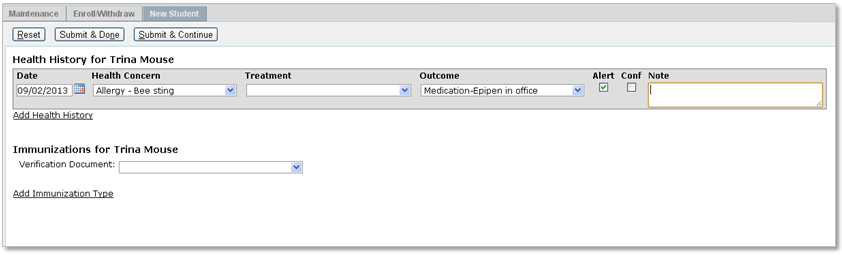
| NewHealth | Health | 4 | 1 | History:Yes, Immunizations:Yes, Screenings:Yes |
| NewPrograms | Programs | 5 | 1 | NULL |
For NewHealth the Stage Options settings enable districts to turn on and off using ‘Yes’ or ‘No’ values the user’s ability to input new student’s medical history, immunizations, and screenings. Screenings will only be available in NewHealth if the preference UseWebHealth is YES and screening definitions have been configured.
Q is moving away from support for ‘F-Future’ Enrollment Status records.
- At this time (Spring 2014), New Year Initialization will create enrollment records for students with ‘F’ – Future status and a blank entry date as it has always done.
- The Q Student Editor will automatically create next year enrollment records with enrollment status of Active or Multiply Enrolled for students that are enrolled into the district after the New Year Initialization process has been run. These status records in next year’s track will have an entry date of the first day of school from the track’s calendar. The F -Future status is still available to assign to students manually. If it is assigned, the entry date will remain blank as it was in the legacy system.
If you are implementing Q Student Editor in the Spring 2014 prior to an update for New Year Initialization, you may wish to post-process next year’s enrollment records and convert them to ‘Active’ or ‘Multiply Enrolled’ to correspond to the records the Q Student Editor will create when users enroll students into the district after New Year processing has been run.
To support identifying siblings, the Contact Type Lookup table has a new column, called ‘isParentGuardian’, to identify contact types as a Parent or Guardian.
Siblings are students that have matching contacts where in each student’s case the contact’s Contact Type is flagged as ‘Is Parent/Guardian’. Examples would be:
In a district where the Contact Types ‘Parent’ and ‘Guardian’ are separate types both flagged as ‘isParentGuardian’:
- Student Michael Smith with contact Helen Oliver where Helen’s Contact Type is Parent
- Student Braden Johnson with contact Helen Oliver where Helen’s Contact Type: Guardian
In this case, Michael and Braden would be identified as siblings.
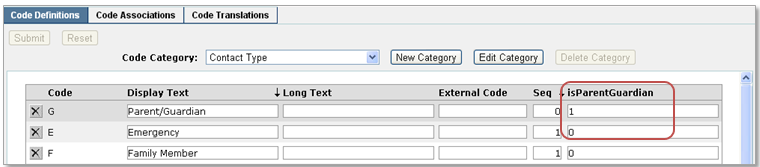
In the Q Lookup application:
- Identify the Contact Types that meet the criteria of Parents/Guardians to take advantage of the Sibling functionality.
- When this step is complete, if permissions to ‘Q Student Editor [Siblings]’ are granted, a Siblings panel will show under the Maintenance tab
There are a set of flags available on the contact screen designed to assist districts to manage communication with student contacts. These flags need to be configured to indicate the report mailings a contact is to receive such as a report card, behavior letters, attendance related mailings, etc. Reports such as Mailing Labels and Report Cards then enable the user to select contacts for printing based on the contact mail flags.
To configure the flags themselves edit the snfields table and make the descript fields for each of the conmail flags of the STUCON table reflect the label the district wishes to see in the application interface. Example values from SNFIELDS:
| Tblname | Fldname | Descript |
| stucon | conmail1 | Report Card |
| stucon | conmail2 | Behavior |
The descriptions may also be configured via the Interface Editor app > By Database Fields tab > Table: stucon.
NOTE: The last two flags (conmail 11 and 12) are reserved for controlling access to Parent Portal and Contact Updater.
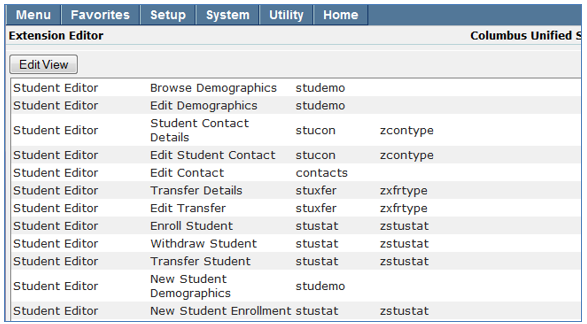
The Q Student Editor has been enhanced to allow districts to use the Extension Editor to create up to 5 extension areas under Demographics. Permissions can be set for the custom Demographics (2 thru 5) independently. We’ve also added the ability to add extension data for Student Contacts, Transfer Details (formerly Boundary Exceptions), Enroll Student, Withdraw Student, Transfer Student and New Student Enrollment.
Legacy User-defined data will need to be entered in as extension data to maintain old user-defined data.