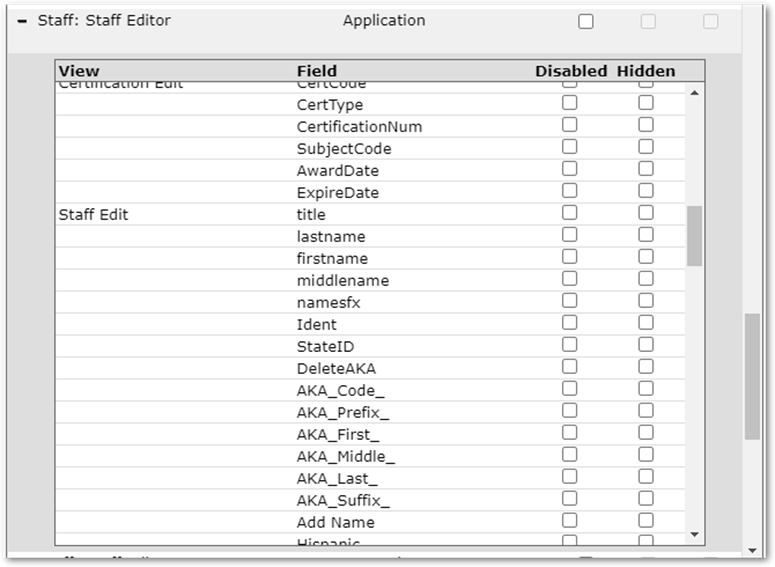
In this Qtip we will look at the field level permissions that are available in both the Student and Staff Editors. Field level permissions allow you to set specific fields to be hidden or marked as Read Only.
In the Permissions Editor navigate to the Roll Restrictions Tab. And using the Restrictions for Role dropdown choose the roll that you would like to change the Field Level permissions. In this example we will be looking at the Principle/ Office Manger role at the school level.
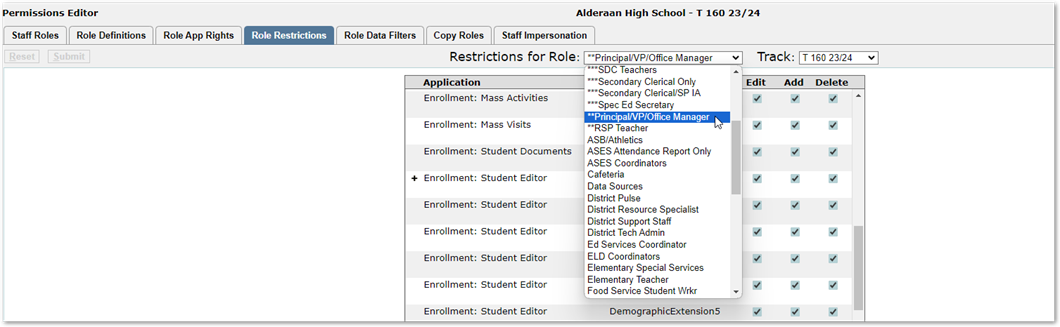
Next to the Enrollment: Student Editor Application you will see a Plus (+) sign. Click on that line and a box will open.
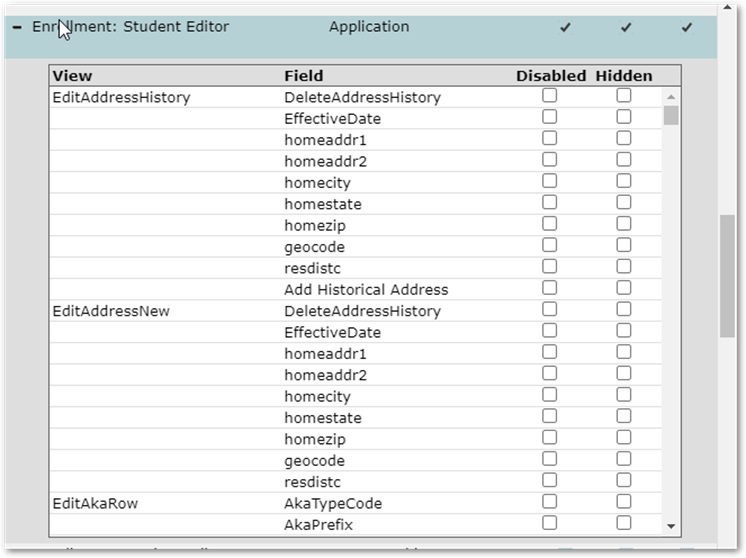
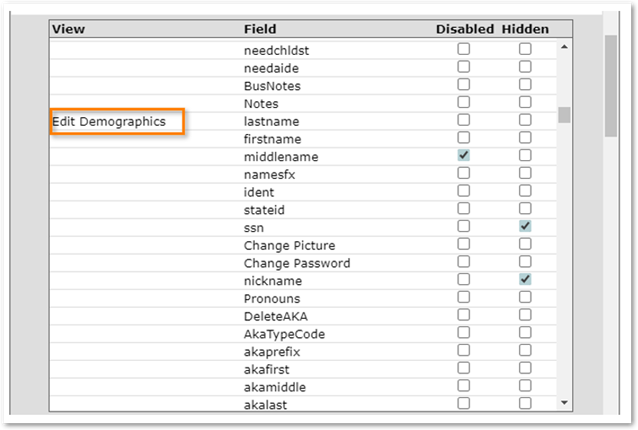
The box is laid out like this.
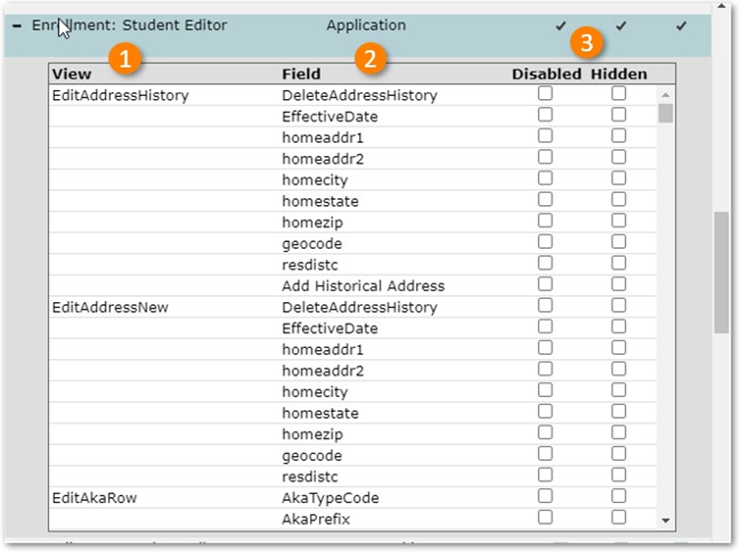
- View: The section of Student Editor that the fields are located in. Show in the image above is the Address History pop out, and the Edit New Addresses.
- Field: The specific fields that are available to Disable (make Read Only) or make Hidden.
- Mark Disabled or Hidden: Fields flagged Disabled will be viewed but not able to be edited by users in the role. Fields flagged as Hidden will be hidden from the User.
In this example we will Disable Middle Name field under Edit Demographics. We will also Hide the SSN and Nickname fields.
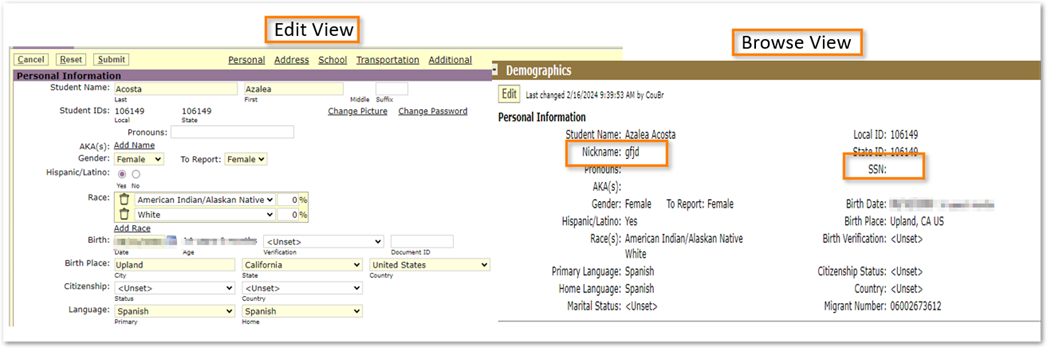
When I log in as a staff member in the role that I am adding these restrictions and click on the Edit button in the Student Editor. I can no longer Edit the Middle Name and I cannot even see the SSN or Nickname fields. But I can still see all those fields in the Browse View (view of Student Demographics before clicking the Edit button).
Field level permissions are also included for the Staff Editor for Viewing, editing, and adding Staff members.