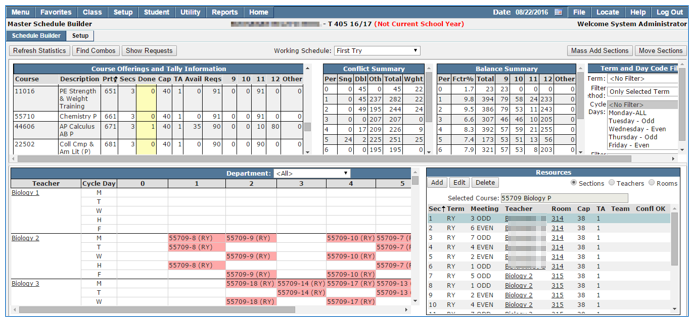
The Q Master Schedule Builder application provides School Administrators a computer-assisted method to create a master schedule that accommodates all student requests, with no schedule conflicts and perfect section balance. The Builder uses the number of student course requests in conjunction with the number of sections to be built, to suggest the optimum placement of sections by offering real time conflict and balance statistics as class sections are placed.
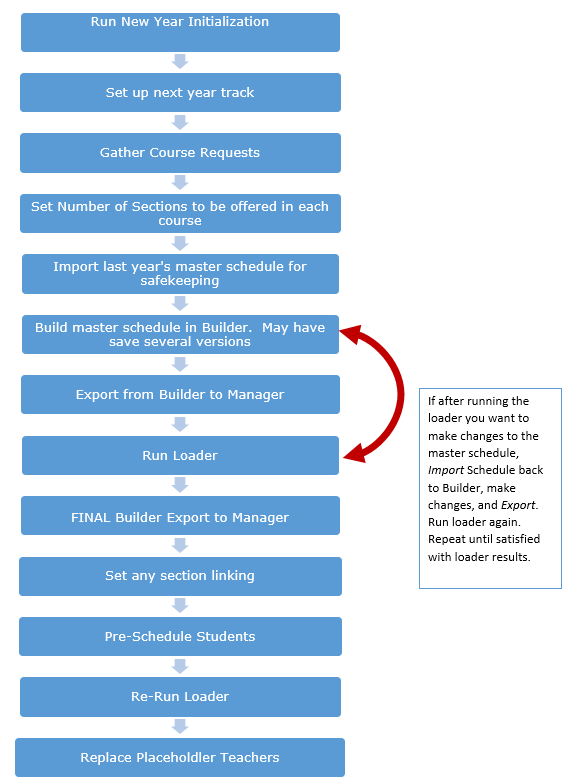
Several versions of a master schedule can be saved in the Builder for trial scenarios, however, there can only be one schedule at a time in the Master Schedule Manager. Once a satisfactory master schedule is completed in the Builder it must be exported to the Master Schedule Manager in order to run the loader to schedule students in the classes.
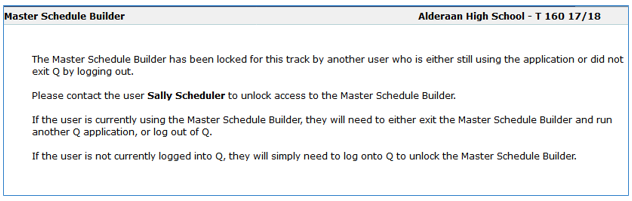
There can only be one user at a time in the Builder. Sometimes the Builder holds on to the logged in user. To prevent this from happening, exit the builder and launch another Q application after leaving so the next person who uses the Builder doesn’t receive a message like this:
Master Schedule Builder is located under the Schedule menu in Q.
Several steps must be completed before you use the Master Schedule Builder.
Before you start building:
- New Year Initialization (NYInit) needs to be run to create future tracks. It is recommended that the Master Schedule be copied during the NYInit process.
- Tracks have been set up with calendar dates added for begin year, end year and all term begin and term end dates.
- If any new courses (courses that were not used in prior years or copied during NYInit) were added for this school year, they must be added to the track using Track Course Setup.
- All student course requests have been submitted and verified by counselors.
- Schedulers have examined the Course Request List & Tally Report to determine the number of sections that will be needed for each course.
- Once the number of sections have been determined the Track Course Setup app needs to be updated to include the correct number of sections by clicking Recalc Sections and making any desired manual adjustments.
- Meeting patterns must be decided.
Concepts and terms used in the Q Master Builder include:
- New Year Initialization (NYInit) – the process run by the district that creates tracks for the next school year, student status records, faculty status records, permissions and master schedules based on options chosen when run.
- Meeting Patterns – A unique segment of time in the master schedule that includes the period and day a section can meet. For schools with multiple cycle days meeting patterns may be set up to indicate which days and periods a class will meet.
- Placeholder Teachers — A temporary teacher may be created and used when constructing the master schedule until new teachers are added to the staff.
- Grade Restrictions — Values placed on a course as Low Grade and High Grade. These values are referenced by the Loader when creating student schedules.
- Gender Restrictions — Value placed on course, Male, Female or Co-Ed. The loader will reference this when creating student schedules.
- Conflict OK — An option available when creating a course section. If the option is used students may be scheduled into more than one class at the same time.
- Constraint — A condition that forces you to place a section(s) of a course at a specific time. Most constraints are faculty or facility based.
- You have a part time band teacher that is given to your school only period 1, therefore all band classes must be scheduled in period 1.
- Science lab classes are only available in certain rooms at certain times of the day.
- Singleton — A course that has only one section in the master schedule.
- Doubleton — A course that has only two sections in the master schedule.
- Multi-Section — A course with three or more sections.
- Dovetailing — This term covers two scenarios: the first refers to courses that meet in opposite terms (semesters for example) and must contain common students. The second indicates courses that meet on alternating days during the same term.
- Virtually Scheduled — When using the Master Schedule Builder application student requests for which space has been allocated in the master schedule. Each section of a course that is placed in the master schedule claims a portion of the seats available during the period in which it is placed.
The very first time the Q Master Schedule Builder is launched the default view is the Setup tab. When setup is complete subsequent launching of the app will default to the Schedule Builder tab.

The Setup tab contains areas to define Working Schedules, Meeting Patterns, Grades and Placeholder Teachers.
Create Working Schedule
The Master Schedule Builder allows users to create multiple working schedules which may be defined as needed. If the previous year’s master schedule was copied during the New Year Init process, it is recommended you start by creating two working schedules, one a copy of last year’s schedule and one as the initial working schedule.
To create a working schedule:
- Launch the Builder
- Enter a description for the Schedule and any relevant notes
- Click Submit
- To add additional schedules, click the Add
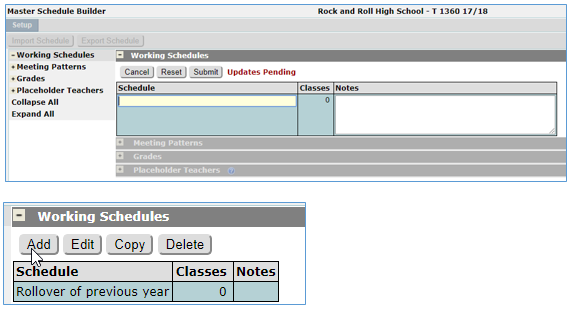
- You may use the Copy button to make an exact copy of any selected working schedule. This is helpful if you want to make changes on a schedule but also preserve the unchanged version.
Create Meeting Patterns
Meeting patterns must be defined for each unique combination of cycle days and periods a class may meet in the master schedule. Meeting patterns should be defined before commencing to build the master schedule, however, once construction is started if you find you need an additional meeting pattern it may be added as needed. The name you assign a meeting pattern is called a meeting definition.
To create meeting patterns:
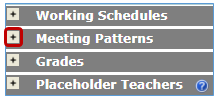
- Expand the meeting pattern area by clicking the + next to Meeting Patterns
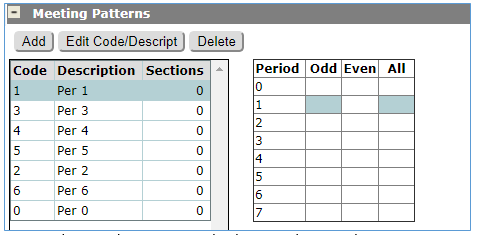
- Click Add
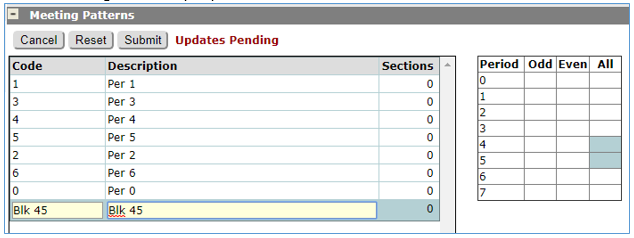
- Define code and add description
- Click the periods and cycle days on the grid that match the meeting pattern.
- Classes that meet multiple periods must have a meeting pattern defined, blocking out multiple periods.
- Meeting patterns defined in the Builder will also appear in the Master Schedule Manager under the Meeting Pattern Tab in tracks that have multiple cycle days.
Once the meeting pattern setup is complete Grades must be defined.
Set Grades
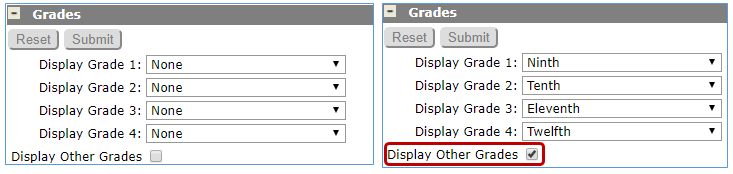
This step defines the grade level columns that display in the Schedule Builder Course Offerings and Tally screen. The columns will display the number of requests for each grade level.
To define Grades:
- Expand the Grades area by clicking the + next to Grades
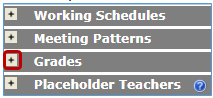
Four grade levels may be defined using the drop-down lists. If your school has course requests from grades other than the four listed, check the Display Other Grades box.
Placeholder Teachers
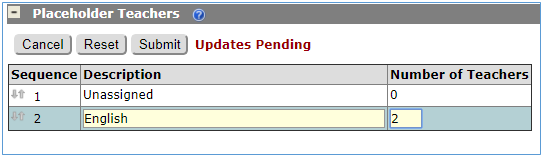
Placeholder Teachers allows the addition of placeholder teachers to use when building the master schedule. You can create temporary teachers for classes where the actual faculty members may not be known at the time of scheduling. Placeholder teachers are assigned in sets with a description and the number of teachers entered for each set. For example, you may create a set for English teachers. The Placeholder teachers appear in the whiteboard in the order they are listed in the table. The order may be changed by dragging the row in the table to the desired order. There is no limit to the number of teachers in a set or number of sets. Additional information on Placeholder teachers is available by clicking the question mark icon.
To create a placeholder teacher:
- Expand Placeholder Teachers
- Click Add
- Add a description and the number of teachers
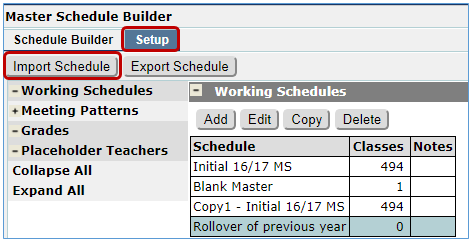
If your master schedule for the previous year was rolled (copied) to the next year’s track during the New Year Initialization process it will be in the Master Schedule Manager and overwritten by any new schedule built in the Builder and exported. It’s always a good idea to save the rolled master schedule before proceeding with creating new schedules. In order to save a copy of the Master a definition for the rolled master schedule must exist in Working Schedules. Once the schedule has been named, the rolled master schedule may be imported to the Master Schedule Builder for safekeeping. The Master Schedule Manager application does not have the capability of saving different versions of a master schedule whereas the Master Schedule Builder does. You may not be planning to use last year’s schedule, but it will be archived for safe keeping and future reference.
Note: Before importing a master schedule that was rolled forward during NYInit, it’s a good idea to run the "Loader Checklist and Verification Report/Clean Up Data" to clear out any behind the scenes records which could potentially cause an error when importing the saved Master Schedule to the Builder.
Import Master Schedule
How to import the rolled master schedule from the Master Schedule Manager:
- Launch the Master Schedule Builder
- Click the Setup tab
- Click Import Schedule
- Select desired Working Schedule from the drop down list.
- Select Tally Option:
- Include only courses with requests will display only those courses that have course requests.
- Include all track courses will display all courses assigned to the track even if there are no course requests for the course.
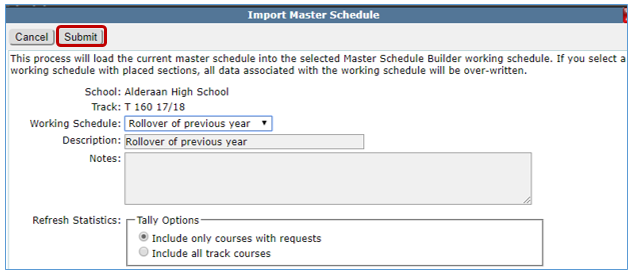
- Submit
Once setup is complete click the Schedule Builder tab to display the Schedule Builder. Whenever changes are made to the course requests, number of sections or grade settings, Refresh Statistics must be run to update tallies.
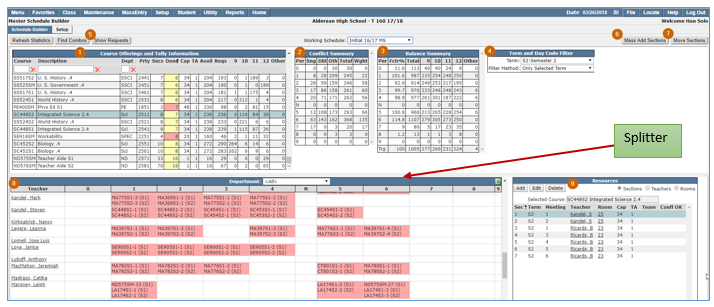
The Schedule Builder tab includes a course offering screen which displays all courses in the track and the number of student requests for each course broken down by grade level. Also included are conflict summary and balance summary screens which provide real time conflict and balance statistics as each section is built. Classes are created using the white board and/or resources areas. Additional tools to mass add class sections, move sections, find combos and show requests are also included.
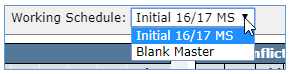
All working schedules defined for the track are included in the Working Schedule drop down list. Select the schedule from the drop down list that you wish to work on.
The selected working schedule information will display in the Section Builder in several sub screens. The sub screens are identified by number in the screen shot below with explanations of each area following. The screen features a splitter in the middle which can be used to expand and contract the screen vertically. Clicking on the line to grab the splitter and drag it by moving the mouse.
Course Offerings and Tally Information
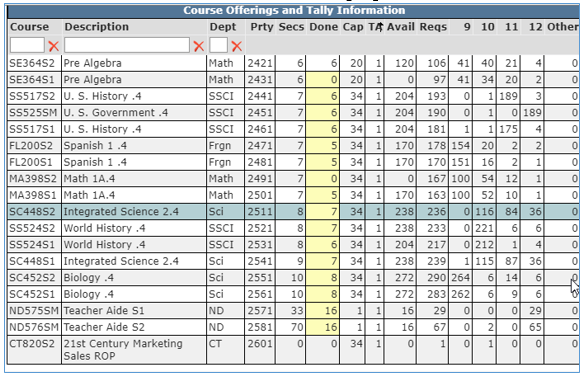
Course Offerings and Tally Information displays a list of all courses that have requests in the current track broken down by grade level. Additional information columns are also included and described in the chart below. The courses may be filtered by course code, description and or department. Any column may be used as a primary sort field for the list by clicking on the arrow above the column header. The current course selected will be highlighted in blue.
| Column | Description |
| Course | Course ID Number as it appears in District Courses. |
| Description | Course description as it appears in District Courses. |
| Prty | Priority Rating: a system generated number to rate priority for scheduling a course. |
| Secs | Sections: Number of sections defined for the course. This number comes from the Track Course Setup application. It is essential for these numbers to be correct for the Builder to give you maximum assistance. If the value is not correct, return to the Track Course Setup application to set the correct number of sections. Once the number of sections is updated in Track Course Setup, refresh statistics in the Builder to reflect the changes. |
Done 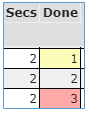 | The number of sections that have already been built for the course. When the number of sections placed = the number defined they will appear gray. If the number of sections placed is less than the number of sections defined the Done column will be yellow. If the number of sections placed exceeds the number defined the Done column will be pink. This field controls the Balance Summary. If there is a pink cell during the build process we strongly suggest correcting the number of sections in the Track Course Setup. |
| Cap | The capacity of a course section as defined in the District Courses application displays here. The default number defined in District Courses may be adjusted in the Track Course Setup application. |
| TA | Teaching Assistants. The default number of TAs defined in district courses or as defined in Track Course Setup. |
| Avail | Available: The total number of seats that have been placed in the current master schedule. (This number is the Cap value for the course multiplied by the number of sections completed). |
| Reqs | Course Requests: The total number of primary course requests for this course. |
| 9-10-11-12 | Total number of course requests broken down by Grade Level. |
| Oth | Course requests by other grade level: the combined total of course requests for grade levels other than the 4 listed. |
Conflict Summary
This screen is used for analysis when placing singleton and doubleton courses. It shows the number of students in common for the current course to be placed (the course highlighted in the course offering and tally information screen) and all courses previously placed in the master schedule. The table is used to place singleton and doubleton courses without conflicts. Singleton sections should be placed in the master schedule with no head to head conflicts with other singleton and doubletons if possilbe. The best placement for a singleton section is where there are no singleton or doubleton conflicts for that period. If this is not possible, place the section where there are no singleton conflicts and very few doubleton conflicts. If you are placing a block class (meets more than one period) make sure you are looking at both periods the block will meet.
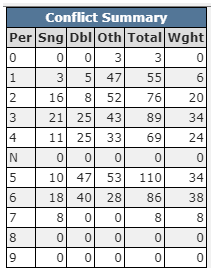
| Column | Description |
| Per | Period |
| Sgl | Singleton potential conflicts by period |
| Dbl | Doubleton potential conflicts by period |
| Other | Multi-Section courses potential conflicts per period |
| Total | Total potential conflicts per period |
| Wght | Weight value = number of singleton conflicts plus half of the doubleton conflicts per period |
The Weighted Summary column (Wght) displays the number of conflicts per period weighted by the number of sections offered for each course for singletons and doubletons only. This column simply divides the number of potential conflicts for singletons and doubletons by the number of sections and then totals the conflicts for that period. The resulting figure displays in the Wght column.
When placing a singleton or doubleton course section, if there are no conflict free periods, you must make a decision whether the conflict will be accepted, or if an attempt will be made to move the conflicting section. In either case, you must identify the sections that are conflicting to make that decision. The scheduled conflicts screen is activated by drilling down in the Conflict Summary screen by double clicking on the number of conflicts.
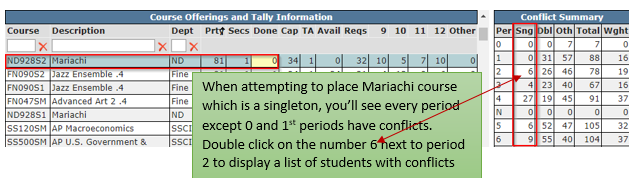
The schedule conflicts screen displays the individual sections that make up the total number of conflicts for a target period in the Conflict Summary screen. The students in conflict for a particular section can be displayed by clicking the + sign next to the course name.
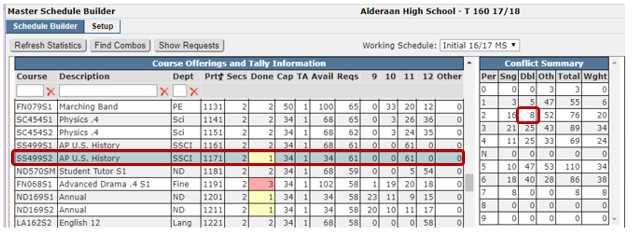
When a course is selected in the Course Offerings and Tally Information list the conflict summary screen displays the total number of students who will be in conflict per period if the highlighted course section is placed in that slot. In the example below if Course, SS499S2 AP U.S. History (which is a doubleton) is placed in period 2 there will be 8 students who have conflicts. Double clicking on the 8 displays a screen listing the other courses which may be expanded to show the 8 students with the conflicts.
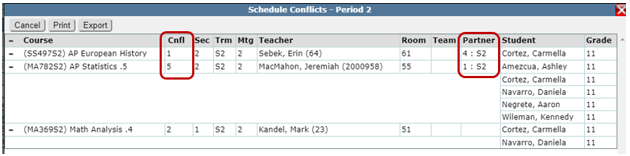
Course sections with requests in conflict will be listed from highest to lowest according to the number of students in conflict (Cnfl). In cases of doubleton courses where both sections have been placed, the section in conflict will be displayed as a primary entry in the listing and the meeting time code of the other placed section will be displayed in the Partner field for reference.
To see the students in conflict for a particular section, expand the display by clicking on the plus (+) sign to the left of the course name. The list may be printed by clicking Print or exported to Excel by clicking Export.
Balance Summary
A good master schedule will have an even distribution of scheduled students per period. The Balance Summary helps you determine the best placement of multi-section courses. It displays the number of students already virtually placed in the master schedule by grade level for a given period, term and/or day. The target row shows the total number of students with at least one primary course request.
Singleton and doubleton class placement is primarily based on conflict avoidance. Multi-section class placement should be largely driven by schedule balance. The Balance Summary sub screen comes into play here. Schedule balance means that we have a balance of seats (based on the course request data) across the day for each grade level. This balance is best calculated and monitored by totaling by grade level the virtually scheduled students in a given period. The total by grade level should be relatively close across all periods of the day. A low total would indicate potentially too few sections were offered for that grade level for that period. A high total could indicate too many sections are offered for that grade level for that period.
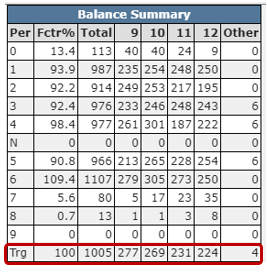
| Column | Description |
| Per | Period |
| Factor% | This statistic is calculated by using the grade-level proportion of the course to be placed in conjunction with the students (by grade level) who have already been placed (virtually scheduled) in each period. |
| Total | Total number of students virtually scheduled per period in all grade levels. |
| 9-10-11-12 | Total number of students virtually scheduled in each grade level per period. |
| Oth | Total number of students virtually scheduled in other grade levels combined per period (displays if Display Other Grades is checked under Grades in Setup). |
| Trg | Target row shows the total number of students with at least one primary course request for all grade levels and for each grade level. Use this as a guide to interpret the balance values. |
To accomplish the best overall master schedule balance, section placement for multi-section classes should be prioritized by the period that has the lowest total average section size by grade level. These running totals are displayed with the Balance Summary sub screen.
Before using the balance summary to help place sections, select Filter Criteria in the Term and Day Code Filter. Tallying more than one term or day in the cycle could produce inflated numbers.
Always select one Term and one Day in the cycle with Overlapping Selected Term and Overlapping Selected Cycle day selected as the filter method.
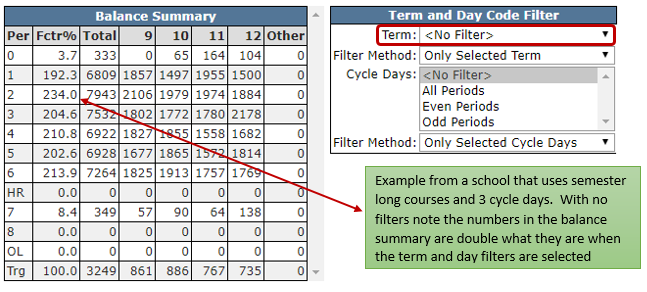
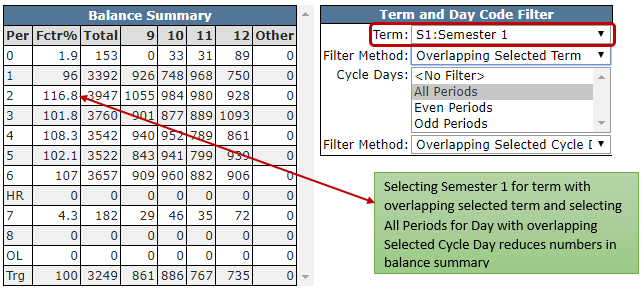
When placing sections in the master schedule the running totals are displayed in the balance summary sub screen. In the process, every attempt should be made to adhere to the following balance rules:
- Make every attempt to place the section in the period with the lowest number of students displayed for the grade level class being placed.
- Multi section classes are placed in the schedule by grade level to balance one grade at a time. If you are placing a senior section (predominant grade in course request count), you can primarily check the senior tally on the Balance Summary Screen. There may be juniors and sophomores in the class being placed, however, we are concerned primarily with balancing one grade level at a time. You can use the weighted balance column to give you a weighted (by grade level ratio) balance indicator. Again, you are looking for the low number. Junior multi section classes will be placed after senior classes and will further correct junior balance at that time, and so on with lower grade level classes.
- Never place two sections of a course during the same time period. It is not good practice to schedule two sections of a course meeting at the same time unless there are more sections of the course than periods of the day.
- Every attempt should be made to place the first section of a multi-section course in the period with the lowest total, the second in the second lowest, and so forth. Even though the lowest period might be three of four sections worth of students lower than the second lowest, don’t double up unless absolutely necessary.
- Skip a period if placement doesn’t happen easily. If you are early in multi section placement for a grade level and the teacher or room is already scheduled in the preferred period, skip that period and go to the next lowest period.
- Use the Factor Percentage when placing multi section courses use the Balance Summary to help determine the best period to place the course. To accomplish the best overall master schedule balance, use the Fctr% column to guide you by placing the class in the period with the lowest number. Make every attempt to place the section in the period with the lowest number of students displayed for the grade level class being placed. As you build try to keep an eye on the Fctr% column. Each time you select a course for placement, the Fctr% statistic changes. This statistic is calculated using the grade level proportion of students who have already been placed (virtually scheduled) in each period and the grade level proportion of students who have a request for the selected course. The Fctr% statistic calculates proportions by grade level. For the maximum balance of the master schedule, the section should be placed in the period where the factor percentage is the lowest.
Term and Day Code Filter
The Term and Day Code Filter allows the user to filter the Conflict Summary Screen and the Balance Summary Screen. For tracks with more than one cycle day, check for conflicts by setting the Filter Criteria for one cycle day at a time. Select Only Selected Cycle Days from the drop down and then highlight the target cycle day code. This will identify all potential conflicts with placing that section.
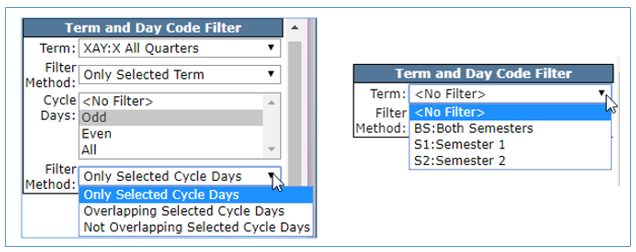
Look for dovetailing using the Cycle Days criteria field by setting your day pattern to the opposite day you intend to place your section. For example, in a two day cycle if you want to place the section on day two, highlight the code for Day One in the Days list and select the Only selected day codes from the drop down. This will show conflicts with any section that meets only on day one. These conflicts are potential dovetails if you place your section on day two. If those dovetailing periods were conflict free when you checked conflicts using only the selected day codes option for the day you want to place the section, you’ve found a good slot for the section.
Dovetailing Semesters
Always use the Filter Criteria for Term to search for any dovetailing opportunities. They are often so few and far between. Select a target term in the Term field, then use the filter method drop down to exclude or include the term in the conflict data output. When placing semester classes, search the screen for conflicts one semester, but not the other. If at all possible, you want to place the semester sections in the same period, but the opposite semester of the conflict. You must create these semester flow situations for your Master Schedule to work well.
Placing Alternating Day Multiple Section classes
Overall balance and dovetailing in the Master Schedule are largely controlled by the placement of the multiple-section courses. You must create an alternating day class flow for the students to schedule properly. We do not conflict check alternating day multiple section classes to identify conflicts. We conflict check them to locate the dovetailing opportunities. When conflicts are located on one day but not the other, we know we have common students and must schedule the current class the opposite day(s) for the students to schedule. Dovetail periods/days can be identified in the builder by displaying conflicts for alternating days and comparing the totals. Place the multiple section classes in the same period but the opposite day(s) as the conflicts. To select the day(s) you wish to conflict check set the Cycle Days filter criteria in the Term and Day Code Filter.
Additional Tools
Additional tools are available to view requests and possible conflicts. The Find Combos button opens a screen where the user may enter up to 4 different courses and retrieve a list of students who have requests for all courses entered. The list may be printed by clicking the Print button or exported to Excel by clicking Export.

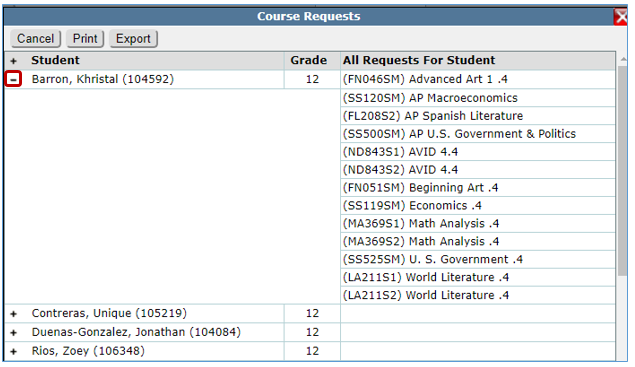
The Show Requests button displays an itemized list of all students who have requested the selected course. In the Course Offerings and Tally Information screen, highlight a course and click Show Requests.

An itemized list of all students who have requested the course displays. Click on the plus sign beside the student name to expand or contract a sub-list of the other courses the student has requested.
Mass Add Sections
The Q Master Schedule Builder will automatically build multiple sections of a course and place them in the master schedule in optimum meeting patterns. The Mass Add Section feature depends on the number of sections defined for the track course in track course selection and the number of sections already built as shown in the Sec and Done columns of the Course Offerings and Tally screen.
To Mass Add Sections:
- Select the course in the Course Offerings Screen.
- Click the Mass Add Sections button.

- Make selections as described below
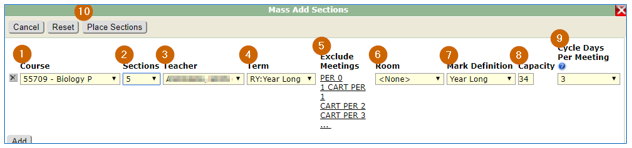
- Course will display in Course field.
- Select the number of sections to build for selected teacher (total number of sections available in drop down list matches the number of sections defined in track courses.)
- Select Teacher name from drop down. All teacher names for a school are available including placeholder teachers. In this example 1 teacher was added in the Setup screen to add 5 sections.
- Term and Mark definition are auto populated according to information supplied in district courses but may be changed by the user if need be.
- Exclude Meetings: if there are any meeting patterns you do NOT want the course placed in, select from the drop-down list of all meeting patterns. Multiple meeting patterns may be selected by holding the Ctrl key while selecting individual meetings.
- Room: select room number from drop-down list.
- Mark Definition: defaults to mark definition that relates to the term.
- Capacity: defaults to the number defined in Track Course Setup for the course, but this may be changed by the user.
- Cycle Days Per Meeting: select number of cycle days the class will meet from drop down.
- Click Place Sections.
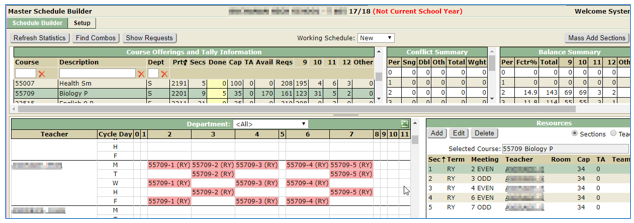
- When the process completes, the 5 sections of Biology display on both the white board and the Resources screen.
Move Sections
The move sections feature allows you to move all assigned sections from one meeting pattern to another. This feature is helpful if you want to delete a meeting pattern without losing the sections already placed in that meeting pattern.
To move sections:
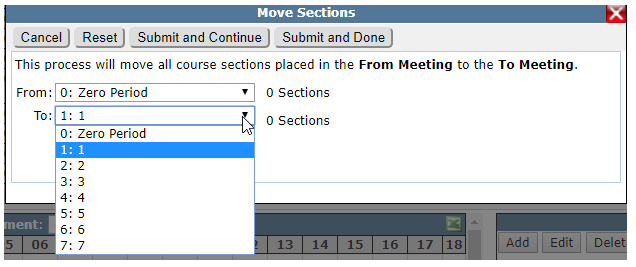
- From the Schedule Builder tab click the Move Sections
- Using the drop down list in the From section select the period you want to move from.
- Select the period to Move to from the To drop down list.
- Click Submit and Continue if you have other meeting patterns you’d like to move.
- Click Submit and Done if you only have one meeting to move.
Whiteboard
The Whiteboard displays the school master schedule in a grid format listing teachers and periods. The teachers are listed in alphabetical order with the placeholder teachers appearing first (the order of the placeholder teachers is determined on the setup screen). If the school has multiple cycle days, they will display in the grid along with the periods per day. The Whiteboard display may be filtered by department for easier viewing when creating sections. Additional information about using the Whiteboard and Resources to place sections follows.
Resources
The resources tab can be used to view information by section, teacher or room. Sections may also be added, edited or deleted using resources tab. When the Teacher button is selected, the selected teacher may also be re-assigned to another class. Teacher names and room numbers may be clicked to switch to views with the selected teacher or room.
The Master Builder helps guide the user to the optimum placement of class sections using the course offerings and tally information along with conflict summary and balance summary grids.
When building the master schedule:
- Identify your order of placing sections and sort the Course Offerings and Tally information to move down the courses easily. It’s suggested that courses be placed starting with constraints, block singletons, block doubletons, singletons, doubletons and multiple period sections.
- Select the course to be placed from the Course Offering list.
- When placing Singleton or doubleton courses use the Conflict Summary screen to determine best placement.
- When placing multi-section courses use the Balance Summary to select the best placement of the course sections.
- Make every attempt to place sections in the period with the lowest number of students displayed for the grade level being placed.
- Don’t place two sections of a course in the same period of the day unless there are more sections of the course than periods of the day.
Once you’ve determined the best period to place the section using the conflict summary and balance summary follow the directions below to build a section.
Adding course sections using the Whiteboard
The Whiteboard is primary area where course sections are built. The board displays the master schedule in a grid format listing teachers and periods. Course sections are added to the schedule by dragging the selected course from the Course Offering screen to the whiteboard grid and dropping to the desired teacher and period. The Whiteboard display may be filtered by department for easier viewing when creating sections. Clicking the links on teacher names coordinates the white board and resource tab views.
To add an individual section:
- Select course from Course Offerings and Tally Screen.
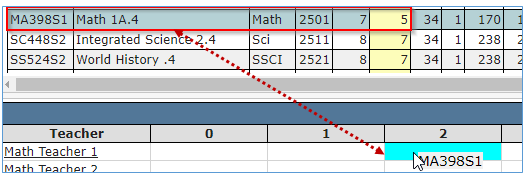
- Drag and drop course to teacher, cycle day and period desired. In the sample below we’ve selected Math 1A.4 and dragged and dropped it to Place Holder teacher, Math 1, in the grid for period two.
- The Add Section screen displays with the Course name.
When the Add section screen displays enter the information as follows:
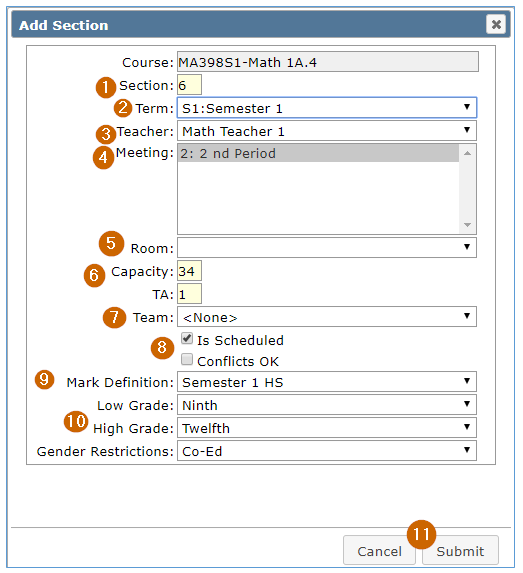
- The section number defaults to the next unique section number (in the above example 5 sections of Math have already been built, so the number defaults to 6).
- The term defaults to what is determined to be the correct term.
- The teacher name defaults to teacher selected when course was dragged and dropped.
- Room number may be selected from drop-down list (rooms that have classes scheduled display in red). If subsequent sections of the same course are built for the same teacher, the room number will default to the room number selected for the first section built.
- The Meeting pattern displays any meeting patterns that have been defined for the period the course was dropped in.
- The Course capacity and TA default to numbers set in Track Course Setup but may be changed by the user if desired.
- Teams may be attached to the section, if desired.
- Is Scheduled and Conflicts OK default to the district course default, but may be changed here.
- Mark Definition defaults to a mark definition that matches term selected, but may be changed here.
- Low Grade, High Grade, and Gender Restrictions default to district Course selection, but may be changed.
- When all selections have been made, click Submit.
Resources
The resources tab can be used to view Information by section, teacher or room. Sections may also be added, edited or deleted using resources tab. When the Teacher button is selected, the selected teacher may also be re-assigned to another class. Teacher names and room numbers may be clicked to switch to views with the selected teacher or room.
Sections button
When the Sections radio button is selected on the resources tab, all sections of the highlighted course in the Course Offerings and Tally Screen display. Section information may be edited by selecting the desired section and clicking the Edit button. New sections may also be added by clicking the Add button. Sections may also be deleted by selecting a section and clicking Delete.
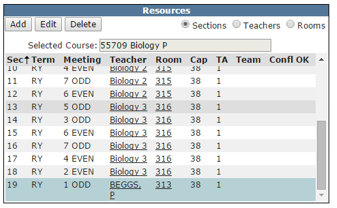
When a teacher name is clicked from the sections tab the white board will jump to that teacher name and the button will change to teachers.
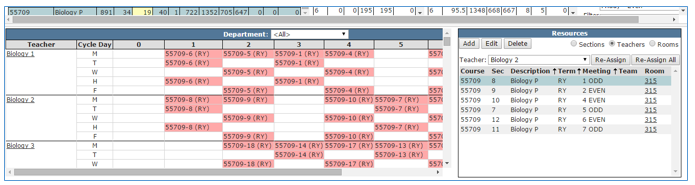
Teachers Button
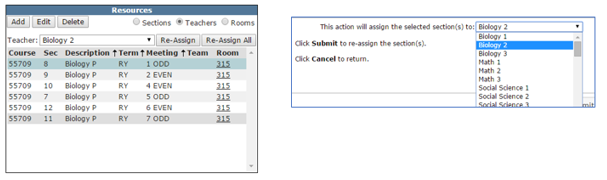
From the teacher view of the resources screen you may Re-Assign the teacher to one section or all sections displayed. This can be done for placeholder teachers as well as other teachers.
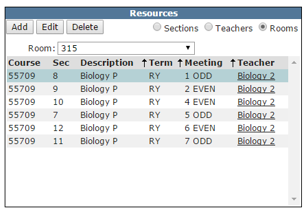
Room Button
From the room view you can see all classes scheduled in the selected room number.
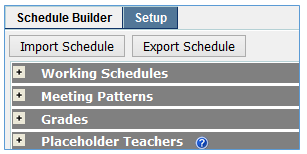
The master schedule(s) stored in the Builder are working versions. When a suitable master schedule is completed it must be exported to the Master Schedule Manager in order to run the loader. Importing and exporting of the master schedule is done from the Setup Tab.
Export
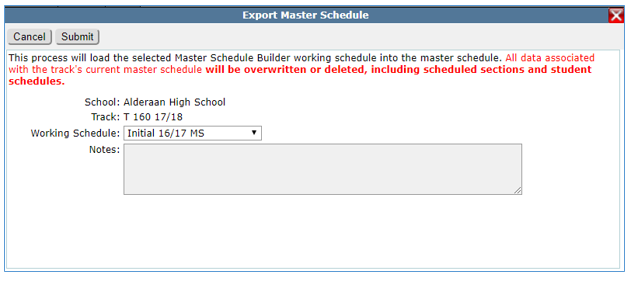
Master Schedules created in the Builder must be exported to the Master Schedule Manager in order to run the Student Loader as well as certain scheduling reports. While the Builder may store many different versions of a master schedule, the master schedule manager can only have one schedule at a time. When a schedule is exported from the Builder to the Manager it wipes out any information in the Manager and replaces it with the contents of the Builder. Any changes made in the Manager will be lost if not imported back to the Builder. Do not preschedule students or create section links until you are done with working in the Builder and have exported for the last time.
To export the working schedule to the Master Schedule Manager you must go to the Setup Tab and click Export schedule.
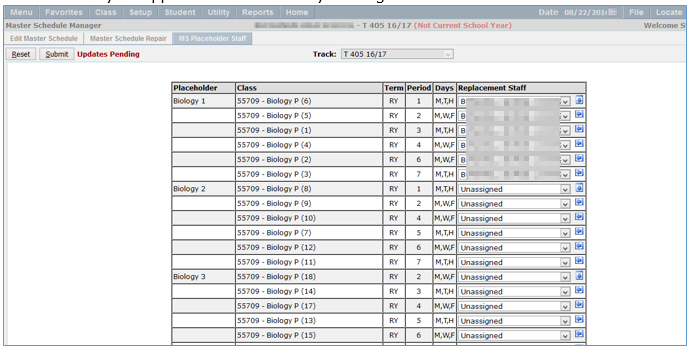
If Placeholder Teachers were used when creating the schedule in the Q Master Schedule Builder, they may be replaced with named teachers using the Master Schedule Manager AFTER the schedule is exported.
In order for this to be used the schedule must be exported. Launch the Master Schedule Manager and click the MS Placeholder Staff button.

A listing of all placeholder teachers and the sections assigned to them appears. Replacement staff names may be selected from the drop down list. Once a name is selected it may be applied to all sections by clicking the down arrow.
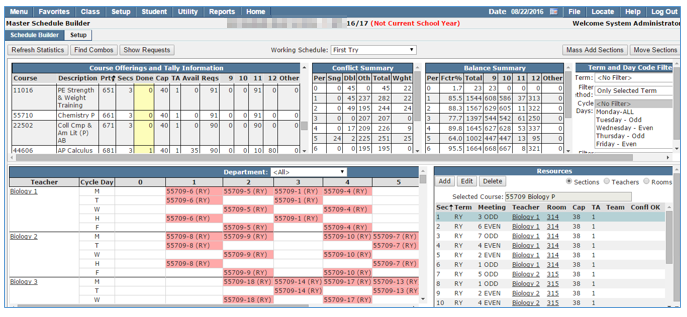
Q Master Schedule Builder before imported back to Builder still shows Biology 1 placeholder teacher.
Import
Importing of the Master Schedule from the Master Schedule Manager is done from the Setup tab by clicking Import Schedule.
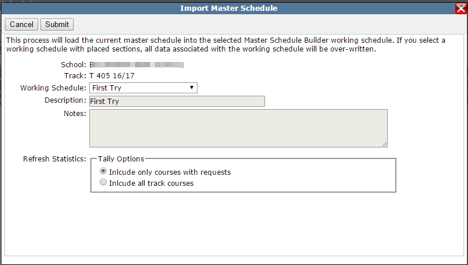
After the schedule is imported, the replacement teacher for the first six sections of the Biology 1 placeholder displays in the resources and whiteboard. Note: It is not necessary to import the schedule back to the Builder unless you want to see the replacement teacher names.