
Course definitions often change, whether it be the standards set that apply to a course, the graduation credit awarded, if a course is UC/CSU approved and so on. If something does need to be changed on a course, don’t create a new one! Instead, make your changes and save the record and create a course history record.
To do this, navigate to the course that is changing: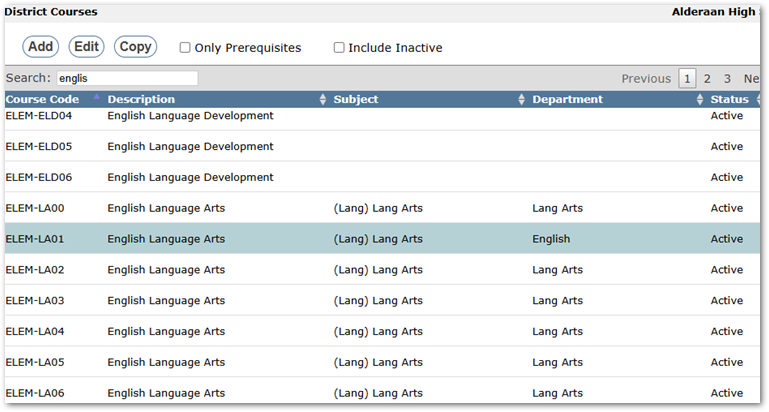
Make your changes, then hit submit and be greeted by this popup:
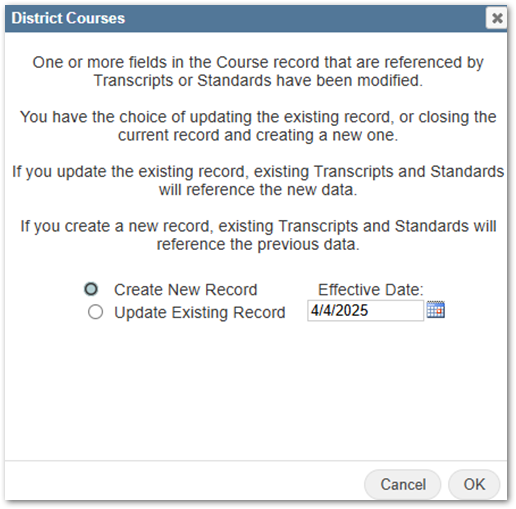
Here is where you will be creating the Course History record. Make sure that Create New Record is checked, with an appropriate Effective Date. Once this is set, hit OK to save the Course History record.
Access the Course History records by clicking the Show History button, from the main District Courses app:
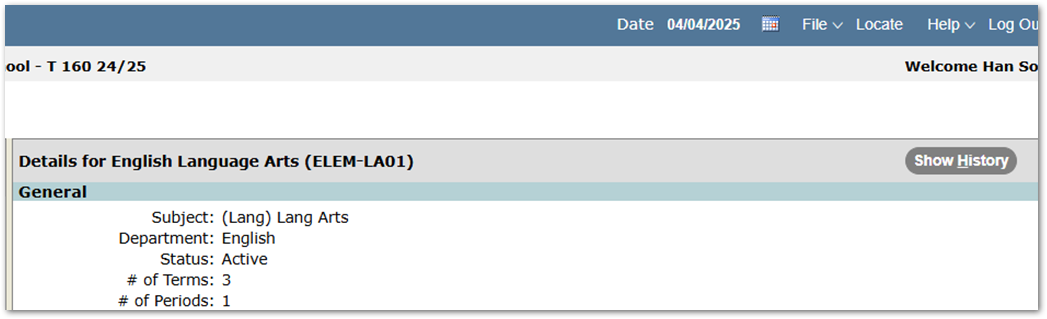
Here, you can view all changes to your course, and if needed, edited the dates that they are/were active.

Now, any reports (or transcript) and the master schedule will use the new course definition, and you’ll have a historical record to come back to, to reference or to revert any changes.