
Inside the Report Writer is the ability to create custom documents using the Merge feature. This is a nice feature allowing users to create personalized certificates, letters and other types of documents. Using Mail Merge we also have the ability to create a sheet of labels with multiple students. There are a couple steps you need use when creating lables. Here is a trick to use this feature to create custom labels.
Steps:
- Start report in Report Writer.
- Add all fields that are going to be used as fields on the labels to the report.
- Manage Documents button
- Create Blank Merge Template. This creates a Word document containing all the selected fields.
- Copy all fields to the clipboard. This is needed as the contents will be cleared when document is updated to labels.
- Update document type to Labels. In Word on the Mailing Menu choose Labels.
- Select Label type
- Contents will clear and grid lines for the labels will show.
- Paste copied field names back into the document
- Create one page of labels.
- Copy and paste the fields pasted to the document into each label and format as desired.
- <NextRecord> This command is not available in the Office 360 version, it can created in another document and pasted to each labels.
- Open Word (this and the next step are only needed to access the <NextRecord> command.)
- Create a New Merge Document
- Mailings – Start Mail Merge – Select Labels
- Select Label type
- Update to Labels
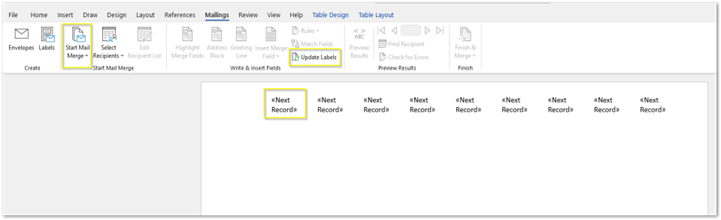
- Copy the <Next Record> field and paste into the Labels document.
- An entire page of labels needs to be created. Inserting the <Next Record> command each time the label should update to the next student.
- Save the completed document to the local machine.
- In Report Writer – Manage Document Button
- Select Local Document to upload the completed label template.
- Save Report