
The Academic History application provides an editable list of a student's complete class history (Transcript) through their entire enrollment in the district. You can also view a history of a student’s Credit, Class Rank, and GPA calculations for each GPA Type that has been defined and calculated. At least one Term’s worth of Marks needs to have been posted so that student records appear in the Academic History application.
Student Academic History is located under the Marks menu in Q.
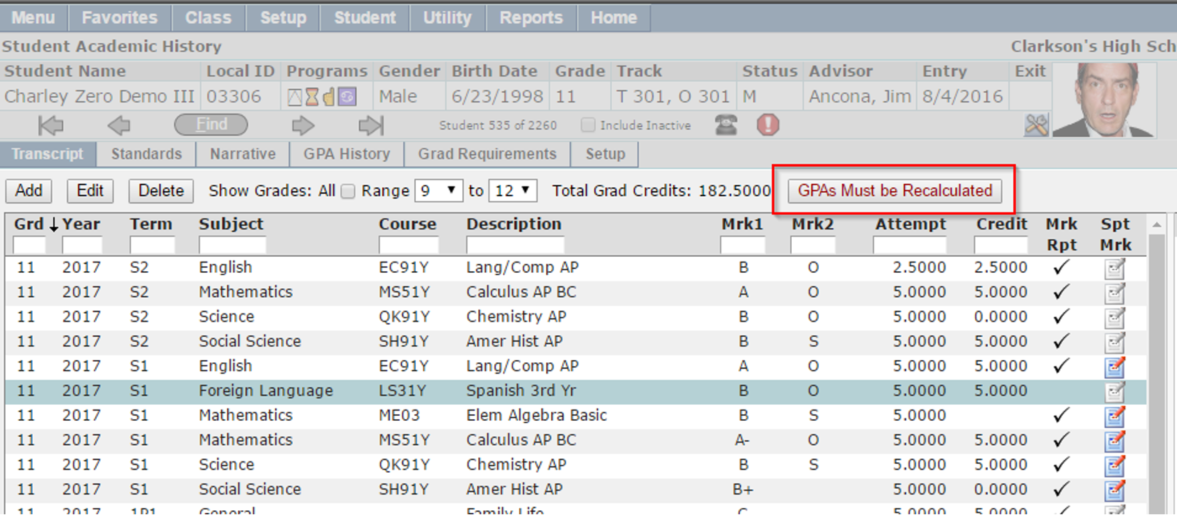
The Transcript tab displays a summary list of completed courses entered on the student's Transcript, plus an option to view supporting marks if applicable. Only the most essential data fields are displayed in the summary view on the left side of the screen. More in-depth data can be viewed in detail window for each record. 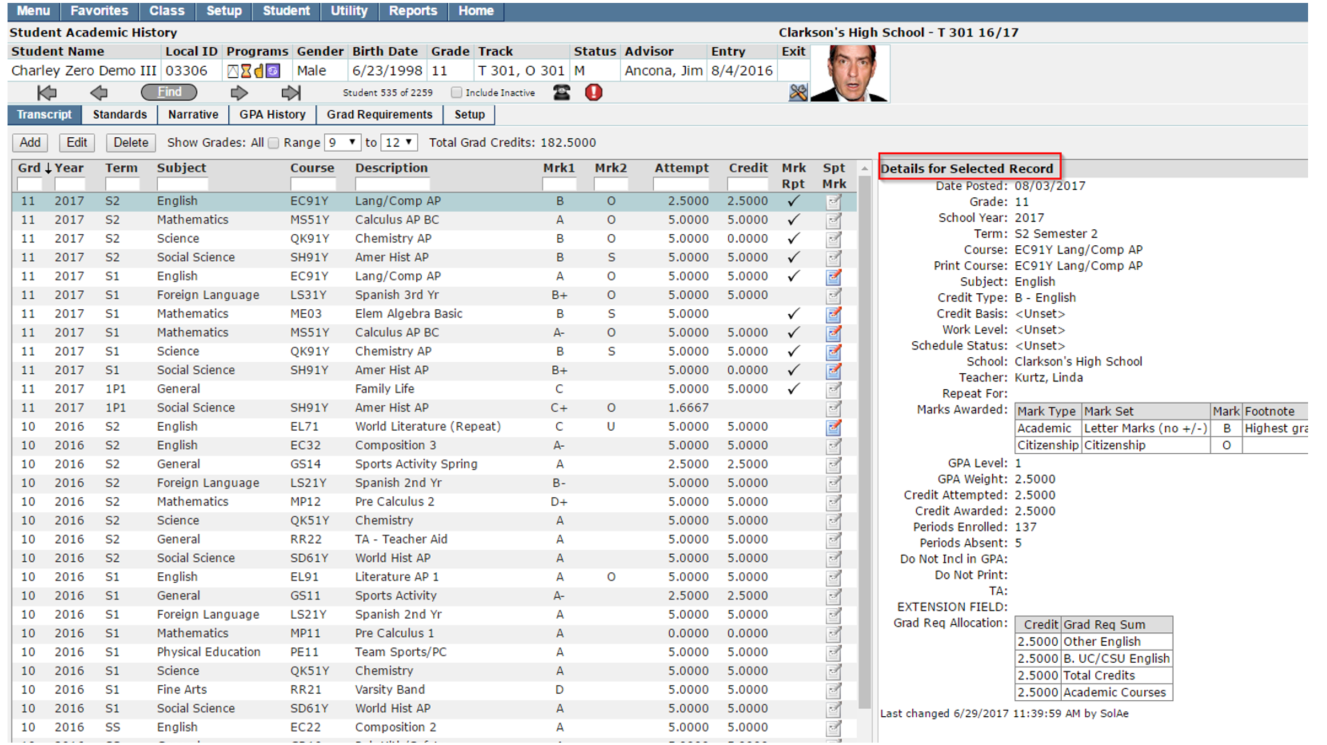
Filtering Grade Levels
The screen will default to show all the student's records from the currently selected school only, within the full range of the school's defined lowest to highest grade levels. You can filter this Grade level range by editing values in the Range dropdown fields at the top of the screen. If your district keeps transcripts from both high school and junior high and you want to view all of those records contiguously, enter a checkmark in the Show Grades: All button.
Sorting Transcript Records
The default sorting order of records in the summary list is descending numerical by the Grd field. For easier browsing, any field can be designated as the primary sort field by clicking on the column header. The direction of the sort for the primary sort field can be toggled ascending or descending by clicking again on the column header. A small pointer graphic will be displayed in the column header of the current primary sort field, pointing up for ascending or pointing down for descending.
Legend:
Grd – the grade level in which the student completed the course.
Year – the ending year of the school year in which the course was completed.
Term – the term in which the student completed the course.
Subject – the academic subject category to which the course is assigned (used in conjunction with grad requirements). This attribute is defined in the District Courses application.
Course – course code as defined in District Courses.
Note:
if a course is flagged as a repeat for another course, (Repeat) is printed on the tail end of the course description.
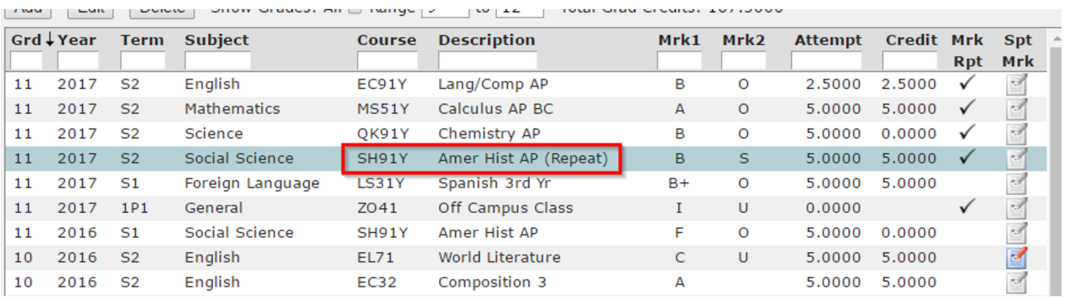
(example of a repeated course)
Mrk1 – primary mark; this is typically the Academic grade that the student earned in the course. This depends on the mark definition for the selected course.
This is an info callout
If a student has a course that is flagged as a Waiver course, ‘Waiver’ is printed in the Mrk1 column for that course, making it easy to filter and find these Waiver courses.
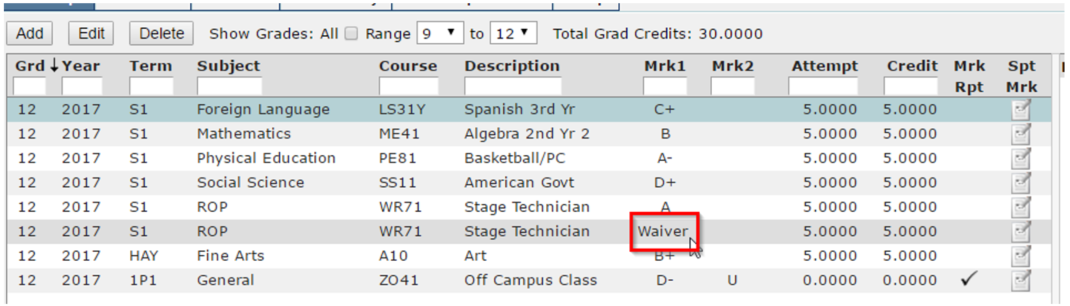
(example of a Waiver course printed in the Transcript tab)
Mrk2 – secondary mark; this is typically a mark for something such as Citizenship or Effort. This depends on the mark definition for the selected course.
Attempt – The number of graduation credit/units Attempted in the course.
Credit – The amount of Graduation Credit awarded. This number typically will be the same as the Attempted graduation credit, unless the student failed the course.
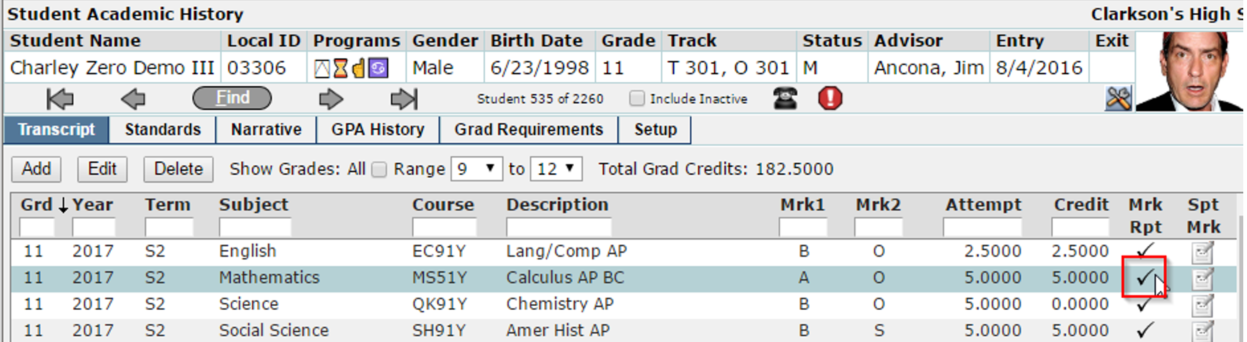
Mark Rpt – this field indicates whether or not the transcript record was posted from current mark reporting information. If there is a checkmark, this record was posted using current mark reporting information.
Spt Mrk – this field indicates whether or not the transcript record has supporting marks. If the notepad is blue with a red pen, the record has existing supporting marks.
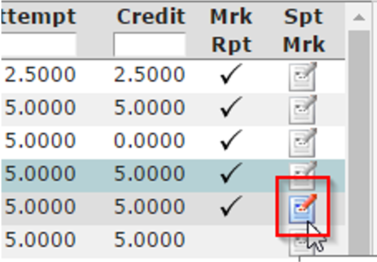
What is a Supporting Mark?
A supporting mark is a mark that has been awarded on route to a mark for which the student will earn graduation credit. Supporting marks do not have any Credits Earned value in themselves; yet the system allows them to be posted to Academic History for reference purposes.
- Supporting marks are defined in the Marks Definitions procedure and they are entered by the teacher in the same way as any other mark - using Class Marks, Student Marks, or Grade Book.
- Since supporting marks do not have any Credit Earned value of their own, they are ignored when calculating Graduation Requirements and GPA.
- Typically, supporting marks will be quarter marks that are posted prior to a semester mark from which graduation credit and GPA are calculated. The semester mark is called the 'parent mark' in this example. Supporting marks are always associated with a parent mark.
- Supporting marks are posted to Academic History only when the parent mark is posted. They can then be viewed there in the summary for reference purposes. Before then, they can only be viewed in the teacher marks entry applications, such as Class Marks and Student Marks.
- Supporting marks can optionally be printed on a Transcript, underneath the parent mark. This would typically be done on the Unofficial Transcript, for internal use only by counselors.
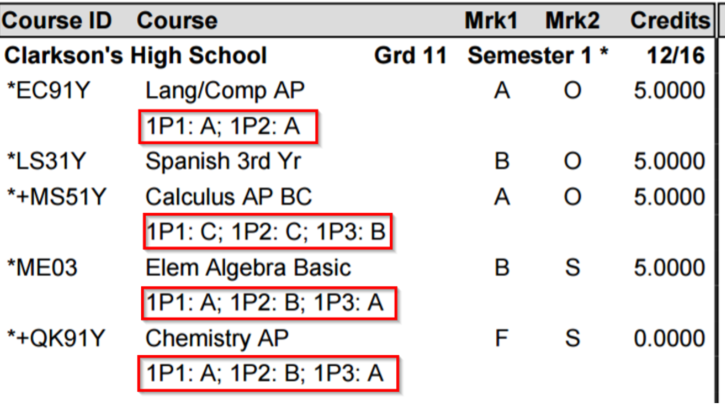
- Supporting marks do not show in the Student Profile, Student Portal or Parent Portal.
Adding, Editing, and Deleting Transcript Records
- Adding a New Transcript Record
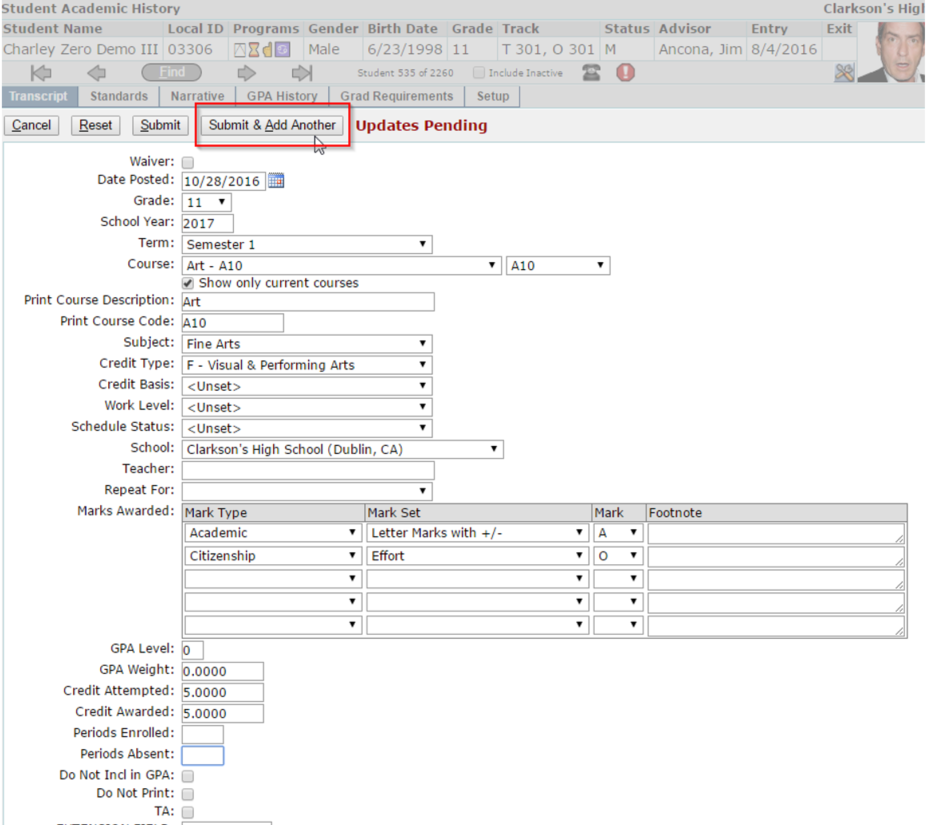
Users can enter a new transcript record for a student manually within the Student Academic History app. Once all information is filled out, if there is another transcript record to be added for the same student, users can select ‘Submit and Add Another’, and by doing this, the Date Posted, Grade, School Year, and Semester will all remain as entered for the previous record for easier data entry.
- Editing an Existing Transcript Record (Permissionable)
Users can Edit an existing transcript record, but editing capabilities are a little different if the record has the ‘Mrk Rpt’ check ON.
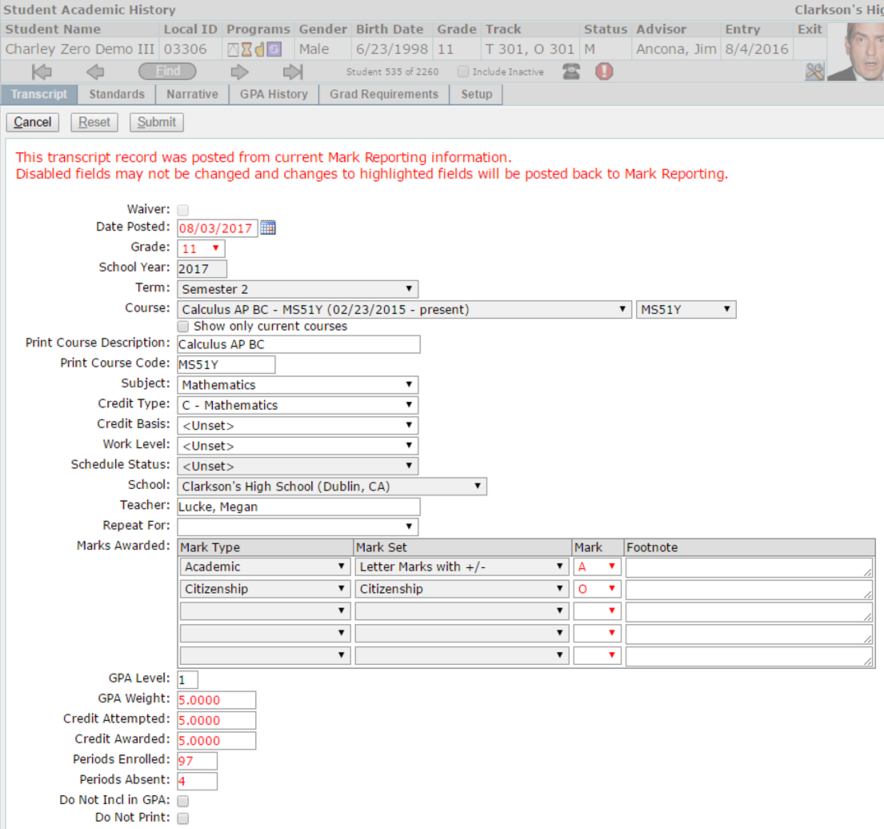
If a transcript was posted from a current Mark Reporting period, items in red text will be posted back to Mark Reporting, and there are few fields that are disabled that may not be changed when in Edit mode through the interface – these disabled fields are: School Year, Term, Course, Course Code, School, Mark Type, and Mark Set.
Once any changes have been made to an existing Transcript record, before you can move on to another area of Academic History, you must recalculate the student’s GPAs.
Note:
Only current year records are re-calculated from within the Academic History > Transcript tab. Also, if Class Rank is selected to be included in the GPA calculation under the Setup tab, when recalculating GPAs from within the Transcript tab, the Rank is not calculated and this will need to be recalculated from the GPA History tab.
- Deleting an Existing Transcript Record (Permissionable)
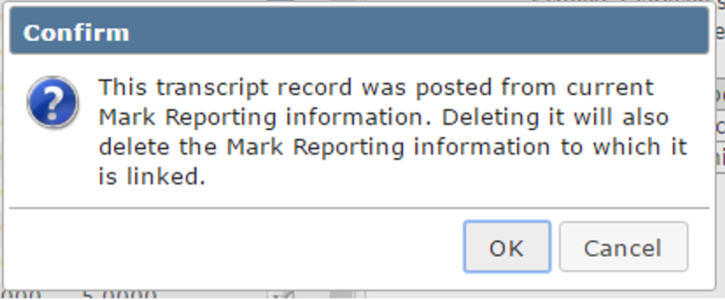
If a transcript record was posted from a current Mark Reporting period, you will get the following confirmation message when attempting to delete the record:
If a transcript record was posted from a current Mark Reporting period, you will get the following confirmation message when attempting to delete the record:
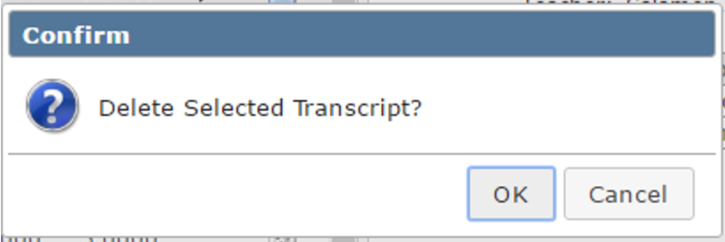
For both messages, select ‘OK’ to continue with deleting the record, or select ‘Cancel’ to return to the previous window without deleting the record.
The Standard Tab is a read only view of historical Standards marks received by a student. The most essential data fields are displayed in the summary view on the left side of the screen. More in-depth data can be viewed in detail window for each record.
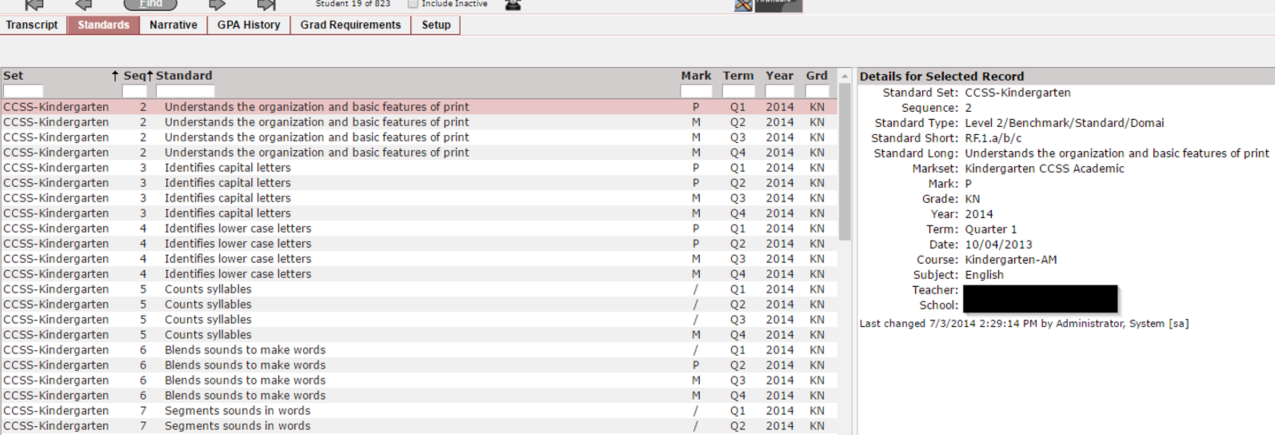
The default sorting order of records in the summary list is by the Set and Seq field. For easier browsing, any field can be designated as the primary sort field by clicking on the column header. The direction of the sort for the primary sort field can be toggled ascending or descending by clicking again on the column header. A small pointer graphic will be displayed in the column header of the current primary sort field, pointing up for ascending or pointing down for descending.
Users can print a report of this data from within the Standards tab by clicking on the printer icon in the top right corner of the page.
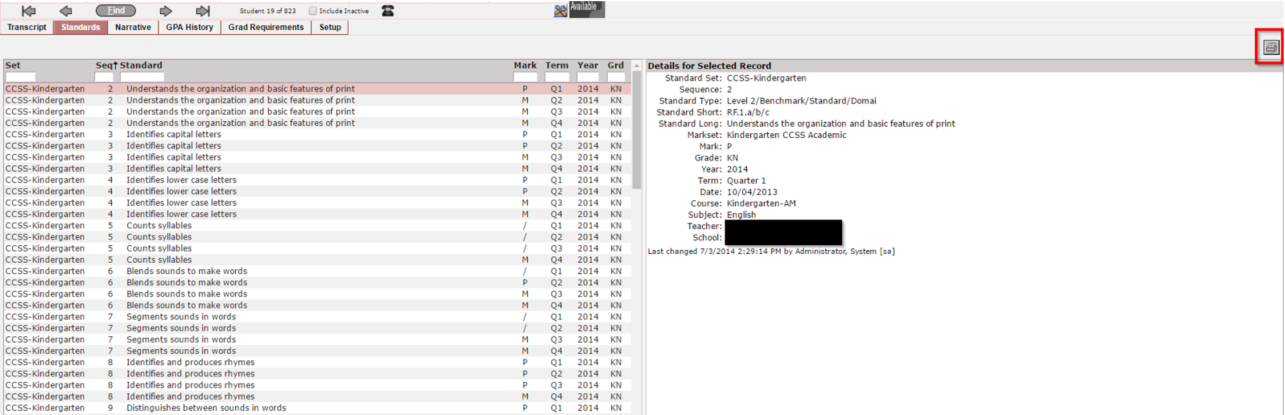
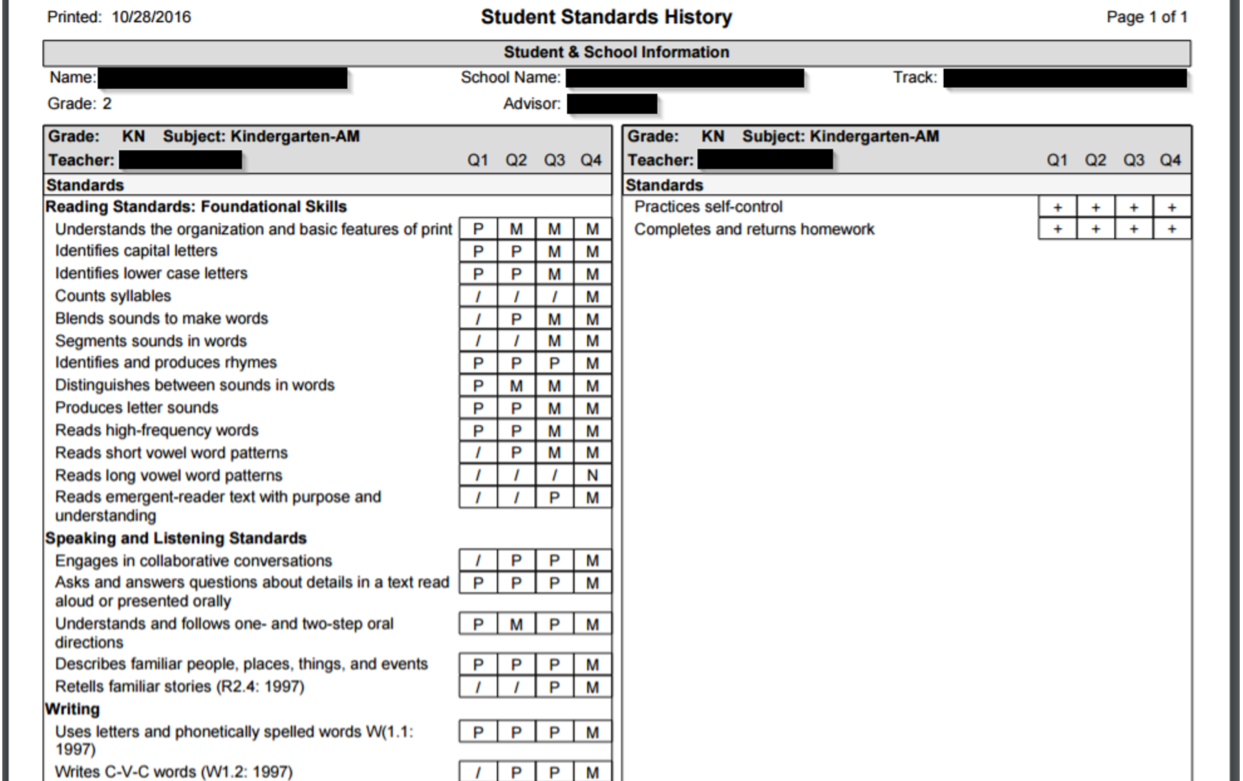
(sample Standards History report from within Standards tab in Academic History)
The Narrative tab is used by counselors or administrators to create Narratives for individual students. Student Narratives are individualized comments that can be printed on Transcripts. Along with adding new narratives for a student, the application also allows users to edit or delete existing Narratives for a student.
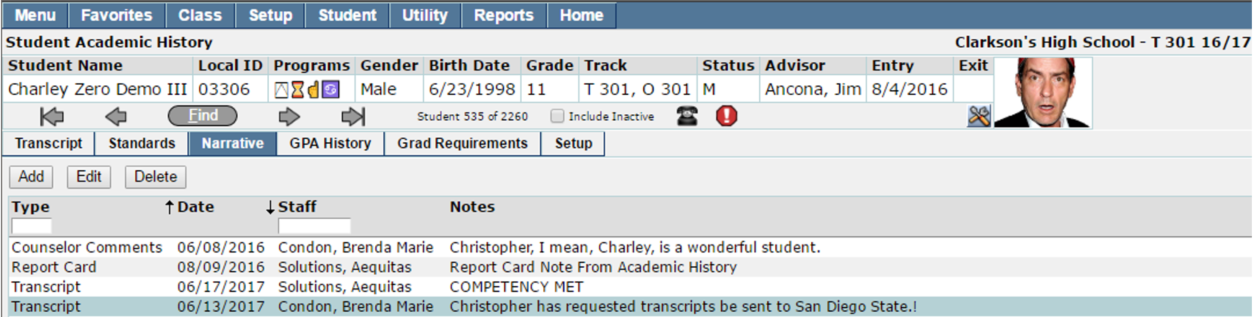
For easier browsing, any field can be designated as the primary sort field by clicking on the column header. The direction of the sort for the primary sort field can be toggled ascending or descending by clicking again on the column header. A small pointer graphic will be displayed in the column header of the current primary sort field, pointing up for ascending or pointing down for descending.
The GPA History tab is used to give an overall view of GPA and Class Rank records that appear on student Transcripts. You can use this tab to calculate a set of GPA records, or to calculate a set of GPA records and simultaneously calculate Class Ranks. This depends on what is defined in the Setup tab under GPA Calc Params.
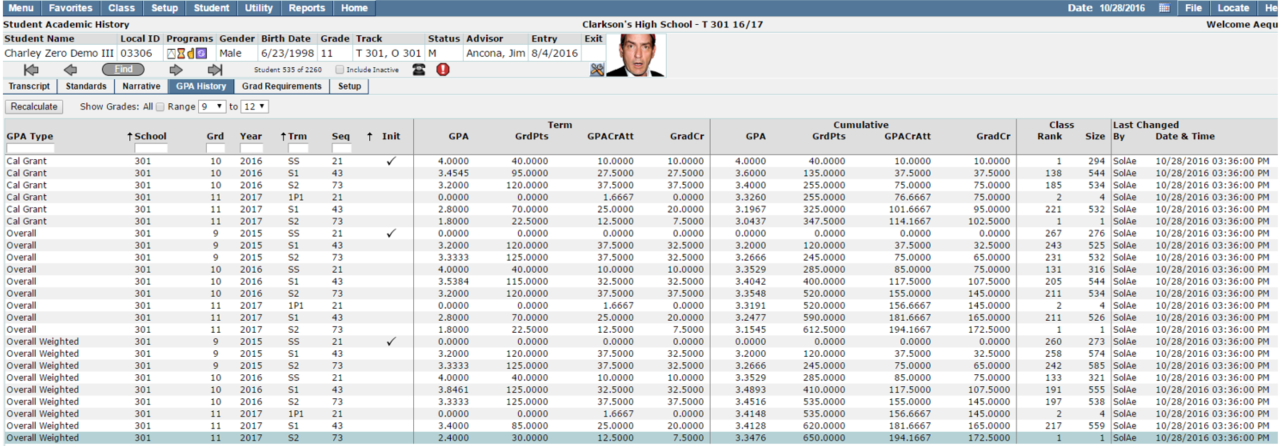
Filtering Grade Levels
The screen will default to show all the student's records from the currently selected school only, within the full range of the school's defined lowest to highest grade levels. You can filter this Grade level range by editing values in the Range dropdown fields at the top of the screen. If your district keeps transcripts from both high school and junior high and you want to view all of those records contiguously, enter a checkmark in the Show Grades: All button.
Sorting GPA History Records
The default sorting order of records in the summary list is ascending alphabetical order by the GPA Type field. For easier browsing, any field can be designated as the primary sort field by clicking on the column header. The direction of the sort for the primary sort field can be toggled ascending or descending by clicking again on the column header. A small pointer graphic will be displayed in the column header of the current primary sort field, pointing up for ascending or pointing down for descending.
Note:
If the GPA Calc Params Setup is defined to include calculating a student’s Rank, the Rank will be calculated when a student’s GPA is recalculated within the GPA History tab.
The Grad Requirements tab is a quick way to show if a student is on track to graduate. Data shown here is based on the graduation requirement rule assigned to the student in the Student Editor when a student is initially enrolled. In the Grad Requirements tab, a user can edit the rule assigned to a student if needed. Users can also recalculate credits within the Grad Requirements tab as needed.
The essential data fields are displayed in the summary view on the left side of the screen. More in-depth data can be viewed in detail window for each record (if applicable).
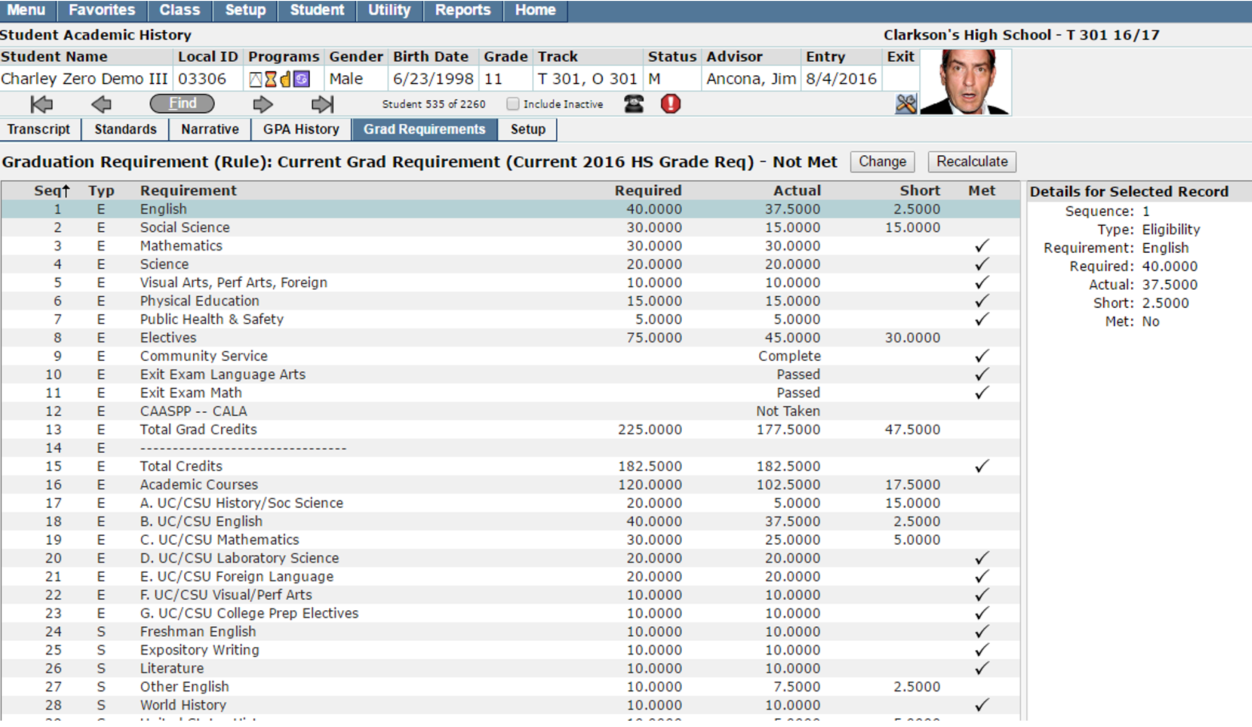
Legend:
Typ – Code for the Rule Type of the Graduation Rule; for example, ‘E’ stands for Eligibility, ‘S’ stands for Sum
Requirement – Category from which credits are earned
Required – the total number of credits required for the given category
Actual – the number of credits actually earned – to – date for category
- If the category is credit based, the total number of credits required will display
- If the category is a test, the column will display “Passed”, “Not Passed” or “Not Taken”
- If the category is an activity, the column will display “Complete” or “Not Complete”
Short – balance of credits needed to pass credit requirements for category
Met – a checkbox will be displayed when all credits have been met for the selected category
Including Sums within the Grad Requirements Tab
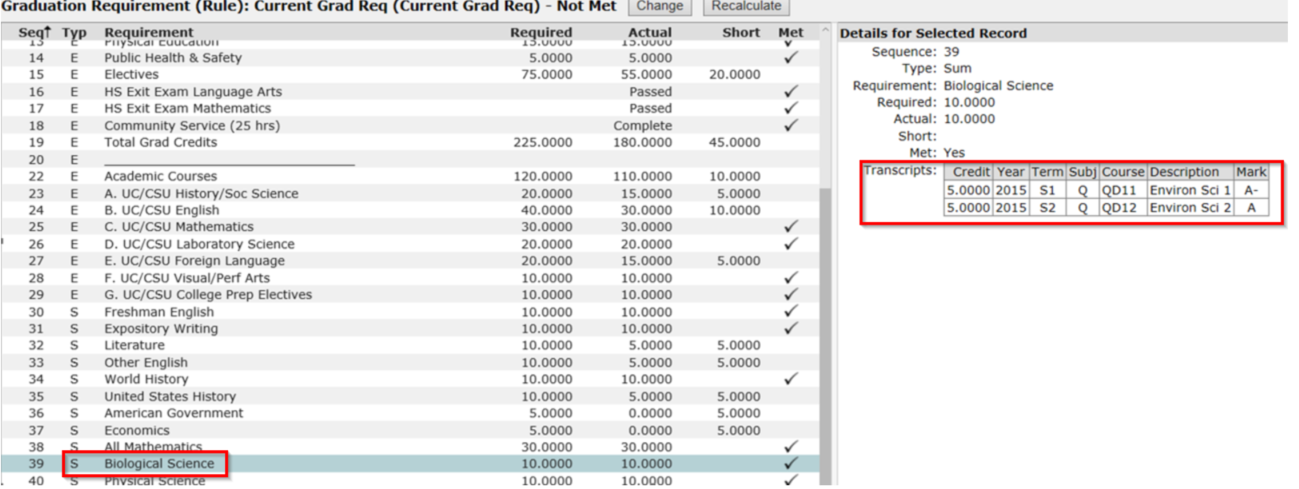
In Requirements setup, if you have the option ON to write results for sums, you will see this data within the Q Grad Requirements tab. When you select a Sum record, you will see the details on the right side of the screen. These details will further show which classes have been taken to meet that requirement, along with details for those classes.
Grad Requirements Reports
There are three reports that can be generated within the Grad Requirements tab. To print these reports, click on the printer icon in the upper right corner of the screen, and select the desired report from the Print menu that appears:
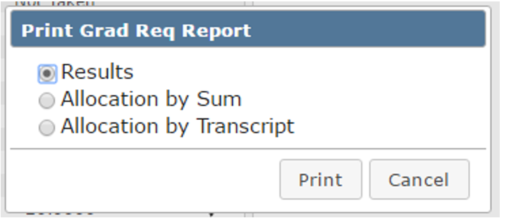
- Graduation Requirements Results – A Graduation Rule is composed of Requirements. This reports lists the sums and basic status of each Requirement within the student’s Graduation Rule.
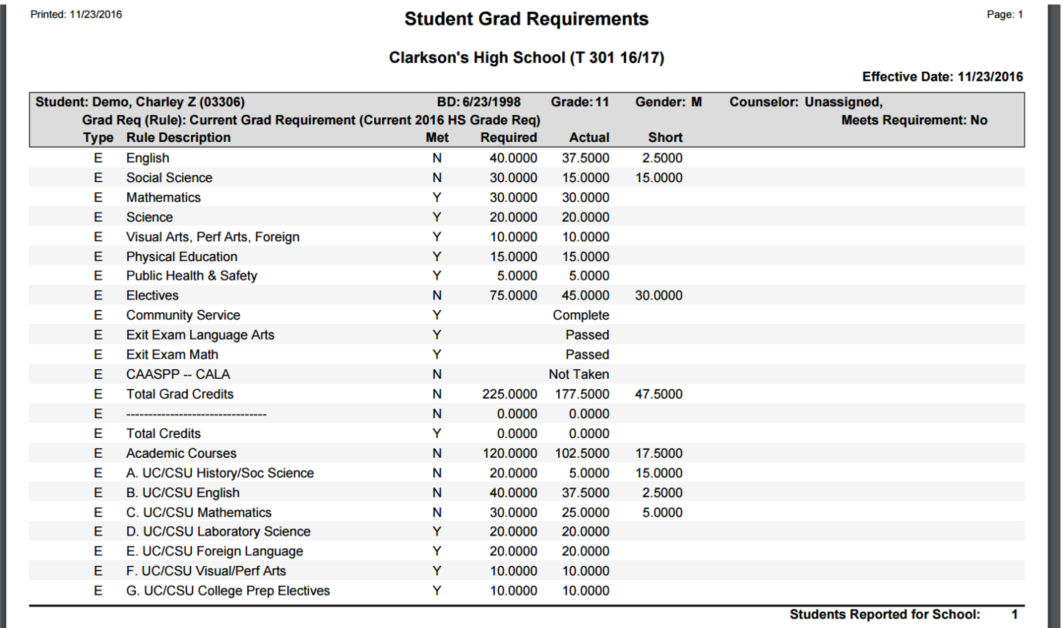
(sample Graduation Requirements Results report)
- Allocation by Sum – Shows a detailed breakdown of how the component Requirement sums were calculated per Requirement, showing how many credits came from what courses.
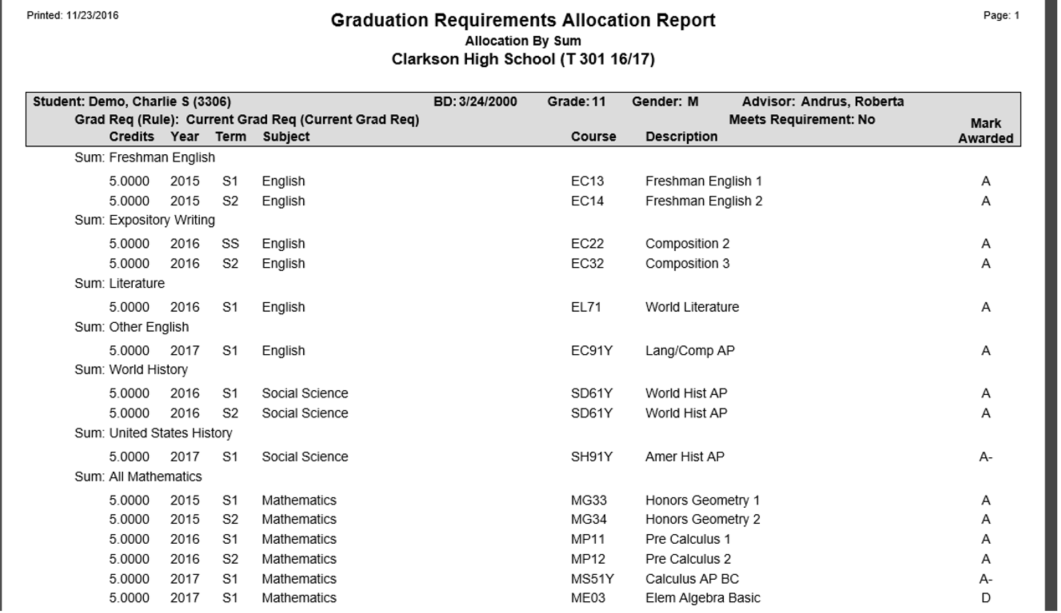
(sample Allocation by Sum report)
- Allocation by Transcript– This report lists a detailed breakdown of how the credits for each completed course were allocated to the Requirements within the student’s Graduation Rule. A “W” is a course flagged as waiver.
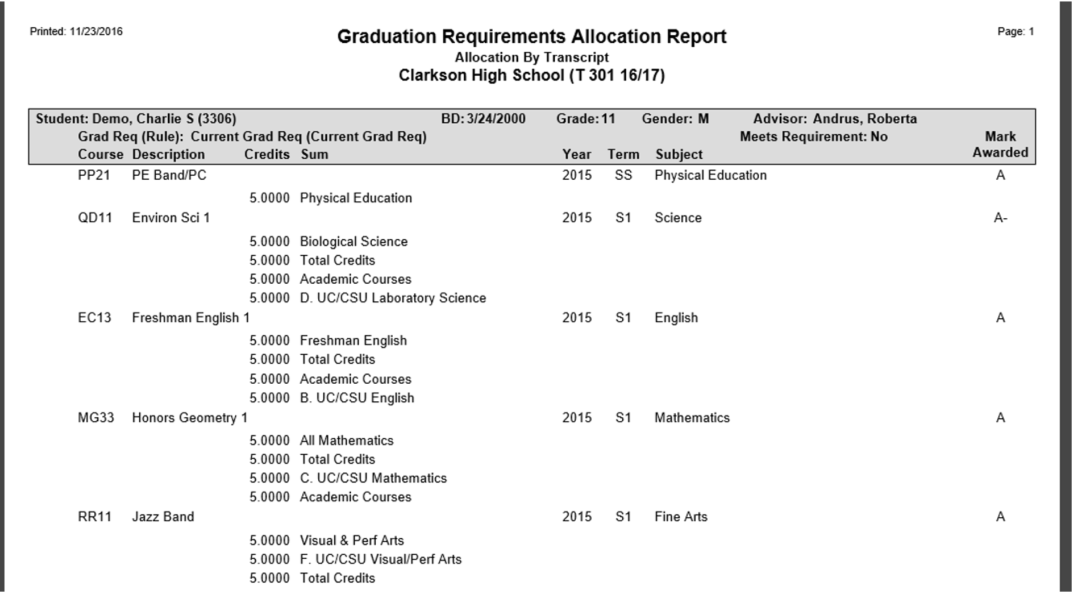
(sample Allocation by Transcript report)
Note:
The Allocation by Sum and Allocation by Transcript reports can also be run from within the Marks reporting menu.
GPA Calc Params
Within the GPA Calc Params tab, users can set parameters they wish to use when calculating GPAs. There is an independent set of records for each GPA Type. Performing calculations for one GPA Type has no effect on any records that exist for other GPA Types. The GPA Types linked to each Course are defined in the District Courses application. Only Marks that have been Posted to Academic History will be considered in calculating GPAs and Class Ranks. The calculations processed here relate only to information on student Transcripts. This application does not calculate Current Term GPAs for Report Cards.
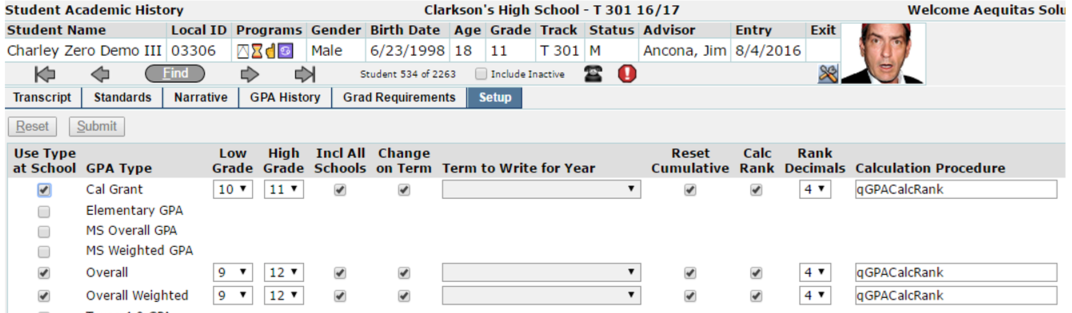
Legend:
Use Type at School – when this option is turned ON, records are written to the gpagrades table, storing the school code of the school where the GPA calculation was run.
GPA Type – list of GPA types within the logged in school.
Low Grade – the lowest grade level to be included in the GPA calculation
High Grade – the highest grade level to be included in the GPA calculation
Incl All Schools – turning this option on will use a student’s transcript records from another school to be included in the GPA calculation
Change on Term – turning this option ON will write a new GPA record for each term in which they were posted. Turning this option OFF will write only one GPA record for the entire year for a student.
Term to Write for Year – This item becomes active when the ‘Change on Term’ checkbox is turned OFF. When the ‘Change on Term’ option is turned OFF, you must specify a term to associate with the record. Typically, you would select a term that implies an entire year, such as ‘Semester 1 and 2’.
Reset Cumulative – When the Reset Cumulative box is checked ON, the cumulative GPA and credit totals will be calculated beginning with the school year and term selected above. If this box is checked OFF, the GPA and credit totals being calculated will be added to the most recent record that exists prior to the year and term selected above.
Calc Rank – turn this option ON if you want to calculate a student’s class rank along with this GPA type
Rank Decimals – select the number of decimal places you want the program to use when comparing GPAs for class ranking
Calculation Procedure – users can create their own procedure to use when calculating different GPA types, and define it in this field within the GPA Calc Params
Mark Defaults
To save time when manually adding transcript records, you can pre-define defaults that will auto populate in the Marks area for Mark Type and Mark Set when adding these records.
Default Level – this can be set to Staff, School, or District. This option defaults to Staff.
Mark Type – select the Mark Type you wish to have this field default to
Mark Set – select the Mark Set you wish to have this field default to
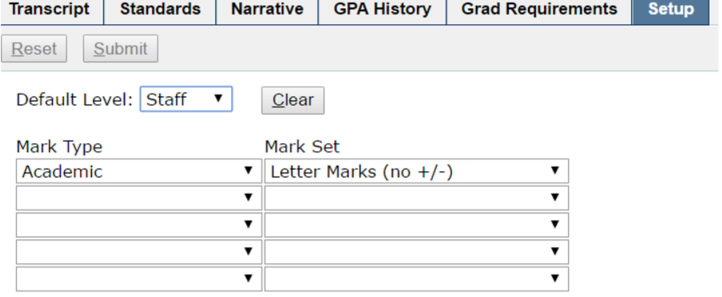
(sample Mark Defaults setup)
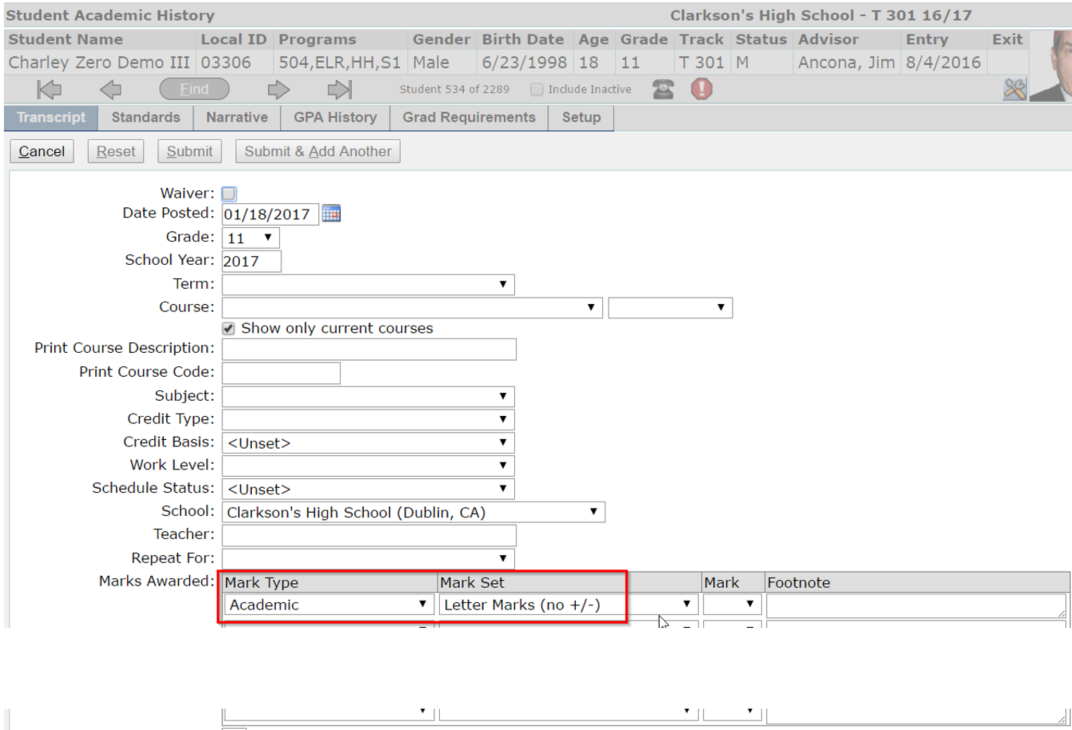
(sample manual transcript record with these fields set)
There are multiple permission items associated with Student Academic History.
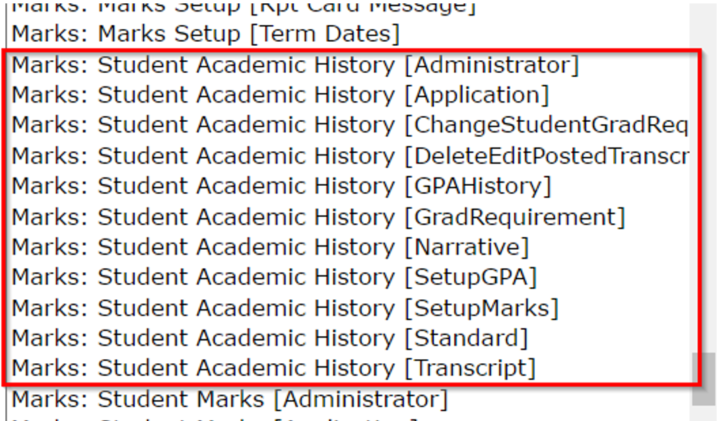
- Marks: Student Academic History [Administrator] – this permission item will give a user access to all students at the logged in school, as well as all other permission items pertaining to Academic History.
- Marks: Student Academic History [Application] – this permission item will put this item on the Marks menu for a user, but this permission item alone gives a user no access within the app.
- Marks: Student Academic History [ChangeStudentGradReq] – this permission item, when given along with the Marks: Student Academic History [GradRequirement] permission item, allows a user to change the Graduation Requirement rule that is assigned to a student.
- Marks: Student Academic History [DeleteEditPostedTranscript] – this permission item, when given along with the Marks: Student Academic History [Transcript] permission item, gives a user the Edit and Delete buttons within the Transcript tab.
- Marks: Student Academic History [GPAHistory] – this permission item gives a user access to the GPA History tab within Student Academic History.
- Marks: Student Academic History [GradRequirement] – this permission item gives a user access to the Grad Requirements tab within Student Academic History.
- Marks: Student Academic History [Narrative] – this permission item gives a user access to the Narrative tab within Student Academic History.
- Marks: Student Academic History [SetupGPA] – this permission item gives a user access to the Setup tab within Student Academic History and allows them to access the GPA Calc Params area within the Setup tab.
- Marks: Student Academic History [SetupMarks] - this permission item gives a user access to the Setup tab within Student Academic History and allows them to access the Mark Defaults area within the Setup tab.
- Marks: Student Academic History [Standard] – this permission item gives a user access to the Standards tab within Student Academic History.
- Marks: Student Academic History [Transcript] – this permission item gives a user access to the Transcript tab within Student Academic History.
