The Q Marks Setup application contains the areas that need to be configured in order to be able to enter Marks. This includes defining: dates when report card information can be entered, Mark Values, Report Card Comments, Mark Definitions, Report Card Messages, Grade Book Mark Calculations and Standards Configuration.
Marks Setup is located under the Marks menu in Q.
Term Dates allows users to define dates when report card information can be entered, modified, posted and displayed to teachers, students and parents.
Note:
Clicking on the  icon, displays help for filling in the fields.
The following drop down list defaults to the logged in track. When logged in to the District track you may set term dates for all tracks.
From the Track drop down list, select the track you wish to configure.
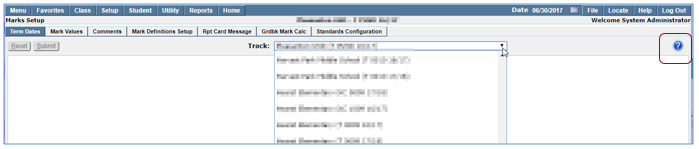
In order to set term dates a master schedule with at least one course section with a Mark Definition must exist. If there is no master schedule or if there are no Mark Definitions applied to the master schedule you will see the message: No Terms Defined for Selected Track.

Add Term Dates
- From the Marks Menu launch Marks Setup and click the Term Dates
- Fill in the dates as described below:
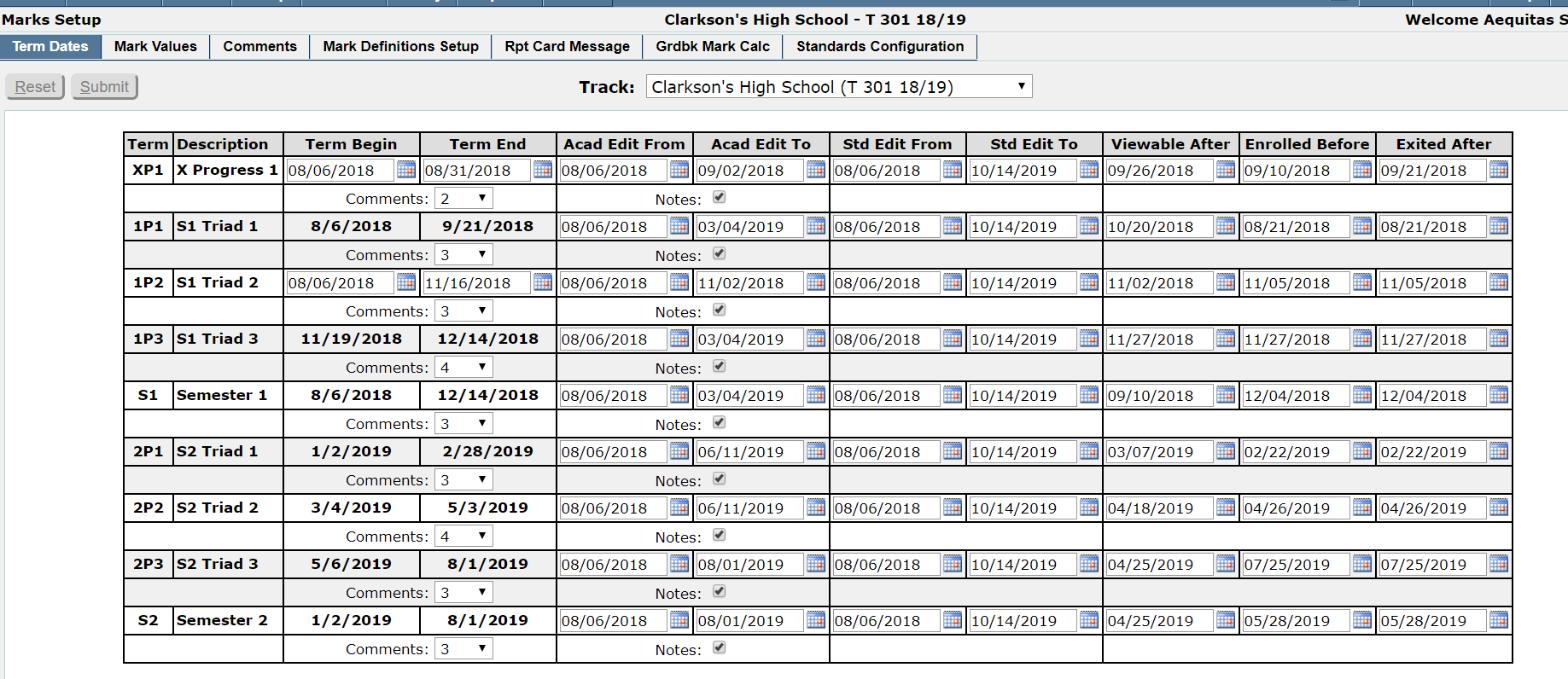
- Term – Mark reporting term (populated based on values entered in the Lookup Codes Term table for the terms assigned to the track in the track editor, terms marked isprogrpt also display).
- Description—Mark reporting term description (populated based on values entered in the Lookup Codes Term table for the terms assigned to the track in the track editor, terms marked isprogrpt also display).
- Term Begin—Scheduling term dates populates with the term begin dates entered in Track Editor. Dates for terms marked isprogrpt must be manually entered.
- Term End—Populates with the term end dates entered in Track Editor. Dates for terms marked isprogrpt must be manually entered. These dates are used as the cutoff date for standards and benchmarks based progress reports. NOTE: Leaving this value blank will prevent Student and Class Marks from being entered for progress report terms.
- Acad Edit From—The first date that end users and teachers who are limited to the editing window are allowed to post and edit report card marks. Leaving a date value blank will make the term non-editable.
- Acad Edit To—The last date that end users and teachers may enter marks. Leaving a date value blank will make the term non-editable.
- Std Edit From - The first date that end-users who are limited to the editing window are allowed to post and edit standards marks. Leaving a date value blank will make the term non-editable.
- Std Edit To - The last date that end-users who are limited to the editing window are allowed to post and edit standards marks. Leaving a date value blank will make the term non-editable.
- Viewable After—The date on which the student report card marks, entered for the term will be published to the Parent Portal, Student Connection and Student Profile. Leaving a date blank will make the report card marks for a term unavailable.
- Enrolled Before—This date will affect the list of students appearing on a class roster for mark reporting data entry. Only students who have been enrolled in the class on or before this date will appear on the roster.
- Exited After—This date will affect the list of students appearing on a class roster for mark reporting data entry. Only students who have been exited from the class on or after this date will appear on the roster.
- NOTE: The Enrolled Before and Exited after dates are inclusive, and both must be true for a student to appear on a roster. If one of these dates (enrolled before/exited after) is false for a student, the student will not appear on the roster.
- Comments—The selected value will dictate how many comments can be entered for each student for the mark reporting term.
- Notes—A check mark here indicates that users are allowed to enter free form notes for the term. If left unchecked, no notes may be entered.

In this application, the Marks to be collected and entered (Mark Sets), and their values, are defined. The Mark Sets available for definition in the Mark Values application come from the Mark Set Codes (i.e.: ‘Letter Marks with +/-‘, ‘Citizenship’, etc.).
Add/Edit Mark Values
- From the Marks Menu launch Marks Setup and click the Mark Values
- Select the desired Mark Set from the drop down list.
- Mark Sets may also be added here by clicking the Add Mark Set button.
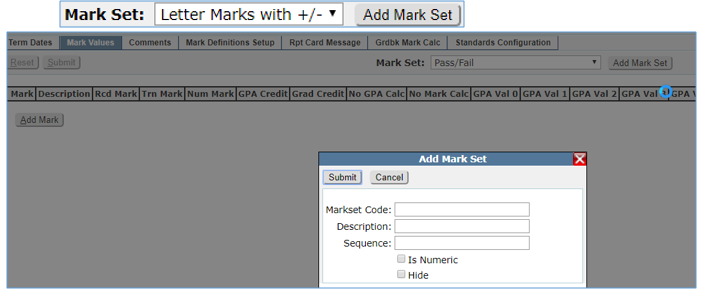
Once a Mark Set has been defined or selected from the drop down list Mark Values may be entered.
- Click Add Mark
- Complete the columns as follows:

- Mark – The Mark itself. This is the value that will be entered in Class Marks or Student Marks by the user.
- Description – The description for each Mark that you would like displayed in Mark Reporting Report Legends. Leaving this blank will exclude the Mark from the Legends that are printed on certain Mark reports. Using this mechanism administrators may want leave blank the descriptions for plus (+) and minus (-) marks so legends for +/- mark sets are less repetitive.
- RCD Mark – (Report Card Mark) How the Mark will appear on the Report Card.
- Trn Mark – (Transcript Mark) How the Mark will appear on the transcript.
- Num Mark – Define the numerical equivalent of the Mark. The value entered is used in several ways:
- As the default cutoffs for Grades in the Gradebook application.
- For Honor Roll cut-off calculations.
- Marks displayed in the Mark Values application are sorted in Descending order, based on this value.
- Mark Calc process needs a numerical equivalent of a grade in order to perform averaging calculations.
- To calculate the score of a Standard linked to an Assignment in Grade book. The percentage received on the assignment is looked up in this column and the Standard score applied is the mark that has the Num Mark that is the maximum value less than or equal to the score on the assignment.
- GPA Credit – (Grade Point Average Credit) Check this for Marks that Credit will be Awarded for that will be used in calculating Historical Grade Point Averages.
- Grad Credit – (Graduation Credit) Check this box for Marks that Credit will be Awarded for towards meeting a set of Graduation Requirements.
- No GPA Calc – (Exclude from GPA Calculations) Check this box for Marks that are to be excluded from all GPA Calculations, regardless of whether or not the Mark is Awarding GPA Credit. (A Pass, Fail, or Incomplete Mark that is not included in GPA Calculations, for example.)
- No Mark Calc – (Exclude from Mark Calculations) Check this to tell the system to ignore this Mark when you are having it calculate a Final Mark through the Mark Calculation application. (Applies only to those schools using Credit Calculation facilities.)
- GPA Val 0-9 – (Grade Point Average Value Scales) Different grade point scales can be used for different courses. Honors and Advanced Placement courses, for example, can have higher grade point scales than regular work level courses. The default GPA Level of a course is ‘0’, so it would be wise to use the ‘GPA Val 0’ column as your basic, regular work level, grade point scale. The GPA Values for each course are setup in the District Courses application, under the System Menu (this step will be explained in greater detail later in this section of the Mark Reporting documentation).
- Once all information has been added click Submit
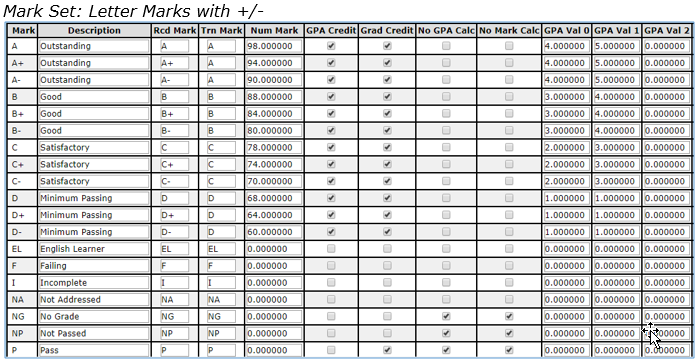
Sample Mark Values
In the set of values below, several differences can be seen between the related columns. In some cases, Marks are not posted to a transcript with a plus or a minus. So in the column titled ‘Trn Mark’, the Mark Values were entered as such.
The 'P', ‘NP' and ‘NG’ Marks, for 'Pass', 'Not Passed' and ‘No Grade’ are defined as 'No GPA Calc' and 'No Mark Calc'. If a student has one of those Marks, that Mark will not be included in those Calculations. However, the 'Pass' Mark was defined as awarding credit towards graduation (the 'Grad Credit' flag) in this example, which may or may not be the case for your school.
The GPA Values in this Mark Set were set to award higher grade points for higher work level courses. ‘GPA Val 0’ was used as a base 4.0 grading scale. ‘GPA Val 1’ was used as an Advanced Placement 5.0 scale. The scales are completely customizable, and up to ten can be defined per Mark Set. (GPA Values must be set for each course in District Courses.)
The following is a sample of a Mark Set that would be used for Standards and Benchmarks. The Num Mrk column in this set is used when Standards are associated with Assignments in the Grade Book. In the example below, if a student receives 6 out of 8 points on an assignment this equals 75%. The student would receive a ‘3’ for the Standard/s associated with the assignment since ‘3’ is the Rcd Mrk with the maximum Num Mark value less than or equal to 75.
Note:
Note: if the Num Mark values are changed, this could affect the Standards marks already awarded.

This Mark Set is used for Citizenship Marks. Since Citizenship Marks are generally not calculated into the students GPA or counted towards their graduation credits, those check boxes are not checked, and the GPA Values for the Marks are unset.

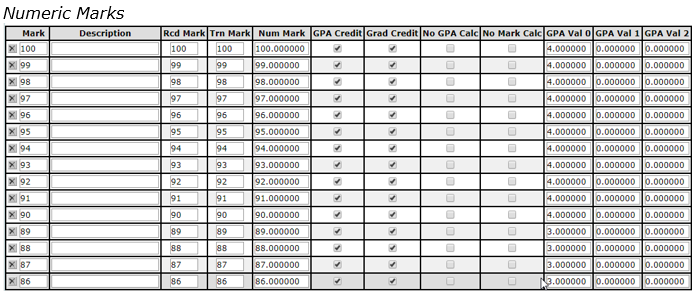
For Schools using Numeric Marks (0-100), the schools will need to enter a Mark Value for every possible Numeric Mark that a student can earn. That may mean adding 100 lines, one for each possible number, along with its GPA Value. The same number should be duplicated in the Num Mark column also.
The Comments tab is used for setting-up predefined Comments from the teacher that can be included on students' Report Cards. When logged in to the District Track comments may be entered for all schools. Comments may also be copied from one school to another.
Comments are grouped and printed by Language. When these Comments are printed on the Progress Reports or Report Cards, the Home Language of the student is referenced to the language of the Comments listed here, and the appropriate Comments will be printed for each student.
Add Comments
Launch the Marks Setup application from the Marks menu and click the Comments tab.
To add comments:
- Select school from drop down list
- Select a Language from the drop-down box (default Language is English)
- Click Add

- Add code (codes are limited to two characters and may be alpha or numeric)
- Add Description for comment (this is what will print on report card)
- Click Submit to add comment or Reset to clear entry
- Comments may be edited by selecting comment, making desired change on comment and Submitting
- To delete a comment click the X next to the Code
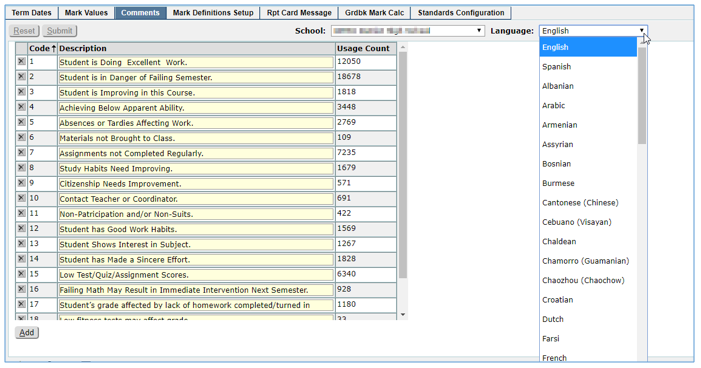
Q does not do any translation, however, you may add comments for additional languages as follows:
- Verify the comments you want to provide translation for have been entered for English.
- Select the desired additional languages from the drop down list
- Enter comment in Translation field
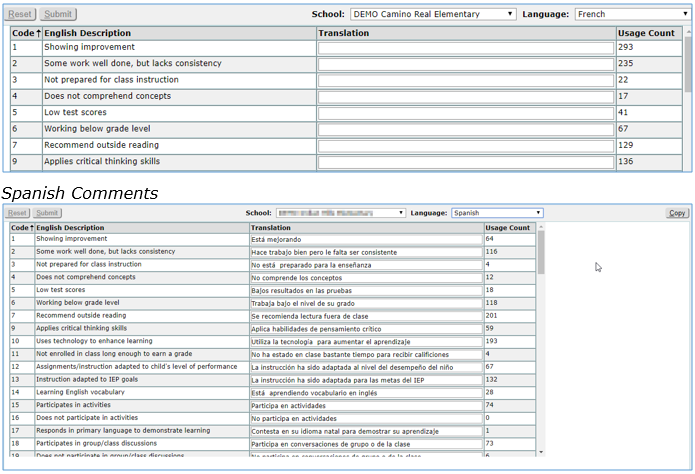
When comments for languages other than English have been entered, students whose Home Language is English will have English Comments printed on their Report Cards. Students with a home language other than English will have comments printed in their home language on their Report Cards.
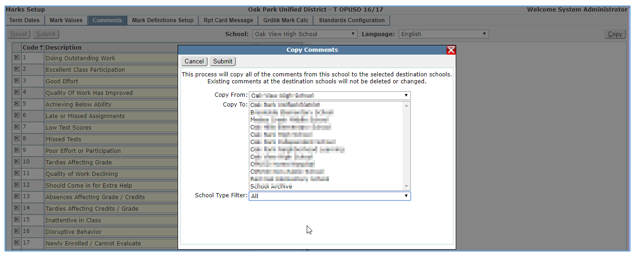
Once comments have been defined they may be copied to other schools. To copy comments:
- Select comments to be copied
- Click Copy button
- Select Schools to copy to from the list
- List may be filtered by School Type
- Use Ctrl/Click to select multiple schools
- Submit
This is an info callout
Students with no Home Language defined, or with a Home Language defined that does not have Comments associated with it, will default to having the comments for English printed on their Progress Reports and Report Cards.
Mark Definitions are created and attached to sections of a course to determine every point during the course, marks are to be collected. Marks include progress reports as well as those posting to transcript and awarding credit.
Several Mark Definitions may be created and attached to sections of courses in the master schedule. Courses that run for different term lengths will have different Mark Definitions. For example if a course is only one semester long the Mark Definition will be different than the Mark Definition for a course that is an entire year. When planning your Mark Definitions it’s important to take into account all courses and when during the course you want to assign marks and when you want those marks to be posted to the transcript.
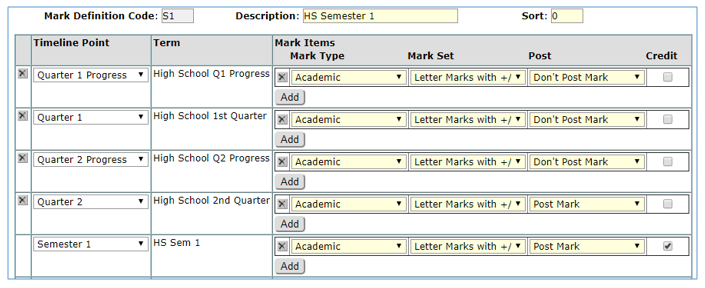
Using the Marks Definitions Setup, Timeline Points are assigned to each Mark Definition. The Mark Definition that is called “Semester 1”, includes all of the Timeline Points where marks are collected and processed during courses scheduled for Semester 1.
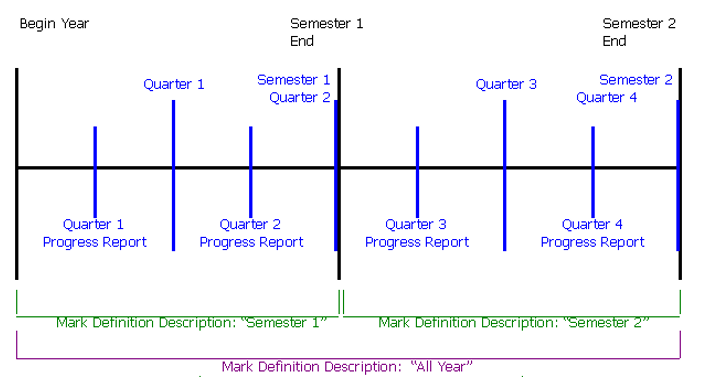
In the above example the Mark Definition called “Semester 1” will collect and process the following Marks:
- Quarter 1 Progress Report
- Quarter 1 Report Card
- Quarter 2 Progress Report
- Quarter 2 Report Card
- Semester 1 Marks
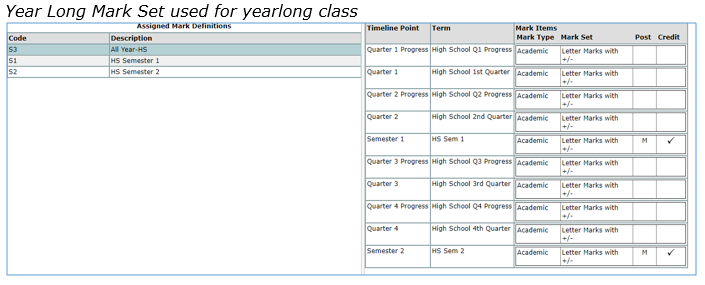
The “Semester 2” Mark Definition will encompass its appropriate Mark Reporting Timeline Points; and the “All Year” Mark Definition will be setup to include ALL points in the Timeline. (If there are any Quarter-Long Courses, a "Quarter" Mark Definition containing the appropriate Timeline Points would be created.)
Create Mark Definitions
Once you’ve mapped out your Timeline, on paper and have figured out how you want to divide your Timeline Points into Mark Definitions, you can begin adding your Mark Definitions. Remember that a Mark Definition is a grouping of Timeline Points.
To create a new Mark Definition:
- Access the Marks Setup application
- Click the Mark Definitions Setup Tab
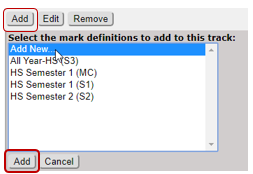
- Click Add
- Highlight Add New
- Click Add
- Enter a Code for the Mark Definition
- Enter a Description for the Mark Definition
- Select a Timeline Point from the drop down list
- A new timeline point may also be created by clicking Add New in the drop down
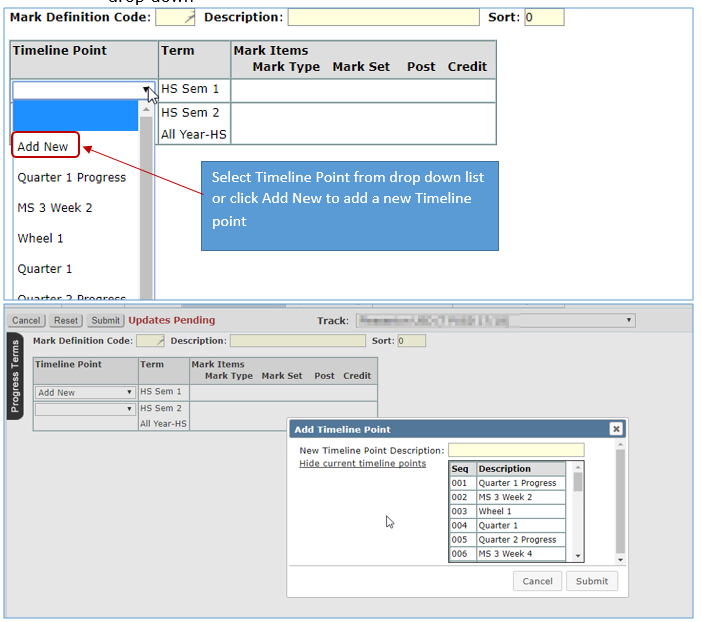
- Once the timeline point has been selected Click Add
- Enter the Mark Type from the drop down list

- Select the appropriate Mark Set from the drop down list
- Select an option from the Post drop down list:
- Don’t Post Mark if the mark should not be posted to the Student’s Academic History
- Post Mark if the particular item will be posted to the students’ Academic History record (transcript). Based on most schools’ policies, you will likely only select ‘Post Mark’ for Semester or Year-End Marks, not Quarter Progress or End of Quarter Marks. Also, you will likely only select this for Semester Academic Marks, not Semester Citizenship Marks if you choose to collect Citizenship Marks at the end of the Semester. (However, you may Post up to 5 Marks per Transcript Record.)
- Post as Supporting Mark if you want the option of showing supporting marks in Student Academic History. Supporting marks do not have any credit earned value by themselves but are marks awarded on route to a mark that will earn graduation credit. An example of a supporting mark is a quarter mark posted prior to the semester mark that earns graduation credit and is used for GPA calculation. Supporting marks are always associated with the Parent mark.
- Check if credit is to be awarded
- Award Credit means that Credit is awarded at this Timeline Point for completion of this course. For Marks that are POSTED, this flag will almost always be turned on. It is generally the case that Posted Marks are given Credit Attempted and Awarded values. The values awarded here will later be used to base Historical GPA calculations on.
- CREDIT CALCULATION: The number of Credits that will be awarded will be calculated based on the number of Terms the course is scheduled for and what Term you are currently in (based on the Term tied to your Timeline Point). For example, a year-long course meets for 4 Terms. You are at the end of Quarter 1, which is 1 Term. One quarter of the Credits for the course will be awarded at that point (0.25 or 2.5 out of 1 or 10).
Sample semester 1 Mark Definition where progress reports are issued mid quarter and at the quarter with mark posted to transcript at semester. Used for semester classes
Track Marks
When a Mark Definition is created while logged in at the School track level it is automatically added to the track it was created in. At this time you can’t create All Mark Definitions from the District Login however, you can create Mark Definitions from a School login.
Mark Definitions may be copied to other tracks using the Copy To Other Tracks button. However, only tracks that have all the terms referenced in the Mark Definition categories in the track you’re copying from, and that do not already have Mark Definitions assigned will be available to copy to. You can create Mark Definitions for a school type and then copy them out to other schools of the same type as long as they are using the same term codes. An example is while logged in to a high school create Mark Definitions and use the copy feature to copy them out to other high school tracks that have the same terms.
When Mark Definitions are created and associated with tracks they remain and don’t need to be re-done every year, unless removed.
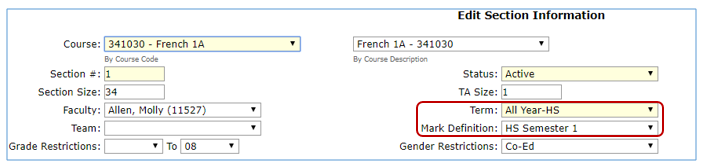
Associate Mark Definitions with Courses in Master Schedule
Once Mark Definitions have been added to a Track they can be added to the specific course sections. In the Master Schedule Building process Mark Definitions are attached to each course section.
Each course that will assign Marks must have two fields properly set in order for Marks to be processed: 'Mark Definition' and 'Assign Grades'.
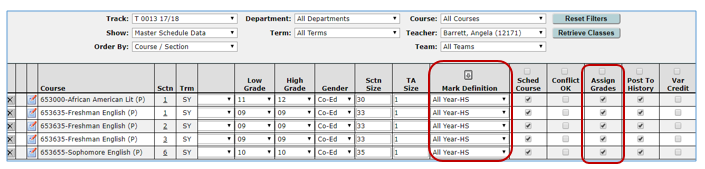
Assign Grades –This tells the system that Marks will be collected for this section of a course. Activates access to the Variable Credit flag. Also activates Term Code verification (explained below) for the Mark Definition that is selected for the section.
Mark Definition – Associate the section with a Mark Definition by selecting the appropriate Definition from the drop-down box. Each course may only be associated with ONE Mark Definition.
When planning the naming of Mark Definitions it’s helpful to match the definition name to the term the course will be scheduled. For example, a course that is offered in the 1st Semester, would have a Mark Definition with a name indicating Semester 1 and include Timeline Points related to the 1st Semester.
It’s much easier to assign Mark Definitions that follow a logical Track Timeline, and are named similarly to your Track Terms than it is to have a more random naming system for your Mark Definitions. For our Mark Reporting Timeline example the “HS Semester 2” Mark Definition would be assigned to courses offered in the 2nd Semester, and an “All Year HS” Mark Definition would be associated with courses that last the entire school year.
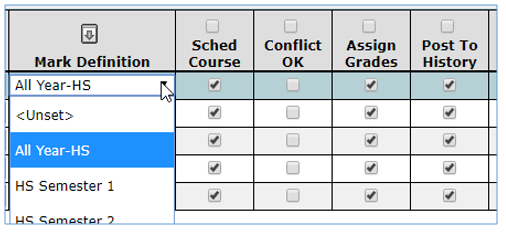
Each section in your Master Schedule will need to have a Mark Definition if Marks are to be collected and processed for the class. If there is a problem with a Mark Definition not showing in the drop down list as a choice, check Marks Setup; Mark Definitions Setup tab to verify the Mark Definition was assigned to the Track.
Term Code Verification
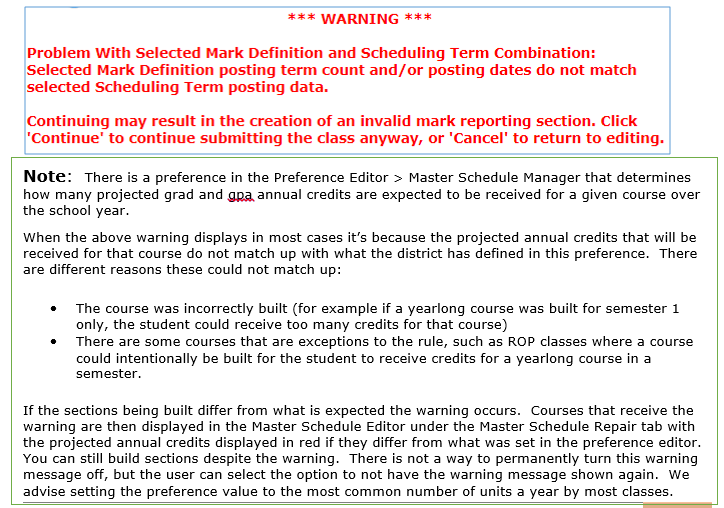
Upon selecting a Mark Definition to associate with a section of a course, Q will perform a check that compares the Term Duration of the section in regards to the Term that it is scheduled for, and the Term Duration of the Mark Reporting Term(s) associated with the selected Mark Definition. This check is used to verify that the Award Credit setting(s) made for Items in the Mark Definition coincide with when this section of a course it setup for awarding credits.
If the Durations don’t match up, the following warning displays upon submitting.

Messages that print on report cards may be configured here. The Q Report Card Setup application allows several different report card definitions to be created including messages to be printed on the report cards. If Report Card Definitions have already been created, the Report Card Message may be created and maintained here. Messages may be created in plain text or formatted when the Use Formatted Message Editor box is checked.
To add a Report Card Message:
- Access the Marks Setup application
- Click the Rpt Card Message Tab
- Select Track from Drop Down list
- Select Report Card definition from Drop Down list
- Type message in message box
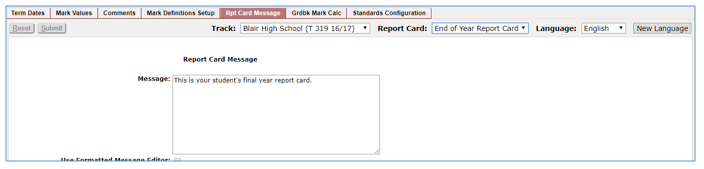
- To enable formatting of the message check the Use Formatted Message Editor
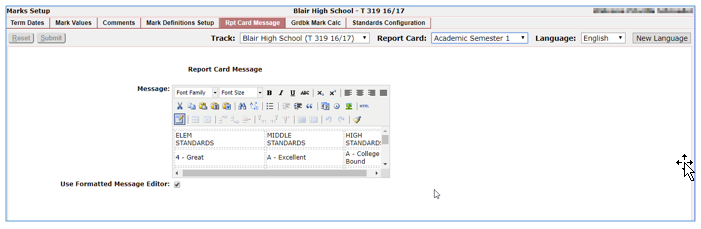
- You may copy and paste from a Word document or create a formatted message using the editor
The default language for Report Card Messages is English, however, messages may also be created in additional languages. Q does not do any translation, however, you may add messages for additional languages as follows:
- Select the Track from the drop down list
- Select the Report Card definition from the Drop Down List
- Select a language from the drop down list
- If the desired language is not available in the drop down list, click the New Language button and select language from list
- Enter message in Language selected
- Submit
When messages for languages other than English have been entered, students whose Home Language is English will have the English message printed on their Report Cards. Students with a home language other than English will have the message printed in their home language on their Report Cards.
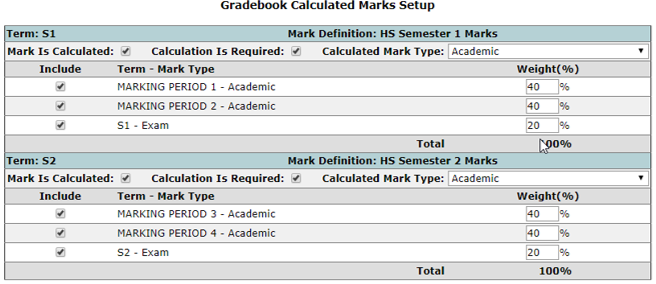
Districts may set up automatic calculations of Grade Book Marks to calculate a student’s final mark. The calculated marks are derived from prior terms mark types included in the calculation as defined in the mark calculation setup.
To set up calculate marks:
- Check Mark Is Calculated box for Terms that will have calculated Marks
- Check if Calculation is Required
- Select the Calculated Mark Type
- Check Include checkbox to select the Term/Mark Type value(s) to calculate the Grade Book Calculated Mark
- Enter the Weight (%) that will be used to calculate the mark. NOTE: Leaving the weights blank will allow teachers to define their own mark calculations.
- Click Submit to save settings or Reset and Cancel to clear entered settings