
For schools with large numbers of courses, who are looking to focus on meeting student needs and requests, you may be considering using the Master Schedule Builder.
This is a short refresher on the Course Offerings and Tally Information section and a reminder about Sorting in Q.
Course Offerings and Tally Information
Course Offerings and Tally Information displays a list of all courses that have requests in the current track broken down by grade level. Additional information columns are also included and described in the chart below. The courses may be filtered by course code, description, and/or department. Any column may be used as a primary sort field for the list by clicking on the arrow above the column header. The current course selected will be highlighted in blue.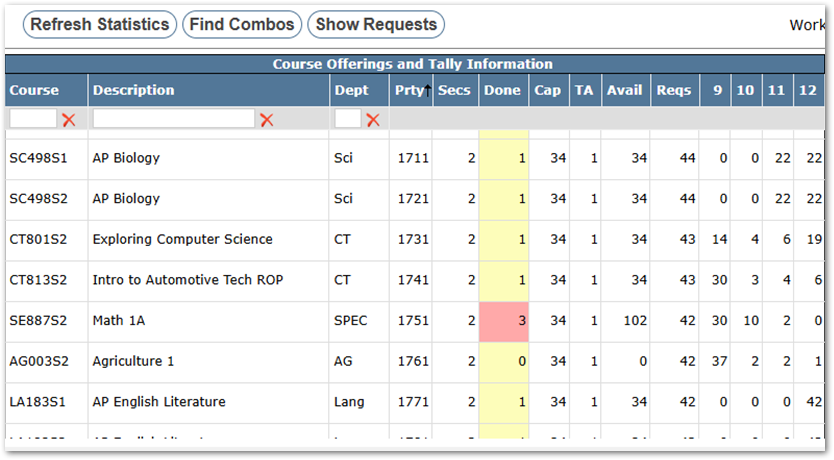
- Course: Course ID Number as it appears in District Courses.
- Description: Course description as it appears in District Courses.
- Dept: The department the course is assigned to.
- Prty: Priority Rating: A system-generated value based on requests and section information.
- Secs: The number of sections you plan to build in the schedule as defined in the Track Course Setup.
- Done: Indicates the number of sections that have been built in the Working Schedule. The Done column is color-coded.
- When sections built are less than the number of sections defined, they appear yellow.
- When the number of sections built is the same as defined, they appear white.
- When more sections have been built than defined, they appear salmon.
- Cap: The capacity defined for each section (the Sect size from Track Course Setup).
- TA: The default number of TAs defined in district courses or as defined in Track Course Setup.
- Avail: The number of seats available for the course.
- Reqs: The total number of course requests for the course
- 9 – 12*: the total number of course requests for the course broken down by grade level (*The grade level numbers are those defined under Grades in the Setup tab).
Sorting Information Tip
As in many Q applications, the data may be sorted by clicking on the column header. A black arrow displays on the column header that’s being sorted with the arrow up or down indicating if the sort is ascending or descending order.
You can sort using multiple columns by holding the shift key down and clicking an additional column.