
The Permissions Editor allows permissions to be set for users and the specific roles they are in.
Some of the enhanced functionality of the Q Permissions Editor includes:
- The ability to set field level restrictions for a role in the Student Editor and Staff Editor
- The ability to have a role definition code description up to five characters
- The ability to have a user in multiple roles
Permissions Editor is located under the Staff menu in Q.
When the Permissions Editor is launched, clicking on the first tab at the top of the page, the Staff Roles tab will show the view displayed below. The blue crosshairs help to easily guide to the correct role and staff member the user is trying to edit. 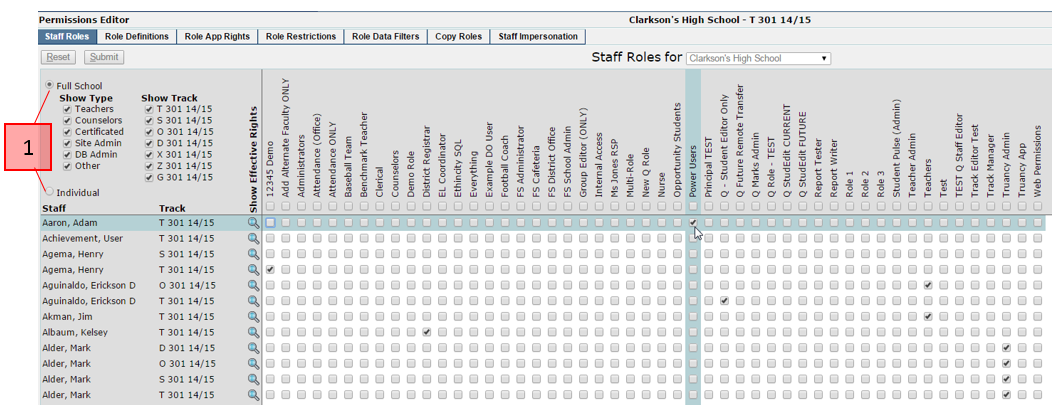
1) Users can filter faculty either by clicking the Full School or Individual radio button.
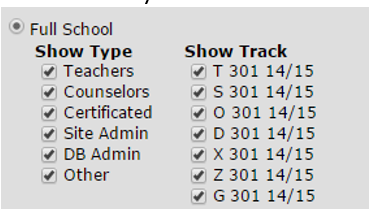
When the Full School radio button is selected, faculty can be filtered by type, as well as by track association.
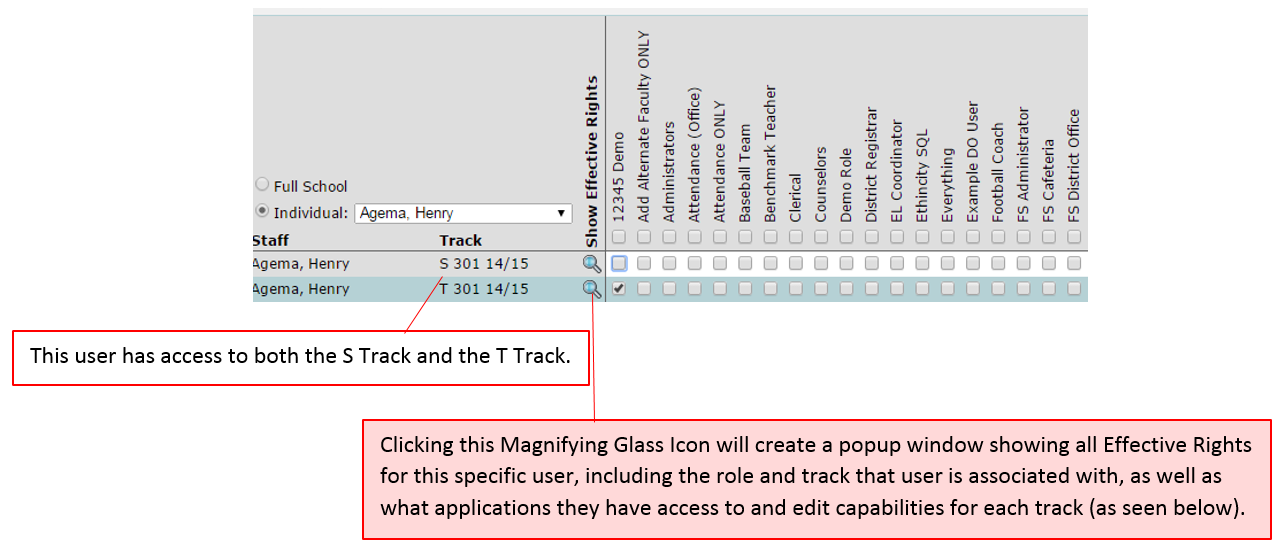
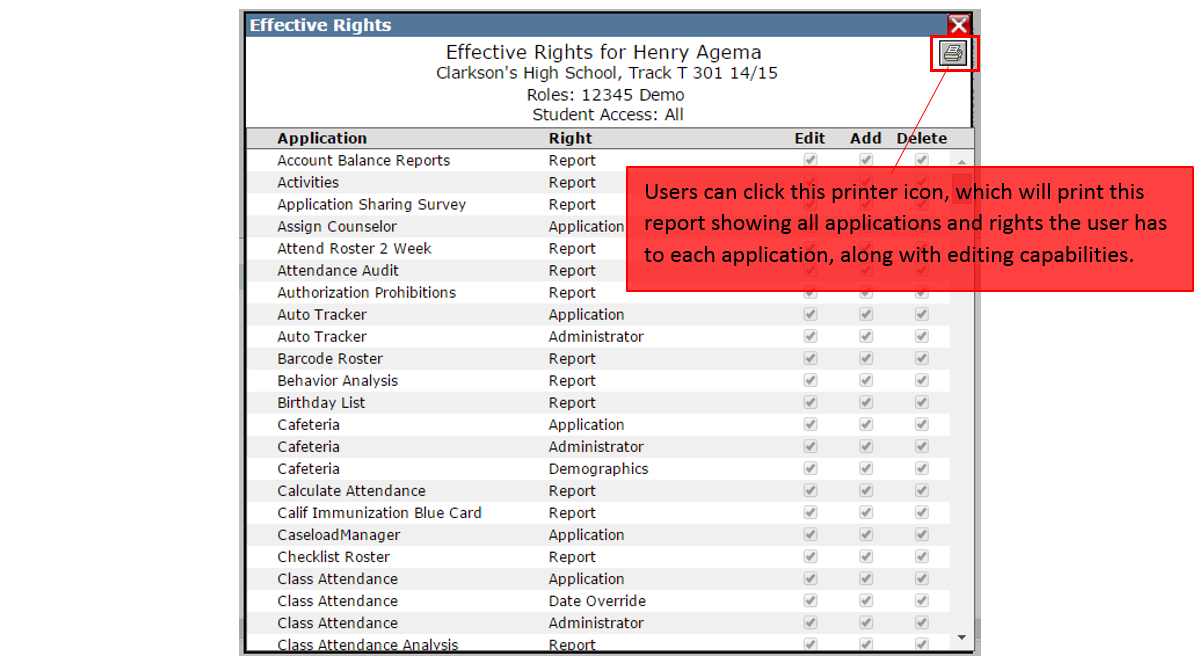
When the Individual radio button is selected, a drop down will appear with all faculty. When you select one person, their name will then appear with all track associations and roles at that track.
The second tab at the top of the Permissions Editor page is the Role Definitions Tab and shows the view displayed below. Here, the user can add new roles and define what data that role has access to (All, Teacher, Counselor, or Advisor), as well as groups that can be associated with a particular role.
When adding a new role, a role with a duplicate name and/or a duplicate code may not be entered.
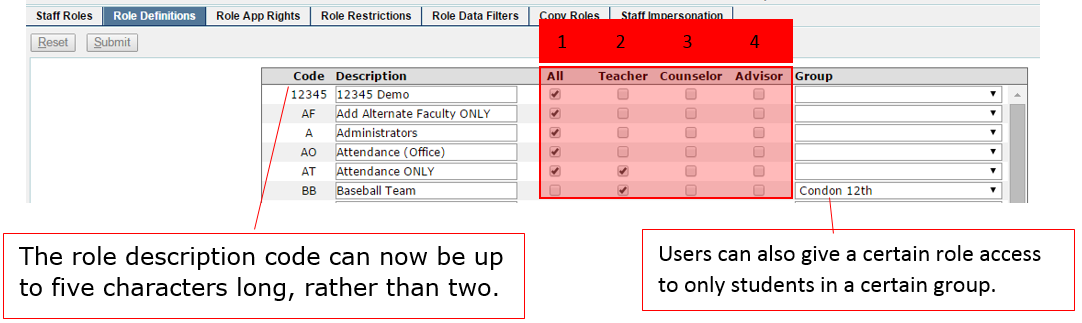
Different Types of Data Access:
1) Giving a role ALL Data gives users access to information for ALL STUDENTS at the track they are assigned to.
2) Giving a role Teacher Data gives users in this role access to information for only students enrolled in their class.
3) Giving a role Counselor Data gives users in this role access to information for only students they are marked the counselor for.
4) Giving a role Advisor Data gives users in this role access to information for only students they are marked the advisor for.
The third tab at the top of the Permissions Editor App is the Role App Rights Tab and shows the view displayed below.
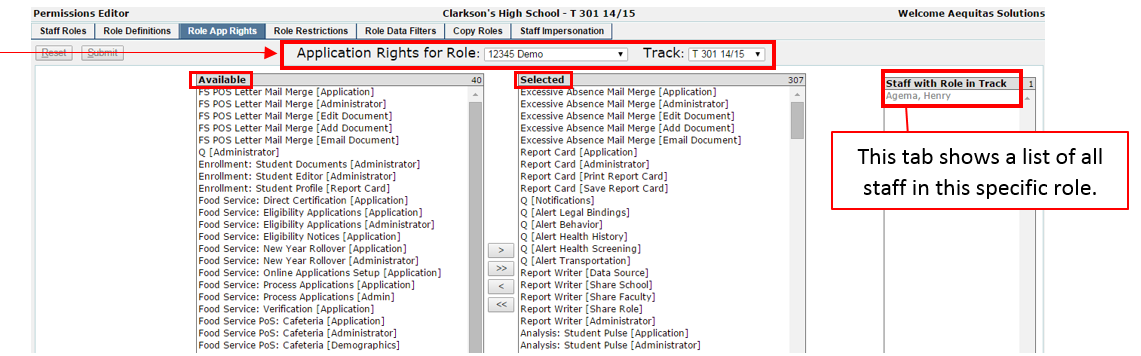
The Role App Rights Tab allows users to assign application rights for different roles. Users can select which role they are assigning Applications to and which track they are associated with from the drop down lists at the top of the page.
The left window shows all Q Applications available to be given to a role, and the right window shows all Applications that have been assigned to that role.
Users can select/deselect multiple apps at a time by holding the Cntrl key down and clicking on each desired item or holding down the Shift key the user can highlight one record and then click on the bottom record to select all items between the top and bottom. Once items have been highlighting them and clicking the single arrow in between the two windows. Clicking the double arrows would select/deselect all applications at one time.
The fourth tab at the top of the Permissions Editor App is the Role Restrictions Tab and shows the view displayed below. The Role Restrictions Tab allows for edit capabilities and restrictions to be placed on applications that have been given to a certain role.
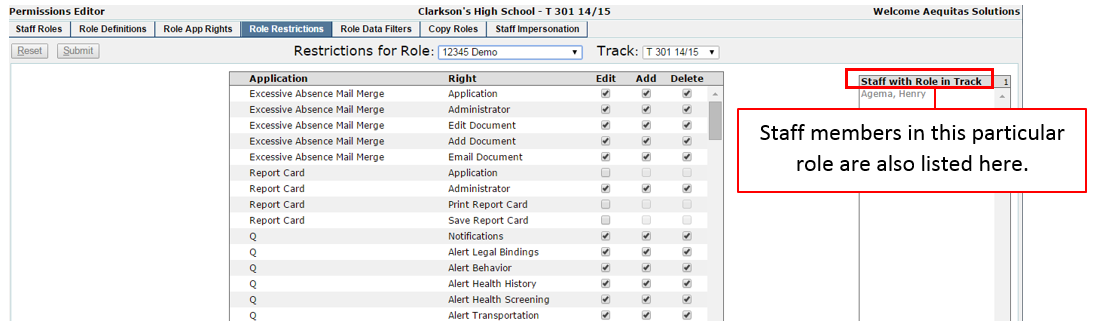
If you uncheck the Edit box, it automatically also unchecks the Add and Delete check boxes. It is possible to uncheck the Delete box without unchecking the Add box (and vice versa). This will allow users to add information, but not delete it.
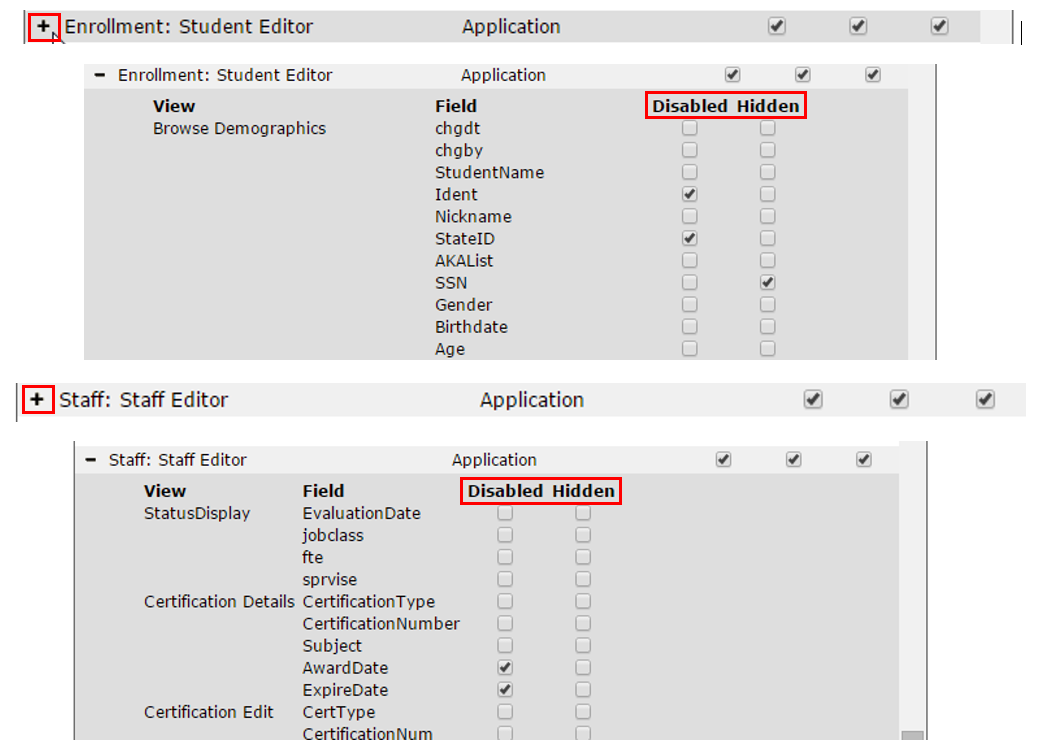
Under the Role Restrictions tab, users can also apply field level restrictions for the Student Editor as well as the Staff Editor by clicking on the + icon located to the left of the application name. Once the + icon has been clicked, a dropdown will appear with different options for field level permissions to be set. Users can decide what information they would like to be disabled from editing and/or hidden from a certain role.
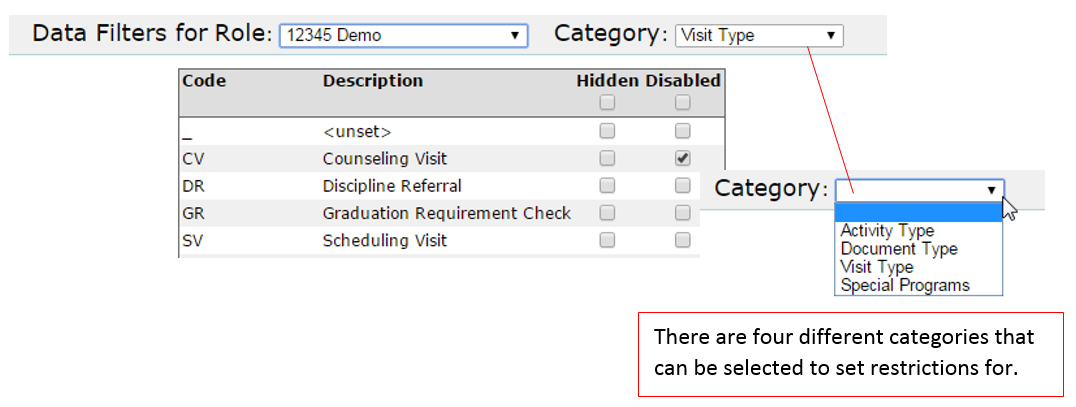
The fifth tab at the top of the Permissions Editor page is the Role Data Filters tab and shows the view displayed below. Here, users can set Activity Types, Document Types, Visit Types, and Special Programs to either be hidden and/or disabled from editing for a particular role.
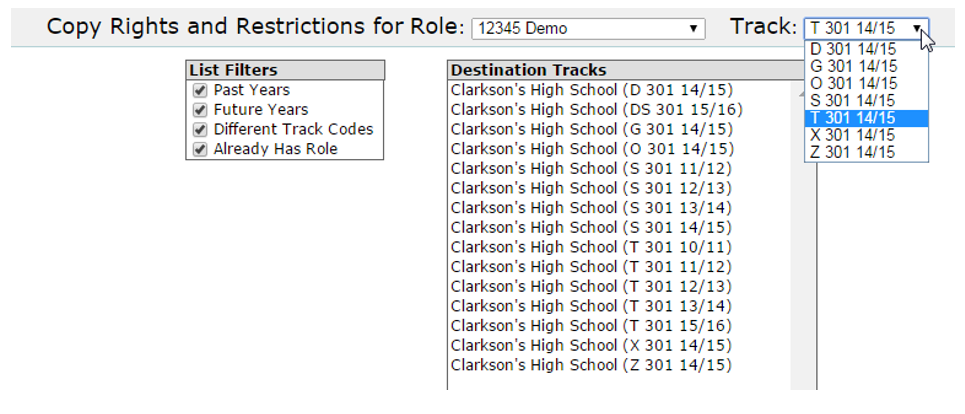
The sixth tab at the top of the Permissions Editor page is the Copy Roles tab and shows the view displayed below. Here, users can select a track from which they would like to copy rights and restrictions for roles from, and can use the list of filters to decide where they would like these rights and restrictions to be copied to.
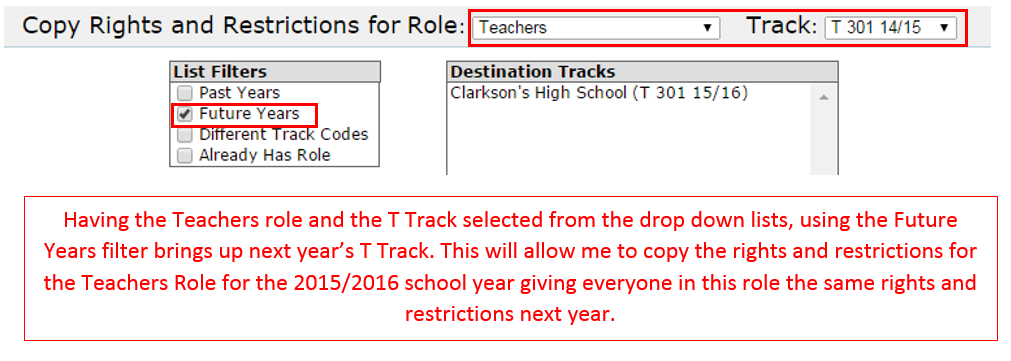
Example: Users can select to copy rights and restrictions for a particular role from the current year to the same track next year by using the future years filter. This will give the staff in a current role the same exact rights and restrictions the following year.
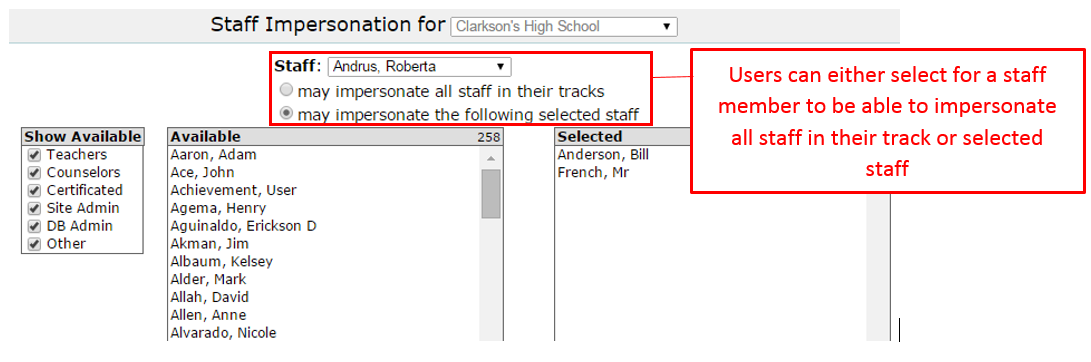
The final tab located at the top of the Permissions Editor page is the Staff Impersonation tab and shows the view displayed below. Here, users can define whether or not staff members have the capability to impersonate other users. Available staff to impersonate can be filtered by staff type, or all check boxes can be left selected to view all staff available to impersonate.
When a user is placed into multiple roles, they will always receive the better access to the applications and the restrictions of the multiple roles they are in.
Example 1: User A is in the Administrator Role as well as the Teacher Role. Administrator Role has access to All Data, but the Teacher Role has access to Teacher Data only. User A will have access to all students since this is the better data access of the two roles.
Example 2: User B is in Registrar Role and has full access to the Student Editor and the same user is also in the Counselor Role and has restrictions on some areas of the Student Editor. User B will have full access to the Student Editor since they are in one role that has full access.
