
The Q Forms module may be used to design, deploy, and distribute online forms.
- Q Forms Designer is used to create form templates such as generic field trip permission forms, release forms, etc. The templates may be shared with faculty based on school, permission role, or specific individuals.
- Q Forms application is used to deploy and manage distribution of the forms to parents, students, contacts, or staff. As an example, faculty with permission will then be able to use the template to make a form like a specific Field Trip permission form by filling out the event details for the field trip and selecting the recipients for the form.
- Parent or student recipients complete forms, including signing them, in their respective portals, ParentConnect or StudentConnect.
- Staff recipients complete and sign forms in Q itself.
Q Forms Designer is located under the School menu in Q.
Permissions
Q Forms Designer is intended to be permissioned to only a few staff members responsible for implementing the design of online form templates.
Those responsible for managing the assignment and distribution of the forms themselves, will need access to the Q Forms application which will use the templates created in Q Forms Designer.
Q Forms Designer has 2 permission items:
- Application - Enables the user access to create form templates, but they will only have access to the templates they create.
- Administrator - Enables the user to access all templates, for any template author.
Form Categories
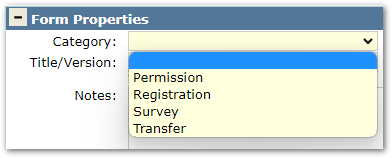
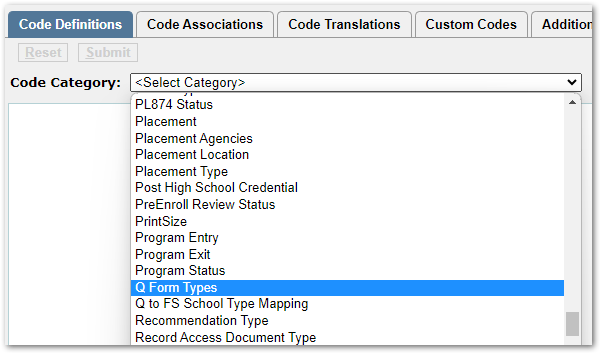
The Form Category codes are set in Lookup Codes under the System menu. From the Code Definition tab, select ‘Q Form Types’ to add or manage the district’s Form Categories.
Templates you have access to will appear on the list. Those with application-level permissions will only see their own templates. But those with application administrator permissions will see all templates and the view will include the ‘Owner’ column.

From the options across the top:

Add Template - Click to create a new template.
Copy Template - Use to copy and then modify templates to create a new version.
Show Archived Forms - Check to include archived forms in the list of templates.
The buttons’ hotkeys are indicated by the underline, and the icons’ hotkeys are visible in their tooltips when mousing over the icon.
Use the icons at left to delete, view or edit a template.
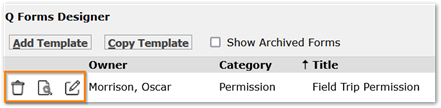
 Templates without a trash can icon have been completed by a recipient and may not be deleted as a result. Instead, they may be archived.
 View provides a pop-up display of the template’s properties, discussed below, and a form preview. In addition to the properties available in Add or Edit mode, the View option shows whether a form template is locked. A template will become locked automatically once one or more recipients complete a form associated with the template.
 Either double-click on the template or use the Edit icon to open the template in Edit mode. Once a form has been completed by a recipient, the form design portion is locked and may no longer be changed. This is to ensure the forms signed by recipients are not changed after the fact.
If there’s a need to make alterations, the template may be copied, the version changed, and the changes applied to the copy.
 Notes about templates appear when the user hovers over the notes icon in the far right column.
When launching the application initially, there may not be any forms available in the list. To create a form, click the ‘Add Template’ button.

Add or Edit Mode
The form template screen is divided into two panes with a Preview Form button at the top:
- Form Properties
- Form Design
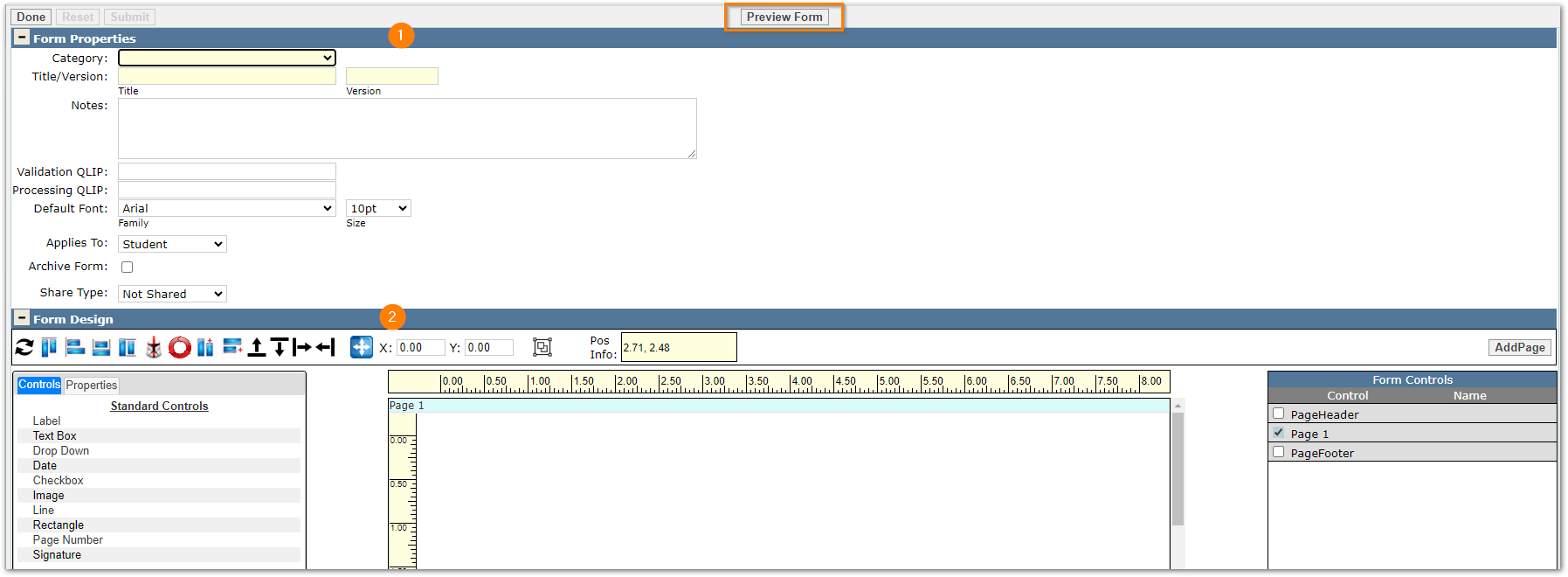
Form Properties
Complete Form Properties including:
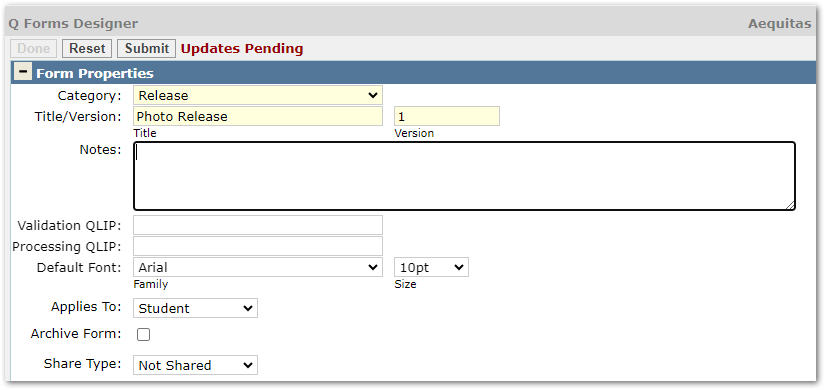
Category - The category is a required field. Categories may be defined in the Q Form Types Lookup Category, mentioned earlier. The category is a way of grouping forms. Select the appropriate category for the form template.
Title / Version - Provide a Title and Version for the template. These are required fields.
Notes - Notes will be visible under the Notes icons on the Forms Listing.
Validation QLIP & Processing QLIPs – It is possible through implementing QLIPs to apply custom logic to validation of the form data on submit, or to process data after the form is submitted. These processes will apply to all instances of the associated form. When creating new templates for specific forms, consider the logic applied in any associated QLIP as part of the determination as to whether one or multiple templates may be needed.
Default Font - Select and set the default font and its size.
Applies To - This key setting drives who the form is about: students or faculty. Ultimately the setting will affect the recipients that may be assigned to complete the form. When ‘student’ is selected, recipients may be students, their contacts, and/or faculty. When faculty is selected, faculty will be the recipients.
Archive Form - When a form template is archived, it is no longer available in the Forms application to create a new form from it, but existing forms associated with it are not affected.
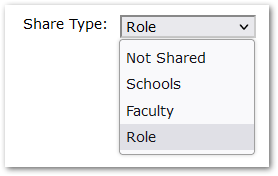
Share Type - The form template may be shared in the Q Forms application by School, Faculty or Role to enable users such as school office staff, administrators, counselors, or teachers to create a form and assign it to recipients based on the template. Form Templates that are not shared, may still be assigned by the form’s owner within the Q Forms application.
We recommend defining the form template’s properties and saving the template before proceeding. Once saved, collapse the Form Properties band either by clicking on the bar across the top of the band itself, or clicking the minus (-) sign. This way, the focus may be on form design.
Form Design
The design area includes:
- The Control panel on the left lists the controls available to use in a form, with a tab to access their properties.
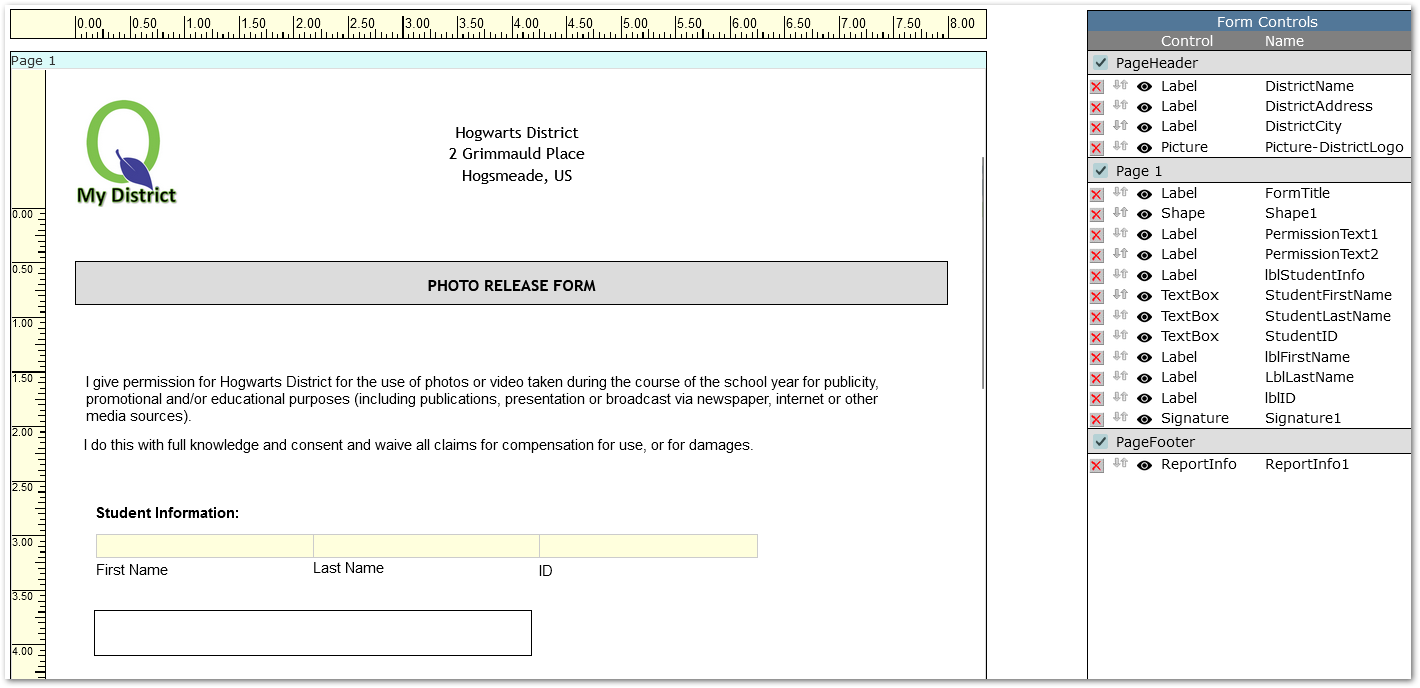
- The design surface in the center consists of one or more pages along with a page header and footer that will, when implemented, appear on each page.
- The Form Controls panel on the right lists the controls applied to the form.
- A toolbar across the top of the Design pane helps to work with selected controls, to arrange and move them, create a set of controls, etc.

Important Conceptual Design Notes
Each page in the design template will render and print as displayed. The form with its controls will not grow and expand from one page to the next. Instead, a page is essentially a set amount of space. Controls added to page 1 will appear on page 1 for the recipient. Additional pages may be added to accommodate more controls or content.
As a result of each page having a fixed space, it’s important to plan what the header and footer design will be and implement those first. When a header and/or footer are designed, they will appear on each page. Then it will be evident how much available space is left to work with on the page.
Implementing a Form Design
Page Header
Begin in the Form Controls panel on the right by checking on the Page Header and then proceed to define the header.
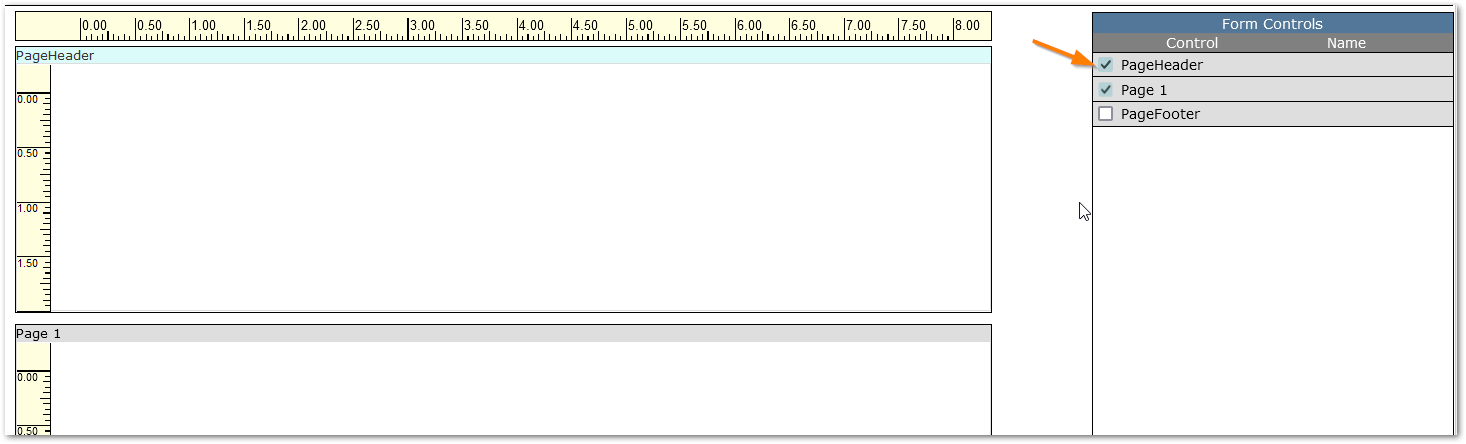
Controls may be added to the form template either by double-clicking on them and then adjusting their location, or by dragging and dropping them to their desired location.
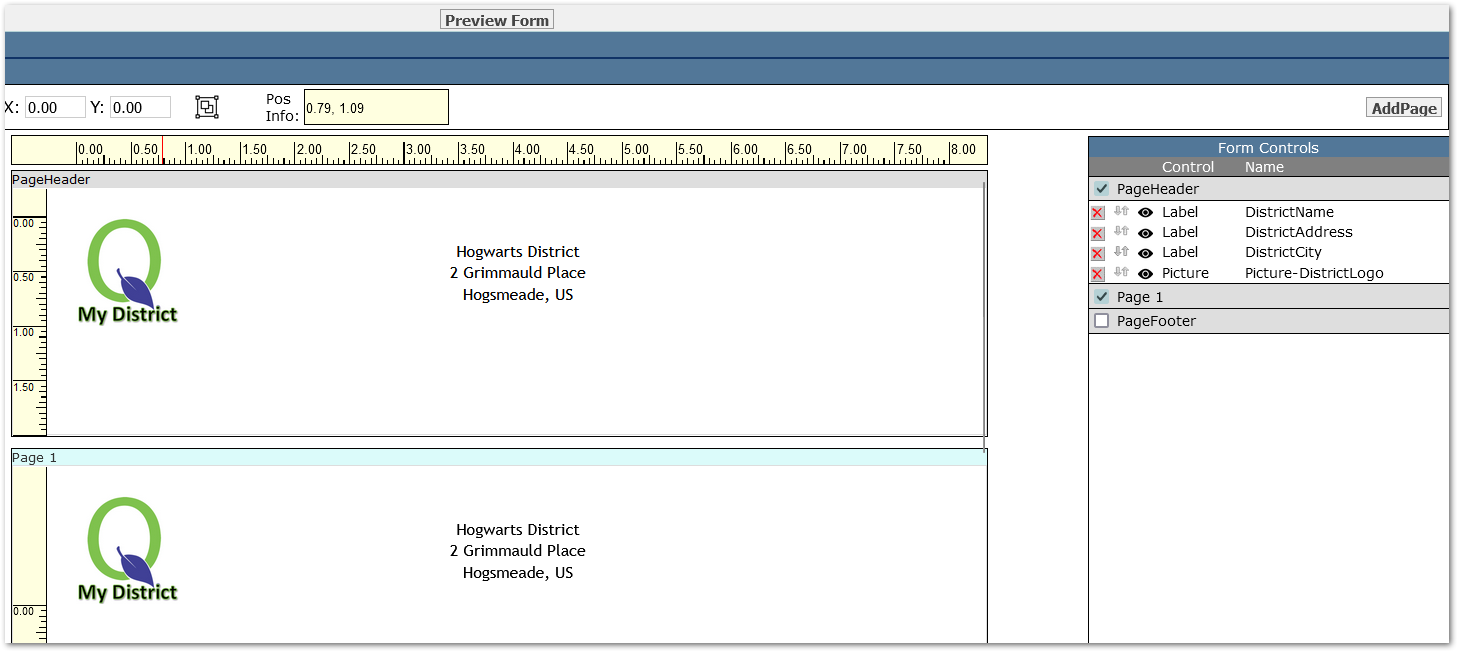
In this example, we used the Image control and dragged it to the top left corner of the header to put a logo in the page header.
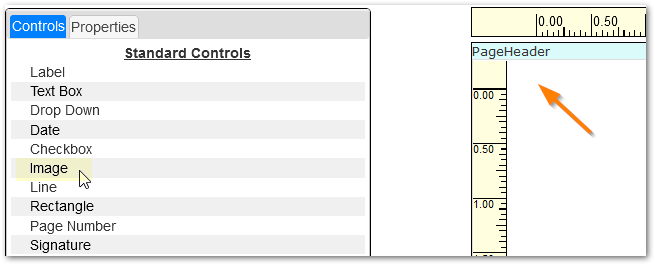
When positioning the control, watch the red lines in the ruler across the top and down the left side to see precisely where the application will be positioning the control, and adjust position accordingly.
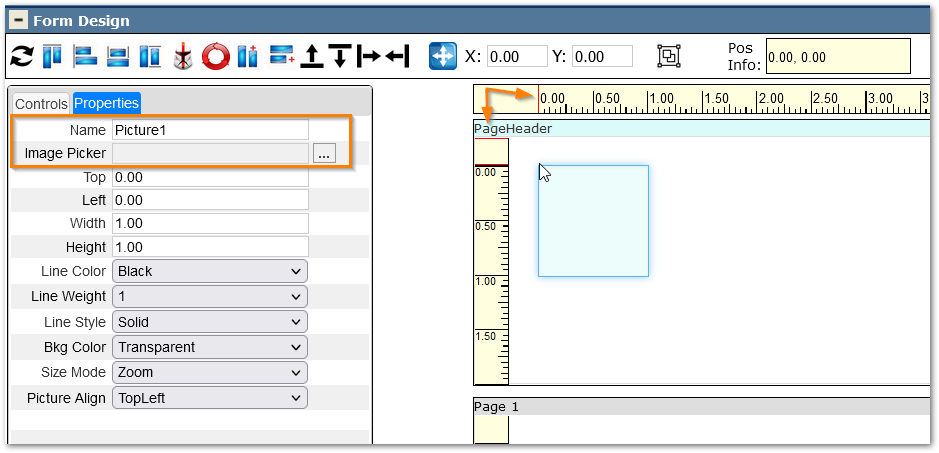
After releasing the control, the Properties tab for the control opens so we can set or adjust its settings:
- Name - A default name will be automatically populated, but it becomes important to give each control a meaningful name. Each control will appear in the list of Form Controls at right. As the number of controls grows on the list, it will make the process of managing and adjusting the controls through the design process much easier if each control has a meaningful, identifiable name.
- Image Picker - click on the ellipses (three dots) to open the image picker dialog. Either navigate to the desired file using the ‘Browse’ button, or select any listed image file, and click ‘Load File’.
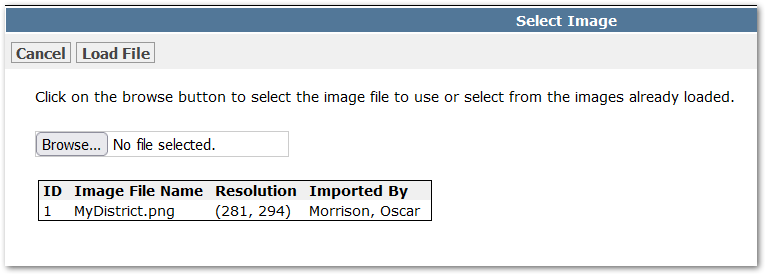
When the file is selected, it will then be listed in the Image Picker properties in the Image control’s properties at left.
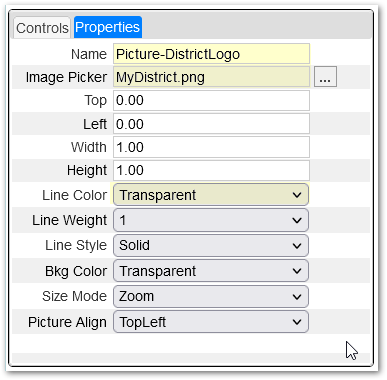
In addition, if the image should not have a border, set the line style of the image to ‘Transparent’.
Adjust any of the properties, as desired.
Adding any of the controls works in the same way:
- Select the control and either double-click or drag and drop to desired location.
- Edit the control’s name to give it a meaningful name
- Adjust positioning or any other attributes, as desired.
To build a simple district address for letterhead, we’ve used three labels in addition to the district logo image.
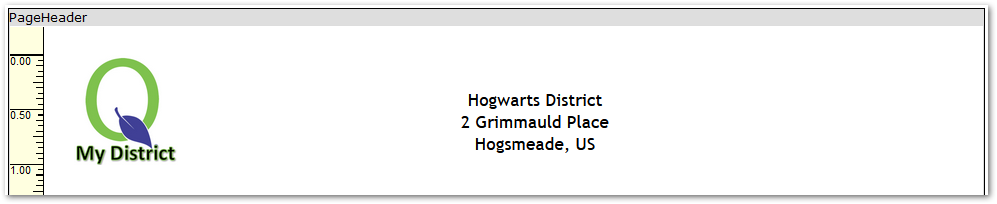
When adding the labels, we changed:
- Name to make it meaningful
- Set the Text we want to appear
- Set the Alignment, Font, and Font Size
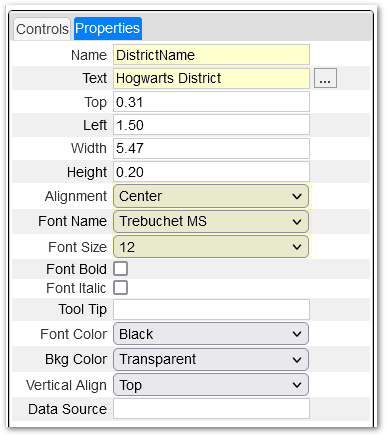
One way (and there are many) to make our header address, or a set of controls that have common elements, is to drag the desired controls to the design surface, without setting all their properties, and then adjust the top one to the appropriate size and change its alignment property to ‘Centered’ (in our example).
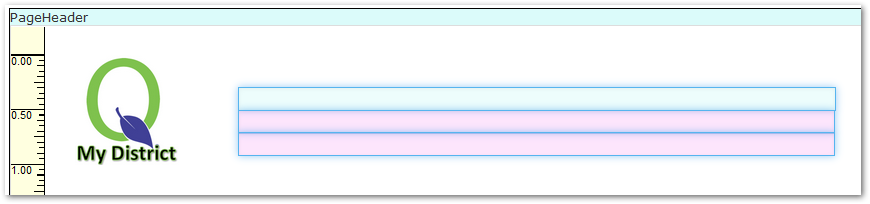
Then, select all three labels and use the icons in the toolbar across the top to quickly adjust them appropriately. In the example of our address labels we used align left, match width and reflow in that order.

Using the tools in the toolbar, hover over the icon to see a description of the item:
 Align Left
 Match Width
 Reflow
As a result, the three labels align, match and are tight together.
Making a Custom Set of Controls
To create a set of controls that may be reused either by yourself, or shared with others, select the controls on the design surface and click the ‘Create Set’ button in the toolbar, as shown:

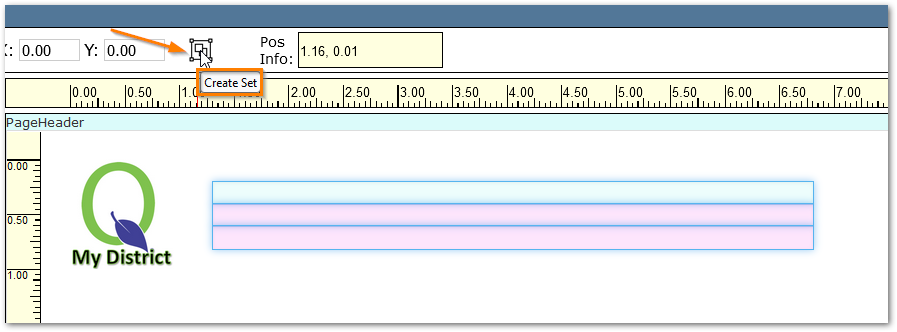
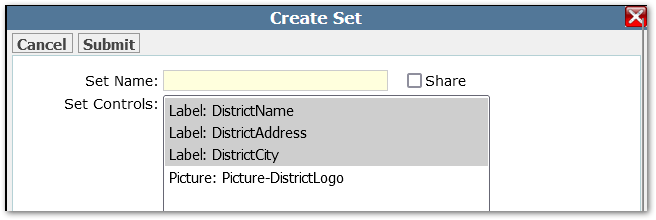
Review the set, checking whether all the controls desired are included. In this case, we missed the logo!
We can adjust the controls included right in the dialog, adding in the Picture too.
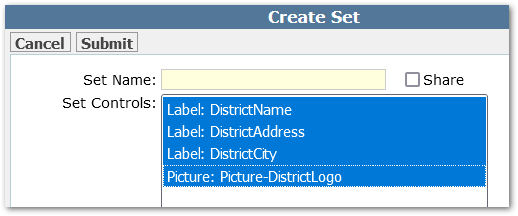
Just give it a name, and check Share to make it available to other template designers and submit the set.
We recommend saving the design frequently when working through the creation of a new template!
As we’ve been building the Page Header, it is also appearing in the design space of the page itself to enable you to see the available space on the page.
Page Footer
After building the Page Header, complete the Page Footer as well, repeating the process by checking on the Page Footer in the Form Controls at right.
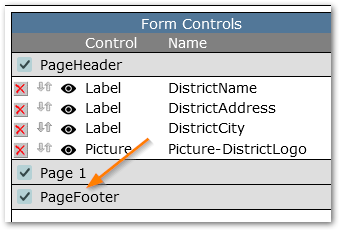
The footer area will appear at the bottom of the design surface. Scroll down and add controls such as the Page Number control.
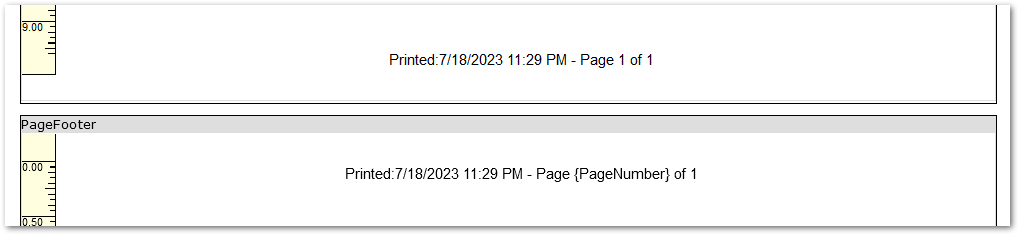
After adding the Page Number control to the top left corner of the Footer area, we’ll make adjustments to make it centered across the bottom by changing the Width to 8.0 (full width) and setting Alignment to ‘Center’. Remember to adjust the name, if adding multiple controls to this area.
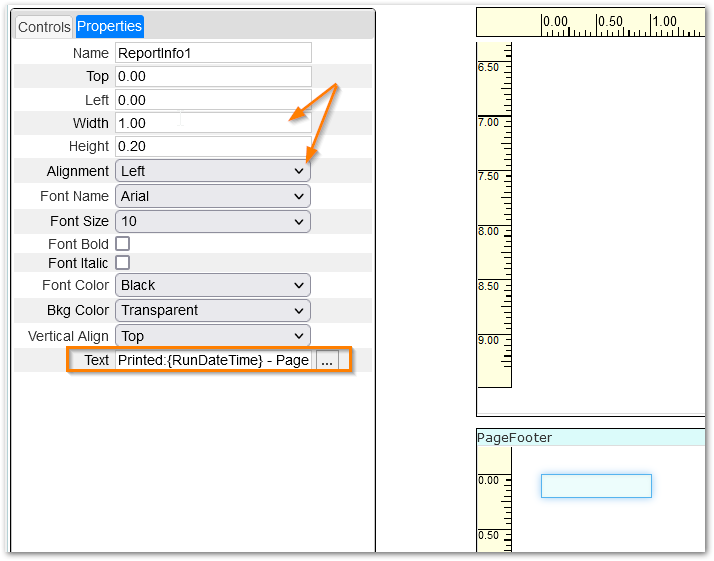
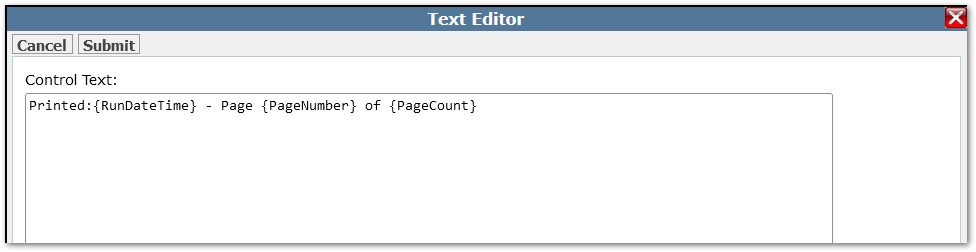
We can adjust the Text property by clicking the three dot ellipsis button and making any adjustments.
We can see the footer now in the design surface of the page and begin to see how much available space we have left to work with on our first page.
Our Form Control panel on the right now appears like this:
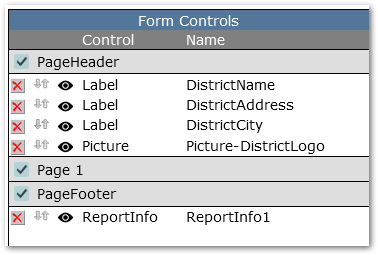
About the Form Control Panel
Since we now have the header and footer defined and they appear in our page, we can uncheck them to focus on designing the page itself. The content of the header and footer will still appear on the page.
A few useful things to note about the Form Control panel as we begin to build the page itself and add more controls:
- When the design surface becomes filled with many controls, it is often easier to select controls from the Form Controls list at right rather than on the design surface. Make changes to the controls using the properties at left or using the toolbar at the top.
- Controls may be:
 Removed by clicking the red X. Controls cannot be dragged off the design surface so use the red X to remove them.
 Moved in position in the list using the mover arrows.
KEY: The list order reflects the tab order for the recipient as they complete the form. It’s important as a result to consider the sequence for the user completing the form and arrange the controls in the desired sequence on the Form Control panel.
 Hidden by clicking the Show/Hide symbol.
Designing the Page
Design the page using the same method of adding whichever controls are needed for your form.
Each control has its own set of property options and while there are differences between them to accommodate the nature of the control, there are common elements which we’ll go through next.
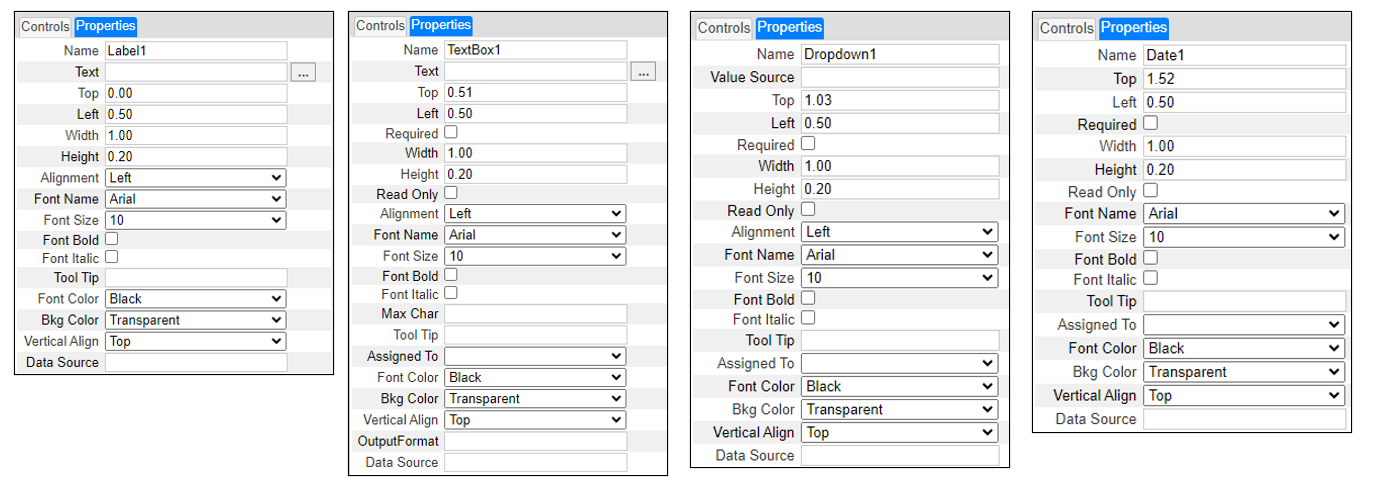
In addition to the elements we’ve already discussed like Name, Text and so on, the control properties include fields to control its position and dimension on the template (Top, Left, Width, Height) and how it should appear (Alignment, Font information, Background color, Vertical Alignment etc.). There are some additional properties we want to bring to your attention:
Required - Check to make the field required when the recipient fills out the form.
Read Only - Check to make the data read only and prevent the recipient from changing it. An example may be for fields that fill in a student’s name and ID automatically based on the recipient.
Tool Tip - Enter any text that should appear when the recipient hovers over the control.
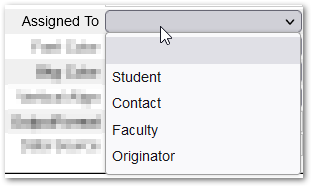
Assigned To - Select from among the options to specify who needs to complete this field. An originator is the person who will use the template to create a specific instance of a form in the Q Forms application and assign it to recipients. An example would be a member of school staff creating a permission form for a specific outing, such as a field trip, competition etc. In that case, the fields that pertain to the outing itself, i.e. Competition, date and location, etc. would be assigned to the originator to complete, and the signature control would be assigned to the type of recipient to complete.
Value Source - The value source of a dropdown control specifies the set of options to be made available in the drop list itself. The source for a dropdown may be a Lookup Category, the name of a table or view that contains a ‘Descript’ or ‘DisplayText’ column, or a SQL select statement that returns columns called ‘Code’ and ‘DisplayText’.
Data Source - Specifying a data source connects the form to a database table and field. When referencing a table and field in the data source property, use curly brackets and specify the ‘table.field’, i.e. {studemo.lastname}. The table needs to include suniq / funiq / conuniq depending on who the form applies to and who is filling out the form.
Output Format - is used to automatically format data, examples include:
- phone: (###) ###-####
- zip+4: #####-####
A sample form template showing header at the top of the page, with controls in the body of the page.
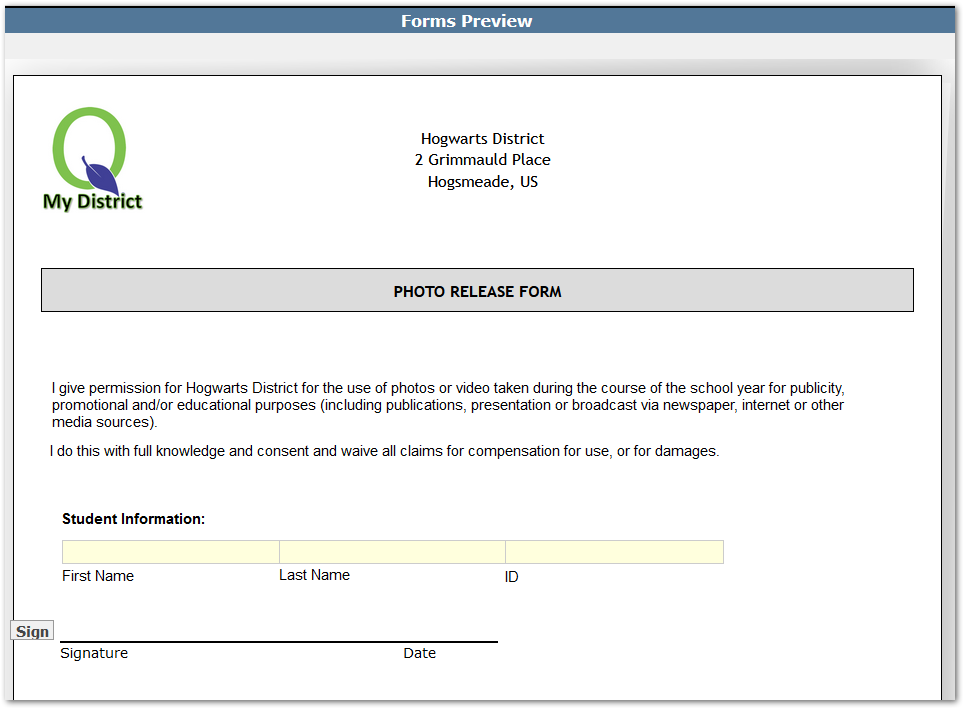
Using the Preview Form at the top of the Design pane shows the form as it will appear.

The student data will be filled in when the form is assigned to recipients and Student Information fields will populate based on the association to the recipient.
When finished designing the form, remember to adjust its ‘Share Type’ settings under Form Properties to make it available for users in the Q Forms application.
When a template has been used to create a Form instance and has been assigned to recipients, and one or more of them have completed the form, as mentioned earlier, the form design may no longer be changed.
Instead, the old form may be archived by checking the ‘Archive’ checkbox in the Form Properties so it will not be available in the Q Forms application for users to use as the basis of a new form.
Use the ‘Copy Template’ button to make a new Form Template based on the original and edit the design to make any needed updates. Be sure to update the version number in the copy and revise the Title appropriately, otherwise it will show as ‘Original Title – Copy’.
