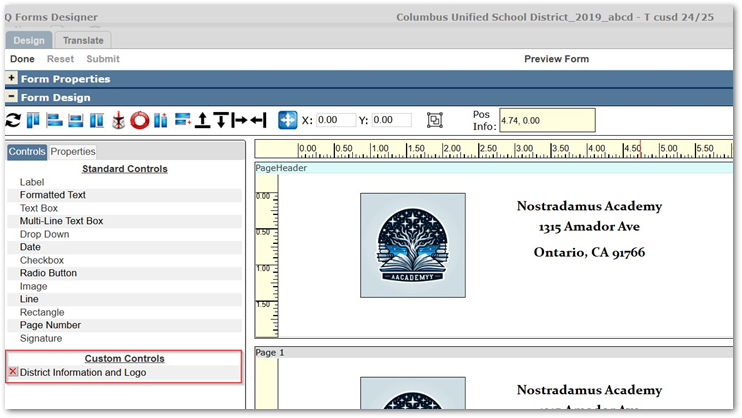
Today’s Q-tip will show you how to save a custom control set when using the Q Forms Designer. For those of you familiar with one of our newer add-on modules Q Forms, using custom control sets can save you time and are one of the most useful tools to build a template more efficiently.
When creating a template of a form there will often be a set of controls that are used frequently. In today’s Q-tip we will look at the example of a header that contains School/District information.
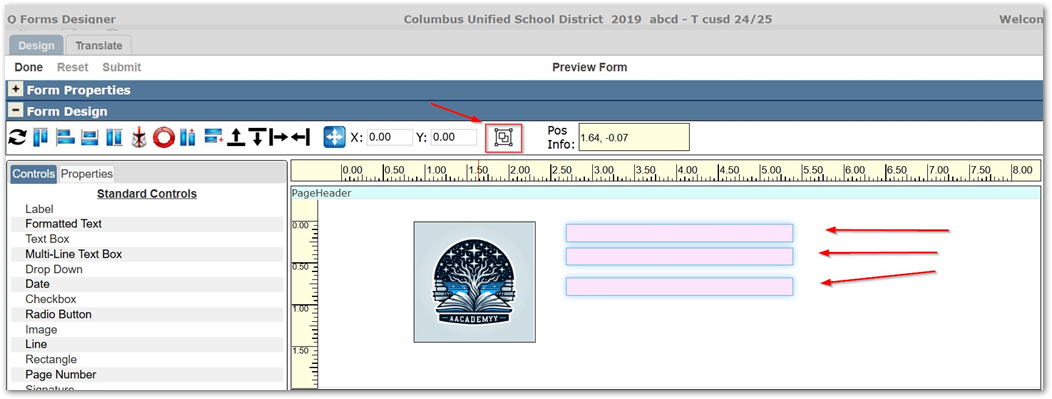
To create a set of controls that may be reused either by yourself, or shared with others, select the controls on the design surface and click the ‘Create Set’ button in the toolbar, as shown:
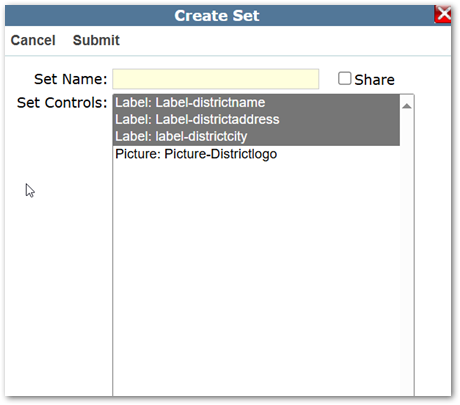
A window will pop up and allow you to review the set of controls you selected, in this window you can add other controls you may have missed, give the set a name, and if you want check the ‘share’ button to share and make the control set available to other template designers.
Once you have given the control set a name and saved it, you will find the set on the left side under the Standard Controls in the section labeled Custom Controls. Now you can drag and drop this custom control set into any template you are working on and get the entire school/district information set of controls placed onto the form in one shot saving you time!