The Q Forms application is used to deploy and manage the distribution of forms to parents, students, contacts, or staff. The forms are created in this application using templates created in the Q Forms Designer. As an example, a generic district form template for Field Trip Permissions may be used as the basis for a form created for a specific field trip for a competition on a specific date for a specific set of students. The Q Forms application enables users to define a form by selecting a template, completing any necessary fields for this specific form, set the dates when the form is to become available and due by, and select the recipients for the form. Once assigned to recipients, the application supports review and management of the completion status of the forms.
Parent or student recipients complete forms, including signing them, in their respective portals, ParentConnect or StudentConnect. Form reminder emails will be sent a district-specified number of days before they are due. The number of days is managed through a preference.
Staff recipients will be notified a form is due and may complete and sign forms in Q itself.
Q Forms is located under the School menu in Q.
Preferences
Set district preferences from the district track. 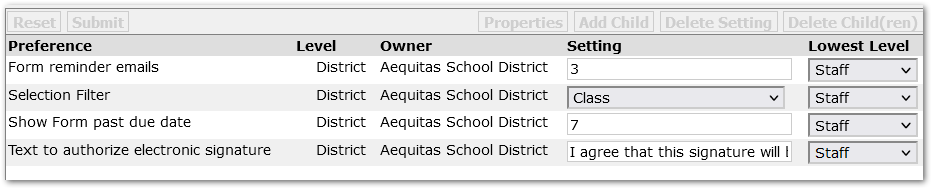
The preferences available for Q Forms include:
| Form reminder emails | Set the number of days before a Form’s due date that a reminder email will be sent. |
| Selection filter | This setting will determine which student selection filter to use. Class is the default. |
| Show Form past due date | Set the number of days past the due date that the form will automatically be displayed. |
| Text to authorize electronic signature | Set the text to be displayed the first time a user signs a Q Forms document. The user must check a checkbox next to this text to agree to the terms stated in this text, as example: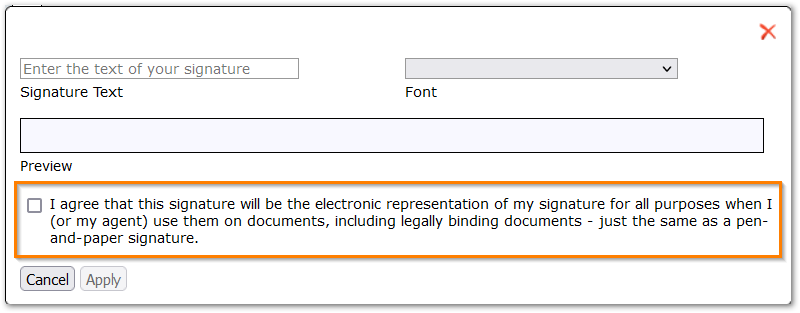 |
Permissions
Q Forms application has 2 permission items:
- School: Q Forms [Application] - Enables the user access to create and manage forms and their distribution. They will only have access to the forms they create, and only have access to the Form Templates that have been shared with them in the Form Designer.
- School: Q Forms [Administrator] - Enables the user to access all forms. They will only have access to Form Templates that have been shared with them.
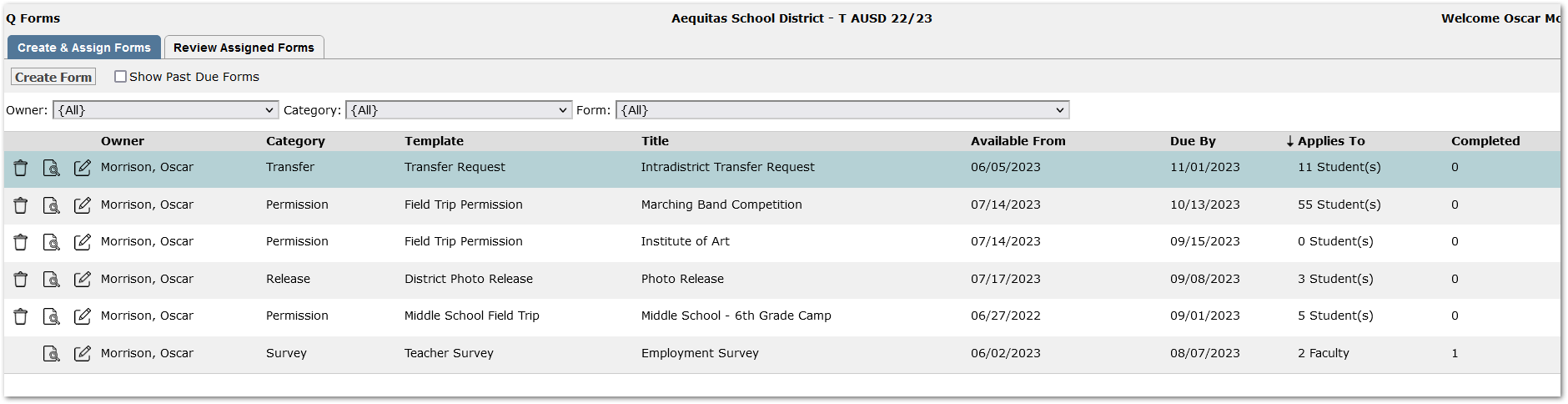
The application opens to the ‘Create & Assign Forms’ tab. On this tab, the forms available to us appear. In this example the user has Administrator level access and will see all forms. As a result, an ‘Owner’ column appears on the left which would not appear for an Application level permissioned user who only sees their own forms.
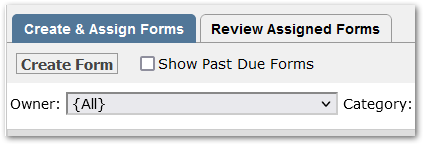
Filter fields at the top may be used to focus on a smaller set of forms. As the list of forms grows, this will become helpful.
A checkbox at the top may be checked to ‘Show Past Due Forms’.
On the list of forms, each form has icons at left to delete, view, and edit the form.
 Delete – Use the trashcan icon to delete a form. Forms that have been completed by a recipient will no longer be eligible for deletion, no trashcan icon will appear beside them as a result.
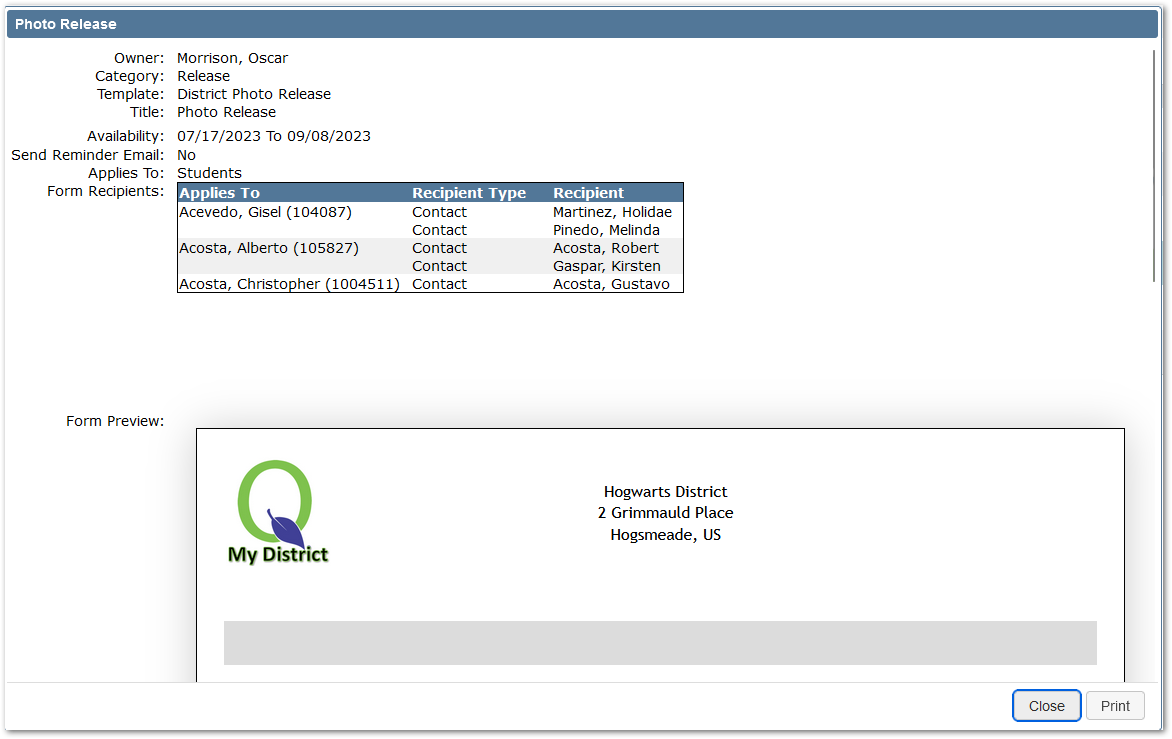
 View - Provides a pop-up display of the form and its settings, including assigned recipients. A print button in the bottom right corner enables printing of this page.
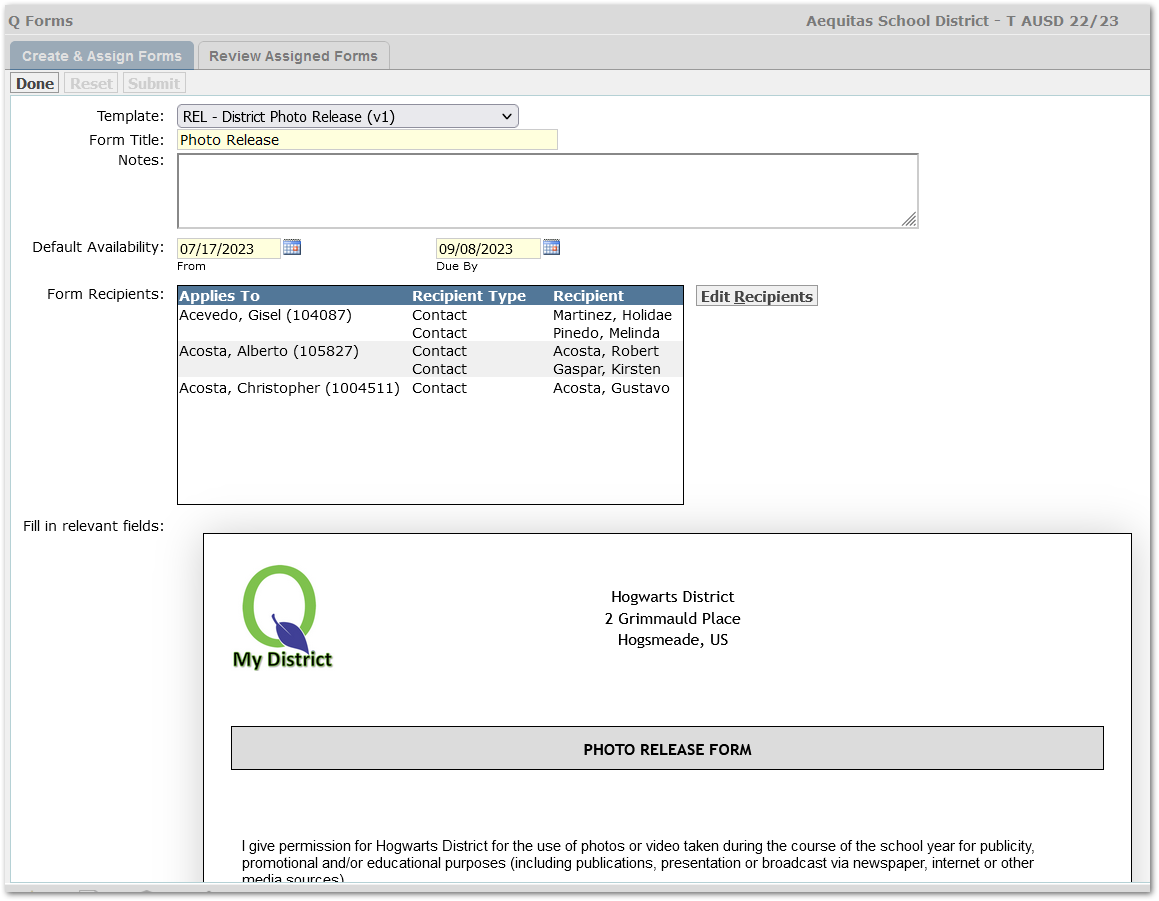
 Either double-click on the form or use the Edit icon to open the form record.
Create a Form
To create a new form, click the ‘Create Form’ button at the top.
Template - Select a Template.
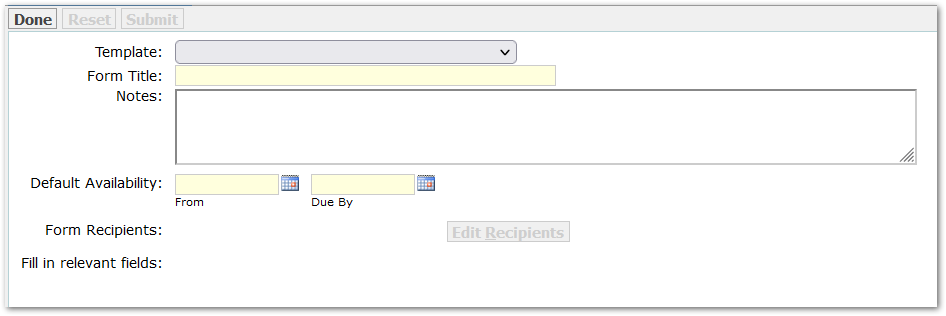
As soon as a template is selected, the form will appear below.
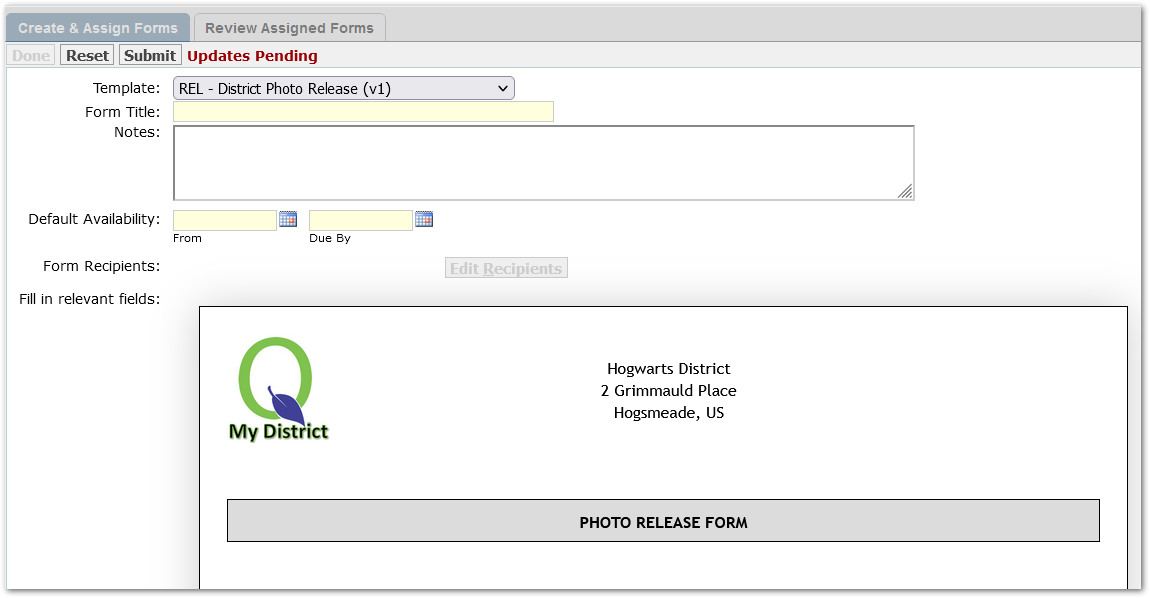
Complete the required fields:
- Form Title – Give the form a title.
- Default Availability – Set the dates when the form will be available to complete and when it is due by.
Add any notes.
Fill in Relevant Fields: Complete the required fields assigned to the Originator during the design of the form. In the Field Trip example, the originator needs to fill in fields related to the details of the trip.
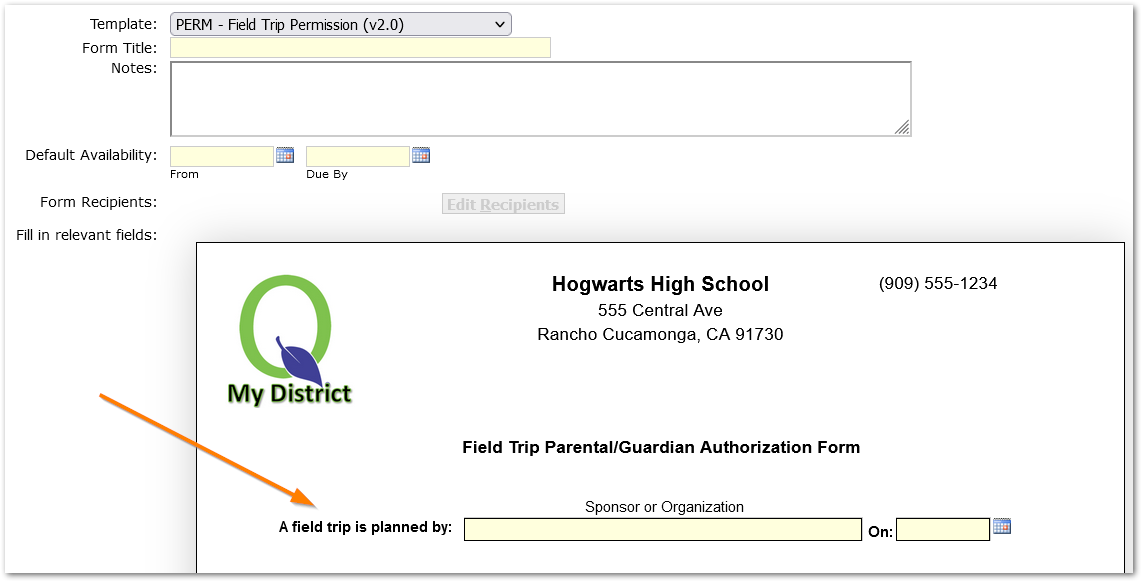
Submit the changes to save the form.
Recipients
After saving the form, the ‘Edit Recipient’ button becomes available. Use it to select the individuals who are to complete the form.
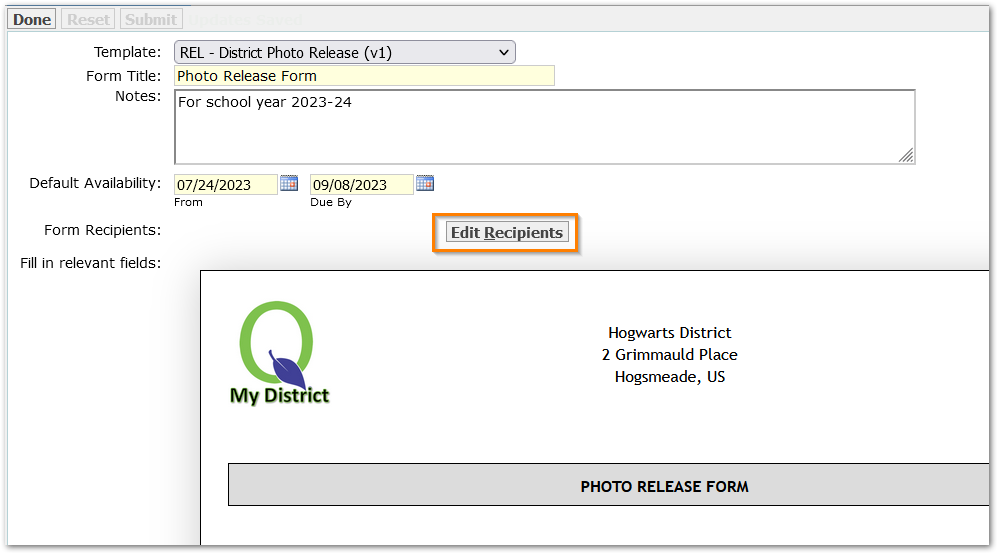
Since this form applies to students, the recipient selection enables us to select the students to whom it applies.
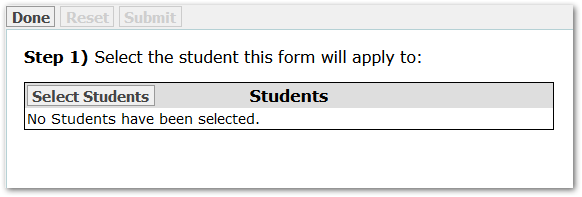
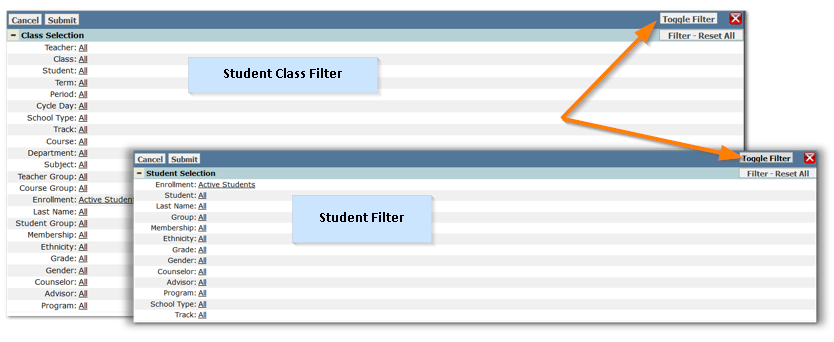
Toggle between the Student filter or the Student Class filter to select students.
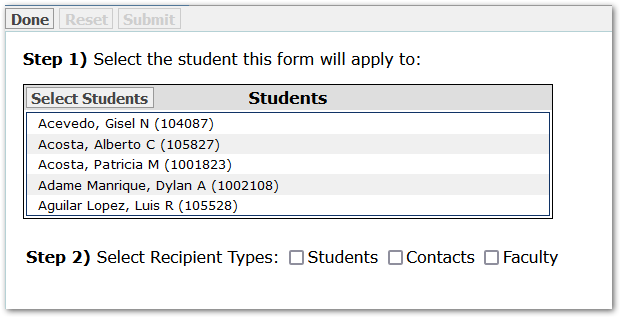
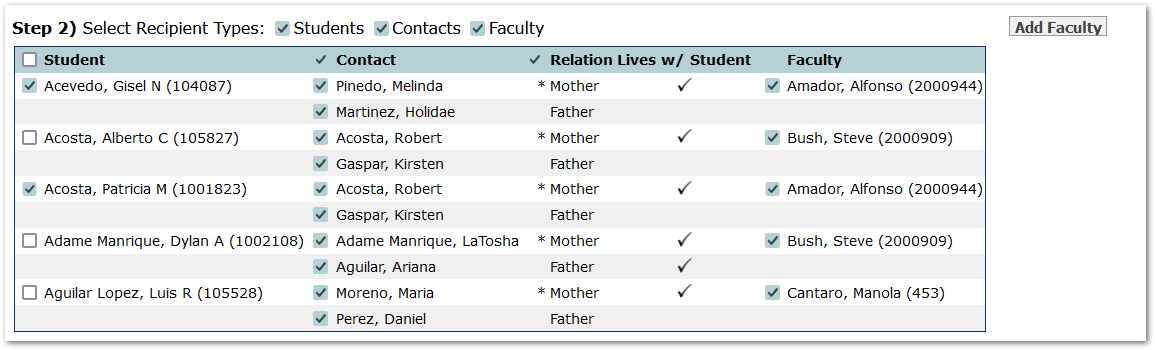
With students selected, check the recipient types for all the people who need to complete the form: Students, Contacts and / or Faculty.
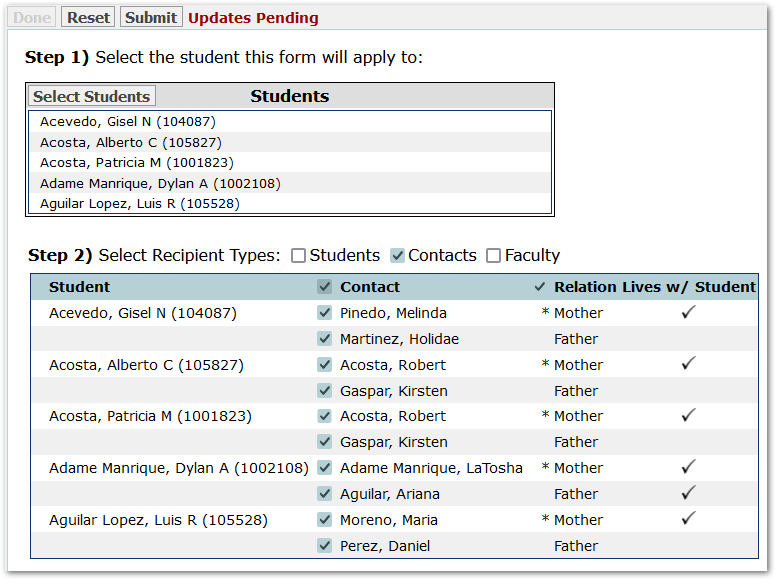
In the case of a photo release form, the parent/guardian will need to sign, so Contacts have been selected. In this example, we selected all contacts by clicking the box at the top in the column header. Clicking the 'Relation' checkbox in the column header will select the first listed contact designated by the asterisk. The 'Lives With' check information is provided to help the user select the appropriate contacts.
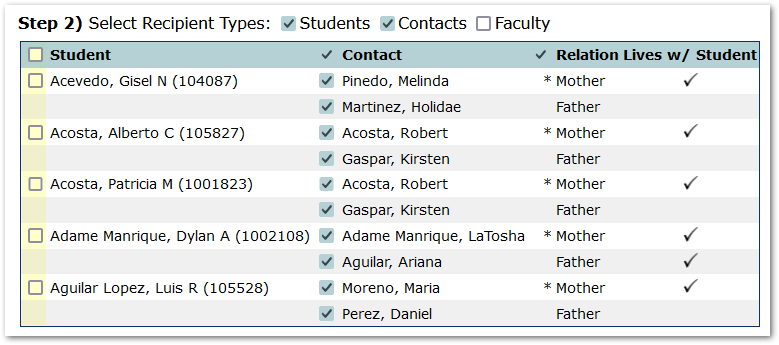
When students are selected, a checkbox becomes available to select either all students (at the top) or individual students.
In the case of a form, such as a discipline contract, or witness statement, where faculty also needed to sign the form, click Faculty, then the Add Faculty button and use the Faculty selection dialog to select the desired faculty.
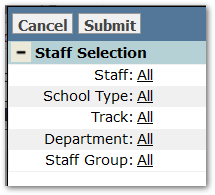
Next, associate the students with them.
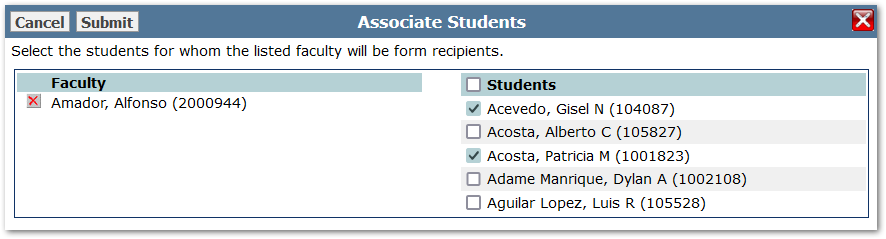
Repeat this process to associate other faculty with additional students.
Submit to save changes.
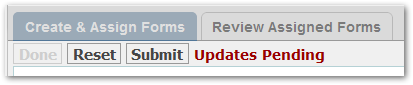
When finished, click Done. Form recipients will show all those associated with each selected student.
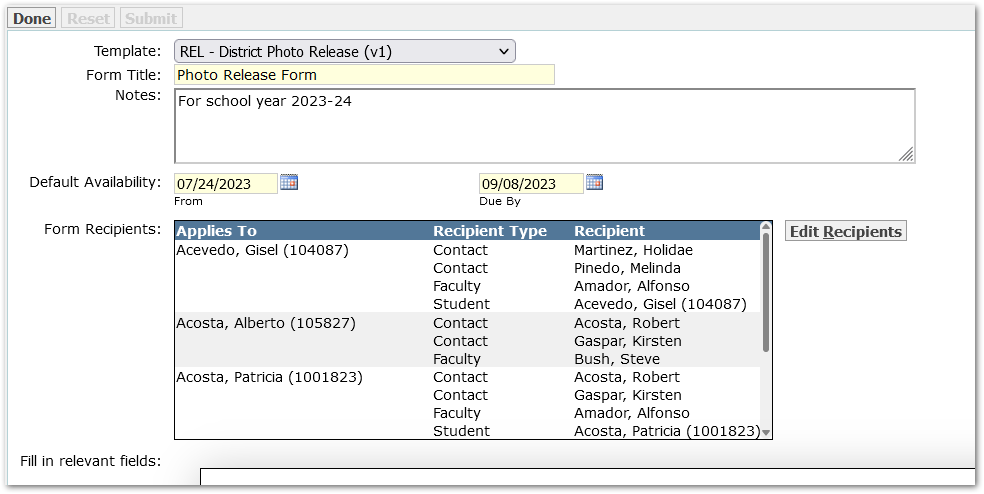
Recipients may be adjusted by clicking the ‘Edit Recipients’ button.
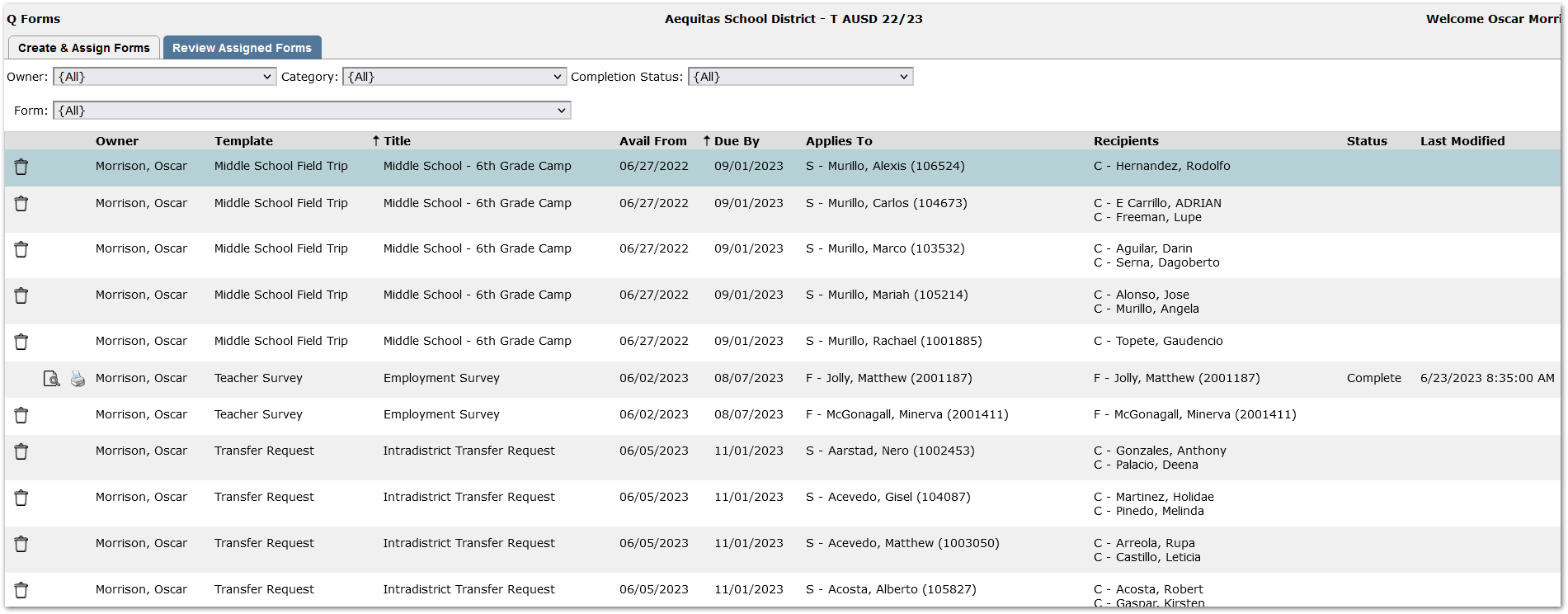
As the list of assigned forms grows, the filters at the top of the page may be used to focus in on specific forms.
The logged in user in this example has Administrator rights to the application and will see all forms. As a result, an Owner column appears at left. For users with Application-level rights, they will only see the forms they create, and the Owner column will not appear.
The column headers indicate the information available about the forms in this view, including the Recipients and their status completing the form, along with the last modified date.

For completed forms, view and print icons are available, but trash can icons are not. Once a form has been completed, it may no longer be deleted.
 View will show the completed form with an option to print at bottom right.
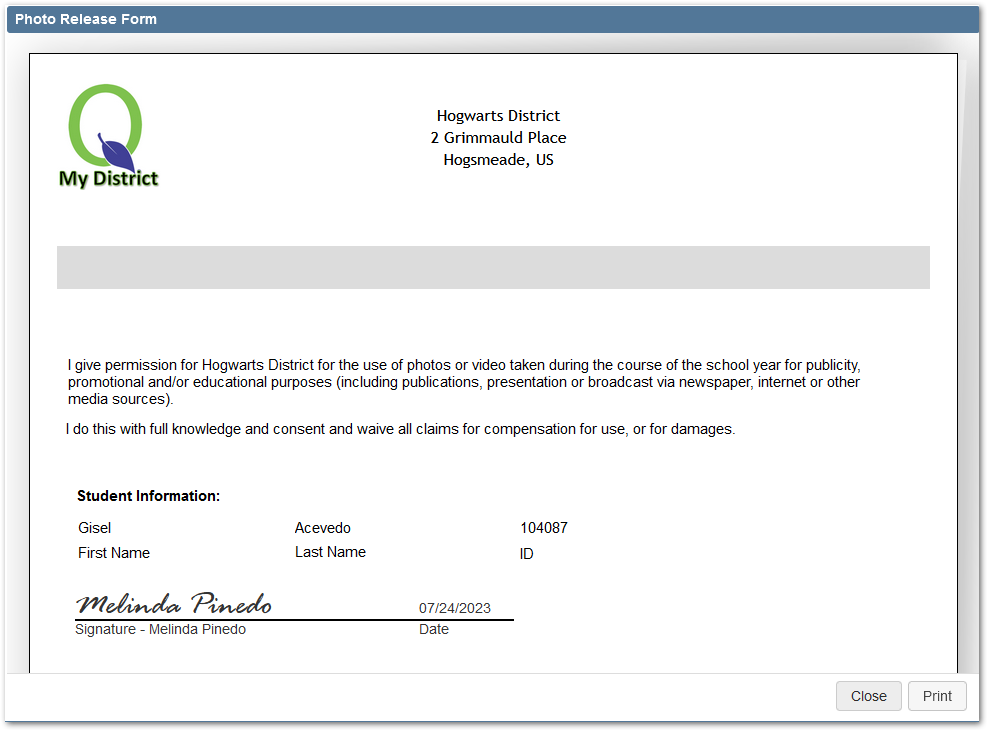
 Print will print the completed form, as shown in View mode.
When a single form is selected, the ‘Print All’ button may be used to print the set of completed forms.
 For a form not yet completed, the trash can may be used to remove the form for that recipient.
Extend a Due Date
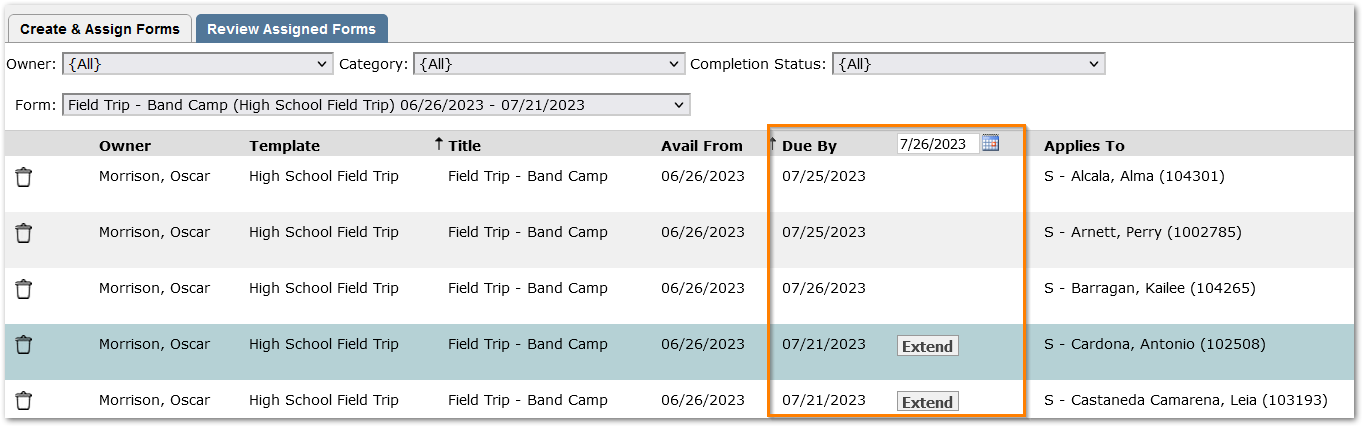
For a form that is past due, an Extend button will be available if Today’s date is within the number of days set in the ‘Show Form past due date’ preference setting. See Preferences above.
Extending the due by date will default to ‘Today’ but the Due By date may be adjusted in the column header. Click the ‘Extend’ button to extend a recipient’s due date to the specified date.