
Course Plans are made up of a sequence of courses to create a common academic plan for students to complete over multiple years. Districts may define multiple Course Plans for different academic plans or goals. A Course Plan may be a district-level plan available to all students, or plans may be developed for specific schools, and available to students enrolled in that school.
Once a Course Plan is defined, it may be assigned to students individually (in Student Editor or Student Course Plan applications) or mass assigned (using Assign Course Plan application). Students may be assigned a ‘Base Plan’ and using the Student Course Plan application, also have additional plans applied as well as CTE Pathways. Ultimately, each student will have their own individualized plan. Course Plan Setup provides a means to create foundational sequences of courses that may be applied to individual or groups of students.
Course requests may be generated, based on courses in the Course Plan, for a set of students from within the Course Plans Setup or Assign Course Plans applications or for individual students from within Student Schedules or Student Course Plan applications. Whenever course requests are generated, requests are generated for all items in the student’s individual plan for the track and year, and not just for the items in the student’s Base Plan. The generated course requests can then be used by various scheduling applications such as the Loader and Student Schedules to schedule the student.
Course Plans Setup is located under the Schedule menu in Q.
Course Plans may be defined to be available to all or specific schools. When logged into the District track, Course Plan Setup will display all Course Plans and when logged into a school track the application will display course plans available for the logged in school. Select a course plan from the drop-down list. 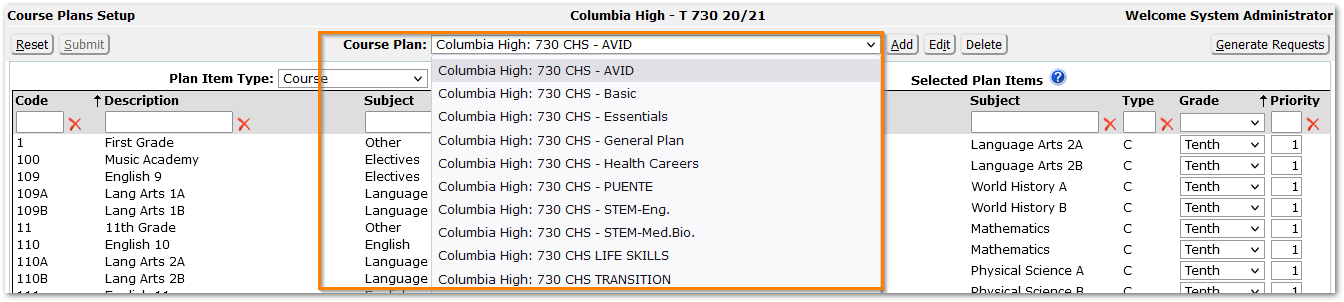
The following is a sample Course Plan with general courses selected for each grade:
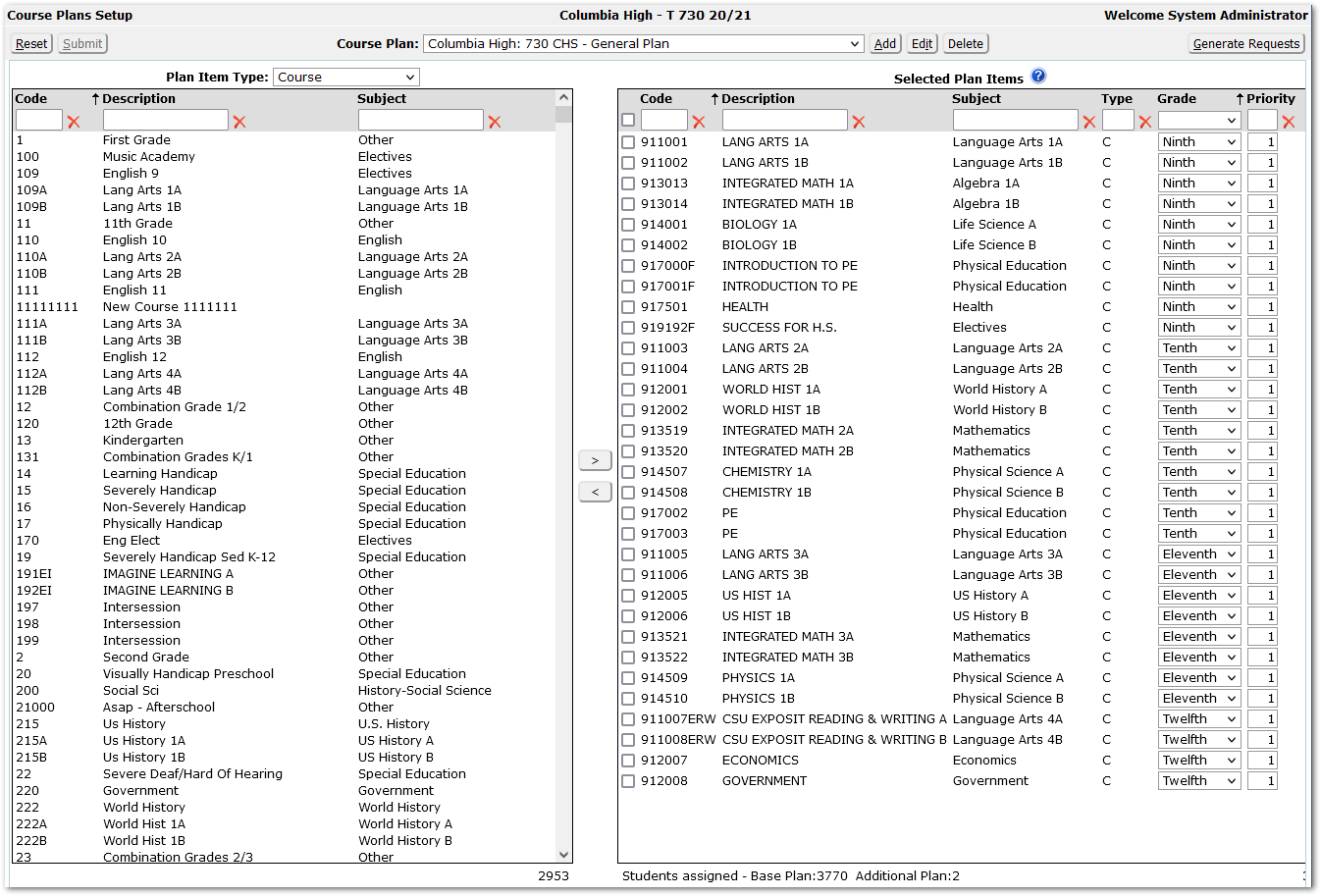
The left-hand side of the screen displays all courses defined in District Courses available to add to the course plan. The listing is filtered by selecting Course or Group in the Plan Item Type. Search boxes may be used to find a specific course. The right-hand side of the screen displays the Courses/Groups in the selected Course Plan.
The items in the Course Plans may be sorted by any of the column headers, Click the header with your mouse to display the Sort arrow, click again to change order of sort. Items can be quickly found by using the filters.

Data Fields for the selected plan item include:
- Code—Course or group code
- Description—Name of the course or group
- Subject- The subject of the course from District Courses.
- Type—Displays a code for the type of course, as follows:
- C (Course) – a single course as defined in the District Courses.
- G (Group)—a group of courses as defined in the Group Editor.
- Grade—Grade level for enrollment in the course. Course Requests will be generated for students based on the grade level for the track the Course Plan is generating requests for. (i.e., Ninth graders will only receive requests for those courses whose ‘Grade’ field is set to ‘Ninth’.)
- Priority—Set a Priority if you will be setting the Loader to attempt to schedule course requests using an order other than the default.
A new course plan may be created by clicking the Add button.

- Name the Course Plan by typing in a Plan Name.
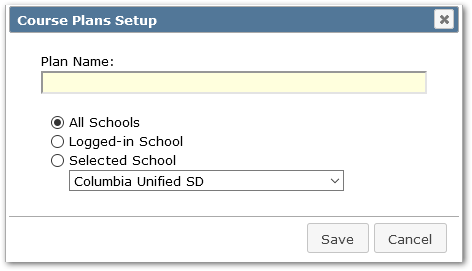
- When logged into the District track, select whether it will be available to All Schools, the Logged-in School, or a Selected School. When logged into a school track, ‘Logged-in School’ is selected and is the only option.
Courses need to be added from the available courses on the left side of the screen to the Selected Plan Items on the right side to make up the Course Plan.
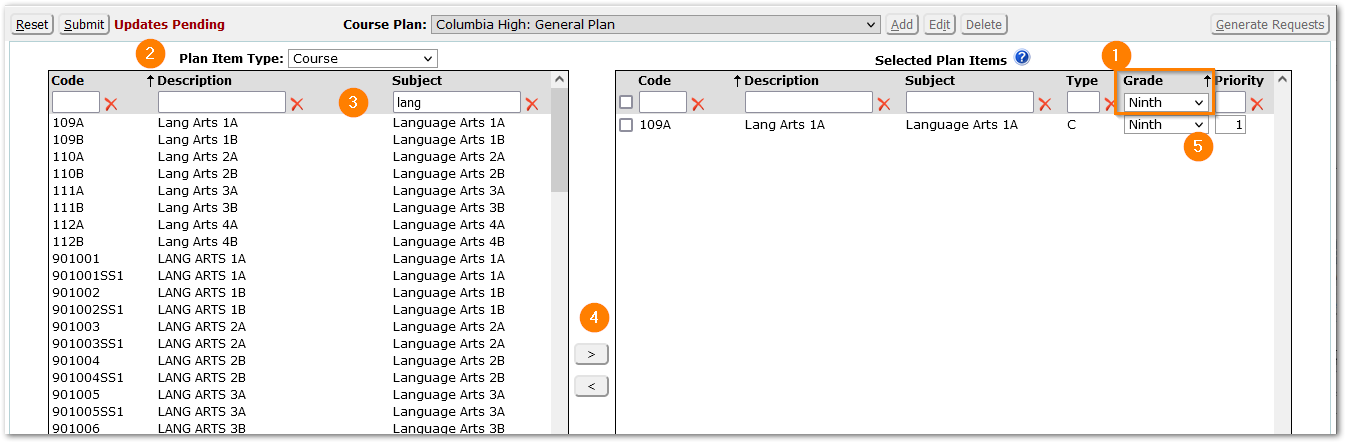
If you are building a course plan that spans several grade levels, it is easiest to add all the courses for one grade at a time.
- It is helpful when adding multiple courses for the same grade level to set the desired grade students will take the courses being added. to set that value in the Grade column header.
- On the left side, select Plan Item Type: ‘Course’.
- Use one or more of the filter fields to quickly find a course from the district course list.
- Move the selected course to the Selected Plan Items either by double-clicking on it or by clicking the single arrow.
- When the course moves over to the right, notice that if the Grade header value had been set, that value will be selected for the newly added class. If not, set the applicable Grade level from the drop-down list for the request. If a course request should be generated for more than one grade level it will have to be added to the Course Plan for each grade level.
Repeat the process for other courses in the same grade, the grade level drop-down will remain until it is manually changed to the next grade level.
Optionally, enter the following parameters:
- Priority –Enter a priority value (for use by the loader when scheduling students). Highest value is ‘1’.
- Lock –Check this box to lock this request for all students who receive this request through the GenerateRequestsprocess. Locking a request serves two purposes:
- It prevents the request from being cleared by subsequent Course Plan Generate Course Requests process (except if you check the 'Clear Locked Requests' option in the Generate dialog.
- It prevents this course request from being deleted or changed by students using the Student Connection application. This has the same effect as manually locking a single request for a single student when adding requests in the Student Schedules application.
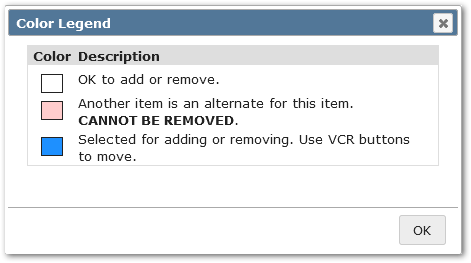
 A legend is available by clicking the blue question mark.
Continue to add requests until all courses for the Plan have been added.
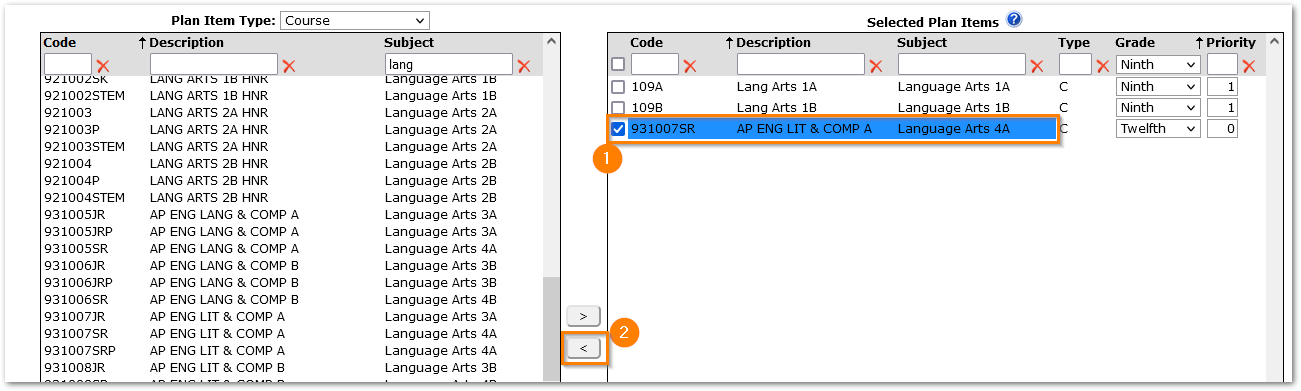
To remove a request from the plan:
- Select the course by clicking the box, and then,
- Click the left arrow.
Note: Keep in mind that although all courses defined in the District Course catalog are available as selections when creating a Course Plan, only courses that have been assigned to a student's school and track via the Track Course Setup application will be available as Course Requests for that student. Requests for courses that are not assigned to the target track will not be generated.
Groups of related courses can be pre-defined in the Group Editor application. These course groups can then be added to a Course Plan. This is a quick and easy way to assign a set of courses that several or all students must take.
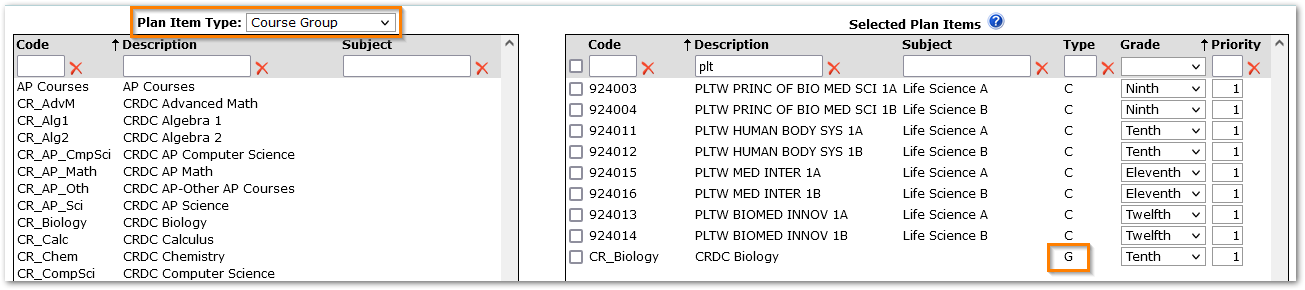
In the 'Add Course Plan Item' screen select 'Group' in the Plan Item Type field.
The Course Groups available for selection in the list will depend on the logged-in school and the identity of the user. Users will see: 1) All the Faculty-owned groups that they own in any track, but not other faculty member's groups, 2) all School-owned groups from the logged-in school, 3) and all District-owned groups in the system, regardless of the logged-in school. Select a group in the list (the group you select must have courses scheduled in the logged in school).
To add a Group Request to a Course Plan:
- Select Group from the Plan Item Typedrop down list to display all available groups.
- Select desired Group from list.
- Use single arrow to move Group to Selected Plan Items.
- Select Grade Level.
- Group Requests will display with a ‘G’ in the ‘Type’ column of the Course Plan’s Selected Plan Items.
Select the Course Plan you wish to edit from the Course Plan drop down list.
To Edit a Course Plan Item:
- Select the item.
- Make any desired changes (Grade level, Priority, Lock)
- Submit.
Remove items from Course Plan:
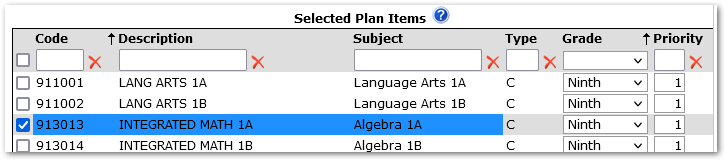
- Select Item.
- Use arrow to move item from Selected Plan Itemsback to Plan Item list.
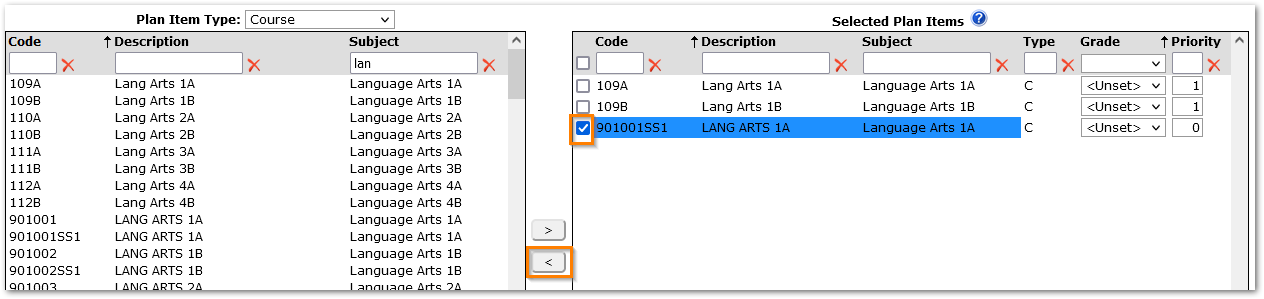
 Clicking the Question Mark button displays a Color Legend indicating if items may be removed from the selected Course Plan.
Changing an Existing Plan with Students Assigned:
When editing a Course Plan, and adding or removing courses, a dialog will pop-up showing the number of students assigned the course plan as a Base Plan and as an Additional Plan. To apply the changes to each set of students, check the boxes.
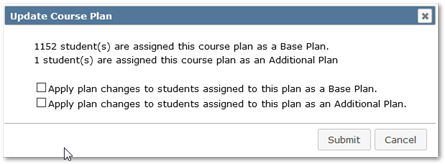
Checking yes to apply plan changes will add or remove courses from the student’s plans as appropriate.
When the user does not elect to apply the changes to the students, then for courses that were removed from the plan, the reference to the plan is removed from the students’ Course Plan items.
Note: If you make changes to a Course Plan after generating Course Plan Course Requests, you will have to re-generate those Requests for the changes to be reflected in the students’ Course Requests.
- Select the Course Plan to delete.
- Click Delete.
- A confirmation message will appear. When students are assigned the selected plan, the confirmation message will indicate the number of students impacted by the removal of the Plan and ask if the associated Course Plan items should be deleted from the students’ Course Plans.
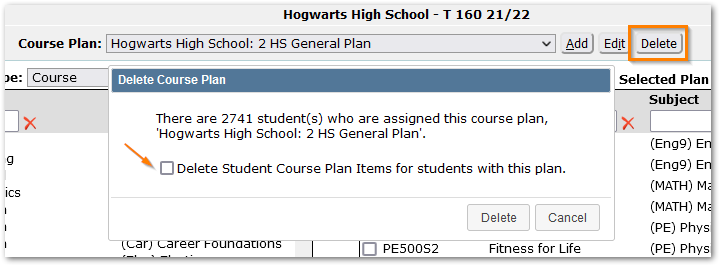
- If the user selects ‘Delete Student Course Plan Items for students with this plan’, plan courses that have not already been taken, scheduled, or requested are deleted. Courses that have been taken, scheduled, or requested remain in place but are no longer associated with the deleted plan.
- If the user does not elect to delete Student Course Plan items when deleting the Course Plan, the items will remain in the student’s plans, but will no longer be associated with the deleted plan. For any student that had been assigned the plan as a base plan, the association will be removed.
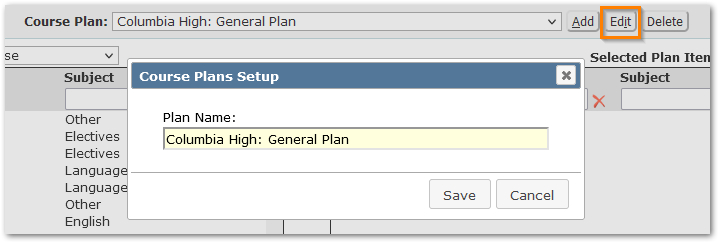
Select the Course Plan from the drop-down list then click Edit. Make any desired changes and Save.
Before using Course Plans in Scheduling, you must first assign the Course Plans to students. Course Plans may be assigned to students by:
- Batch assign to a set of students using the Assign Course Plan
- Assign a Course Plan to an individual student using Student Course Plan application.
- Using the Student Editor, select the individual student, edit their Course Plan in the Demographics – School Info section.

Course requests may automatically be generated, based on the parameters selected, for all students for all the items in their individualized Course Plan for the selected track year, assuming the courses have been assigned to a student’s school and track via the Track Course Setup application. Courses in a student’s course plan, but not assigned to the school track for the year, will not appear as course requests for that student when the request generation process has been run. Students without any items in their Course Plans, will also not have any requests generated by the process.
When ready to generate requests from the Course Plan click the Generate Requests button from the top right-hand side of Course Plans Setup. The dialog displays with several selections that must be made to ensure that the proper requests are generated for the selected students.
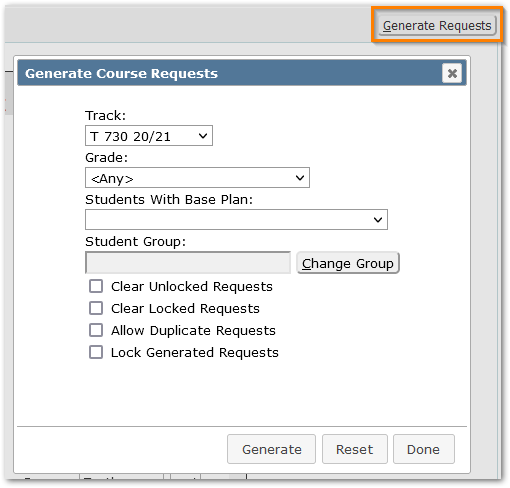
The selections for Generating Course Requests are as follows:
- Track – Select the target track that course requests will be generated for. If you are working on Next Year, make sure to pick the next year’s track.
- Grade– Select the Grade Level to Generate the Course Requests for.
- <Any> - this selection means that Course Requests will be generated for ANY Grade Level that is part of your selected Course Plan.
- (Grade level) – If a grade is selected, it will narrow down your Course Plan selection to ONLY generate Course Requests for students in the selected grade.
- Students With Base Plan – To generate requests ONLY for students with a specific base plan, select the plan from the drop-list.
- Student Group – Used to designate the group of students selected to generate Course Requests. If a group is selected, the generation process will ONLY generate requests for students in that group, based on your other Course Plan selections on this screen.
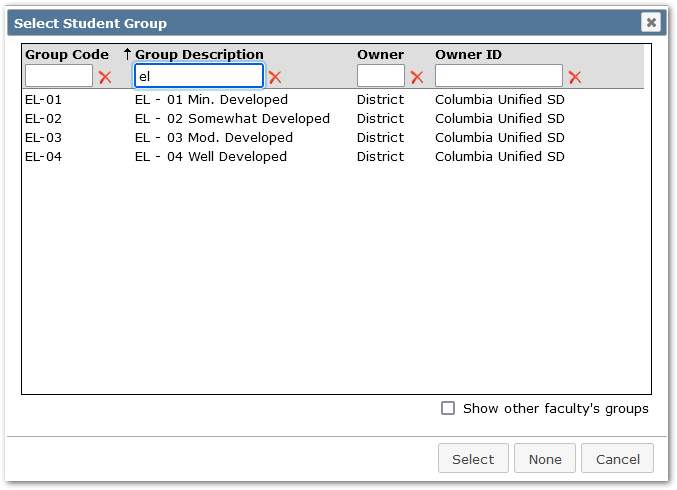
- Change Group – Click this button to make the group selection. A pop screen will launch with a list of all available groups. You may use the filters at the top of the screen to search for the desired group.
- Clear Unlocked Requests – Checking this box will clear out any previous Course Requests that have been left ‘Unlocked’. These might be Course Requests left over from a previous Course Plan Generation Procedure (which are entered as ‘Unlocked’ by default), or manually entered Course Requests that were designated as ‘Unlocked’ in Student Schedules. If you are ‘building’ one Course Plan for ‘adding’ Requests to another that has already been generated (you want to keep the Requests from both Course Plans), DO NOT check this on or you will lose the previously generated, ‘Unlocked’ Requests. If you want to regenerate a Course Plan and clear away all the old Requests that resulted from previous runs of the Course Plan Generation Procedure, DO check this on. All Course Requests generated by Course Plans default to ‘Unlocked’.
NOTE: Requests entered by students in Student Connection are unlocked. Be careful not to clear unlocked requests if student-entered requests have not been reviewed and locked.
- Clear Locked Requests – WARNING - Checking this box will clear out any previous Course Requests that have been defined as ‘Locked’.
- Allow Duplicate Requests – In some cases, students may need to take the same course more than once during a school year. Selecting this option will allow duplicate Course Requests. NOTE: It will allow duplicate requests for all students selected.
- Lock Generated Requests – Check this option on to lock requests generated by this process.
- Generate– When you are finished making your selections and are ready to start the generation process click Generate.
A confirmation message will appear. When you proceed by clicking Yes, the process will generate requests for all selected students for all items in their individual plans. A completion message will appear showing the number of requests added when complete.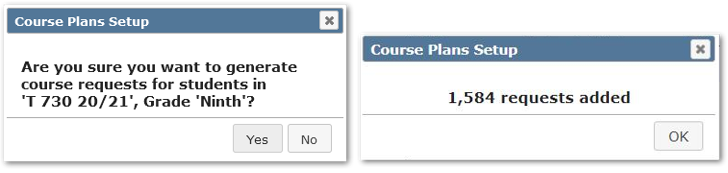
- Reset – Resets all selections.
- Done – Will close the dialog.
- Use Assign Course Plan to select a Course Plan and mass assign it as a ‘Base Plan’ to selected students using the student selection filters.
- Course Requests may be mass generated using the ‘Generate Requests’ button in Assign Course Plan, just like in Course Plan Setup.
- Use Student Schedules or Student Course Plan applications to review individual students’ plans and schedules or generate requests for individual students.
- Students may also be given options through Student Connection:
- to enter course requests
- to make changes to their Course Plans.
See StudentConnect Manager, Modules page.
Tools for Managing Plans & Requests
| Plans | Requests |
Mass Assign Plans
| Mass Generate Requests
|
Adjust Individual Plans
| |
| Individually Assign Plans ∗ Student Course Plan – Primary Application
| Individually Add or Generate Requests:
|
NOTE: When requests are mass generated, the requests for each student are based on their individualized course plan for their grade level in the logged in track.
The Mass Requests scheduling application may be used to add, remove or modify requests for a set of students, but it will do so without regard for the students’ course plans.
*For districts who utilize the full features of Student Course Plans to support individualized learning plans, including enabling students to edit their own Course Plan in Student Connect, students should NOT also be allowed to enter course requests in Student Connect. Their course requests will instead be generated based on their Course Plan.
Reporting
The Student Course Plan Report may be used to report on by student or by plan on Course Plans.
