
The Q Wellness Center application is a tool for staff to record visits to the center by students or members of the student’s household and track the services or support provided during the visit. Districts may define the set of options to track, customizing the options entirely to suit their center’s operations. Visits are easy and quick to log.
The Wellness Center application consists of two tabs: Visits and Setup. Each tab is made available based on permissions, so many users will not see the Setup tab. 
Wellness Center is located under the Health menu in Q.
The Visits Tab will show visits logged during the date range displayed, which defaults to the previous two weeks, but may be adjusted. 
For users with permission to access visits for other staff, the ‘All Staff’ checkbox will appear next to the Visit date range.
Visit records may be deleted, viewed, or edited using the icons at left. These options may be restricted using Role Restriction permissions, if needed.
Add Visit
To add a visit, click the ‘Add Visit’ button at top left.
Use the Student or Parent Last name and First name fields to search for members of a household.

Select the desired household and click ‘Select Household’ button.
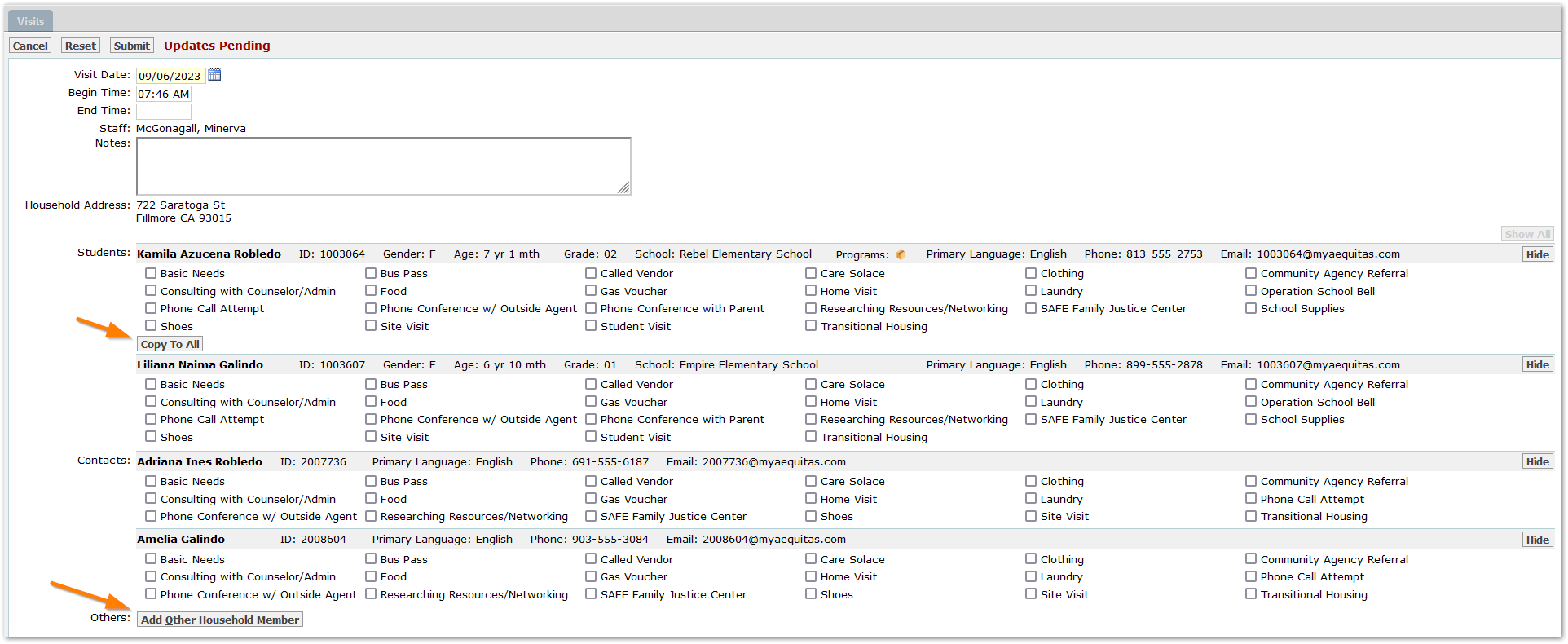
Set:
Visit Date - Will default to today’s date but may be changed.
Begin Time - Will default to the current time but may be changed.
End Time - May be set.
Staff:
- If the user does not have permission to ‘Visits for Other Staff’, staff will display the logged in staff member and may not be changed, as shown above.
- If the user has permission to ‘Visits for Other Staff’, then Staff will be presented as a drop-down box, with the logged in staff member selected. If logging a visit on behalf of another staff member, select the staff member from the drop-down.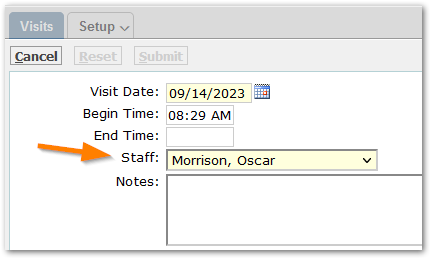
Log Items Provided for Students, Contacts and Others:
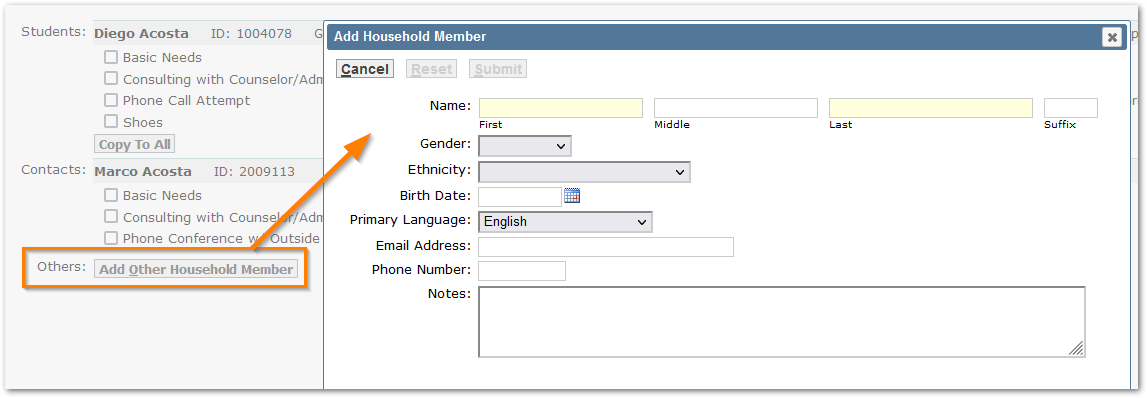
- All students and contacts associated with the household will be listed. Other household members, not already associated as household members, may be added to the visit by clicking the ‘Add Other Household Members’ button at the bottom of the form, and completing the Add Household Member form.
- For the first student listed, check the appropriate items provided during the visit.
- If these items apply to all members present, click the ‘Copy to All’ button. Items may be adjusted after copying.

Click Submit to save changes.
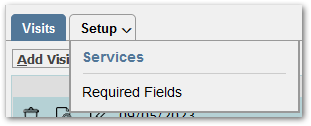
Services
From the Setup tab, select Services to configure the service items available and select whether each item is to be available for ‘Students’, ‘Contacts’ or ‘Other’ household members by checking or unchecking the appropriate column for each item. As example, in the screenshot below, ‘School Supplies’ is unchecked for Contacts and Others, since that item applies only to students.
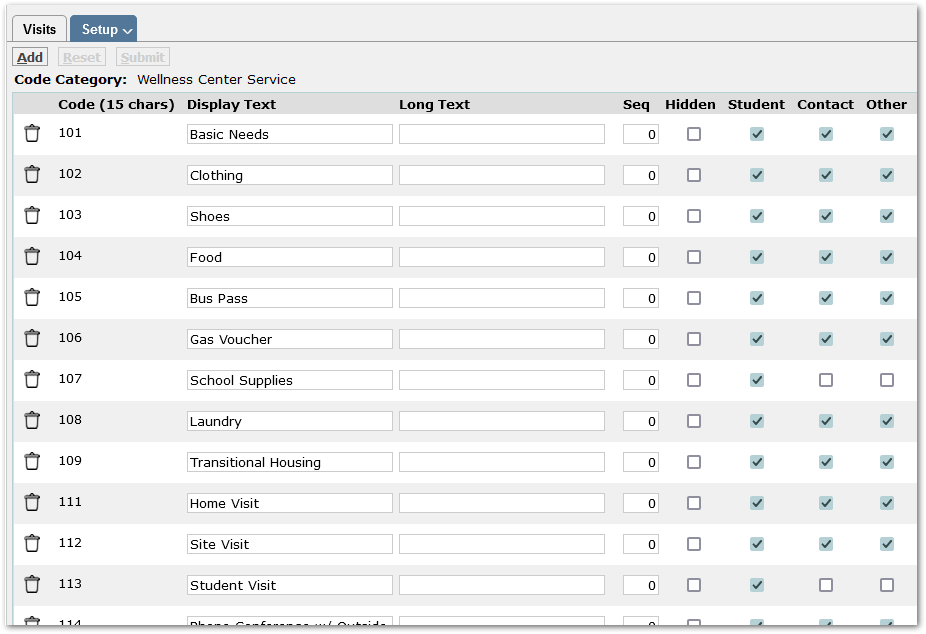
The category may also be managed through the Lookup Editor for ‘Wellness Center Service’ category.
Required Fields
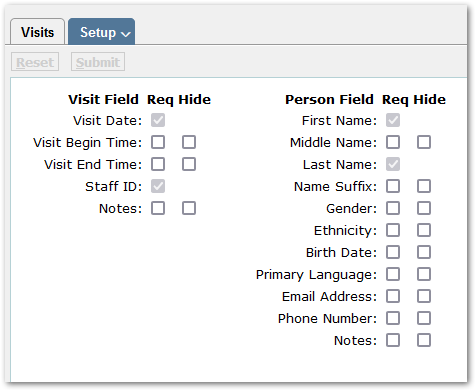
Fields minimally required for a Visit record are checked and include Visit Date, Staff ID, Person Field First and Last Names. But additional fields may be set to be required by checking the Req column for the field.
Districts may hide specific fields such as Begin and/or End Time, Gender, etc. by checking the Hide box for the field.
Permissions

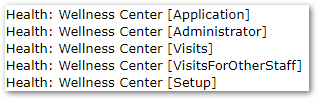
Each of the tabs, Visits and Setup, are associated with its own permission item, so access to the Setup tab may be given only to one or two people, and general use access may be given by assigning the Visits tab to a permission role. For users who need to be able to access records logged by other staff, access may be given to ‘Visits for Other Staff’ which enables the ‘All Staff’ checkbox to the right of the date range.
QLIP Hooks
Processing and validation hooks are available for the Wellness Center application. See the QLIP Editor for more information.
Reporting
Procedures are available to be used as Data Sources for Report Writer reports. Contact Support for assistance.
