Food Service Cafeteria is Q’s Point-of-Sale application that allows for the user to:
- Serve meals for all consumers
- Take payments
- View Account Balances and Eligibility
- Make notes related to individual purchases
- Reconcile the cash drawer
Cafeteria is located under the Food Service PoS menu in Q.
When the Cafeteria application is launched, the user is presented with the choices configured in Food Service Setup:
- Date - User can log in to past, present and future dates to record transactions. A warning appears if the date entered is not today.
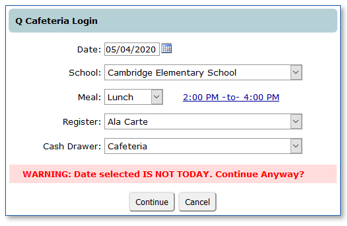
- School - Field will show just the user’s logged-in school. If the user has district access all the district schools with a configured Food Service Site will show in the dropdown menu.
- Meal - Dropdown with show the meals configured for this site in Cafeteria Setup.
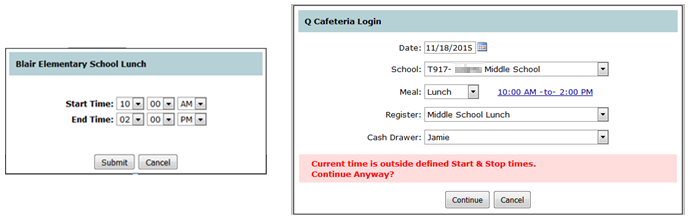
- Start/End Times - Meal times can be configured by clicking on the link. Logging in to the Cafeteria between the Start and End times will default the Meal dropdown to the appropriate meal. A warning appears if the time is outside of the set Start/End times.
- Register - Dropdown with show the registers configured for this school in Cafeteria Setup.
- Cash Drawer - Dropdown with show the cash drawers configured for this school in Cafeteria Setup
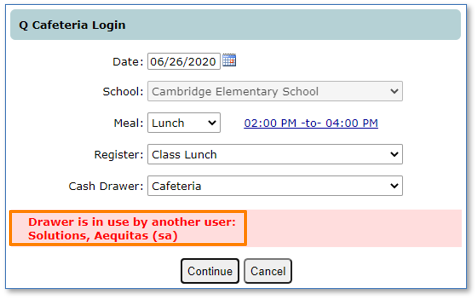
If a drawer is already in use, a warning message will appear. The ability to proceed despite this warning is controlled by the Permissions Editor.
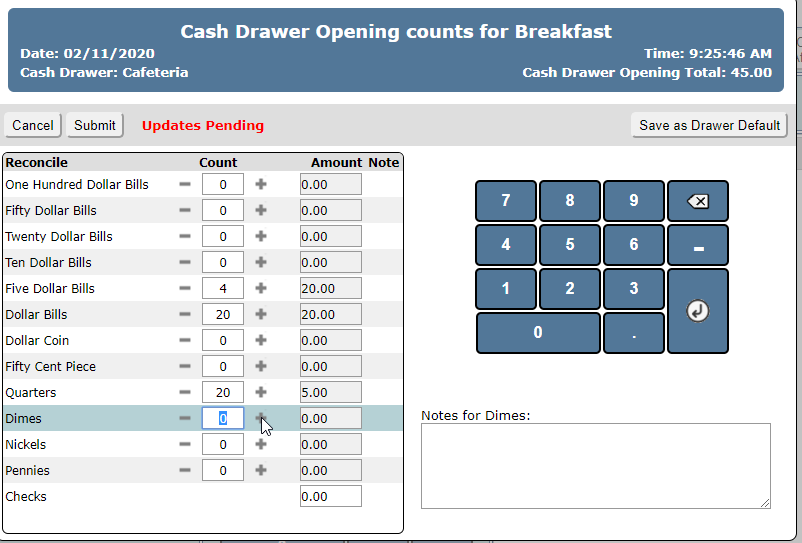
After logging into the cash drawer, the user will be prompted to add the opening bank amounts for the drawer. Type or use plus and minus button to enter in number of each denomination. Generic Items like Check, or Currency type the amount in the box.
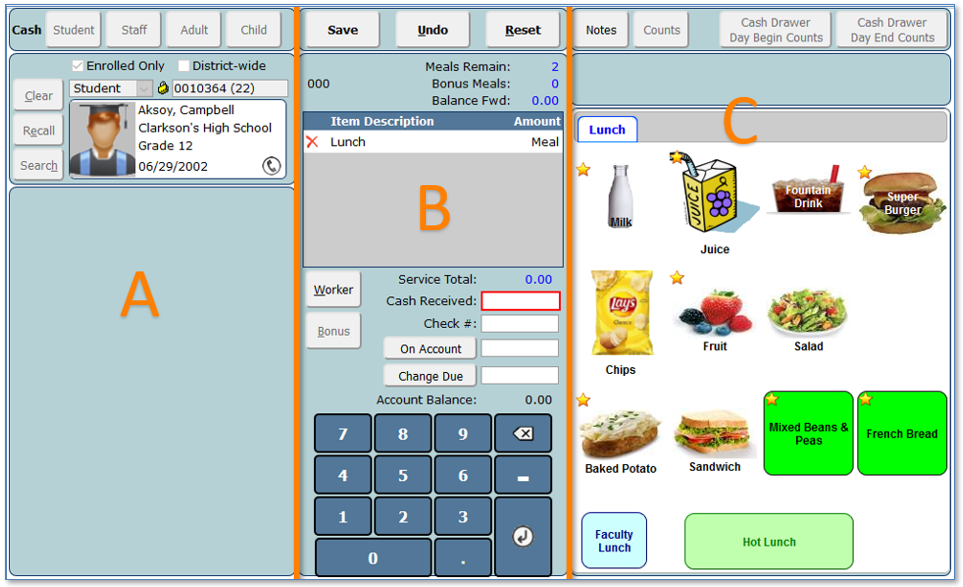
The Point of Sale screen is divided into 3 major sections:
- Consumer
- Transaction
- Menu
- Consumer
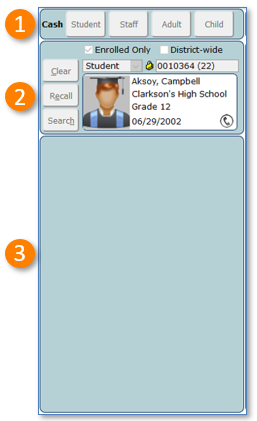
- Records anonymous meal and payment cash sales for all types of consumers.
- Consumer search and entry management.
- Choose to filter by Enrollment, or District-wide.
- Choose consumer type, Student, Staff, or Patron.
- Lock is used only when ID cards use a barcode format different than provided by Q.
- Enter the consumer ID via keyboard, keypad, or barcode scanner.
- When a student consumer is identified, name, school, grade and birthdate are displayed.
- Click the phone icon to display the student’s contacts.
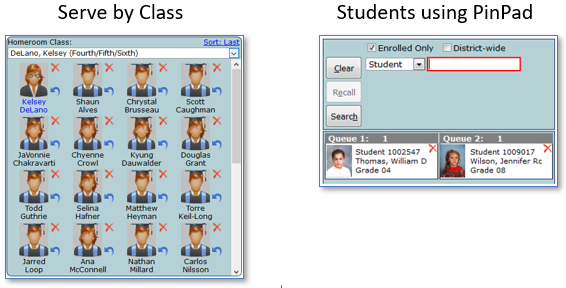
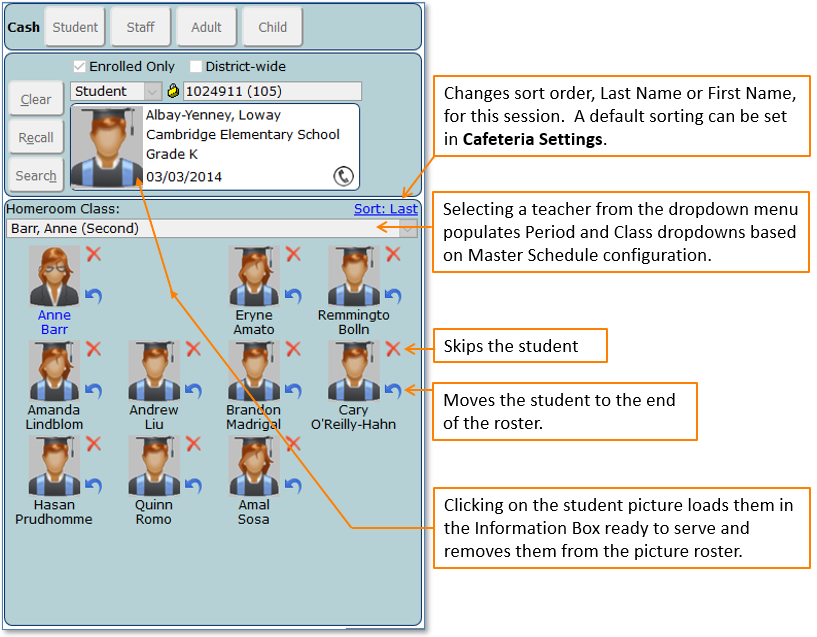
- When “Serve by Class” is configured this area will show students by teacher for quick service. Any consumers using Q PinPad will also be shown here.
B: Transaction
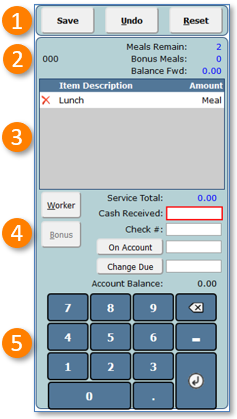
- Save the current transaction, Undo the current transaction, Reset removes the transaction and consumer and returns to ID entry screen.
- Displays student eligibility code, remaining meals, bonus meals (if used) and consumer current balance.
- Lists the menu items included in the transaction.
- Transaction Details
- Worker and Bonus buttons (if used) charge or credit the current transaction according to the district configuration.
- Service total is the sum of items listed.
- Cash receive is the amount tendered by consumer.
Enter the check number as needed. - On Account applies any change due to the consumer’s account.
- Change Due is the amount to be returned in change to the consumer.
- Account Balance is the amount in the consumers account if the transaction is saved.
- On-Screen Keypad that can be used with mouse or touchscreen.
C. Menu
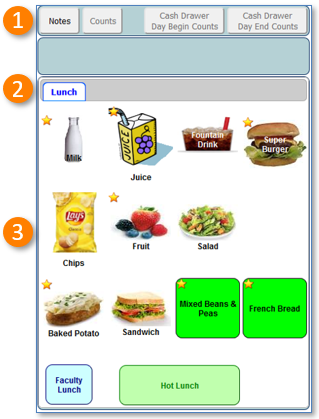
- Notes, Counts and Reconciliation
- Click Notes to add a note for the current transaction.
- Counts will display the current count of today’s meals.
- Cash Drawer reconciliation buttons to enter beginning and ending drawer amounts.
- Multiple tabs can be created for varieties of menu selections.
- Images and buttons for menu items are created in the register section of Food Service PoS Setup. Stared items are used when “Offer vs Served” is configured.
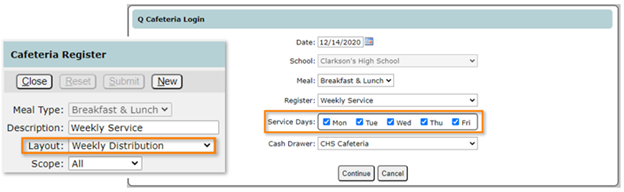
When Daily Distribution is configured in Food Service Setup, Breakfast & Lunch is added to the Meal selections at login.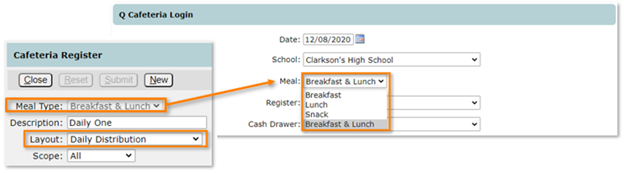
Both meals can be served through one register as shown below:
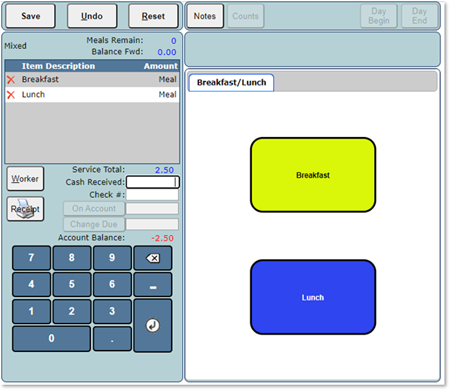
When Weekly Distribution is configured, Service days can be chosen and, when selected, any items added to the register will be tallied according to the number of days selected.
The date range shows at the top of the register as well as the service days. In the example below, 5 breakfasts and lunches have been served to this student and charged according the student’s eligibility.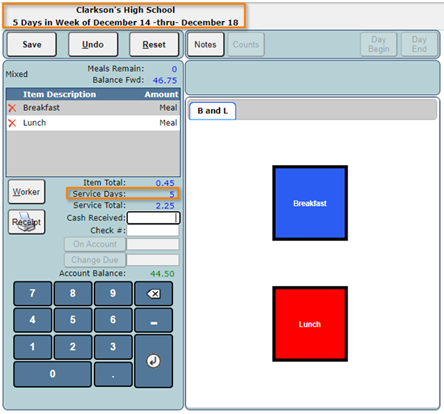
Note:
When logging into the Daily or Weekly Distribution registers the user will need to choose a Cash Drawer configured for Daily reconciliation.
The PoS register shown below is set up for Class Entry with a student with a Food Allergy Alert from Q Student Health. Food allergy and other alerts can also be configured in Food Service Accounts | Account Settings and how those alerts are displayed is configured using Cafeteria Settings. Sounds and visual “pop-ups” are available.
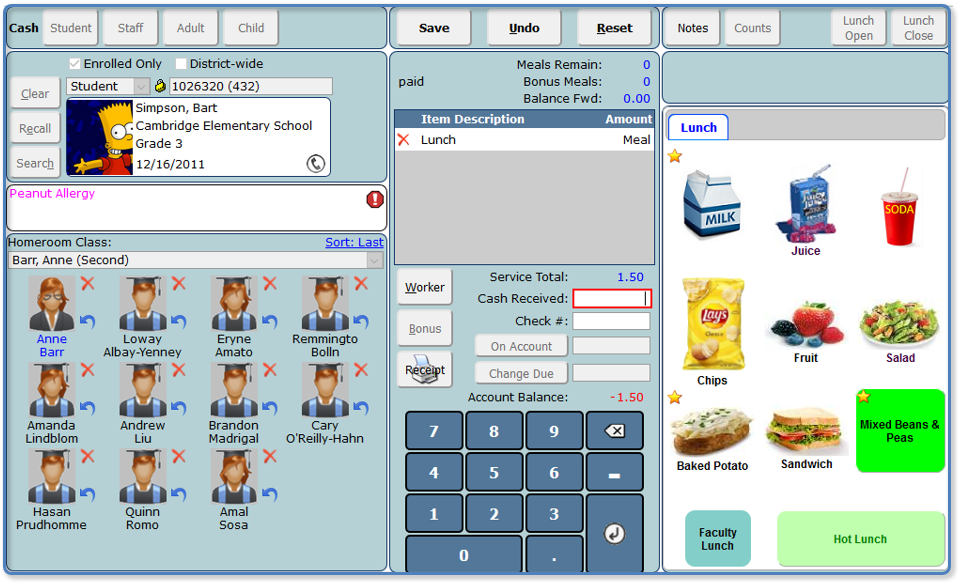
Clicking the Alert Badge shows the details from the Notes field in Q Student Health Medical History for this Food Allergy entry.
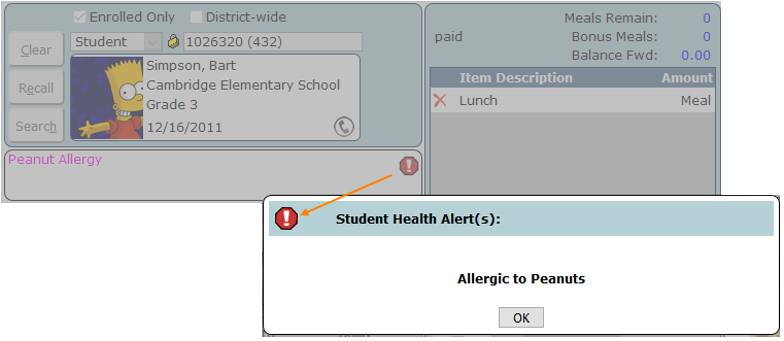
An Alert “popup” configured in Food Service Account Settings.

Meal Transactions
Selecting the Consumer
Meal transactions begin with selecting the consumer, Student, Staff or Patron. The District-wide checkbox allows searching for and serving consumers from other schools in the district and is turned on and off in the PoS settings. Enrolled only searches for students with active enrollments so to search/serve non-students who might be placed at sites, uncheck that box. Search also includes Food Service IDs, if configured.
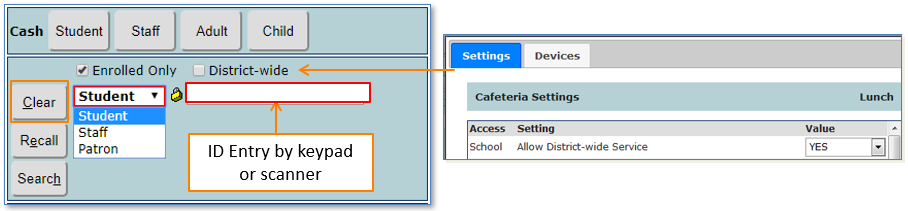
If an ID is entered incorrectly and needs to be re-entered, click Clear. Typically consumers enter their ID number from an input device.
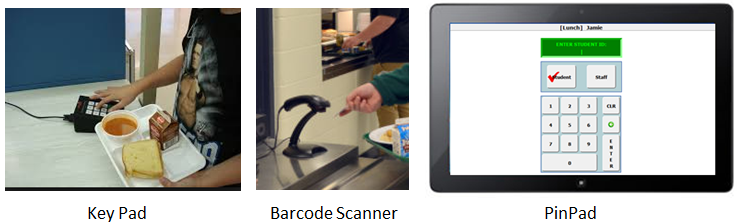
The ID entry box only takes numeric ID’s, not names or ID’s with alpha characters. If a consumer enters an incorrect ID and the wrong person shows in the information box, click the Clear button to start over. If the consumer enters an ID number that cannot be found or forgets the ID, click the Search button.

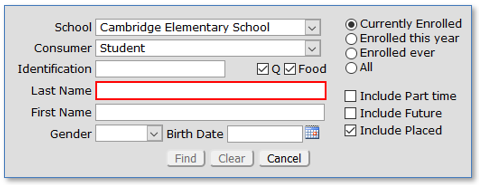
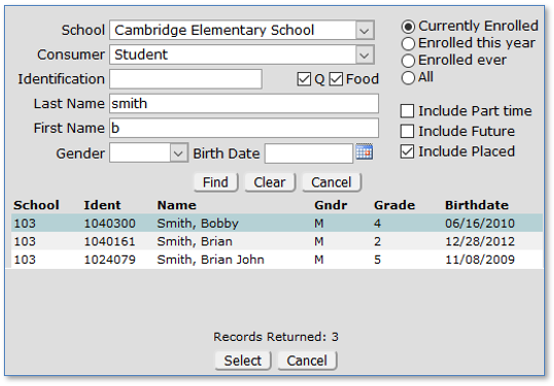
The Search screen has more detailed search capabilities and produces a list of possible matches. In the example below the default search focus is set to Last Name but can be changed to ID or First Name in the Cafeteria Settings.
Clicking on the desired student enters them in the consumer information box, ready to be served.
Class Entry is configured in Food Service Setup.
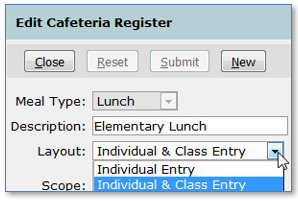
Class Entry has several configuration options to accommodate fast service depending on how students line up at the PoS station.
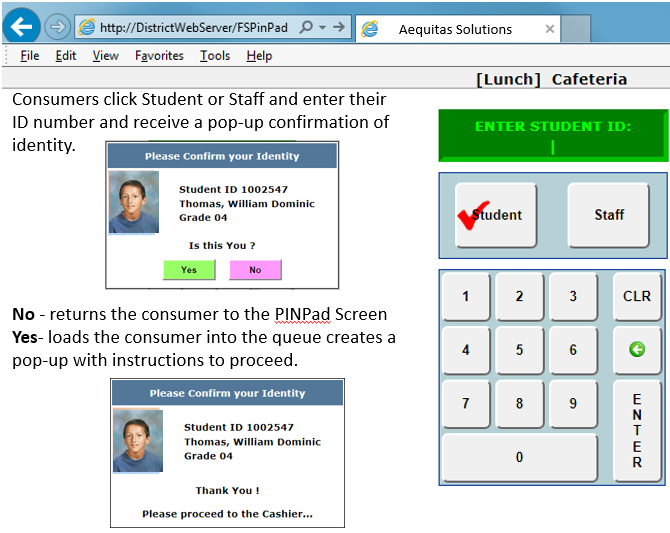
Food Service PINPad allows consumers to enter their ID numbers from other web-enabled devices such as tablets. Set up involves 3 steps.
Step 1: Launch the Cafeteria application and log in to a Cash Drawer.
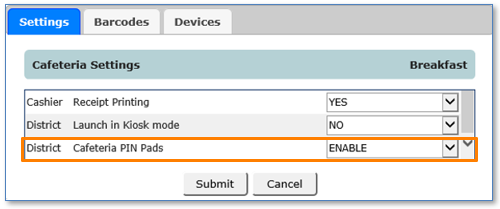
Step 2: Use Cafeteria Settings to enable PINPad connections.
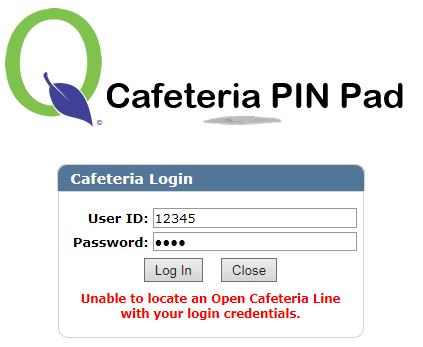
Step 3: The cashier logged in to the Cash Drawer must also log in to each terminal. This allows the PINPad to find the right Cash Drawer.
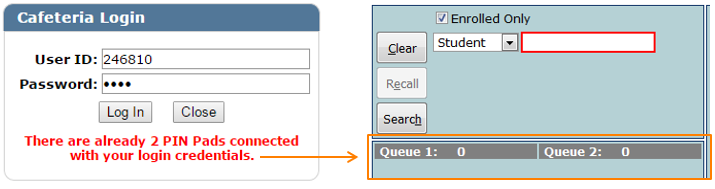
Only two PIN Pads can be connected under any single cashier’s login.
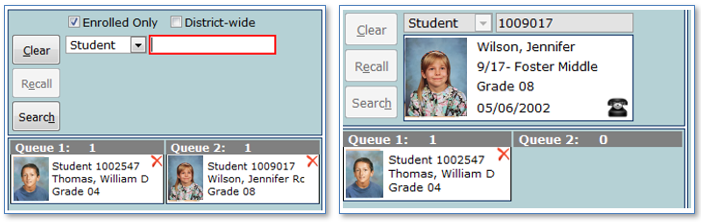
Students seen below are loaded in the queues and ready to be served. Multiple students in either queue can be served in any order by clicking on their picture. To remove a consumer click X.
Cash
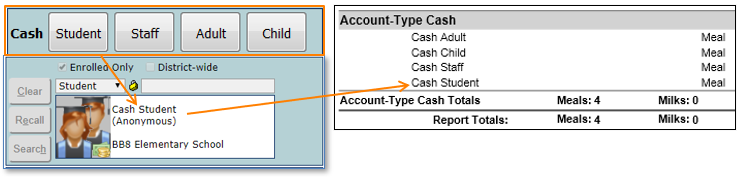
Student, Staff, Adult, and Child Cash accounts allow for Anonymous meal service recorded in reports as cash transactions. Since it is an anonymous meal, it is not possible to associate it with a status other than Paid.
- Meal service is as easy as clicking on the menu items to add them to the transaction area.
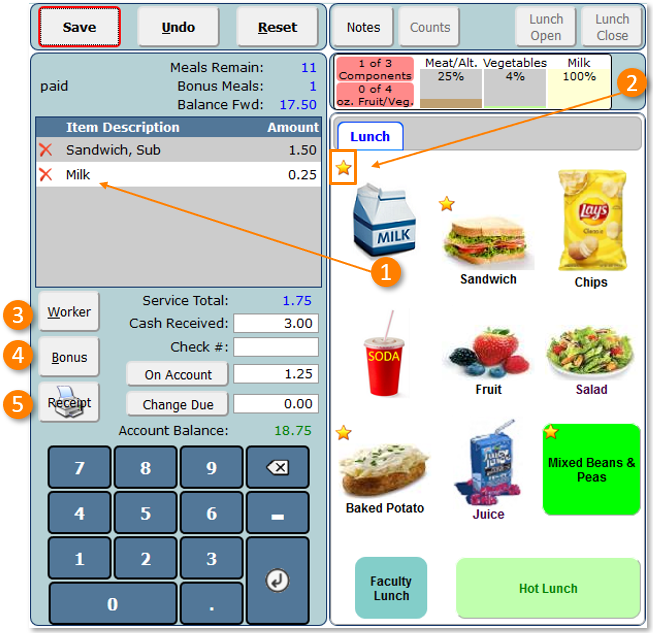
- When “Offer vs Served” (OVS) is configured, the nutritional values of the OVS ala carte items are tallied here. Menu items that can be counted for OVS meals have stars in their upper left corner.
Note:
See “Offer vs Served” under the Food Service Setup documentation for additional details.
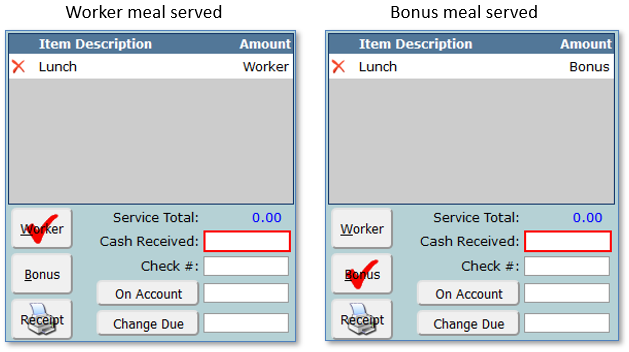
- When the Worker button is clicked a check mark appears on the button and the meal is marked “Worker” and the pre-defined Worker price (usually 0.00) is charged to the consumer’s account but is recorded as served. Ala carte items are not free.
- The Bonus button appears based on a setting in the System Preferences and is active only for students that have bonus meals. When checked, it records the meal service and reduces the student’s remaining bonus meal allotment.
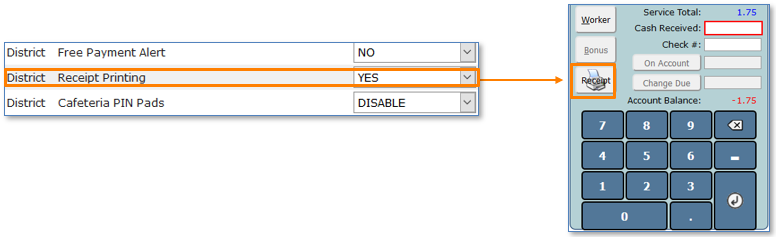
- When Receipt Printing is enabled in Cafeteria Settings the Print Receipt button appears but is grayed out until a consumer has been selected.
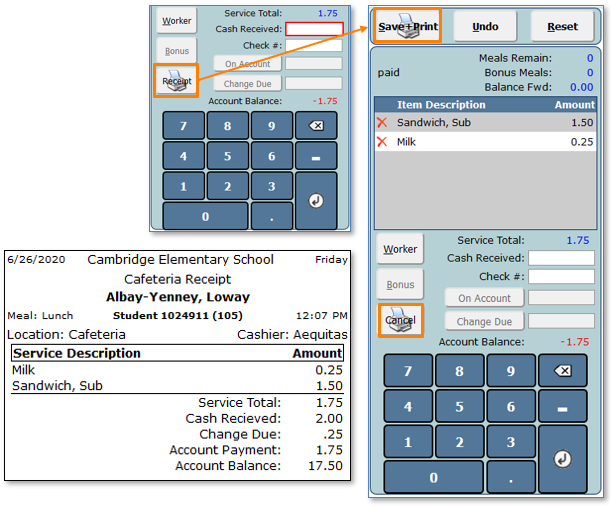
When the transaction is ready to be saved, click the Receipt button and the Save button changes to Save and Print. When clicked, the transaction is saved and a reciept is sent to the printer.
Recall button
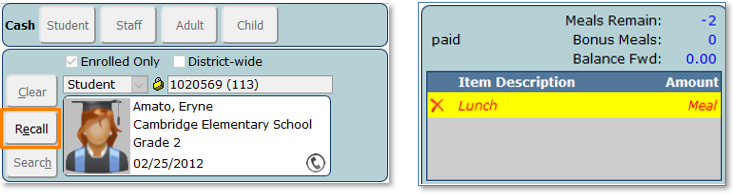
Clicking the Recall button brings back the last consumer, repeats the Alerts and Notifications and shows the meal service information in RED with YELLOW highlighting.
If the information just needs to be reviewed, when done, click the Reset button.
If meal information needs to be changed, delete unwanted items by clicking the X and add the correct items and click SAVE.
Ala Carte Barcode Scanning
Ala carte items can be served to consumers via barcode scanning. For information on setting up this feature, see Ala Carte Barcode Labels in the Menu Items section of the Food Service Setup Qwiki.
Once configured in setup, use Cafeteria Settings described below and configure the following:
- Settings
- All Auto-Serve settings - OFF
- Auto Save - OFF
- Cafeteria Focus – PAYMENT
- How it works:
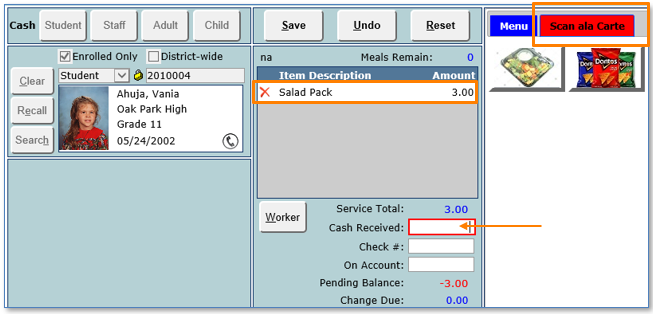
- Ala Carte items that are configured for barcodes must be added to a register in Food Service Setup, but don’t need to be visible to the cashier. Since these items will probably seldom be served manually, a good practice would be to put them in their own tab as shown below. If, for some reason, a barcode doesn’t function, an item can always be entered manually like other menu items.
- Once the student has been entered, the curser automatically moves to the Cash Received box. Scan the barcode of the item and it will instantly be added to the items to be served.
The top of the PoS register window contains information about the Cash Drawer being used, the Meal, the School and Date, the Cashier (logged in user) and links to Settings and Reconcile.

PoS Cafeteria Settings work together with Food Service Setup | Cafeteria Settings.
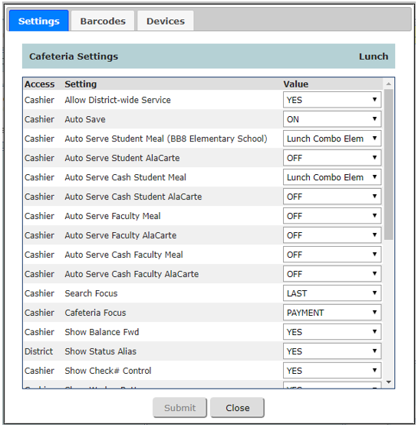
Settings that have no dropdown function are set at the district in Food Service Setup.

For a complete listing of these settings with descriptions and options, click here.
Barcodes
As previously mentioned in the PoS/Kiosk Layout section above, Q Cafeteria can be configured to accept ID card barcodes or keypad entries that contain non-numeric characters.
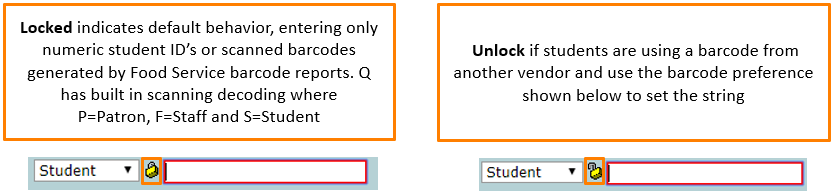
The Q barcode conversion requires a JavaScript statement. Below is a simple example where the student barcode is prefixed with a “P”. The string can be tested by entering the ID with the prefix and clicking the Test button to view the result.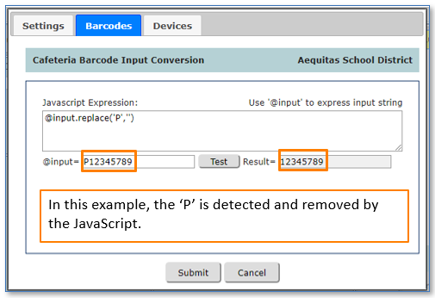
Devices
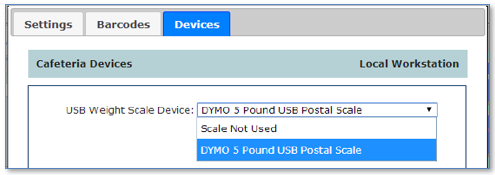
Use the Devices tab to add USB-HID scales that are connected to the workstation.
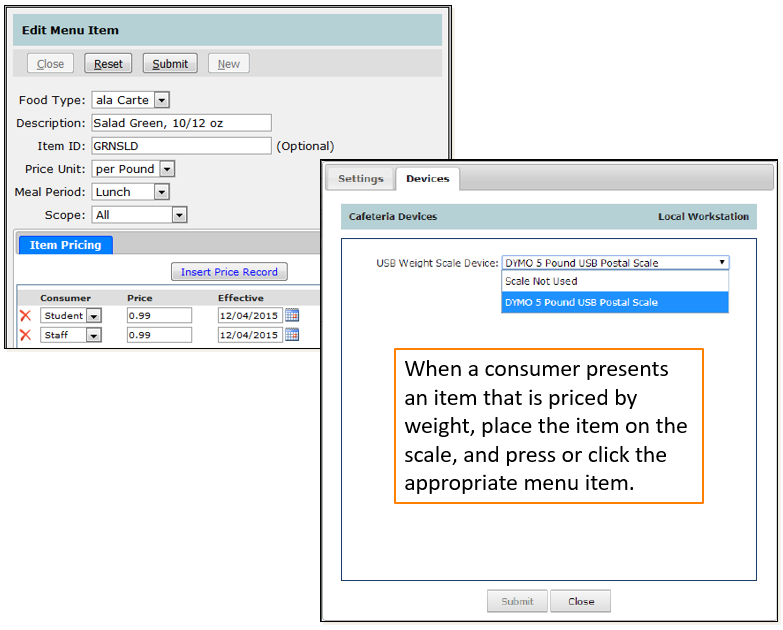
A la carte menu items can be configured for price per weight in Food Service Setup.
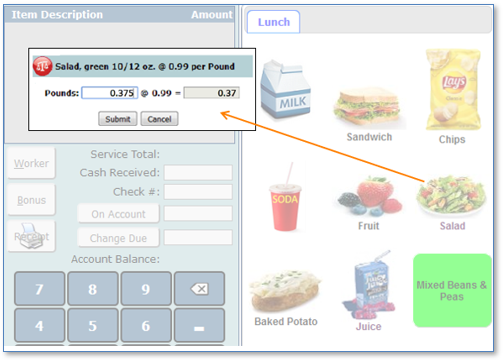
Clicking the scale icon refreshes the weight and price information.
Cash Drawer Closing Counts
Before closing Cafeteria for the meal, the user will be prompted to add the closing bank amounts for the cash drawer. Type or use plus and minus button to enter in number of each denomination. Generic Items like Check, or Currency type the amount in the box.
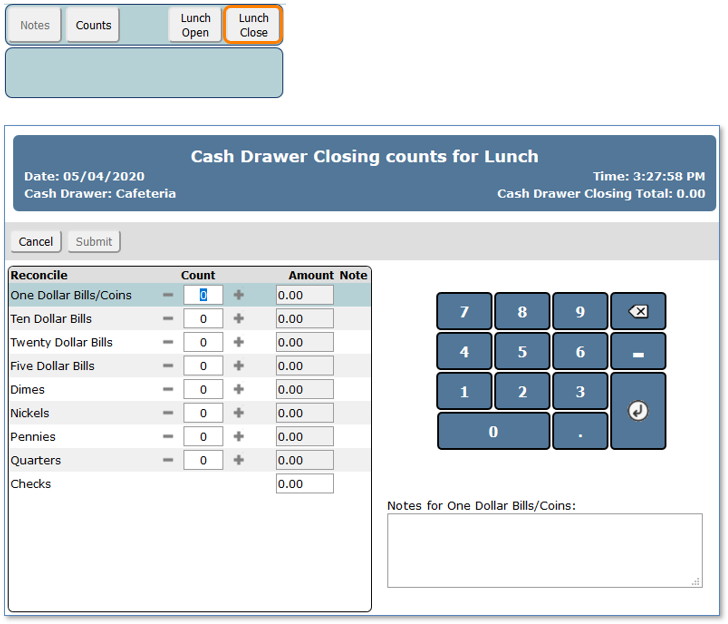
Drawers that are set up for Meal reconciliation are counted at the end of each meal.
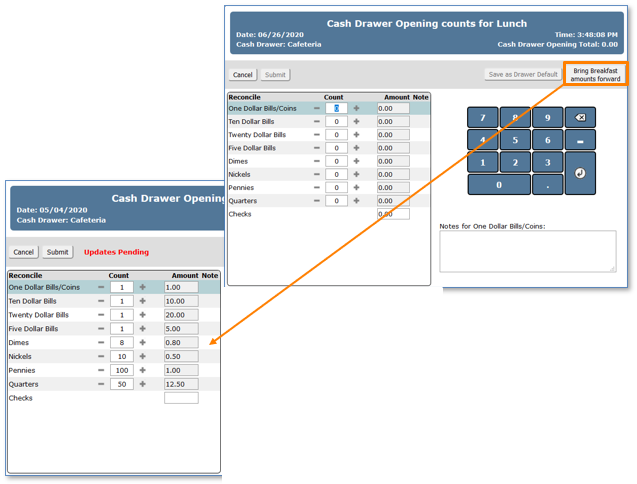
In the example below, this drawer is about to be opened for lunch and so the End Amount from breakfast must be brought forward to provide the Beginning Amount. Click the “Bring Breakfast Amounts Forward” button.
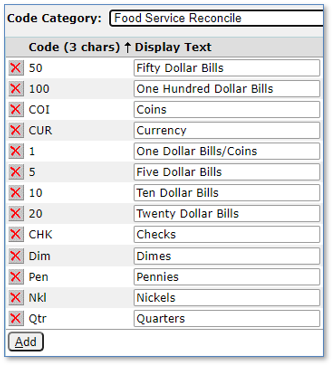
Additional fields can be added to accommodate different methods for counting the money during reconciliation. This is done by adding fields to Food Service Reconcile in Lookup Codes.