The Q Mass Schedules application is used to add, delete, or modify schedules for more than one student at a time. It is possible to make simple adjustments, like adding or dropping schedules, it is also possible to use a compound selection to make more sophisticated changes such as adding and dropping simultaneously. When dropping schedule records before school starts, you want to set the Exit Date equal to or earlier than the Entry Date and choose to DELETE the records. This will ensure that you can schedule a new class in the old class’s space without conflicts.
Mass Requests is located under the Schedule menu in Q.
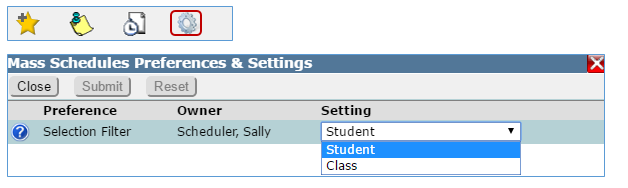
Once the Mass Schedules application has been launched, the filter used for selecting recipients of Mass Schedules actions can be changed by clicking the Cog located at the bottom left of the page. The selection filter may be set to either Student selection or Class filter.
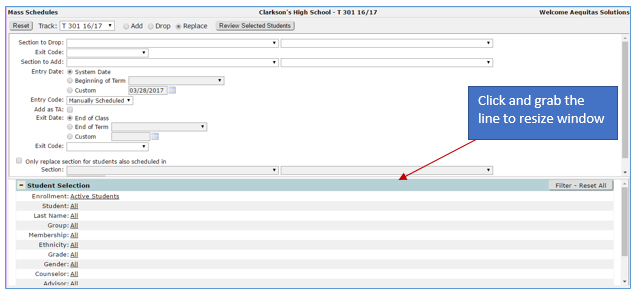
The Mass Schedules application is divided into two resizable windows. Scroll bars are available to view the entire window content; the windows may also be resized by grabbing the middle bar with the mouse and moving it to desired position.
The Mass Schedules application can be used to Add, Drop and Replace schedules for multiple students at one time.
To Add schedules:
- Log in to selected school
- Launch Mass Schedules
- Select desired track from drop down list
- Select Add
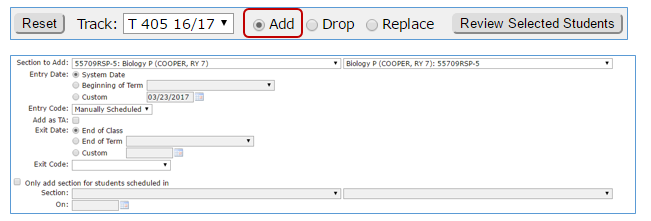
- Select Section to add
- Left hand drop down box displays course code
- Right hand drop down box displays course description
- Select Entry Date—this date should match the first day that the students will be attending the added class
- System Date—this is the default setting
- Beginning of term—select the desired term from drop down list, note the term begin date is included next to the term name
- Custom—this option allows users to enter a custom date by either typing in the date or using the calendar pop up
- Entry Code—Select the appropriate Entry Code to be applied to each schedule record added
- Add as TA—check this box if all students selected to add to this class will be flagged as TA
- Exit Date—set an exit date for the class to be scheduled. Select one of three options:
- End of Class—this is the default
- End of Term—select this to set the exit date equal to the end of a term other than the term of the class. Select desired term from drop down list, the term end date will display next to the term name
- Custom—Select to set an Exit Date to something other than above, enter desired date in the pop up calendar
- Exit Code—select exit reason for students exiting class
- Only add section for students scheduled in—(optional) check this option to make the process specific to only students who already have a scheduled section of a particular course. When this is checked the section selector which contains all of the sections in the master schedule for the selected track is activated. Select the specific section from the drop down list
- On Date—you may optionally select a qualifying date in the On When a date is entered in this field, that date becomes the primary validation date instead of the Add Date when using conditional course sections. This allows the program to check if a student was scheduled in a conditional course that ends before the target Add Date, such as in a previous term.
- Select Students—Using the Student Selection (or Class Selection) depending on the preference set, allows the user to select a specific set of students (such as grade level, gender, counselor, program, etc.) for which this schedule change will be applied
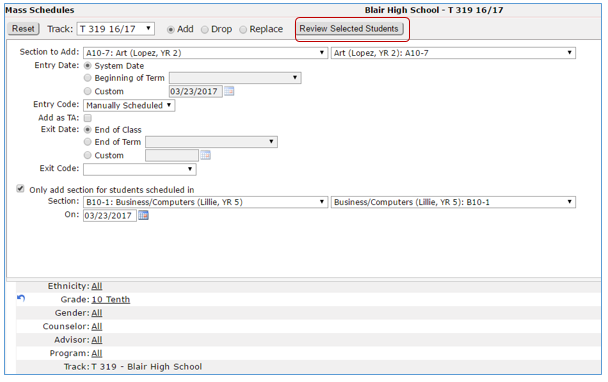
- When all selections have been made, click the Review Selected Students button to display list of students
- The list displays showing the selected students, this list may be printed by clicking the Printer icon
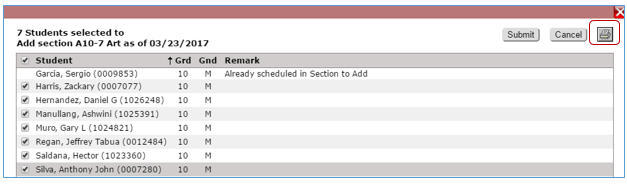
- Individual students may be excluded from the schedule change by removing the check next to their name
- If all looks good, click Submit
- Click Cancel if you do not wish to proceed with adding the class to selected students
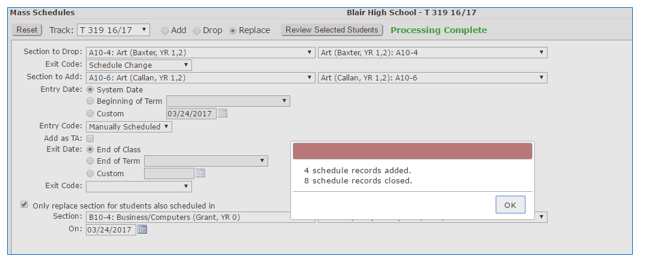
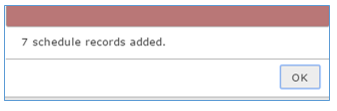
- After submitting a messages displays showing records added
Dropping schedules works similarly to adding schedules except you will be defining parameters for unscheduling from a course section instead of scheduling to a course section.
- Log in to selected school
- Launch Mass Schedules
- Select desired track from drop down list
- Select Drop
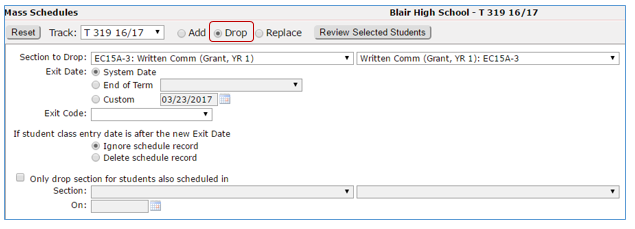
- Select Section to Drop
- Left hand drop down box displays course code
- Right hand drop down box displays course description
- Exit Date—set an exit date for the schedule records that will be dropped. Select one of three options:
- System Date—this is the default
- End of Term—Select desired term from drop down, the term end date is displayed after the term name
- Custom—Select and enter a date in the pop up calendar
- Exit Code—Select the appropriate Exit Code that should be applied to each schedule record dropped
- If student class entry date is after the new Exit Date—this is similar to selecting between UPDATE and DELETE schedule records in Student Schedules when unscheduling courses
- Ignore schedule record—this option tells the process to ignore such schedule records, they will not be dropped
- Delete Schedule record—this option tells the process to delete the schedule record
- Only drop section for students also scheduled in—(optional) check this to make the process specific to only students who already have a scheduled section of a particular course. A check in this field activates the section selector which contains all sections in the master schedule for the selected track. Select the specific section of a course whose students you want to drop a section from via the Mass Schedules process
- On Date—you may optionally select a qualifying date in the On When a date is entered in this field, that date becomes the primary validation date instead of the Drop Date when using conditional course sections. This allows the program to check if a student was scheduled in a conditional course that ends before the target Drop Date, such as in a previous term.
- Select Students—Using the Student Selection (or Class Selection) the user can further filter the set of students for which this schedule change will be applied
- When all selections have been made, click the Review Selected Students button to display list of students
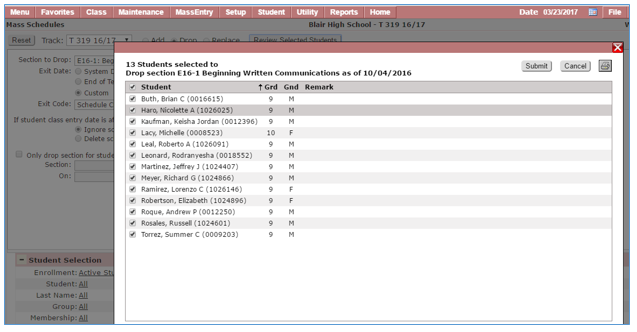
- The list may be printed by clicking the Printer icon.
- Individual students may be removed from the process by removing the check next to their name
- After reviewing the list, click Submit to make changes
- Click Cancel if you do not wish to proceed
When using the Replace feature the user can drop students from one class and add them to another class in one step. The user is given the choice of what date the students will enter the new class. When Mass Schedules adds the students to the new class the drop date for the previous class defaults to the calendar date before the entry date for the new class. If you were to add students to a new class on a Monday, the students would be dropped from their previous class using Sunday's date. Since Sunday is not a school day attendance is not affected.
To Replace schedules:
- Log in to selected school
- Launch Mass Schedules
- Select desired track from drop down list
- Select Replace
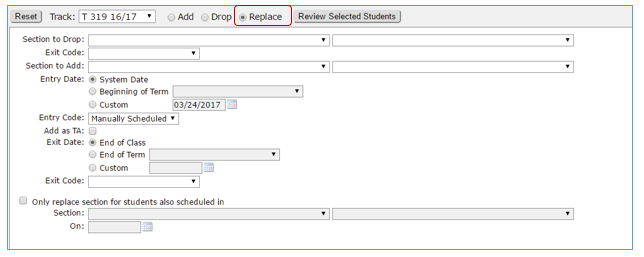
- Select Section to Drop
- Left hand drop down box displays course code
- Right hand drop down box displays course description
- Exit Code—Select the appropriate Exit Code that should be applied to each schedule record dropped
- Section to Add—select section to add from the drop down list
- Entry Code—Select the appropriate Entry Code to be applied to each schedule record added
- Add as TA—Check if all students are to be flagged as TA
- Exit Date—set an exit date for the schedule records that will be dropped. Select one of three options:
- End of Class—this is the default
- End of Term—Select desired term from drop down, the term end date displays after the term name
- Custom—Select to set an Exit Date to something other than above, enter desired date by typing in date or using pop up calendar
- Exit Code—select the appropriate Exit Code to be applied to each schedule record dropped
- Only replace section for students also scheduled in—(optional) check to make this process be specific to only students who already have a scheduled section of a particular course. Checking this activates the section selector which contains all of the sections in the master schedule for the selected track. Select the specific section of a course whose students you want to drop and add a section from via the Mass Scheduling Process
- On Date—you may optionally select a qualifying date in the On When a date is entered in this field, that date becomes the primary validation date instead of the Drop Date when using conditional course sections. This allows the program to check if a student was scheduled in a conditional course that ends before the target Drop Date, such as in a previous term.
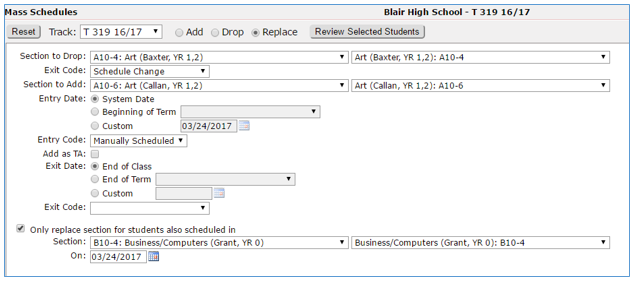
- Select Students—additional filtering may be applied using the Student Selection (or Class Selection)
- When all selections have been made, click the Review Selected Students button to display selected students
- The list displays selected students, this list may be printed by clicking the Printer icon
- Individual students may be removed from the process by removing the check next to their name
- Students with conflicts are identified in the remarks area and will not be selected for the change
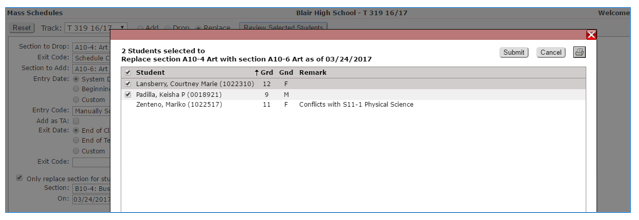
- Click Submit to make changes
- Click Cancel if you do not wish to proceed
- After submitting a pop up displays showing the changes made