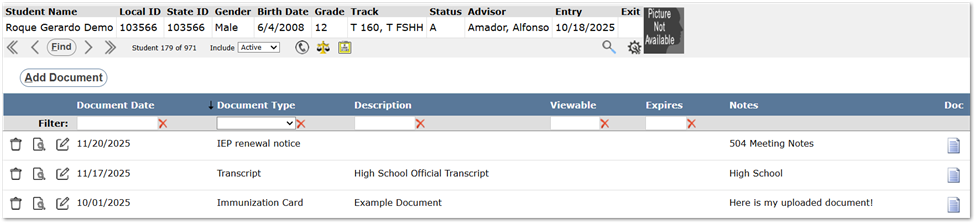
Q supports storing electronic documents for students. Sometimes these documents are PDF versions of reports such as Report Cards or Transcripts that may automatically be saved to Student Documents when they are produced, or they may be copies of documents uploaded by parents or staff, such as Immunization cards, utility bills to verify address, etc. The Student Documents application provides a way to access the electronic documents stored for a student and manage them.
Documents are associated with district-definable types such as Birth Certificate, Address Verification, Report Card, Health Documents, etc. Access to documents may be controlled by these Document Types enabling districts to manage which documents staff are able to view.
In addition, student documents may also be made available to users through the Document areas of other applications including Student Profile, Parent Connection, Student Connection, and Student Health. Document areas in these applications require permission to the area, and within that area, the user will see only the document types they have permission to access.
Once the application has been launched, users must retrieve and select a student through the Student Banner.
Student Documents is located under the Enrollment menu in Q.
After finding the student whose documents you wish to work with, either select the document, or if needed, use the filter options at the top of the document list to find the document:

Accessing a Document
To review or download the document, click on the document icon in the displayed record.
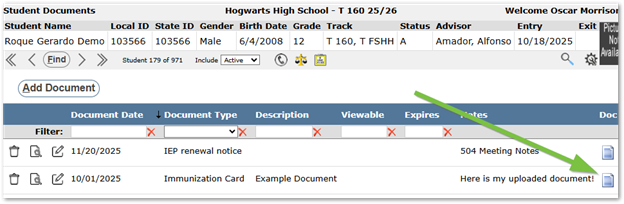
Additionally, Users can also click the View icon or on the record to display document details. From here, the file can be downloaded, and the document details can be printed.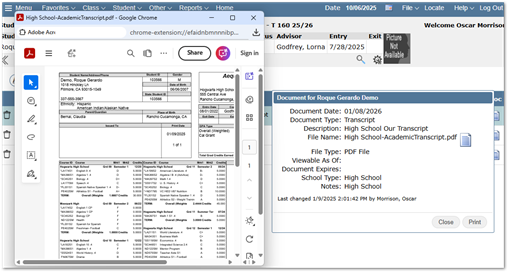
Editing a Document
Locate the student whose documents you wish to edit, select the document, and click the Edit button.
This will display the Edit Student Document screen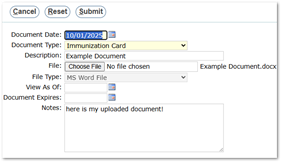
Deleting a Document
To delete a document from a student, click the Delete icon next to the chosen record.
This will display a warning. Users can confirm deletion by clicking OK, or Cancel to return to the previous screen.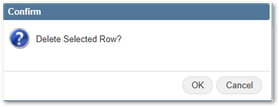
Users can add a document to a student by clicking the Add Document Button.
This will open the Add Document screen.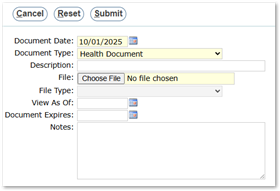
- Document Date: The Document Date will default to the system date, but can be altered manually or by clicking the calendar icon.
- Document Type: The document type. The list of available Document Types is configurable by your district. For more information see Configuring Student Documents.
- Description (Optional): A short description field to explain the contents of the document.
- File: Allows users to choose the needed document.
- NOTE: Currently, only files submitted in PDF format will generate in Student Documents Report.
- File Type: This field automatically displays the file type, based on the uploaded document.
- View As Of: View documents as of a specified date. Users with Administrator permission will have access to all documents regardless of the ‘View As Of’ date setting
- Document Expires (Optional):
- Notes (Optional): Allows additional information to be included regarding the document.
Once complete, click Submit. The record will then be displayed on the Student Documents Screen