
A No Show student is one who was enrolled in school but has never attended any classes. The application enables school sites to process No Show students in bulk. This is generally done within the first few weeks of school.
The No Show process will identify students in the selected track who have not attended any scheduled classes in the date window specified for the track. Students identified may then be selected for processing. When run, the process will exit the selected students in bulk, and either close their schedule and attendance records as of the ‘End Date’ or delete them based on a district preference. 
No Show is located under the Enrollment menu in Q.
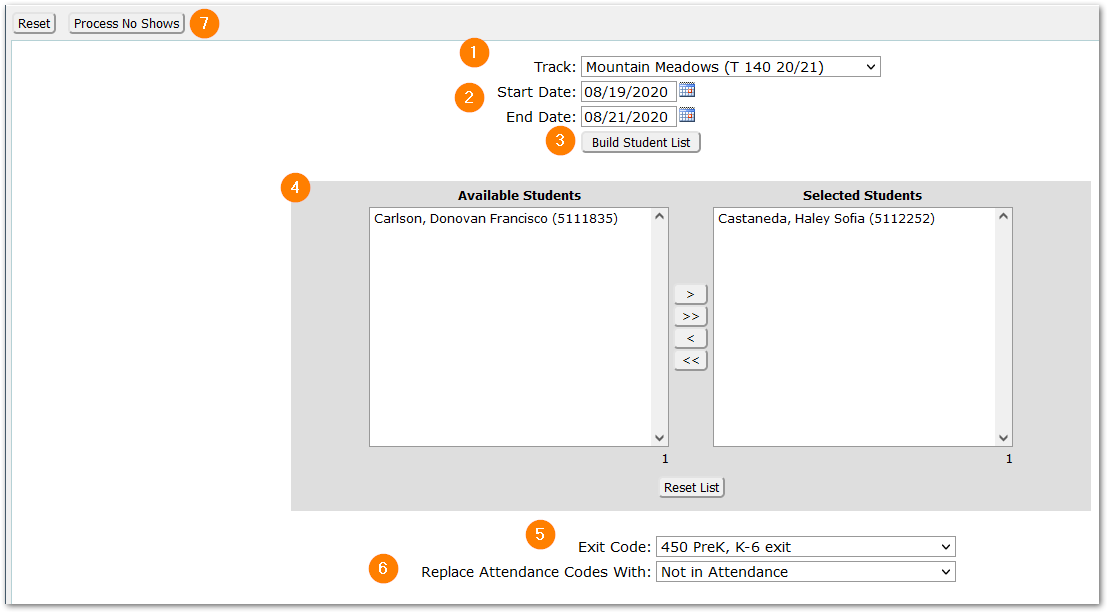
From the No Show page, the settings are:
- Track: Select the track to process. The set of tracks will be those available to the logged-in school. When logged into the district track, select each school track to process.
- Start Date and End Dates: The dates default to the first two weeks of school. Students with absent attendance for all scheduled classes in the date window will be identified as ‘Available Students’.
Note: The Start and End Date specified need to be School Days. If no students are identified, check the Start and End Dates to be sure the dates are school days.
- Build Student List: Click to retrieve candidate ‘No Show’ students for the specified date range.
Notes:- Absent attendance are attendance codes with ‘In Class’ setting unchecked or OFF.
- The process will take into account bell schedules and only include students based on their absent attendance for all classes scheduled on the specified dates.
- Students without schedules will not be identified as ‘Available Students’. Use the Unscheduled Period report to identify any students without a schedule in the period.
- Students with a single present period in the date window will not appear in the list.
- The process works for negative attendance tracks, not currently for positive attendance situations.
- Student List: Review students from the ‘Available Students’ list at left and move them to the ‘Selected Students’ column either by highlighting and clicking the mover arrow(s) or double-clicking on the student. See ‘Handling Exceptions’ below.
- Exit Code: Select the Exit Code to be used when the process exits the student.
- Attendance Code: Select an Attendance Code to update the student’s absent attendance.
Note: The attendance codes listed are those with the ‘Enrolled’ flag set OFF. If no appropriate codes appear, consider adding a non-enrolled attendance code for No Show purposes.
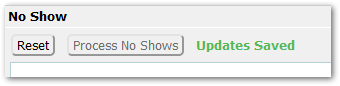
- Process No Shows: When students are selected and codes set as desired, click ‘Process No Shows’. A success message will appear indicating ‘Updates Saved’.
When the process is run and the student’s enrollment, attendance and schedule records handled, based on the selections and preference setting, in addition:
- Requests in the current track will be removed.
- Students will be exited from programs corresponding to the selected track year.
- Next year status records and any associated requests will be removed.
Outcome when Preference Set to ‘No’
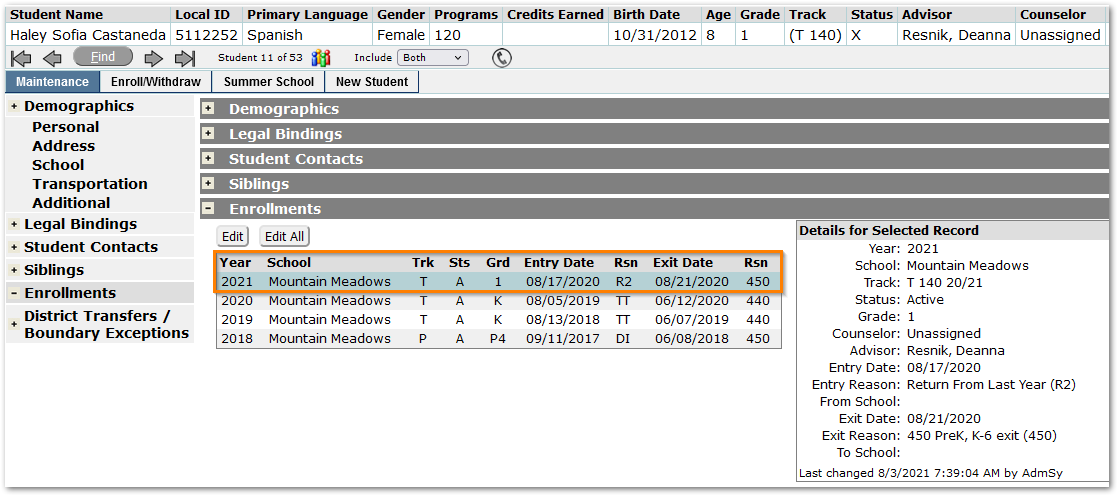
With the preference to update rather than delete the student’s attendance and schedule records set to ‘No’, in the Student Editor the Enrollment record shows an exit of 8/21 with the reason 450 - ‘450PreK, K-6 Exit’ as specified.
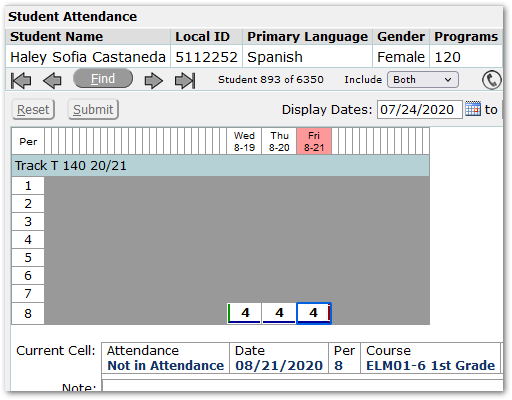
The student’s attendance code for their scheduled dates 8/19 through 8/21 has been changed to ‘Not in Attendance’ as specified.
Outcome with Preference Set to ‘Yes’
In this example, with the preference set to delete the student’s attendance and schedule records, in the Student Editor the Enrollment record shows Exit of 8/16, the day prior to the track start date, with the reason ‘450PreK, K-6 Exit’ set as specified.
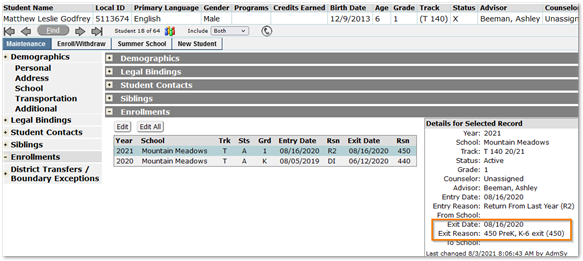
Note: In this track, the first school day is 8/19, but the track begin date is 8/17. The No Show process set the Entry and Exit Dates set to one day prior to the track begin date.
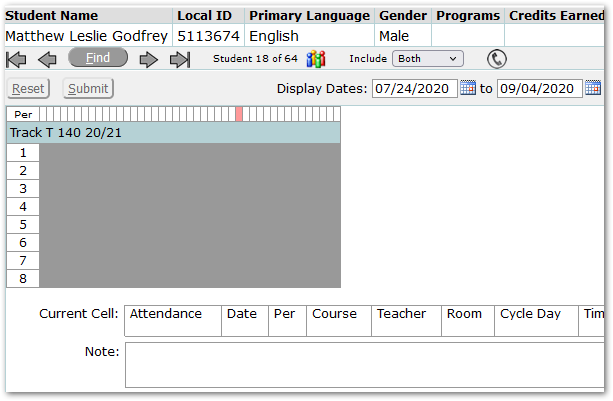
The student’s schedule and attendance have been deleted.
In this example, the highlighted student appears as available for No Show because he has excused absences for every scheduled class in the No Show date window.
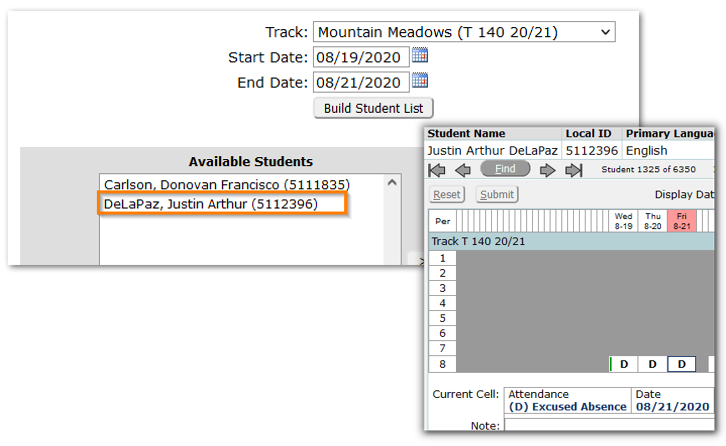
Since Excused Absence codes will have ‘In Class’ set OFF, students with these absence codes will appear in the Available List if every one of their classes in the No Show date window is marked as excused absence.
When students have special situations causing an excused absence to be recorded for every period in the window, schools will likely want to ensure those students are not selected from the ‘Available’ list and processed as ‘Selected’ students, but instead managed in a more individual way, based on the student’s circumstance.
It is possible to make use of QLIPS to implement additional logic before processing the ‘No Show’ students, such as using specific attendance codes to identify the students, or implement logic after processing the ‘No Show’ records.
