
The Process Manager application is used to run SQL stored procedures to either extract or import data. In addition to running procedures, administrative users may create new processes, define export file formats, and create useful web links.
Process Manager is located under the System menu in Q.
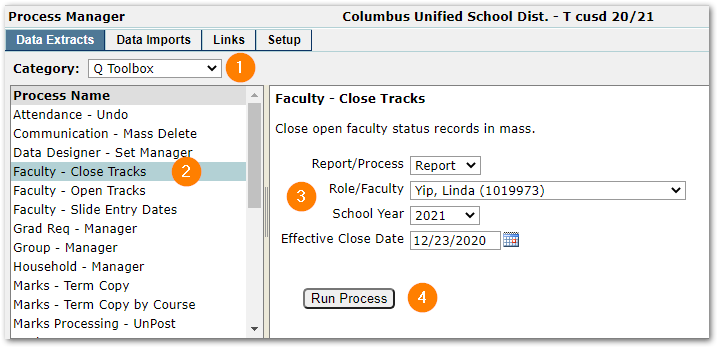
The first tab in the Process Manager application includes the stored procedures for data extracts. To run an extract process:
- Select a Category – Data extracts may be organized into categories.
- Choose an Extract Procedure – Click to select one of the available procedures.
- Complete Extract Details – Details of the selected extract appear in the top right pane.
- Click the “Run Process” button – Results will appear in the bottom pane.
Report vs Process
Some of the available extracts have an option to be run as a ‘Report’ or ‘Process’ as pictured here:
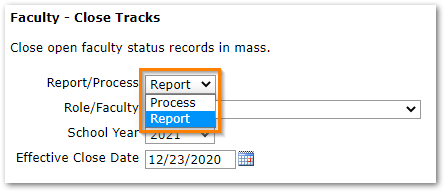
The report option allows user to view the affected data before executing the process. In the example above, the report will list the faculty members and tracks that will be closed when the process is run. The results may be exported for further analysis as covered below.
Saving Extracted Data
When a process is run, the results appear in the lower pane for review. To save the data extracted, choose the desired export format from the menu as pictured below, then click the Save To File button.

Available Extract Processes
Districts may create their own extracts, but Q provides several helpful extracts located in the category “Q Toolbox” as pictured above. Notable extracts include:
- Faculty Close Tracks
- Faculty Open Tracks
- Faculty Slide Entry Dates
- Delivery Script Report Writer
The Data Import tab in the Process Manager application includes the stored procedures for importing data from a data file. Running a data import process is the same as describe above for data extracts.
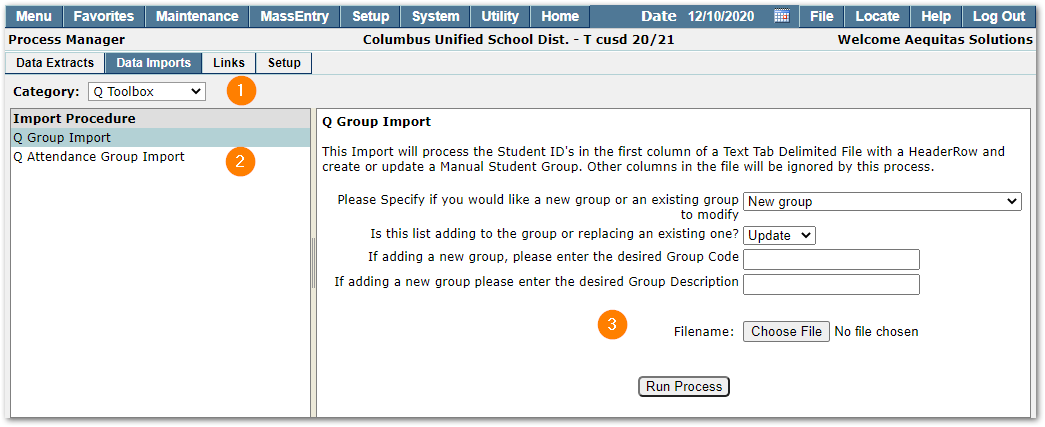
- Category – Data import procedures may be organized into categories.
- Import Procedure – Click to select one of the available procedures.
- Import Details – Details of the selected import appear in this pane and includes a “Run Process” button.
Available Import Processes
As with the extracts tab, Q includes extracts in the category “Q Toolbox” as pictured above.
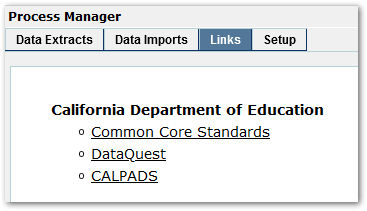
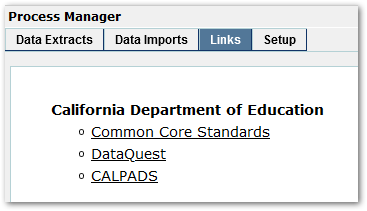
User created links are displayed on this tab of the application. Links may be organized under a parent heading. See the Setup section below for information about how to create and organize these links.
The Setup tab includes a menu allowing users to manage, add, edit, and delete their extract and import procedures, export formats, and links.
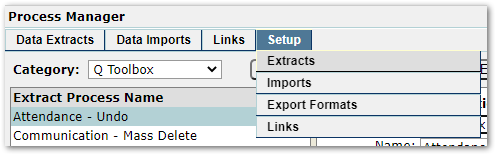
Setup: Extracts
Districts may manage the extracts delivered with Q. To manage an extract, first choose from the Category menu, then click to highlight an extract process in the left-hand pane. The larger right-hand pane displays the configuration for the selected extract. The buttons above the right-hand pane allow users to add a new extract, delete the selected extract, reset the configuration, or submit changes.
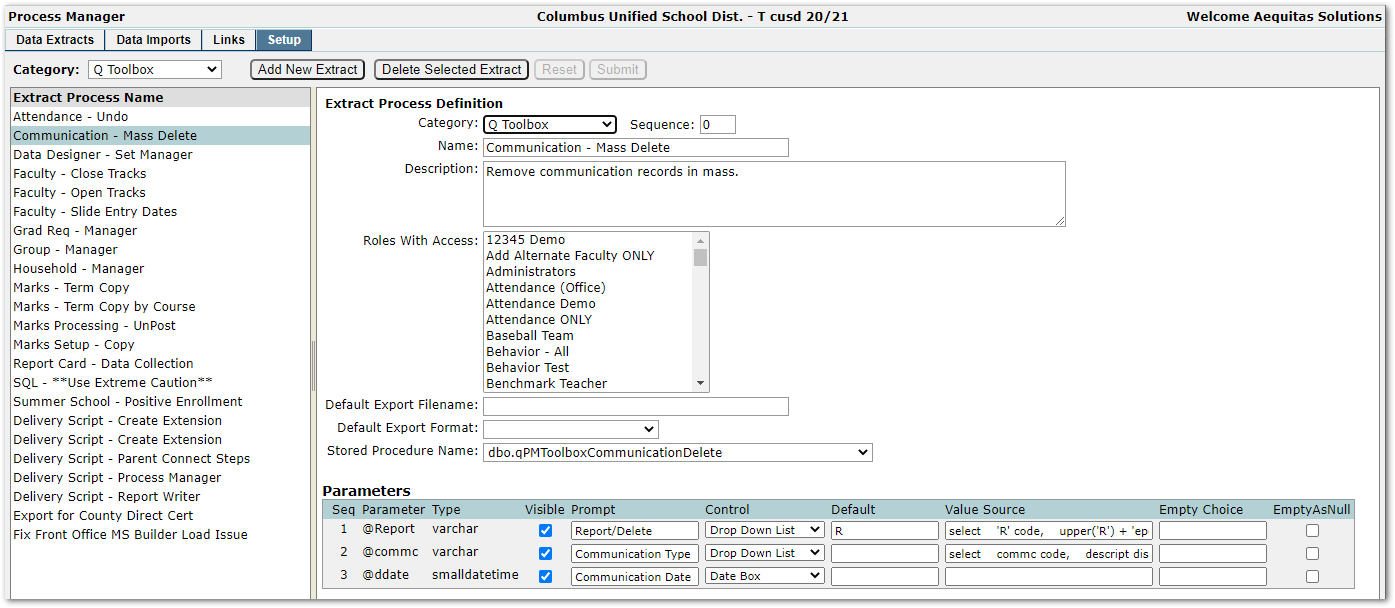
Extract Configuration
The following options are available when configuring an extract:
- Category – Select an existing category name to group extracts or create a new category.
- Sequence –Optional. Customize the order of the extracts in a category using a sequence number. Otherwise, extracts are ordered alphabetically.
- Name – Name of the extract.
- Description – Optional. Details about the extract.
- Roles With Access – Select the roles that will be able to use the extract.
- Default Export Filename – Optional. If blank, export files are named during the run process.
- Default Export Format – Optional. Choose from the list of available export formats. Additional formats may be created following the instructions in the next section below.
- Stored Procedure Name – Choose a stored procedure to be used for the extract.
- Parameters – Not all stored procedures include parameters. When available, information about the data that is passed into the extract procedure is displayed. If necessary, items like the default value, value source, etc. may be changed.
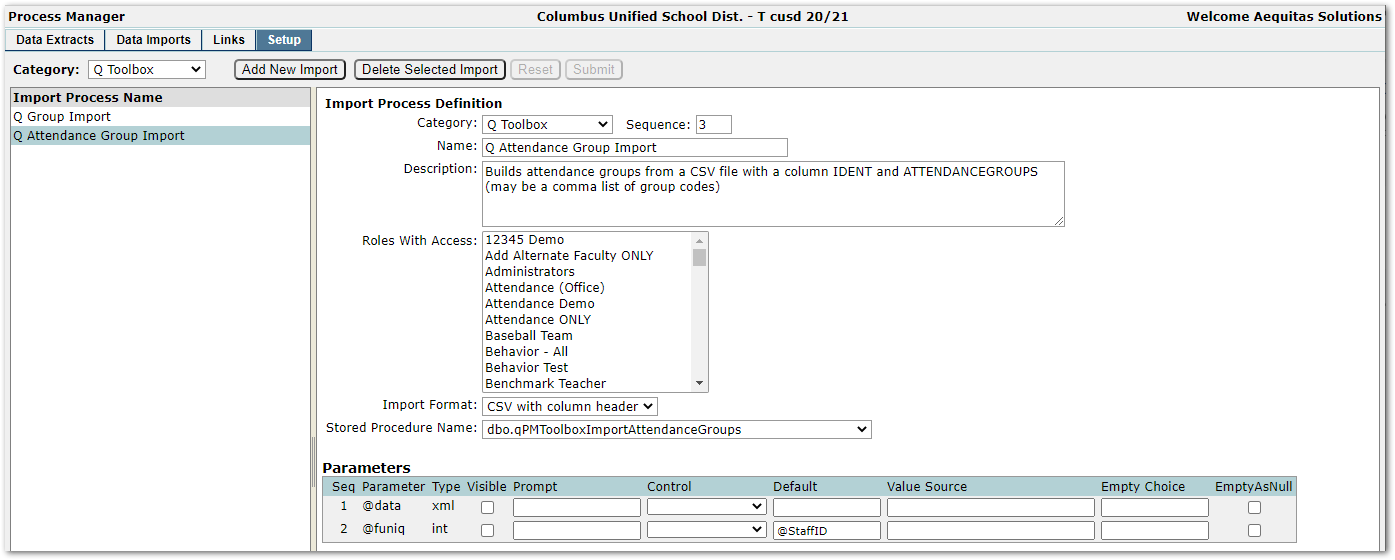
Setup: Imports
The interface for managing import processes is identical to the setup for extracts covered above. The only difference being the stored procedures are for importing data into Q.
Setup: Export Formats
A variety of export formats are shipped with Q. Select an existing format in the left-hand pane. The configuration for that format is displayed in the larger right-hand pane. The buttons across the top allow users to add a new format, delete the selected format, reset the configuration, or submit changes.
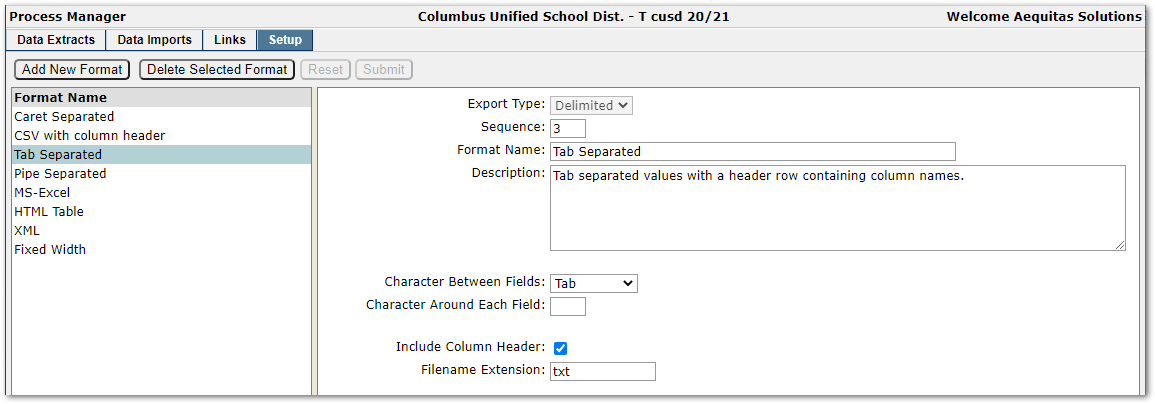
Each format has the following settings in common:
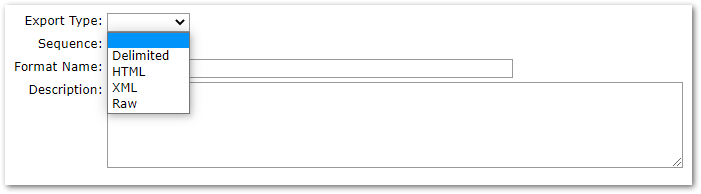
- Export Type – Delimited, HTML, XML, or Raw
- Sequence – Numerical value used to order the list of formats
- Format Name – User provided descriptive name
- Description – Details about the format.
Beyond the common settings, each format type will have its own set of configurations. For example, HTML and XML formats have opening and closing tags and the delimited format has a separator character as well as an option to include column headers. Typically, users will find the export format settings self-explanatory.
Add New Format
Click the Add New Format button to create a new export format option. The configuration form that appears will change depending on the Export Type selected (Delimited, HTML, XML, or Raw).
Setup: Links
As pictured here, links may be organized into bulleted lists with a bold heading (parent).
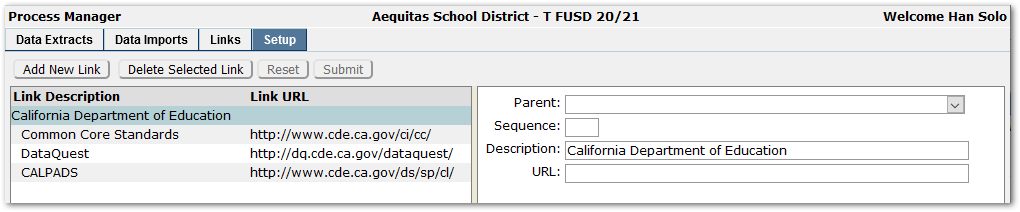
To manage existing links, selected an option in the left-hand pane and the settings will be displayed in the right-hand pane. The buttons across the top allow users to add a new link, delete the selected link, reset the form, or submit changes.
Add New Link
Click the Add New Link button to get started. Complete form and click Submit when ready. To create a heading (parent), leave the Parent and URL fields empty. These links will then be listed in the Parent menu pictured above, which allows links to be organized into groups.
