
The Open Enrollment Application is used to select students for registration based on a lottery selection process. Open Enrollment in Q consists of 2 applications: the ‘Open Enrollment Manager’, a tool each district uses for configuring, managing, and running the Open Enrollment/Lottery process, and an external application for parents to apply for an enrollment spot for their child called ‘Open Enrollment’.
Using the Open Enrollment Manager, districts can configure the Open Enrollment Landing page and may customize the application itself, adding questions they wish to use to validate applicants. The Open Enrollment Manager includes a Lottery process and Review function. Districts may add their own custom procedures into the Lottery process to validate or process data after the process is run.
The Open Enrollment application is a unique URL. Districts may provide this URL link within ParentConnection to enable current parents access to Open Enrollment.
Open Enrollment Manager is located under the System menu in Q.
Under the Configure tab the online content along with seats available will be set up. The other piece of configuration will be building the lottery parameters.
Landing Page Configuration:
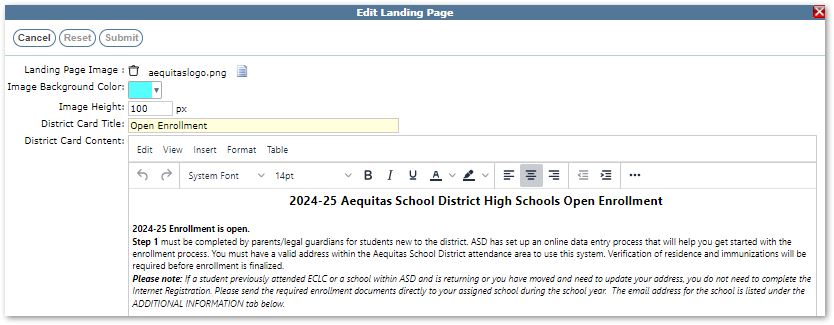
This will be the URL landing page for all Open Enrollments; this content message will display for all families, and this is where they will login. This page is configured by clicking on the button on the right side of the page when the Configure tab is selected.

Landing Page Image: Click choose file to insert image file.
Image Background Color: Color will display behind image.
Image Height: Defines height in pixels for the height of the image area at the top of the login screen.
District Card Title: Landing page configuration setup name.
District Card Content: Editor to design the district landing page content.
Refer to [message editor link] for help navigating the message editor content.
Adding a new Configuration
Once landing page content is completed Open Enrollment configuration can be added. Districts may set up as many different Enrollment options as needed. Open Enrollment can be used for different school levels, programs, camps, etc. Applicants can apply for multiple Open Enrollment opportunities; they will then rank those selections by priority. For each Open Enrollment scenario needed by a district, the steps below must be completed.
- Properties
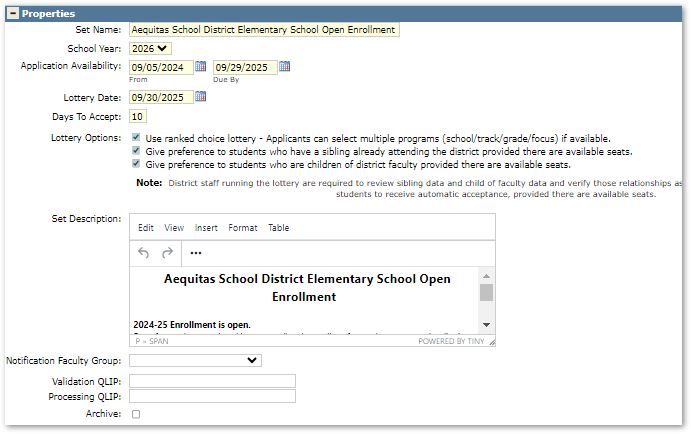 Set Name: Displays as Open Enrollment Application Option. This title will display on the button ’Start [application] Now’.
School Year: Select school year for lottery.
Application Availability: Enter From and Due By dates – during these dates, this lottery will be available for families to apply to.
Lottery Date: Date the lottery application will be run.
Days to Accept: Once the lottery has been run, this is the number of days the families must accept or reject a seat.
Lottery Options:
- Use ranked choice lottery – Applicants can select multiple programs (school/track/grade/focus) if available.
If multiple lotteries are open at the same time this option allows for families to rank their lottery selections. - Automatically accept student if they have a sibling already attending the district, provided there are available seats.
If siblings are already enrolled in the districts, this application will be automatically
approved, based on seat availability. - Automatically accept children of district families.
During the application process applicants will need to list the employee’s name, once verified these applicants will be automatically approved, based on seat availability.
Set Description: This area is set up in message editor format allowing formatting and styling. The information here will be displayed in the Open Enrollment Application under Available Applications.
Notification Faculty Group: Notification sent when Application is complete and submitted.
Validation QLIP: QLIPs can be used to validate data entered on the application prior to processing.
Processing QLIP: QLIPs can be used to perform actions when data is processed.
Archive: Turn this option on for any set that is no longer to be used.
- Available Seats
The number of seats that are available for registration for each lottery is configured here. Select
Add Seats at the bottom of the page and then complete each field.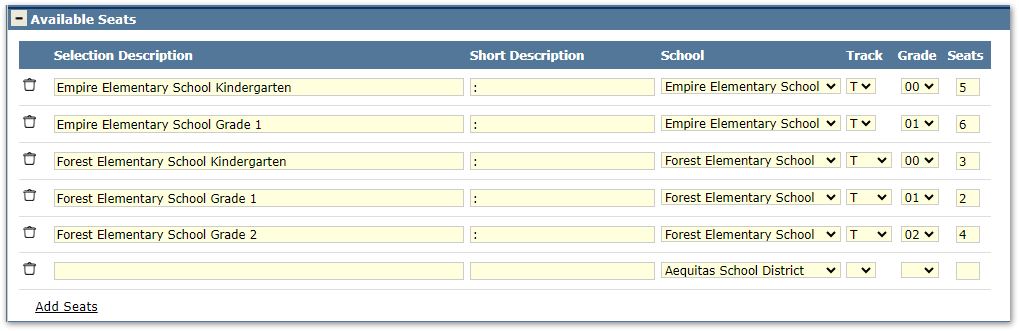 Selection Description: Displays in school selection
Short Description: Brief description for table reference
School: Select school from pulldown options
Track: Select track from pulldown options
Grade: Select grade from pulldown options
Seats: Indicate the number of seats available for Open Enrollment for the Track and Grade selected. This will not limit the number of families that can apply for seats, this will be used when the lottery is run, and families are approved to enroll for those seats. - Application Designer
The Application Designer is used to create online content that is displayed as an Open Enrollment Application for families to complete.
The Application Designer has 5 different areas configured to create the Open Enrollment Application.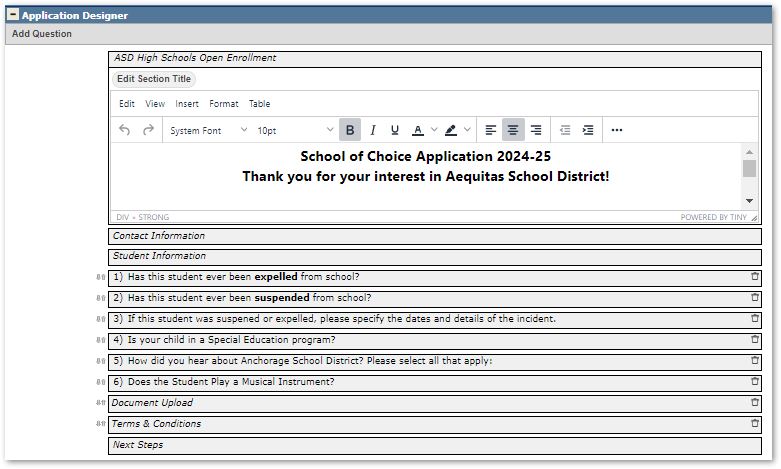
As the application opens in Open Enrollment, each section has a banner area that displays the name of that section. The section title can be edited by clicking the Edit Section Title button and opening the message editor. This applies to each section in the Open Enrollment Application (Title, Contact, Student and Next Steps.)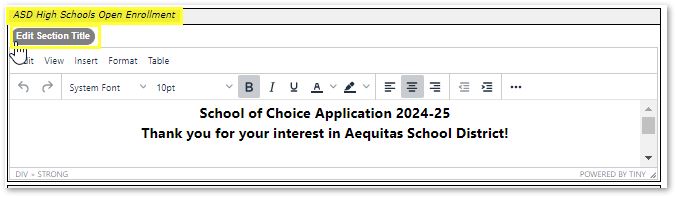
- Title: This information is created using a message editor. Information will be displayed at the top of the Open Enrollment Application.
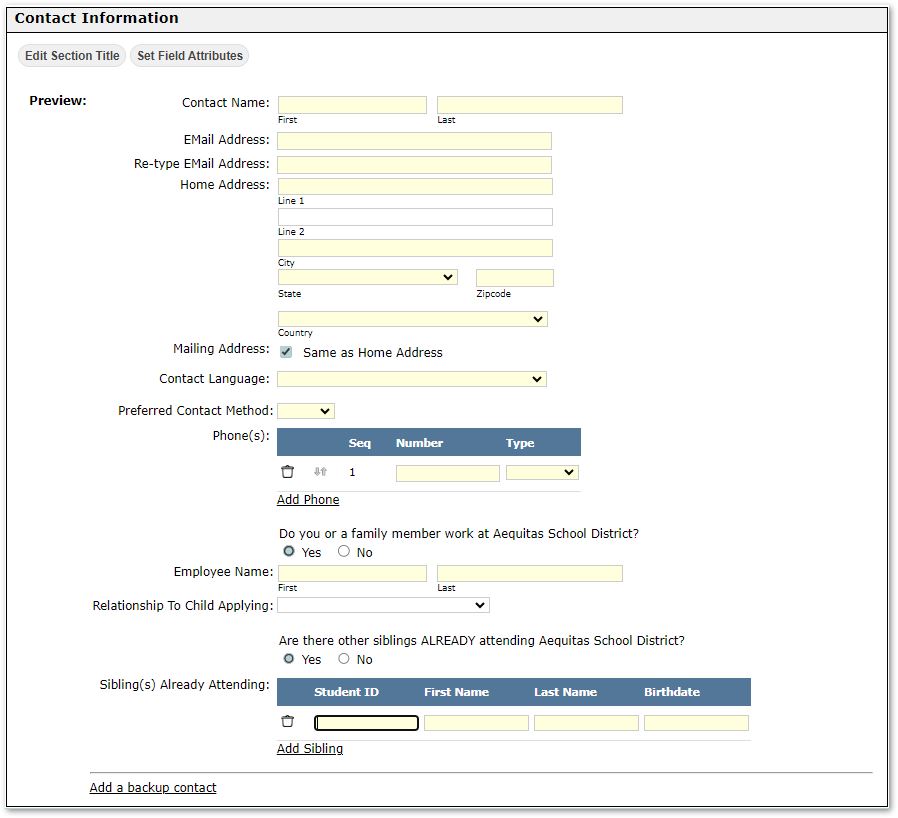
- Contact Information: Along with the Edit Section Title button, users also have a Set Field Attributes button available. This allows for customization of what fields are available for families to complete and which of those fields will be required to submit.
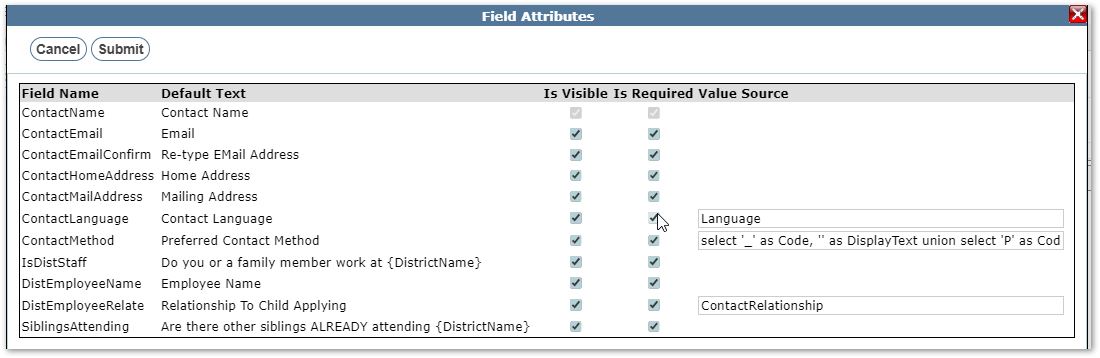
The preview displays how this will look in Open Enrollment.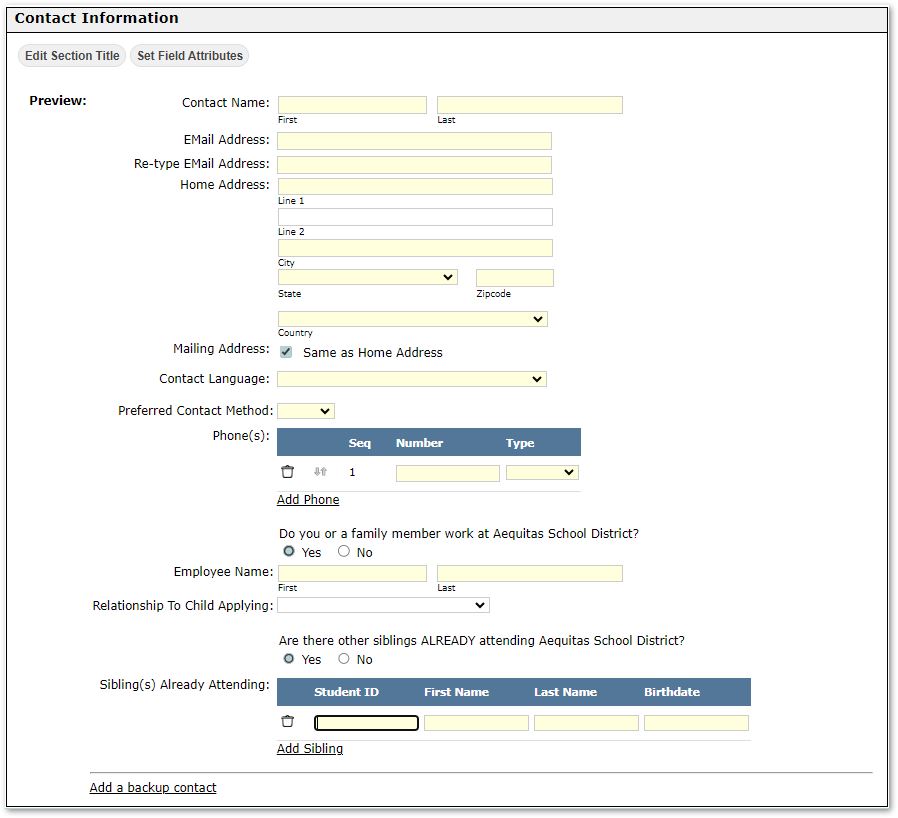
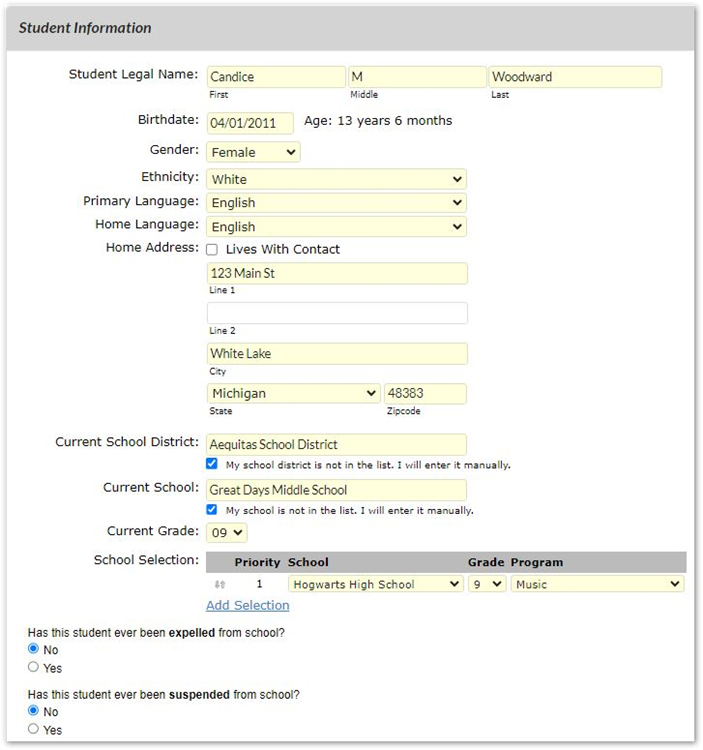
- Student Information: Along with the Set Section Title button, users also have a Set Field Attributes button available. This allows for customization of what fields are available for families to complete on the Open Enrollment Application and which of those fields will be required to submit.
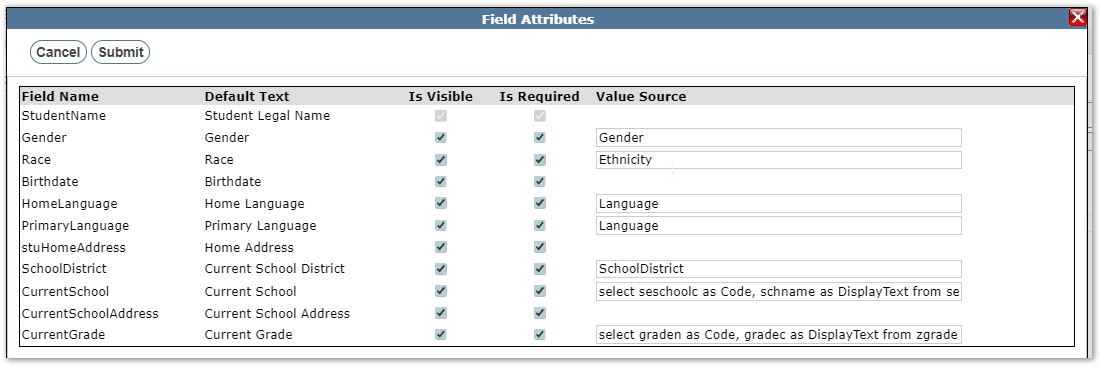 The preview displays how this will look in Open Enrollment.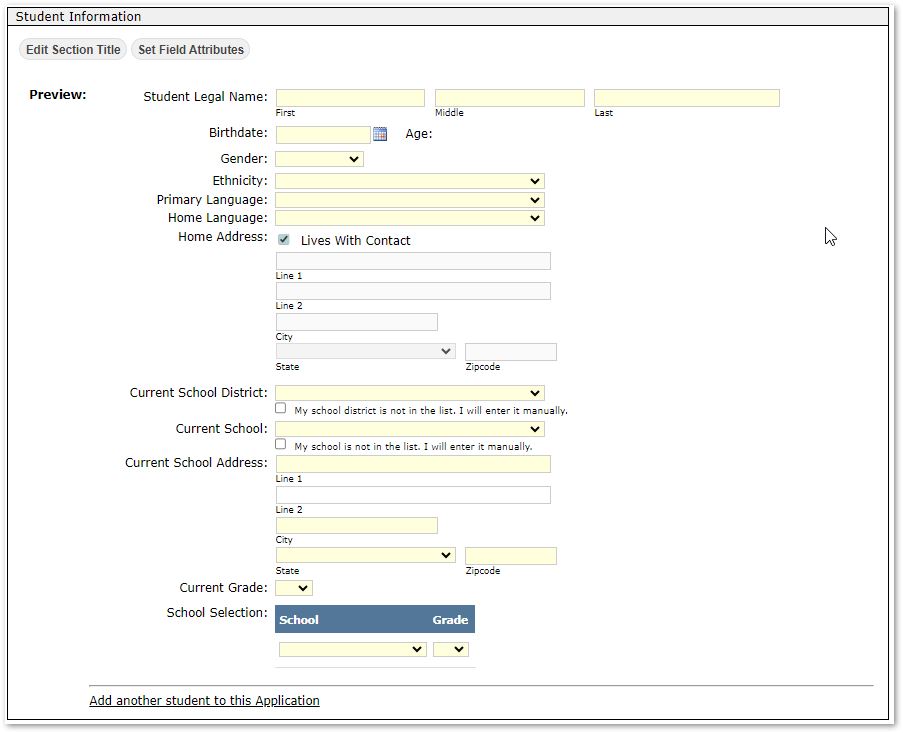
Note:
Under the Value Source for Current School and Current Grade, the code is written to default to the school list. However, users can use the checkbox to override the pulldown and enter a name manually.
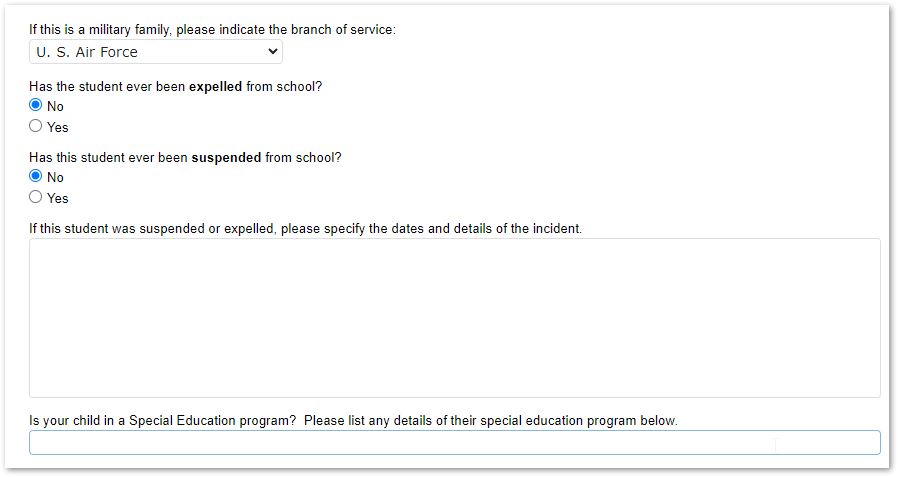
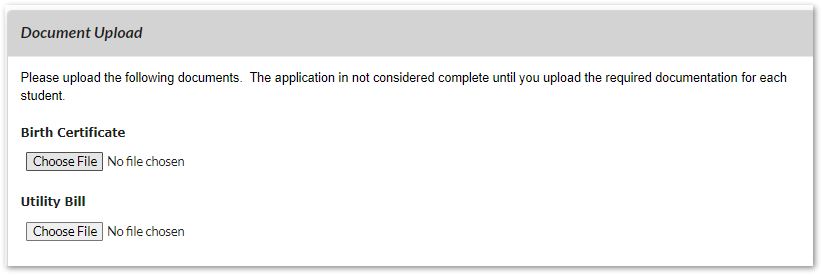
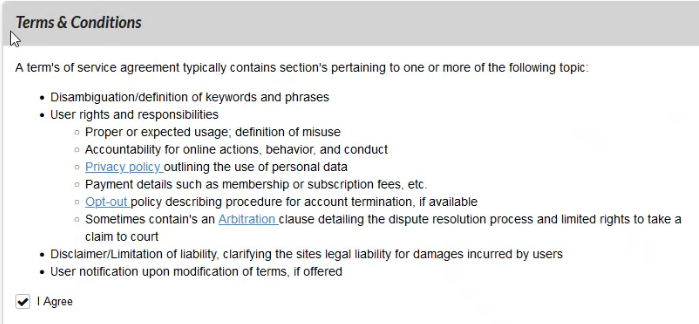
- Questions: Districts can add as many questions as needed to an application. For each new question, a dialog box will be added to add the attributes of each question. This area is also used to add context boxes for Document Upload and Terms & Conditions.
To add a question, click the Add Question button at the top left area of the screen. As questions are added they will be assigned a number. The arrows to the left of that number can be selected and dragged up or down to change the order of those questions.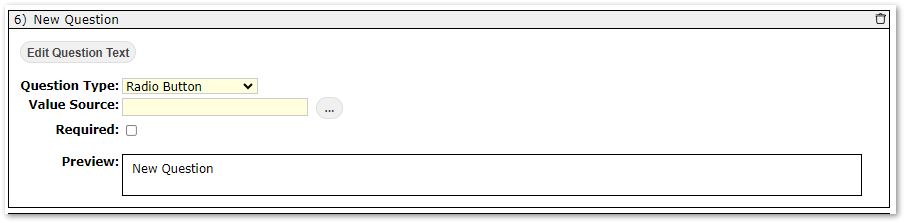
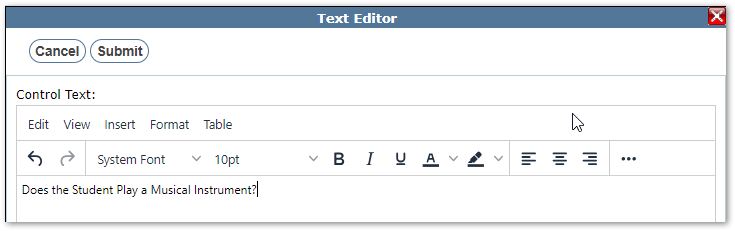
- Edit Question Text: Click button to enter the verbiage of question.
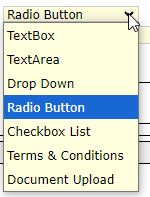
- Question Type: Available options are Text Box, Text Area, Drop Down, Radio Button, Checkbox list, Terms and Conditions, Document Upload.
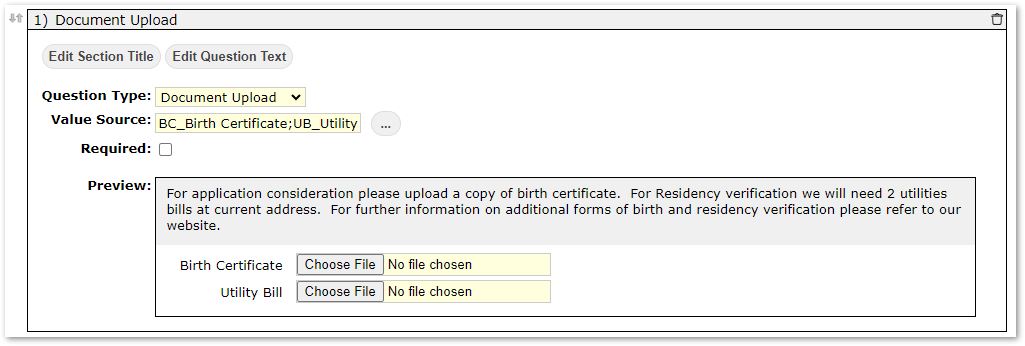 Under the question selection there are two unique options for Terms & Conditions and Document upload. If either of these items need to be included select this as the question type.
 - Value Source: Depending on type selected user may be prompted for value source.
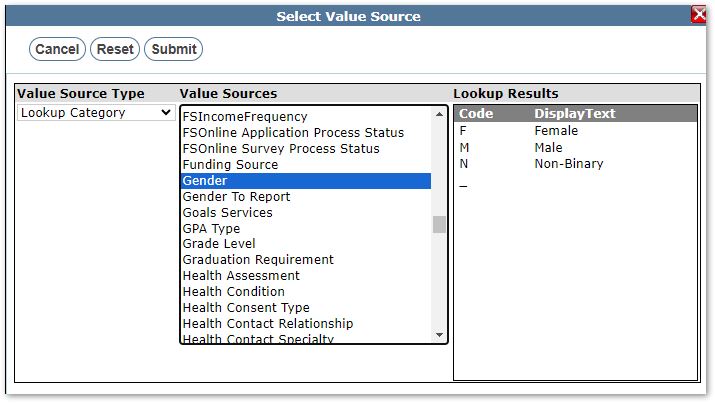 Select the Value Source from current tables or choose Custom to create a new value source. This will display custom columns for Code and Display Text.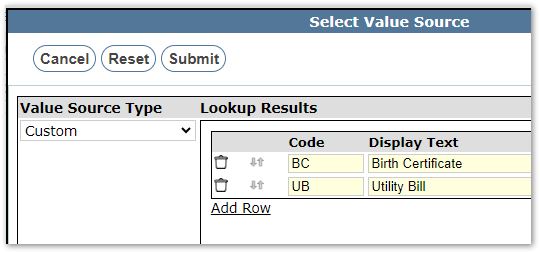
- Required: Check if the question is required
- Preview: This displays how this will display in Open Enrollment.
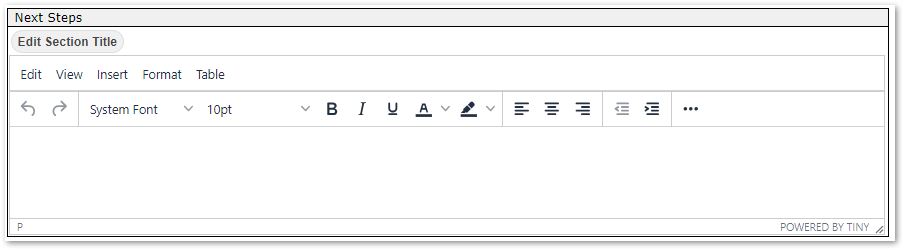
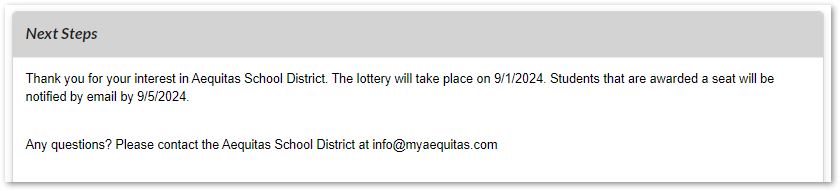
- Next Steps: Information displays at the bottom of the Open Enrollment Application and is customized in the message editor. This area can be used to provide the user with dates when the lottery will be completed and what to expect if they are selected.
- Weighting Factors
Once questions have been added to the application, these questions can be used to weight this application higher. Think of the lottery as tickets, applications with higher weighting would have more tickets, or higher chances of selection.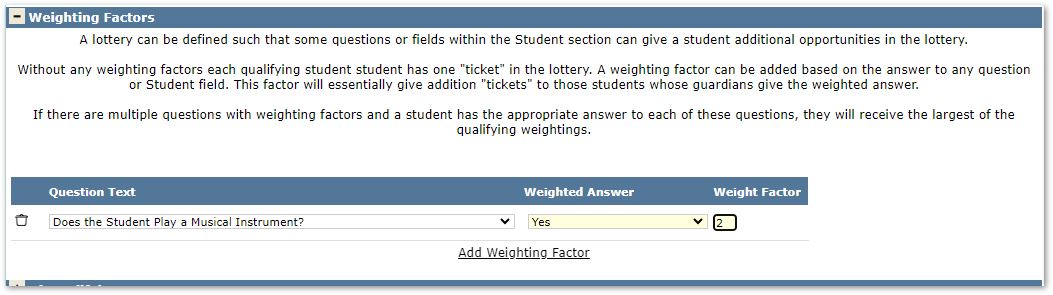
- to Add Weighting factors, select the Add Weighting Factor
- Select Question; only questions that have defined answers (not text field) can be used in weighting.
- Select the response that would award higher weighting to an application. The same questions can be added multiple times if different answers carry weight.
- Weight factor defines how many more chances this application will have in the lottery.
- Disqualifying Factors
Similar to Weighting factors, disqualifying factors can be used to disqualify an application completely.
Select a question and response that would automatically disqualify the student from the Lottery. If multiple responses can disqualify an application, add the question again with the additional responses.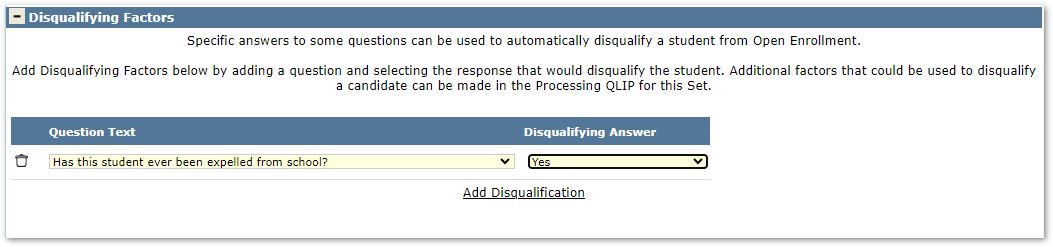
- When families access the URL for Open Enrollment the Open Enrollment Landing Page message will display. If this is a currently enrolled family, they will login with their ParentConnection credentials. For new families they have the option on this screen to register as a new user.
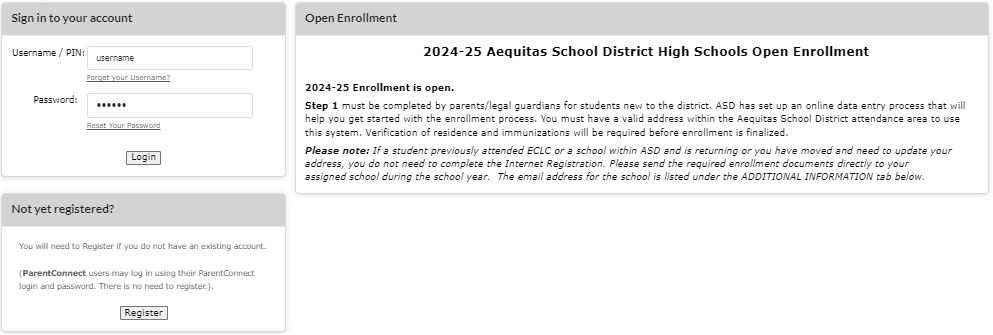
If registering as a new user, they will need to complete the Create Account screen and Submit.
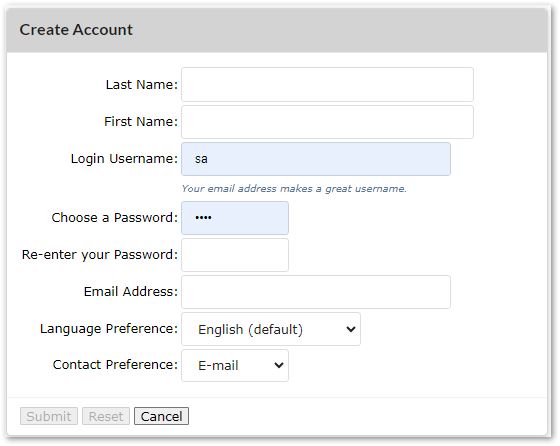
Once the account is created, they will be prompted to login. Upon login any available Application will be displayed. Each available application will display the set description and the list of seats available at each location and grade level. At the bottom of each application area there is a button to Start the application process.
- Select Application: Families will see all Open Enrollment Application options that are available. Available options are based on the dates set in configuration.
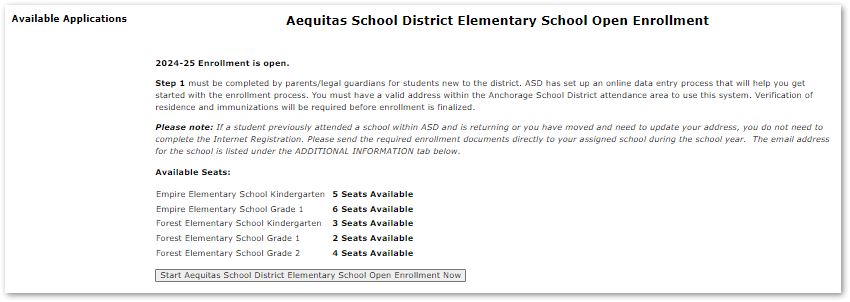
- Open Enrollment Application information will be displayed. Selecting Next at the bottom of each screen will move to the next step.
- Contact Information- All highlighted fields are required. If any information is missing the Validate Page button will show at the bottom of the page. Clicking the Page Validation button all data errors will display as a message at the top of the page in red. If all data is complete users will see a Next button.
- Student Information- All highlighted fields are required. If any information is missing, they will see the Validate Page button at the bottom of the page. Clicking the Page Validation button all data errors will display as a message at the top of the page in red. If all data is complete users will see a Next button.
- Questions- These display under the student demographic section. Questions will be displayed in the order they are set up under Open Enrollment Manager Steps.
- Document Upload-
- Terms & Conditions-
- Next Steps
Once an application has been started, applicants can save completed sections and continue later. Submitted applications will display at the top of this page. 
After Lottery has been run, if the application has been selected the offer will appear in Open Enrollment and the family can Accept or Decline the offer.



Review
The review tab has two functions. First when applications are submitted, they must be verified and accepted. The second function is after Lottery is run this will show the status each application is in.
The banner at the top of the Review screen displays the status history of the application. This banner is where Verification and Accepting the application are done.
- Verify & Accept
Once an application has been submitted by a parent/guardian the application details will appear under the Review tab. Depending on the configuration of the Open Enrollment application different verification options will be needed.- Residence Verified: All applications will need to have address verified.
- Child of Faculty Verified: If there is weighting on staff members’ families, the application will have the name of the faculty member and that will need to be verified.
- Sibling Verified: First Name, Last Name and Birthdate are required fields. If all data in these three fields matched a currently enrollment student exactly, in the verification area the current school and grade will be completed.
- Application Accepted: Once all verification is completed check the box indicating the application has been accepted.
- Internal Note: These are only displayed within the Open Enrollment Manager.
- External Note: These display within the Open Enrollment Manager and in Open Enrollment application.
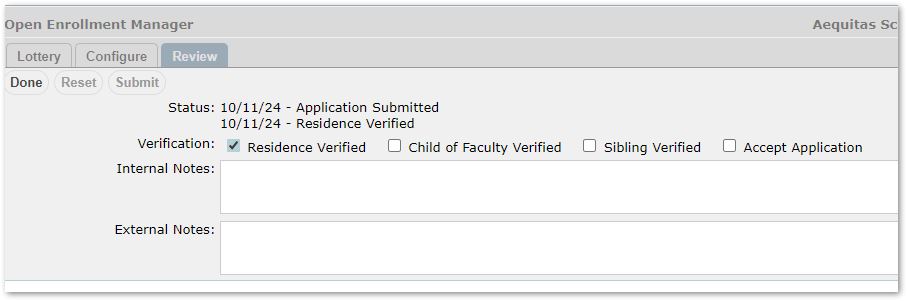
All information entered in the application can be viewed here, but it cannot be edited. Once all information is verified and the application is accepted, it is now available for the lottery application.
- Application Status
Once an application has been submitted online it will be assigned a status.- Application Submitted: This is the initial stage of the application process. This status is set once an application has been completed and submitted online.
- Residence Verified: Check once residency verification has been completed.
- Child of Staff Verified: Faculty member name and relationship to child will display. Check once employment of faculty member is verified.
- Application Completed: Once all the steps requiring verification have been checked the last option is to check Application Complete. This status makes the application available to the Lottery process.
- Application Not Accepted into Lottery: Application was not accepted into lottery due to disqualifying factors.
- Application Accepted into Lottery: Lottery has run, and this application has been selected.
- Waitlist: Not selected, placed on waitlist should more seats become available.
- Placement Approved (Pending Offers): Application has been selected and offered extended to student.
- Accepted Offer: Student accepted offer.
- Declined Offer: Student declined offer.
- Rescinded Offer: Applicant rescinded offer after accepting.
An application that has been Verified and Approved is in the status Accepted into Lottery. Once at least one application is accepted the lottery can be run.
Select from pulldown an Open Enrollment set for the details to display. The dates available to submit applications, Lottery options and seat information displays. Seat information shows the number of available seats set in Configure and the number of applications submitted.
To run the lottery, click the Run Lottery button next to the seat information chart. 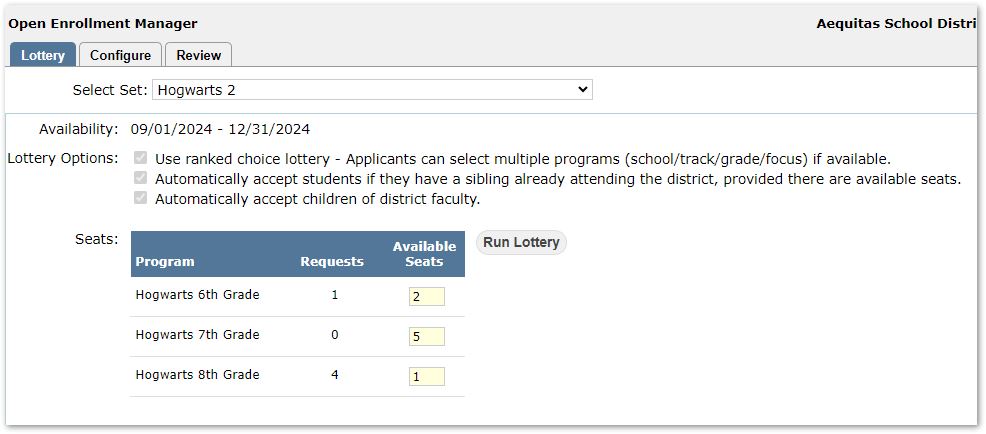
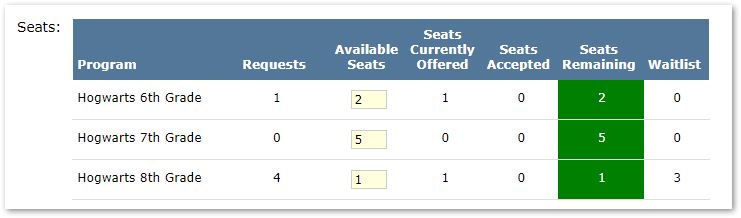
Once the Lottery is run, the seat information updates to include:
- Seats Currently Offered: Accepted in lottery and offer sent to applicant, awaiting response.
- Seats Accepted: Applicant has accepted seat.
- Seats Remaining: Available seats after all pending and accepted seats subtracted from original number of seats available.
- Waitlist: If there were more requests than available seats those applications will be added to the waitlist.
- Denied: Application declined due to disqualifying factors.
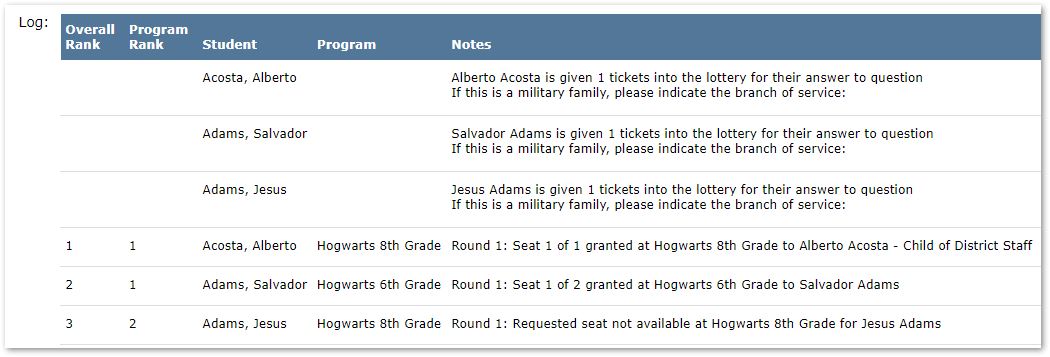
- Log: Log information is searchable. This log shows the application ranking in the lottery and notes on results once the lottery was completed.
After the Lottery has been run if seats become available the Fill All Program Seats From Waitlist button will appear. This will fill those seats in order application assigned when lottery was run. 
These permissions are available for Open Enrollment Manager:
System: Open Enrollment Manager [Application] - Provides access to Open Enrollment Manager
System: Open Enrollment Manager [Administrator] - Admin access to App and all Tabs
System: Open Enrollment Manager [Configuration] - Provides access to the Configure Tab
System: Open Enrollment Manager [Lottery] – Provides access to the Lottery Tab
System: Open Enrollment Manager [Review] – Provides access to the Review Tab
