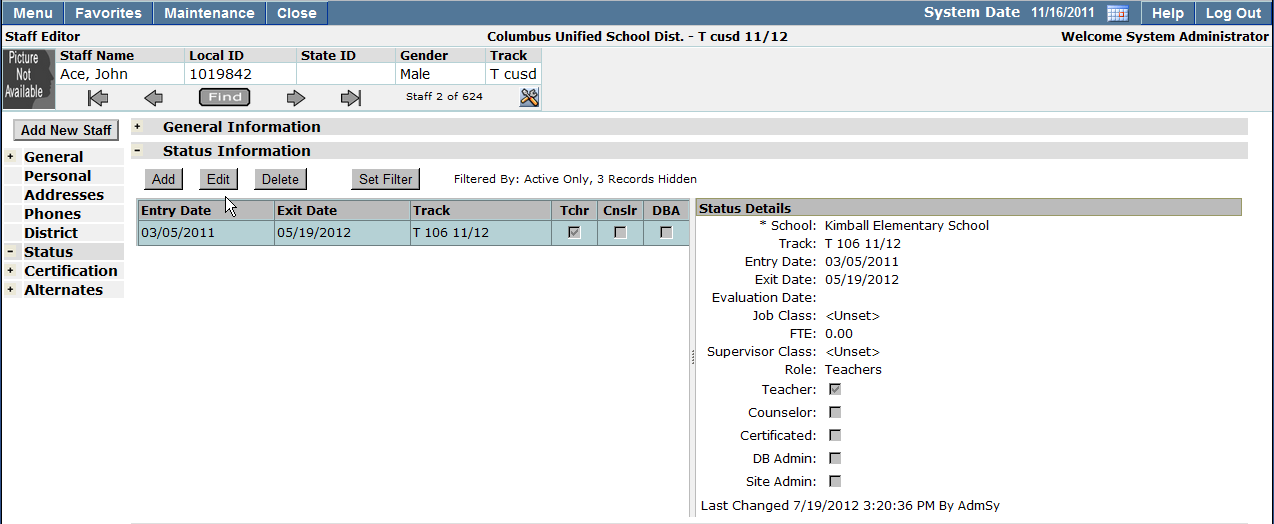
The Staff Editor provides users the ability to add and / or edit faculty and staff information. Users can maintain basic demographic information such as names, addresses, phone numbers, contacts and photos. It also enables users to track status records, certifications, and substitute teacher assignments. Staff records may be added and maintained for anyone who is an employee of the school site (e.g. teachers, administrators, clerical staff, counselors, service providers, etc).
Staff Editor is located under the Staff menu in Q.
The Staff Editor application opens to a blank staff record to prevent users from making changes to the wrong record.
Searching for Existing Staff Members
Faculty members with no active status records at the logged in track will not be returned when searching in the banner. To locate existing faculty members:
1. Click Add New Staff
2. Enter the faculty members first and last name.
3. Click Continue
4. Faculty members who match the search criteria will appear in a staff grid.
5. Click on the faculty member name to select. The ‘Continue With Selected’ button will become enabled. If the faculty member you are searching for is not found, click Continue With New and follow the steps listed in the Adding a New faculty member section listed below, or Search Again. 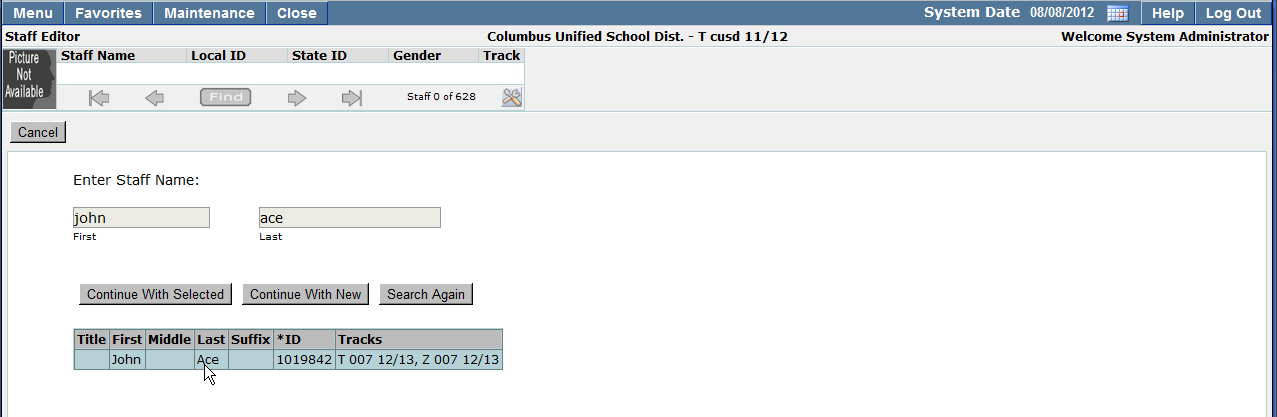
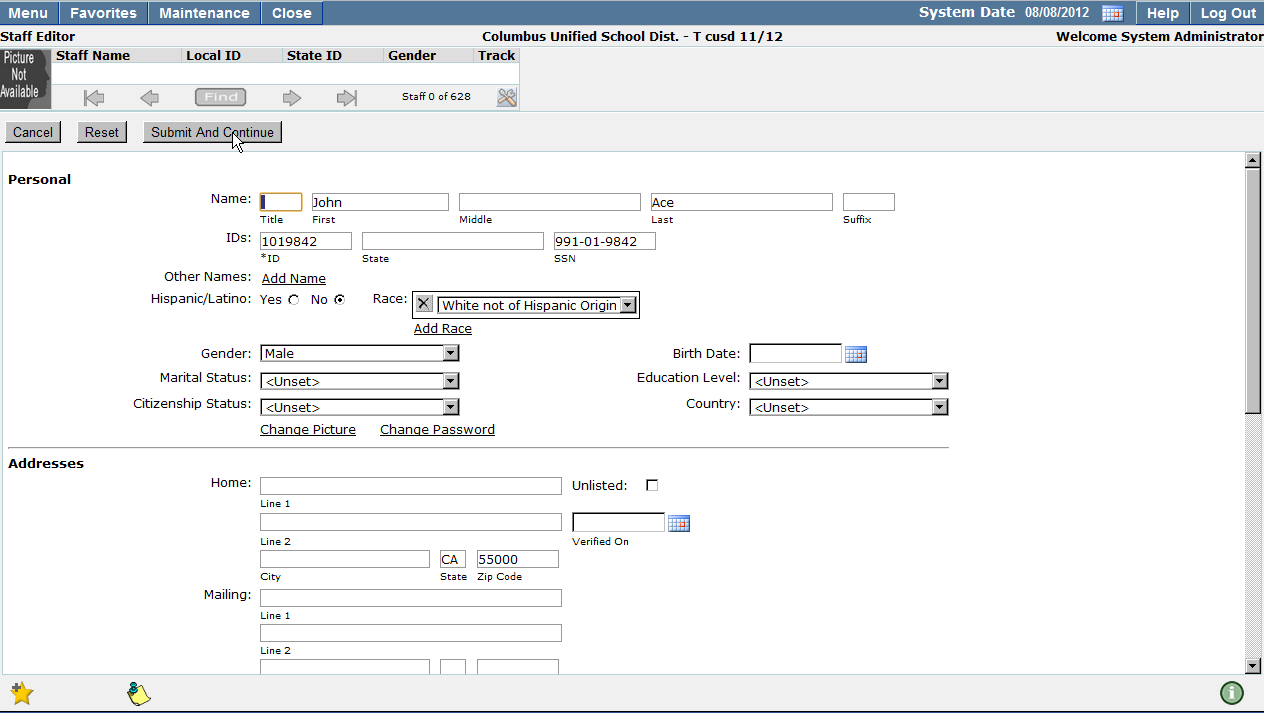
6. Faculty member details will be displayed in the Staff Editor. Review, add, or edit information if necessary. Click Submit and Continue to save changes and continue on to the status fields, Cancel to return to the previous screen, or Reset to clear any changes made since the previous submit.
7. Select the tracks to which the faculty member should have access by highlighting them in the Track Listing scroll down box. Note: To select multiple tracks, hold down the Ctrl key while clicking on the desired tracks.
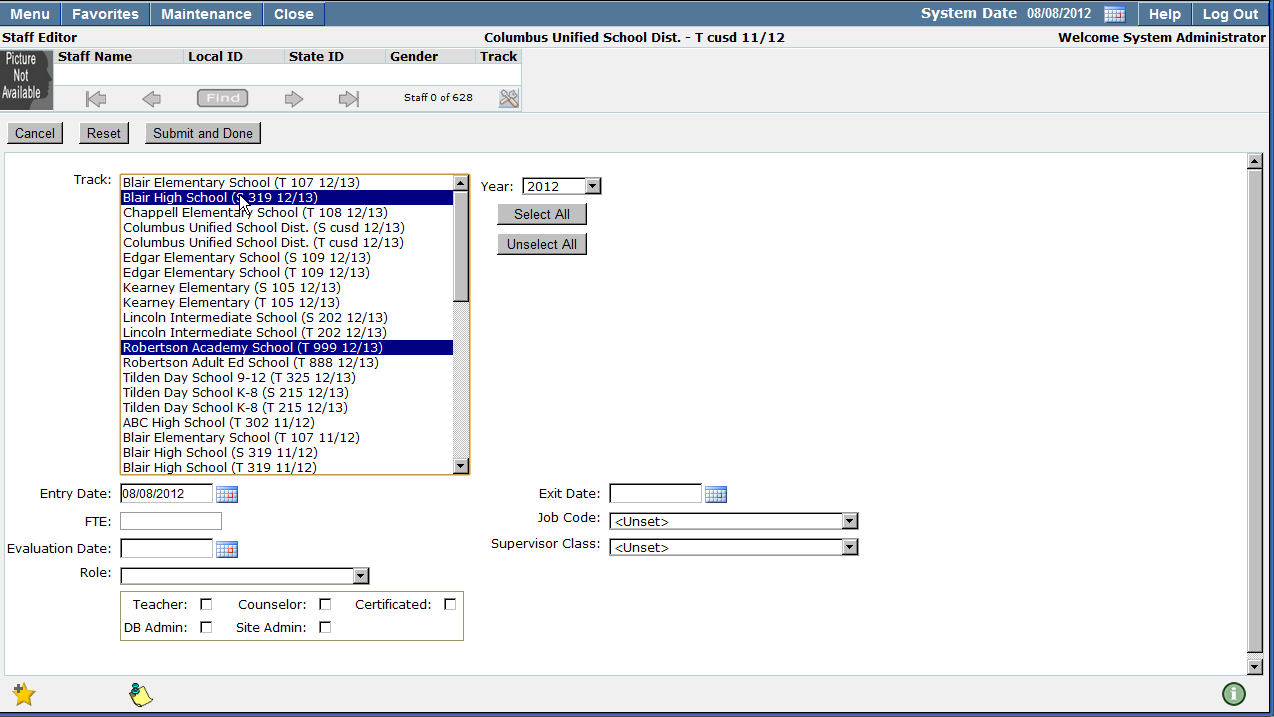
8. Click Submit and Done when you have finished adding data in the Staff Editor Status fields. Click Cancel to return to the previous screen, or Reset to clear all changes made since the previous save.
Adding a New Staff Record
Faculty members who are new to the district and have no existing faculty records must be added to the Staff Editor application.

1. Click Add New Staff
2. Enter the staff member’s first and last name, click Continue

3. The staff demographic information screen will open, allowing users to enter the necessary information
- Title: Enter the title of the staff member if necessary.
- First, Middle, Last, Suffix: Enter the staff member’s legal name.
- Local: The staff local ID field will be pre-populated with a unique ID number for the staff member. The local ID number is used to internally identify the faculty member.
- State: The State ID field will be assigned to the faculty member by the state and is used by the state to identify staff members in submissions made to the state.
- SSN: Enter the staff member’s Social Security Number
- Other Names: Enter any aliases the staff member may use, nicknames, abbreviations, etc.
- Hispanic Latino: Identify whether the staff members ethnicity is Hispanic.
- Race: To add the race of the staff member, click the Add Race link. Select the race of the staff member from the pre-populated list.
- Gender: Select the gender of the staff member you are entering.
- Birthdate: Enter the birthdate in a MM/DD/YYYY format, or click on the calendar icon located to the right of the field and select the correct date.
- Marital Status: Enter the marital status of the faculty member by selecting it from the drop down list.
- Education Level: Select the education level of the staff member from the drop down selection list.
- Citizenship Status: Select the citizenship status of the staff member from the drop down selection list.
- Country: Enter the country of citizenship for the staff member by selecting it from the drop down list.
- Change Picture: Upload a photo of the staff member using the Change Picture link. Click Change Picture and choose the filename of the picture using the Choose File function. If you are choosing to not display a staff picture place a checkmark in the ‘No Picture’ field. To save your changes click Done or to cancel and return to the previous screen, click Cancel.
- Change Password: To make changes to the staff password, click Change Password, enter the Old Password, New Password and retype the New Password to confirm that it has been entered correctly. To save any changes which have been made, click Done to cancel and return to the previous screen, click Cancel.
- Addresses: Enter the most current address of the faculty member. If the faculty member wants the address to remain private and does not want their address listed in a staff directory te, place a check in the Unlisted field.
- Phone Numbers: Click Add Phone to enter the staff member’s phone number and the type of phone (residential, cell phone, fax, etc). If the staff member wants a phone number to remain unlisted, place a checkmark in the Unlisted field. If you would like to add additional phone numbers for the staff member, click Add Phone and repeat the above listed steps.
- District Information: The District Information flags may be customized to identify specific items which the district would like to record. These fields may include, but are not limited to, flagging the faculty member as a system administrator, allowing the staff member access to archive databases, etc.
Once all staff information has been entered, click Submit and Continue, to clear the fields you have entered click Reset, to cancel before saving your entry, click Cancel.
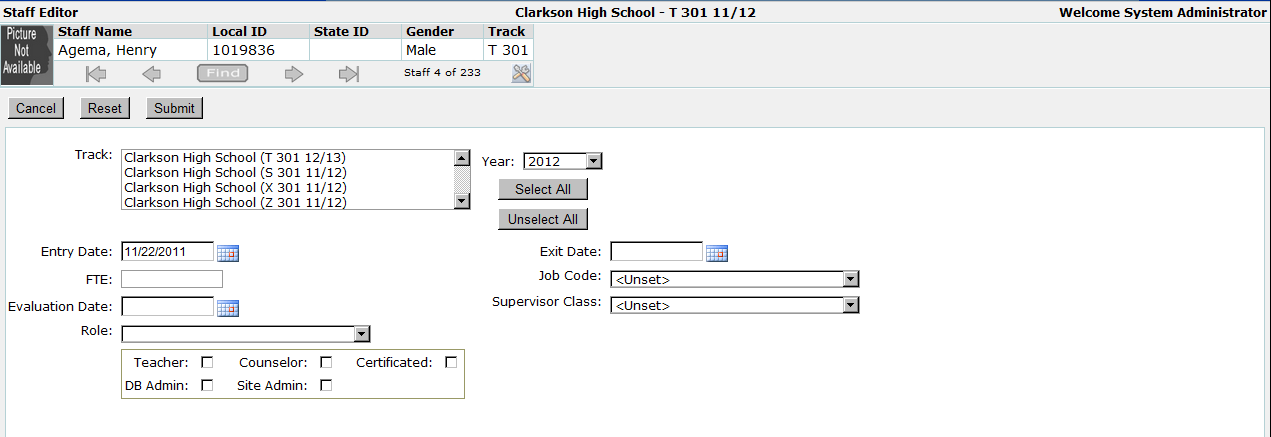
To add a status record for a staff member:
1. Click the Status tab located on the left hand side of the screen.
2. Click Add to enter a new track status record.
3. All available tracks will be shown in the Track selection list. Click on the selected track to select it from the list. To select multiple tracks hold down the CTRL key while clicking. To select all available tracks from the track selection list, click Select Allor to unselect all tracks, click Unselect All.
Note: The Year filter acts as a ‘From’ field. Any available tracks from the year selected on will be available for selection in the Track Selection List.
4. Enter the date you would like the staff member to have access to selected track(s) in the Entry Date field.
Note: The staff member will not have access to the selected tracks until the date specified in the Entry Date field.
5. Optional / Exit Date: If you would like the staff member to be exited from the selected track(s) on a specific date, enter it in a MM/DD/YYYY format in the exit date field or select it using the calendar icon located to the right of the exit date field.
6. Optional / FTE (Full Time Equivalent): Used to track the amount of time a staff member is employed with the district.
7. Optional / Job Code: Select the staff member’s job code from the drop down selection list.
8. Optional / Evaluation Date: If the staff member has received an evaluation, enter the date using a MM/DD/YYYY format or click on the calendar icon located to the right of the Evaluation Date field and select the date the evaluation took place.
9. Optional / Supervisor Class: If your district wants to track staff members who are supervisors, select their role from the drop down list.
10. Optional / Role: Select the faculty member’s role from the drop down selection list.
11. District Defined Flags: May be used to identify staff members who are Teachers, Counselors, Certificated Staff, Database Administrators, Site Administrators, etc. Flags may be used to identify and filter staff into specific groups for reporting purposes.
- Teacher flag: this flag identifies users that are teachers – when this flag is on, and when a user is in a role that has the teacher flag on, these users will only see students they have in their classes. This flag also determines which faculty members appear in teacher dropdowns within apps.
- Counselor flag: this flag identifies users that are counselors – when this flag is on, and when a user is in a role that has the counselor flag on, these users will only see students they for which they are the assigned counselor. This flag also determines which faculty members appear in counselor dropdowns within apps.
- Certificated flag: this flag is used to determine whether or not a user has any certifications. If this flag is on, more details can be entered under the certification band within the Staff Editor. This flag is used for CALPADS – only users with this Certificated Flag ON will be included in staff extracts for CALPADS.
- DB Admin flag: turning this flag ON will allow users to gain access within the Group Editor to enter a SQL statement when creating a Dynamic Group or when Group Builder is being used. This also allows users to create and edit school level groups when the flag is on for a school status record, as well as edit and create district level groups when the flag is on for a district status record.The DBA flag also gives a user gained access within the Preference Editor, allowing these users to set school level preferences when the flag is on for a school status record. If this preference is ON for a District status record, users will be able to edit district level preferences. Users flagged as DB Admin at the district level may create District level Report Sets. Users marked at the School level may create School level report sets.
- Site Admin flag: turning this flag ON gives a user the Enrollment Counts widget on the home screen of Q, however, of Q v3.6 a user no longer needs to be flagged as a Site Admin to have access to the Enrollment Counts widget. If a user is flagged as a Teacher and as a Site Admin they will have access to all Attendance Codes in the Class Attendance application, not just those designated for teacher entry. This flag does not give a user any further rights within Q.
To add staff certifications:
- Click the CertificationInformation tab located on the left hand side of the screen.
- Click Add to enter a new certification.
- Certification: Select the type of certification you are entering for the selected staff member from the list.
- Type: Select the type of certification you are entering for the selected staff member from the list.
- Certification Number: Enter a certification number, if applicable.
- Subject: Enter the Subject for which the certification has been received.
- Award Date: The date the certification was awarded. This date should be entered in a MM/DD/YYYY format or by using the calendar function located to the right of the Award Date field.
- Expire Date: The date the certification will no longer be valid. This date should be entered in a MM/DD/YYYY format or by using the calendar function located to the right of the Expire Date field.
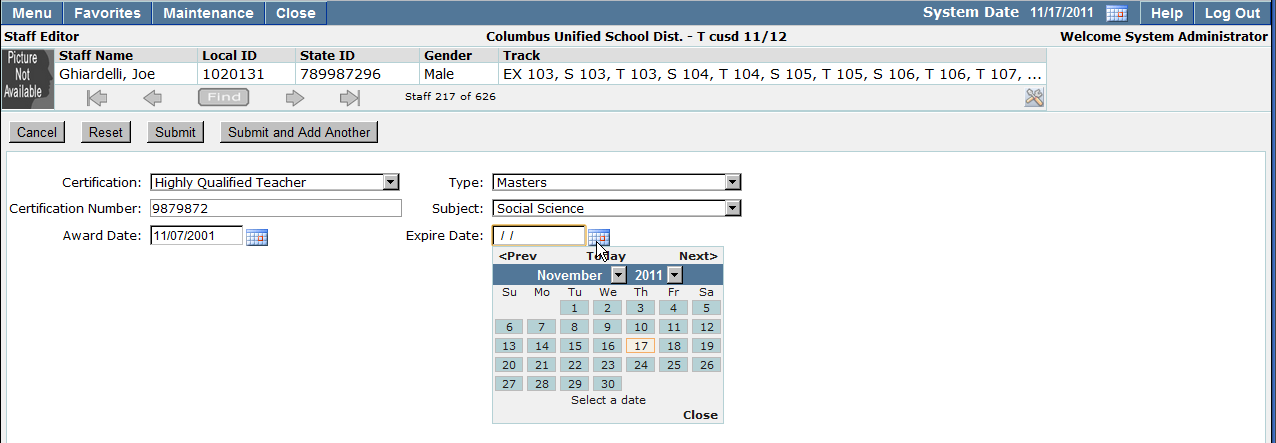
9. Click Submit to save the information you have entered, Cancel to return to the previous screen or Reset to clear all information entered since the last save.
10. To continue adding Certifications for staff members, click Submit and Add Another, repeat the steps listed above.
To edit a staff certification:
- Click the CertificationInformation tab located on the left hand side of the screen.
- If the staff member has multiple certifications, select the certification you would like to edit by clicking on it in the certification list. Click Edit to make changes to the certification.
- Click Submit to save the information you have entered, Cancel to return to the previous screen or Reset to clear all information entered since the last save.
Deleting Staff Certifications
To delete a Staff Certification:
- Click to open the Certification information tab located on the left hand side of the screen.
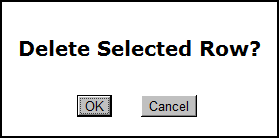
- If the staff member has multiple certifications, select the certification you would like to delete by clicking on it in the Certification listing. Click Delete to remove the certification. A pop up message will appear, click OK to continue deleting the record or Cancel to return to the previous screen.
Alternates may be assigned when staff members need short or long term substitutes or share a job with another staff member.
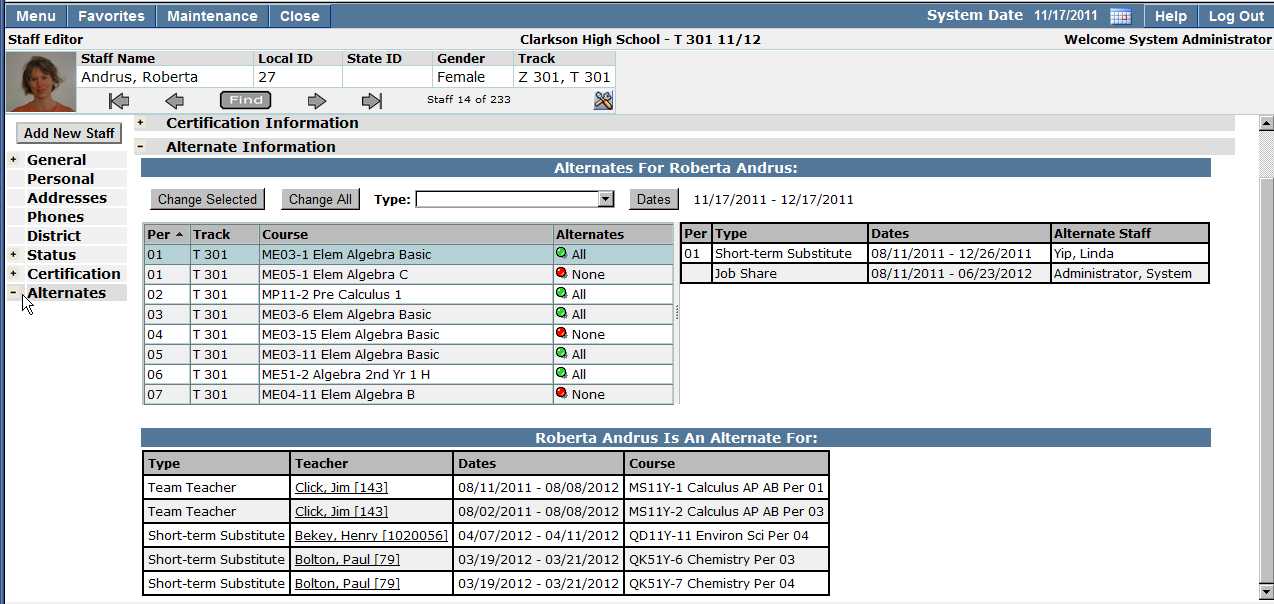
To add Staff Alternates:
- Search for the staff member for which you would like to add an alternate.
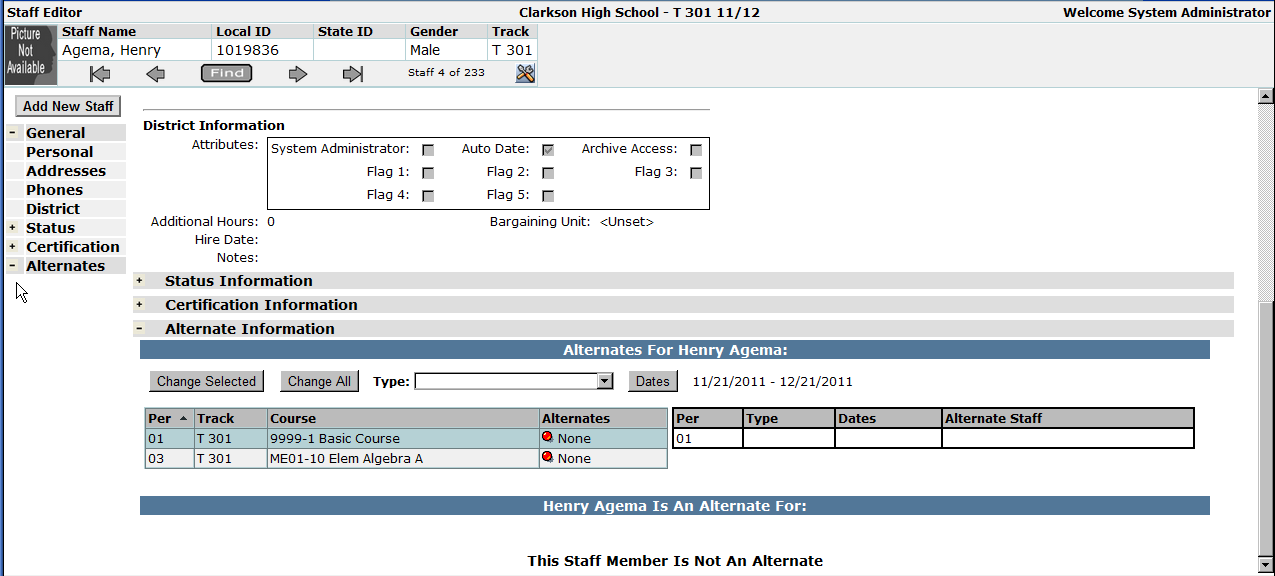
- Click the Alternates tab located on the left hand side of the screen.
- The courses the staff member is scheduled to teach in the Master Schedule will appear in the Alternate Information drop down list. Note: Any alternates already associated with a course will display in the Alternate Staff column when you click on the course.
- Highlight the course for which you would like to add an alternate faculty member. Note: The date range displayed in the Date field will determine the information that displays on the change screen.
- Click Change Selected
- To add an alternate faculty member to all of the selected staff members’ course sections, click Change All.
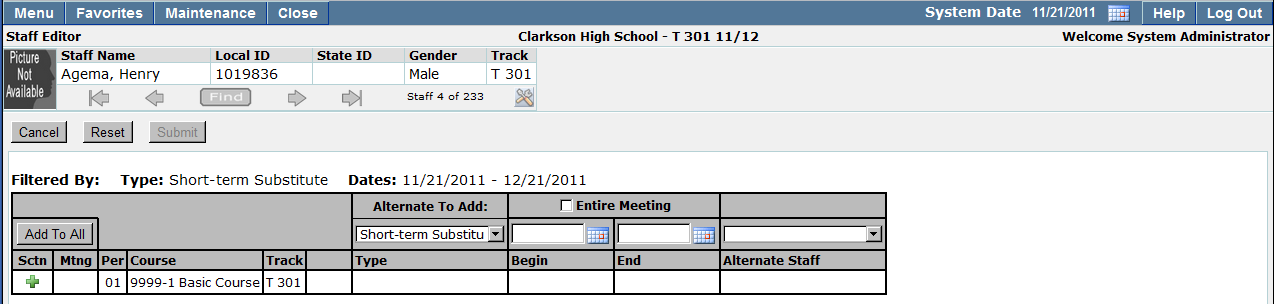
7. Select:
a. Alternate To Add: The drop down list will be pre-populated with a list of alternate job types frequently used by your site or district. This list may include, but is not limited to, Short Term Substitute, Long Term Substitute, Principal Substitute, Job Share, and Team Teacher.
b. Date Range: If you would like to add an alternate faculty member for the entire meeting of the class, place a checkmark in the Entire Meeting field. If you would like to specify the date range for which the class will need an alternate, enter the dates using a MM/DD/YYYY format or click on the calendar icon located to the right of the date field.
c. Alternate Staff: Select the staff member you would like to make an alternate for the course from the alternate staff selection list.
d. Once all selections have been made, click Add To All to add the alternate staff member.
e. To edit the alternate information you have entered, click the Notepad and enter any editions you would like to make. To delete the alternate staff assignment, click X.
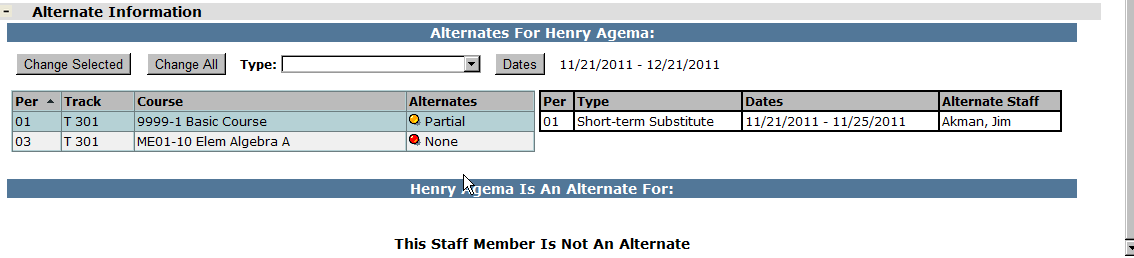
8. Click Submit to save the information you have entered, Cancel to return to the previous screen or Reset to clear all information entered since the last save.
9. If the staff members are alternates for any classes, the classes they are alternates for will display in the lower portion of the Alternate Information screen.
After staff information has been entered it may be viewed in the Staff Editor application.
- Search for the staff member whose information you would like to view.
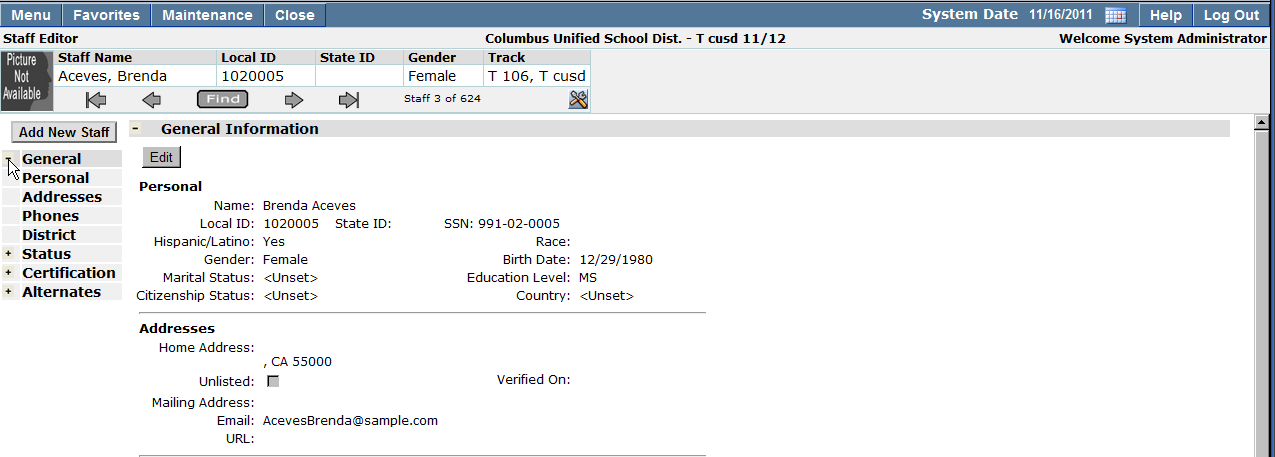
- Maximize or minimize the amount of staff information by using the information tabs located on the left hand side of the screen. To maximize information, click on the plus (+) sign located to the left of the information you would like to view. The screens will build depending on how much information you have selected to view. To close various sections of information, click on the minus (-) sign.
Editing Staff Information
Staff information may need to be updated from time to time. To edit an existing staff record:
- Locate the staff member whose record you would like to edit.
- Maximize the section of information you would like to make changes to by clicking on the plus (+) sign located to the left of the screen.
- Click Edit, make any necessary changes. Once all changes have been made, click Submit to save them, Reset to clear out any changes made since the previous save or Cancel to return to the previous screen.