
The ParentConnect Documents application allows administrators to manage documents uploaded by parents and guardians through ParentConnection.
ParentConnect Documents is located under the Enrollment menu in Q.
The students listed in this application have pending documents that their parents/guardians have uploaded in ParentConnection. The documents are not yet saved to Student Documents. They exist in this application as a holding place for staff to review and either reject or save the documents. If a student has no pending documents, they will not appear in this app.
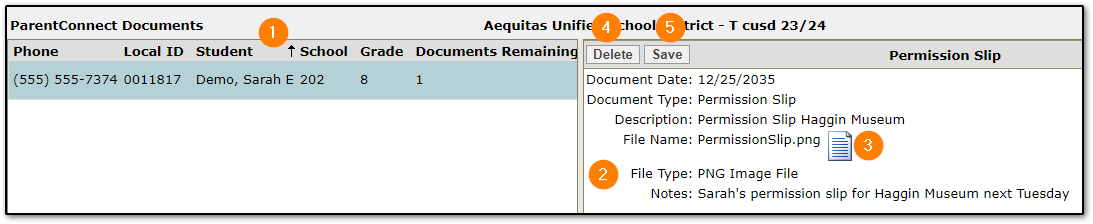
- Students with pending documents will show on the left side. There is information about the student and the Documents Remaining column shows the number of pending documents they have.
- Details of the selected student's pending documents are displayed on the right side of the application. The Notes field displays the notes that were entered by the parent/guardian when they uploaded the document.
- Click the document icon to download the document.
- Click the Delete button to delete the document if it should not be saved to Student Documents.
- Click Save if the document should be saved to Student Documents. Once a document is saved it will disappear from this application and will be available in the Student Documents application.
To access the ParentConnect Documents application a staff member must be in a permission role that has the Enrollment: ParentConnect Documents [Application] application right.
Depending on the staff member’s role, it may be appropriate to hide certain Document Types from them. Document Types may be hidden for each role in Q Permissions Editor > Role Data Filters > Category: Document Type.
