
Tracks form the basis for all activity in a school’s database: a calendar is created for a track; students are enrolled into a track; faculty members are designated as active to teach in specific tracks; and there is a master schedule for each track. The calendar portion of a track defines days, periods and terms for scheduling purposes. In addition, vacation days or non-attendance days are also defined.
A track is also a way of grouping students for reporting and funding purposes. For example, average daily attendance, full time equivalency, and positive attendance calculations are all based on settings in the Track Editor. Each school may have one or more tracks defined.
The Definitions tab includes the base definition including begin and end dates, number of terms per year, the attendance method, etc. In addition, it includes the setup for periods, the selection of scheduling terms used in the track, cycle days, bell schedules, and attendance setup which controls the number of days forward and back teachers can go to input their attendance.
Track Calendar tab provides the ability to associate, for the selected school, calendar dates with specific events like holidays or closed days, term start and end dates, cycle days and bell schedules. A track may be setup as a model or template and then copied to other schools. Initial track setup for a district usually involves creating one elementary, one junior high, and one high school track manually in the Track Editor, and then using the Copy function in the application to create the remaining elementary, junior high and high school tracks. Once the tracks have been created and copied, you may need to modify them for differences unique to each school.
Track Editor is located under the School menu in Q.
When setting up and maintaining tracks a district login is recommended. When the Track Editor is accessed from a district login you can easily switch to any track in the district by using the drop-down list. To display tracks from previous years, click Include Previous Years.
There are two tabs on the Track Editor
- Calendar Tab
- Definitions Tab.
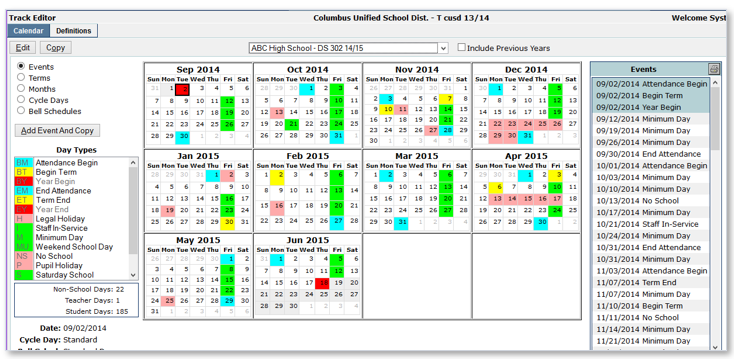
When the Track Editor application is initially launched the Calendar view displays. The Calendar tab provides a year at a glance view of Events, Terms, Attendance Months, Cycle Days and Bell Schedules.
For information and step by step directions on how to add and edit Calendar Events, Terms, Months, Cycle Days and Bell Schedules, please see the sections on Adding and Adjusting later in this document.
Calendar Tab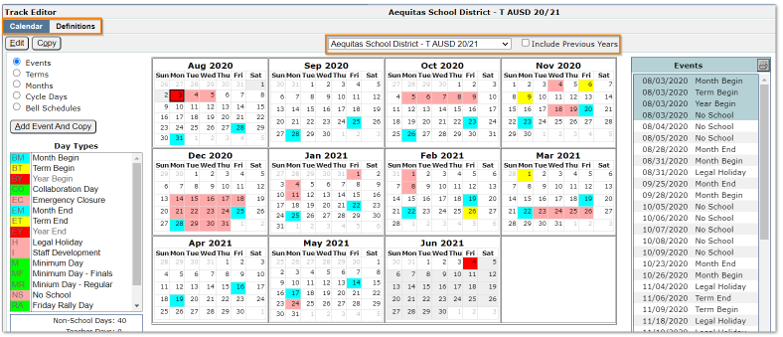
Events
To view all events for the selected year, click the Events radio button. A color-coded list of available Day Types displays on the left-hand side of the screen. A listing of events that have been defined for the year display on the right-hand side of the calendar. You may view all events defined for a selected date by clicking on the desired date in the calendar. All events for that date are highlighted and displayed on the right side in the event listing. Hover over a calendar date to display tool tips with event information for the selected date. A summary box on the bottom left-hand side of the calendar shows the total number of Non-School Days, Teacher Days, and Student Days which have been defined in the Calendar. Clicking on a date displays the Date, Cycle day, Bell Schedule and events for the selected date. The number of days for each category is automatically updated when events are added to or deleted from the calendar. 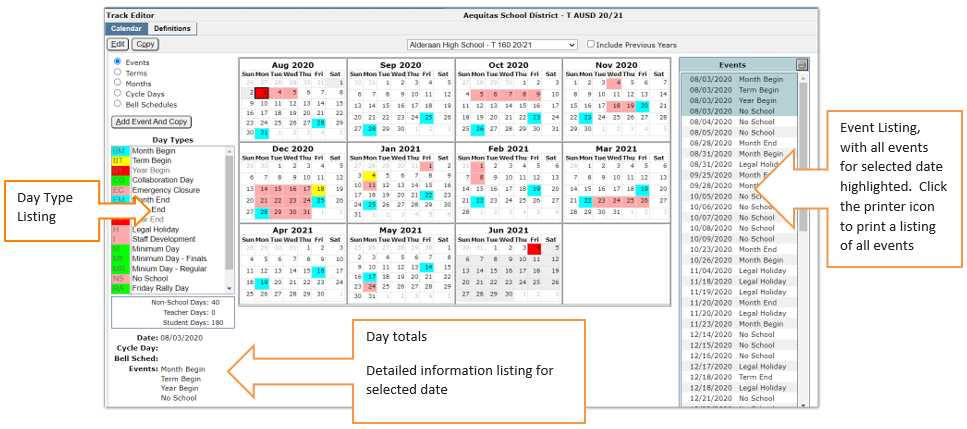
Terms
The Calendar tab displays all terms that have been defined for the selected track, identifies individual terms by color and allows editing of term begin and end dates. Click on a date in the calendar to display information about the cycle day, bell schedule and any events which have been defined for the specified date.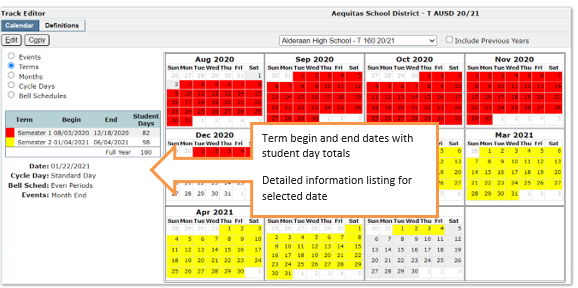
Months
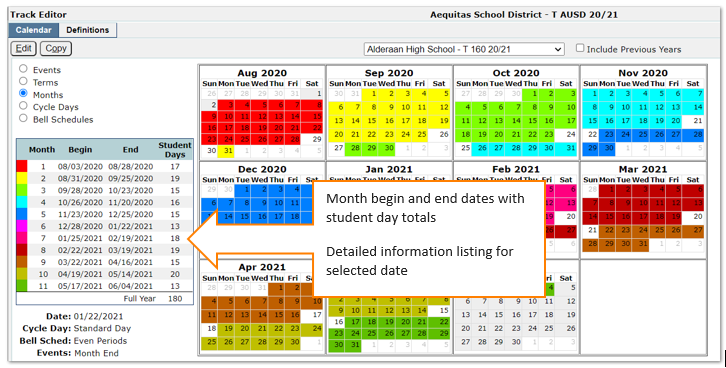
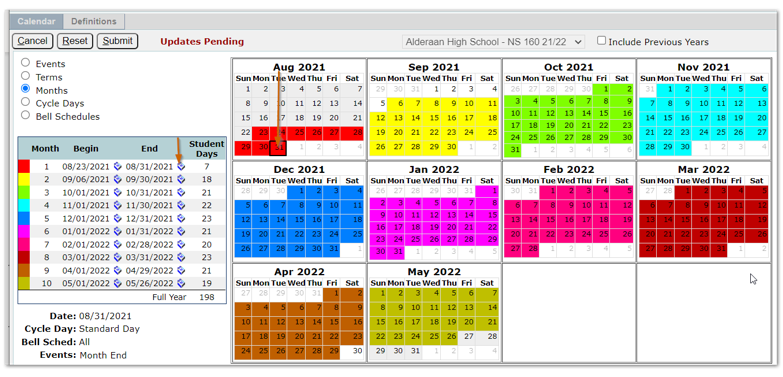
Clicking the Months radio button displays a color-coded view of all defined attendance months for the year. Attendance month begin and end dates are displayed with the total number of student days for each month. Click on a date in the calendar to display information about the cycle day, bell schedule and events for the selected date. Attendance month dates may also be edited on this screen.
Cycle Days
Cycle Days refer to the number of school days that it takes for students to complete the entire rotation of all the courses in their schedule. Cycle days are setup and applied on the Definitions tab of the Track Editor.
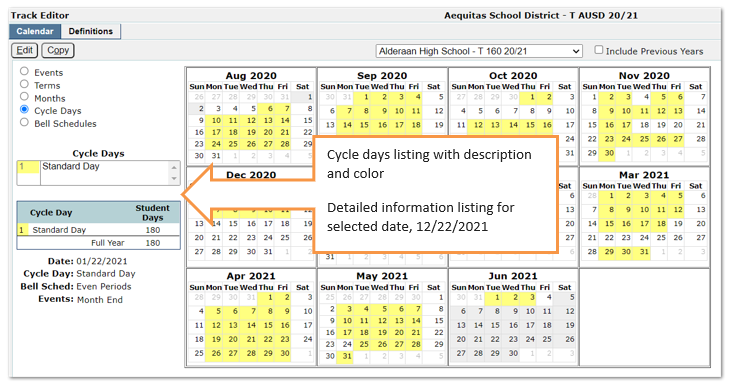
Click the Cycle Days radio button to view all defined cycle days for the selected track. Defined cycle days are listed on the left with the cycle day color displayed on the calendar dates. Click on a date in the calendar to display information about the cycle day, bell schedule and any events that have been defined for the selected date.
Bell Schedules
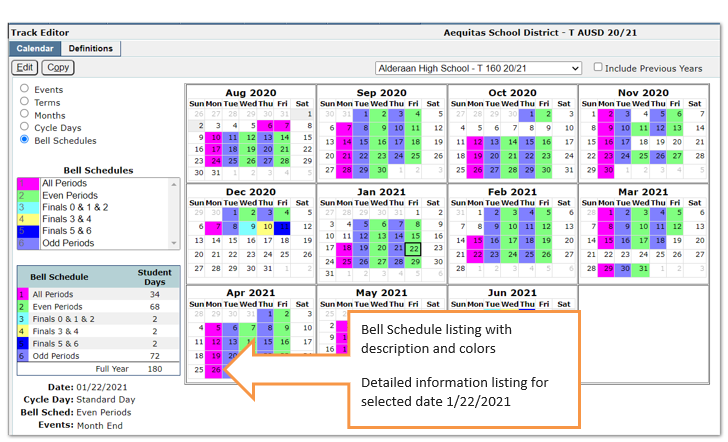
Click Bell Schedules to view all bell schedules defined for the track. Defined bell schedules are listed on the left with the defined bell schedule color displayed on the calendar dates. Click on a date in the calendar to display information about the cycle day, bell schedule and events for that date. Bell schedule dates may also be edited from this screen.
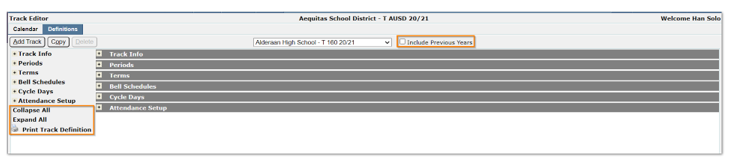
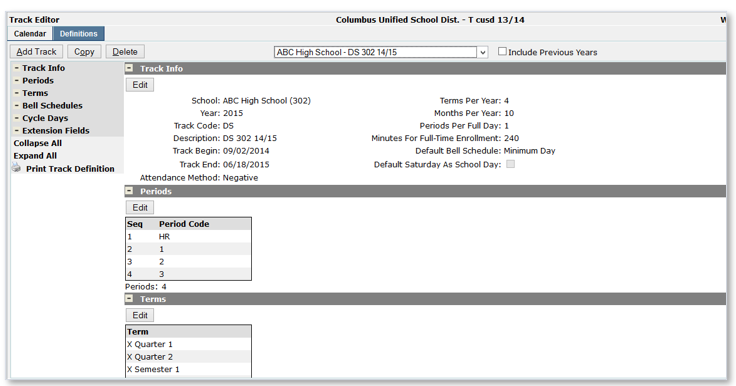
Track Info, Periods, Terms, Bell Schedules, Cycle Days, and Extension Fields are defined in the Definitions tab of the Track Editor. On initial launch all sections open in an expanded view. To minimize sections, click the minus sign, or click Collapse All to close them all at once. Tracks can be added and copied from other tracks with the Add Track and Copy features from the Definitions tab. Steps to copy tracks are detailed later in this document. Track information may be printed by clicking the printer icon next to Print Track Definition.
There are three methods that can be used to add tracks:
- Use the ‘Copy from another Track’ utility once the first track is setup
- Manually add a track using the Track Editor
- Use the New Year Initialization process to copy existing tracks for a new year.
How many tracks are needed?
Schools may have multiple tracks. The following are some possible reasons why a school may have more than one track:
- K-12 School: A K-12 school may have three tracks to manage the Elementary, Junior High and High School grades.
- Year-round School: The number of tracks needed by a year-round school is determined by how many groups of students with staggered start dates are needed to accommodate the student population and the size of the facility.
- Traditional School: Usually have two tracks – a Traditional Track and a Summer School Track.
- School within a School: An example would be a pre-school within a high school, and the school needs to provide services such as meals.
- Program: A program that tracks attendance differently than the traditional school day, such as Independent Study .
Track Terminology
- Terms per year: Corresponds to the shortest duration of a course for which a student may receive credit on their transcript. As an example, if the shortest course a student may take for credit is a semester, then terms per year would be 2; a trimester, then terms per year would be 3; or a quarter, then terms per year would be 4.
- Periods per day: Usually the number of academic periods displayed on report cards and schedules.
- Cycle days: Cycle Days refer to the number of school days that it takes for students to complete the entire rotation of all the courses in their schedule. Cycle Days are defined in the setup and applied on the Calendar tab.
New tracks may be added when logged in to the district or a school track. When logged in to the district track, tracks may be viewed and added for any school in the district. When logged in to a school track the only tracks available to view or add are those associated with the logged in school.
Manually Creating a Track
When creating a new track it’s best to follow the order as listed on the screen. To add a new track manually:
- Launch the Track Editor
- Navigate to the Definitions tab
- If logged in to the district track, you may select a school from the drop-down list
- Click Add Track

Complete all the required information for the new track (required fields are yellow in color). Upon completion of each step selecting Submit & Continue moves you directly to the next step.
Note: Best practice when creating a new track is to follow all steps in the order listed on the screen.
Definitions Tab
Track Info
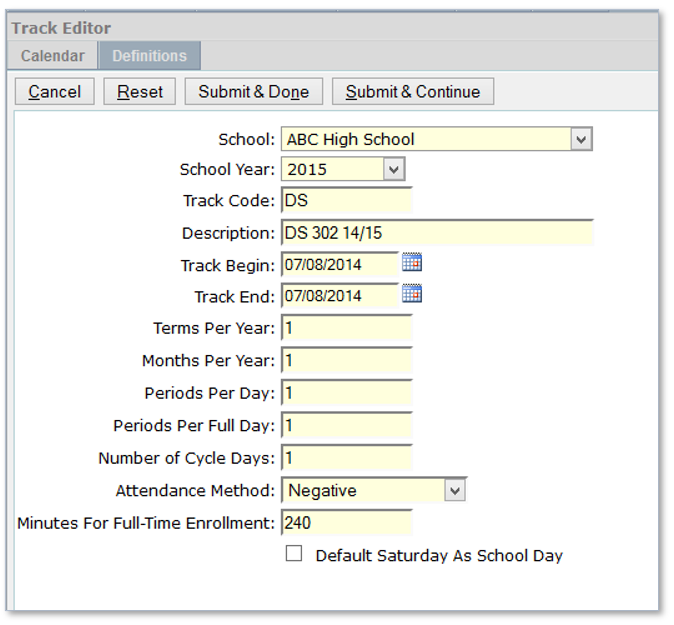
- School: If you did not select a school before clicking Add a Track, you may select one now from the drop-down list.
- School year: Select the school year from drop-down list.
- Track Code: Create a track code. A common code used is T, indicating ‘Traditional’, for the main school track. Track codes can be defined to include more than one character but may not contain more than 3. Common patterns are usually established to represent common tracks such as S – Summer School, I – Independent Study, etc. In the example provided, T has been used for the school track.
- Description: Enter a detailed description of the Track Code. An example would be T 160 21/22 where T stands for the regular School track, 160 is the school code and 21/22 represents the school year.
- Track Begin: Enter the track begin date using a MM/DD/YYYY format, or by using the pop-up calendar to the right of the field.
- Track End: Enter the track end date using a MM/DD/YYYY format, or by using the pop-up calendar to the right of the field.
- Terms Per Year: Define the number of scheduling terms that will be used in the Track. This number is the shortest duration for which courses can be placed in the student schedule and for which a student can be awarded credit in academic history.
- Months Per Year: The Months Per Year field will only be displayed if the Take Monthly Attendance box is checked in the School Editor. Month begin and end dates will be defined in the calendar tab of the Track Editor. Typically the number of months entered is the number of months that your school will be reporting attendance to the state.
- Periods Per Day: Controls the number of periods that will appear in the Master Schedule. Additional periods may be added when defining periods in the Definitions tab.
- Periods per Full Day: Enter the number of periods a student must be present to be considered present for a full day.
- Number of Cycle Days: Enter the number of school days required for the students to complete the entire rotation of all courses in their schedule. The number of Cycle Days defined controls the number of days that will appear in the Master Schedule application. Cycle Days are defined as the process continues and additional cycle days may be added at that time.
- Attendance Method: From the drop-down box, select either positive, where students are assumed to be absent until marked present by the teacher in each class, or negative, where students are assumed to be present and only exceptions for absent or tardy are marked by each teacher.
- Minutes for Full Time Enrollment: Enter the number of minutes required for a full school day.
- Default Saturday as a School Day: Place a check mark in this box to make Saturday a school day.
- Summer School Track: Place a check mark in this box to indicate the track is a Summer School.
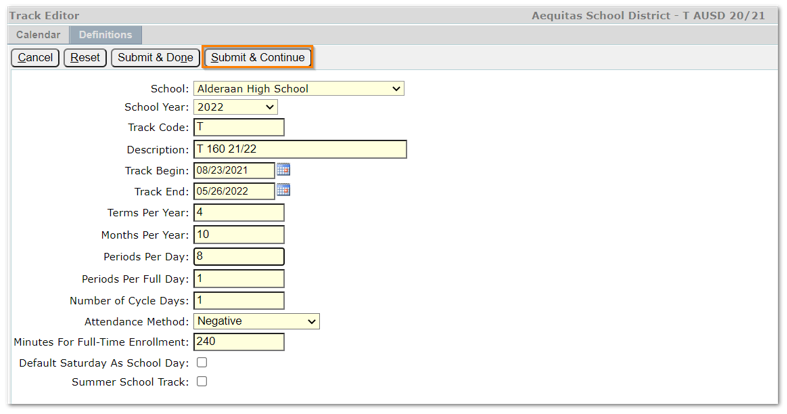
Once all the information has been added, click Submit & Continue. A red error displays if there are any problems with the configuration. Correct any issues and click Submit & Continue.
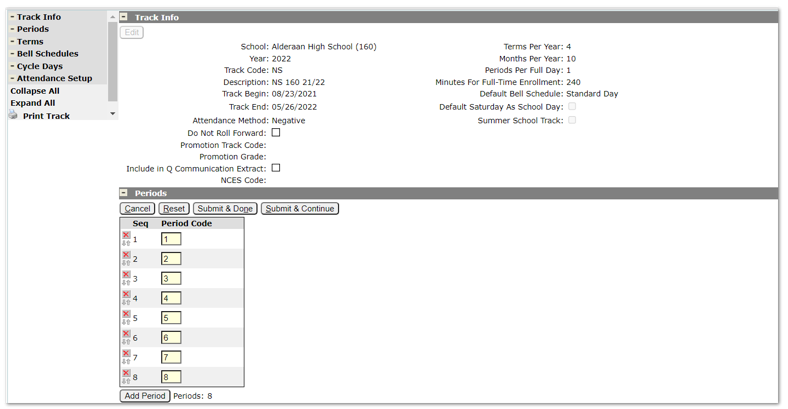
Once the information has been successfully submitted, the completed Track Info screen displays, followed by the period information screen. The period screen defaults to edit mode.
Periods
Period Codes may be customized if desired. For example, period 1 may be designated a Homeroom by changing the code from 1 to HR. Similarly Lunch and Advisory periods may be designated by using L and A. Period codes may use both alpha and numeric characters but are limited to a total of 2 characters. The period code appears in the Scheduling and Mark Reporting applications. Additional periods may be added by clicking the Add Period button. You may add more periods than were initially defined in the track information, however, all added periods are added in order after the current last period. Periods may be deleted by clicking the X. When all information is complete, click Submit & Continue.
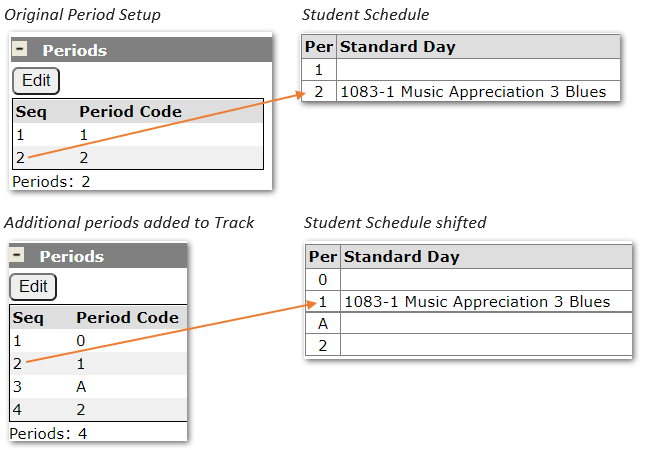
Note: Please be aware that the order of periods displayed on the student schedule is determined by the seq column, if additional periods are added to the track AFTER the master schedule is built and students are scheduled the class order in the schedule displays according to the sequence order. In the example below a 0 period was added which shifted the Music Appreciation class from Period 2 to Period 1 on the student schedule. The only way to correct this is through the back end. Please make sure periods are defined in correct order BEFORE building the master schedule.
Terms
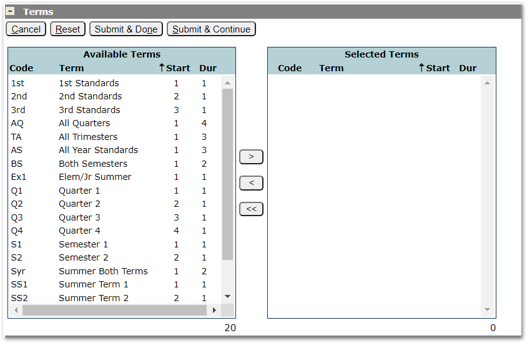
Terms that have previously been configured in Lookup Codes/Terms will be displayed in the Available Terms selection list. Double click on a term or use the navigation arrows to move terms between the Available Terms and Selected Terms boxes. When adding terms the system will prevent you from adding incorrect terms, (terms with the same start term and duration).
When launched the number of available terms to select appears with the total number of selections listed below:
To select terms:
- Click on term to include, selected terms are highlighted
- Use the single > mover to move terms to selected terms
- Use the < mover to remove terms from the selected terms.
As terms are moved to the selected Terms area the total number of terms available will decrease.
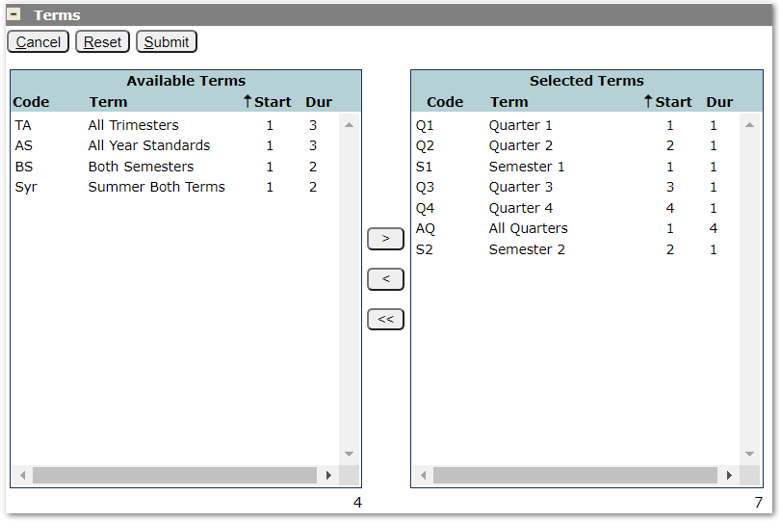
- Click Submit & Continue when finished.
Bell Schedules
When defining bell schedules you may allow the system to calculate the period start and end times for you.
- Enter a description for the Bell Schedule.
- Enter the default period length.
- Enter default passing minutes.
- Tab to enter the start time of the first period of the day.
- The system will auto populate all remaining period start and end times.
- You can change the times mid-stream and the system will re-calculate the times in the application.
- If you do not have a standard number of minutes for every period, the start and end times may be adjusted manually.
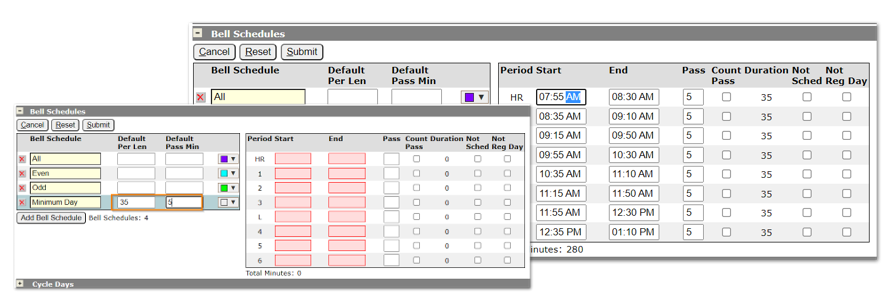
- Add additional bell schedules by clicking Add Bell Schedule.
- When defining bell schedules the Bell Schedule may be named and a specific color may be chosen for each bell schedule.
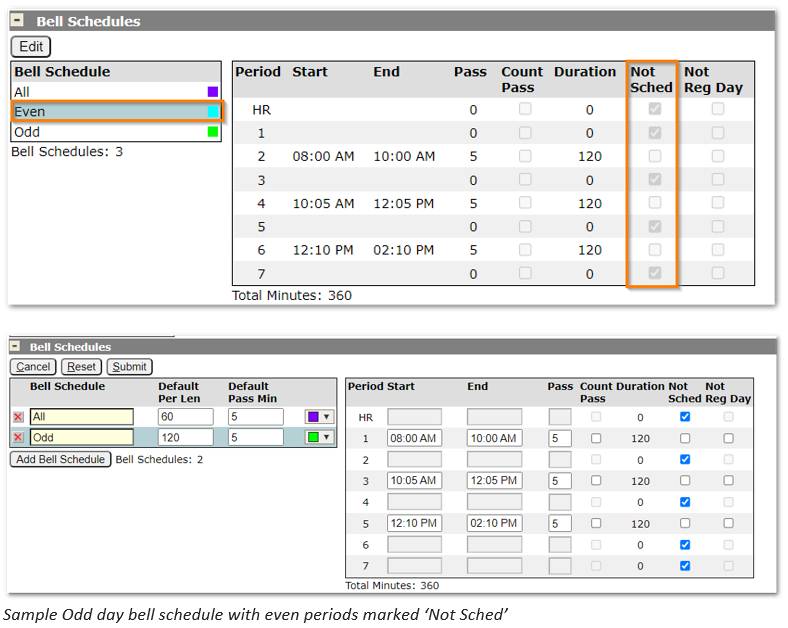
- Check the Count Pass box if the passing minutes are to be included in the total time allotted for a period.
- Check the Not Sched box if a period should not be counted for attendance taking and reporting calculations (such as ADA and district attendance reports). Bell Schedules may be configured to control what periods are attendance taking periods. For example, a track that uses Odd/Even/All days may define bell schedules for odd days with even periods marked as ‘Not Sched’ and even days with odd periods marked as ‘Not Sched’. In this way, when the Odd bell schedule is added to a date in the calendar, teachers will only see classes in odd number periods when launching Class Attendance, etc.
- Check the Not Reg Day box for periods that are not part of the ‘regular day’. This could be used to flag early, late, or extra periods so that they will be ignored by ADA calculations.
- To delete Bell schedules, click the X.
Cycle Days
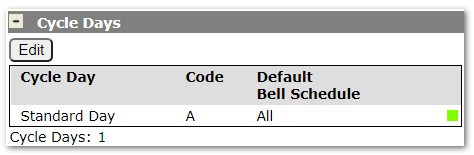
The number of cycle days displayed corresponds to the number of cycle days defined in the Track Info. Additional cycle days may be added by clicking the Add Cycle Day button. Assign names and codes to Cycle Days to easily identify them on the track calendar. If necessary, Cycle days may also be deleted. Bell schedules may now be used to accommodate situations that previously required Cycle Days.
When to use Bell Schedules vs. Cycle Days
If all of a school’s periods meet on the same days, bell schedules may be used. However, if there is one class that meets in a period only on certain days of the week, but other classes meet every day of the week in the same period, a cycle day may be necessary. When cycle days are used the master schedule must be constructed using the cycle days. When bell schedules are used to control attendance taking, the master schedule is built the same for all days.
Attendance Setup
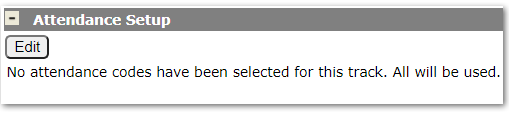
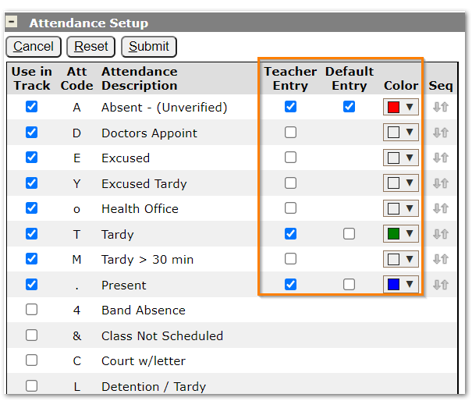
Tracks may control which attendance codes are used in the track through the Attendance Setup. If the track will use all Attendance codes as defined by the District, no setup is required.
Follow these steps to configure attendance codes for a track:
- Click Edit.
- Select desired codes.
- Check codes to be available for Teacher Entry by placing a check in the Teacher Entry box.
- Select a Default Entry code (keep in mind the Default Entry code is what displays at the top of Class Attendance and used when the teacher clicks the blue arrow).
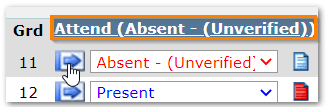
- Colors may be selected for Attendance codes making them easier for teachers to use.
- Sequence the codes using the mover arrows at right.
Days Back/Days Forward
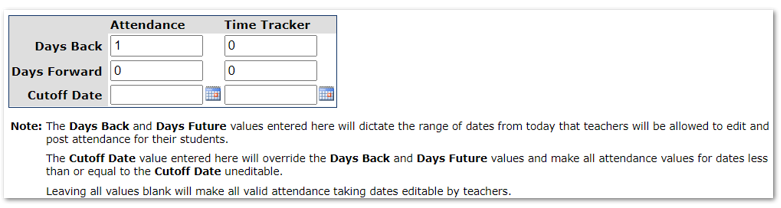
The number of days during which a teacher may add and edit attendance records in Class Attendance is configurable by entering the number of Days Back and Days Forward in the appropriate box. The days back and days forward are counting school days, not calendar days. If no values are entered in the box, teachers may adjust attendance with no date restrictions. A Cutoff Date may be also be entered. When there is a Cutoff Date all changes to attendance are frozen before the cutoff date preventing users from making changes after attendance is reported to the state.
Extension Fields
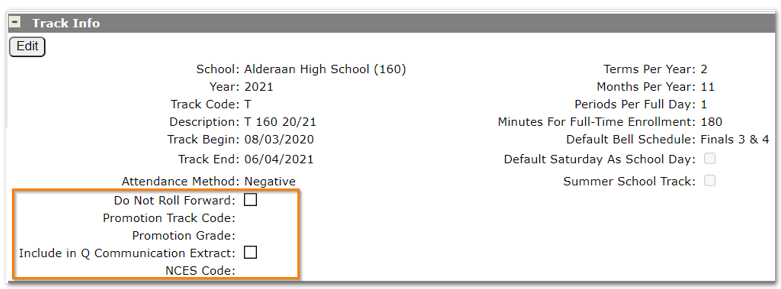
If extension fields have been configured, they will appear in the Track Information area.
After the track has been configured and definitions complete, return to the Calendar tab to add events, attendance months, term begin, term end, cycle days and bell schedules. It is also possible to copy items from tracks that have been configured. Please see the ‘Track Copy Feature’ section later in this document.
Adding Events
Once a new track has been added events such as holidays, term begin, term end, and Staff In-Service days must be added to the calendar. It is also possible to copy track information from a track with a complete calendar. To learn more about this process, please refer to the ‘Track Copy Feature’ section of this document.
To add an event:
- Launch the Track Editor application.
- Confirm that the correct track is selected from the drop-down list.
- Click the Edit button on the calendar tab.
- Select the desired Day Type from the list on the left-hand side of the screen.
- Click the date on the calendar that you want to apply the event to.
- The Event and date will appear on the right-hand side in the Events list.
- Events may be deleted by clicking the X on the date in the events list or, by clicking the date on the calendar and clicking the X on the date info in the bottom left portion of the screen.
- Hover the mouse over a calendar date to display all events on that date. The events are also highlighted on the Events list.
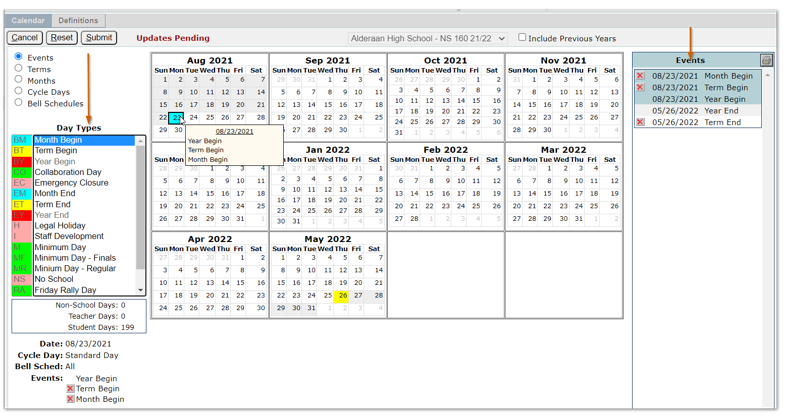
- When events have been added click
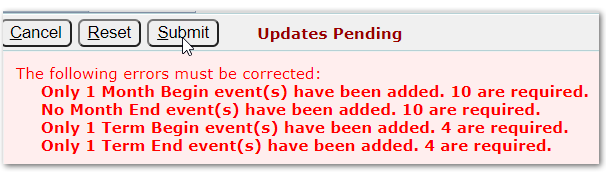
- An error message displays if there is a problem with any of the events that have been added. In the example below, Month and Term begin and end dates are missing. The error must be corrected before the events can be saved.
- Month and term begin and end dates must be entered to match the number of months and terms defined when the track was created. The dates for both attendance months and terms may be adjusted at a later point, if necessary, in the Term and Month screens.
Adjusting Term Begin and End dates
The term begin and end dates set in the events tab may be adjusted in the term calendar view. The color-coded term calendar allows users to easily identify term begin and end dates. The Day Types box on the left-hand side displays all begin and end dates with the total number of student days for each term. This can be a helpful tool when adjusting dates to ensure terms have an equal number of days.
To adjust dates:
- Launch the Track Editor.
- Confirm that the correct track is selected from the drop-down list.
- From the Calendar tab, select the Terms radio button.
- Click
- Click the calendar icon next to the begin or end date in the term listing box on the left-hand side that needs to be changed. Select the new date by clicking on the date in the Calendar.
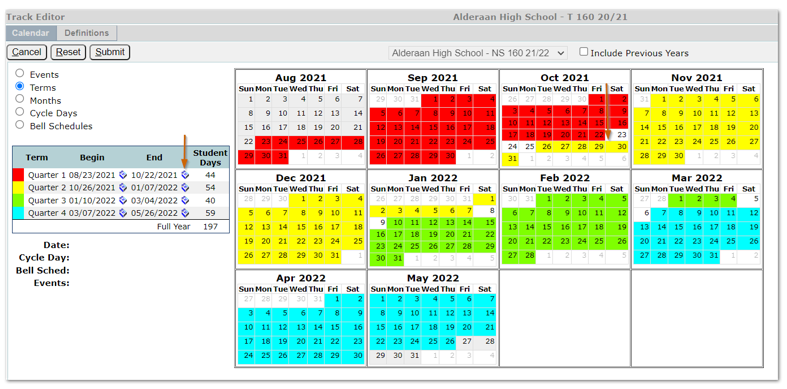
When the term end date is moved to make the term longer, the term begin date for the following term is automatically updated to begin the next day. As the term dates are adjusted the number of student days displayed for each term are also adjusted to meet the new term date range.
NOTE: If students have been scheduled the term begin and end dates will be updated in the student schedules.
Adjusting Month Begin and End dates
To adjust dates:
- From the Track Editor, confirm that the correct track is selected from the drop-down list.
- From the Calendar tab, select the Months radio button.
- Click
- Click the Calendar icon next to the begin or end date in the month listing box on the left-hand side that needs to be changed. Select the new date by clicking on the date in the Calendar.
Adjusting Cycle Days
The number of cycle days available and the cycle day description is determined by the number of days defined and names entered on the definitions tab of the Track Editor. Defined cycle days must now be attached to specific calendar dates. Cycle Days may be set to specific dates on the calendar manually, or by using the advanced options and defining a pattern with set begin and end dates.
To set cycle days to specific dates on the calendar:
- From the Track Editor, make sure the correct track is selected from the drop-down list.
- From the Calendar tab, select the Cycle Days radio button
- Click Edit.
Two check boxes are available to set cycle day options.
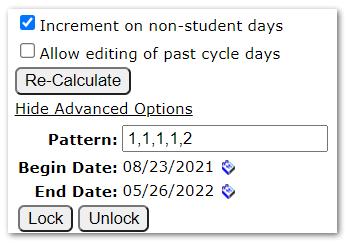
- Increment on non-student days: Check this option if the school schedule skips a cycle day on a non-student day.
- Allow editing of past cycle days: When this box is NOT checked any cycle day changes made are only effective from the current date forward. To change previous cycle days check the box on. When the box is checked, a warning message will be displayed warning users that changes to previous cycle days may orphan attendance records.

Set Cycle Days
To set cycle days manually:
- Click on the desired cycle day from the cycle day list, then click the date on the calendar to place the cycle day.
- Click Submit when finished.
The lock feature may be used when setting a date to a certain cycle day that you do not want changed. If a date is locked, and the advanced option patterns are used for a date range that includes the locked date, the pattern will be honored but the locked cycle day will not be changed.
To set cycle days using the advanced options:
- Click the Show Advanced Options
- Determine the desired cycle day pattern.
Note: When the first day of the track is different it may be necessary to manually set the first week and start the pattern beginning the following week.
In the example displayed below the track has a minimum day every Friday
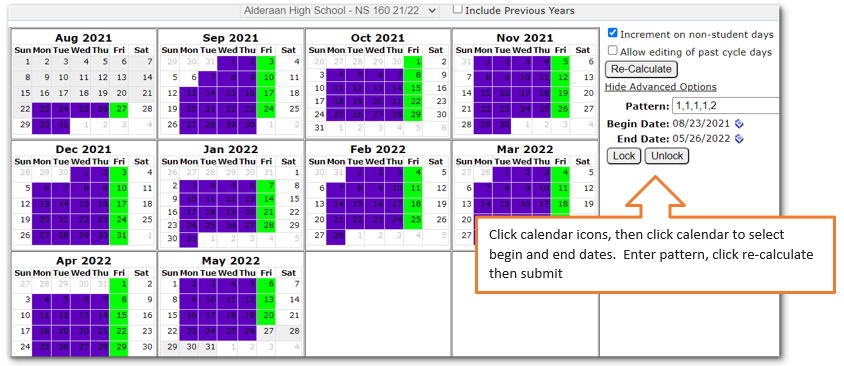
- Enter pattern of 1,1,1,1,2 (1 representing cycle day 1(standard day) which will be set on M,T,W,Th; and 2 representing cycle day 2 (minimum day) on F.
- Set begin and end dates in a MM/DD/YYYY format, or by clicking on the calendar links.
- Click the calendar icon and then click the actual begin date on the calendar
- Click the calendar icon for the end date then click the actual end date on the calendar
- Click Re-calculate
- Click Submit to save your changes, Reset to undo any changes made since the previous save, or Cancel to be returned to the previous screen.
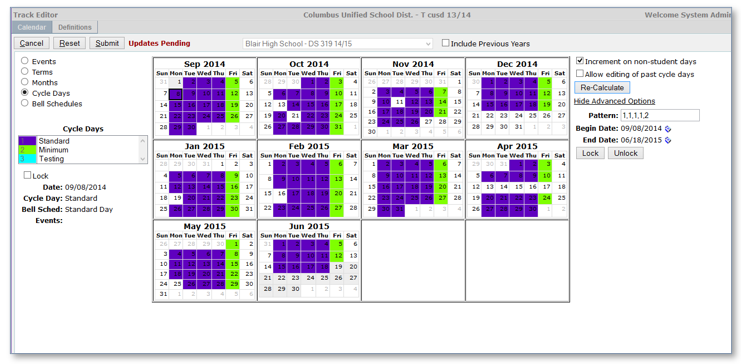
After the pattern is used to set cycle days for the year, you may manually change cycle days. It is also possible to add cycle days using the pattern with a smaller date range. For example, to insert a week that includes 2 testing days, a minimum day, another testing day and ends with a standard day.
- Click Show Advanced Options
- Enter pattern of 3,3,2,3,1
- 3 representing cycle day 3(testing day)
- 2 representing cycle day 2 (minimum day)
- 1 representing cycle day 1 (Standard day)
- Set begin and end dates (in our example below we’re selecting the week of March 9)
- Click the calendar icon and then click the actual date on the calendar, 3/9
- Click the calendar icon for the end date then click the actual end date on the calendar, 3/13.
Adjusting Bell Schedule
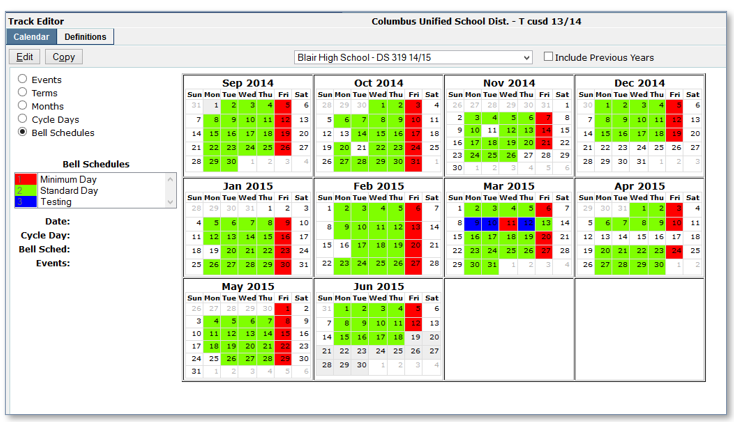
When cycle days are adjusted the bell schedule is also adjusted. The same process that is used to set the cycle days are used with bell schedules. Bell schedules may be set manually, or users can set patterns using the Advanced Options.
An existing track may be used as a template and copied to several additional tracks at once. Pieces of the source track may be selected, or the entire track may be used. Once the track has been copied, it can be edited.
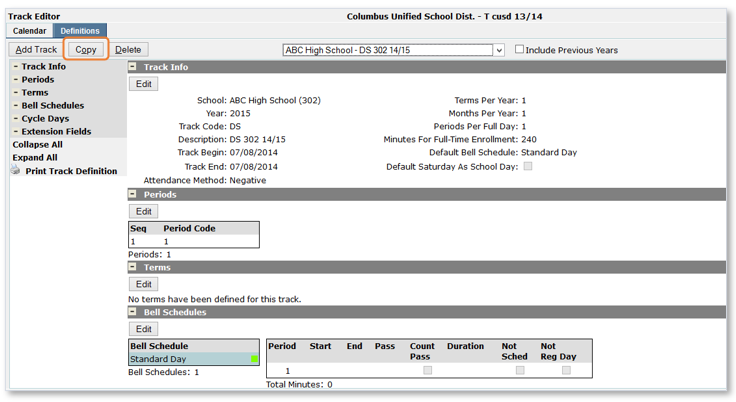
The copy feature may be accessed from either the calendar or definition screen by clicking the Copy button.
Note: The track must be created before using the copy feature, however, you only need to define the track, all the other information may be copied from the completed existing track.
To copy:
- Create the track.
- When creating the track you can use any track begin and end date as fillers. They will be replaced later in the process with the copied track information.
- Select copy from either the calendar or definition tab.
When the copy screen displays:
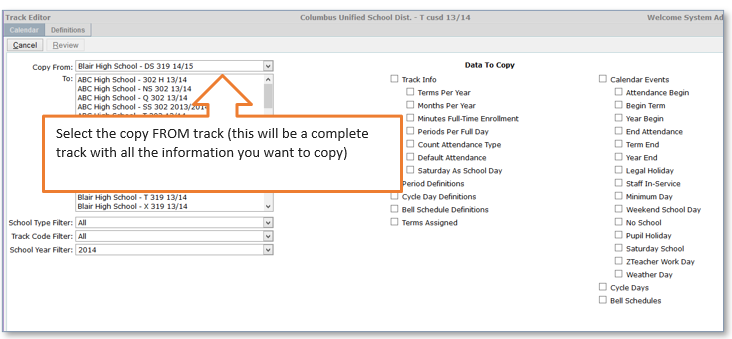
- Select the track to copy FROM from the drop-down list.
- Select the tracks to copy TOfrom the list.
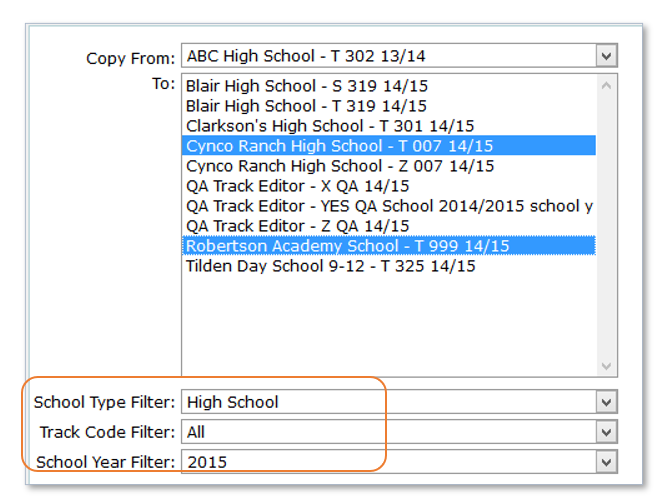
- Tracks may be filtered by school type, track code and/or school year.
- To select multiple tracks, hold down the ctrl key while clicking the desired tracks in the track selection list.
- Select the Data to Copy by checking boxes for the desired items.
- Clicking Track Info and Calendar Events will automatically select all indented items under the headings, selections may be edited as desired.
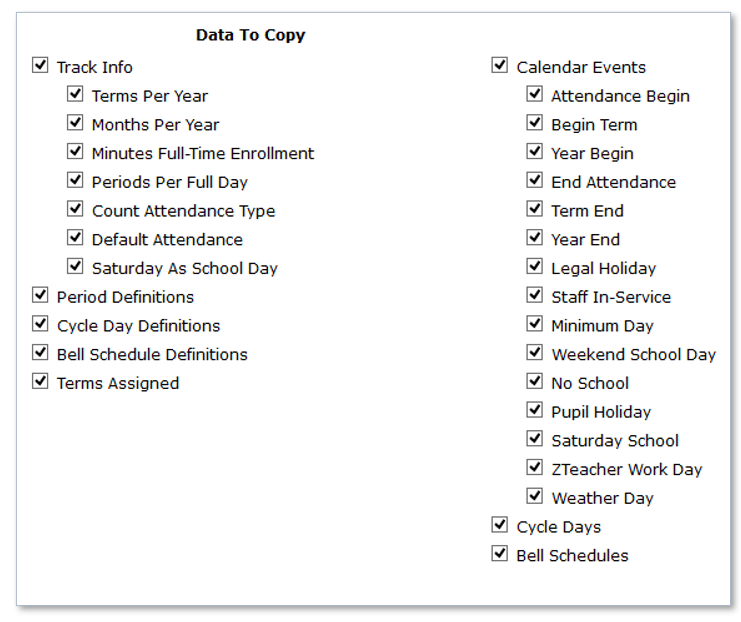
- Once all selections have been made, click Review.
- A listing of all items selected to copy to each track will be displayed with Warnings about possible consequences to existing data if the copy is completed.
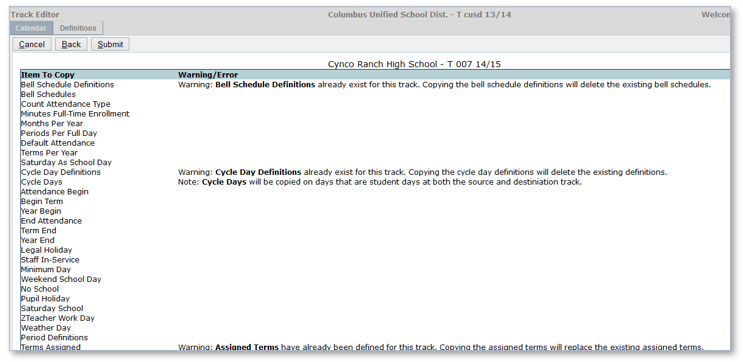
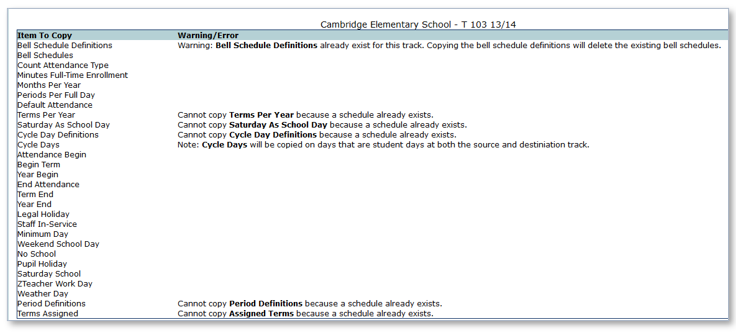
When copying track information to a track where schedules exist the system will prevent the user from certain copy functions including Terms Per Year, Cycle Day Definitions, Period Definitions and Assigned Terms.
After carefully reviewing the Warnings, click Submit to save the changes.
Track Info, Periods, Terms, Cycle Days, Bell Schedules and Events have been successfully copied.
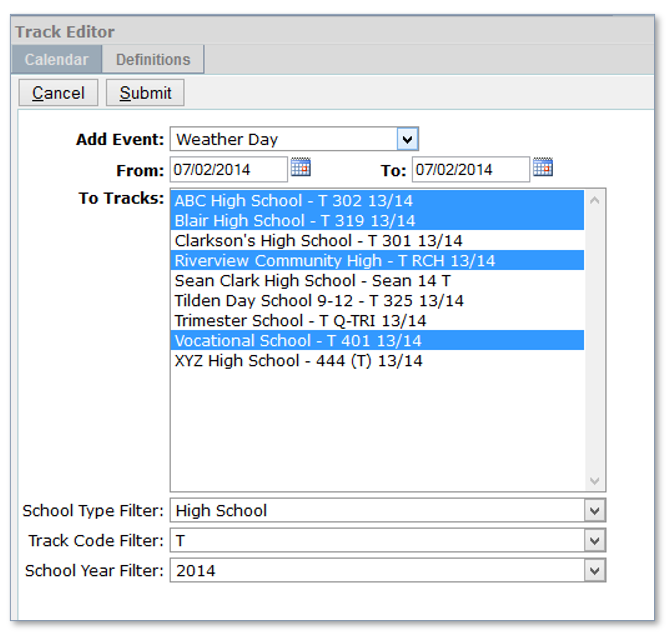
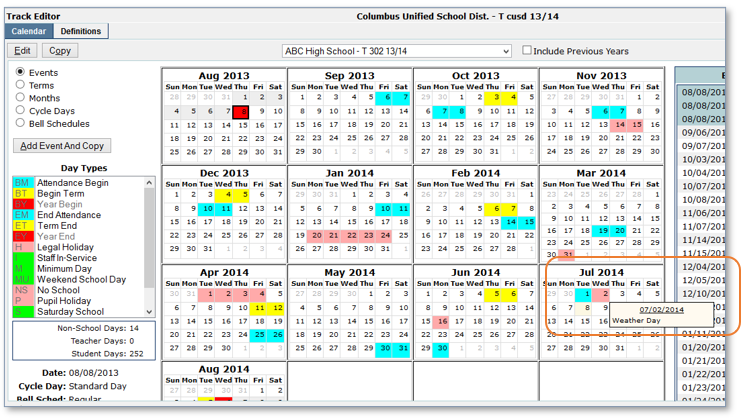
This feature has been designed to be used when events such as weather days need to be added to several tracks at once. When performing this function, please ensure that the Add event and Copy feature is being used and NOT the copy button. Please be aware that changing calendars can affect attendance. It is best to make these changes after hours.
- Launch the Track Editor
- On the Calendar tab select Add Event and Copy.
- Select the Event from the Add Event drop down list.
- Enter the date range for the selected event by either typing in dates using a MM/DD/YYYY format or using the pop-up calendar.
- Select the tracks where the event will be added.
- Track selection may be filtered using the School Type, Track Code and School Year filters.
- Multiple tracks may be selected by holding the Ctrl key while making selections.
- Click Submit to save your changes or Cancel to return to the previous screen.
The system will not allow the deletion of a current or previous year’s track that has student schedules in place. Future year tracks may be deleted.. A warning will be displayed before the delete process is complete allowing the user to cancel the process before it has been completed. This functionality may vary based on the logged in users’ permissions.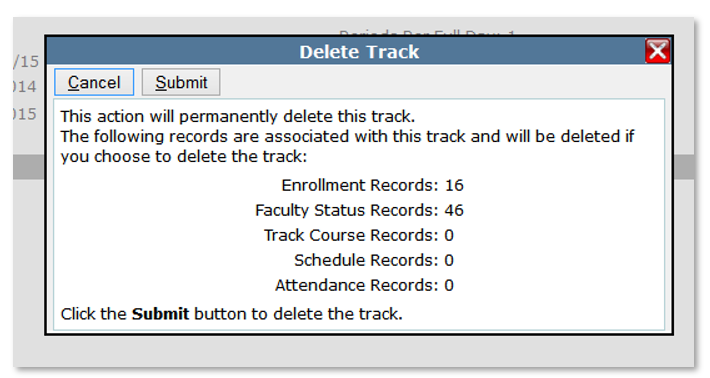
To delete a track:
- From the Track Editor navigate to the Definitions Tab.
- Select the Track to be deleted from the track drop down list.
- Click Delete.
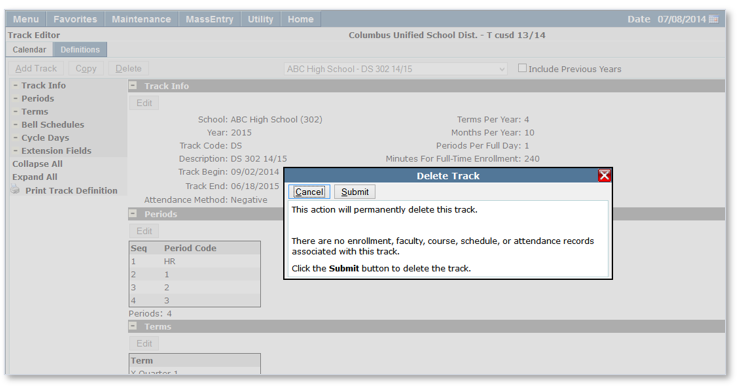
- Click Submit to delete the track or Cancel to return to the previous screen. This action is permanent and cannot be undone.
Note: The delete button will be disabled for tracks that are currently in session.
