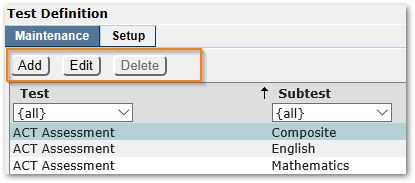
The Test Definition application is used to define Standardized Tests with their Subtests, Test Items (optional) and Test Score Types. The Setup tab in this application is used to manage the primary Lookup codes used when defining Tests. Once the Lookup codes are defined, the Test Definitions themselves need to be added using the Maintenance Tab. Each Test Definition associates a Test with a Subtest, score types and optionally test items.
Test Definition is located under the Testing menu in Q.
The setup tab is used to manage the configuration of the codes used for Test types, Subtests, Test items, and Score types.
From the Setup Tab, the options to configure each of the following:
- Tests –Each standardized Test the district wishes to track in Q, such as ACT, PSAT, etc., will need to an entry.
- Subtests - Each test may be made up of component subtests such as Mathematics, English Language Arts, Listening, etc. All the subtests for all tests will need to be defined.
- Test Items - Test Items may be used for an additional level of granularity. For example, ACT test scores are comprised of Subjects (English, Mathematics, Reading and Science) and some Subjects have a subscore such as English which has subscores for Usage/Mechanics and Rhetorical Skills.
- Score Types – are the multiple types of scores in which the Standardized Test and/or Subtest may be reported. Note: To eliminate the display of specific score types from ParentConnection and Web Student Profile, set the snsort > 900.
All these options are selectable at left using the plus or minus sign, or the Expand All or Collapse All links. 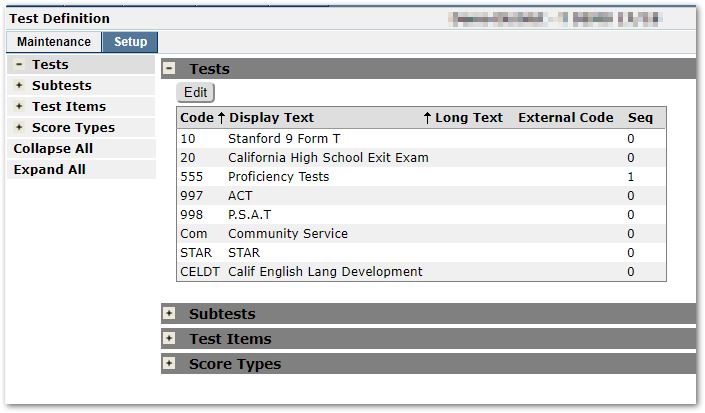
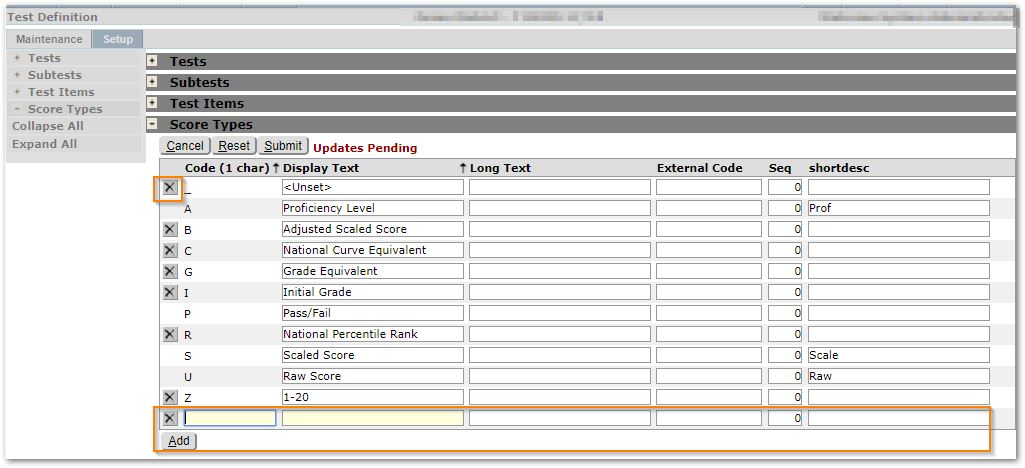
Expand each area and select Edit to configure the set of valid codes for each section. When in Edit mode:
- New codes may be added by clicking the Add button at bottom;
- For existing codes, Display Text, Sequence etc. may be modified;
- Codes with an X at left may be deleted. Codes in use, with associated data, will not have a delete button available.
- Click Submit when finished to save your changes.
Please see Q Implementation Workbook – Testing for more detailed information.
The application opens to the Maintenance Tab when launched. This tab is used to define the tests the district wishes to track associating appropriate subtests and test scores with each test. Test Definitions may be defined when the related code values have been defined beginning with those on the Setup Tab.
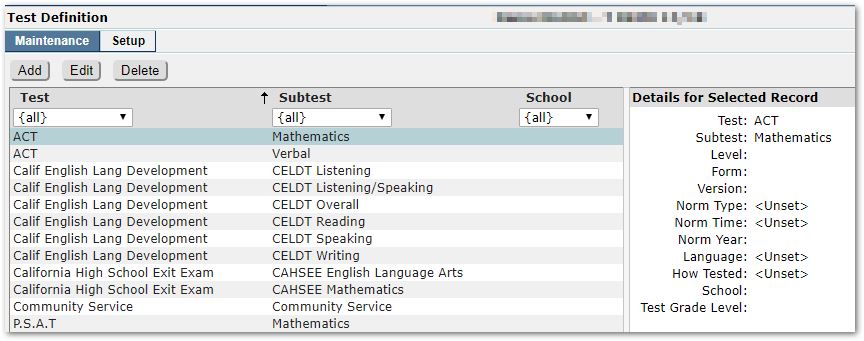
Use the filter fields to locate existing Test Definitions: Test, Subtest, and School.
Add a New Test Definition
- From the Maintenance Tab, click the Add
- Select and enter the required data:
- Test
- Subtest
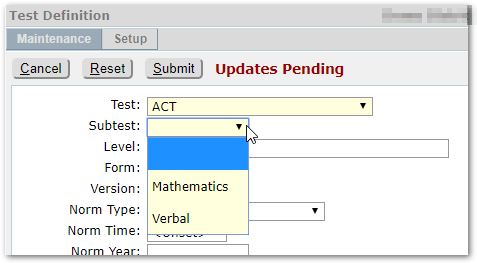
Note: If the available subtests do not include the necessary subtest, you will need to return to Setup tab and add the appropriate subtest, and associated with the desired test, in order to make them available to the Test Definition.
- Enter additional, desired data such as:
- Score Type, etc.
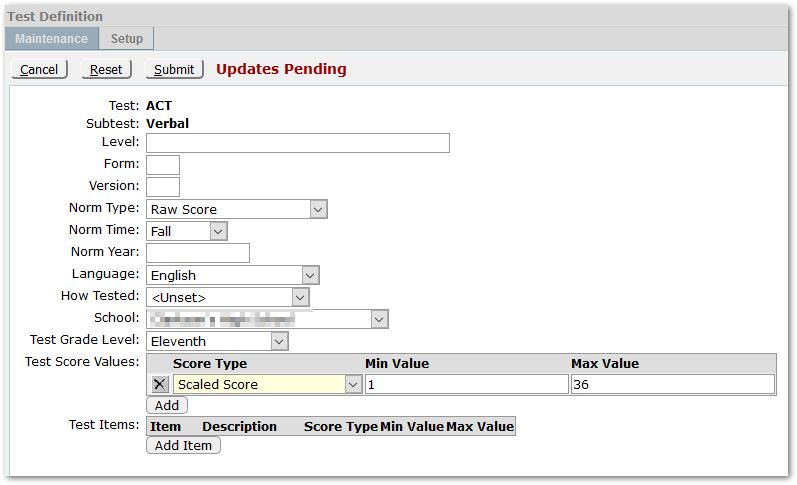
- Click Submit when all desired entries are complete.
Edit or Delete a Test Definition
- To make changes to an existing Test Definition, click Edit from the Maintenance tab and make desired adjustments.
- To remove a Test Definition, click Delete if it is enabled. If there are existing Student Test History records associated with the Test Definition, the Delete button will be disabled.