Q ParentConnection, frequently referred to as the “Parent Portal” is a web-based application which provides parents with access to their students’ data. ParentConnection is also available as a mobile application for phones and tablets from Google and Apple Stores. Using a confidential PIN number and password, parents/guardians can view their student’s information including attendance, schedules, assignments, and grades. Parent Connect may also be used by parents to report student absences, pay student and cafeteria fees, and re-enroll for the next school year.
Note: The school district and individual Schools decide on a track-by-track basis what student data will be viewable.
Using any web browser to navigate to the web address provided by your district. The Parent Connect home screen may display pictures and pertinent news and information from the district. You will be provided with a personal PIN and password to login to view your student’s information. Once you login, you will have the opportunity to view the information of every student who has been designated as your dependent. If you have only one child in the district, the screen will automatically bring up your student’s information.
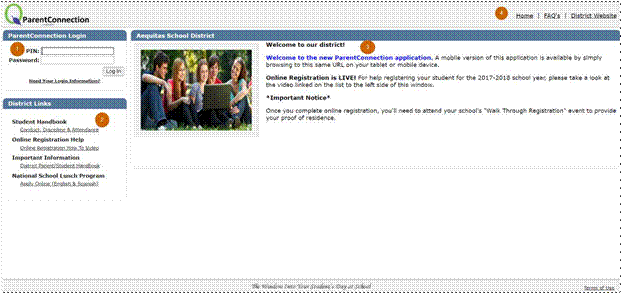
- Enter PIN and Password – Enter your assigned PIN and password. Click LogIn button to continue.
- Need Your Login Information – this functionality is configurable by district and may not appear exactly as pictured. If you do not see this link and have misplaced your PIN or password, contact your school site.
- District Links – Links to relevant websites created by your district appear here. Click on the link to be directed to the website.
- Welcome Screen – View district-specific information such as district news items and important dates to remember. Schools and districts may also upload pictures.
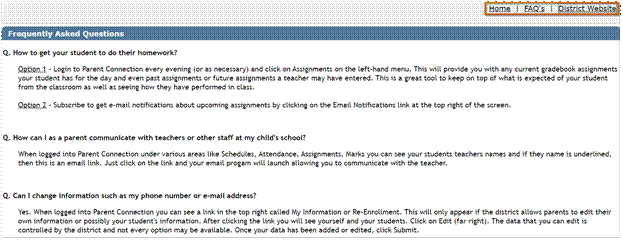
- Navigation Menu – Quickly return to the Login/Welcome screen by clicking, HOME. The District website link connects you to your school district’s website. If your district has implemented a link to Frequently Asked Questions, they will be accessible via the FAQ link.
The first time you login to ParentConnection using your PIN and password, you will be directed to an agreement page. Once you check the box indicating you have read and agreed to the terms of use, click Submit. This page will only display the first time you login to ParentConnection if the district has set up an agreement page. Note: Some districts may want parents to agree to this type of page each year.

On subsequent logins after entering your PIN and password, the ParentConnection student overview screen opens. Students who are enrolled at multiple school sites (dual enrolled, current year and future year) will display. If you have only one child in the district, the screen will automatically bring up your student’s information.
Student Selection Screen: Students display in the student selection screen if they are both actively enrolled at a school site in the district, and the logged in parent/guardian has a valid ParentConnection account with access to the student. Each student displays a tile with current school photo and current primary track information displayed.
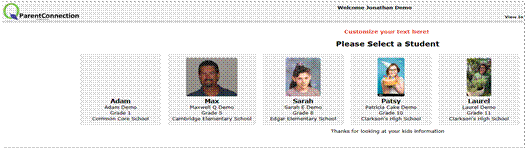
Click on a tile to access the student overview screen. If a student has enrollment records in multiple tracks, pulldown options are available under School/Track/Year. When the school year is changing, you may see enrollments from the school year that just ended (they are normally visible for 45 days after the end of school) in addition to the upcoming school year. If a student has dual enrollments, all schools display.

Use the house icon in the left corner to return to the student selection screen.  Options in the top menu bar:
- Language Link – Each district may translate ParentConnection pages into multiple languages. If your district has enabled this option, and the parent logging in speaks a language other than English, clicking this link will access the application in their home language.
- Parent Reported Absence – Some districts have implemented Parent Reported Absence. If your district has implemented this feature, clicking the link allows you to report your student(s) absence online, without having to call the school. Please see more detailed information later in this document.
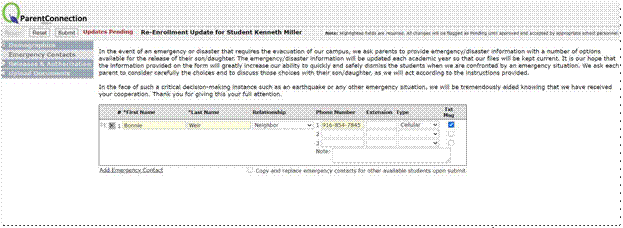
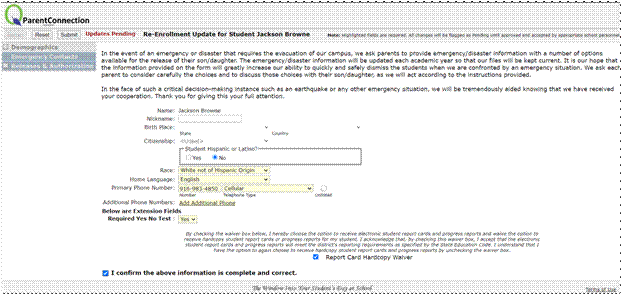
- Re-Enrollment – Districts may define a date range when parents may complete registration information for the following school year. Parents may complete emergency cards, update contact information, submit health information, and upload any required documents. Please see more detailed information later in this document.
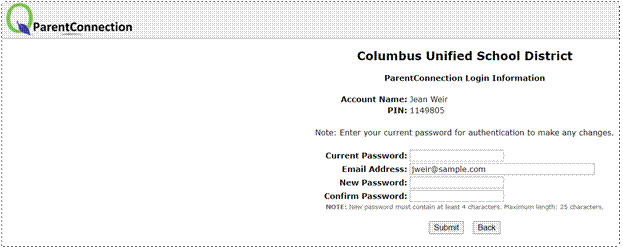
- My Account – Clicking this link allows you to review your account name, PIN, and update your password or email address. Click Submit to update information and Back to return to student.
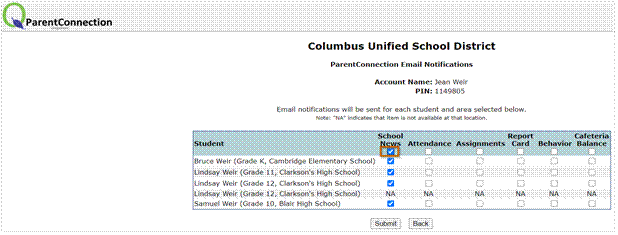
- Email Signup – Based on district configuration, you may choose to subscribe to email notifications. Select to receive email updates on a student-by-student basis for applications which may include School News, Attendance, Assignments, Report Card, Behavior and Cafeteria Balance. Clicking the box under the Area name automatically checks the box for all students. You may also click individual boxes for your students. When selections have been completed, click Submit to update information and Back to return to student. Note: Some schools may not have Email Notifications setup, and that will show NA.
- Help – Click here to access Help Information for ParentConnection.
- About – Click here to display the current version of the ParentConnection application.
- Sign-Out – Click here to exit Q ParentConnection.
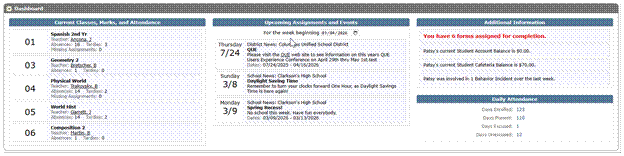
The Dashboard supports user-defined widgets. This module displays above all other menu options. Using widgets allows for summary information with links to specific data areas. Example widgets shown below include:
- Current Classes, Marks, and Attendance including links directing to each corresponding student data area.
- Upcoming Assignments and Events lists a combination of Class Assignments (links to assignments area), Class News, School News and District News.
Displays to the current week but allows the user to select a different starting date. - Additional Information:
- Forms display a total of forms assigned to the logged in contact for completion. (Links to assigned forms area.)
- Current Cafeteria balance. (Links to the Cafeteria area.)
- Current Student Body Accounting Balance. (Links to the SBA area.)
- Behavior displays the number of behavior incidents with involvement in the last week. (Links to the Behavior area.)
- Attendance shows a daily attendance summary for the current day.
Individual districts and schools determine what student data areas in Q are available for parent viewing. Application areas are minimized by default. Click the + sign next to an area to expand and view information. You may open as many areas as desired at once. When you have several areas open, clicking on an area name advances your screen to that area. If application areas were maximized during a previous ParentConnection session, they will be maximized by default during your next session. All the information contained in opened areas may be printed by clicking on the Print Info icon at the bottom of the list. Districts may also create their own custom areas to display. For more detailed information on specific data areas, please see details later in this document.
Navigation Tips:
- Sliding Menu Bar on the left side of the screen. This allows the menu to be hidden.

- Return to the top icon on the right side of the screen returns the focus to the top of the page.
(Only present when the right scroll bar is active.)
Assignments
- If the teachers use the Q Grade Book, assignment information is displayed. Assignments display for two weeks before the current date and one week after each class by default. Data included is the date assigned and date due, the number of points possible, and the score received. Additional information is available as explained below.
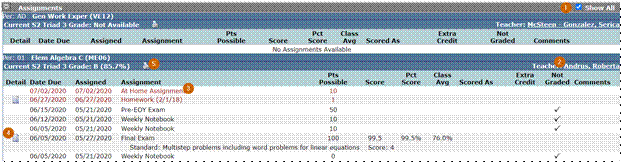 Click the Show All box to display all assignments for the class. If the box is not checked, the only assignments that display are those assigned two weeks before and one week after the current date.
 - When the teacher’s name is underlined clicking the name opens your default mail program with the faculty’s e-mail address in the To field.
- Assignments in red indicate that it is a missing assignment for this student. The task in general was marked as graded by the teacher, but there is no grade for this student, and the due date has passed.
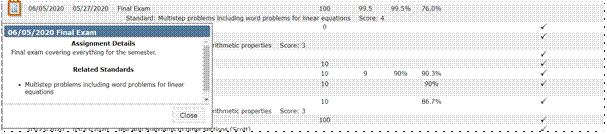
- If the assignment has a notepad icon, clicking the notepad displays information about the assignment. The current grade for the class can also display providing the teacher turns this option on.
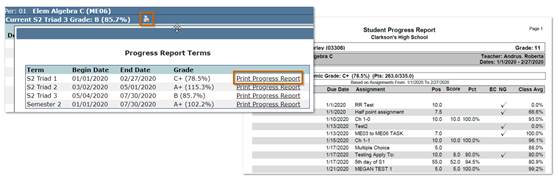
- If there is a printer icon next to the current grade, when clicked a popup appears with available progress report terms, click the link to print the student progress report.
Attendance
Summaries of student attendance by reason and by class are available. Two weeks of Attendance Detail is also available. If you click on the Show All Detail box, attendance details for the entire year are listed.
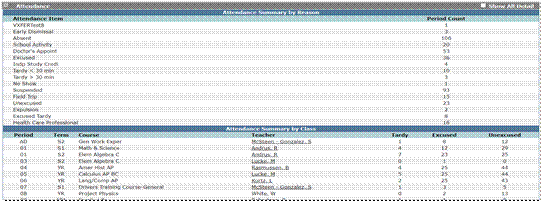
The Attendance Detail default sort is descending by date. Parents may click the column headers to change the sort order.
Schedule
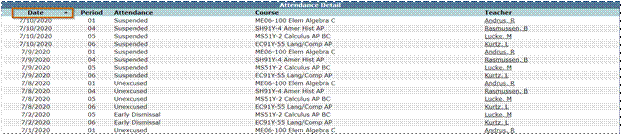
Student schedules may be available to view before the school year begins. Schools control the date to make schedules visible and may choose to hide the teacher name until the first day of school. The student’s schedule displays showing scheduled classes as of the current date. Teacher names that are underlined indicate an email link.


Click the Show All box to display classes for the entire school year. The default sort for a student’s schedule is by period; however, the sort may be changed to any column by clicking on the column header. When looking at a student schedule for the entire year, it may be helpful to view it by term. A notepad icon indicates the teacher has posted a class news item for the class.
Course Plan
Course Plans are made up of a sequence of courses to create a common academic plan for students to complete over multiple years. Plans may include specific district or school plans, and CTE Pathways.
The status of each course is shown, including transcript entries, scheduled, and/or requested status if applicable.
Marks
Student marks are displayed for all classes. When report cards are available, a link appears. When the link is clicked, the report card displays and may be downloaded. Links to Report Cards are based on current language being viewed. For example, if the user is viewing in English, only English versions of the Report Card documents will appear. If the user is viewing the portal in Spanish, then Spanish versions of the Report Card will appear when they exist, and English versions will appear when no Spanish version exists. Historical report cards may also be available for viewing in Student Documents if your school has made that area available.

Graduation Requirements
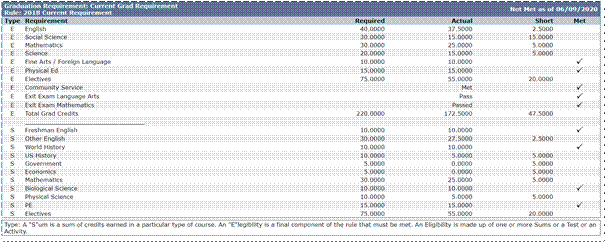
High School students may have their graduation requirements display. Recently added to Q is the ability to view more than 1 requirement. Students may have been calculated against multiple requirements and if so, they will all show with the Requirement that has been assigned to the student showing at the top.
Transcript
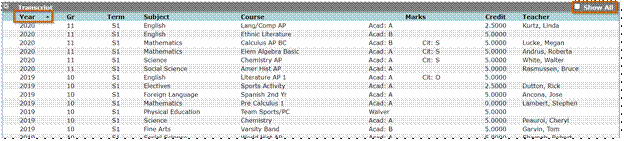
Student transcripts display with the default sort by year. The sorting order may be changed by clicking the column header. In most districts only those courses in grades 9-12 display. Click Show All to display the student’s entire transcript for all grades available.
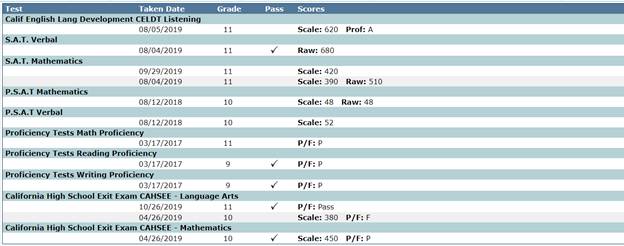
Tests
If your district chooses to display test scores, they display in ParentConnection
Accounts
Student Body Accounting Balance displays here along with detailed transaction history. Utilizing the link in the top right corner, parents can also make online payments.

Using the Online SBA Payments link a new window opens. Parents are able to add items for multiple students into one transaction and process at the same time. Select a student, then select an Item(s). The item(s) available to select may vary from student to student and school to school. Any items currently charged to the student account will be shown in red. Any items available on the online register are shown in black and can also be added to the cart for purchase.
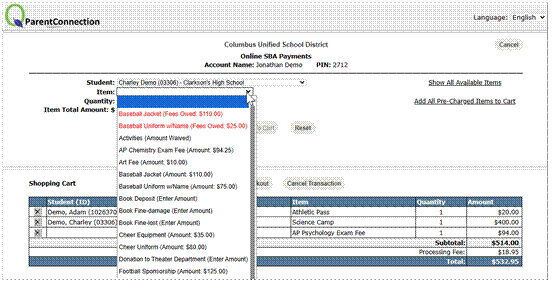
Select Proceed to Checkout to complete payment information. See the Online Payments section below for payment details.
Cafeteria
Food Service accounts may also be displayed allowing the parent to view their student’s current balance and transaction detail. Below balance information, there is a link available to email school personnel. (Default email address is set in the Parent Connect Manager – School Email.)
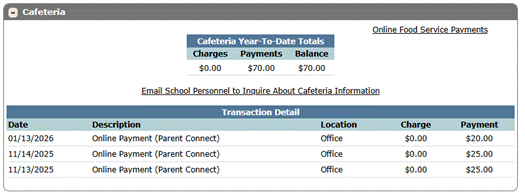
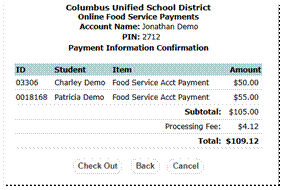
Using the Online Food Service Payments link at the top right of the cafeteria module will open a new window to submit Food Service Payments. Payments can be added to multiple students in one transaction by entering a payment amount for each student and then select the Continue button.
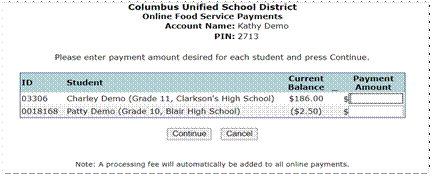
Click Continue and the next screen displays the payment disbursement and processing fees. (Processing fees are charges from the third-party online payment processing company.) Fees are configured under System - Online Payment Setup. Click the Check Out button to proceed with payment.
Online Payments
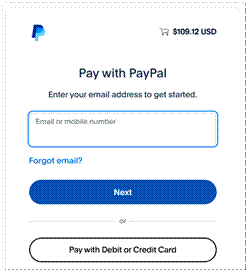
Cafeteria and SBA Checkout using PayPal:
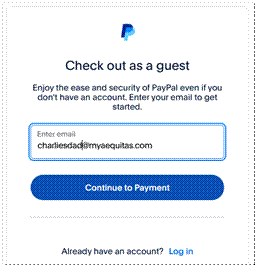
Parents can login with a valid PayPal account or select the Pay with Debit or Credit Card option at the bottom to continue without signing in.
 |  |
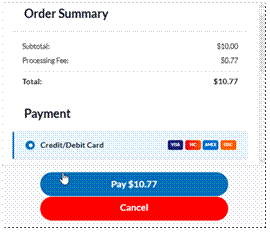
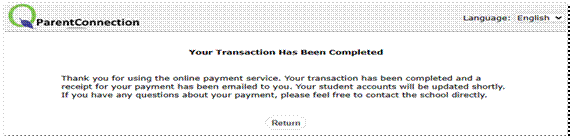
Enter Payment information and click the Pay button. Once transaction is completed, they are directed back to ParentConnection.
Cafeteria and SBA Checkout Using Authorize.NET:
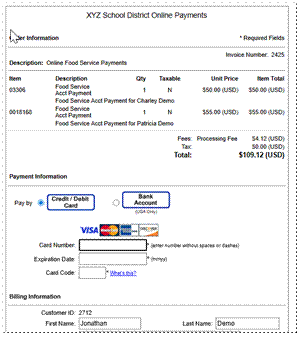
When the Checkout button is selected, parents are directed to the Authorize.NET screen with order details and credit card information can be added.
 | 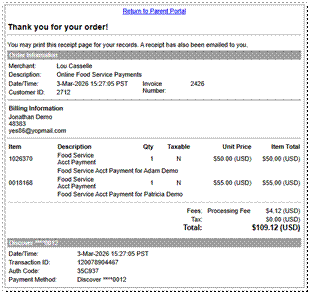 |
Once payment is completed, a receipt displays a link returning to ParentConnection.
School districts may configure attendance reporting by parents through ParentConnection. When this option is available, the link appears at the top of the page.

When the link is clicked, the parent is directed to a page listing all available students. Individual students may be selected, or all students may be selected by clicking the box at the top next to the student. Parents may view the student schedule by clicking on Show Schedule. When launched, the current date displays, and the All-Day box is checked. Parents may enter a date range if the student will be absent for several days.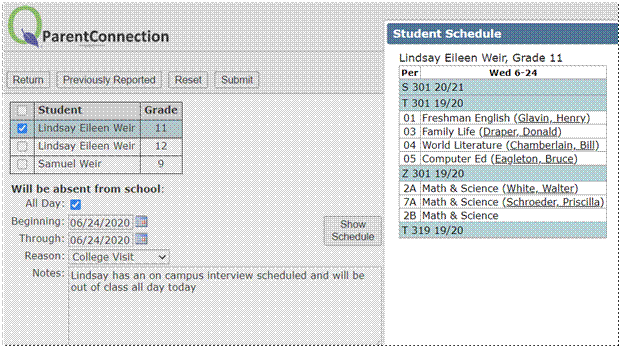
When the check is removed from the All-day box, times are available to indicate a partial day absence.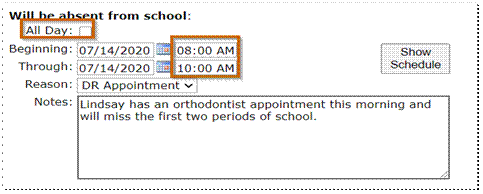
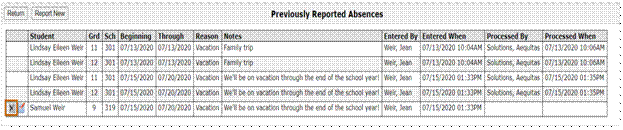
In addition to reporting absences, parents may view previously reported absences by clicking the Previously Reported button. A history of previously reported absences display. Any absence that has not been processed by the school may be deleted by clicking on the X or edited by clicking on the notepad icon.
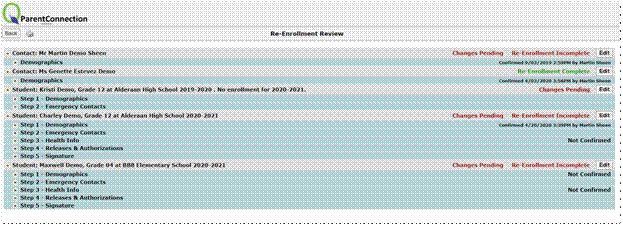
Many districts use ParentConnection for their annual re-enrollment process. The re-enrollment application can be customized, allowing districts to add specific information and questions. This is configurable to the track level and has grade level filtering included. While the re-enrollment process is collecting information over the spring and summer for future enrollment. Info Update is the same setup and can be used all year. For more information on re-enrollment or Info Update setup, see ParentConnect Manager for documentation.
Parents may login and update contact and demographic information for students and update any additional steps added by the district. Parents can save completed steps and come back later to finish. Status for each contact and student appears on the right of the screen.
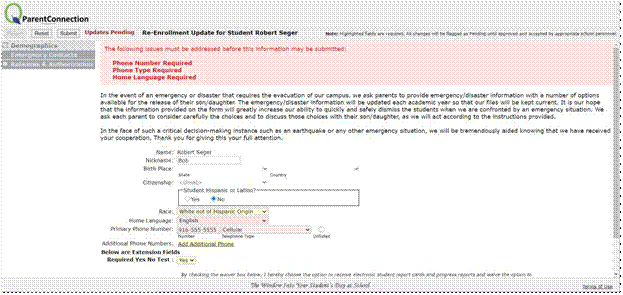
Setup includes validation hooks and will prompt user what fields need to be corrected. For data to save any errors on the step must be resolved first.
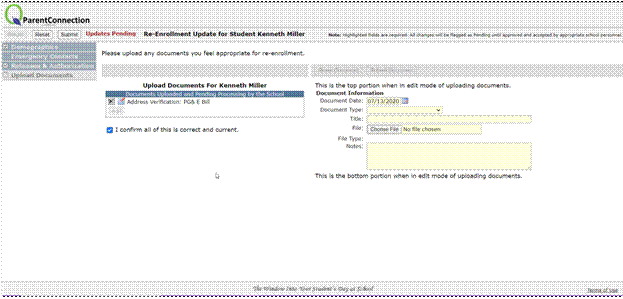
Districts may configure ParentConnection to accept the uploading of documents required in the registration process, such as proof of address.
Each contact can update their demographic information along with emergency contact information.