The Pre-Enrollment Setup application allows administrators to configure settings for the Pre-Enrollment application. There are settings to control the appearance, translations, required fields and documents, password reminders, and more.
Pre-Enrollment Setup is located under the System menu in Q and is only accessible when logged-in to the district track.
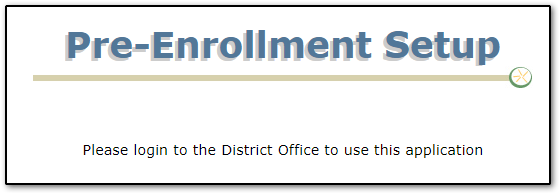
Users are prompted to login to the district track if they access Pre-Enrollment Setup from a school track.
The Options tab contains configuration items for the Pre-Enrollment application. It is available to users with the Pre-Enrollment Setup [Options] application right.
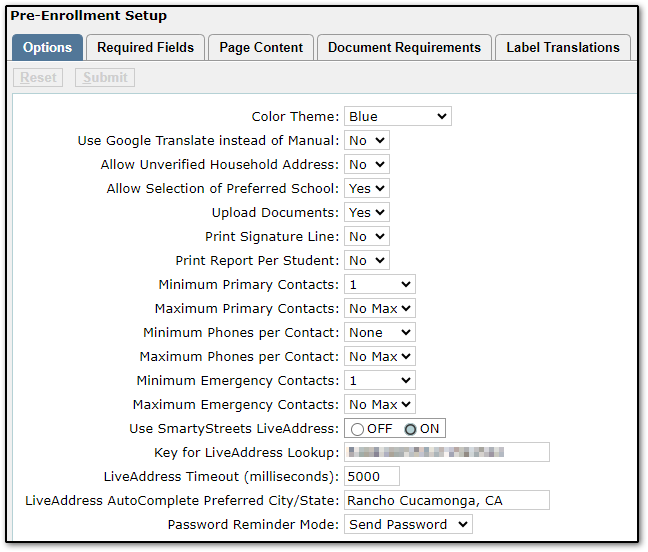 Color Theme - Color theme that is displayed when users log into Pre-Enrollment.
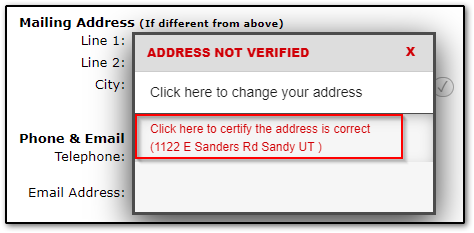
Use Google Translate instead of Manual - The Pre-Enrollment application supports user defined localization for screens, labels, and extension data. These must be entered in the various supporting applications by a district translator. Setting this to YES will ignore manual translations and present the user with a language selection provided by Google that will translate each screen in real-time using Google’s machine language translation.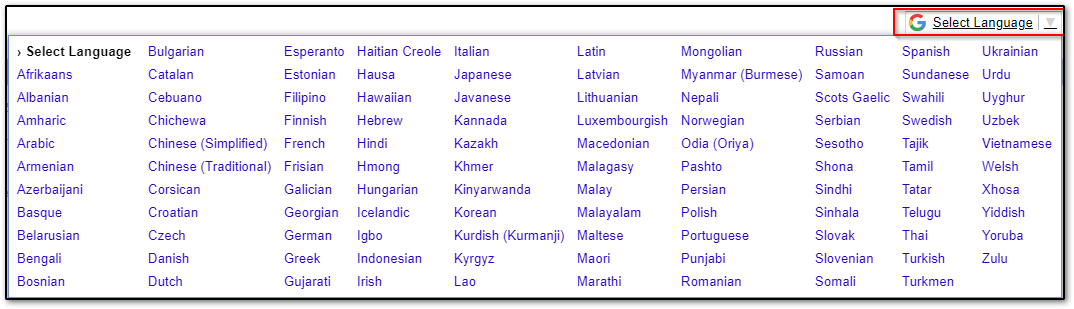 Allow Unverified Household Address - If set to YES, users will be able to submit addresses that do not pass verification (Smarty Streets).
 Allow Selection of Preferred School - If set to YES, Pre-Enrollment users will be allowed to select their preferred school of enrollment. If set to NO, the school of choice will be automatically determined by the household address the user has entered during the Pre-Enrollment process.
Upload Documents - If set to YES, users will have a Documentation step in Pre-Enrollment where they can upload documents required by the district. The Documentation step can be configured on the Document Requirements tab of Pre-Enrollment Setup. The Document Types that users are allowed to upload are defined in the Lookup Codes app.
Print Signature Line - If set to YES, the printable Pre-Enrollment Form on the final step will have a Parent/Guardian Signature line at the bottom.
Print Report Per Student - If set to YES, the printable Pre-Enrollment Form on the final step will print once for each student (typically used for site-based enrollment). If set to NO, only one report will print and it will have all students (typically used for central enrollment).
Minimum Primary Contacts - Define the minimum number of Primary Contacts required by the Pre-Enrollment process.
Maximum Primary Contacts - Define the maximum number of Primary Contacts allowed by the Pre-Enrollment process.
Minimum Phones per Contact - Define the minimum number of phone numbers required by the Pre-Enrollment process.
Maximum Phones per Contact - Define the maximum number of phone numbers allowed by the Pre-Enrollment process.
Minimum Emergency Contacts - Define the minimum number of Emergency Contacts required by the Pre-Enrollment process.
Maximum Emergency Contacts - Define the maximum number of Emergency Contacts allowed by the Pre-Enrollment process.
Use SmartyStreets LiveAddress - SmartyStreets provides real-time address verification designed to help ensure that the addresses entered meet USPS standards and are real addresses. SmartyStreets updates their database monthly from the USPS. When set to ON, and a valid key is entered (see below), Q will verify the addresses entered with SmartyStreets. When set to OFF Q will simply accept the addresses entered by a parent as-is.
When set to ON parents will see a list of addresses as they type and can either select an address from the list or enter the address and then click on the Verify button that will appear at the end of the zip code field. If the address which has been entered is verifiable, the checkmark will turn green and read ‘Verified’. If the address could not be verified, a pop-up message will be displayed informing the user that the ‘Address is not Verified’.
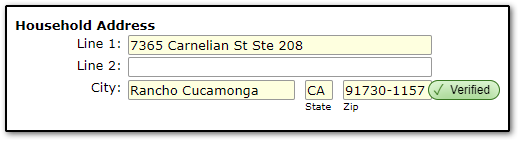
Address which has been verified.
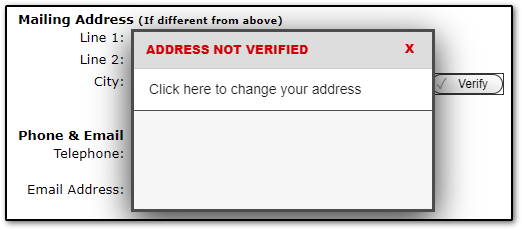 Address which could NOT be verified.
Key for LiveAddress Lookup - Enter the LiveAddress Key to use LiveAddress lookup for their area. This key can be obtained from Aequitas support if you do not already have one.
LiveAddress Timeout (milliseconds) - Enter the amount of time the system should wait for a response from SmartyStreets. The default is 5 seconds (5,000 milliseconds).
LiveAddress AutoComplete Preferred City/State - This sets the preferred city or state when doing a LiveAddress lookup and tells Q to sort those entries to the top of the list.
Password Reminder Mode - This setting allows the district to configure if users can perform a password retrieval or reset. The available options are:
- No Reminder – disables the password reset option.
- Send Password – enables the password reset option and emails the user their current password if they enter an address that matches a currently active pre-enrollment.
- Send Reset Link – (recommended) enables the password reset option and emails the user a limited time use password reset link that they can then click on and set a new password.
The Required Fields tab allows administators to define which fields users will see and which fields will be required in the Pre-Enrollment application.
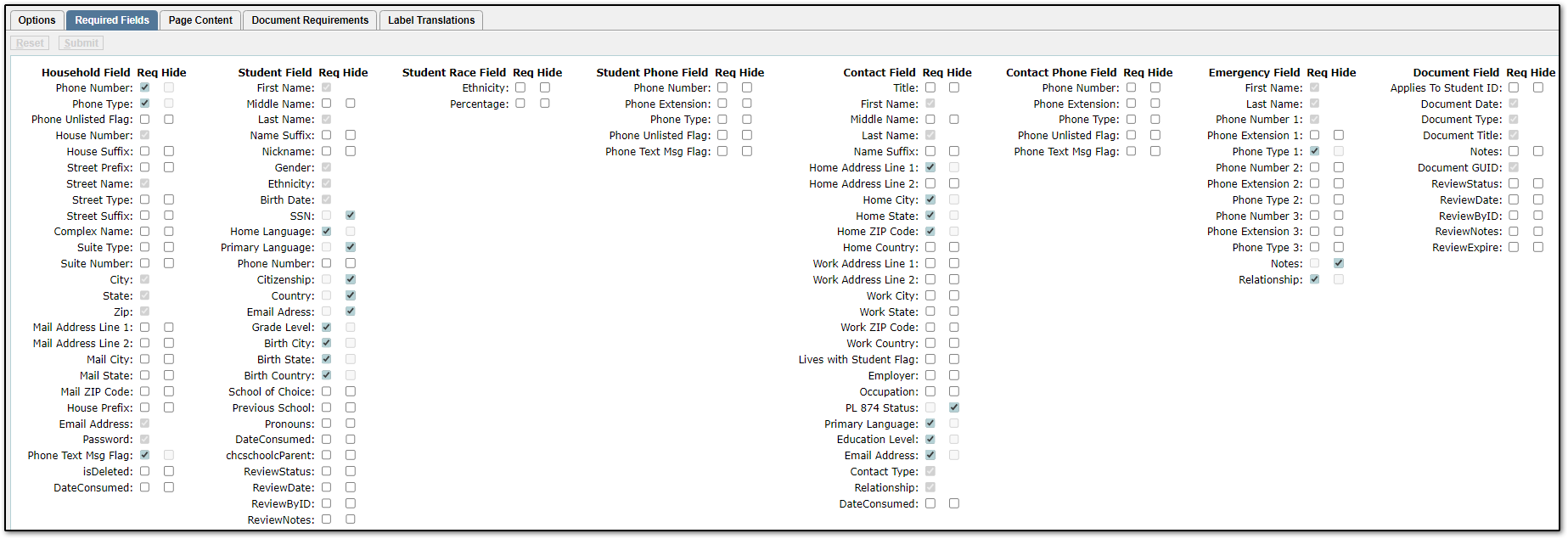
Fields with the Req box checked are required. Pre-Enrollment users will not be able to click the Submit button until all required fields on the page have been filled out.
Fields with the Hide box are considered hidden and will not be displayed to Pre-Enrollment users.
If neither box is checked the field will be optional. Users will see it but are not required to fill it out.
Note: Some fields are required by Q and cannot be turned off or hidden.
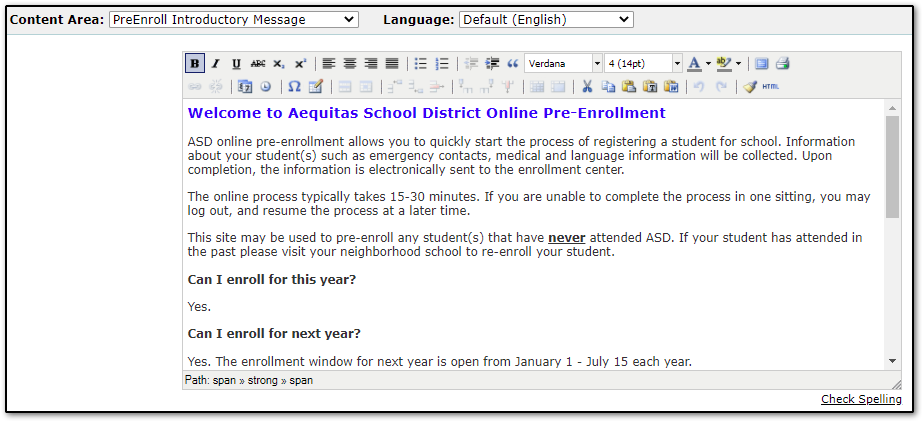
The Page Content tab allows administrators to create custom content for different areas of the Pre-Enrollment application. Content typically consists of instructions for the end-user or links to different resources that may be helpful to someone going through the Pre-Enrollment process. Content can be translated into multiple languages.
To create custom content:
- Use the Content Area drop-down list to select which area of Pre-Enrollment this content is for.
- Use the Language drop-down list to select which language the content will be in.
- Use the rich text editor to create content. Click Submit to save your changes or Reset to clear any changes.

The Document Requirements tab allows administrators to define how many documents and which types of documents users must upload in Pre-Enrollment. If requirements are defined users will not be able to complete the Pre-Enrollment process until all required documents have been uploaded.
Document Type - The Document Type for this requirement. Document Types are defined in the Lookup Codes application and must have the UseInPreEnroll flag set to 1 in order to show in this drop-down menu.
From Grade/To Grade - The grade range this requirement applies to. Users will be unable to complete Pre-Enrollment if they have a student in the grade range but have not uploaded the required documents.
Required - Number of documents required.
Notes - These notes will be displayed to users in Pre-Enrollment when they open the Requirements window. Notes are typically used to clarify which documents would satisfy a requirement or to provide additional instructions to the end-user.
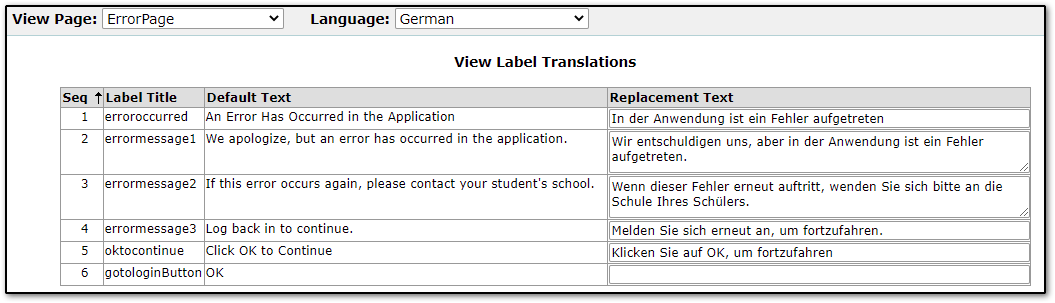
If you are using manual translations, the Label Translations tab allows for the creation of replacement text which will be displayed based on the page for which they are defined.
- Select the Page for which you would like to create label translations from the View Page drop down list.
- Select the Language in which you would like to enter label translations.
- Default text for each label title will be displayed. Enter the desired replacement text. If no text is entered as a replacement, the English version will be displayed.
- Click Submit to save your changes or Reset to clear any changes made since the previous save.