
The Group Editor application is used to both define and view groups of students, faculty, and courses based on selected criteria. Groups may be created at the district, school or faculty level. Some examples of groups are 9th Grade Girls Basketball Team, ESL Teachers and Science Courses. Once groups are created they may be used throughout Q.
Group Editor is located under the System menu in Q.
Once the Group Editor has been opened, the user will be able to view a list of all groups they have access to. The groups can be filtered by Group Type, Group Code, Group Description, Owner Type, Owner, or Process Type.
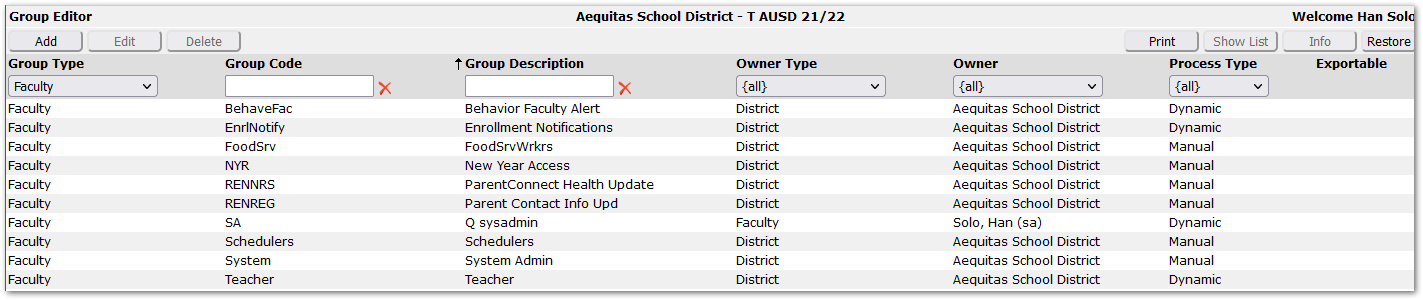
- Group Type: users can filter the group type by faculty, student, course, or all types.
- Group Code: if a user knows this group code, they can type it in this text field. The list of groups will adjust to only include the text entered here.
- Group Description: if a user knows this group code, they can type it in this text field. The list of groups will adjust to only include the text entered here.
- Owner Type: users can filter the owner type by faculty, school, district, or all types.
- Owner: users can filter the groups viewed by selecting an available owner from the drop down menu, or can view all owners.
- Process Type: users can filter groups by the process type – manual, dynamic, or all types.
- Exportable: Indicates the group is available and will be exported to Q Communications interface.
Note: Just because a user can view a group in the summary list does not necessarily mean that they can edit or delete that group. Please see the section on permissions at the end of this document for more information on Group Editor Permissions.
In the upper right hand corner of the main view page of the Group Editor, there are four different tabs – Print, Show List, Info, and Restore. Note: the Restore tab only appears when logged in to the District or logged in as someone who is flagged a System Administrator.
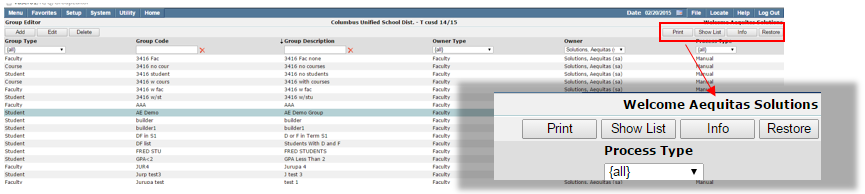
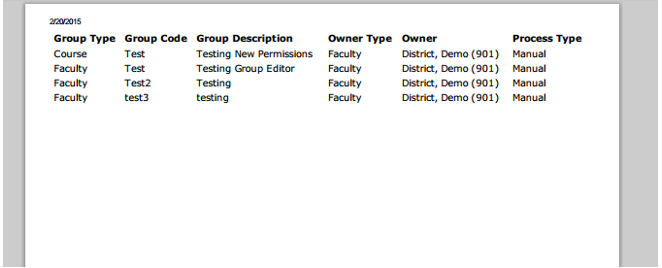
- Print: this option will print a list of all groups available to the logged in user.
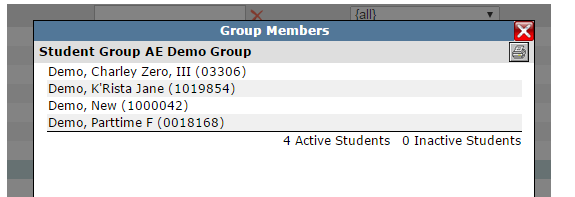
- Show List: The Show List tab will bring up a list of all Group members in a selected group.
- Info: The Info tab shows information for the selected group.
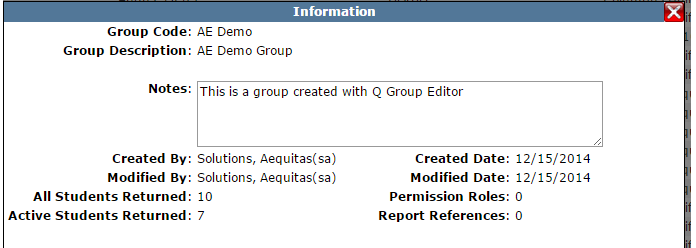
- Restore: the Restore tab gives users who are logged in to the district, or a user who is flagged as a System Admin the ability to restore groups that have been deleted.
To add a new group, click the Add button on the top left side of the page.
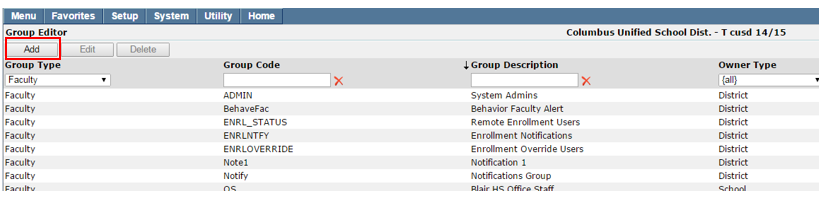
Once Add has been clicked, a new window will appear.
- There are three types of groups that can be created – Student, Faculty, and Course.
- There are three different types of processes that can be used to create the group – Dynamic, Manual, and Group Builder.
Note: Group Builder is only available as an option when creating a Student group. Dynamic is only available as a process type to someone who is flagged as DB Admin, System Admin, or has permissions to Group Editor (Administrator).
- A Group Code and a Group Description are required fields when adding a new group.
- When checked the 'Is Exportable' checkbox will make the group available for export as part of the Q Communications interface.
Group Builder Process Type
When a Student Group Type is selected, the system defaults the Process Type to Group Builder. Although this is the default, the Process Type can be changed by the user to either manual or dynamic (depending on permissions). Note: Please see Permissions section at the end of this document for information on Group Editor Permissions.
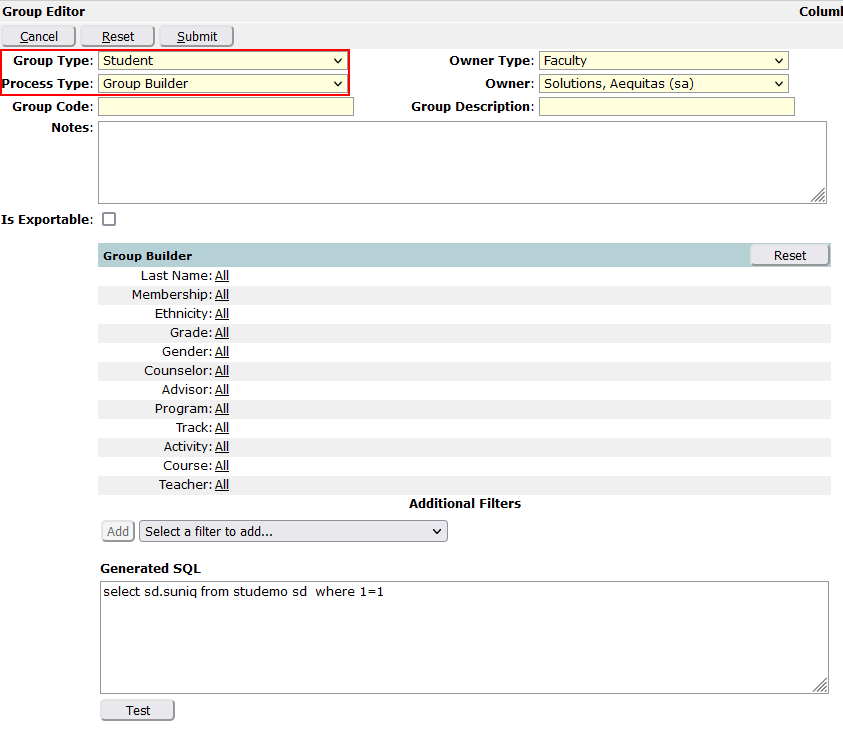
The Group Builder Process type can only be selected when creating a Student Group type.
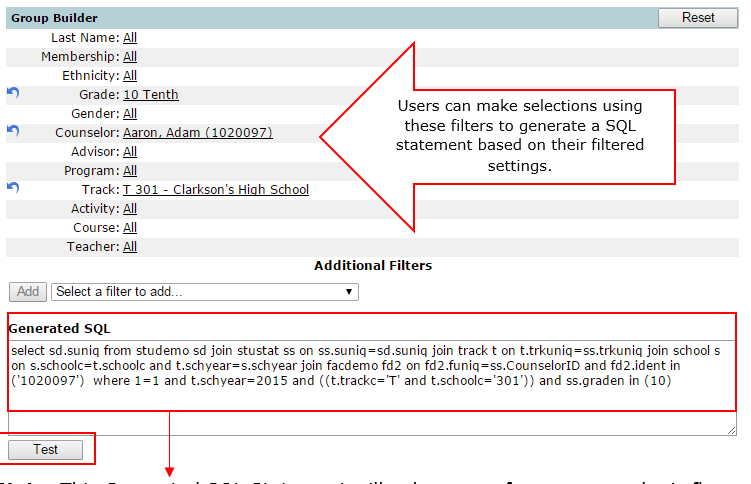
Note: This Generated SQL Statement will only appear for someone who is flagged as System Admin, DB Admin, or has permissions to Group Editor (Administrator).
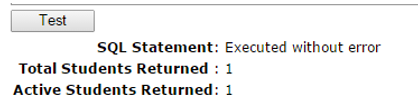
Once all filters have been selected for the Group Builder, users should click the Test button to test the generated SQL statement. Once the Test is run, a message displays to let the user know if the SQL Statement was executed with or without errors. The total number of students and the total number of active students returned by the generated SQL Statement are also displayed.
Manual Process Type
For users who have permissions to Group Editor (Course Groups) and Group Editor (Faculty Group), when adding a Faculty Group Type or Course Group Type, the system defaults the Process Type to Manual. Note: Group Builder and Dynamic Process Types are not an option for a Faculty Group or a Course Group unless the user has permissions to the Group Editor (Administrator), Group Editor (Faculty Groups), or Group Editor (Course Groups).
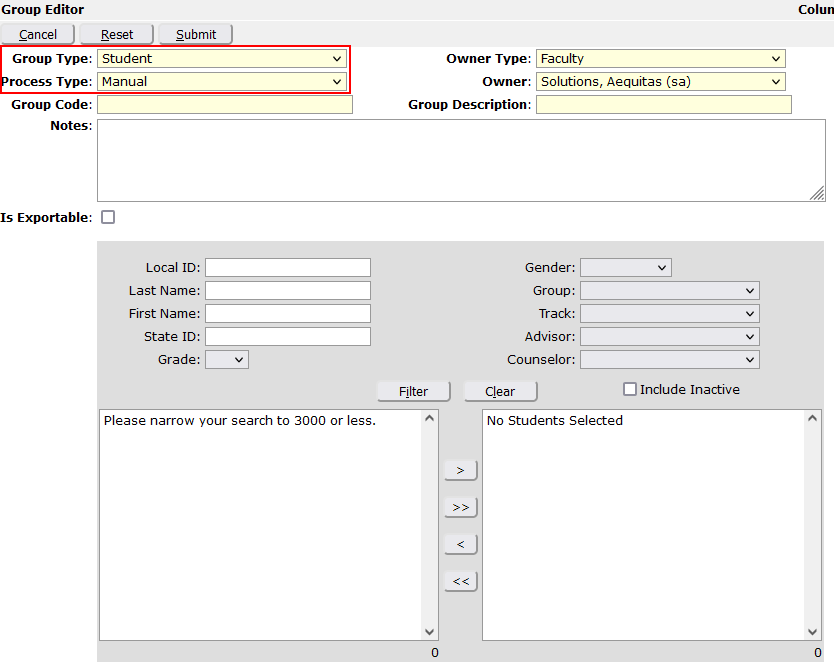
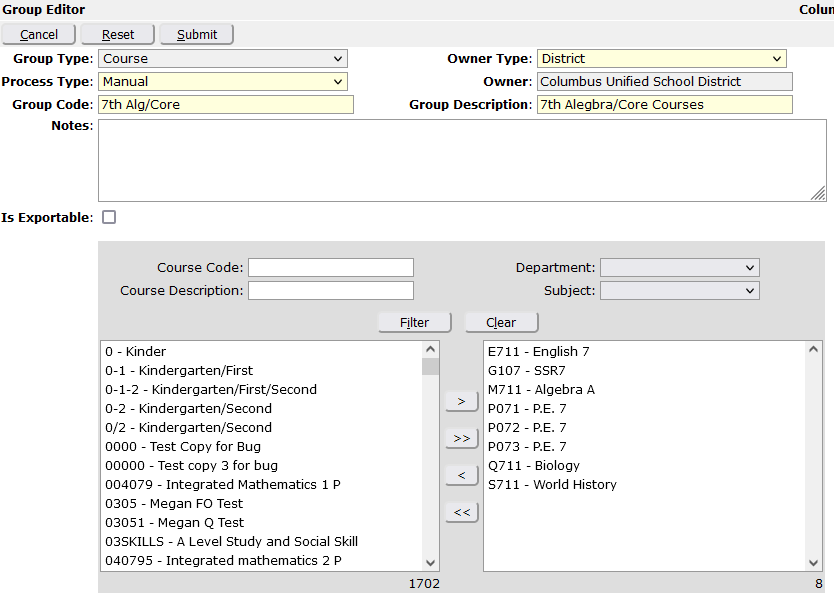
- The Manual Process Type allows users to select one by one the faculty, courses, or students (depending on Group Type selected) to be included in a particular group.
- A list of all available faculty/courses/students to choose from appears in the left box. To select a member/course, you can double click on the name, you can highlight a name and click the single arrow to select that person/course, or you can hold down the Ctrl key, and click on multiple names/courses to add at once.
Note: Manual groups need to be maintained. If a person should no longer belong to a group, someone will have to go remove them from the group.
Dynamic Process Type
Note: The Dynamic Process Type is only available to those who are flagged as DB Admin, System Admin, or those who have permissions to the Group Editor (Administrator). Users who only have access to the Group Editor (Application) will not have the Dynamic process type option.
Note: Please see the section on Permissions at the end for more information on Permissions.
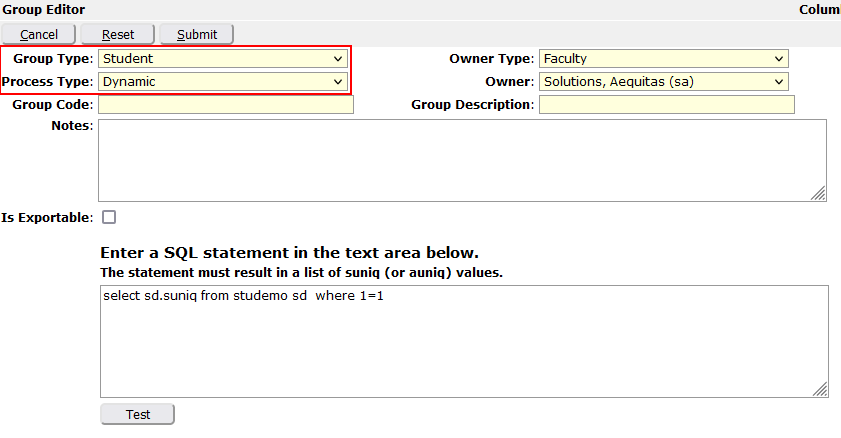
For a Dynamic Group Type, the user enters a SQL Statement to set the parameters of the group. The system supports four (4) variable parameters:
?osncs.nfuniq - funiq (internal faculty ID) of the logged in user
?osncs.ntrkuniq - trkuniq (internal track ID) of the currently active track
?osncs.dsndate - Current system date
?osncs.cschoolid - School ID of the currently active track
Note: Dynamic groups do not have to be maintained like a Manual group does. The system will query the statement that has been entered, and will only bring back members who qualify for the statement parameters, thus returning with the most up to date information.
To edit an existing group, select a group and click the Edit button.
Note: Only users who have access to the Group Editor (Course Groups) and Group Editor (Faculty Groups) will be able to Edit the Course and Faculty groups they have access to.
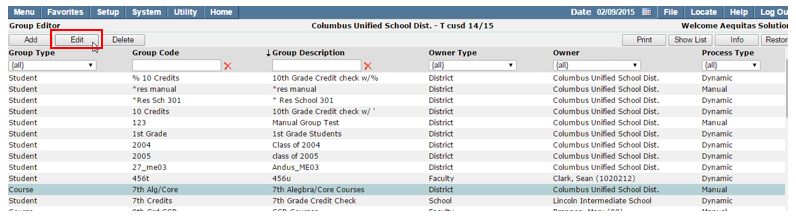
After you have clicked Edit, the screen displays in edit mode, but not all fields can be edited. The Group Type cannot be changed. The Owner can only be changed if the Owner Type is changed.
The Process Type, Group Code, and Group Description are all editable.
To delete an existing group, select a group and click the Delete button.
Note: Only users who have access to the Group Editor (Course Groups) and Group Editor (Faculty Groups) will be able to Delete Course and Faculty groups that they have access to.

Once you click Delete, a window will pop up to confirm deletion of the selected group. The window displays a message that lets you know if the group is associated with a specific Permissions Role, or if it is used as a default setting in a report set.
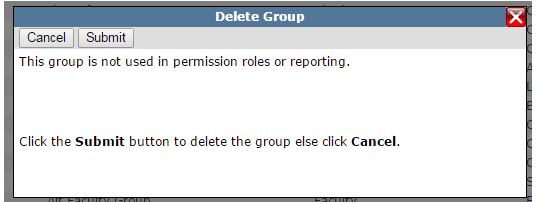
Select Submit to continue, or Cancel to return to the previous window.
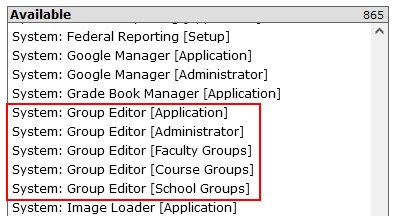
- There are five permission items associated with the Group Editor: Group Editor (Administrator), Group Editor (Application), Group Editor (Course Groups), and Group Editor (Faculty Groups) and Group Editor (School Groups).
- If a user is flagged as a System Administrator or DB Administrator, or if they have access to Group Editor (Administrator), they will have access to view, add, edit, and delete all types of groups.
- If a user only has access to Group Editor (Application), they will not be able to Edit or Delete existing Course or Faculty groups, and will also not be able to Add new Course or Faculty Groups.
- If a user has permissions to the Group Editor (Course Groups) and Group Editor (Faculty Groups), they will be able to Add, Edit, and Delete Course and Faculty Groups.
- When a non-administrator at a school site is given permission to Group Editor (School Groups), the list of available groups will include the Student groups they own along with other groups owned by the logged-in school. Sub-rights for the permission item are honored so users can be given rights to maintain attendance groups without the ability to add or delete any of the school groups.
