In Q the term “household” refers to a unique address stored in the database. A household could be the residence of a single student or multiple students and contacts. When the Households address system is implemented, a unique address only needs to be entered into the system once. Then siblings and/or contacts that live at the same address are linked to that unique address record. The Address Manager is an application that allows the user to activate and configure the use of households, set up addresses and ranges, design and manage school boundaries, find, verify, and validate addresses and locate schools of attendance based on address.
It is important to understand the difference between Verification and Validation in Q. With the use of the LiveAddress feature from SmartyStreets® in Address Manager, it is possible “verify” legal addresses during student enrollment. Legal addresses are those designated by the US Postal Service as verified to receive mail. Address Validation is the determination by Q of whether an address is valid within a district’s boundaries based on its attendance areas, also known as Geo Codes.
Address Manager is located under the System menu in Q.
The Address Manager has 7 configuration tabs. Options, Address Ranges, School Feeds, Mass Validate, Invalid Addresses, Locate Schools and Address Components.

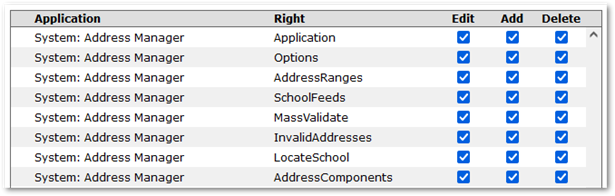
Access to each tab is configured in the Permissions Editor with the following items.
- System: Address Manager [Application]
- System: Address Manager [Administrator]
- System: Address Manager [Options]
- System: Address Manager [AddressRanges]
- System: Address Manager [SchoolFeeds]
- System: Address Manager [MassValidate]
- System: Address Manager [InvalidAddresses] System: Address Manager [LocateSchool]
- System: Address Manager [Address Components]
NOTE: An additional permission used with Address Manager is located under Enrollment permissions:
- Enrollment: Student Editor [OverrideAddressVerification]
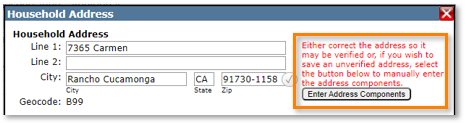
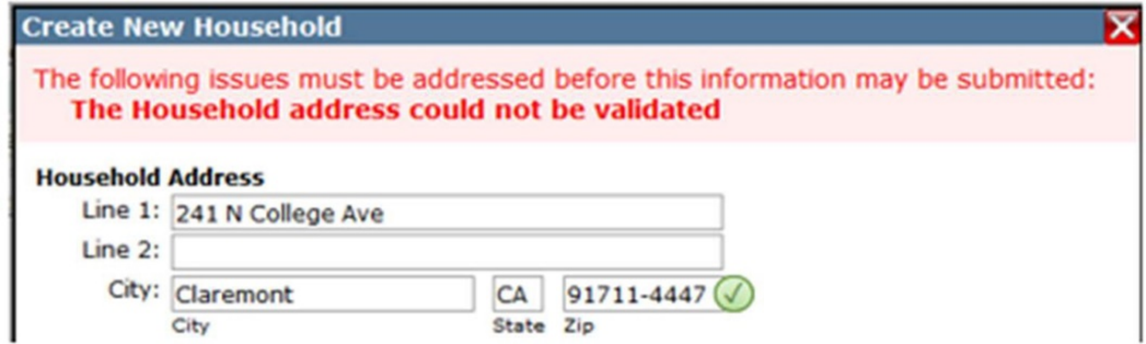
When an address is not verified because an address component is not correct according to SmartyStreets the following error message appears:

If the user has the [OverrideAddressVerification] permission, they will have the ability to correct the issue by adding or changing the address components.
Within each permission are Role Restrictions to manage specific user rights.
The Options menu contains settings that will determine the way addresses are to be handled in your district.
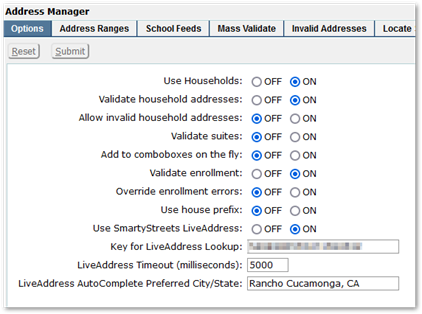
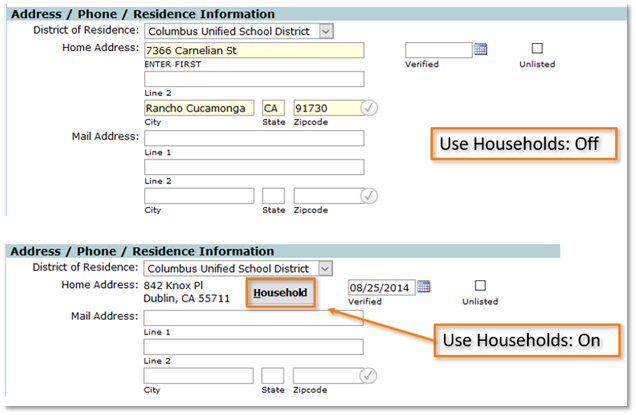
Use Households
Set to “On” to enable the use of Household Addresses in Q Student Editor. If set to “Off,” all Validation options are effectively disabled. Options associated with Verification (LiveAddress) are still active.
Validate household addresses
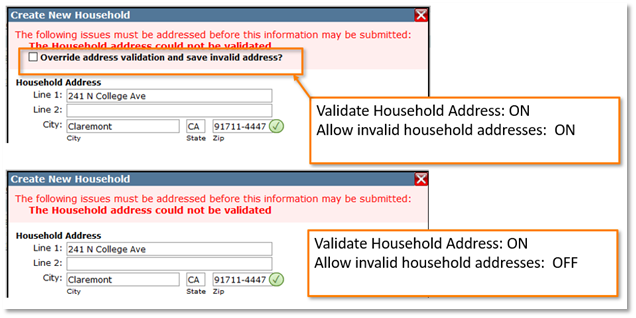
When “On” the user will be warned of an invalid Household Address when enrolling a new student in the Student Editor. Invalid addresses will not be allowed at the time of enrollment unless the “Allow Invalid Address” option is checked “On” (see below).
Allow invalid household addresses
Check “On” to allow an invalid Household Address to be entered during the new student enrollment procedure in Student Editor. Check “Off” to disallow the entry of invalid addresses during enrollment.
Validate suites
Check “On” to validate all the way to the suite (apartment) numbers. Check “Off” to disable this feature.
Add to comboboxes on the fly:
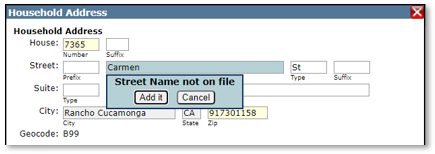
Check “On” to allow a user to add new Street Names, prefixes, suffixes, street types, Zip codes, and Geo Codes to the selection lists during the Add procedure in this application and in the enrollment procedure in the Student Editor.
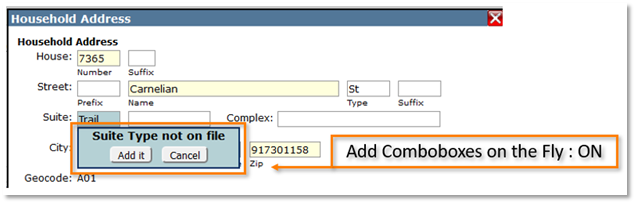
If checked “Off” the user will only be able to select from pre-defined choices (set up by the System Administrator).
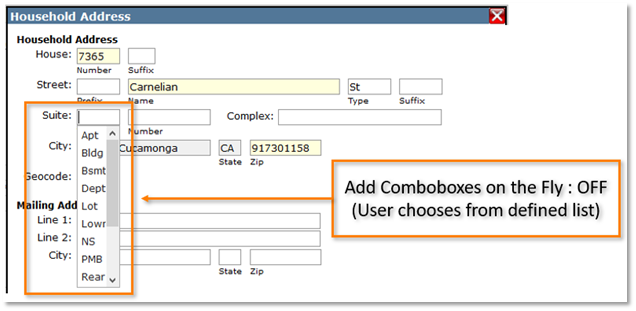
Exception: If the student being enrolled is residing outside of the district, their address may be added to the Households database on-the-fly regardless of how this preference is set. To allow this override, a district other than the logged Q district (default district) must be selected in the District of Residence field in the Student Editor enrollment form.

The Option “Add to comboboxes on the fly” also determines the functionality of adding/editing Address Ranges.
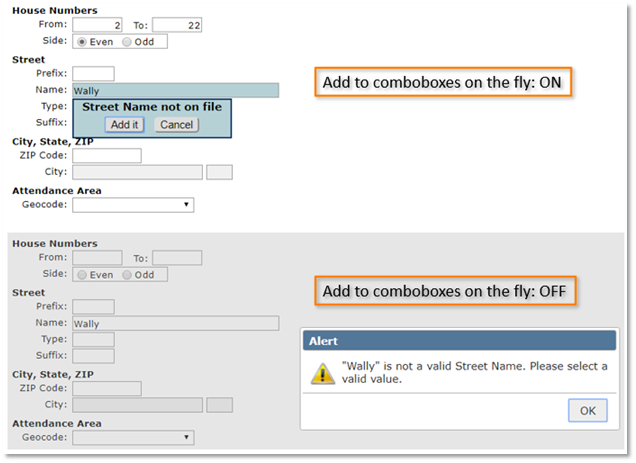
The “Add to comboboxes on the fly” preference also works with the [OverrideAddressVerification] permission described above to allow the user to add components to fix verification problems.
Validate enrollment
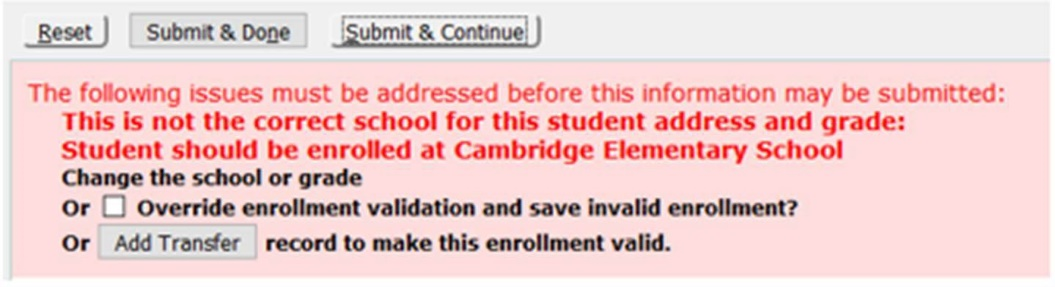
Validate Enrollment will check to see if a student is enrolled in the correct school site according to their Household Address and Grade Level. This Validation is facilitated by the Geo Code (Attendance Area) attribute of a Household address. When “On” the user will be warned of an invalid enrollment when enrolling a new student in the Student Editor application.
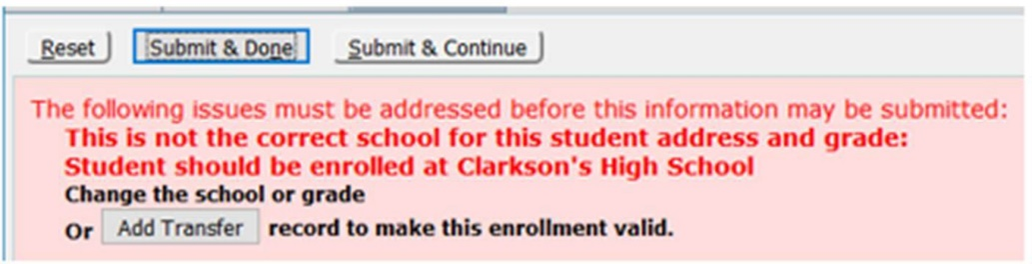
Override enrollment errors: Check “On” to allow an invalid enrollment (student enrolled in a school other than their ‘School of Residence”).
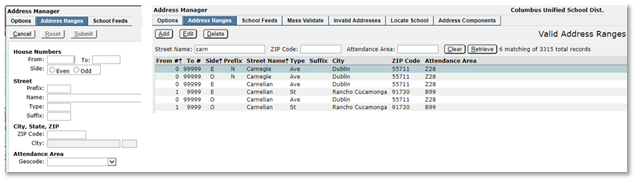
Use house prefix: A House Number in a Household Address has two default fields: Number (numeric only, required) and Suffix (alphanumeric, optional) – plus an Odd/Even toggle. When this preference is “Off” the house number is numeric only.
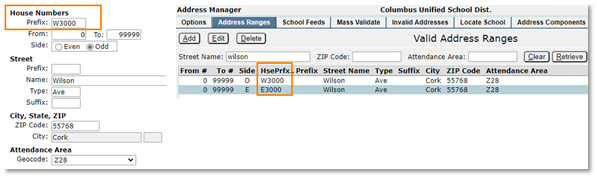
Check this preference “On” to add an optional Prefix field to the House Numbers array. The House Prefix field allows entry of alphanumeric characters that may be required (in rare cases) before the Number field.
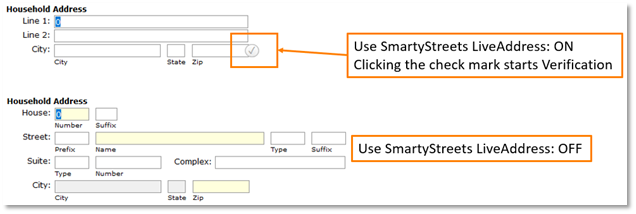
Use SmartyStreets LiveAddress
This option turns Address Verification On or Off.
Key for LiveAddress Lookup
This license key number will be provided to you by Aequitas.
LiveAddress Timeout (milliseconds)
Time before an Address request to LiveAddress is considered to have failed if no response is received. (1000ms = 1sec)
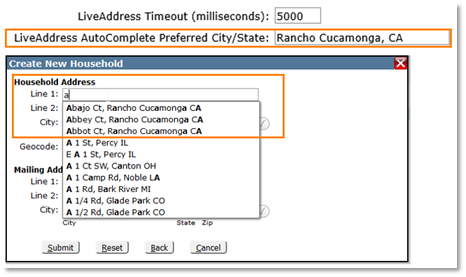
LiveAddress AutoComplete Preferred City/State
When a city/state is entered into this option, as the user fills out the LiveAddress fields, the preferred City/State will be displayed first in the results.
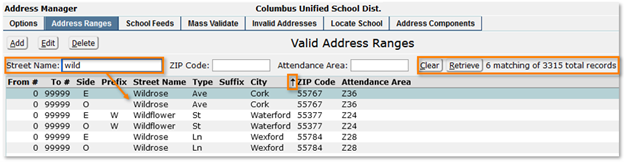
This application displays a list of Valid Household address ranges that match the entries in the search fields, Street Name, Zip Code or Attendance Area. Enter complete or partial information in one or a combination of fields and click the Retrieve button. The list will be generated and the number of matches from the total records will display next to the button. A complete listing of all addresses can be displayed by leaving the search fields blank and clicking Retrieve. The direction of the sort for the fields can be toggled ascending or descending by clicking again on the column header. A small pointer graphic will be displayed in the column header of the current primary sort field, pointing up for ascending or pointing down for descending.
Adding or Editing an Address Range
Click Add or Edit. Items in these windows are dependent on the Options previously chosen. In the example below, Use House Prefix and Validate Suites are both set to “On.”
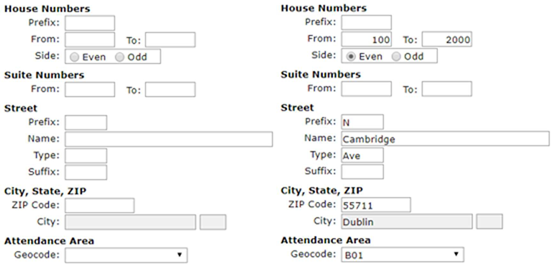
- Prefix: House Prefix if
- From/To: Beginning and End of valid house number
- Side: Side of street for valid house number range, Even or If both sides are within the geographical boundaries of the district, define a range for both.
- From/To: Beginning and End of valid suite number range, if
- Prefix: Street name Prefix, if
- Street Name: Street
- Type: Type of street (i.e. , St., Ave. etc.)
- Suffix: Street suffix, if
- ZIP Code/City: The Zip Code table contains the zip code, city, county, and state and when the zip code is entered, it auto populates the
- Geocode: Geographical reference code, also referred to as the Attendance Area.
Deleting an Address Range
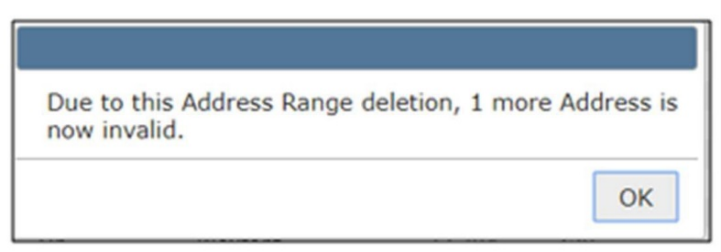
Caution should be exercised when deleting address ranges as this can cause addresses to be invalidated. Q Address Manager will warn of this when deletion is attempted.
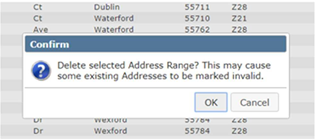
If addresses are invalidated, the number of them will be shown. If an error has been made by deleting, it can be fixed using the Invalid Addresses tab.
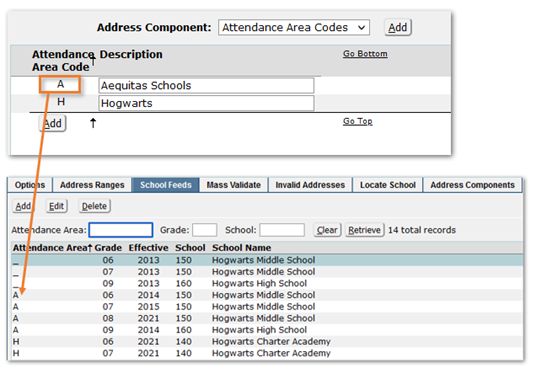
The School Feeds tab is designed to map students at each grade to the appropriate school based on their Attendance Area (Geo Code). This is especially important when students reach promotion grade as Q uses the school feeds mapping during the Year End process to enroll students into the next grade/school. The search tool bar is similar to Address Ranges and, for example, shows students in Attendance Area A01 attend Cambridge Elementary School for grades PK-6, Lincoln Intermediate for grades 7-8 and Clarkson’s High School for grades 9-13.
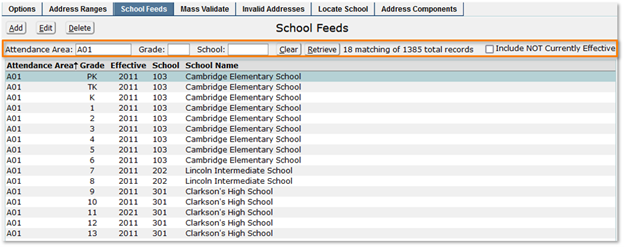
Each entry has an Effective Year field that allows for setting up future school boundary changes without affecting current mappings. Active boundaries are shown by default. Click “Include NOT Currently Effective” to see inactive boundaries.
Adding or Editing a School Feed
Click Add or Edit. To add a school feed, select the Attendance Area, Grade, Effective School Year and School and click Submit.


Click the Validate button. This process will scan all of the Household addresses and validate each one against the Valid Address Ranges. Each will be marked as either Valid or Invalid and totals will be shown. Valid records will have the appropriate Attendance Area assigned.
The main screen of this application displays a list of Invalid Household addresses, sorted in ascending alphabetical order by Street Name. The Invalid Addresses window has the same search and sorting features as Address Ranges and by default loads the currently active addresses. To see all invalid addresses, check the “Include NOT Currently Active” box.
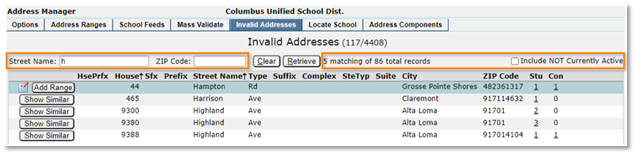
Inactive addresses are those no longer associated with any students or contacts.

Managing Invalid Addresses
In the upper right corner of the Invalid Addresses screen, you will see two numerical values separated by a forward / slash. The first number is a count of the Invalid Address records in the system and the second number is the total Household Address records in the system.
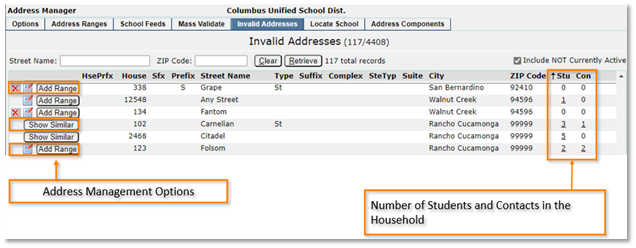
Each address includes a Stu and Con column and the numbers there represent the number of Students and Contacts in the Household. Clicking on the numbers will reveal the names of the household members and this data can be printed using the Printer icon.
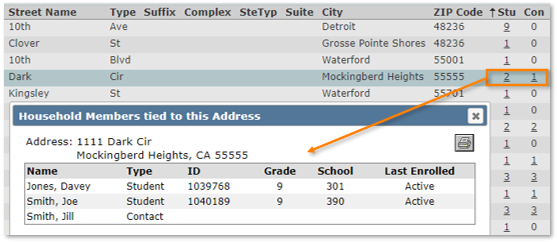
Three management options are available for addresses:
- Show Similar
- Add Range
- X Add Range and X Show Similar
When an X precedes the button, it indicates that there are no students in the household. Deleting inactive addresses is a recommended maintenance practice.

After validating an address using any of these methods, Q will show a pop-up message with the results of the validation.
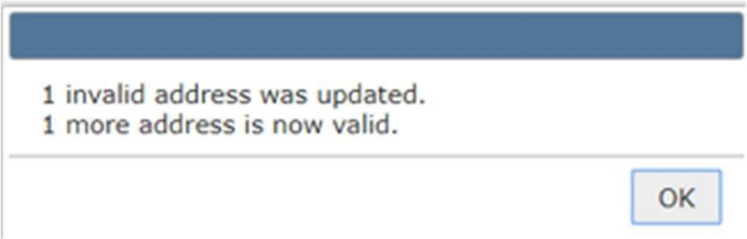
Show Similar
This option is available when the invalid address looks like a possible match to an existing address range and clicking on Show Similar opens up additional choices for validation:
- Edit Invalid Address
- Apply Range to Address
- Apply Range to All Matching
- Edit Selected Range
- Add Range Based on Address

Edit Invalid Address
Sometimes the invalid address is due to minor inaccuracies. Correct the incorrect address so that it conforms to the parameters of a valid address range and click Submit.
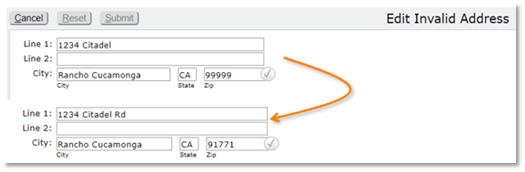
Apply Range to Address
There may be cases where an invalid address has the correct House Number and Street Name to qualify as a valid address, but faulty data in other fields, such as Street Prefix, Street Type, Zip Code, etc. Use Apply Range to Address to overwrite all the attributes, except the House Number, of an invalid address with the attributes of a valid address source.

In the above example, using Apply Range to Address, 1234 Citadel, Rancho Cucamonga, CA 99999 will become 1234 Citadel Ave, Dublin CA 55711.
A valid address source will be any address range that appears in the “Valid address ranges similar to selected invalid address” screen. The valid source will always have the same Street Name as the selected invalid address.
Apply Range to All Matching
This option will overwrite the attributes of all invalid addresses with a House Number and Street Name that match the valid address range. In this example 5 addresses and their associated households were updated to valid addresses.
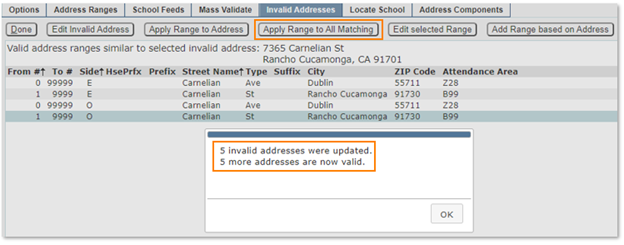
Edit Selected Range
This option opens the Edit feature of Address Ranges and allows adjustments to the similar range so that it now includes the invalid address thereby validating it.
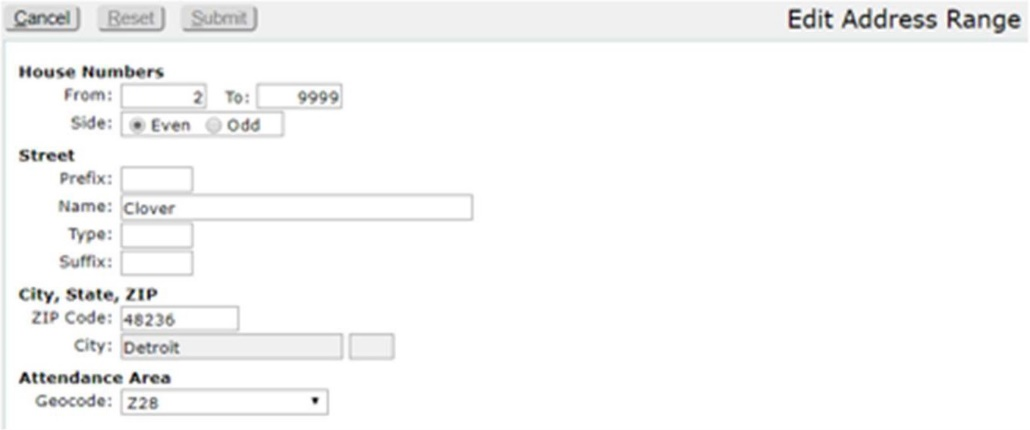
Add Range based on Address
This option is similar to the Edit Selected Range but populates the Edit Address Range fields with the specific address that is being validated. This is a fast way to make a single address into a valid range. This is useful when managing random single addresses from outside the district’s boundaries that might be entered as a result of Intra District transfers.
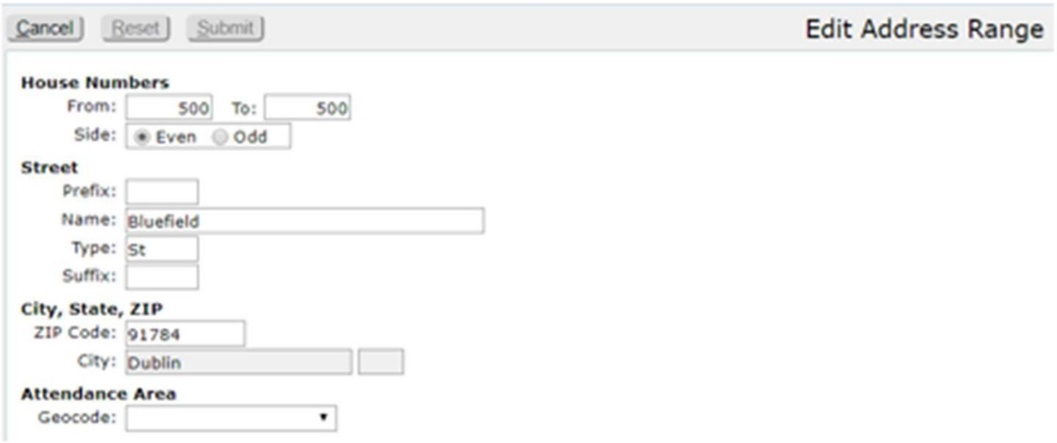
Add Range
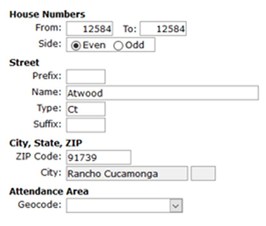
This option is available when no similar address ranges are found. Clicking the Note icon allows the editing of the address, and the Add Range button opens an Edit Address Range window, and the individual address or address range can be added.
Once all mapping has been completed correctly in School Feeds, Locate School is a quick method to determine the assigned school according to a given Household address for a given grade level and in a given school year. Enter address search data in some or all of the fields. The search engine will only respond to numeric characters in the House field, Alphanumeric characters are allowed in the House Prefix field (if enabled in Options). And only basic street names will work in the Street field. Do not use street prefixes, suffixes, or suite numbers. Notice in the example below that “13” in the Street search also shows a prefixed street “S 13th St”.
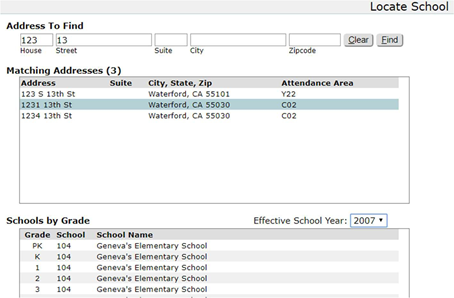
Select the Effective School Year and click the Find button to begin the search or Clear to start over. Highlight the target address from Matching Addresses. The school of residence for each grade level residing at that address will be displayed in a list in Schools by Grade.
Address Components are typically populated during implementation based on student addresses being converted. However, if there are changes in the community served by the district, additions or changes to Address Components may need to be made.

When using Households, and the option to ‘Add To Comboboxes on the fly’ is turned OFF, then the Address Components for addresses need to be configured to enable staff to enter addresses in the Student Editor. Select the component, review, and add to the list of valid entries for the following:
- Address Street Names
- Address Street Prefixes
- Address Street Suffixes
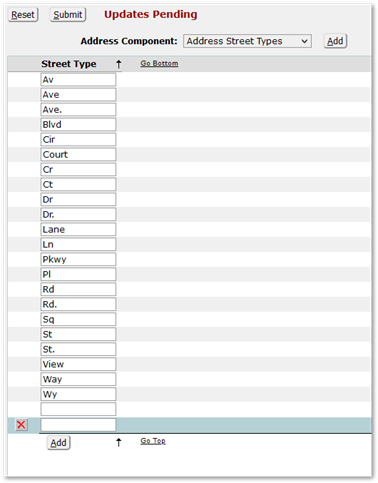
- Address Street Types
- Address Suite Types
- Address Zip Codes
- Attendance Area Codes – Apply to School Feeds
As example, for Address Street Types:
- Click Add and enter a valid street type.
- Submit to save changes.
Note there are ‘Go Bottom’ and ‘Go Top’ links for situations where the list is very long.
Attendance Area Codes
The Attendance Area Codes are known as ‘Geo Codes’ and are used on the School Feeds Tab to define for each school, effective school year, and grade the valid attendance areas. Some school districts define the attendance area code to be the school code pattern of Elementary, Middle and High School Feeder pattern.