
The Q Inventory system is designed to be a general-purpose system for keeping track of any kind of inventoried item. The Inventory Type of ‘Textbooks’ is preconfigured with the application, but other inventory types can be added and configured using Inventory Setup such as:
- School Technology like Mobile Devices, Computers, and other Technology Items
- Band Instruments
This first half of this documentation focuses on a textbook configuration. A more generic setup follows these textbook instructions.
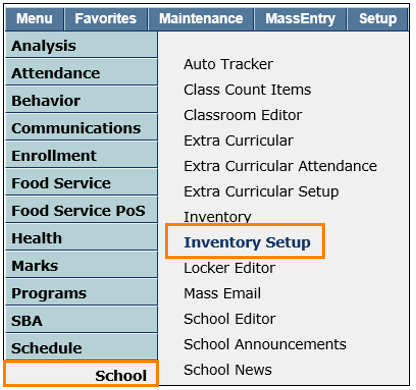
Inventory Setup is located under the School menu in Q.
Access to each tab and its contents is managed by Permissions in the Permission Editor and the associated Role Restrictions. 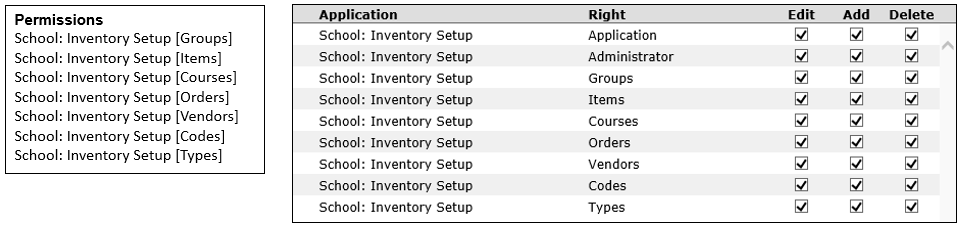
Inventory Setup has two preferences.

- Post damages to SBA
This preference must be set to “Yes” to connect to SBA to record damages and allow online payments. Shown below are the difference displays.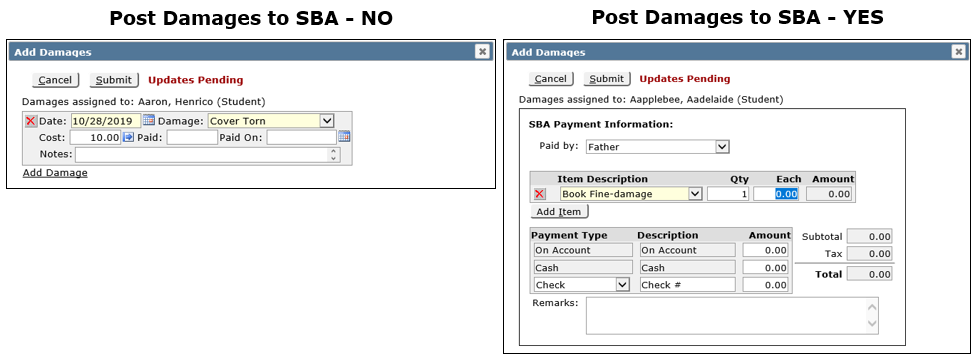
- Show picture of current holder when checking in/out
In the Inventory Application, this preference controls whether the student picture displays at checkout.
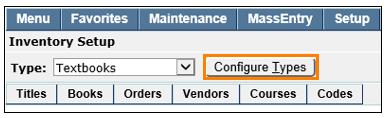
Configuring Types sets up the groupings and labels of each category of item to be inventoried. Click ‘Configure Types’.
On the left is the list the inventory types that are setup with a detail pane for each one on the right.
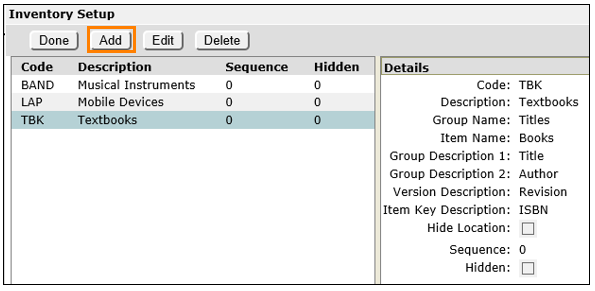
To add a new inventory type click ‘Add’. The names placed in the fields shown below will display on many of the buttons, choices, and reports when using this type.
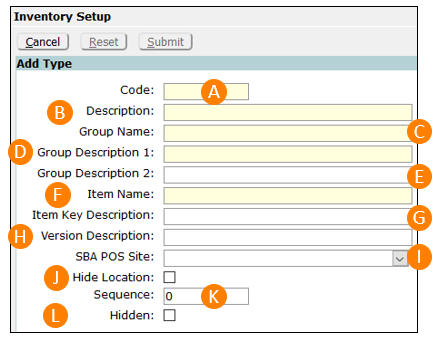
- Code – A short alphanumeric code that will be the unique database identifier for the inventory type.
- Description – A long description for the inventory type. This description will appear in various Type drop-down lists that are used for selecting inventory types in the Inventory applications and in the Inventory report titles when printing reports for this type of inventory.
- Group Name – Enter a name for the group entity that is used to describe the variations of the inventory type. For example, Textbooks vary by ‘Titles’. Laptops vary by ‘Models’, and so on. The description entered here will appear on the first tab of the Inventory Setup application when this inventory type is selected.
- Group Description 1 – Typically this will be the singular version of the Group Name. The description entered here will be used in column headers, field labels, and search dialogs throughout out the Inventory system. For example, if the Group Name is ‘Books’ the Group Description 1 name should be ‘Book’
- Group Description 2 – Enter a secondary search criterion for a group entity, if applicable. This will be a subset of a Group entity and a corresponding data field will be added to the attributes of each group entity. For example, the field ‘Author’ could added to a Group entity of ‘Title’ in the case of a ‘Textbooks’ inventory type.
- Item Name – Enter the term to describe a single unit of the inventory item. For Textbooks this is ‘Books’.
- Item Key Description - This field is only used for the preconfigured ‘Textbooks’ inventory type.
*Below is an illustration of the Textbooks Inventory Type fields and where they appear in the inventory system screens.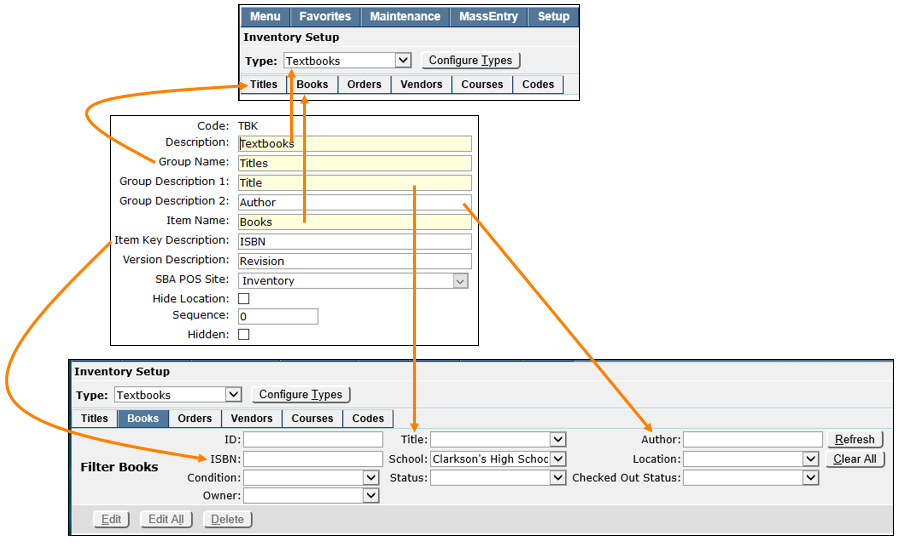
- Version Description – Enter a description of an attribute that could change for an entity. This could be ‘Revision’, ‘Version’, ‘Issue Date’, etc.. This is another way to more specifically describe the group entities, but the field is not searchable.
- SBA POS Site – This field only appears if the ‘Post damages to SBA’ preference is set to ‘Yes’ and must be filled in with the correct site. See details in the “Connecting to Student Body Accounting for Online Payments” section at the end of this document.
- Hide Location - Check this box to hide the ‘Location’ field from the ‘Add Books’ screen. Locations are campus locations entered in Classroom Editor.
- Sequence – Enter a numerical value to designate the sort order of this inventory type when it appears with other types in a selection list. If zero or blank, the code will be sorted in alphabetical order with any other codes that have a blank or zero.
- Hidden – Check this switch to hide this inventory type from appearing in any selection lists.
Codes and Definitions
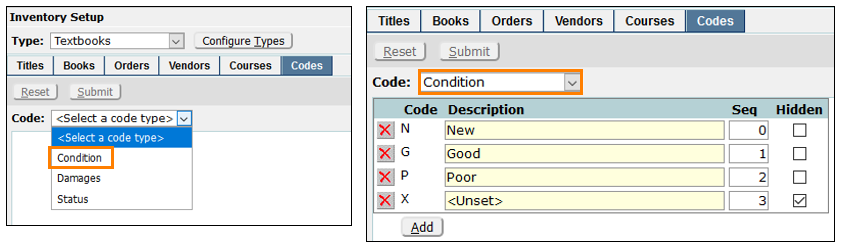
The ‘Codes’ tab is used to define certain data elements that will be used to manage inventory items. There are three types to populate and each requires at least a unique identifying ‘Code’ and ‘Description’ and has options for ‘Seq’ and ‘Hidden’.
Select a ‘Code Type’ from the drop-down field and then ‘Add’.
- Condition – Define codes to specify the current condition of an individual book.
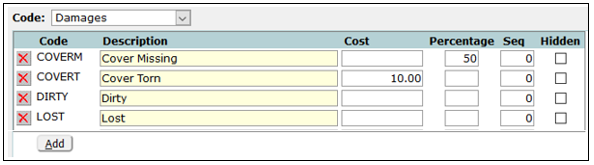
- Damages – Define codes to specify damage incurred to an individual book after it was checked back in. The damages definitions include ‘Cost’ and ‘Percentage’ columns to determine the method of assessing fees for damages in the Damages section of Inventory Check In/Check. If ‘Cost’ is used, enter the flat fee in dollars in the ‘Cost’ field to the right. If Percentage is used, fees will be auto-calculated based on a percentage of the book’s Replacement Cost, as recorded in the ‘Titles’ tab. Enter that percentage rate in the Percentage field to the right.
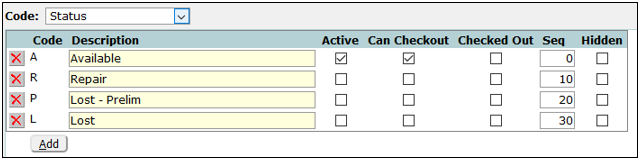
- Status– Define codes that will used to indicate the general status of a book such as, “Available”, “Late”, “Lost”, or whatever is appropriate for other items. Additional check boxes include:
- Active -
- Can Checkout – the checkbox sets the default entry on the Check In form.
- Checked Out – the checkbox sets the default entry on the Check Out form.
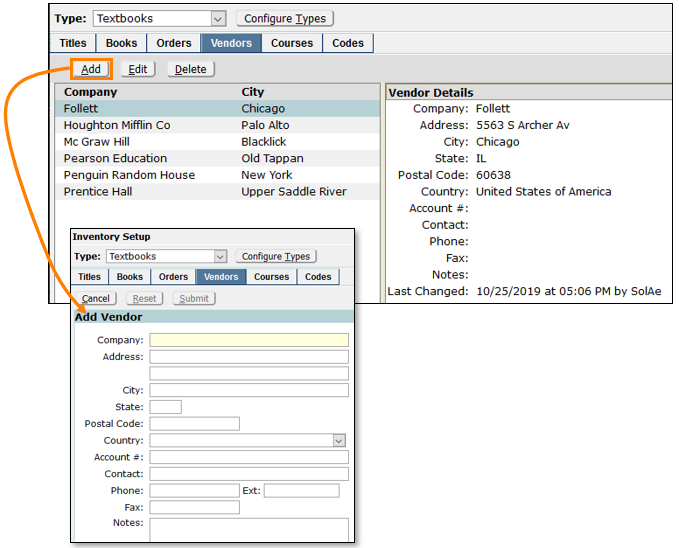
Vendor information is used when entering book titles into the database and tracking orders. To record and maintain vendor information, click on the ‘Vendor’ tab. A list of existing vendors will be displayed and clicking on a vendor name shows a details panel on the right. Click ‘Add’ to create a new vendor record. Edit or delete a vendor by selecting the record in the list and clicking the ‘Edit’ or ‘Delete’ buttons at the top.
‘Books’ are unique physical copies of a ‘Title’. Each physical book acquired by the district must be assigned a unique ID number in order to be tracked in Inventory. To do this:
- Click the ‘Titles’ tab to locate the title of the book or books you want to add to inventory. Columns can be sorted by clicking on the column header.
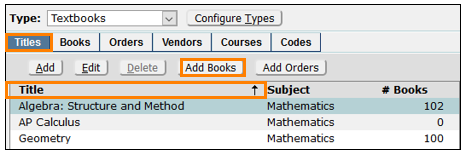
- Click on the Add Books This action opens the ‘Add Book’ dialog screen shown below. The books to be added will be linked to the title selected in the list.

- Books can be added one at a time with the first available inventory number being shown automatically, just click ‘Add’.
 The choice will be shown, a ‘Status’ must be selected from the dropdown, then click ‘Submit’. The next available number will then show below.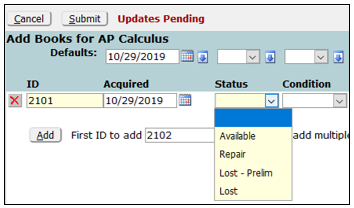
- To add more than one book at a time Q can auto-assign incremented inventory numbers in ascending order according to the value in the ‘# to add’ field.

There is a helpful toolbar at the top of the page that allows for the mass filling of the default values in the header, ‘Acquired’ (date), ‘Status’, ‘Condition’, ‘School’, ‘Location’, ‘Owner’, and ‘Notes’. When these items are selected before adding books it will load those default values for each book.

Shown below are some books added without default values configured.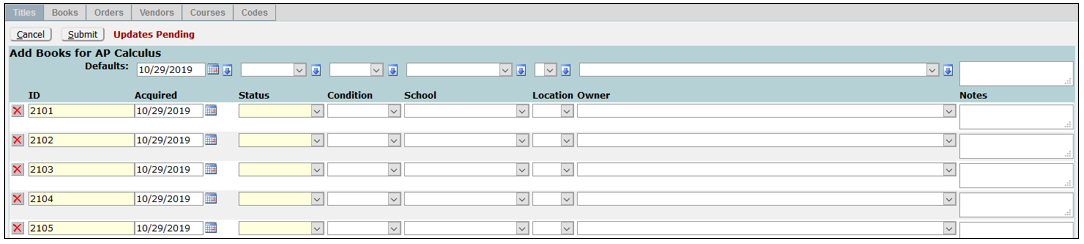
With default values configured.
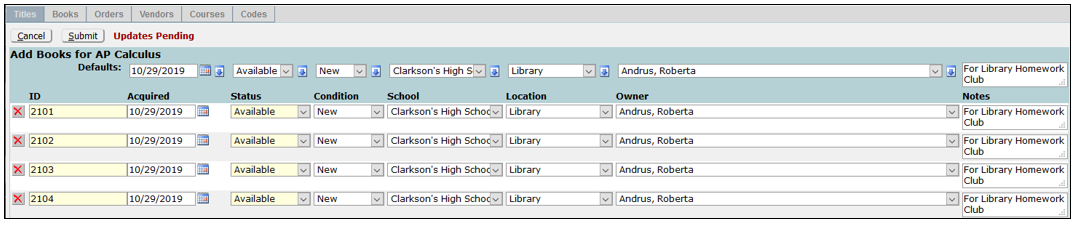
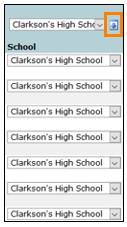
Mass changes can be made using the blue down arrows next to each field in the header. Select a value and click the arrow. All fields in the column that currently do not have a value will be filled in with the Fill Value. All fields can be blanked by selecting a blank fill value and clicking the down arrow. When all the data is entered correctly, click Submit to process the new books.
When the books have been added they will be listed in the ‘# Books’ column. A complete listing of the books is shown under the ‘Title Details’ for the selected book.
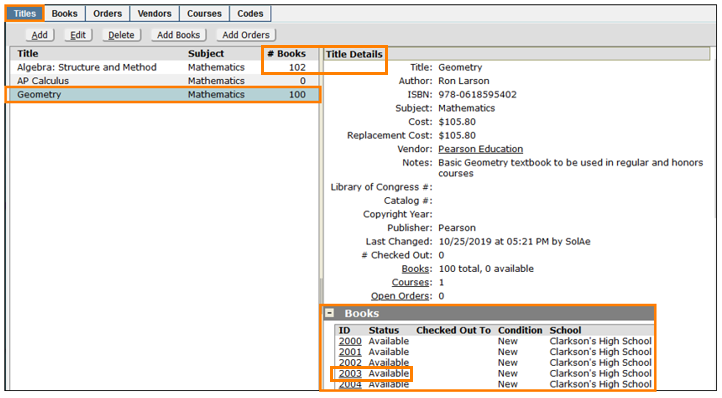
To see complete details of an added book , click on its ID, and the ‘Books’ tab opens with the book automatically highlighted on a list of all the copies with a details page that includes the “Book Details”, “Checkout History”, “Damage History”, with the ability to add damages, and the “Title Details” including its “Cost” and “Replacement Cost”. Any ID can be clicked on from this list. 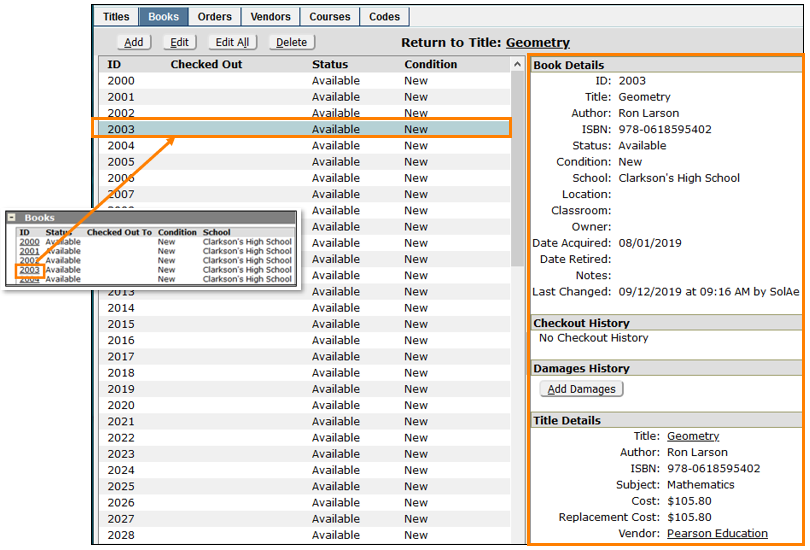
From the toolbar at the top:
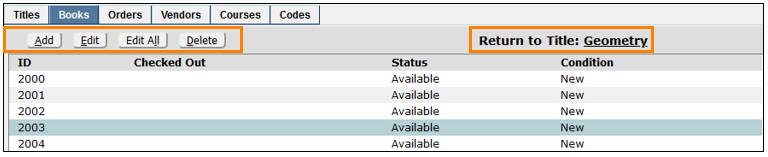
- The ‘Add’ button opens a new ‘Add Books’ window.
- ‘Edit’ allows editing the Book Details.
- ‘Edit All’ brings up the whole book list where “Acquired”, “Status”, “Condition”, “School”, “Location”, “Owner”, and “Notes” can be changed for any or all books and includes the mass fill options.
In this window the fields also have a selected-fill option with a left pointing arrow. Select a value at the top and click the left arrow to populate that value for selected items.
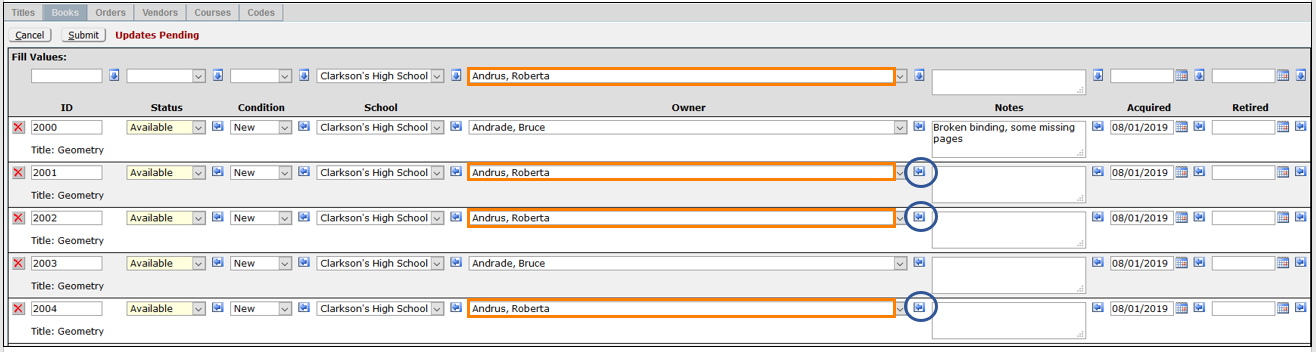
In the example above, Bruce Andrade was originally the book owner. Roberta Andrus was chosen in the header and then the left arrow was used to change her as the owner for the selected records. This is a fast way to make selected changes of any of the fields.
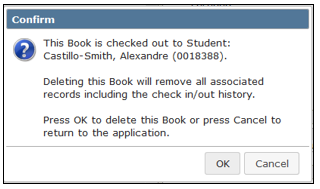
- Delete allows the deletion of a book that also removes all check in/out history even if it is currently checked out to a student. A warning message appears to confirm or cancel deletion.
- Click the ‘Return to Title’ link to return to the ‘Titles’ tab.
Using the ‘Courses’ tab, course sections can be associated with book titles. Though not required for inventory operations, course associations are very helpful by allowing a quick determination of which books an individual student or class of students needs to check out, based on their schedule.
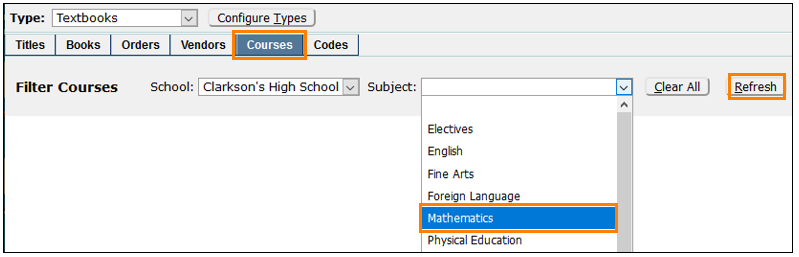
- Click the ‘Courses’ tab and select a school. When logged in to a school, only the logged-in school will display.
- Select a ‘Subject’
- Click ‘Refresh’ to display all the courses listed under that subject. The listing includes a column for ‘Count’ which represents the number of titles currently associated with that course. Columns can be sorted by clicking the column header.
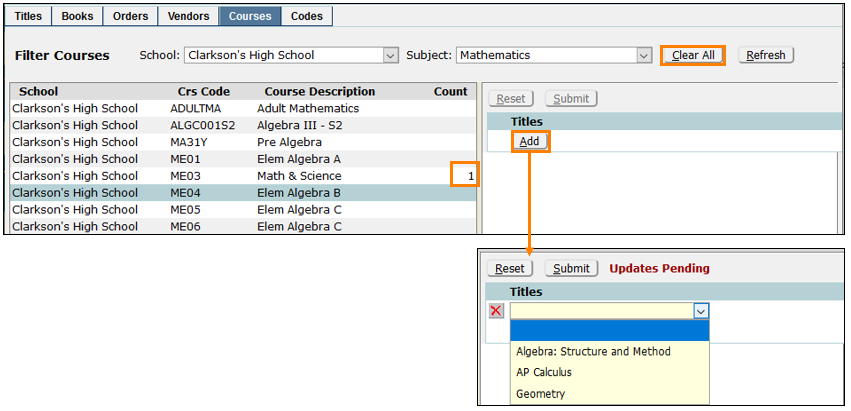
- Click ‘Add’ and select a title from the drop-down menu. Course associations can be deleted using the Red X.
- Click ‘Clear All’ to start the process over.
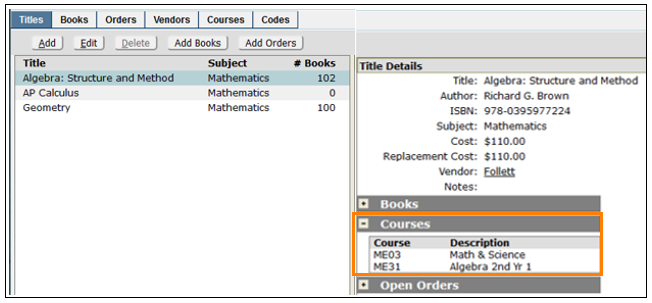
The courses associated with a title are shown in the ‘Courses’ section of the ‘Title Details’.
The ‘Orders’ tab is an optional utility where administrators can track the district’s purchase and fulfillment of orders for book titles. The vendors defined in the previous setup steps will be used here.
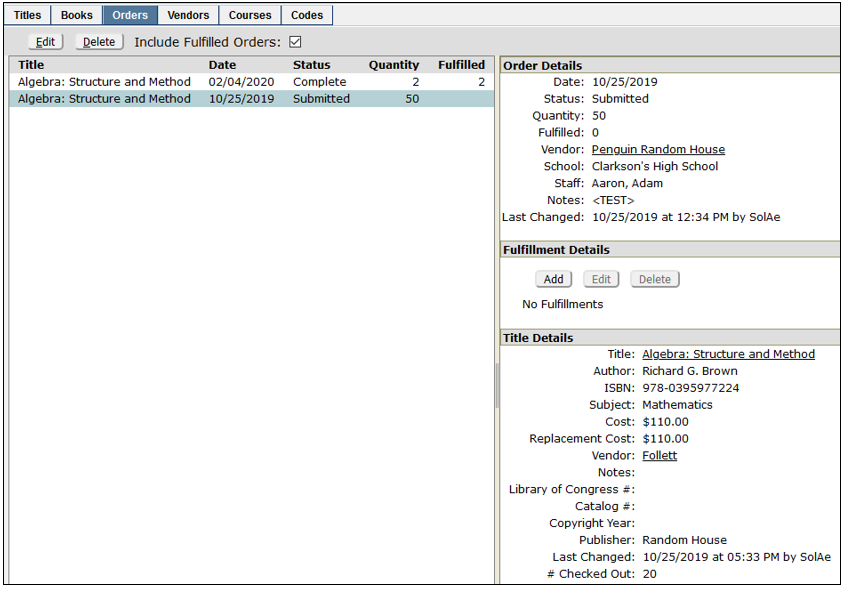
The ‘Orders’ tab is used for global viewing, editing, tracking, and deleting existing textbook orders of all titles. However, book orders cannot be entered in this tab.
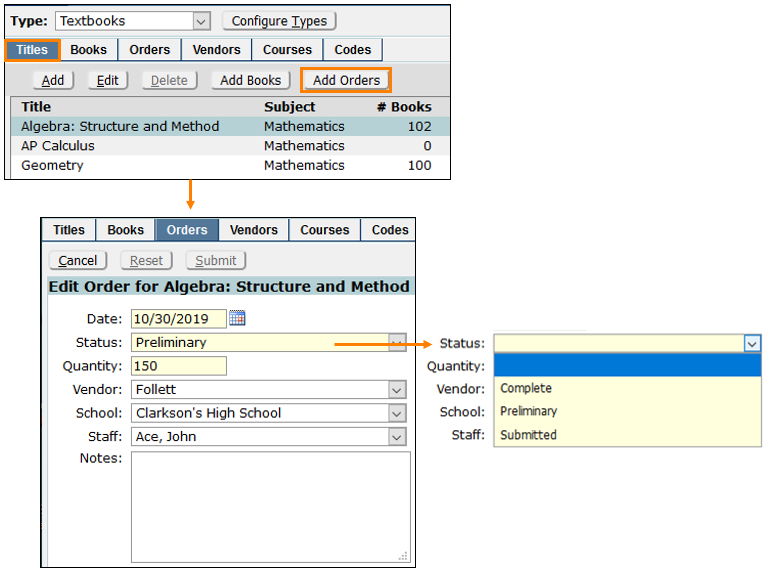
To place an order for textbooks, go to the Titles tab. Each Title has its own order form.
- Click the ‘Titles’ tab and highlight a title from the list.
- Click ‘Add Orders’ to open and fill out the order form.
- The ‘Status’ field choices are configured in the Lookup Codes | Inventory Order Status.
- The Vendor field is auto-populated based on the vendor setup.
- The staff field is the person who is processing the order.
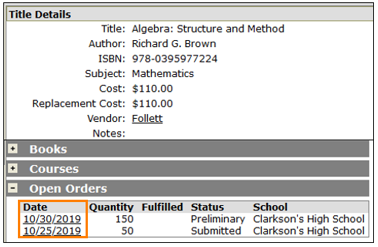
 Once the order is submitted, it will display in the ‘Title Details’ pane. Click on the date to open the ‘Orders’ tab to view, add, edit or delete the order.
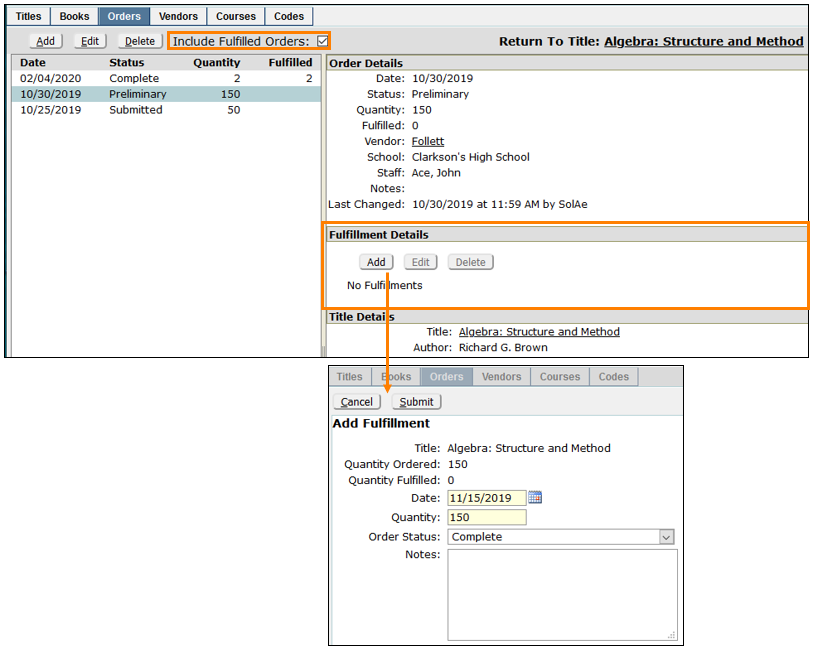
The ‘Orders’ tab includes a checkbox to include displaying fulfilled orders and a section for managing the ‘Fulfillment Details’ of the selected order. Click ‘Add’ to enter the fulfillment details. The ‘Quantity’ value entered in a fulfillment record means the quantity received. This value is compared with the original ‘Quantity Ordered’ value to determine whether the order is ‘fulfilled’ or not. Click ‘Submit’ when done.
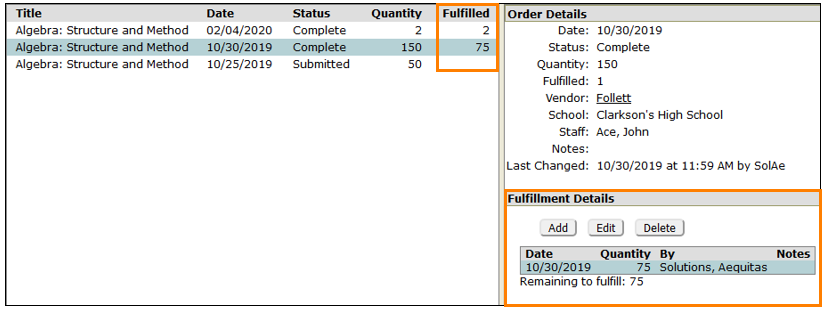
The ‘Orders’ screen displays the fulfillment status and, if it was only partial, will show the number of remaining books.
The ‘Books’ tab includes a powerful search tool for finding books and viewing all details.
- Use the filter fields to search by ID, ISBN, Condition, Owner, Title, School, Status, Author, Location or Checked Out Status or any combination.
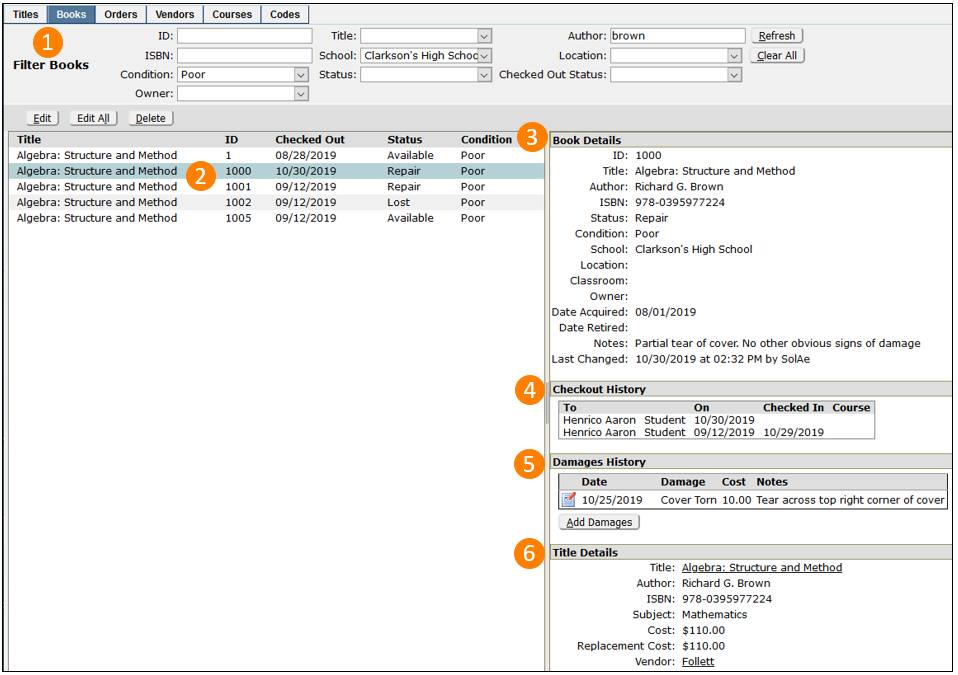
- View the search results and highlight a result to show details.
- ‘Book Details’ including condition and status.
- ‘Checkout History’ with check in/out dates and associated courses.
- ‘Damages History’ including an option to edit existing damages or add additional ones.
- ‘Title Details’ including subject, cost and replacement cost.
The ‘Books’ tab has a Damages History Section where damages can be added or edited. 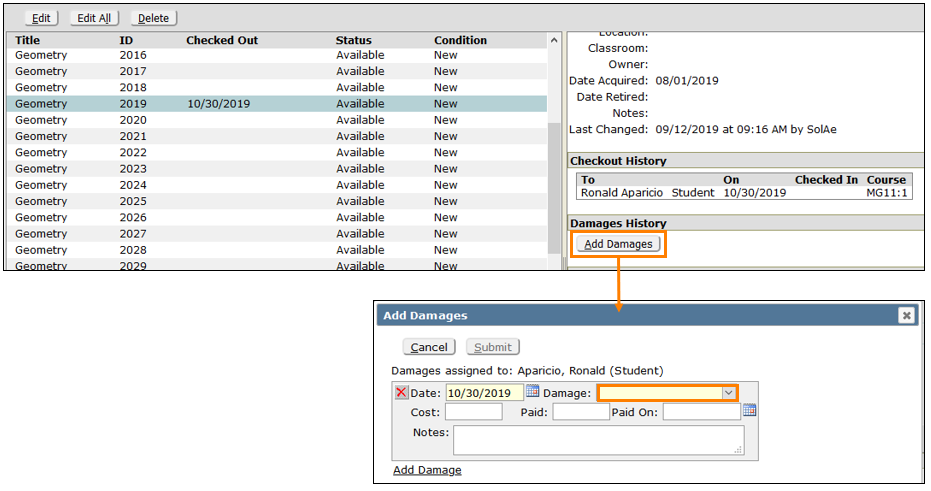
Click ‘Add Damages’ to open the damages form, select one of the previously configured damage codes and fill in the cost, amount paid, paid-on date, and notes as needed.
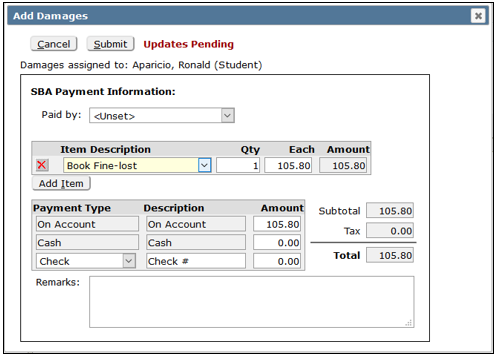
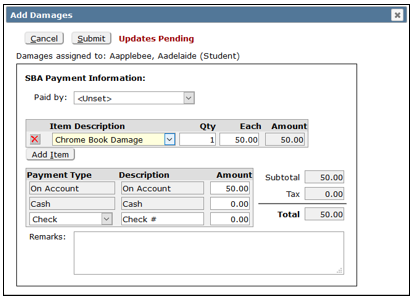
If the Inventory App is configured to use Student Body Accounting (SBA) a different window appears when Add Damages is clicked. The ‘Item Description’ is specified in SBA and the charge will show online in the Parent Portal.
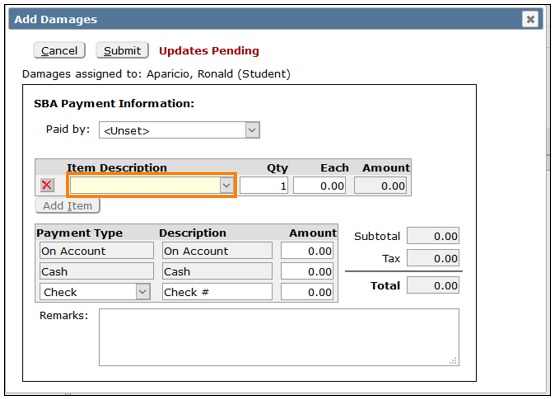
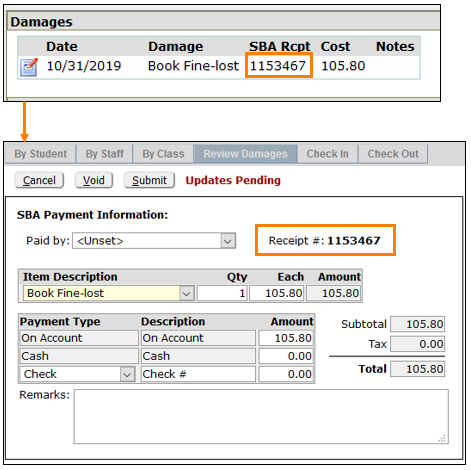
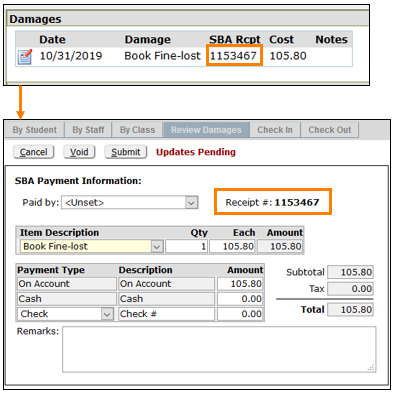
When damages are added in SBA, the Receipt # is displayed in ‘Damages’. When the form is opened, paid or unpaid damages can be voided, and SBA is updated.
To print barcode labels, click the ‘School’ tab, select ‘Reports’, and click select ‘Inventory Labels.’
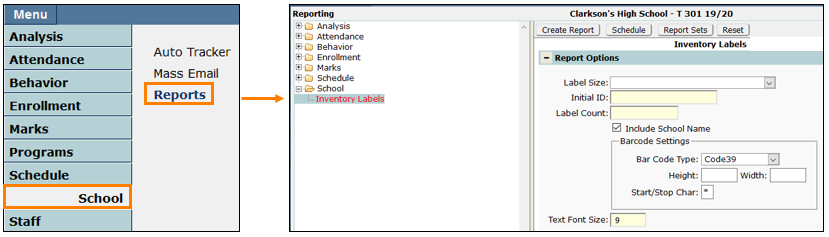
- Select the Barcode Label Size
- Define the consecutive range of bar codes to print by entering the first ID number in the ‘Initial ID’ field.
- Enter the number of bar codes needed incremented from the first number in the ‘Label Count’ field. For Example, to print bar code numbers 500 – 599 enter “500” as the ‘Initial ID’ and “100” as the ‘Label Count’.
- Choose whether to include the school name.
- Configure Barcode Settings
- Select the Bar Code Type. Q loads a common Code39 font (consult a system administrator if another is needed)
- Adjust the Height and Width of the barcode if needed.
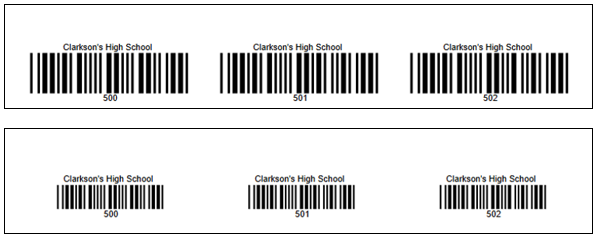
- Designate the Start/Stop Character (this depends on the Bar Code Type chosen. Consult a system administrator)
- Designate a Font Size. This adjusts the lettering included on the label.
The Q Inventory system is designed to work with the Student Body Accounting App for recording damages and payments. There are 4 easy setup steps.
- Preferences
In the Preference Editor there is Inventory preference called “Post Damages to SBA.”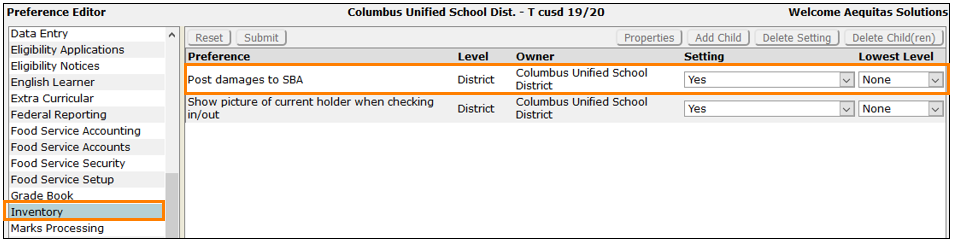 This preference must be set to “Yes” to connect to SBA to record damages and allow online payments. Shown below are the difference displays.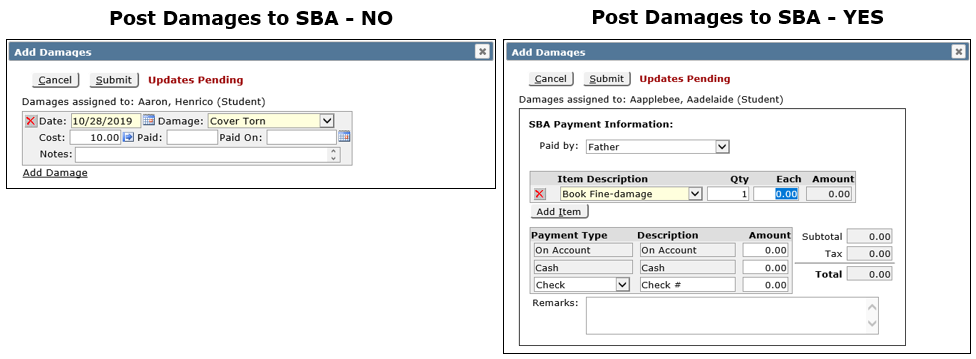
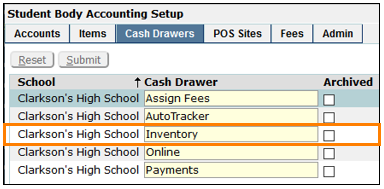
- Add SBA Cash Drawer
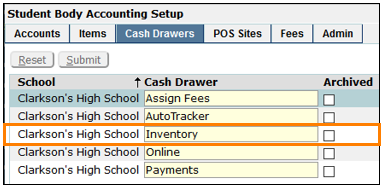
In Student Body Accounting Setup, a Cash Drawer must be added called “Inventory”
- Create SBA Items
Create the items that will be the charges that will appear in the ‘Item Description’ drop-down menu when damages are added. Price amounts can be entered or left blank to be added at time of entry.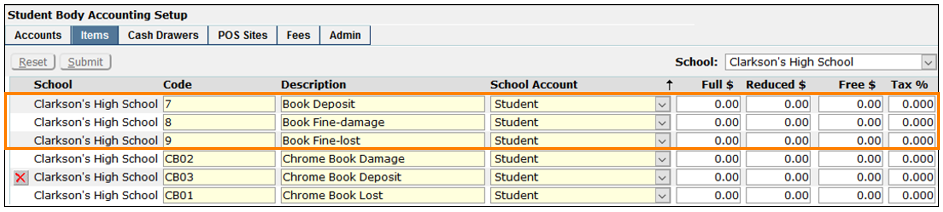
- Add POS Site
Create a POS Site called Inventory and add the damages items created above to the Ledger.
NOTE: After POS site is created, update configure types to include the SBA POS Site.
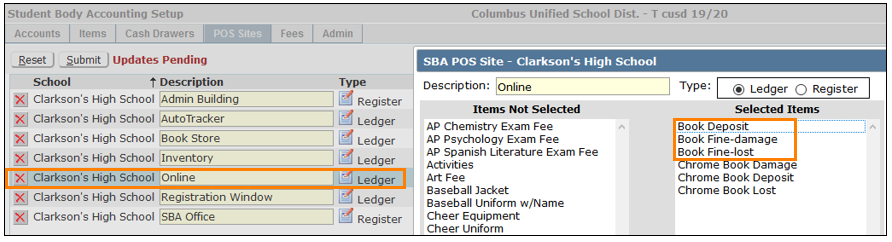
Here are some examples of how it will look.
- Adding Damages in Inventory
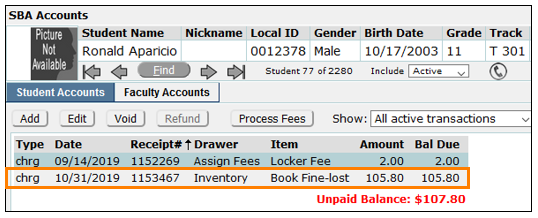
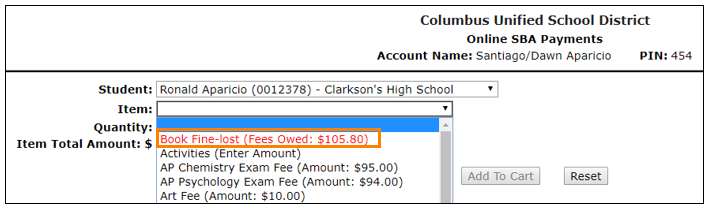
- How it shows in SBA Accounts and as a charge online in the Parent Portal.
- How it shows in Inventory.
When submitted, the SBA Receipt # will show. The item can be opened, edited and or voided in Inventory. When voided in Inventory, it is also voided in SBA and vice versa.
For information about configuring Student Body Accounting, see the documentation on SBA Setup.
The Q Inventory system is designed to be a general-purpose system for keeping track of any kind of inventoried item. This section will be a ‘generic’ setup using ‘Classroom Technology’ in the examples.
Tell Me More About
- Permissions and Preferences
- Configuring Inventory Types
- Codes and Definitions
- Vendors
- Adding Units
- Associating Courses
- Orders
- Searching for Units
- Adding Damages
- Printing Barcode Labels
- Connecting to Student Body Accounting (SBA) for Online Payments
- Textbook Inventory Setup
- Download this document
Accessing Inventory Setup
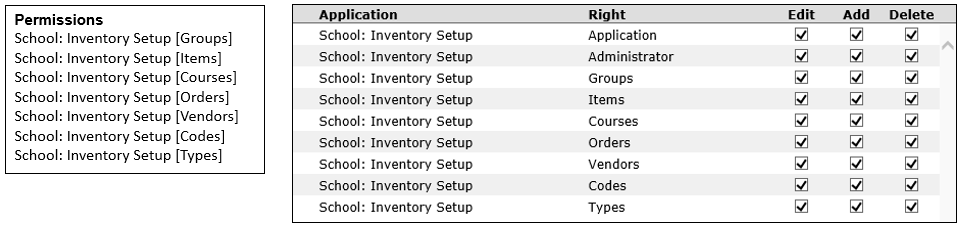
Permissions and Role Restrictions
Access to each tab and its contents is managed by Permissions in the Permission Editor and the associated Role Restrictions.
Preferences
Inventory Setup has two preferences.

- Post damages to SBA
This preference must be set to “Yes” to connect to SBA to record damages and allow online payments. Shown below are the difference displays.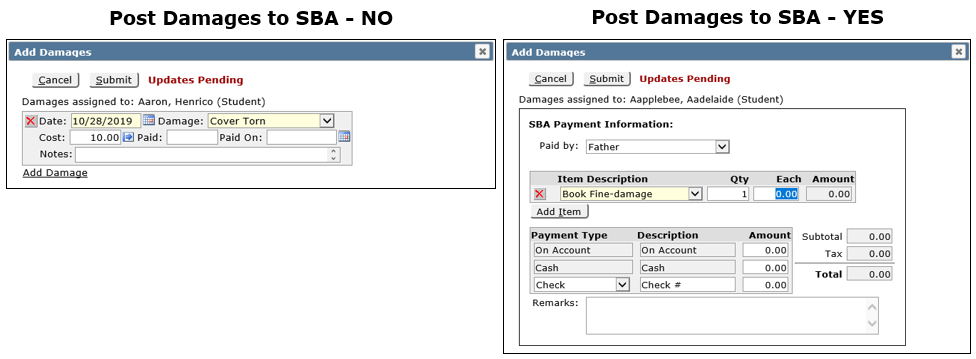
- Show picture of current holder when checking in/out
In the Inventory Application, this preference controls whether the student picture displays at checkout.
Configuring Inventory Types
Configuring Types sets up the groupings and labels of each category of item to be inventoried. Click ‘Configure Types’.
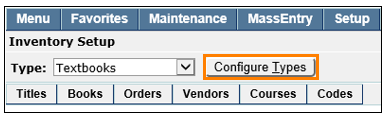
On the left is the list the inventory types that are setup with a detail pane for each one on the right.
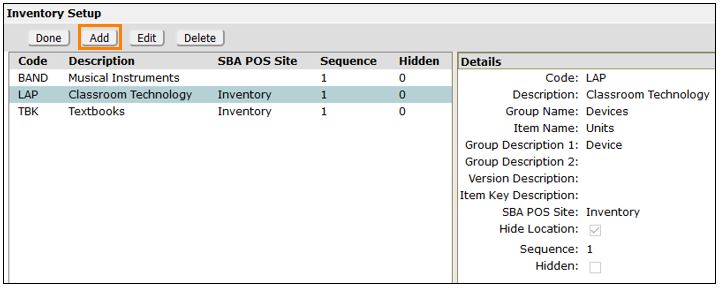
To add a new inventory type click ‘Add’. The names placed in the fields shown below will display on many of the buttons, choices and reports when using this type.
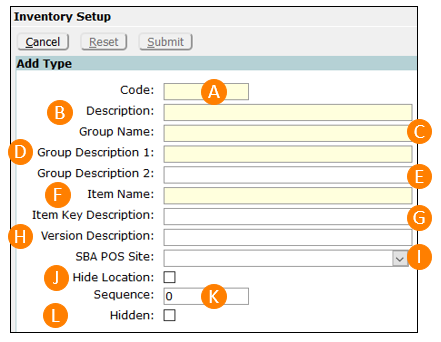
- Code – A short alphanumeric code that will be the unique database identifier for the inventory type.
- Description – A long description for the inventory type. This description will appear in various Type drop-down lists that are used for selecting inventory types in the Inventory applications and in the Inventory report titles when printing reports for this type of inventory.
- Group Name – Enter a name for the group entity that is used to describe the variations of the inventory type. For example, Classroom Technology varies by ‘Device’. The description entered here will appear on the first tab of the Inventory Setup application when this inventory type is selected.
- Group Description 1 – Typically this will be the singular version of the Group Name. The description entered here will be used in column headers, field labels, and search dialogs throughout out the Inventory system. For example, if the Group Name is ‘Devices’ the Group Description 1 name should be ‘Device’
- Group Description 2 – Enter a secondary search criterion for a group entity, if applicable. This will be a subset of a Group entity and a corresponding data field will be added to the attributes of each group entity. For example, the field ‘Model’ could added to a Group entity of ‘Devices’ in the case of a ‘Classroom Technology’ inventory type.
- Item Name – Enter the term to describe a single unit of the inventory item. For Classroom Technology this is ‘Units’.
- Item Key Description - This field is only used for the preconfigured ‘Textbooks’ inventory type.
*Below is an illustration of the Classroom Technology Inventory Type fields and where they appear in the inventory system screens.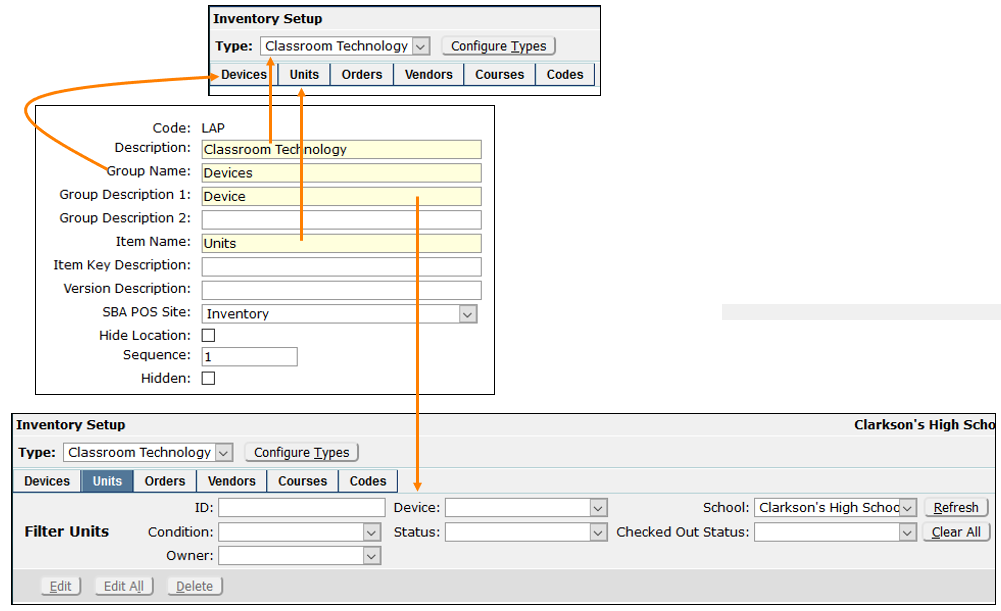
- Version Description – Enter a description of an attribute that could change for an entity. This could be ‘Model’, ‘Issue Date’, etc.. This is another way to more specifically describe the group entities, but the field is not searchable.
- SBA POS Site – This field only appears if the ‘Post damages to SBA’ preference is set to ‘Yes’ and must be filled in with the correct site. See details in the “Connecting to Student Body Accounting for Online Payments” section at the end of this document.
- Hide Location - Check this box to hide the ‘Location’ field from the ‘Add Units’ screen. Locations are campus locations entered in Classroom Editor.
- Sequence – Enter a numerical value to designate the sort order of this inventory type when it appears with other types in a selection list. If zero or blank, the code will be sorted in alphabetical order with any other codes that have a blank or zero.
- Hidden – Check this switch to hide this inventory type from appearing in any selection lists.
Codes and Definitions
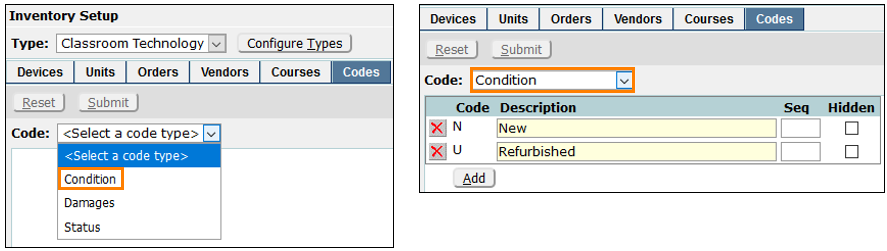
The ‘Codes’ tab is used to define certain data elements that will be used to manage inventory items. There are three types to populate and each requires at least a unique identifying ‘Code’ and ‘Description’ and has options for ‘Seq’ and ‘Hidden’.
Select a ‘Code Type’ from the drop-down field and then ‘Add’.
- Condition – Define codes to specify the current condition of an individual device.
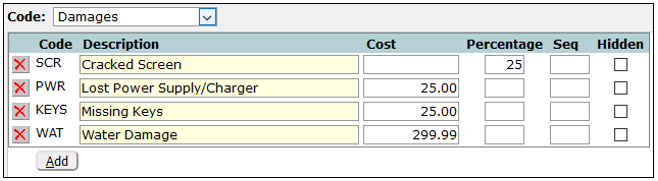
- Damages – Define codes to specify damage incurred to an individual device after it was checked back in. The damages definitions include ‘Cost’ and ‘Percentage’ columns to determine the method of assessing fees for damages in the Damages section of Inventory Check In/Check. If ‘Cost’ is used, enter the flat fee in dollars in the ‘Cost’ field to the right. If Percentage is used, fees will be auto-calculated based on a percentage of the device’s Replacement Cost, as recorded in the ‘Devices’ tab. Enter that percentage rate in the Percentage field to the right.
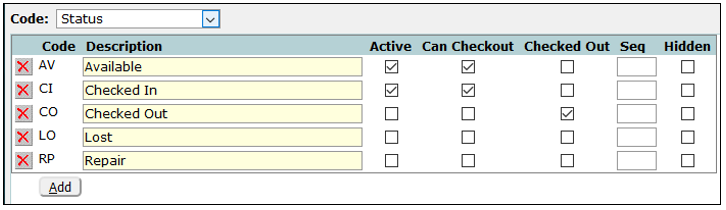
- Status – Define codes that will used to indicate the general status of a device such as, “Available”, “Late”, “Lost”, or whatever is appropriate for other items. Additional check boxes include:
- Active -
- Can Checkout – the checkbox sets the default entry on the Check In form.
- Checked Out – the checkbox sets the default entry on the Check Out form.
Vendors
Vendor information is used when entering Devices into the database and tracking orders. To record and maintain vendor information, click on the ‘Vendor’ tab. A list of existing vendors will be displayed and clicking on a vendor name shows a details panel on the right.
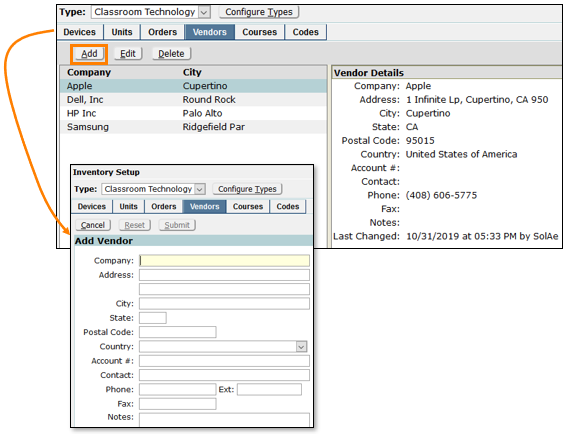
Click ‘Add’ to create a new vendor record. Edit or delete a vendor by selecting the record in the list and clicking the ‘Edit’ or ‘Delete’ buttons at the top.
Adding Units
‘Units’ are unique physical ‘Devices’. Each physical unit acquired by the district must be assigned a unique ID number in order to be tracked in Inventory. To do this:
- Click the ‘Devices’ tab to locate the type of the device or devices to be added to inventory. Columns can be sorted by clicking on the column header.
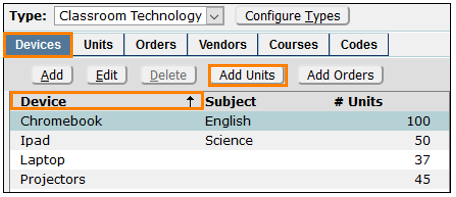
- Click on the 'Add Units' button. This action opens the ‘Add Unit’ dialog screen shown below. The units to be added will be linked to the device selected in the list.

- Units can be added one at a time with the first available inventory number being shown automatically, just click ‘Add’.
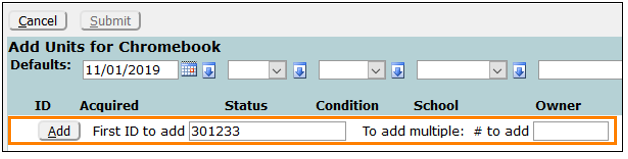 The choice will be shown, a ‘Status’ must be selected from the dropdown, then click ‘Submit’. The next available number will then show below.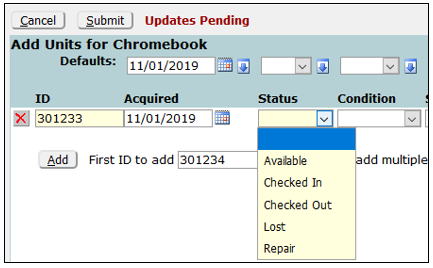
- To add more than one unit at a time Q can auto-assign incremented inventory numbers in ascending order according to the value in the ‘# to add’ field.

There is a helpful toolbar at the top of the page that allows for the mass filling of the default values in the header, ‘Acquired’ (date), ‘Status’, ‘Condition’, ‘School’, ‘Location’, ‘Owner’, and ‘Notes’. When these items are selected before adding units it will load those default values for each one.

Shown below are some units added without default values configured:
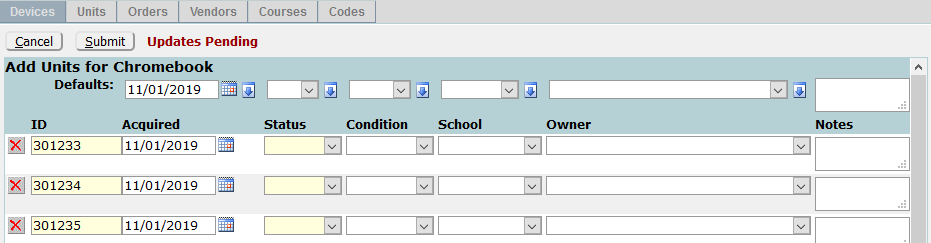
With default values configured:

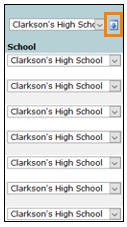
Mass changes can be made using the blue down arrows next to each field in the header. Select a value and click the arrow. All fields in the column that currently do not have a value will be filled in with the Fill Value. All fields can be blanked by select a blank fill value and clicking the down arrow. When all the data is entered correctly, click Submit to process the new units.
When the units have been added they will be listed in the ‘# Units’ column. A complete listing of the units is shown under the ‘Device Details’ for the selected unit.
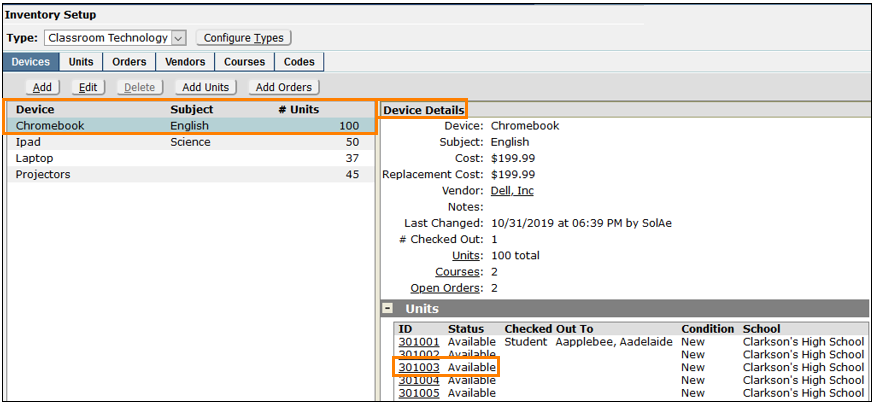
To see complete details of an added unit , click on its ID, and the ‘Units’ tab opens with the unit automatically highlighted on a list of all the copies with a details page that includes the “Unit Details”, “Checkout History”, “Damage History”, with the ability to add damages, and the “Device Details” including its “Cost” and “Replacement Cost”. Any ID can be clicked on from this list. 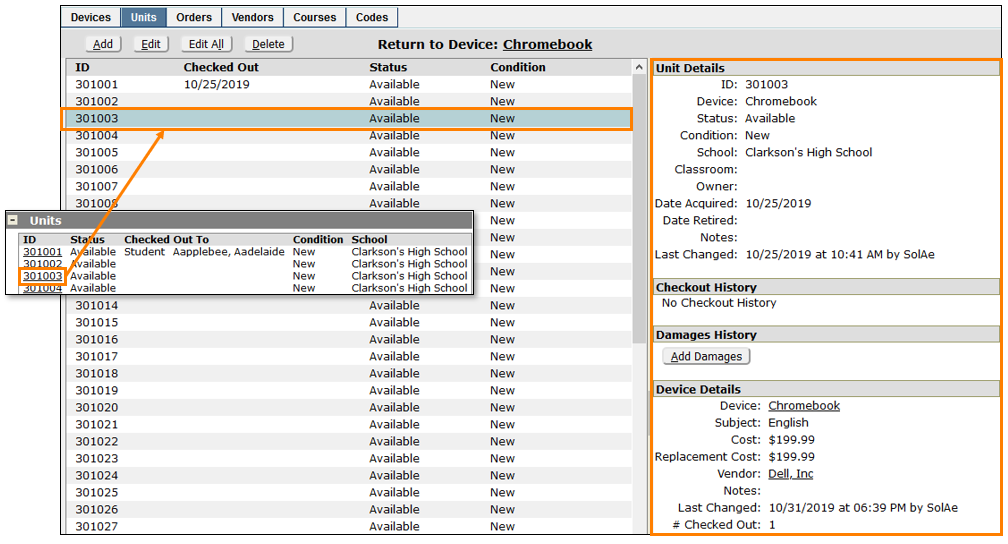
From the toolbar at the top:
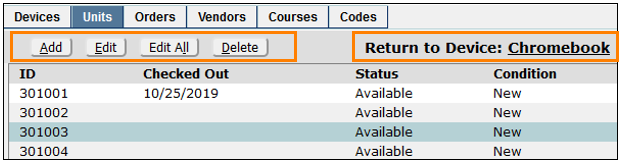
- The ‘Add’ button opens a new ‘Add Units’ window.
- ‘Edit’ allows editing the Unit Details
- ‘Edit All’ brings up the whole unit list where “Acquired”, “Status”, “Condition”, “School”, “Location”, “Owner”, and “Notes” can be changed for any or all devices and includes the mass fill options.
In this window the fields also have a selected-fill option with a left pointing arrow. Select a value at the top and click the left arrow to populate that value for selected items.
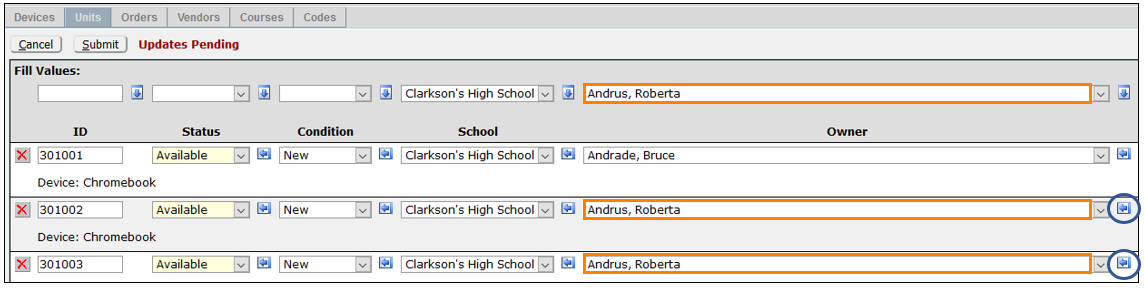
In the example above, Bruce Andrade was originally the unit owner. Roberta Andrus was chosen in the header and then the left arrow was used to change her as the owner for the selected records. This is a fast way to make selected device changes of any of the fields.
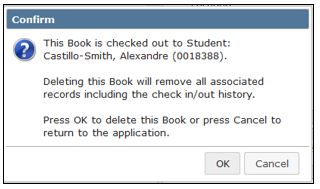
- Delete allows the deletion of a unit that also removes all check in/out history even if it is currently checked out to a student. A warning message appears to confirm or cancel deletion.
- Click the ‘Return to Device’ link to return to the ‘Devices’ tab.
Associating Courses
Using the ‘Courses’ tab, course sections can be associated with devices. Though not required for inventory operations, course associations are very helpful by allowing a quick determination of which devices an individual student or class of students needs to check out, based on their schedule.
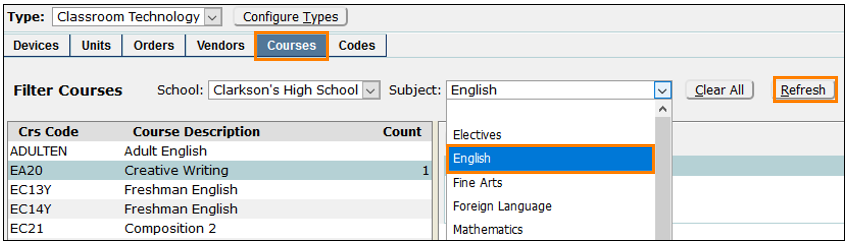
- Click the ‘Courses’ tab and select a school. When logged in to a school, only the logged-in school will display.
- Select a ‘Subject’
- Click ‘Refresh’ to display all the courses listed under that subject. The listing includes a column for ‘Count’ which represents the number of devices currently associated with that course. Columns can be sorted by clicking the column header.
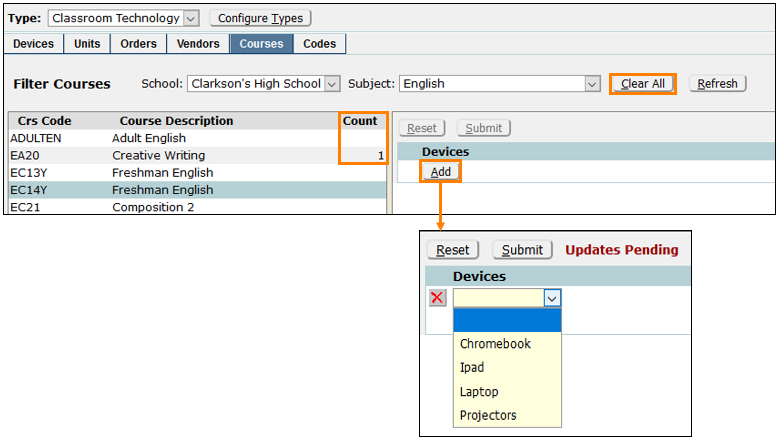
- Click on a course.
- Click ‘Add’ and select a device from the drop-down menu. Course associations can be deleted using the Red X.
- Click ‘Clear All’ to start the process over.
The courses associated with a device are shown in the ‘Courses’ section of the ‘Device Details’. 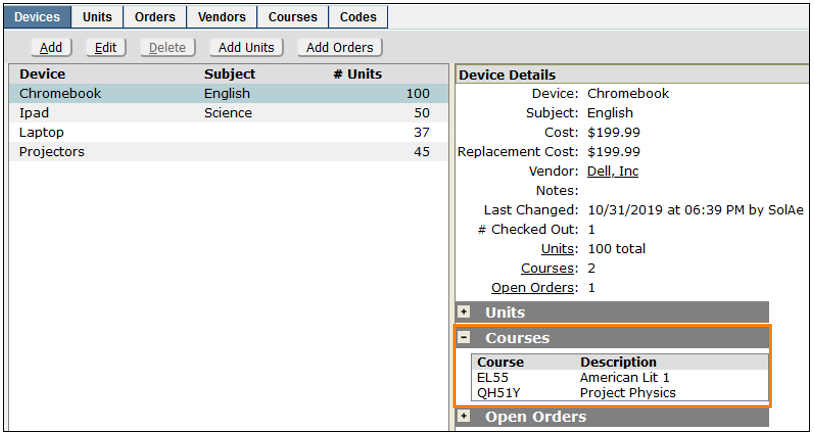
Orders
The ‘Orders’ tab is an optional utility where administrators can track the district’s purchase and fulfillment of orders for devices. The vendors defined in the previous setup steps will be used here.
The ‘Orders’ tab is used for global viewing, editing, tracking, and deleting existing orders of all Devices. However, device orders cannot be placed in this tab. 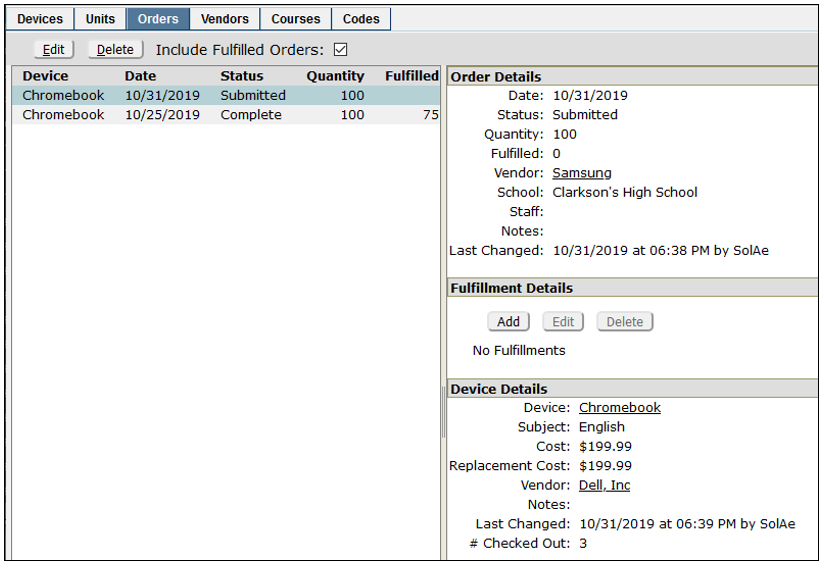
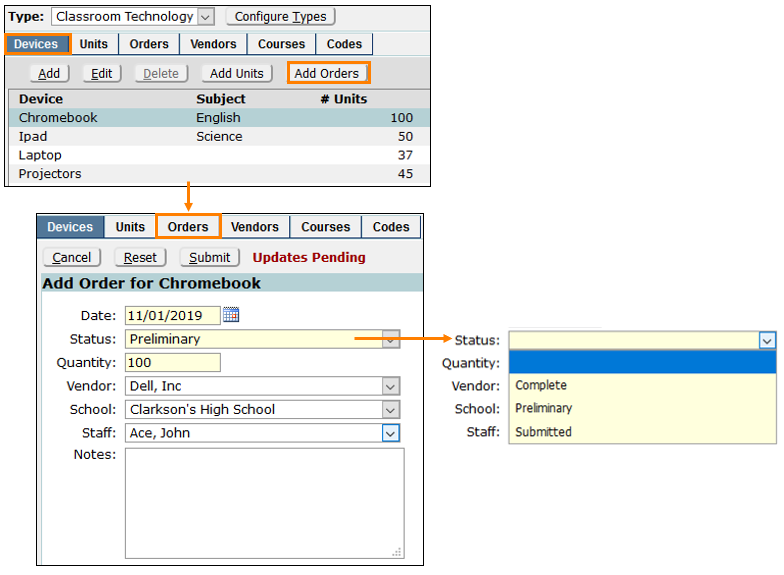
To place an order for devices, go to the Devices tab. Each device has its own order form.
- Click the ‘Devices’ tab and highlight a device from the list.
- Click ‘Add Orders’ to open and fill out the order form.
- The ‘Status’ field choices are configured in the LookupCodes | Inventory Order Status.
- The Vendor field is auto-populated based on the previous vendor setup.
- The staff field is the person who is processing the order.
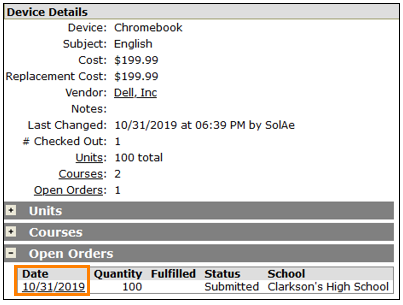
Once the order is submitted, it will display in the ‘Device Details’ pane. Click on the date to open the ‘Orders’ tab to view, add, edit or delete the order.
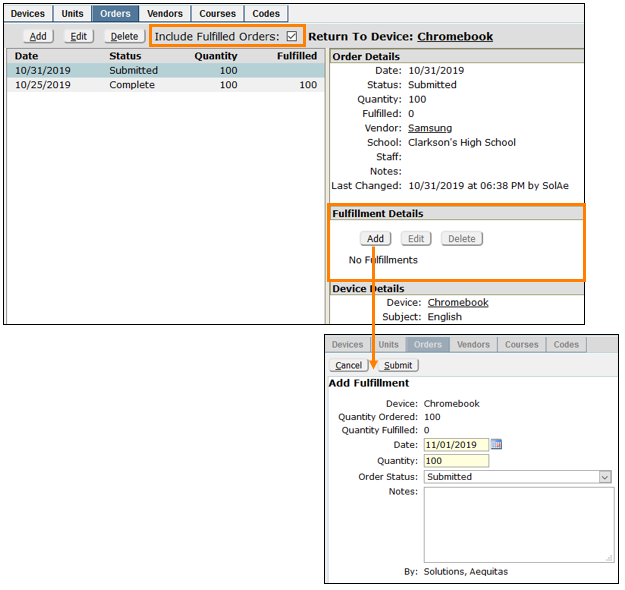
The ‘Orders’ tab includes a checkbox to include displaying fulfilled orders and a section for managing the ‘Fulfillment Details’ of the selected order. Click ‘Add’ to enter the fulfillment details. The ‘Quantity’ value entered in a fulfillment record means the quantity received. This value is compared with the original ‘Quantity Ordered’ value to determine whether the order is ‘fulfilled’ or not. Click ‘Submit’ when done.
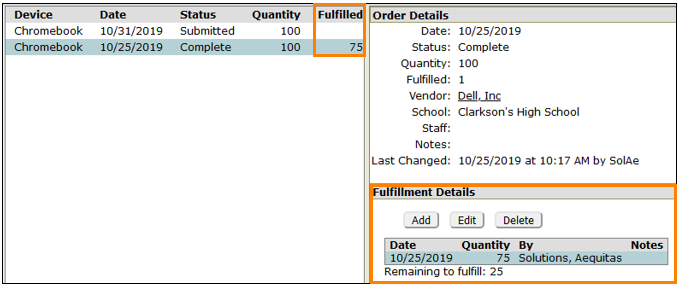
The ‘Orders’ screen displays the fulfillment status and, if it was only partial, will show the number of remaining units.
Searching for Units
The ‘Units’ tab includes a powerful search tool for finding units and viewing all details.
- Use the filter fields to search by ID, Condition, Owner, Device, School, Status, Location or Checked Out Status or any combination.
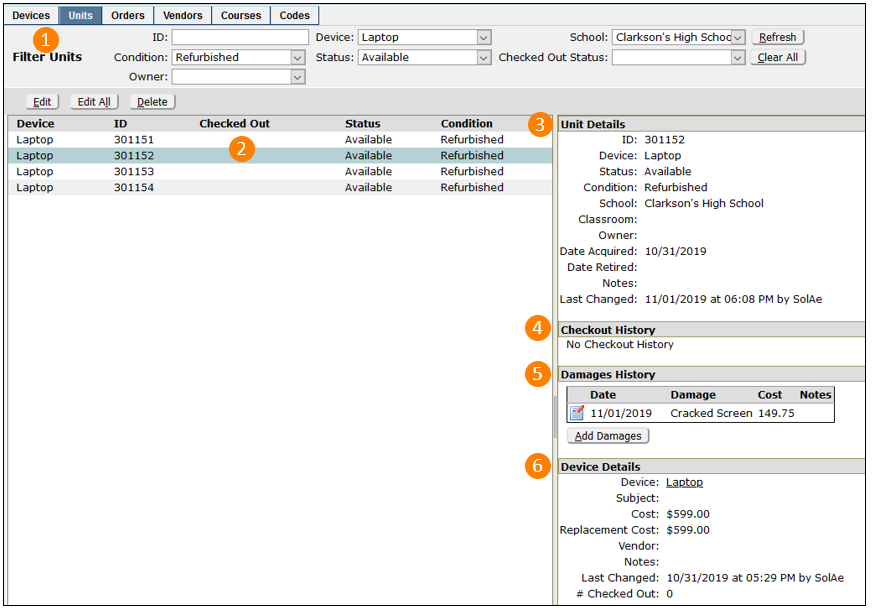
- View the search results and highlight a result to show details.
- ‘Unit Details’ including condition and status.
- ‘Checkout History’ with check in/out dates and associated courses.
- ‘Damages History’ including an option to edit existing damages or add additional ones.
- ‘Device Details’ including subject, cost and replacement cost.
Adding Damages
The ‘Units’ tab has a Damages History Section where damages can be added or edited.
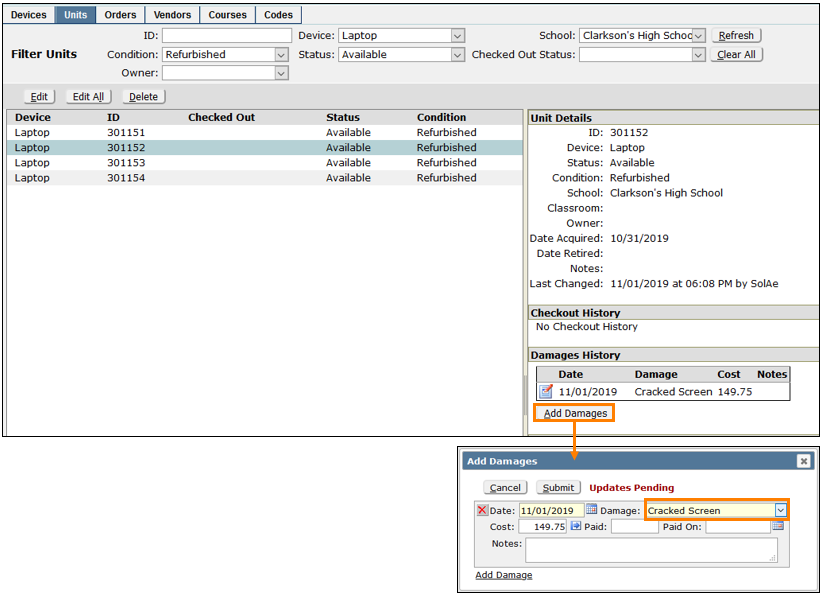
Click ‘Add Damages’ to open the damages form, select one of the previously configured damage codes and fill in the cost, amount paid, paid-on date and notes as needed.
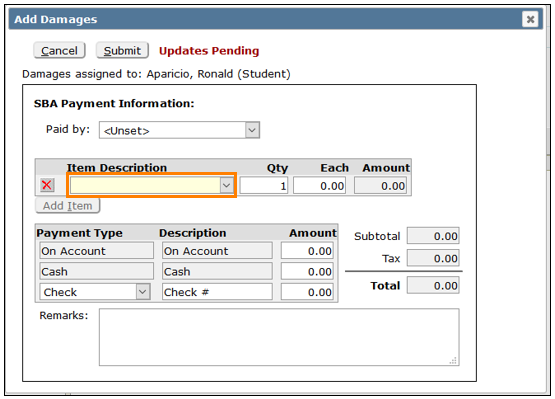
If the Inventory App is configured to use Student Body Accounting (SBA) a different window appears when ‘Add Damages’ is clicked. The ‘Item Description’ is specified in SBA and the charge will show online in the Parent Portal.
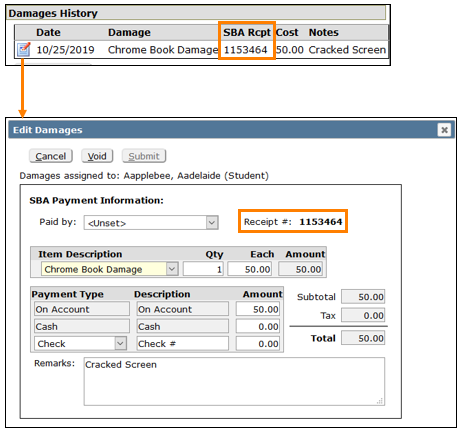
When damages are charged using SBA, the Receipt # is displayed in ‘Damages’. When the form is opened, paid or unpaid damages can be voided, and SBA is updated.
Printing Barcode Labels
To print barcode labels, click the ‘School’ tab, select ‘Reports’, and click select ‘Inventory Labels.’
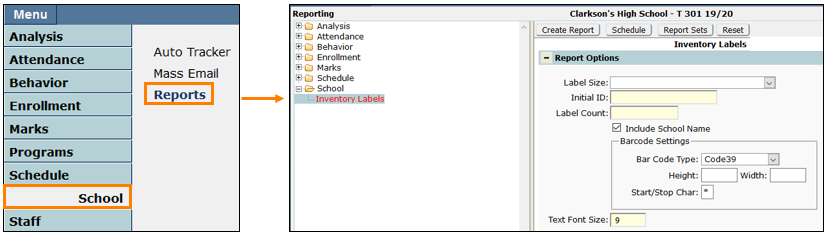
- Select the Barcode Label Size
- Define the consecutive range of bar codes to print by entering the first ID number in the ‘Initial ID’ field.
- Enter the number of bar codes needed incremented from the first number in the ‘Label Count’ field. For Example, to print bar code numbers 500 – 599 enter “500” as the ‘Initial ID’ and “100” as the ‘Label Count’.
- Choose whether to include the school name.
- Configure Barcode Settings
- Select the Bar Code Type. Q loads a common Code39 font (consult a system administrator if another is needed)
- Adjust the Height and Width of the barcode if needed.
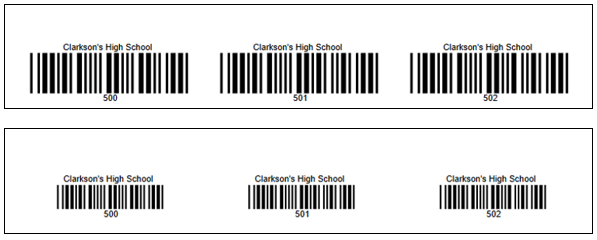
- Designate the Start/Stop Character (this depends on the Bar Code Type chosen. Consult a system administrator)
- Designate a Font Size. This adjusts the lettering included on the label.
Connecting to Student Body Accounting for Online Payments
The Q Inventory system is designed to work with the Student Body Accounting App for recording damages and payments. There are 4 easy setup steps.
- Preferences
In the Preference Editor there is Inventory preference called “Post Damages to SBA.”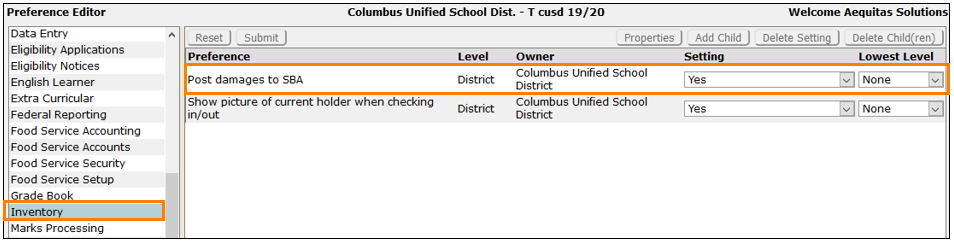 This preference must be set to “Yes” to connect to SBA to record damages and allow online payments. Shown below are the difference displays.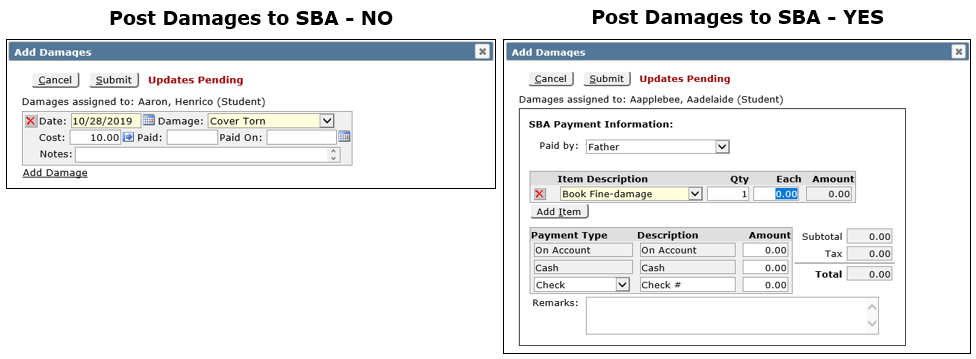
- Add SBA Cash Drawer
In Student Body Accounting Setup, a Cash Drawer must be added called “Inventory”
- Create SBA Items
Create the items that will be the charges that will appear in the ‘Item Description’ drop-down menu when damages are added. Price amounts can be entered or left blank to be added at time of entry.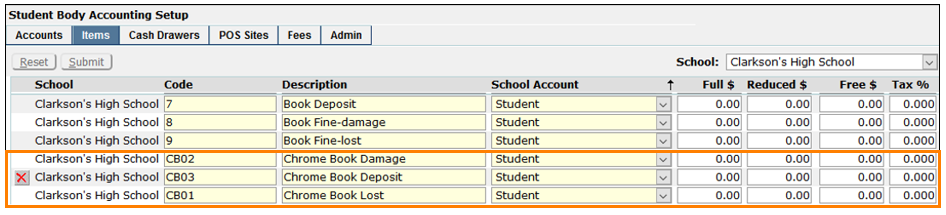
- Add POS Site
Create a POS Site called Inventory and add the damages items created above to the Ledger.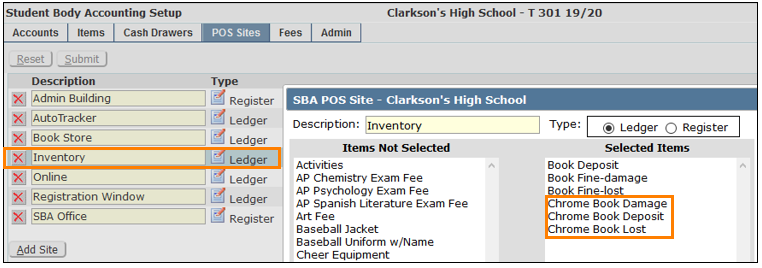
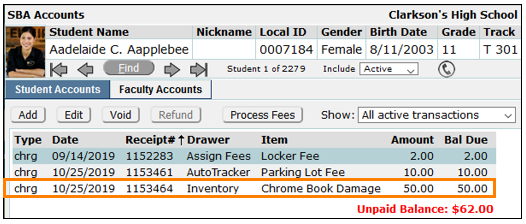
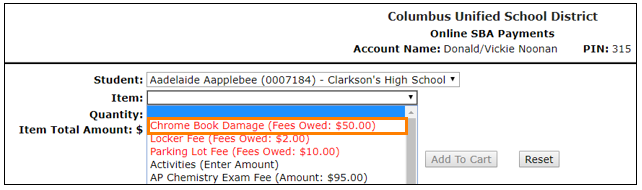
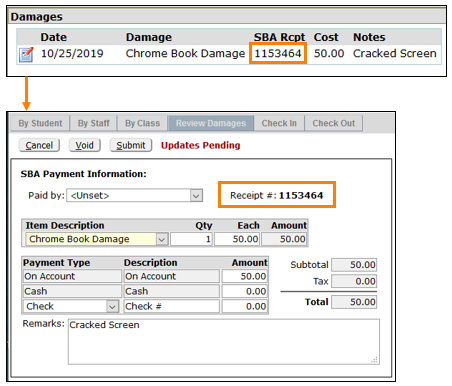
Here are some examples of how it will look.
- Adding Damages in Inventory
- How it shows in SBA Accounts and as a charge online in the Parent Portal.
- How it shows in Inventory.
When submitted, the SBA Receipt # will show. The item can be opened, edited and or voided in Inventory. When voided in Inventory, it is also voided in SBA and vice versa.
For information about configuring Student Body Accounting, see the documentation on SBA Setup.
