This banner application allows teachers, counselors or any user with permission to the application to track recommendations made for students and to log meetings with the student that are related to their recommendations.
Student Recommendations is located under the Schedule menu in Q.
To add a recommendation for a student, use the “Find” button or arrow icons on the student banner. For more information about searching for students, see the Student Banner documentation. 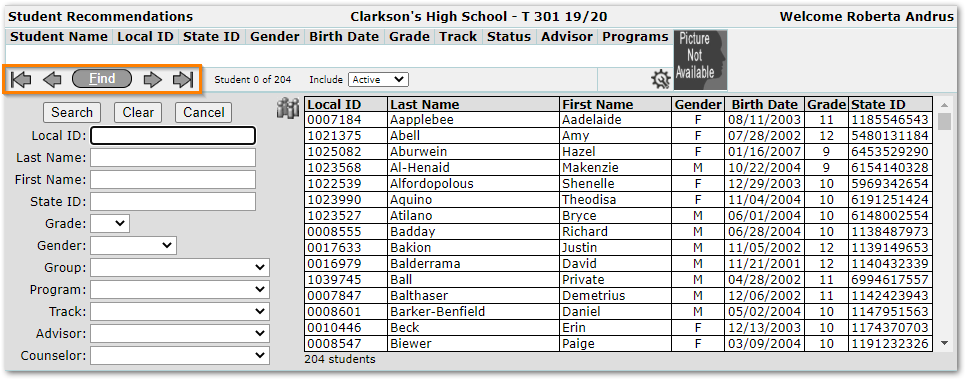
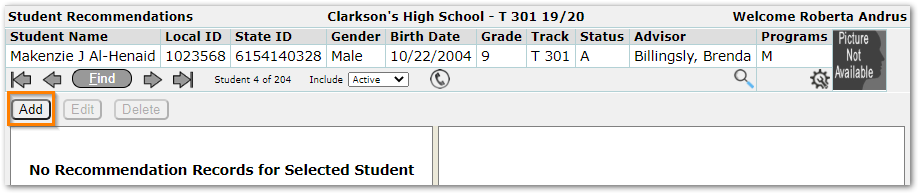
Once the desired student has been located, click the Add button to create a new recommendation record. Existing recommendations, if any, will be listed in the left-hand pane below the banner.
The new recommendation form includes the following options:
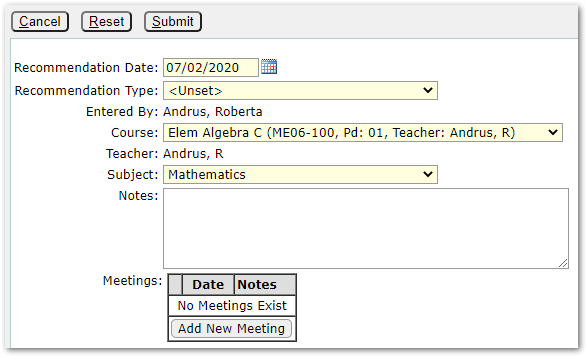
Recommendation Date – Defaults to the system date but may edited by the user.
Recommendation Type – Choose from the available options as set by the school or district.
Entered By – Automatically populates with the logged-in user’s name.
Course – Automatically populates with the list of scheduled courses for the teacher.
Teacher – Automatically populates with the teacher’s name.
Subject – Automatically populates based on the selected course.
Notes – The details of the recommendation
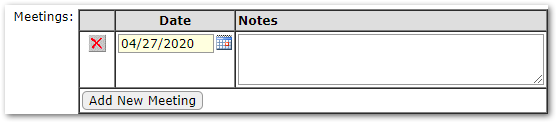
Meetings – Teachers may log meetings associated with the student recommendation. See the section below for more details.
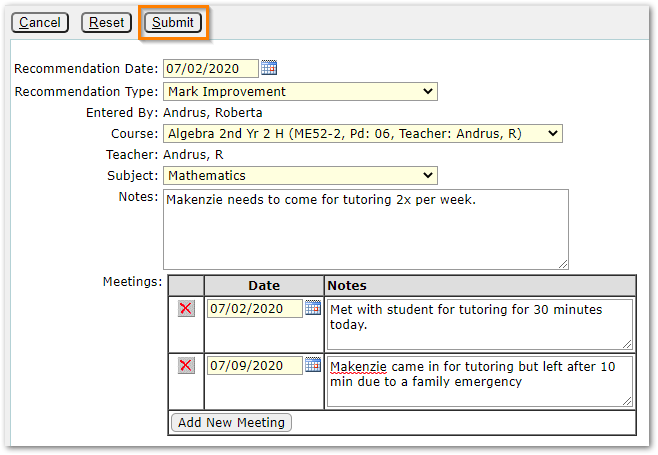
Once the form is complete, click the Submit button. As seen in the image near the bottom of this document, recorded recommendations appear in the left pane. Details of the selected recommendation appear in the right pane.
Add Meeting
Clicking the Add New Meeting button allows the teacher to enter a date and some notes about the meeting. Multiple meetings may be recorded for any recommendation.
Click to select any recommendation in the left pane then use the Edit or Delete buttons. Note that teachers may view all recommendations but can only edit the recommendations they made for a student.
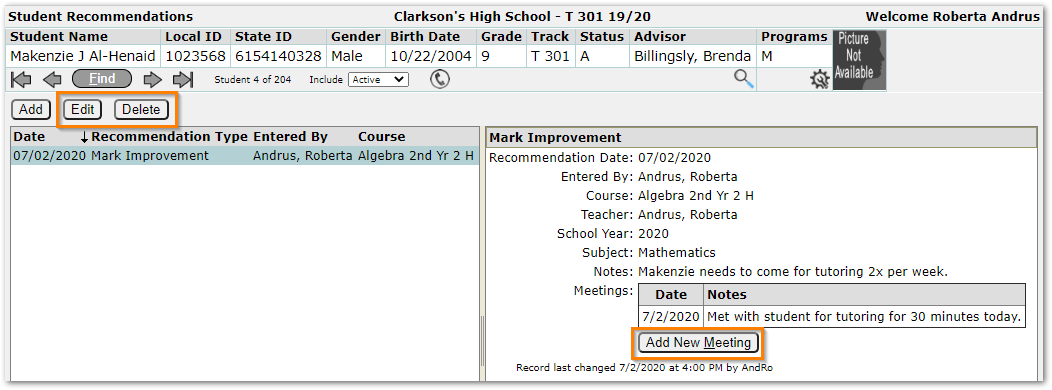
It is not necessary to edit a recommendation to add a new meeting. The right pane includes an Add New Meeting button. When editing a recommendation, be sure to click the Submit button to save all changes.