
Quick Reports enables users to build your own custom reports. Data available to users to include in reports is based on permissions and, in addition to student and optionally class data, may include one of the following areas:
- Class
- Activities
- Alerts
- Behavior
- Contacts
- Marks
- Programs
- Visits
These reports may be created to run once or saved for re-use.
Quick Reports may be accessed at the top of the Report menu by clicking the ‘New Quick Report’ button. 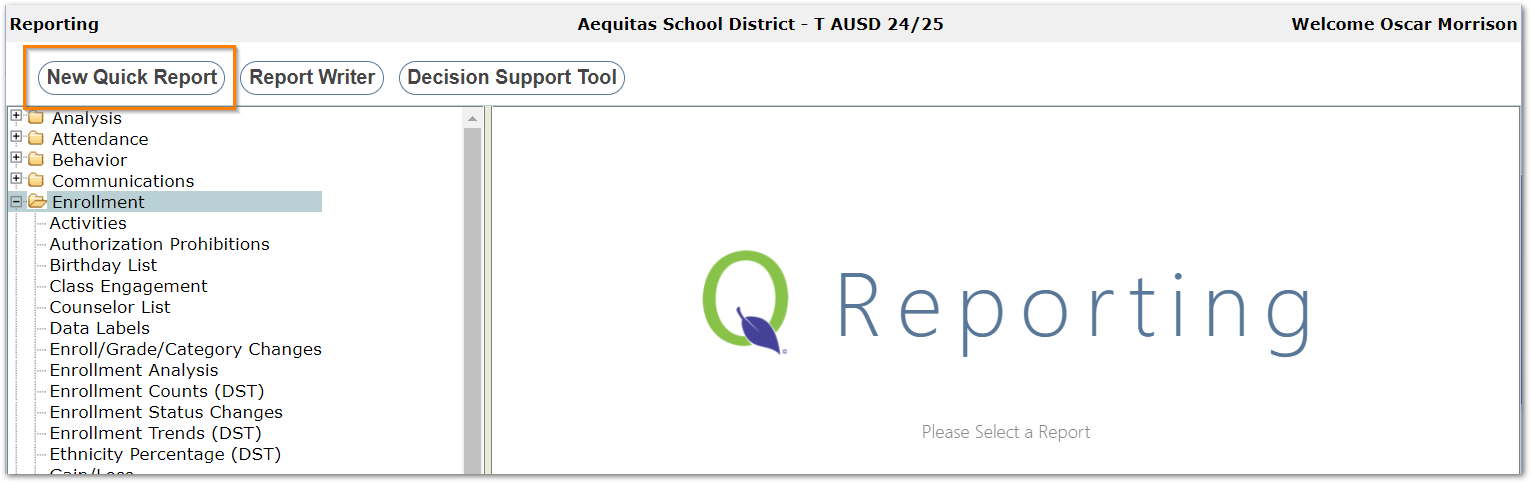
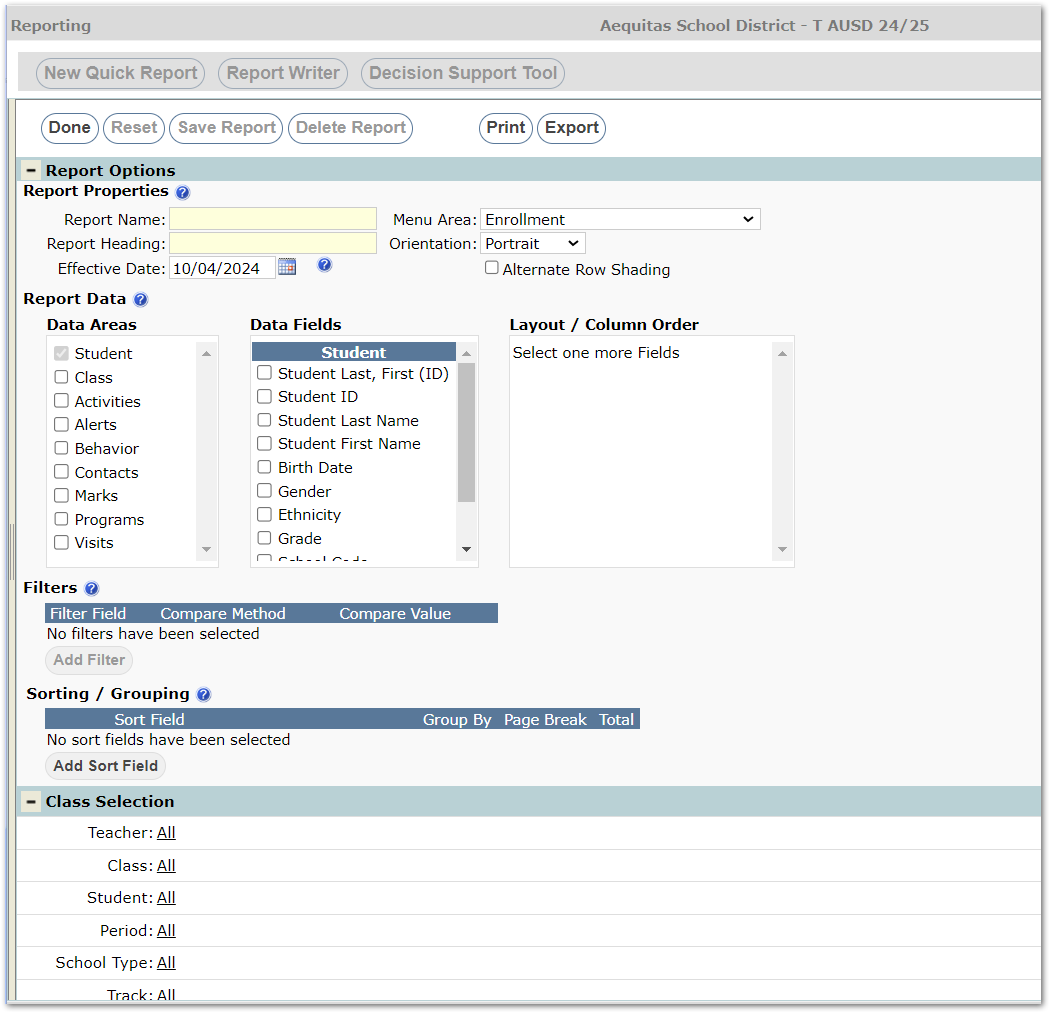
Report Options
Report Properties

Report Name: Enter a unique report name. This will be displayed in the reporting tree menu.
Report Heading: Defaults to the report name but this can be changed. This is what will appear in the report header when report is generated.
Menu Area: Select the menu area you would like your report associated to.
Orientation: Portrait or Landscape options are available.
Alternate Row Shading: Turn this option on to alternate shading between each data row.
Effective Date: This defaults to the system date. This date works with the Class Selection to determine the students enrolled in the class on the effective date.
Report Data
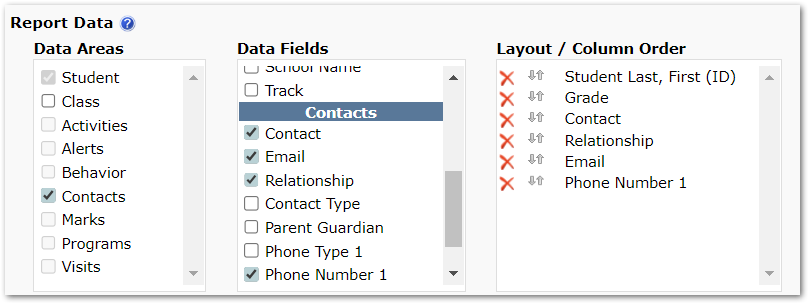
Data Areas: The areas listed will be based on permissions. Student is defaulted as the first data area selected – users can also select Class, and one additional area may be selected.
Data Fields: Data fields will populate based on the data areas selected. Choose the fields you would like included on your report.
NOTE: if more fields are selected than can print on the report, the PDF will print those fields that can print for the selected page orientation, and the Export feature will need to be used to view the remaining fields.
Layout / Column Order: Items selected as data fields will appear here and can be re-sequenced for desired column order.
Filters
Add Filter: If there is a specific data field you would like to filter by. For example, if Activities is selected as a Data Area, Activity Type can be added as a filter.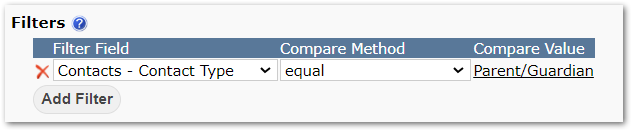
Sorting / Grouping
Sorting Option: Defaults to Student, but additional sort fields can be added based off selected data areas.
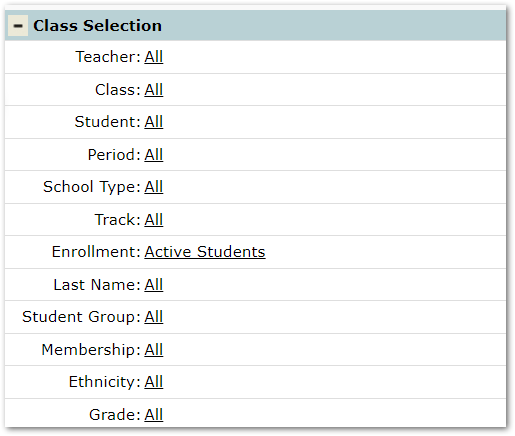
Class Selection
Additional Class Selection fields may be added.
Print Options
Click the Print button to produce a PDF of the report.
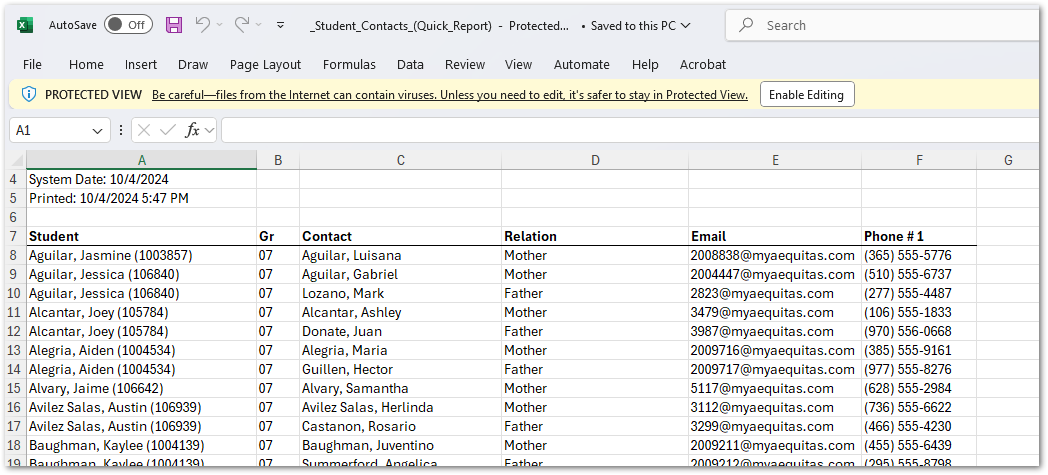
If not all columns fit on the report, use the Export button to produce an Excel file of the report which will include all columns.
In the report shown below, the data is produced in descending order by Grade, and includes the fields defined in the Report Options.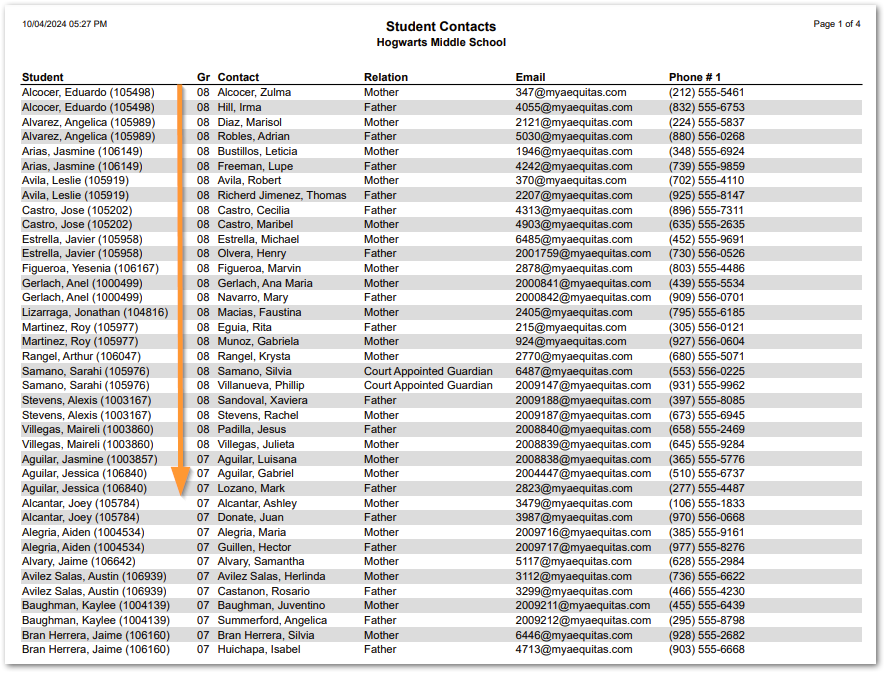
Sample Export
Finishing Up
Reports may be run once, or saved to run again by clicking the Save Report button.
Click Done to return to the Reports menu.
The report appears under the menu area selected in the report’s options.
Clicking on the report opens it again. It may be run, modified and saved, or deleted using the Delete Report button.
