
Program Forms is a student banner application that enables districts to manage customized forms for programs such as Section 504 or IEP-related forms for Special Education. Users will see students already assigned to them through Program History or Special Education placement records in their caseload, or they may search from ‘All Students’ and add any student to their Program Forms caseload to manage their forms.
Program Forms is located under the Programs menu in Q.
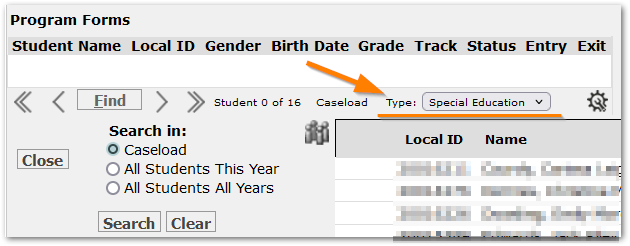
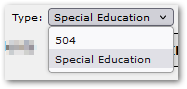
When the application initially opens to the student banner, a Form Type will appear at the right-hand side of the Find / Student # of ## line. Depending on the district configuration and the user’s permissions, it may default to one choice, or it may present as a drop-down box enabling the user to choose form types such as ‘Special Education’ or ‘504’ as example. When the user selects a choice, the application will remember the choice and default to it, but another option may be selected when needed, if available.

Some users, such as providers, may already have students in their banner or caseload, based on placement records associated with them either from an existing program like Special Education or another program. The students in the list below are those in the user’s caseload based on Special Education placements.
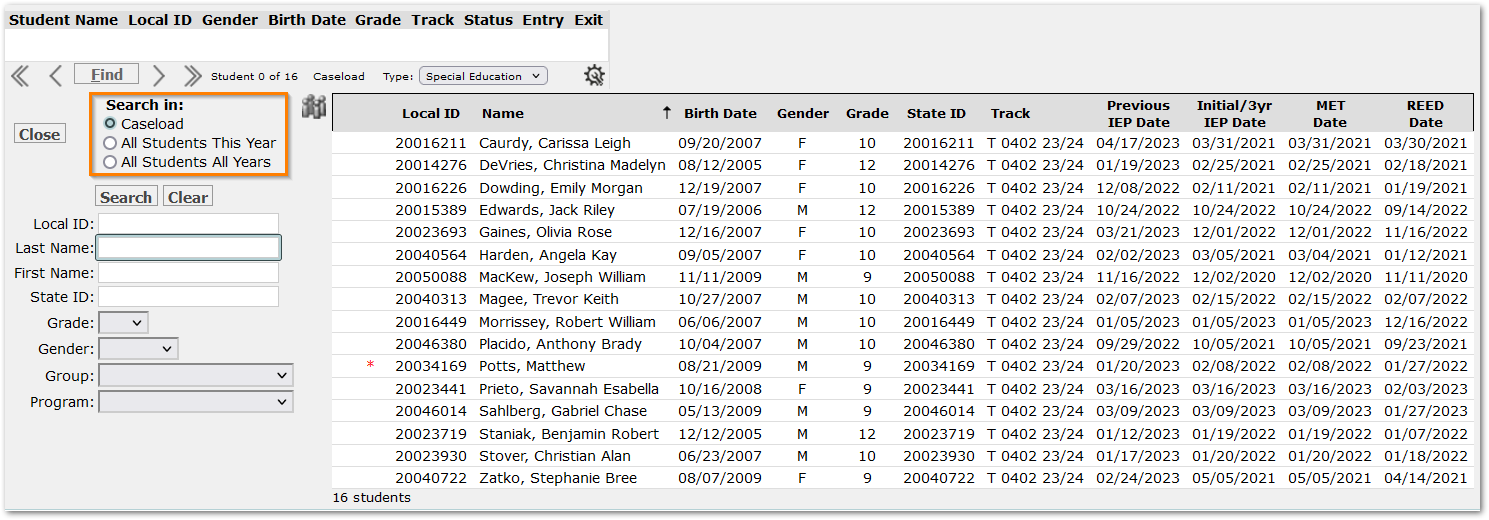 A staff member’s caseload with 16 students
To work with one of these student’s forms, either arrow through the list to highlight and select the student or use the Find dialog to search. Notice the ‘Search in:’ radio button highlighted above defaults to search the Caseload.
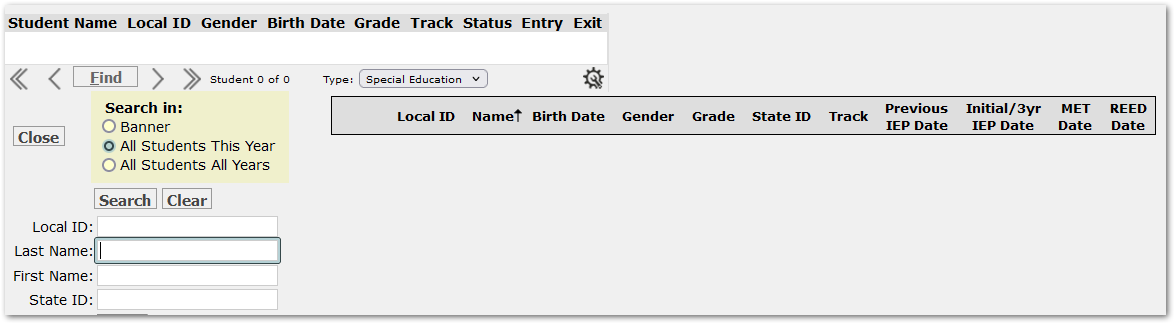
Other users may initially not see any students in their banner. For example, when an administrator or office staff member without placement records assigned to them, initially logs into Program Forms, their screen will appear as shown with zero students and search options of ‘Banner’ or one of the ‘All Students’. options: 'All Students This Year' or 'All Students All Years'.
For ALL users, whether there’s an existing Caseload or not -
To add a student to the banner or caseload, change the ‘Search in’ setting to select one of the ‘All Students’ options and use the filter fields to search to find the desired student.
After selecting a student to add to the caseload, they will appear in the banner with a green plus sign.
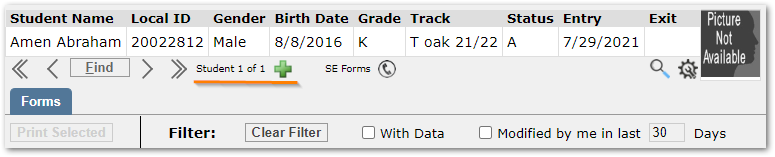
User with no students in banner adding a student to their banner/caseload.
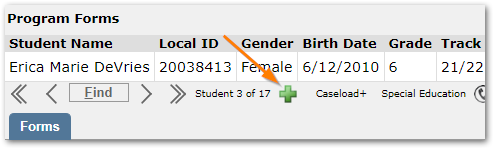
User adding a student to their existing caseload
If you will be working with the student over a period of time, or need access to their forms in multiple sessions, click the green plus sign to keep them on the caseload.
Otherwise, the student will only be in the banner during the current session. When the application is closed and re-launched the student will no longer be in the banner.
The student list at right during a search includes indicators.
- A red asterisk to the left of the student’s ID indicates Medicaid eligibility.
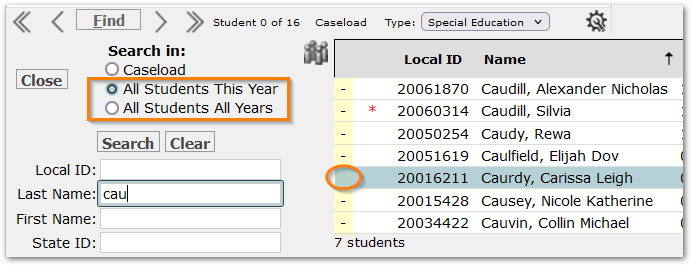
When searching with either of the ‘All Students’ options:
- Students with a dash at far left (highlighted in yellow) are not yet on the caseload, but
- Students without a dash like ‘Caurdy, Carissa Leigh’ (selected student) are already on the caseload.
When searching the caseload:
- Students added to the caseload are identified in the caseload listing with an ‘A’ at far left and may be removed from the caseload by clicking the red X sign. Once removed, they may be searched for among ‘All Students’ as before and re-added if needed.
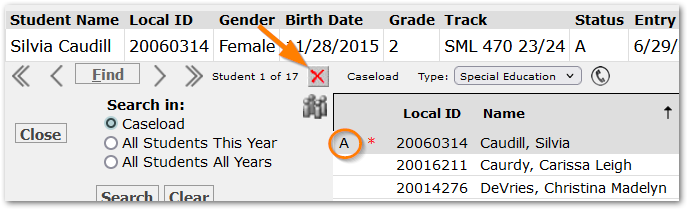
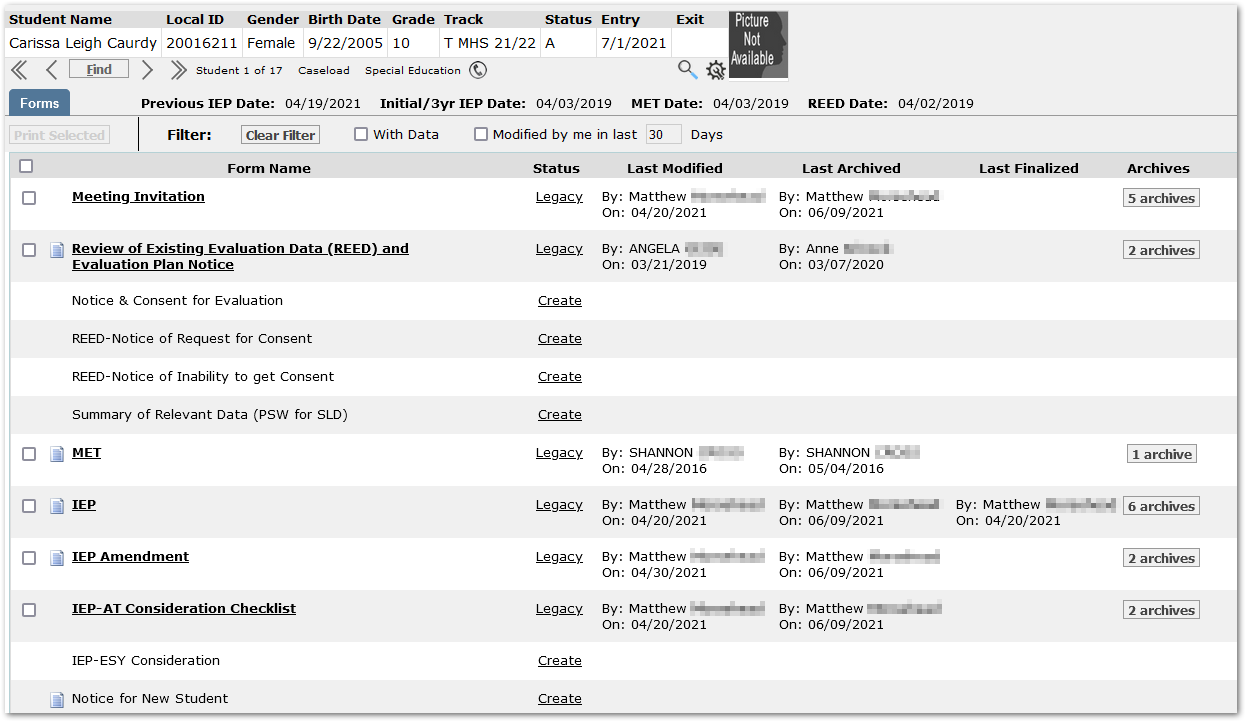
After selecting a student, the Form List will appear.
 Form List
Exploring Features
Moving from left to right across the columns:
Print Selected form(s) button becomes enabled when forms are selected using either the checkbox in the column header or the checkbox to the left of each form name. Multiple forms may be printed at once by checking multiple forms.
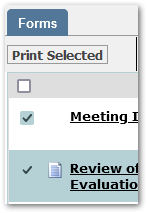
Document icon  – Forms with document icons may have Student Documents associated with them. A green icon
  indicates Student Documents are present. Click the icon to open the Student Document dialog. Existing documents will be listed. To open the document itself, click the document icon at far right. Use the icons at left to delete, view and edit the Student Document record. Additional documents may be added by clicking the ‘Add’ button. Access to Student Documents for specific forms, and the available icons at left for any document, is based on user permissions.

Form Name – Under the ‘Form Name’ column, some form names are bold links, and others are not. Bold indicates that there is data in the form. Clicking the link will open the existing form.
The forms that appear in the list for a user are based permissions. Districts may implement different Form Types such as Special Education Forms and Section 504 Forms. Users may be given permission based on the Form Type and / or specific forms in the Form List may be hidden or made view-only based on the Permission role. In this way, teachers may have access to a Progress Report, or Report to Classroom Teacher, but not to an IEP, etc. As a result, the examples shown here of a student’s form list, may appear differently for different users.
Status column indicates the current status of the form.
LEGACY - indicates the form is a legacy SEEFS form.
CREATE – indicates no form yet exists, and a new one may be created. Click the ‘Create’ link to begin the process of creating a form.
Q Program Forms go through a set of stages:
DRAFT - Initially forms are created as ‘Draft’ forms. As a draft they will default to having a ‘DRAFT’ watermark when printed.
> Draft versions may be deleted by those with permission to do so.
FINALIZED - When the form is complete and ready for publication, signature etc., it will be ‘Finalized’. [This is comparable to the ‘Mark Complete’ process in the legacy application for an IEP, but in Q Program Forms, it applies to all forms.] When a form is finalized, an archive will automatically be created. The ‘DRAFT’ watermark is also removed.
> Users with permission may unlock a finalized form to enable it to be corrected or modified and re-finalized.
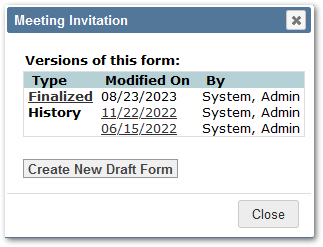
HISTORY - When a Finalized form exists, and a new Draft form is created, the previously finalized form’s status is changed to ‘History’ and may be accessed by clicking date link for the form.
CLOSED - In the event that a form needs to be closed, such as when a draft has been initiated, but the family has moved or decides not to proceed with the process, the form may be closed with a note of explanation. If the process needs to be re-started, the form may be reopened.
Archive Link – an archive link will appear to the left of ‘Status’ when updated form information is present and has not yet been archived.

Columns ‘Last Modified’, ‘Last Archived’ and ‘Last Finalized’ provide information about who and when those actions were last performed.
Archives – Forms with archives will show a button with the number of archives available for the form. Clicking the button will open a pop-up window with the archive detail. Click the link in the Form column to open the archive document.
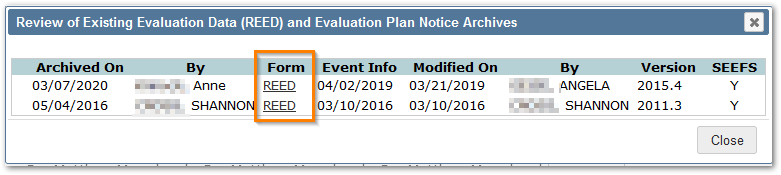
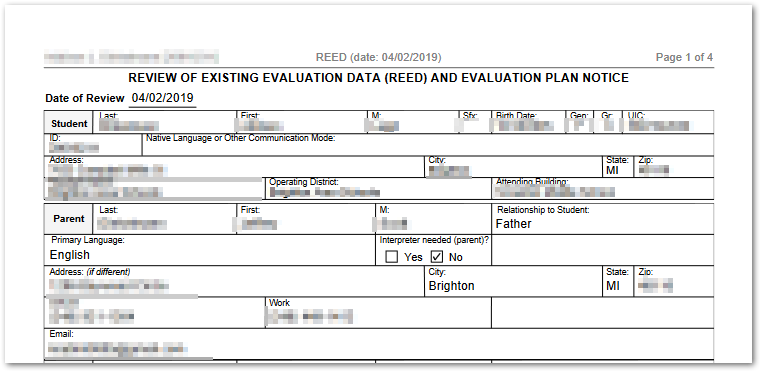
The Archived REED opens when the ‘REED’ link is clicked in Archive detail:
Filter - The form list itself may be filtered using the filter options at the top.
- Check ‘With Data’ to see forms in the list that are in process or have been completed.
- Check ‘Modified by me in the last 30 days’ to see just the list of forms you have edited. Adjust the number of days in the filter as desired.
To access an existing form, click the bold Form Name.
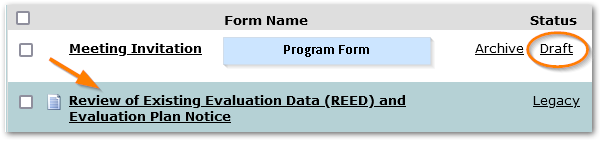
This will open the form and enable users to view or print sections of the form. Depending on the status of the form, users may also be able to edit it.
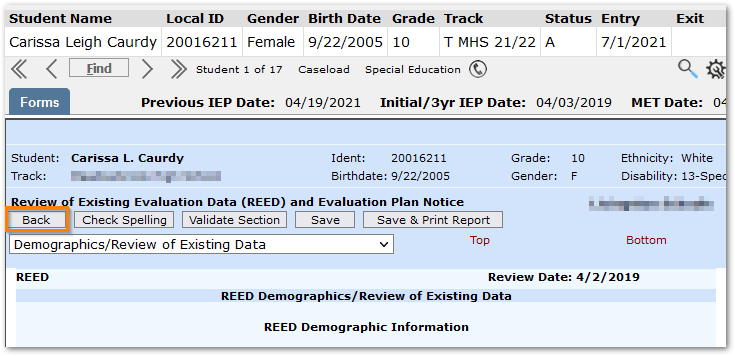
- If the form has a ‘Legacy’ status, the legacy form will open, like the REED form above. Proceed to edit the form just as in the legacy application. To return to the Form List, click the Back
- Othewise, the Program Form will open.

The Program Form screen has three panels with a set of options and information across the top:
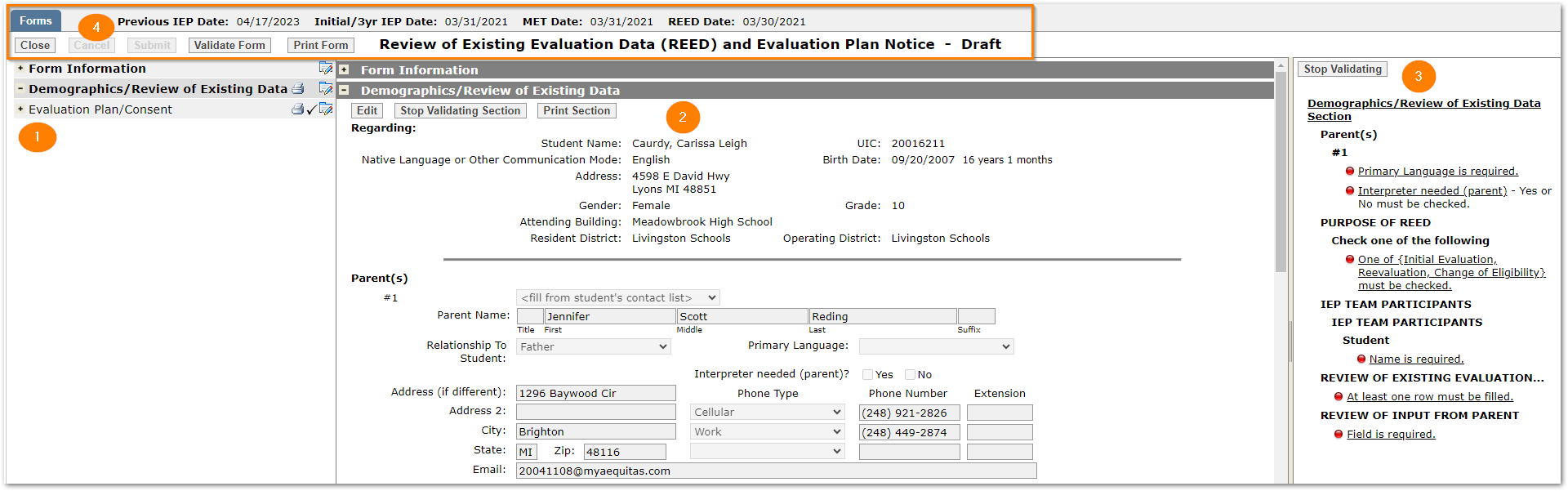
- The sections of a form are listed at left.
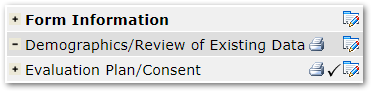
Use the icons for the desired section to:
 Print
Print
 Validate
 Edit.
Edit.
- The Form
Within sections of the form, different options will appear at the top, including Edit, Validate Section and Print Section as shown. Users may only edit one section of a form at a time. Submit and save changes in a section before moving on to the next section.
- Validation panel – Validation messages and issues will be presented in the panel at right. Clicking on a validation issue will highlight the issue in the form.
- Control options – The options across the top become enabled as appropriate when the form is being created and edited.

Close - will return the user to the Form List. If there are unsaved changes, the application will prompt for confirmation to lose changes and give an opportunity to Cancel and return to the form to save changes.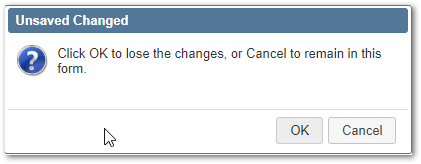
Cancel - will abort the changes in process. The application will warn the user if changes have been made. Click OK to lose changes or click Cancel again to return to the form and continue or click Submit to save changes.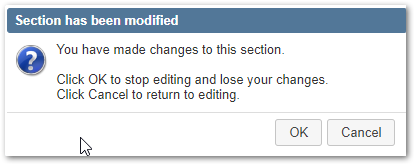
Submit - will save changes.
Validate Form - will provide validation messages for all sections of the form. Remember only one section may be edited at a time. For this reason, it is recommended to validate each section as it is being completed.
Print Form – This option becomes enabled when users are not editing a section. When editing a section, print options for the section are enabled.
For a form with a ‘Create’ link, click Create.
- For a Legacy Form that is available as a Q Program Form (such as Meeting Invitation, IEP, etc.) when there is not an existing legacy form for the student, the only option will be to ‘Create New Draft Form’.
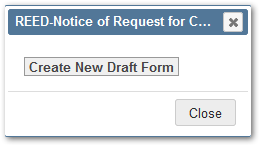
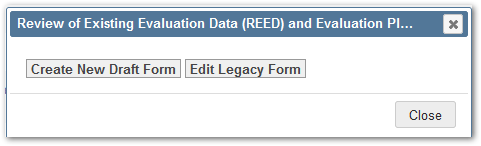
- When a student already has an existing legacy form, and it’s a form that could be filled out as a Q Program Form, the Status link will show ‘Legacy’. Clicking the ‘Legacy’ link will provide two options: ‘Create New Draft Form’ or ‘Edit Legacy Form’.
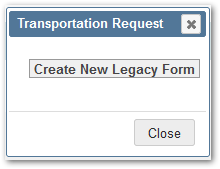
- For forms not yet available as Q Program Forms, clicking ‘Create’ link will provide the option to ‘Create New Legacy Form’. Click the option and proceed to complete the form just as you would in the legacy SEEFS application.
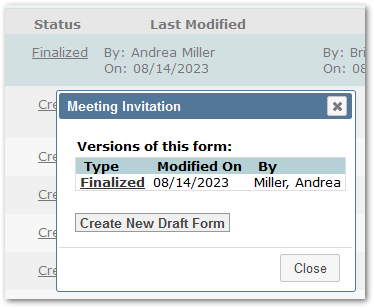
- For a form that has a status of ‘Finalized’, click the Status link to access the option to ‘Create New Draft Form’.
This is an info callout
In this pop-up dialog, when clicking the ‘Create New Draft Form’ button, if the preference ‘When creating Draft copy data from Finalized’ is set ON, the new draft form will be pre-populated with data from the Finalized document, otherwise it will be blank.
When a Legacy Form Exists and Data Needs to be Archived
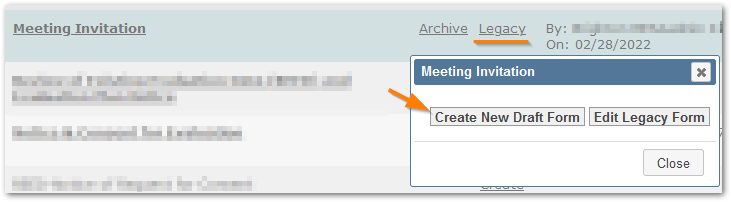
When clicking ‘Create New Draft Form’ for a form that has an existing legacy version for the student, if the data has not been archived, the application will prompt you to archive the legacy version before a draft can be created.
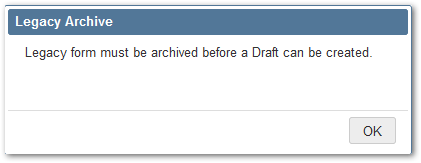
Click the ‘Archive’ link to archive the legacy form. A warning message will appear to save data before proceeding. When the data has been saved, proceed with these steps.
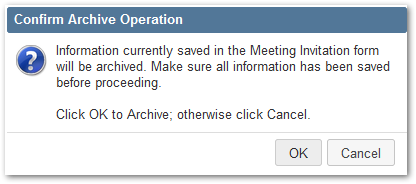
After archiving the legacy form, the ‘Archive’ link will disappear, ‘Last Archived’ will be populated, and the archived document will be accessible under the Archives area.

Click the ‘Legacy’ status link again to access the option to ‘Create New Draft Form.’
Stepping Through the Process to Create a New Draft
Form Information Section
Forms initially open to the ‘Form Information’ section where there will be a date field specific to the form being completed and a Notes button.

After entering data, ‘Submit’ becomes enabled. Click Submit to save the data entered in the section.
Fill From
Some forms may include one or more options to ‘Fill From’ another form in the ‘Form Information’ section. When the Fill From is enabled, click it before entering dates. It will bring up a dialog, as shown below.
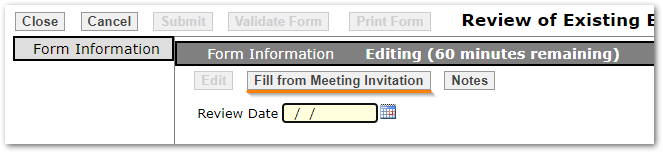
Click ‘Fill’ to move data into the new draft form.
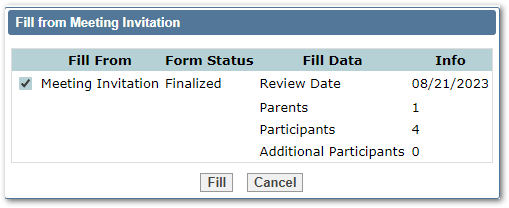
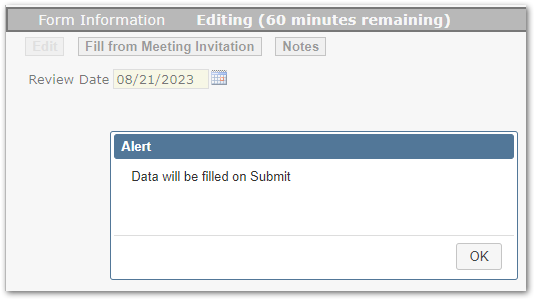
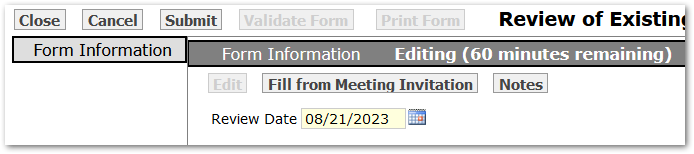
Adjust the Review Date if needed, click OK. Then, Submit to save the Form Information.
Form Sections
When the Form Information section is saved, the full form becomes accessible. In this example there is only one additional section, but in other forms there may be several sections.
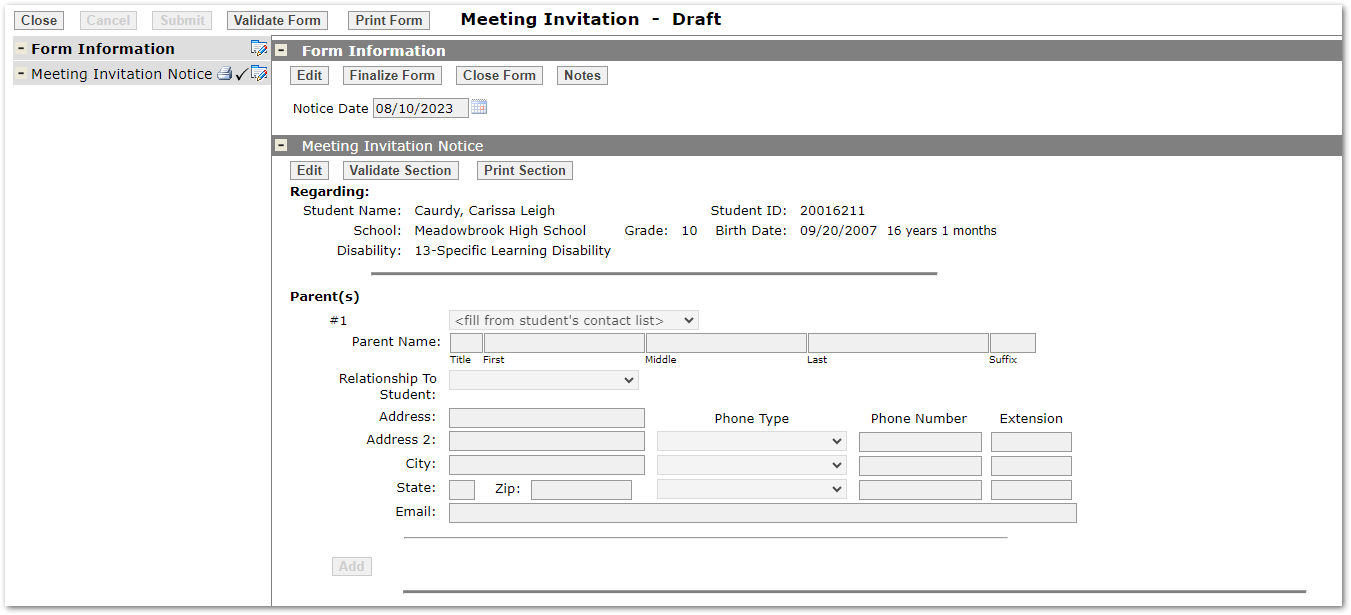
Other forms may have multiple sections, such as the IEP which has many. Expand sections either by clicking the + plus sign or clicking on the section name at left, and collapse by clicking on the – minus sign.
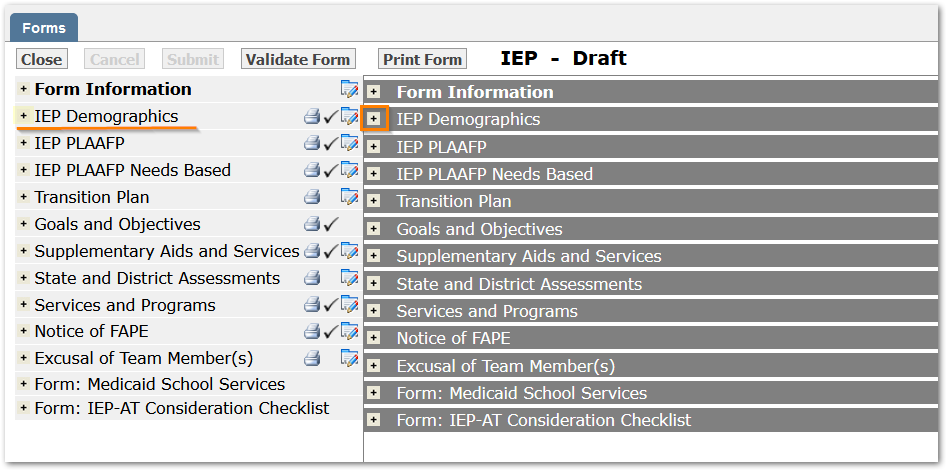
Edit Section
Proceed to edit each section in turn by either clicking the Edit button at the top of the section, highlighted, or click the Edit icon in the Section bar at left: 

Complete entering data for the section.
Validate Section
Use the Validate Section option to validate the data entered by either clicking the ‘Validate Section’ button next to Edit at the top of the section or clicking the checkmark icon in the Section bar at left.
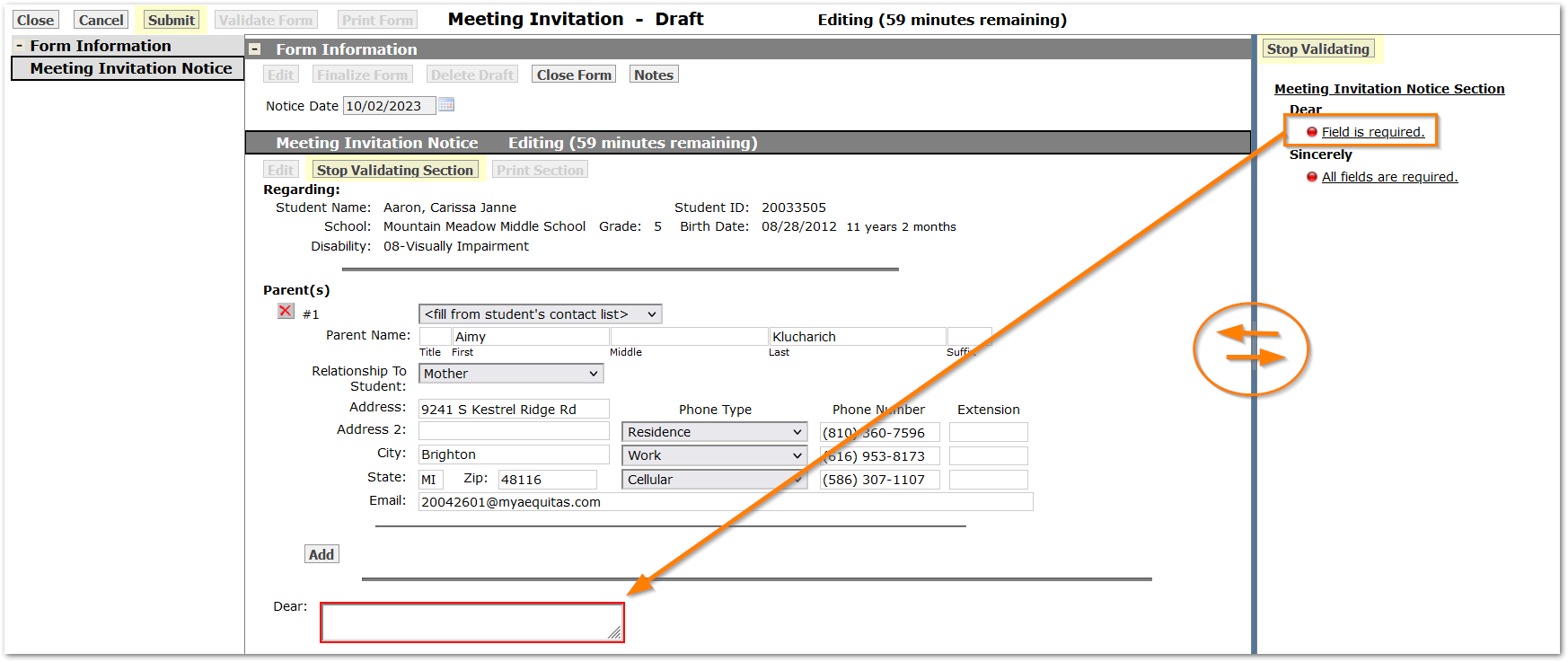
This is an info callout
To adjust the width of the validation panel and form entry portions of the screen, click on the mover bar as highlighted and drag the bar to left or right as desired.
Correct any issues identified. Clicking on the issue identified in Validation panel at right will highlight the field with the issue.
If desired, to stop validating the section, click one of the ‘Stop Validating’ buttons at the top of the section or at the top of the validation panel.
When complete, click Submit. It is recommended practice to Submit often, to save changes as you complete the form.
Print Section
Use the Printer icon in the Section bar at left, or the ‘Print Section’ button to print the section.
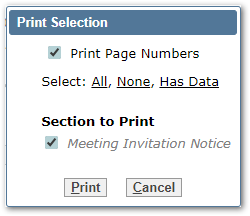 | 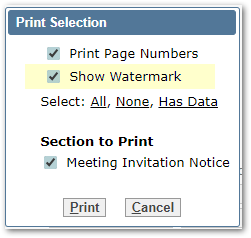 |
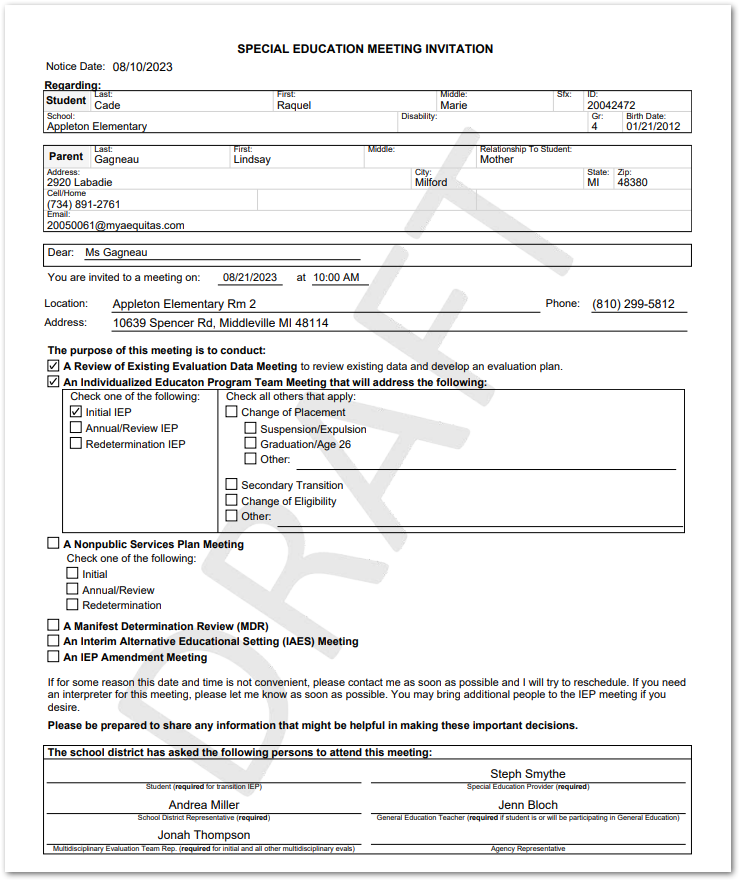
A form in ‘Draft’ mode, will have a DRAFT watermark until it has been finalized.
If necessary to print a form for Participant signatures for a meeting before the form has been finalized, users with permission to do so may uncheck the ‘Show watermark’ option to print the desired section with signatures.
Finalize
Once the form is complete and all validation issues have been cleared, it may be finalized.
When a form is finalized, it will be locked and may no longer be edited and changed. It will automatically be archived during the finalization process.
Open the Form Information section and click ‘Finalize Form’.
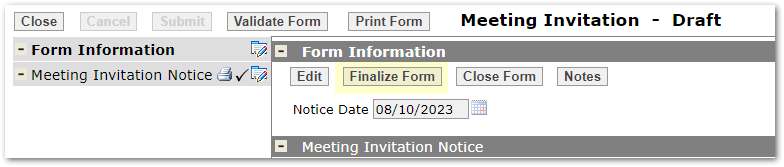
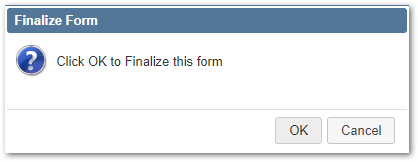
The application will ask for confirmation to finalize, click OK if ready to finalize the form or Cancel to return to the form and make any needed changes before finalizing.
After the form has been finalized, it will appear in the Form List as shown, with a status of ‘Finalized’ and information about when and by whom the form as last modified, archived and finalized. The archive version of the form may be accessed under the Archives button at right.

To re-visit the finalized form, click the link under the Form Name.
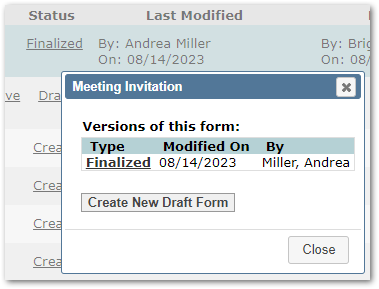
Alternatively, clicking the ‘Finalized’ status link will open a dialog. Click the link in the pop-up to access the form.
Forms may be Closed if needed. This feature could be used in situations where a student moves or their family no longer wants to continue the forms process.
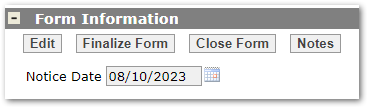
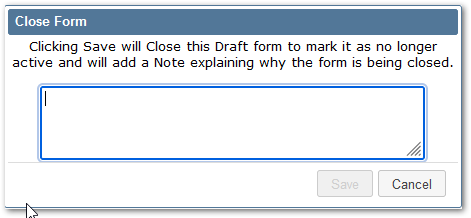
To close a form, from the Form Information section, click ‘Close’ and enter a note explaining why the form is being closed.
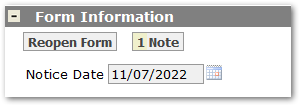
After saving the note, the option to ‘Reopen Form’ appears along with a numeric indicator of the number of notes.
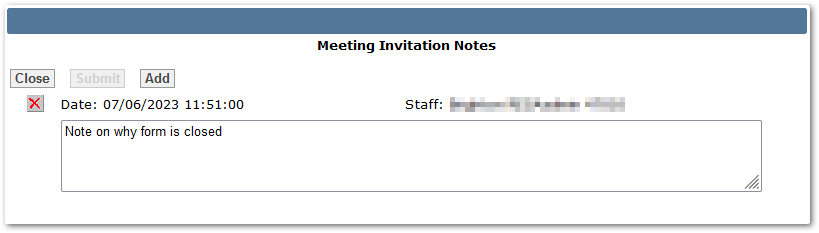
Sample note:
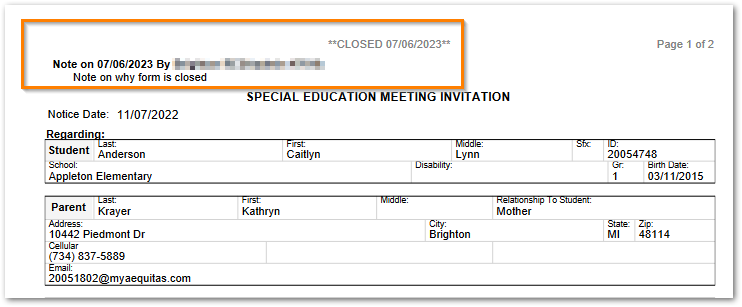
When a closed form is printed, the Closed status appears in the header with the date it was closed, and the first note is shown as well.
To re-open the form, click ‘Reopen Form’ and proceed to complete or adjust the form.
Users with explicit permission to Delete Drafts will see the option in the Form Information section.
This is an info callout
Only Draft forms may be deleted by those with permission. Forms that are finalized or in history may not be removed.

After clicking ‘Delete Draft’ a confirmation message is presented.
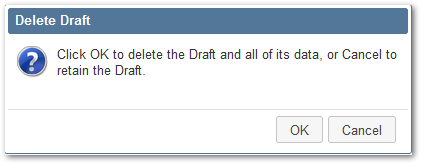
When OK is clicked, the draft form is removed. Click Cancel to keep the draft form.
Users with explicit permission to Unlock Finalized forms will see the option in the Form Information section of a Finalized Form.
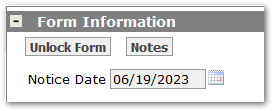
When ‘Unlock Form’ is clicked, a confirmation message will appear. Click OK to continue with unlocking the form or Cancel to keep it as ‘Finalized’.
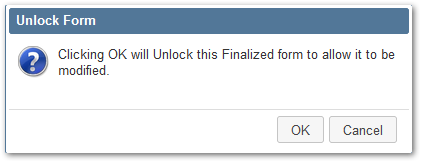
After OK is clicked, its status will be ‘Unlocked’.

Users may now edit the form, make corrections and re-finalize the form.
