
Grade Book is a customizable web based application which provides users with the ability to create class assignments, track assignment scores for students, and enter or update mark information. Grade Book users can view completed assignments, missing assignments, current grade book percentages, number of class absences, tardies, and student profile information based on the their permissions in Q.
Grade Book is located under the Marks menu in Q.
Users have three options available for customization of preferences.
District Defined Hard Preferences:
- Districts may elect to pre-configure some or all of the preference settings for grade book users. District defined hard preferences would be displayed for grade book users once the setup tab is accessed. Districts can choose to pre-configure items such as grading scales, categories, preferences, scoring options, and configuration.
District defined hard preferences would not be editable by users.
District Defined Soft Preferences:
- Districts may elect to offer grade book user’s district defined soft preferences. Soft preferences enable grade book users to implement the options suggested by their district for configuration, or edit the suggested settings to create a customized grade book experience.
User Defined Preferences:
- If no preferences have been configured by the district, users can log into the grade book application and configure settings based on their specific preferences.
There are four Grade Book Preference and Settings available to users in the Grade Book. To open the settings, click the cog at the bottom of the screen. 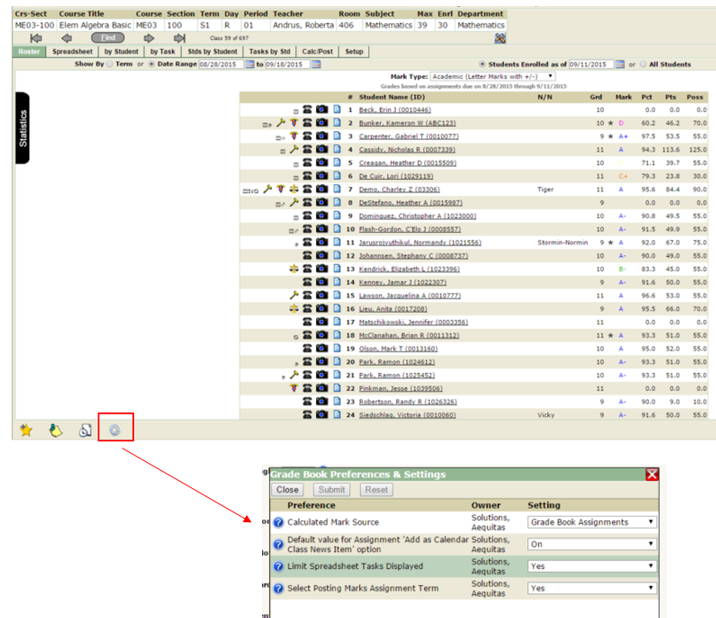
- Calculated Mark Source: There are two selections available in the Calculated Mark Source drop down list. Selecting Grade Book Assignments will use the current Grade Book assignment scores to calculate marks. Posted Marks will have the Grade Book calculate mark processes use the posted term marks.
- Default value for Assignment ‘Add as Calendar Class News Item’ option: when adding a new assignment, the check box to add the assignment as a class news item will automatically default on if this option is turned on.
- Limit Spreadsheet Tasks Displayed: if this option is turned on, the spreadsheet tab will default to a date range of 2 weeks back, and 1 week ahead.
NOTE: If this option is turned on, all other tabs will show by Term. The Gradebook will honor the logged in teacher’s preference they have set to be the default term when the gradebook is launched on all other Tabs, while the Spreadsheet will remain with the default limit of 3 weeks by Date.
- Selected Posting Marks Assignment Term: Set to Yes to enable the selection of the term for assignments used to calculate marks. Set to No and the process will select assignments based on the posting term.
NOTE: These preferences may not be available based on District Preference settings.
Click Submit to save your settings, or Reset to undo any changes made since the last submit and return to the previous screen.
If a teacher’s grade book has not been configured, when they launch the grade book, the user will automatically be taken to the Setup tab so the grade book can be configured.
Setup Areas
Configuration:
The configuration tab allows grade book users to quickly review areas of the grade book which may need to be configured. If the district has chosen to pre-configure settings, those settings can be applied by clicking Configure. Sections that have been improperly configured will be displayed with warning symbols. Hover over the warning symbols to view tool tips for the item.
Note: User configuration may be limited based on district settings. Items denoted with an asterisk (*) are required fields. 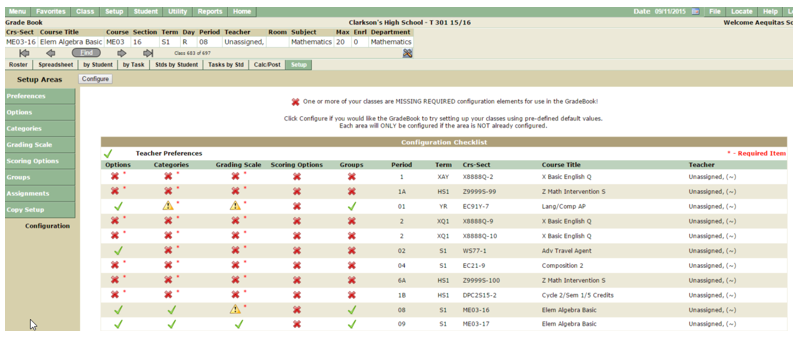
Preferences:
Calculate grades using tasks due on or before current date:
- When this preference is set to ON, the final grade in the percentage and grade columns will be calculated using only the marks entered for tasks with a due date up to and including today’s date. The calculation will only compare points possible with points earned up to today’s date when calculating the cumulative percentage.
- When this preference is set to OFF, the calculation will compare the total points possible for all tasks defined, including those that are due at future dates and compare them with the total points earned to date. Students will start out with the lowest possible cumulative percentage and grade. Their current grade for the class will then build up as their scores from tasks are entered.
Display only currently active students in rosters:
- Sets the default for students to show upon login to the grade book application in the roster, spreadsheet, edit by student, and edit by task tabs. Enables users to filter the students in the list to show only those students who are enrolled as of specific dates, or to show all students who have ever been enrolled in the class. When this preference is set to ON, the set of students shown will default to those enrolled as of the current date. When this preference is turned OFF, the students shown will default to show all students upon logging into the grade book application.
Display point totals with calculated grades:
- When this preference is set to ON two additional columns will appear in the spreadsheet and roster tabs; Points Earned (Pts) and Points Possible (Poss) for each task. The values displayed will be raw, in that they are not influenced by the calculation method set in class options, point method, or percentage method preference.
Include students enrolled as teacher assistants (TA) in roster:
- Students enrolled as teacher assistants may or may not need to be graded. In grade book you can choose to display teacher assistants at the bottom of the class roster by setting this preference ON.
Edit assignment scores on spreadsheet tab:
- When set to ON, student scores can be edited in the spreadsheet tab of the grade book application. When the preference is set to OFF, scores in the spreadsheet tab will be read only.
Default assignment comments to ‘Shared’ (Student Profile and ParentConnect):
- Comments entered by teachers in the edit by student and edit by task tabs, may be automatically shared with students and parents in the student and parent portals when this preference is set to ON. To disable the automatic display of assignment comments, turn the preference OFF.
Sort assignments descending by due date:
- View assignment listings ascending or descending by due date when they are displayed in a grid format. When this preference is turned ON the assignments will be displayed in ascending order (oldest first), OFF will display the assignments in descending order (newest first).
Re-Calculate Standard Marks (if they already exist), when you enter or change points for an Assignment.
- If this option is turned on, if points for an assignment are changed, the mark entered for a standard will automatically be re-calculated upon the change of the points given.
When Launching Gradebook, default selected term to this value.
- Select a default term from the drop down list. The gradebook will default to this team each time it is launched.
When launching Gradebook, open this tab.
- Select a Gradebook tab from the dropdown list. The gradebook will default to this tab each time it is launched.
Select tabs you want to hide.
- Teachers have the option to hide selected tabs they do not want to appear when launching the gradebook. Ex: High School teachers may not want Standards tabs in their gradebook since they do not use standards.
Options:
Grade Book users may configure how scores will be displayed, entered, and calculated in a class. To configure options, click the radio button for the option you would like to enable. If there is a discrepancy with the course section and the mark definition that is assigned to the course users will be re-directed to the Configuration Screen.
Assignment Results Displayed and Entered As:
- Numeric Score Values: Displays grades which have been entered as numeric values.
- Grade Values: To display and enter grades for assignments as letter values, select to display and enter marks as grade values. When a letter grade is used to enter a score, a percentage value is assigned to the letter grade for calculation purposes. The percentage value used for calculating grades will be the midpoint percentage value between the letter grade assigned and the next highest letter grade. The grade book application will take the midpoint percentage value between the letter grade awarded and the next highest letter grade for the purpose of calculating the grade to date and percentage to date. For example, if a grading scale has been created which awards an A = 90%, B = 80%, C 70%, etc., and a student receives a B on an assignment the grade book application will take a value of 85% which is midway between an 80% and a 90% for that assignment.
Using Disproportionate Values: Letter grade values should be created using proportionate mark values. If the distance between the minimum percentage values for the letter grades in the scale is disproportionate, the final grade may be biased by the differences in the distances.
In the example shown below, the distance between the values for D and F are greater than the distances between the other letter grades.
A = 90% B = 80% C = 70%
D = 60%
F = 0%
Grade book can only use numerical values to calculate a final grade, even when letter marks are used for scoring tasks. If a score of ‘F’ were awarded for a task, it would be converted to the points possible multiplied by the average of 0% and 60%, which would equal 30%. If the points possible for a task were equal to 100, then the student would earn 30 points. This would potentially bias the student’s cumulative average of scores towards a lower grade. In this case specifically, if a student received one ‘F’ and one ‘A’ for two tasks that had the same points possible and the same weight value, the average grade would be a ‘D’ instead of a ‘C’. This issue would have occurred due to the disproportionate spread in the scale. To prevent this issue a user should set the ‘F’ grade to 50% to even the percentage spread between grades and create another mark lower than ‘F’ to represent 0%.
Calculate Student Grades Using
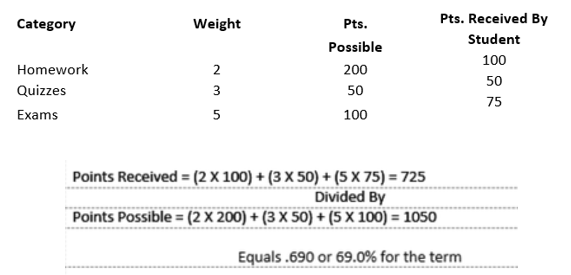
- Point Calculation Method: The point calculation method will sum all points received by a student and all points possible for the assignment. The total points received by the student are then divided by the total points possible. The grade assigned is then based on the resulting percentage. If category weights are assigned, they would be used as multipliers when using the point calculation method.
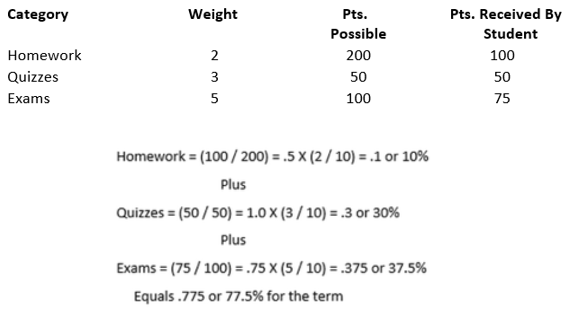
- Percentage Calculation Method: When grades for students are calculated using the percentage calculation method category weights indicate the relative percentage that each category should have on the final calculated grade. This provides the ability to specify the influence that any given category has on the calculated grade despite the number of points possible in that category. When using this method, points received within each category are divided by points possible for the category arriving at a category percentage. That result is then multiplied by the weight for the category divided by the sum of all category weights. The resulting percentages are then summed to arrive at the overall percentage for the term.
Point Calculation Method
Percentage Calculation Method
Missing Assignment Scores
- Count as Zero in Grade Calculations: This option will assign a value of zero (0) to missing assignments.
- Are Not Counted In Grade Calculations: Excludes missing assignments from student grade to date calculations.
Assignment Publishing in the Student Profile and Parent Connection Applications
- Do Not Share Assignment Information: Assignment information will not be displayed in the student profile and Qparent connection applications.
- Share Assignment Information with Those Permitted Access: Assignment information will be displayed in the student profile and Qparent connection application for users with access.
- Do Not Display Calculated Grade book Mark: The student’s calculated grade book mark will not be displayed in the student profile and Qparent connect applications.
- Display Current Calculated Grade book Mark: The student’s current calculated grade book mark will be displayed in the student profile and Qparent connect applications.
- Do Not Display Calculated Grade book Mark Percentage: The student’s current calculated grade book mark percentage will not be displayed in areas such as QStudent Profile and Qparent connect applications.
- Display Current Calculated Grade book Mark Percentage: The student’s current calculated grade book mark percentage will be displayed in areas such as QStudent Profile and Qparent Connect applications.
- Calculated Marking Term to Display: Select the term you would like displayed when choosing to display a student’s calculated grade book mark in the student profile and Qparent connect applications. If this option is set to display the current calculated marking term, the term displayed will be based on the track term dates. Note: Current term will be displayed by default unless the user selects a different term in the drop down list.
- NOTE:When this is set to current term, we will show assignment scores in the Student Profile and Portals for one week after the Marks Setup Term End date. EX: If Semester 1 ends on 12/1, we will show Semester 1 Assignment grade until 12/8. 12/9 will then display the Semester 2 grade for a student based on assignments.
- Do Not Display Assignment Class Average: Students assignment class average will not be displayed in the student profile and the Qparent connect application.
- Display Assignment Class Averages: Students assignment class averages will be displayed in the student profile and the Qparent connect application.
- Do Not Display Assignment Percentage Value: The percentage value of the assignment will not be displayed in the student profile and Qparent connect applications.
- Display the Assignment Percentage Value: Assignment percentage values will be displayed in the student profile and Qparent connect applications.
Note: The points possible and points earned are displayed when the share assignments option is enabled.
Once all selections have been made, click Submit. To clear all selections, click Reset.
Apply Class Options To
Place a checkmark next to the classes for which you would like to copy the selected options. To select to copy the options to all classes, click the checkbox located above the first listed class. Click Submit to save your selections, or Reset to clear any selections made since the previous save.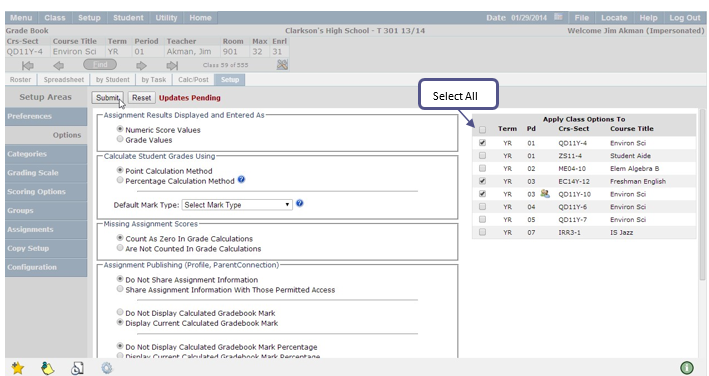
Categories
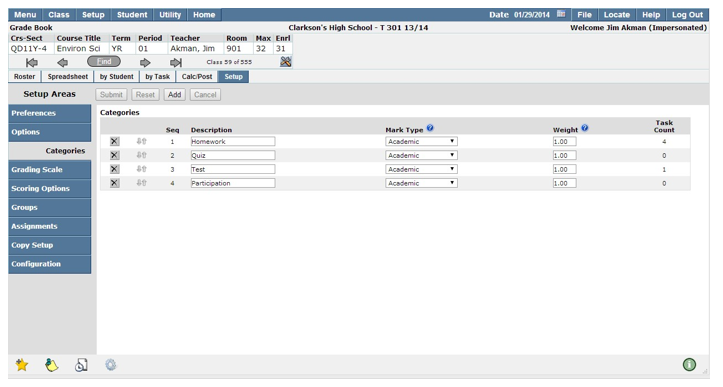
Grade book categories can be defined as assignment types such as projects, quizzes, tests, etc. There is no limit to the number of categories which can be created however; at least one category must be setup for each course.
Note: Categories cannot be added if there is no Mark Type defined for the course. To create Categories:
- Click Add
- Enter the category description.
- Select the mark type you would like associated to the category.
- Weights can be added to assignment categories. The weight value will default to 1 for all categories; therefore all categories will be counted equally during mark calculations. For more detailed information regarding weighting categories, click the question mark(?) located to the right of the Weight configuration column.
- Click Add to continue adding categories.
- Once all desired categories have been added, click Submit. To clear all changes made since the previous save click Reset, or click Cancel to return to the previous screen.
 Deleting a Category: Categories may be deleted for courses in which they are no longer needed.
To delete a Category:
- Navigate to the Setup tab in the Grade Book
- Click Categories
- Select the Category which you would like to delete.
- Click the X located to the left of the Category description.
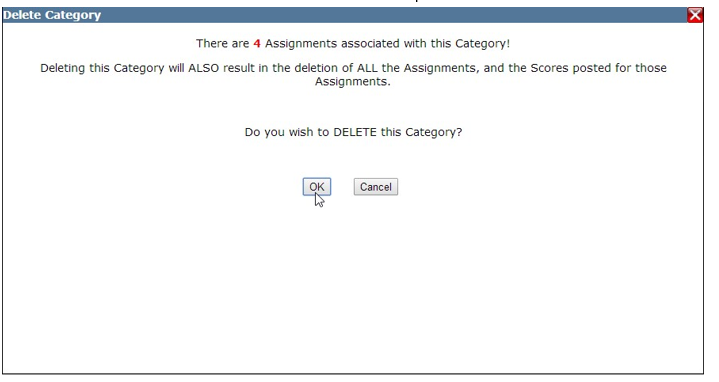
- A confirmation message will appear. If there are assignments associated to the selected Category the confirmation message will display the number of assignments associated.
- Click OK to delete the category.
- Click Cancel to return to the previous screen.
NOTE: Deleting a Category will also delete all Assignments and Scores posted for those assignments.
Restoring Deleted Categories
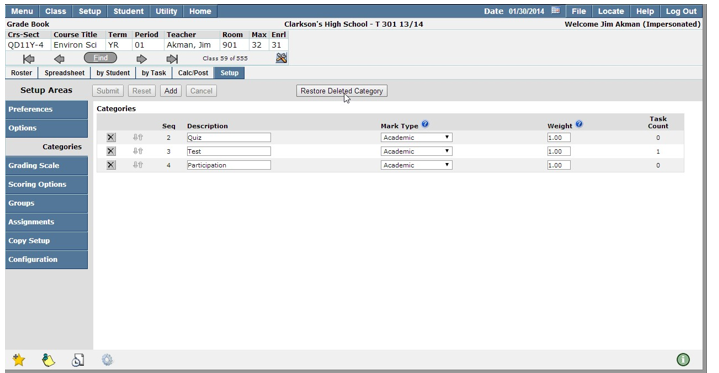
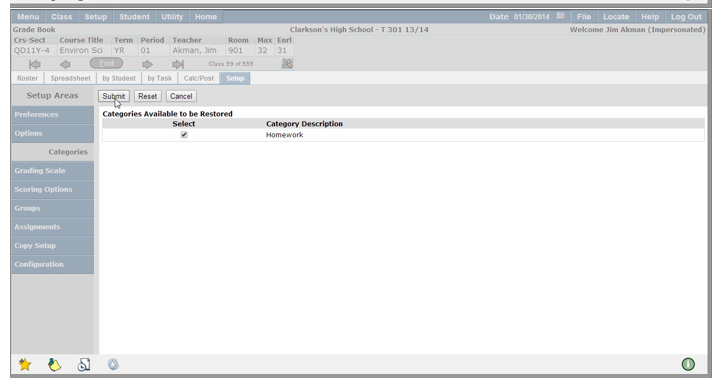
Categories that have been deleted can be restored using the Restore Deleted Category feature.
To restore a deleted category:
- Click Restore Deleted Category
- Any categories which have been previously deleted will be displayed.
- Place a checkmark in the ‘Select’ field of the category which you would like to restore.
- Click Submit to restore the category, Reset to undo any changes made since the last save, or Cancel to return to the previous screen.
Extra Credit Category
There are multiple ways to assign extra credit points to assignments.
- Extra Credit Assignment: When the assignment is created the extra credit flag can be set to on for the assignment. The extra credit flag, when turned on for any assignment, tells the grade calculation to include the points awarded to the student in the total points received without adding the points possible to the total points possible.
- Extra Credit Category: Teachers have the ability to define an extra credit category. All assignments in this category will be counted as extra credit added to the student’s calculated grade up to the specified maximum amount. This will have no effect on individual assignments flagged as extra credit that will be included in grade calculation with other categories.
How the Extra Credit Category Works
The extra credit category may be used to increase a student’s overall percentage for a given term up to the specified amount. After calculating the student’s percentage for the term using the grading method specified in class options, the numbers of points received in this category are divided by the number of points possible in this category. That value is then multiplied by the category weight (limit) and divided by 100. This result is added to the student’s calculated percentage to arrive at his/her final percentage for the term.
- Click to Add a new Category.
- Select to Use Extra Credit Category.
- Enter a category description, mark type and extra credit limit that you would like added to the students overall grade.
To read more about how the Extra Credit Category works, click the question mark located in the Extra Credit Category. 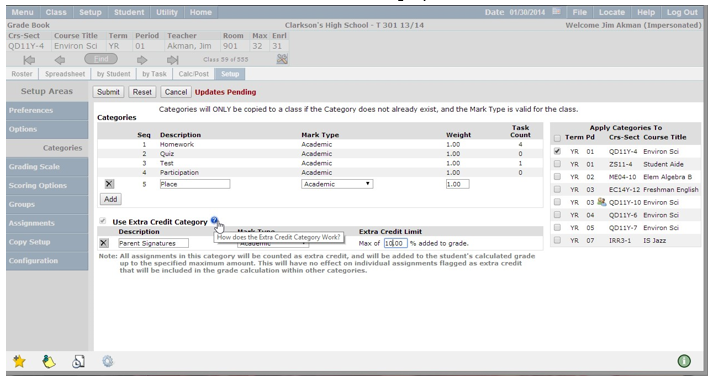
Grading Scale
At least one grading scale must be defined for each mark type. A separate scale with different cut off points can be set for students who meet modified instruction requirements.
Note: This option may be pre-defined based on district preferences and not available for configuration. If there is a discrepancy with the course section and the mark definition that is assigned to the course users will be re-directed to the Configuration Screen. The Grading Scale setup screen will list any problem grading scales at the bottom of the screen as well as details regarding the issue. 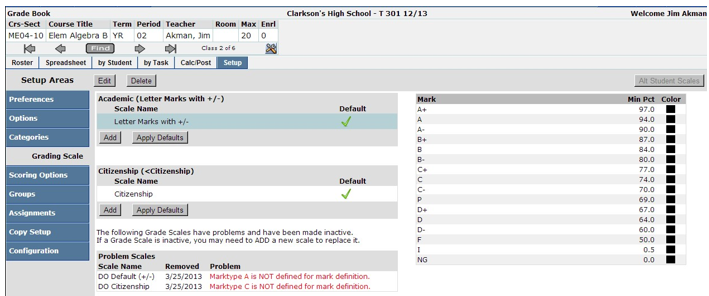
To add grading scales:
- Click Add
- Enter a grading scale name which will help you easily identify your scale.
- Enter the minimum value required to earn each mark in the Min Pct field as a whole number.
Note: The grade book does not round.
- Each mark value can be associated to a specific font color by clicking in the color drop down list and selecting a color.
- Users can associate grading scales to multiple courses. To attach a grading scale to another class, place a checkmark next to the term for which you like to associate the grading scale.
Note: All mark types which have been tied to a category must have a grading scale defined.
- Click Submit to save your changes. To clear all changes made since the previous save click Reset, or click Cancel to return to the previous screen.
Scoring Options
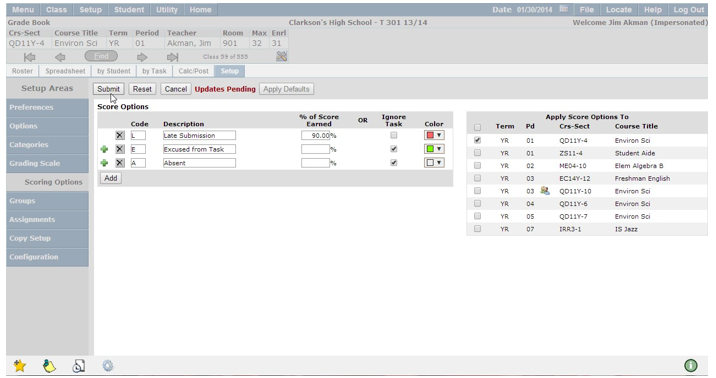
Users can apply special circumstances to tasks. Descriptions are viewed on the tasks in the parent connection application. Colors can be viewed in the grade book spreadsheet tab.
To create new scoring options:
- Click Add
- Enter a code and description.
- Select either the % of score earned which defines a different method which the grade book application will apply to calculate an entered score or choose to ignore the task. The ignore task option excludes the assignment in grade calculations.
- When you have completed your selections, click Submit.
Groups
Student groups can be created to easily identify, assign, or exclude students from specific tasks.
- Click Add
- Enter a group code.
- Enter a group description.
- Select a unique color which will enable you to identify each group.
- To apply the newly created group to multiple courses, place a checkmark next to the corresponding course name.
- Click Submit to save your changes. To clear all changes made since the previous save click Reset, or click Cancel to return to the previous screen.
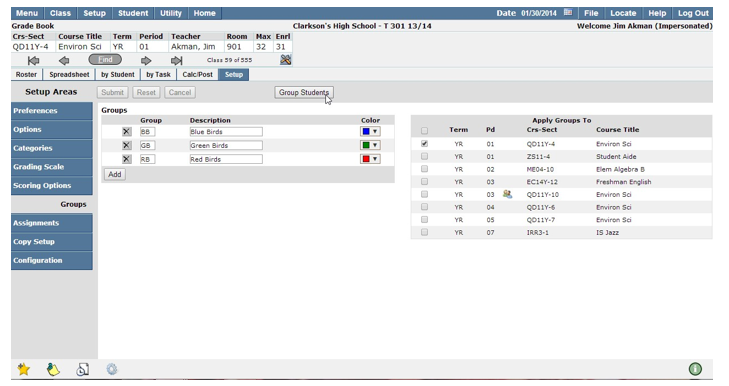
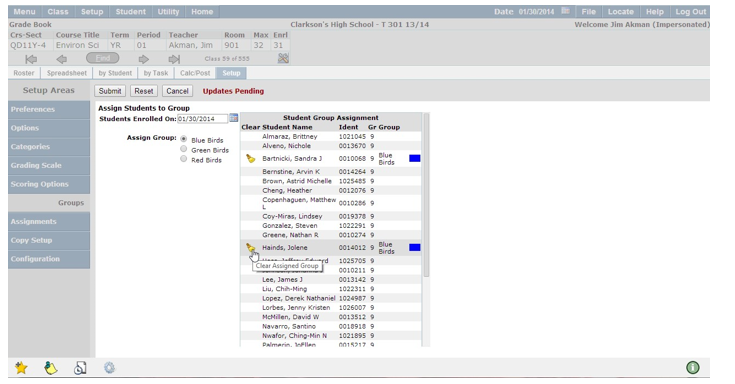
To group students:
- Click Group Students
- Select a group to which assign students.
- Click on the student name that you would like included in the selected group. The assigned group name will appear next to the student name in the Group column. To remove the student from the selected group, click the broom icon in the Clear column.
- Click Submit to save your changes, Reset to clear any changes made since the previous save or Cancel to return to the previous screen.
- Repeat the process described above to continue adding students to groups.
Assignments
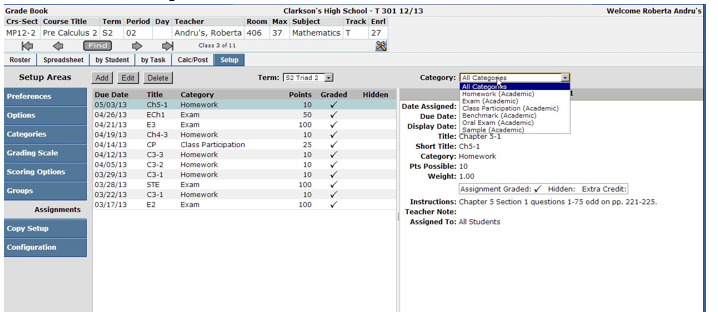
Assignments and assignment details can be viewed, added, edited, and deleted in the Assignments tab.
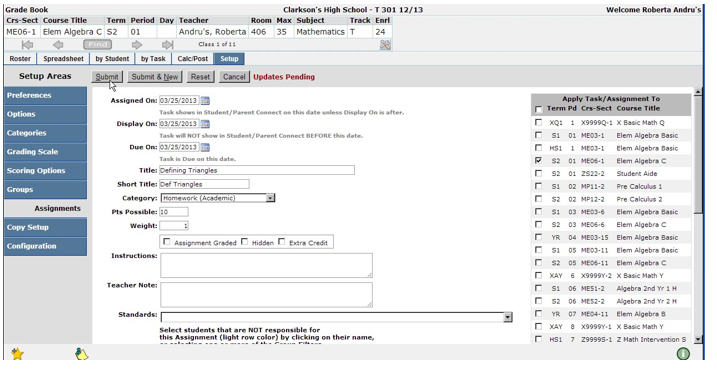
To add a new assignment:
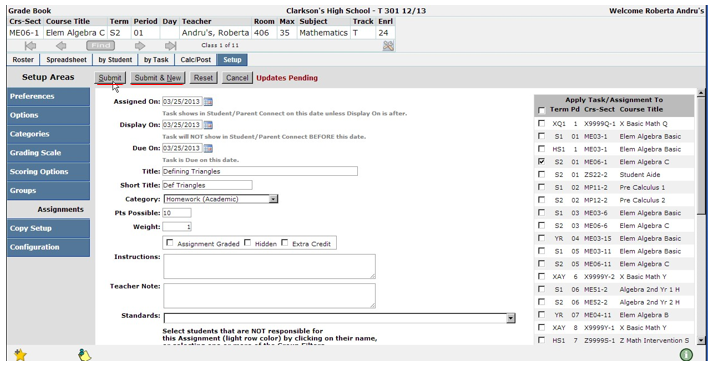
- Click Add
- Assigned On: Enter the date that the task was assigned. This date will appear in the parent and student portals as of this date unless a date is entered in the display on field.
- Display On: Assignments will be displayed in the student and parent connect portals as of the date entered in the Display On
- Due On: Enter the date the assignment is due.
- Title: The assignment title entered will be visible in the Student and parent connect portals.
- Short Title: Short title will be displayed in the grade book spreadsheet tab. If the short title is left blank it will be populated with the first 20 characters of the assignment title.
- Category: Any categories which have been created will appear in the Category drop down list. Select the category in which the newly created assignment should be displayed.
- Pts Possible: The total amount of points which can be earned for completing the assignment.
- Weight: The weight for assignments will default to 1.00 for all assignments. The weight of a specific assignment acts as a multiplier during mark calculations. For more detailed information weighting categories, click the question mark(?) located to the right of the Weight configuration column.
- Assignment Attributes:
- Assignment Graded: Once an assignment has been graded, a teacher can place a checkmark in the Assignment Graded field. This will enable an indicator in the spreadsheet tab and mark the assignment as graded in the student and Parent Connect portals.
NOTE: Assignments may also be flagged as graded in the spreadsheet tab. - Hidden: Enabling the hidden checkbox for assignments will hide the assignments from the student and Parent Portal applications. Assignments will still be viewable in the Grade book application.
NOTE: Teachers may want to mark assignments which have been created, but not yet assigned as hidden. - Extra Credit: Flagging assignments as extra credit will include the points awarded to the student in the total points received without adding the points possible to the total points possible for the assignment.
- Assignment Graded: Once an assignment has been graded, a teacher can place a checkmark in the Assignment Graded field. This will enable an indicator in the spreadsheet tab and mark the assignment as graded in the student and Parent Connect portals.
- Add as Calendar Class News Item: Turn this option on for the assignment to appear as a news item in the News calendar when logged in to Parent Portal and Student Portal.
- Instructions: Enter any instructions you would like to student to follow when completing the assignment. The instructions will be visible in the student and parent portals.
- Teacher Note: Information entered in the teacher note section will only be visible to the teacher and will not be made viewable in the student and parent portal application.
- Documents: teachers now have the ability to attach documents to assignments.
- Students Responsible for Assignment: By default all students will be flagged as responsible for an assignment. Individual students or student groups may be excluded from assignments by selecting them from the Students list when creating a new assignment.
- Once all assignment information has been added, click Submit (ctrl+S) to save the assignment.
- To speed up the entry of recurring assignments, click Submit & New (ctrl+N). This feature will save the current assignment and copy the assignment title and short title over to speed up data entry.
TIP: To quickly add multiple assignments:
- Ctrl+N (Submit and New)
- To edit the Assigned On Date use the (+/-) keys.
- Press Tab to default Due and Display Dates to Assigned On Date.
Editing Existing Assignments:
In the Setup/Assignments area, find the assignment(s) you would like to edit. Select the assignment from the Assignment List or by using the Category drop down list to filter assignments.
- Click Edit, the assignment detail screen will be displayed.
- Once all desired changes have been made, click Submit (ctrl+S) to save changes or Submit & New (ctrl+N) to save changes and add a new assignment.
Adding Assignments to Groups:
Assignments can be added for all students, to individual students, or to a group of students. In the ‘Students Responsible for Assignment’ section, click on the names of the students you would like to Exclude from the selected assignment. If you have created groups of students and would like to make them NOT responsible for an assignment, place a checkmark in the field next to the group name you would like excluded. Click Select All to exclude all students from the selected assignment.
NOTE: By default all students are responsible for created assignments. 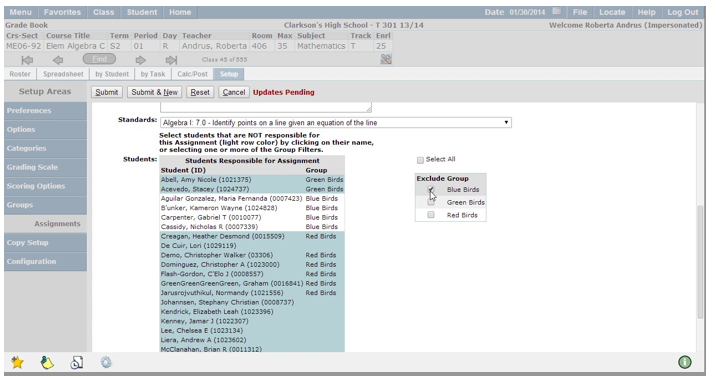
When all assignment information has been entered, click Submit. To save the current assignment and continue creating new assignments, click Submit & New. To cancel and return to the previous screen, click Cancel, or to reset the page and clear out all changes made since the previous save, click Reset.
Keyboard Shortcuts
Keyboard shortcuts have been added to simplify the saving and editing of assignments.
- Click ctrl+S submits a new assignment.
- Ctrl+N submits an assignment and allows a user to continue adding new.
- Use the +/- keys to change Assigned On dates. The plus (+) sign will increment the date by one, while the minus (-) sign will decrease the date by one.
- Press the tab key to default Due On and Display Dates to the Assigned On date.
Copy Assignments
To apply the assignments to other classes click the class names in the Apply Task/Assignment To selection box. To save your selections, click Submit or to clear all information entered since the previous save, click Reset.
Copy Setup
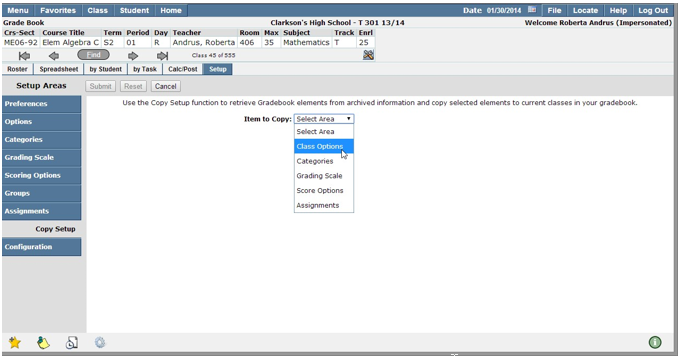
All setup areas that have been configured in the grade book can be copied to other classes which the instructor is scheduled to teach.
To copy grade book setup areas:
- High light the grade book area you would like to copy from the ‘Items to Copy’ drop down list.
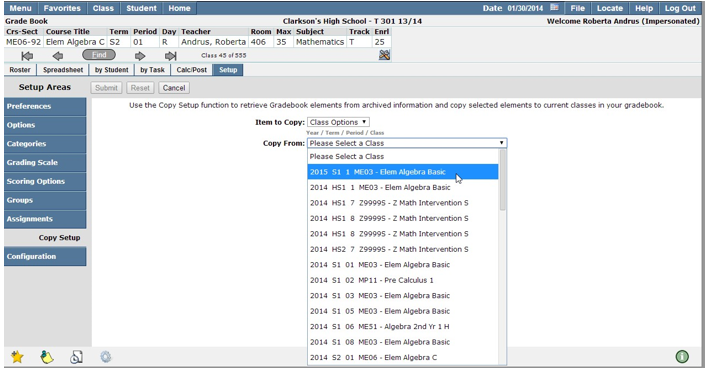
- Select the class which you would like to copy the items from the ‘Copy From’ drop down selection list.
- Select the classes where you would like the items copied from the ‘Apply Class Options To’ selection list.
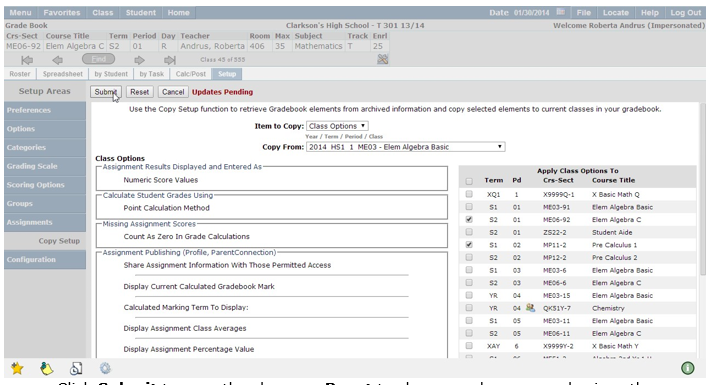
Click Submit to save the changes, Reset to clear any changes made since the previous save, or Cancel to be returned to the previous screen.
Note: Assignments from previous years can be copied if the previous year’s category matches the newly created category.
Grade book tabs allow for easy navigation of the application once all areas of the grade book have been configured.
Roster:
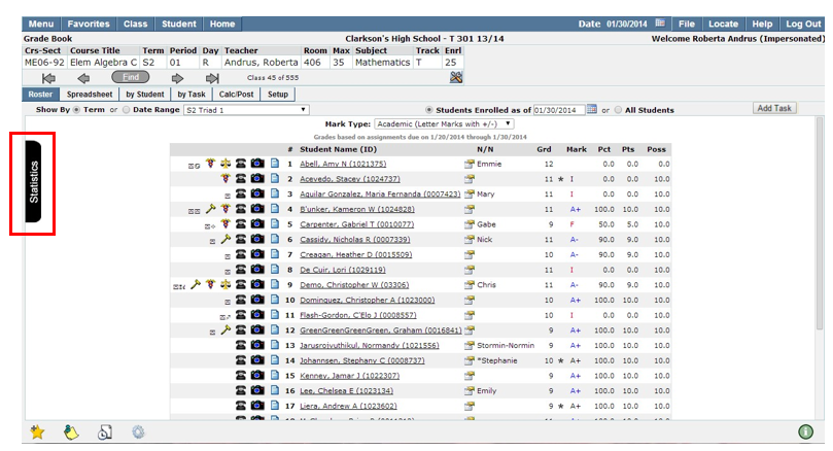
The roster tab displays students enrolled in the selected course, current class mark, and class statistics. Select whether to show students by term or date range, students enrolled as of the current date, or all students who have been enrolled in the class throughout the term. The students displayed in the roster may vary based on your selections. All mark types associated with the course will be available in the mark type drop down list. Marks displayed in the roster tab will vary on the selection made. View student photos, contact information, and attendance history by clicking the icons in the student roster
Statistics:
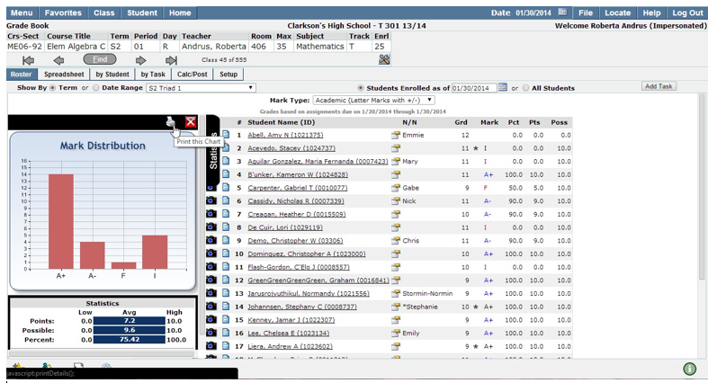
The statistics tab provides mark distribution analysis for the selected course period.
- Click the Statistics
- Mark distribution information will slide out and provide users with a Mark Distribution graph as well as statistical break down of total point averages, possible point averages, percentage averages, and the standard deviation for the selected course period.
- To print the information, click the printer icon located at the top of the statistics tab.
- To close the Statistics tab, click the red X.
 Spreadsheet:
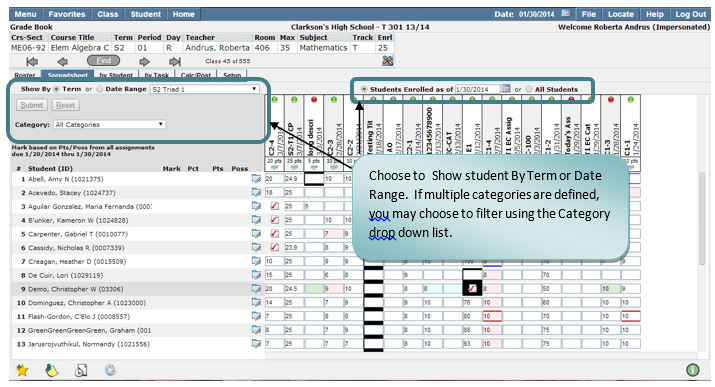
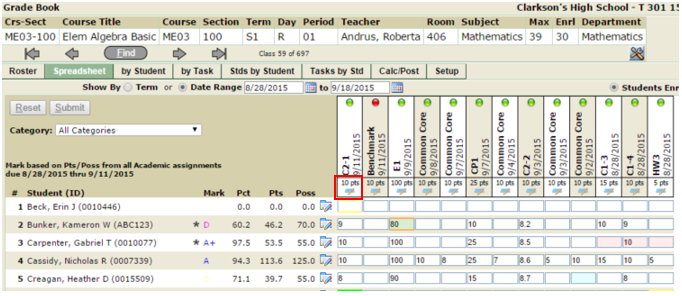
The spreadsheet tab gives teachers access to student assignments in a grid style format with tasks and scores that fall within a specified date range. Teachers can select to view assignments and grades based on a specific term or date range. Students who are enrolled in the selected class as of a date, or all students who have been enrolled in the selected class can be displayed in the spreadsheet view of the grade book application.
- Show By: Make a selection in the Show By fields to view grades based on a term, or date range. When the term radio button is enabled, a term must be defined in the drop down list. The date range radio button will enable date selection fields where users can enter a beginning and end date for assignments and grades to be displayed.
- Student Enrolled as of: Grade book users can select to filter which students are visible in the spreadsheet tab of the grade book application. When the ‘Students Enrolled as of’ radio button is selected, the date will default to the logged in date. The date can be changed by entering a date in MM/DD/YYYY format or by selecting a date using the calendar which is provided. Selecting to view ‘All Students’ will display all students that are currently enrolled, or have been enrolled in the selected class throughout the term.
- Add Task: Users can now enter assignments from the Spreadsheet tab (along with all other tabs in Grade book).
- Categories: Grade book users may have multiple categories defined in the grade book application. Users can select to view ‘All Categories’ or filter to view specific categories using the ‘Category’ drop down list.
 Navigating the Spreadsheet
Student scores may be entered and edited in the spreadsheet tab based on preference selections made in the configuration of the grade book application. Using the tab key to navigate from cell to cell makes inputting of scores easy to navigate in the spreadsheet tab.
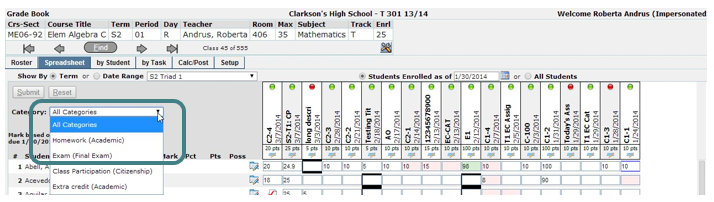
- All categories will be the default view for the spreadsheet tab. To filter categories, select the category you would like to view from the category drop down list. Options available for selection are defined in the setup tab, configuration section
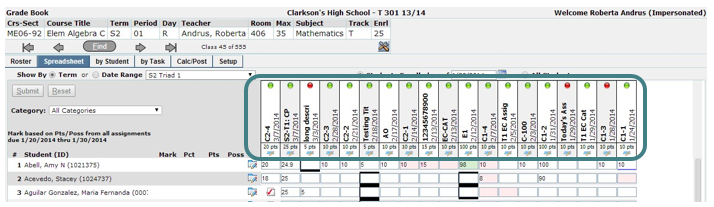
- Assignment short descriptions, due date, and points possible will be displayed in the column headers.
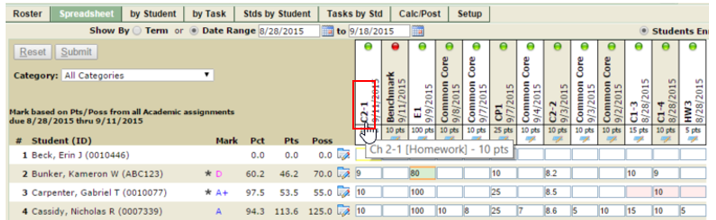
3. Shortcuts within the spreadsheet tab allow you to navigate quickly and easily to other areas in the grade book application.
- To view task details and students responsible for the task, click on the assignment short description.
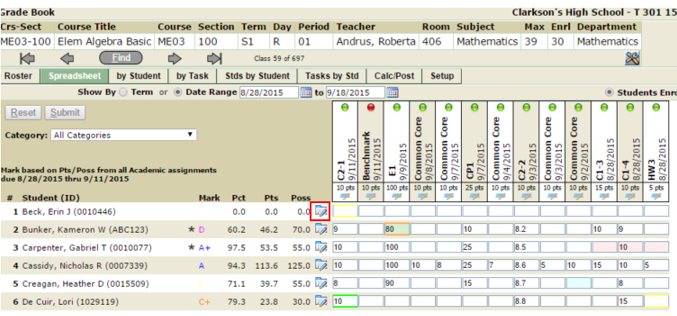
- The Student Icon tab will navigate users from the spreadsheet tab to the By Student tab where users can enter points for assignments for individual students.
Note: Make sure to save any updated information before using shortcuts. Navigating before saving your information will cause information to be cleared.
- The task information icon provides a shortcut to the By Task section of the grade book.
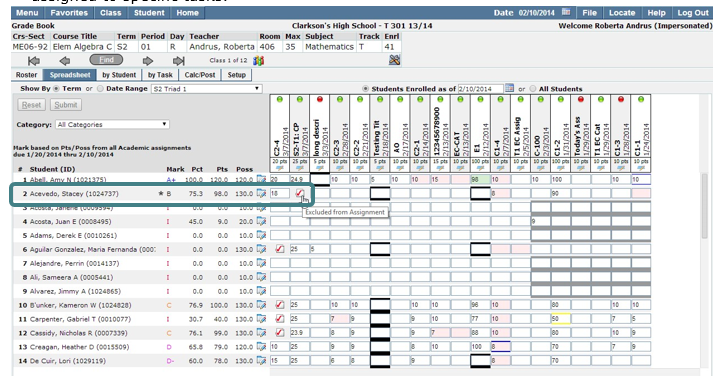
- The not assigned icon allows users to easily identify students which have not been assigned to specific tasks.
- Easily identify which assignments have been calculated, or have not yet been calculated in a student mark by utilizing the green and red icons at the top of the assignment description rows. When the assignment has not been calculated in the mark the icon is red. Assignments which are calculated in the mark will be green. Clicking the red or green icons will change the assignment status. Click Submit to save your changes.
By Student:
View and enter assignment scores for individual students. The Students tab may be maximized to view a student roster, and minimized to enhance the entry screen. Enter comments, choose to share assignment information in the student and parent portal applications, drop scores, and view attendance. Click Submit to save changes, or Reset to undo changes and return to the previous page.
By Task:
View assignment details and enter scores for specific tasks in the By Task tab of the grade book application. Tasks can also be added and edited in the by Task tab. 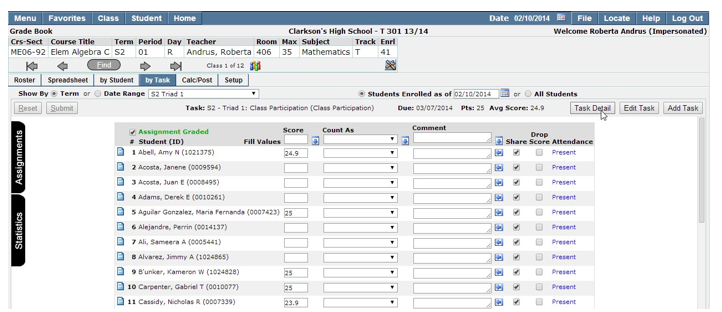
- Attendance: Student attendance codes are displayed in the Attendance column when viewing ‘by Task’.
- Share, Drop Score: To Share the assignment on Parent and Student portals place a checkmark in the Share checkbox next to the student name. To drop the assignment score for selected students place a checkmark in the Drop Score
- Mass Fill Option: Next to the score, count as (score options) and comment boxes are auto-fill icons. Fill in the desired value in the top level, click the down arrow to apply the same value to all students in the roster. Individual adjustments may be made by clearing the information and typing in new information.
- View all assignments or assignment statistics by clicking on the corresponding tabs in the left hand side of the screen. Assignment and / or Statistics will slide out for viewing.
- Assignment Graded Checkbox: Allows the user to enter tasks and scores, but does not calculate the scores until the grading is completed. Can be switched on and off as needed.
- View task detail, edit task, or add a task by selecting an option from the command buttons located on the right side of the screen.
- Select a task by clicking on the description in the Assignments selection list.
Stds by Student:
In the Standards by Student tab, view and enter standards scores for individual students. The Students tab may be maximized to view a student roster, and minimized to enhance the entry screen.
Click the ‘Edit Standards by Task’ icon to take you to the Tasks by Standard tab.
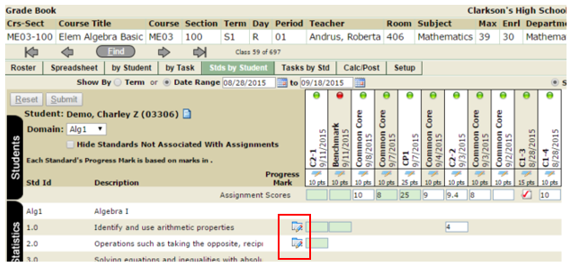
Click Submit to save changes, or Reset to undo changes and return to the previous page.
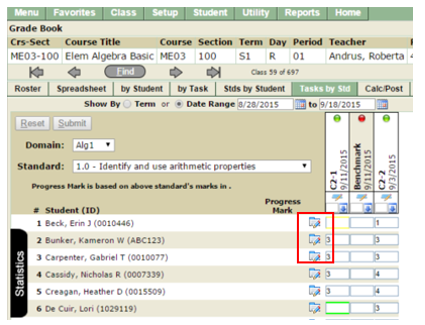
Tasks by Std:
View assignment details and enter scores for specific tasks in the Tasks By Standard tab of the grade book application. Tasks can also be added here.
Click the Edit Standards by Student icon to take you to the Stds by Student tab.
Calc/Post
- Drop Scores: Select the term and student enrollment status; select the # of scores you would like to drop from each category defined in the setup of the grade book. If there is a tie for the lowest percentage, choose which assignment type you would like to drop; the assignment with the least impact on the student’s overall grade or the assignment with the greatest impact on the student’s overall grade. Apply your selections to other courses by selecting them in the ‘Apply Drop Scores To’ check box.
- Post Marks: To Post Marks for students which will be used in report card marks, click the Post Marks Based on settings and preferences selected the drop down items available may vary for users. Select the term and mark type to post for report cards. If users have set the ‘Select Posting Marks Assignment Term’ to Yes an additional drop down list will open. These users will be prompted to select the Assignments from a specific term for mark calculations. The question mark (?) located to the right of the Use Assignments from Term drop down list will provide a more detailed explanation of how the selection will affect the calculations process. Review the Categories ad calculated marks. If no adjustments need to be made, click Post Marks to complete the process. If adjustments need to be made, users may return to the Spreadsheet, by Student, or by Task screens to make the desired adjustments. Click the Printer icon to print the marks processed screen.
Teachers will have the ability to transfer assignments for students that have recently enrolled in their course section. The Transfer Assignments feature will be available in the by Student tab of the grade book.
- The assignment list for the course will be displayed. Assignments will be displayed in reverse chronological order. Assignments that are due prior to a student’s entry in to a class will be displayed with those assignment details. Click the assignment link to view assignment details.
- Enter Score, scoring option (optional), comment (optional), enable the Share flag to display assignment details on Student and Parent portals, or choose to drop score.
- Once assignment details have been entered, click Submit to save changes or Reset to clear any changes made since the last save.
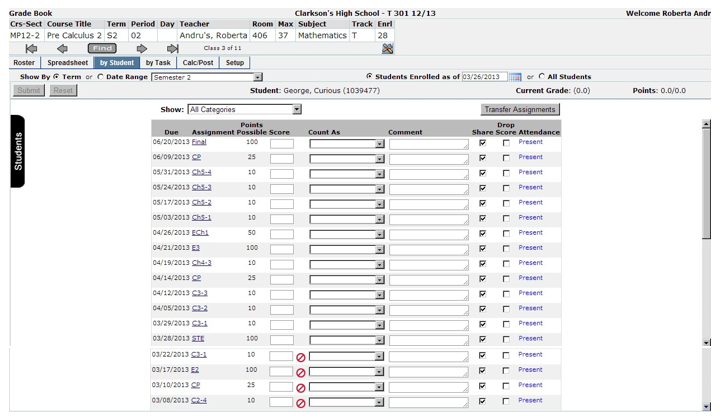
- If in addition, the previous and current course code, assignment categories and the assignment descriptions match, the transfer screen appears and the teacher can either set a default score for the assignments and apply that to the tasks, or accept the mark previously assigned for the work.
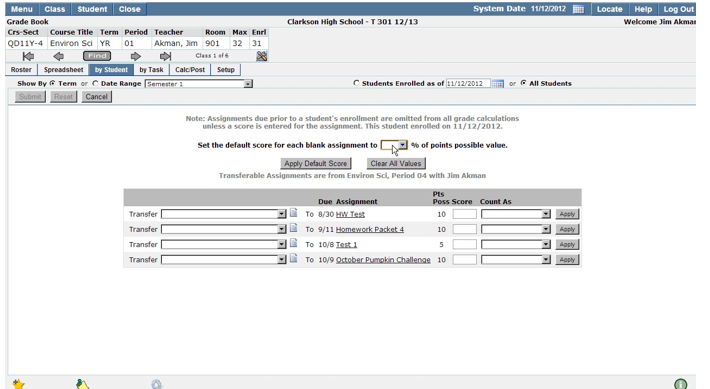
- If only the course codes match, the teacher will be given the option to select which assignments to accept for transfer.
- To accommodate students who enrolled late in a class, teachers may enter scores for students outside their class enrollment dates. If a student was not enrolled in the class on the Due Date of an assignment, that Assignment scoring field will be flagged as ‘Not Enrolled’.
- If a score is entered for an assignment outside of the student’s enrollment dates, it is calculated in the student’s grade. If an assignment outside of the student’s enrollment is left blank, that assignment is ignored in the student’s grade calculation.
Note: Students who were enrolled in a course, withdrew and then re-enrolled in the course at a later date will not have the ‘Transfer Assignments’ option available. Q takes the earliest entry date and latest exit date into consideration in the grade book and therefore does not recognize gaps in enrollment. Students with gaps in their enrollment may have assignments waived by using Scoring Options which may be configured for ‘Excused Assignments’. Also, if a student has transferred between multiple classes, 'Transfer Assignments' will not appear as an option
Documents
- Grade Book & Google Classroom - For Teachers
- Working with Standards
- Topic Setup
- A slide deck for teachers: Q Google Classroom for Teachers (PDF version)
Note - This slide deck simplifies options and speaks from the point of view of a district that is creating Google Classes and Rosters from Q.
