The Q Office Visit Log is used in the school health office to enter a record of student office visits as they occur and to maintain a running list of all students being seen. The log allows users to quickly enter information for routine medication administration and also provides additional fields to record more complete visit information.
Office Visit Log is located under the Health menu in Q.
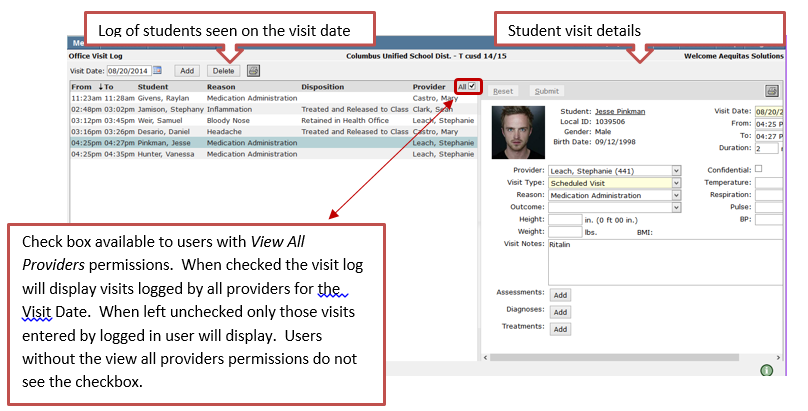
The Office Visit Log application is divided into two sections, with the left hand side displaying a log of all students seen on the Visit Date and the right hand side displaying the individual student’s visit information. Clicking on a student name in the log list will display the student’s detailed visit information on the right hand side. 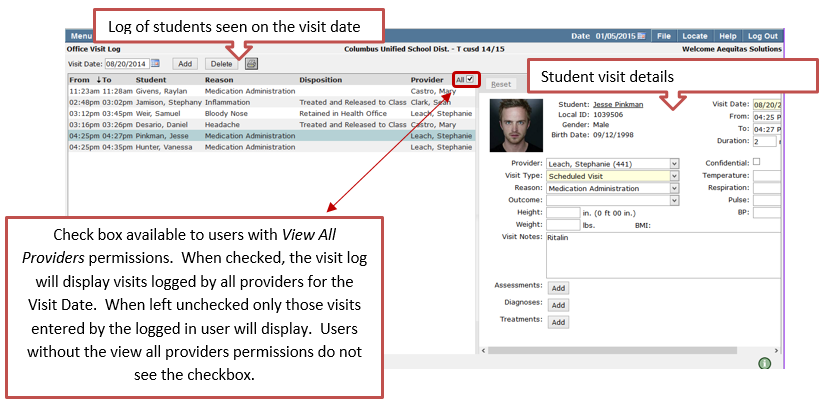
When the Office Visit Log is initially launched, it defaults to the current date and time. The date may be changed if visits from a previous date need to be recorded. Users who have the view all providers’ permission will see a box marked ‘All’. When this box is checked, all entries by all providers will display. If the box is left unchecked, only the visits entered by the logged in user will display.

To enter a visit:
- Click the Add button.
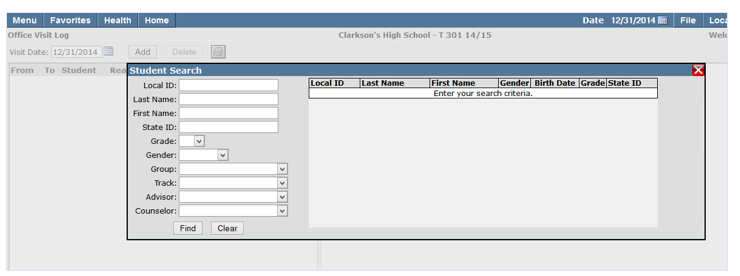
- A search box displays.
- Use the Student Search fields to find a student.
4. When the student is found the screen immediately displays an entry screen for the selected student with the visit date, time and provider name filled in with the current date, time and logged in user’s name to facilitate rapid entry. The only required field for fast entry is Visit Type.
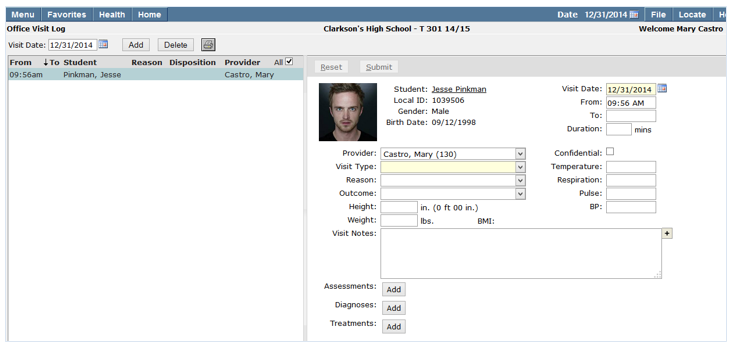
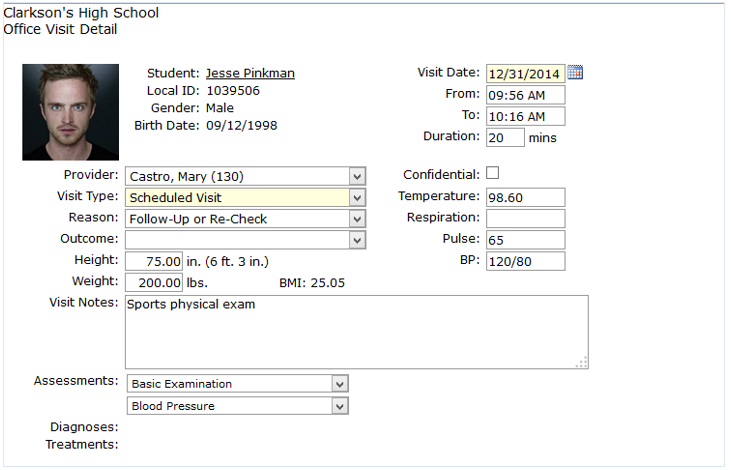
5. The following fields are available for data entry:
a) From/To—The From time defaults to the system time, but may be edited. When adding a To time the duration field automatically populates. You may also enter a duration time to have the To time auto populate.
b) Provider—The logged in user’s name appears as the provider. If the user has All View permissions, the provider name may be changed to other available providers.
c) Confidential—Check this field to hide this record from other users whose permissions do not allow viewing of confidential records.
d) Visit Type—select a predefined visit type from the drop down list.
e) Temperature—enter student’s temperature if applicable.
f) Reason—Select a predefined reason from the drop down list.
g) Outcome—Select a predefined outcome from the drop down list.
h) Respiration—Enter if applicable.
i) Pulse—Enter if applicable.
j) BP—Enter student’s blood pressure, if applicable.
k) Height—Enter student’s height in inches and it will be converted to feet and inches upon entry.
l) Weight—enter student’s weight in pounds.
m) BMI—the student’s BMI will auto calculate upon entry of height and weight.
n) Visit Notes—Free form notes about the visit may be entered.
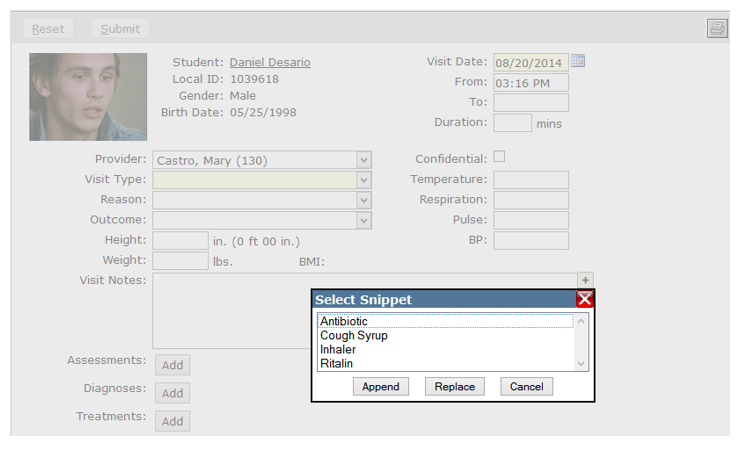
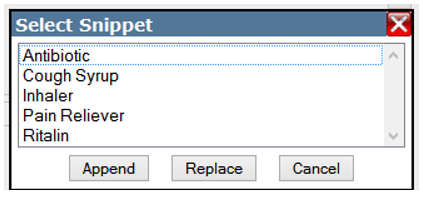
o) Snippet—Clicking the + sign to the right of the notes box, opens a pop-up box with pre-defined snippets, which may be used for quick entry to replace or append existing notes.
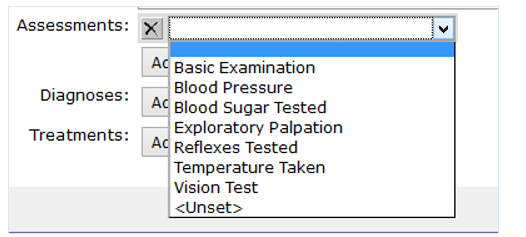
p) Assessments—Medical assessment codes are typically used for state-mandated reporting. Click the Add button to select an assessment from the predefined list. Multiple assessments may be added by repeating this process. Assessments may be deleted by clicking the X icon.
q) Diagnoses—Medical diagnosis codes are also typically used for state mandated reporting. More than one Diagnoses code can be applied to an Office Visit record. Click the Add button and select a Diagnosis code from the predefined list. Repeat the process to add additional Diagnosis codes. Diagnosis codes may be deleted by clicking the X icon.
r) Treatments—Medical Treatment codes are also typically used for state-mandated reporting. Treatment codes may also be combined with an existing Health Order.
6. When all desired fields have been entered click Submit.
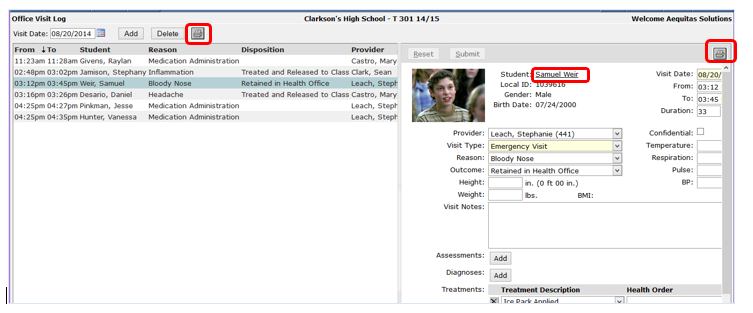
7. The student visit information may be printed by clicking the printer icon on the right hand side of the screen.
8. Clicking the underlined Student Name will launch the student’s profile.
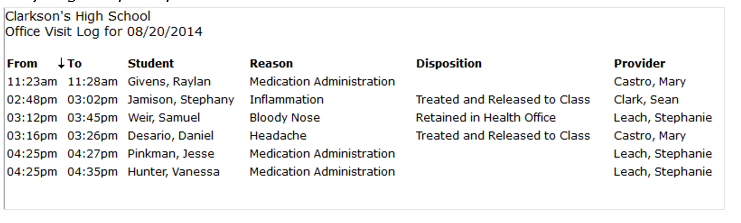
9. The daily log of all visits for the date may be printed by clicking the printer icon on the left side of the screen.
Daily Log sample report
Student Office Visit Detail sample report
The Q Office Visit Log is used in the school health office to enter a record of student office visits as they occur and to maintain a running list of all students being seen. There are two different permission levels available for the Office Visit Log application. The Office Visit Log uses the same tables used in web health for visit type, reason, outcome, assessment, treatment and diagnosis.
Permissions
The Office visit Log has two separate permission levels. Each of the two permission levels may be further restricted with edit, add and delete rights.
- Health office visit log (view all providers)
- Users with this permission will be able to view entries by all providers as well as add entries for all providers.
2. Health office visit log (application)
- Users with this permission will only be able to view and add entries as themselves.
Configuration
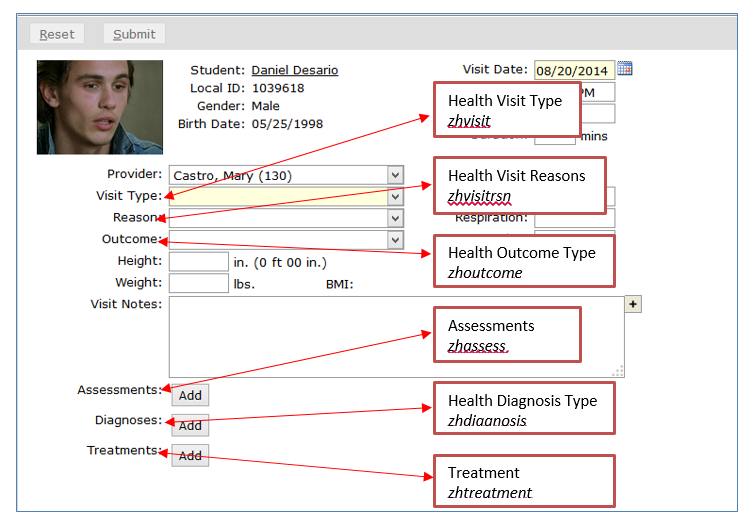
The Q Office Visit Log uses the existing web health tables for visit type, reason, outcome, assessment, treatment and diagnosis.
The screenshot below illustrates the drop down menus and with the corresponding code tables.
Snippets
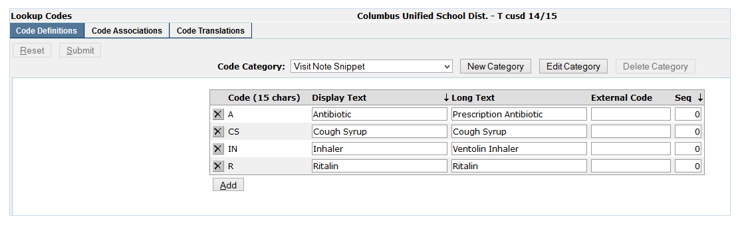
Snippets can be configured for items that are entered on a regular basis to reduce the need for user typing. When a snippet is defined it can be quickly added by clicking the + sign next to the notes box. Snippets are defined in Q under the System MenuàLookUp Codes àCode DefinitionsàCode Categoryà VisitNote Snippet.