Food Service PoS Payments is Q’s Point-of-Sale Payments application that allows the user to:
- Take Single or Multiple Account Payments
- Add/Edit/Delete Alerts and Restrictions
- Make Payment Notes
- Reconcile the Cash Drawer
Payments is located under the Food Service PoS menu in Q.
When the Payments application is launched, the user is presented with the choices configured in Food Service Setup:
Date - User can log in to past, present and future dates to record transactions. A warning appears if the date entered is not today.
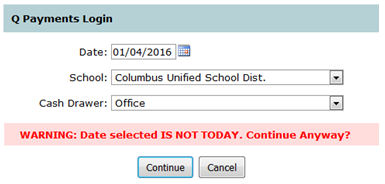
School - Field will show just the user’s logged-in school. If the user has district access all the district schools with a configured Food Service Site will show in the dropdown menu.
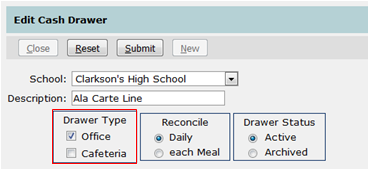
Cash Drawer - Dropdown with show the only cash drawers configured with the Drawer Type of Office for this school in Cafeteria Setup.
The Single Account Payments window shows the Cash Drawer, School and the option to handle Single or Multiple Consumer Accounts.
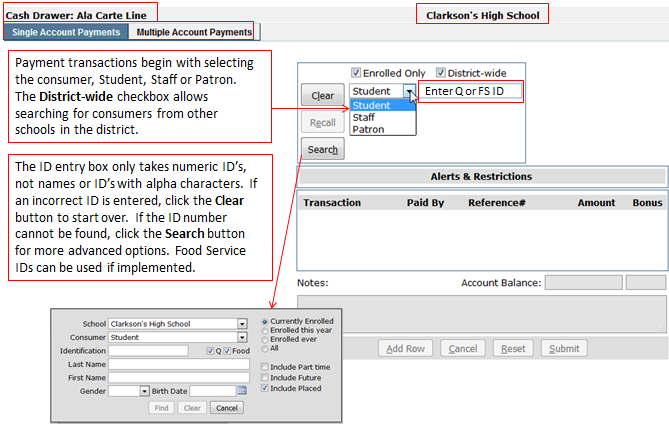
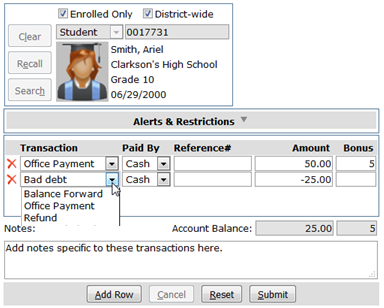
Once the consumer is identified, select the Transaction type from the dropdown menu, Paid By method (Cash or Check), Reference number, if needed, Amount and, if bonus meals are used, the number of Bonus meals associated with the payment. The Notes field is specific to all payments entered for this consumer for the date entered and show in Food Service Accounts | Transactions.
Alerts and Restrictions
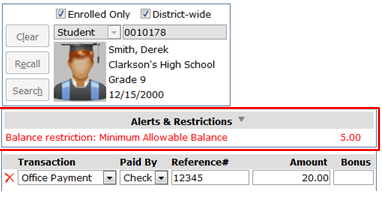
Any Alerts and/or Restrictions that are configured in Food Service | Accounts will show in the Alerts & Restrictions section of the Single Account Payments window.
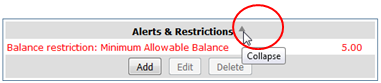
Clicking on the arrow expands and collapses the Alerts & Restrictions menu. When pointed up, the user can add/edit/delete existing alerts and/or restrictions.
The Multiple Account Payments window allows users to apply payments to multiple consumer accounts.
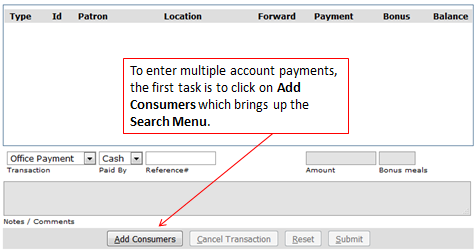
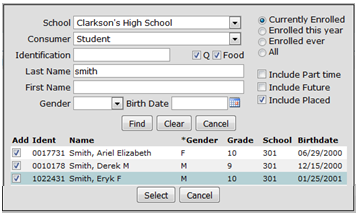
Use the search tool to find and select the consumers and click Select.
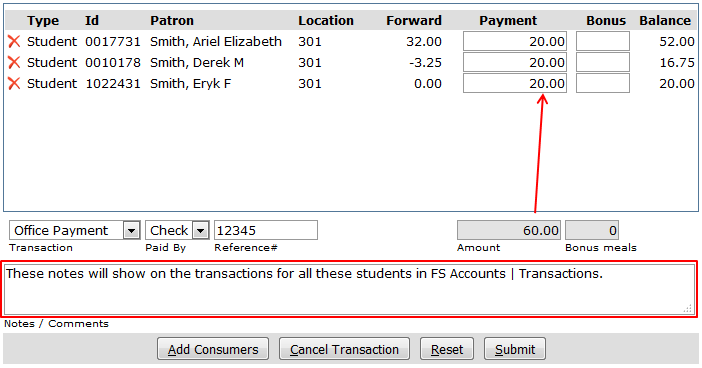
Using Multiple Account Payments can be helpful when a single payment needs to be distributed to several students. Each payment with notes can be viewed in the individual student’s transaction history in FS Accounts.

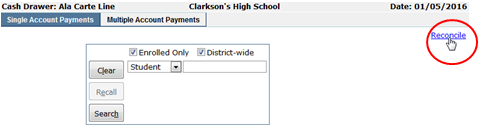
The Reconcile link is at the top right corner of both of the Payment Window screens.
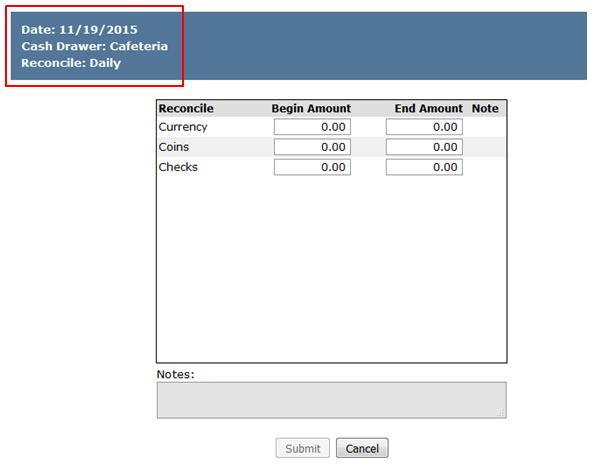
Each Payment Cash Drawer must be reconciled after each meal, or at the end of the day. The process involves counting the money in the drawer before service and after service is completed. The heading of the Reconcile screen shows the date, name of drawer and type of reconciliation is configured.