The Security application is used to audit changes made to food service transaction records after they are initially recorded. The process logs changes made by food service applications or outside processes. Changes made to transactions in or by Food Service Accounts, including Reconciliation, Cafeteria, Payments, Data Entry, Verification and Direct Certification are all captured in log files. Mass changes made directly to the database by processes other than Q are also recorded.
Transactions are located using search filters. Audit details can be viewed and explanations and status can be added to audit records. Changes in the following are displayed:
- Operations (update/delete)
- Site
- Date
- Meal
- Drawer
- Description
- Eligibility
- Quantity
- Price
- Reimbursement
- Bonus/Worker changes
Food Service Security is located under the Food Service PoS menu in Q.
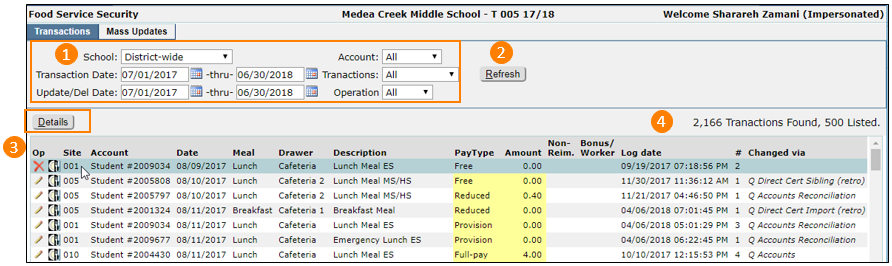
1) Select the filtering options for the Transactions.
- School
When logged in at district, all schools will show in the drop down. When logged in at school, only that site and District-wide will appear.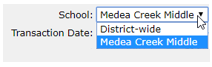
- Transaction Date Range
Enter or Select the range during which the transactions were originally recorded. - Update/Del Date Range
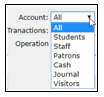
Enter or Select the range during which changes were made. - Account
Choose the type of account to display.
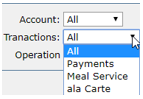
- Transactions
Choose the type of transactions to display.
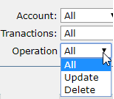
- Operation
Select the type of operation to display.
2) Click Refresh to display the results of the filtering options.
3) Review the Transaction
Click on the name of the column header to change the sort order. The transaction list is initially sorted by date, with the earliest date first. Items in yellow are items that have been updated.

- Op - Operation
As shown above there are two operations- Delete, shown as a Red X
- Edit, shown as a Pencil
- Site- the Site ID
- Account -the customer for the original transaction (see drop down list above)
- Date- the original transaction date.
- Meal- the meal period, typically breakfast, lunch or snack.
- Drawer- the cash drawer where the transaction was recorded.
- Description- the transaction description which could be a meal or ala carte item or payment type.
- Pay Type- represents the customer’s eligibility.
- Amount- the amount of the transaction.
- Non-Reim-indicates the transaction is a non-reimbursable item.
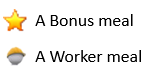
- Bonus/Worker-
- Log Date-the date that the transaction was updated or deleted.
- #-the number of changes to the transaction record.
- Changed via-shows the person, process or application that updated or deleted the transaction.
4) Shows the total number of transactions displayed based on the filter settings.
To view the details of changes to a transaction, double click on it or click on it and select the Details button. A details window will open showing the original transaction and all the changes. The most current record is shown at the top of the list with the original at the bottom.
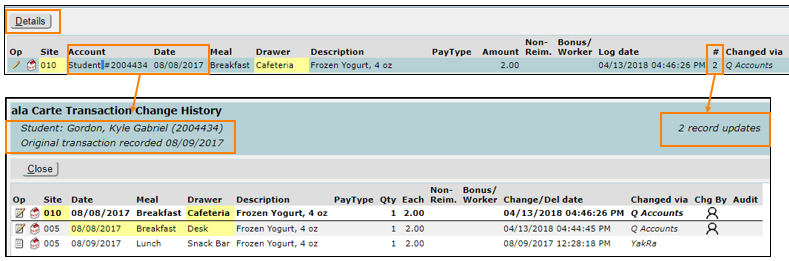
Shown in example above is a transaction that has been changed twice.
- The bottom line is the original transaction where a Frozen Yogurt was served on 08/09/2018, at Lunch, from the Snack Bar by user YakRa.
- The next line up shows that the date was changed to 08/08/2018, the meal to Breakfast and the Drawer to Desk. This change was made in FS Accounts on 04/13/2018 at 04:44:45 PM.
- Another update changed the Site and Drawer and was recorded on 04/13/2018 at 04:46:26 PM.
To view who made the changes in FS Accounts and add an Audit Status and/or Audit Note.
1) Click on the corresponding line to view the details.
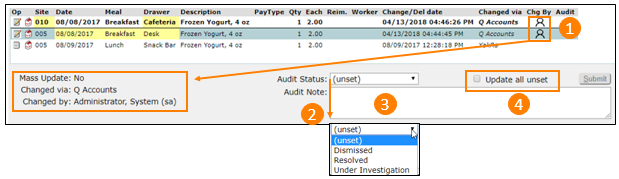
2) Select an Audit Status from the drop-down menu. (Audit Statuses can be edited or added to in Q Lookup Editor)
3) Enter an Audit Note, if desired, in the text field.
4) If more than one record exists, to apply the status and note to all of them at once, click the Update all Unset checkbox and click Submit.
• The status and note will be applied to all with a time/date/user notation.

There are no functions or processes within Q Food Service that would log any Mass Update events, so it can be assumed that Mass Events are a result of external database activity, and these events should appear rarely if at all. Nevertheless, there may be times when unforeseen situations make it necessary for IT personnel to change a date or some other data element to adjust or compensate. Should these occur, it is necessary to isolate Mass Update events from the other security events logged during the course of normal business. Otherwise, attempting to locate a single security issue would become impossible due to the potentially thousands of records logged in Mass Update events.
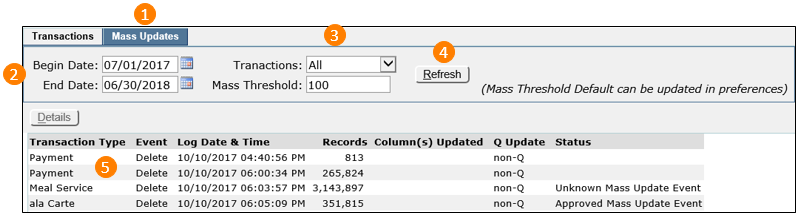
1) Click on the Mass Update tab to open the filtering options.
2) Set the date range for locating Mass Update events.

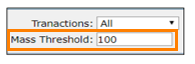
3) Select the type of transactions to be located and what the threshold for searching should be. A threshold of 100 means that only updates of over 100 records will be considered a “Mass Update”..
4) Click Refresh to produce the transaction list.
5) View the Mass Update records
• Transaction Type
• Event
• Log Date & Time
ο Mass Update events are identified using the transaction Log Date & Time field. All log records present in a given Mass Update event are recorded with the exact same Log Date. 100 or more records with identical Log Dates are considered a single Mass Event.
ο Mass Threshold can be changed based on user needs. The default value can be changed in the Q Preference Editor | Food Service Security.
• Records Column(s) Updated
ο The example below shows 12 Meal Service Records were updated on 04/06/2018 at 6:22:45 PM. The Columns changed were Amount, Eligibility and Changed By. It was non-Q which means it was not done by a Q application but rather through other means.

• Q Update
• Status
Audit Status
1) To view and enter audit records, double click on a transaction record or single click and select Details.
2) View the transactions details. In the example below, the old amount of $4.00 was changed to $0.00. Eligibility was changed from Not Eligible (N) to Paid (P) and changed by was changed from user RhoIs to QAccR (FS Accounts – Reconciliation)
Click Audit Status.
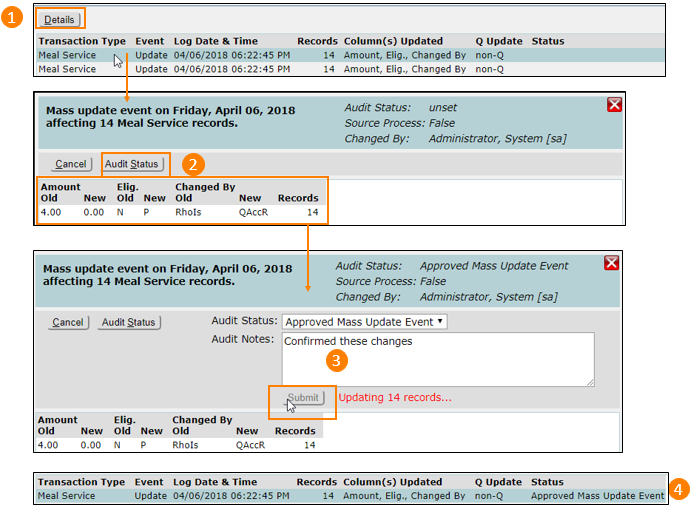
3) Select an Audit Status and enter Audit Notes as desired. Click Submit and all records in this mass event will be updated.
4) Note the Status Approved Mass Update Event has been added to the transaction list for that event.
Preferences
• Mass Update Threshold
Although on the Mass Threshold tab the user can change the threshold value as needed, the default value can be changed in the Preference Editor | Food Service Security.

Permissions
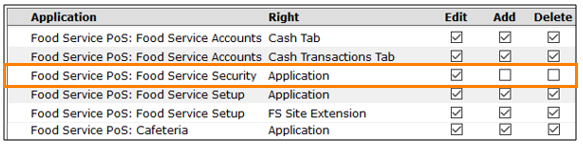
• Food Service PoS: Food Service Security [Application]
This is the single permission needed to allow access to the Security application.

• Role Restrictions can be used to allow read-only access.