Q Food Service Eligibility Applications enable districts to enter and maintain student Free/Reduced food service applications. Household applications are stored indefinitely, allowing districts to track and maintain household and student free/reduced eligibility activity for as long as the household has students enrolled in your district.
Eligibility Applications is located under the Food Service menu in Q.
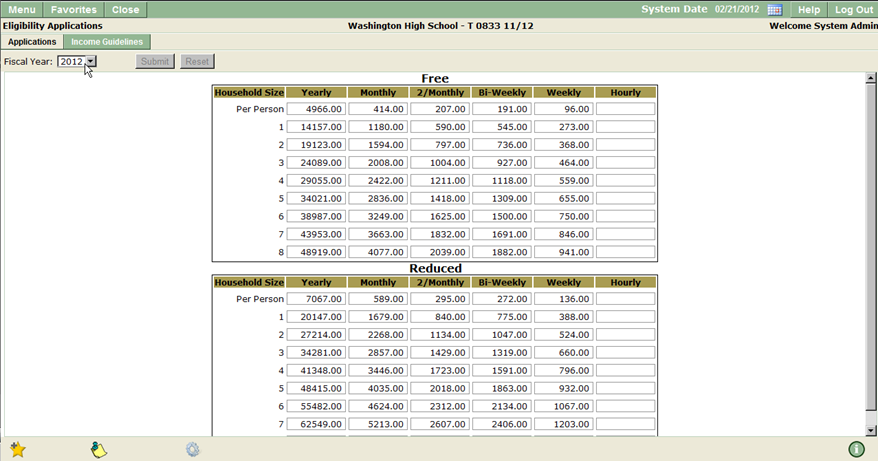
Households must meet income eligibility requirements in order to qualify for free or reduced meals. Income guidelines are updated yearly by the USDA and can be entered and viewed in the Eligibility Applications Income Guidelines tab.
- Select the fiscal year for which you would like to view eligibility guidelines.
- The Household Size column indicates the number of persons living in a household. This column is used to define the maximum income amount based on household size.
- If you are editing current income guidelines, the submit button will remain inactive until a change has been made. To save any changes, click Submit or Reset to undo any changes.
Eligibility Applications
Food service eligibility applications must be submitted yearly to apply for free/reduced meal benefits for children. Households may also re-apply for free/reduced benefits any time they experience a change in household circumstances (household size, income, etc.). Household applications for students can be submitted one of two ways:
- The parent or guardian of the student may fill out a paper application which is typically distributed during enrollment. Paper applications are then entered into the system using the Eligibility Applications module.
- If applications are not distributed, they can usually be obtained from the school site or district office.
- The parent or guardian may submit an application using the Online Applications system. Once an Online Application has been reviewed and processed (see Application Processing), the online application will be posted to Eligibility Applications.
Processing Eligibility Applications
The Eligibility Applications module is used to enter information for the Applicant (the parent, or guardians, applying for meal benefits), household students, and household members (including pre- or post-school children and any other persons living in the household).
Household Free/Reduced applications are retained in a “series” of applications indefinitely. A new application (for a new household) must be entered into the system only once. Thereafter, applications may be added to the series by simply re-applying the latest application in the series, updating information as appropriate.
- Click Applications
- Click Find Application to search for an existing food service application.
Note:
To prevent duplicate households or series, it is recommended that you search for an existing application prior to entering a new application series.

- Search for an existing application using Student, Applicant or Application search criteria.
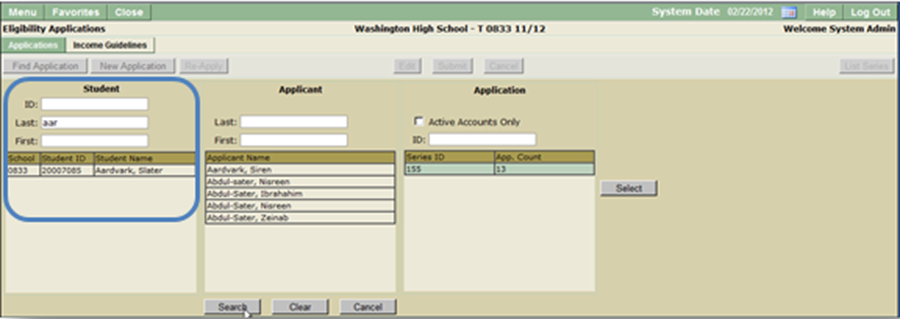
- Student: Enter a student’s ID, or all or part of the Last and / or First name in the corresponding fields, press Enter or click Search. All students with existing eligibility applications that match the search criteria will appear in the student list, along with any applications and applicants they are associated with. If your search reveals the application you are looking for, click to highlight it, then click Select to proceed. If you wish to refine your search to a particular student or applicant, double click on the desired student or applicant in the appropriate list to perform a search for that particular person.
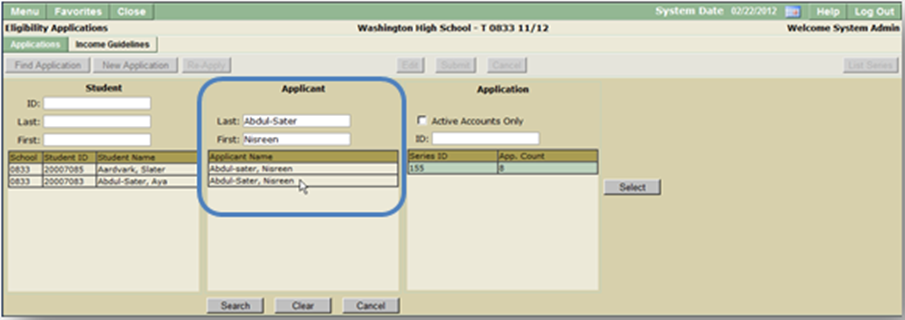
- Applicant: Enter all or part of the applicant’s last and / or first name to produce a list of applicants and associated applications & students. Double clicking on an Applicant will refine the search to that Applicant. To view application details, click on the application Series ID and click Select.
- Application: If you know the series number of the application(s) you’re looking for, you may perform a search by series number. If an applicant or student is associated with more than one application series, the series will be listed along with the number of applications in the series. To view a previously submitted application, highlight the series ID in the application field and click Select. To view only currently active accounts, place a checkmark in the ‘Active Accounts Only’ checkbox, then click Search.
- Student: Enter a student’s ID, or all or part of the Last and / or First name in the corresponding fields, press Enter or click Search. All students with existing eligibility applications that match the search criteria will appear in the student list, along with any applications and applicants they are associated with. If your search reveals the application you are looking for, click to highlight it, then click Select to proceed. If you wish to refine your search to a particular student or applicant, double click on the desired student or applicant in the appropriate list to perform a search for that particular person.
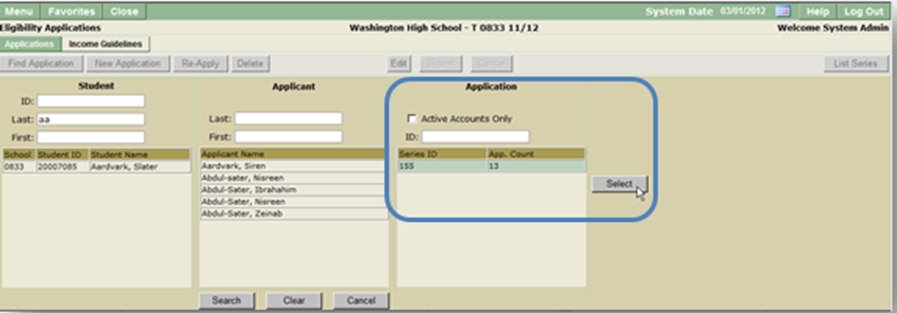
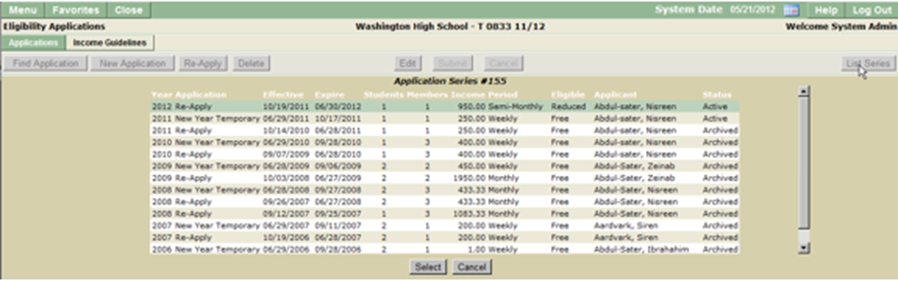
- The most recent application in the series will appear. To view a list of applications in the series, click List Series.
- To view the details of a previously submitted application, select it from the application series list and double click to open, or click Select.
If you have searched for an existing application series and were unable to locate one for a student, or applicant, you may enter a new application based on the application provided by the applicant. 
- Click New Application. Enter student search criteria in the Student ID, Last Name, First Name or Birth Date fields. Enter as much or as little information as appropriate (you may wish to find all students with a given last name, for example), and click Find. To clear the information previously entered, click Clear or Cancelto discontinue the search.
- Check the Q checkbox to search for students using their student Id, if students are assigned a food service ID and you would like to search using their food service Id check the FS checkbox. By default, both Q and Food Service IDs checkboxes will be checked.
- Filter currently enrolled students; students enrolled this year, or all students using the drop down selection box. You may also choose to include part time, future, or placed students by enabling their corresponding fields.
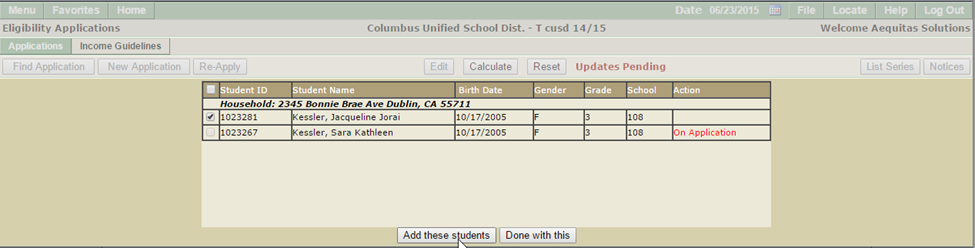
- Once you have entered student search criteria, click Find to display a list of students that match your search criteria. To clear the information previously entered, click Clear, or Cancel to discontinue the search. If more than one student matches the criteria which you have entered they will appear in the student selection list. Place a checkmark next to the student(s) you would like to add to the application.
- Click Add Selected Student(s). The action field will be updated to display the action performed.
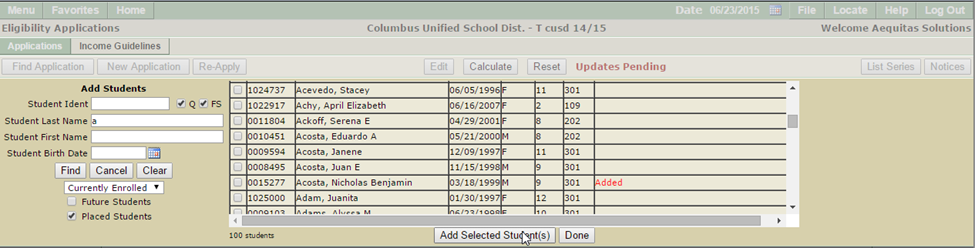
- Click Done when you’re finished adding students. The student(s) you have added will appear in the Household Students section.
- Complete the application information based on the information provided on the application.
New Application
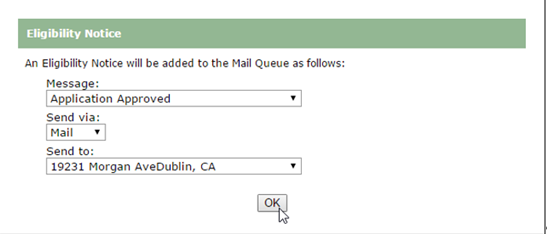
- Application Type, Status, Household Income, HH Size, Approval Type and Eligibility fields will be populated once the application information is entered and calculated.
- Series Id: The Series Id will be auto populated to ensure duplicate Id numbers are not created.
- Application Date: The application date field will default to the current system date. To change the application date, enter it using a MM/DD/YYYY format or select it from a calendar by clicking on the calendar icon.
- Effective Date: The effective date field is used to display the date the students’ food service eligibility will begin and will default to the current system date. To change the effective date, enter it using a MM/DD/YYYY format or select it from a calendar by clicking on the calendar icon.
- Expire Date: Food service eligibility applications must be renewed yearly. The expire date field will be pre-populated with the last day of the current fiscal year.
- Assistance Program: If a student or other household member is receiving public assistance, select the appropriate program from the Assistance Program drop down selection list. If an assistance program is selected, the program number field must also be populated.
Household Students
- The School, Enroll Date, Student Id, Student Name, and Household (HH) Id number will be pre-populated based on the selected students’ information.
- If the student receives any income, enter the amount and how often it is received in the Student Income field.
- Other Source: If the student is a foster child or considered “Other Source Categorically Eligible”, select the appropriate setting from the drop down list.
- Eligible: Student eligibility is updated each time the applications is calculated or recalculated. It is possible to override (set manually) this setting after the application has been calculated.
- Direct Certification: Student direct certification files are sent from the State and imported through the Direct Cert application. The Direct Cert fields will be auto populated based on food service eligibility files sent from the State. If the student is a member of a state program which would make them eligible to receive meal benefits, the Direct Cert line will appear yellow and contain the dates of food service eligibility. To move the student from the Household Students section to the Household Members section, place a checkmark to the left of the student’s row. The Move Student to Household button will become enabled. Clicking the button will remove the student from the Household Students Enrolled in District section to the Household Members section.
- Household: If your district is using the Household feature in the Front Office system, this button may be used to verify that all of the students in the household are included on the application.
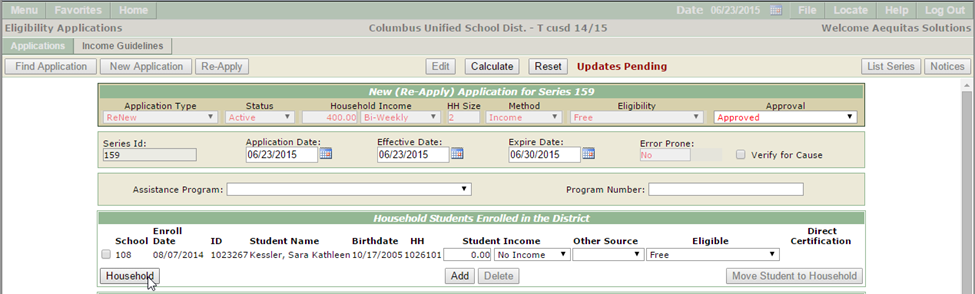
- If the student is a member of a household, you may click the household button to display all of the students in the household. Students listed that are not on the application may be added from the Household list.
- To add another student to the application, click Add. If you have added students by mistake and would like to remove them, click Delete. You will receive a pop up message confirming that you would like to delete the student, click Yes to complete the process or No to cancel.
Household Applicant / Legal Guardian
To add an applicant:
- Click Add Applicant
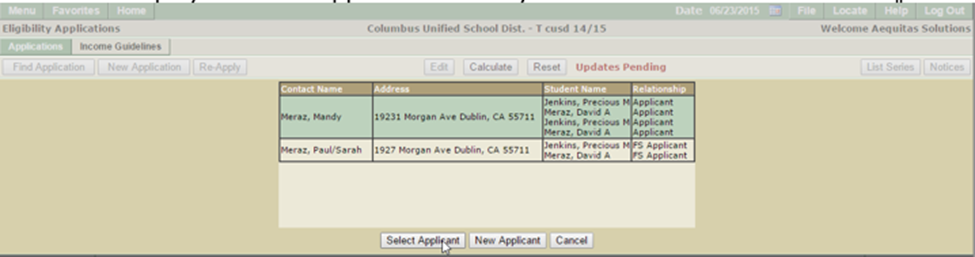
- A list of possible applicants will be displayed; this list consists of previous applicants and student contacts associated with the students currently on the application); If you see the applicant in the list, click to highlight the appropriate row, and click Select Applicant. If the applicant does not appear in the list, click New Applicant and complete the applicant information using the form provided. Once an applicant has been selected their Name, Address, Primary Language (if applicable), and Phones will be displayed on the application. Verify that the information is correct.
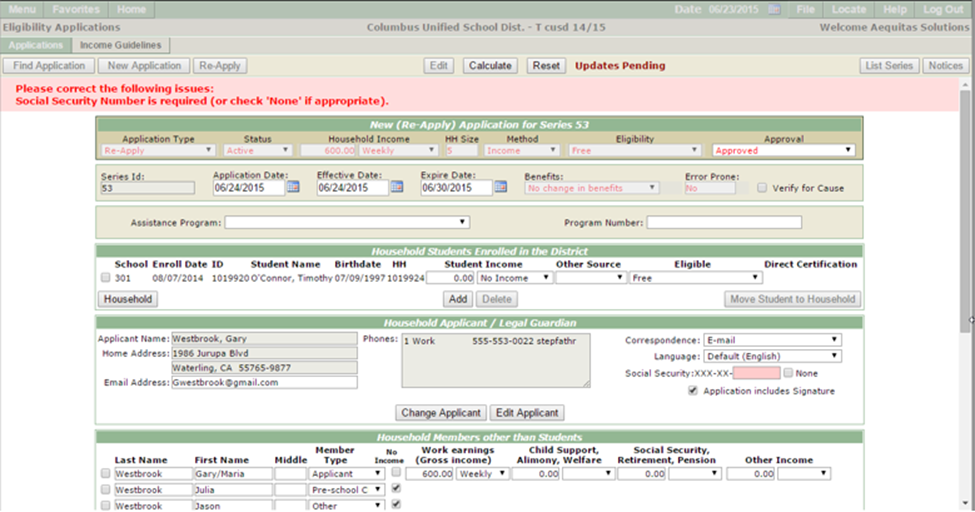
- Enter the last four digits of the applicant’s Social Security number in the Social Security box. If the applicant does not have a Social Security number, place a checkmark in the ‘None’ checkbox. The Social Security number is not required if the applicant is applying on behalf of a foster child or the application is categorically eligible (based on the Assistance Program and Number).
- Food Service Eligibility applications will not be approved without the signature of the applicant. Once the application has been signed by the applicant, check Application Includes Signature
Applicant information may be updated by clicking the Edit Applicant Button to open the Applicant Editor. 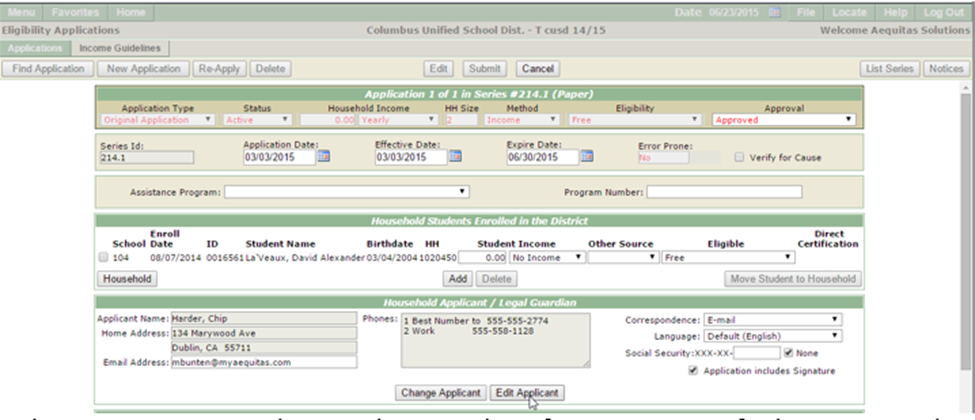
Make any necessary updates and review the information to verify that it is complete and accurate. Click Submit to save the changes, or Cancel to exit the contact editor and return to the eligibility application. 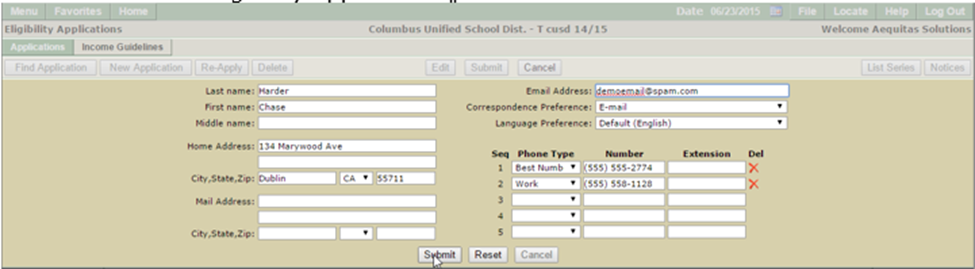
Changing an Applicant
To change the food service applicant, click Change Applicant. If there are applicants associated with the application, they will appear in a selection list. Highlight the desired applicant and click Select Applicant. If the applicant that you are wanting to add is not listed, click New Applicant. You will be prompted to enter information for the applicant. Once you have added all necessary information, click Submit. 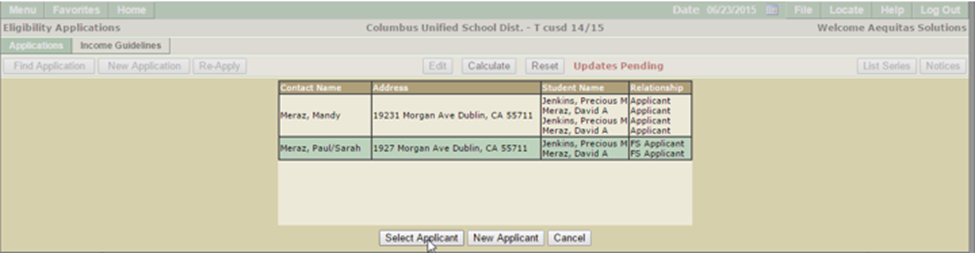
Household Members other than Students
Household members include anyone living in the household, or “economic unit” that is not listed as a student.
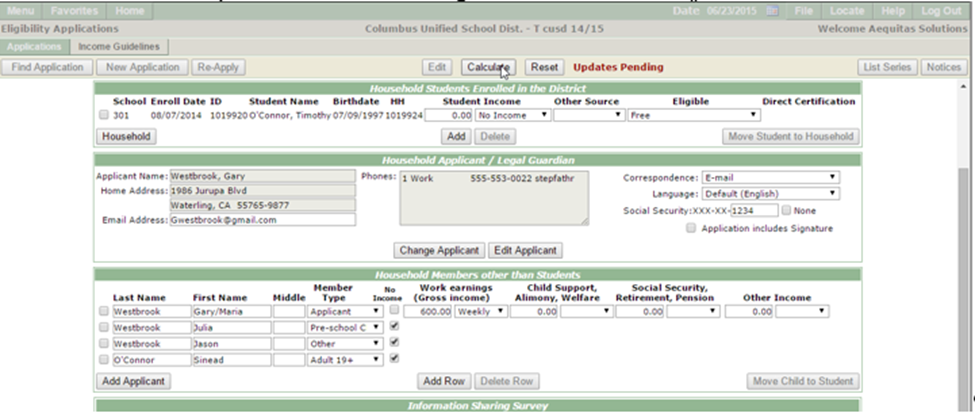
- If the applicant is a member of the household, click Add Applicant to add the applicant as a household member. The applicant information will be populated based on the information in the Applicant fields. Enter all forms of income received by the applicant. If the applicant receives no income, click No Income.
- Continue adding all members of the students’ household and their income. If more household member rows are required, click Add Row. To delete a household member, select the row(s) to be deleted using the checkboxes to the left, and click Delete Row. Unused rows may be left blank.
- When a pre-school child becomes an enrolled student, the child may be added as a student by checking the box to the left of the child’s name and clicking the Move Child to Student This will open the Add Student window and populate the student search criteria with the child’s name. The child may then be added using the usual method.
Information Sharing Survey
Parents can choose to share their information with Medicaid, SCHIP or other programs which may collect food service eligibility information. Place a checkmark in the box which corresponds to the parents answer on their food service eligibility application.
Note:
These survey questions are user-definable using a separate setup utility.
Notes & Memos
Notes and Memos can be entered on an application by application basis. Users may want to enter information in this field as reminders regarding application statuses, applicants, food service eligibility, status, etc. 
Once all household students, applicant, household members and income is complete and the Eligibility Application has been reviewed to ensure accuracy, the application is ready to be calculated.
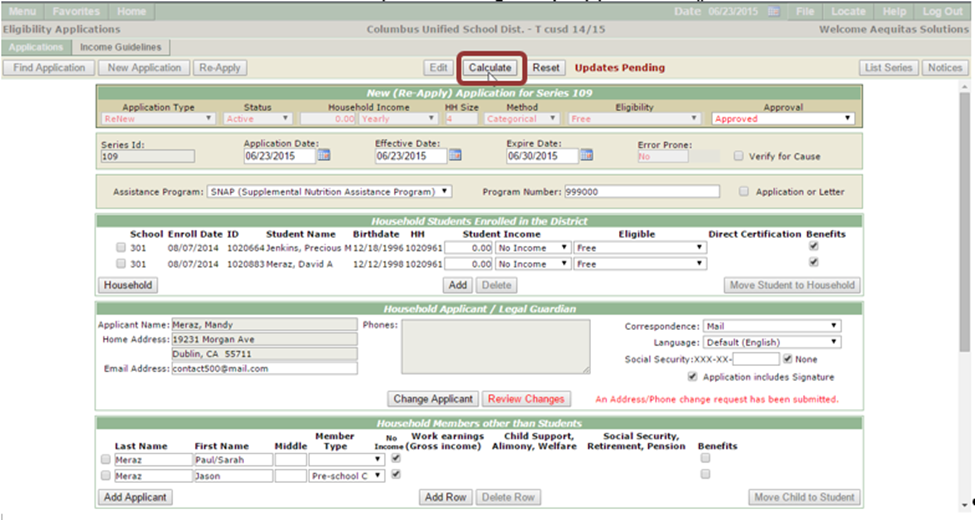
- Click Calculate located at the top of the Eligibility Application.
- If the application has not been properly completed, an error message will be displayed indicating which fields are incomplete or have been populated incorrectly. Make the necessary changes and click Calculate.
- Applications containing an Assistance Program and number are calculated as Categorically eligible. Otherwise, the application calculation will be based on household size and income. It will then be compared to the USDA Income Guidelines and be approved or denied based on the calculations. The application approval status will appear in the Approval drop down list, and the students eligibility status will be updated accordingly. Students designated as “Other Source Categorically Eligible” (using the Other Source dropdown list) are calculated as free. An application may contain both income eligible and other source eligible students. These are calculated as “mixed” applications.
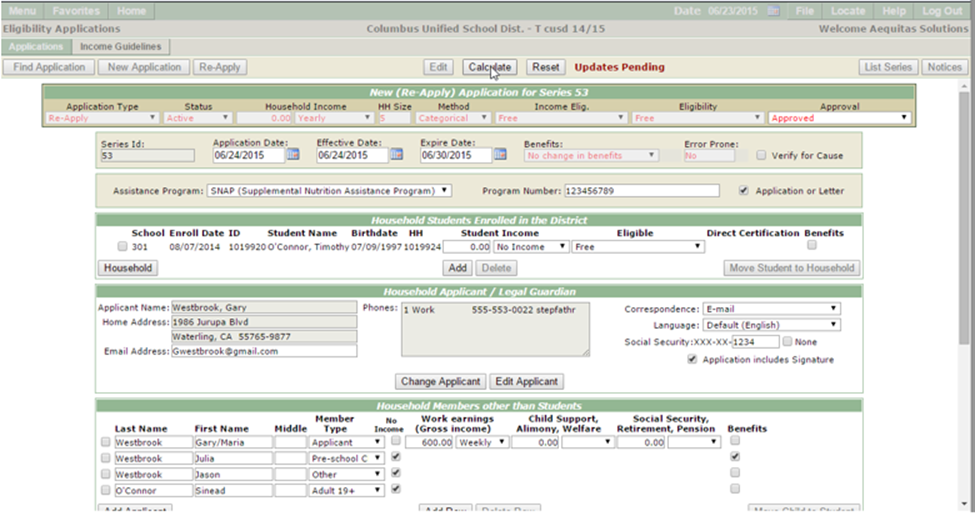
Once food service eligibility applications have been submitted, eligibility notices will be generated automatically and added to the Mail Queue, where they may be emailed or printed to be sent via postage mail. You may edit the form of notification by selecting either Email or Mail from the ‘Send Via’ drop down list box. Click OK to Queue the notice and close the window.
Note:
The USDA requires written notification for denied applications. Denied notices must be sent via mail, and the ‘Send Via’ control is disabled.
To view and print eligibility notices from within the application, click Notices located in the upper right hand corner of the application. All notices for the application series will be listed. 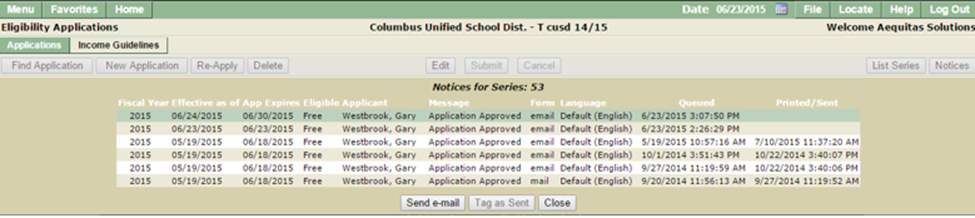
Editing an Existing Application
A Free/Reduced application should only be edited to correct mistakes made during data entry. If there is a change to household income or circumstance, applicants must submit a new, signed application and the Re-Apply function should be used.
To make changes to an existing eligibility application:
- Search for an existing application by clicking Find Application.
- Enter search criteria for the student, applicant, or the application ID.
- Click Search.
- Once you have located the application, high light the desired application and click Select.
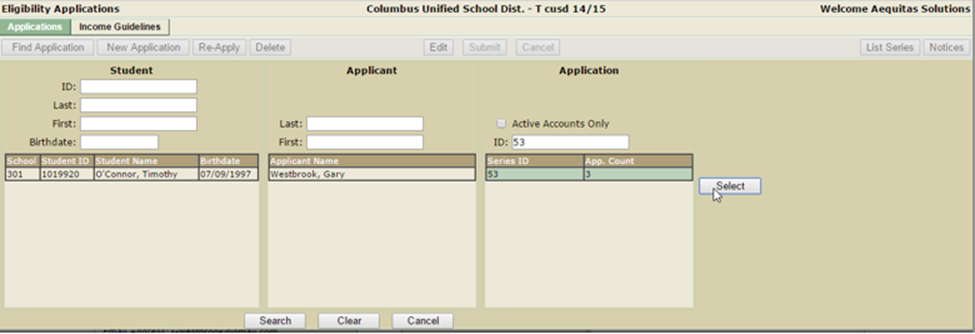
The selected eligibility application will open; click Edit to make changes to any of the information in the application. Once you have finished making any necessary changes, click Submit to save, or Reset to cancel and return to the previous screen.
Household Free/Reduced applications are retained in a “series” of applications indefinitely. A new application (for a new household) must be entered into the system only once. Thereafter, applications may be added to the series by simply re-applying the latest application in the series, updating information as appropriate. Each time you receive a free/reduced application, whether at the beginning of the school year, or any time during the school year, the process is the same:
- Search for an existing food service application by clicking on Find Application.
- Enter search criteria for the student, applicant, or the application Series ID.
- Click Search.
- Once you have located the appropriate application high light it and click Select.
- The most recent application in the series will be displayed. Verify that the application on the screen is the one you wish to use, and click Re-Apply.
- The Re-Apply button will add a new application to the series using the information from the latest application in the series. The application Date and Effective Date will default to today’s date, but may be changed.
- Change the information as necessary to match the new paper application. You may update, add, delete, or move students or household members as required. If the application was submitted by a different applicant (father instead of mother, etc.), use the Change Applicant When finished, click the Calculate button.
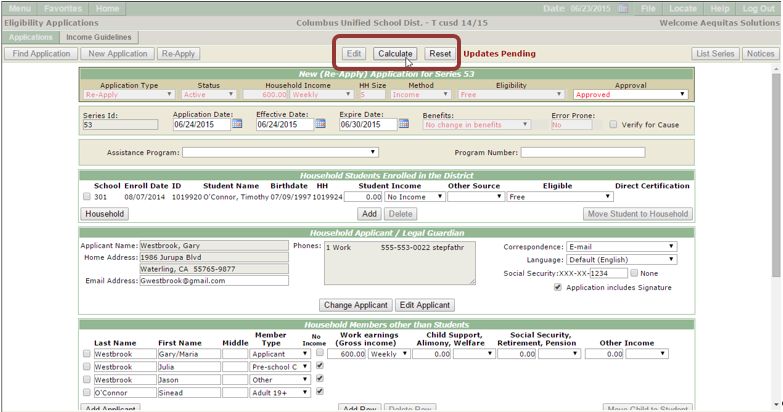
- Change of benefits: The “Benefits” control indicates whether or not the calculation resulted in a change of benefits. Applications with no change or an increase in benefits are effective immediately. If the calculation results in a reduction or loss of benefits, the effective date will be set to 10 days from the Application date, allowing the household to be given 10 days notice as required. Once you have completed and calculated the application, click Submit to save the information or Reset to undo changes.
The Applicant Editor is a feature inside the Q Eligibility Applications App that allows the user to find, review, edit and merge Food Service Eligibility Applicant information.
Inside Eligibility Applications, click on the Applicants Tab.
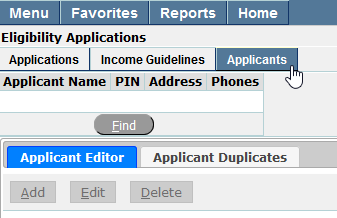
Using Find
Click Find to search for Applicants.
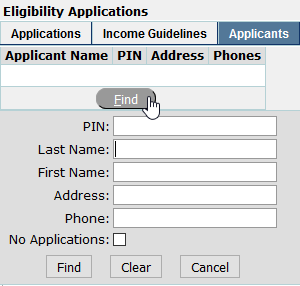
Search fields searches Food Service Applicants, not Q Contacts. When a PIN number is shown, it indicates that the Applicant is associated with a Q Contact. “none” in the PIN field indicates that the Applicant is not associated with a Q Contact. When “none” is seen in the search results and that applicant is selected, “No Contact link” shows in the PIN box. This means they are not linked to Q Contacts.
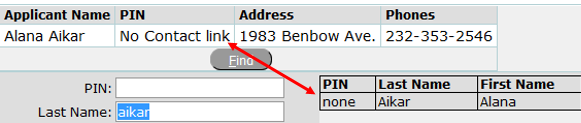
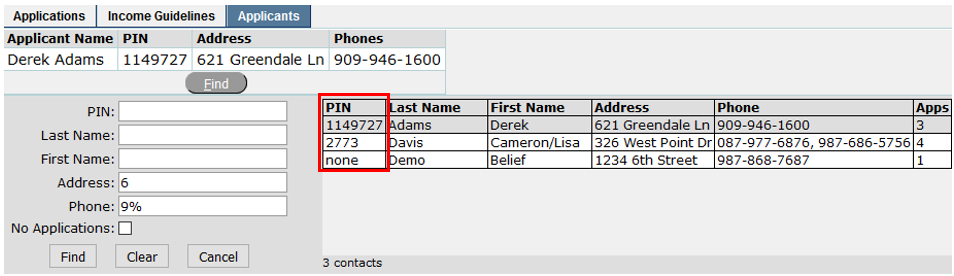
All of the search fields will allow partial entries. The phone number field must use the “%” wild card if the whole phone number string is not used. In the search example above the search parameters are for an address with the number 6 in it and a phone number with a 9.
Using the No Applications check box allows the user to find people in the Food Service database who are not associated with any Eligibility Applications. These applicants can be deleted.
The Elements of the Editor
The Applicant Editor shows a typical contact-type information screen that includes the History of the persons Applications. 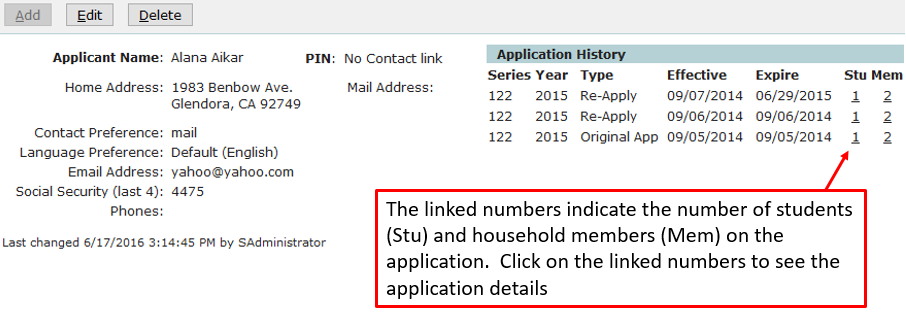
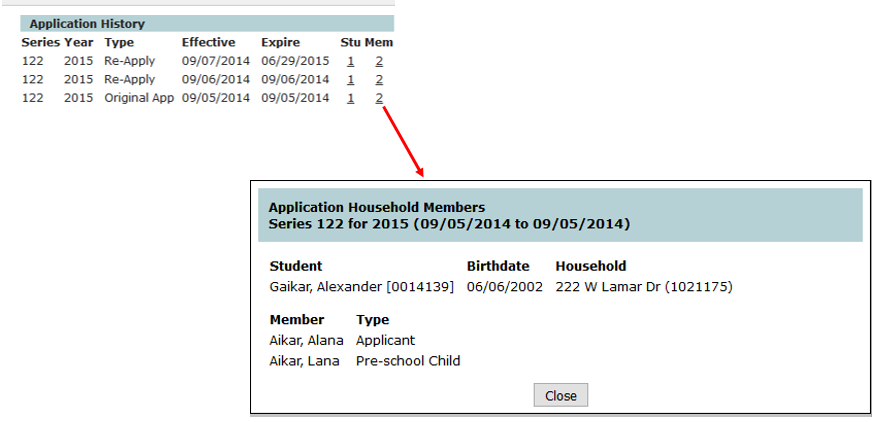
The application history listing is the same as what can be found in Q Eligibility Applications by clicking List Series. Select the desired application to view its details. 
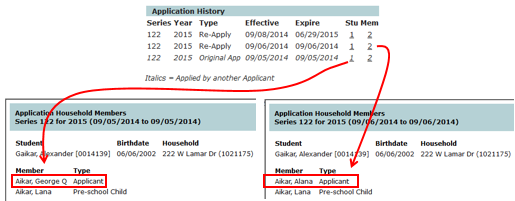
When a line in the Application History is italicized, it indicates that a different applicant submitted that application.
Editing and Deleting Applicant Information
The Edit screen allows changes to the basic applicant information.
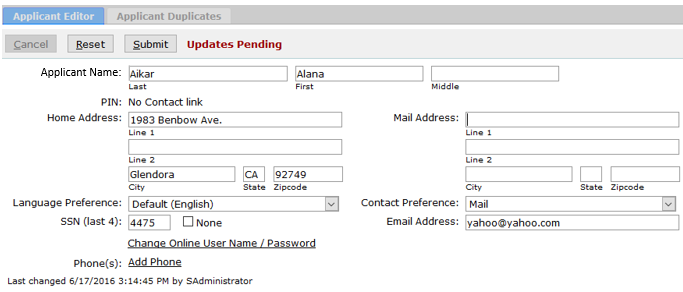
Changes made in the editor are immediately shown on the Application and on the applicants Food Service Online account.

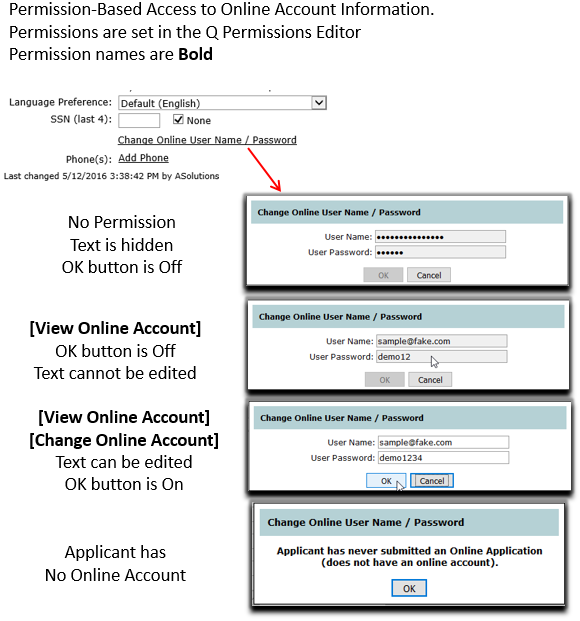
If an applicant needs help with their Food Service Online Applications login credentials, their login and password can be viewed or changed here by clicking on the “Change Online User Name / Password” link. Different levels of access to this information is permission based in Q Permissions Editor.
Using Applicant Duplicates
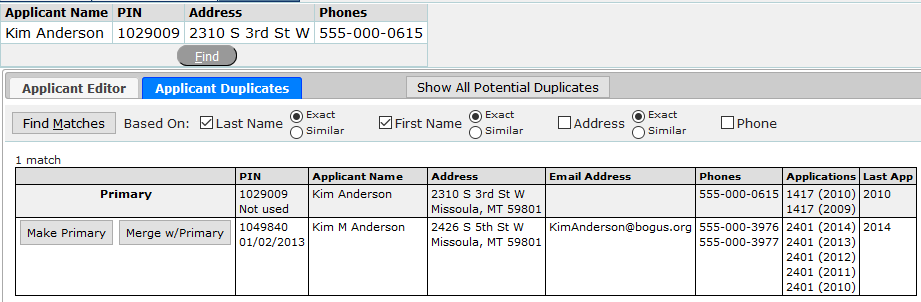
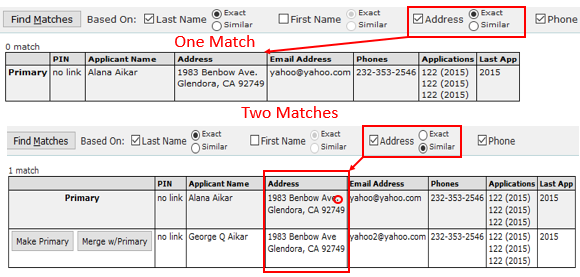
Applicant Duplicates allows the user to find possible duplicates based on filtering by exact or similar Last Name, First Name, Address and/or Phone and then merge or delete applicants as needed.

- Matching
Choose the desired search filters and then click Find Matches. As a best practice don’t be too exacting when searching for duplicates as shown below. With Exact Match selected for Address, a simple period at the end of a street name will cause a potential match not to be found. With Similar selected for address, a wider search range is possible and then can be narrowed as needed.
- Merging
If a duplicate has been found with applications, click the Merge w/Primary button to begin the merge process to combine the two records into one.

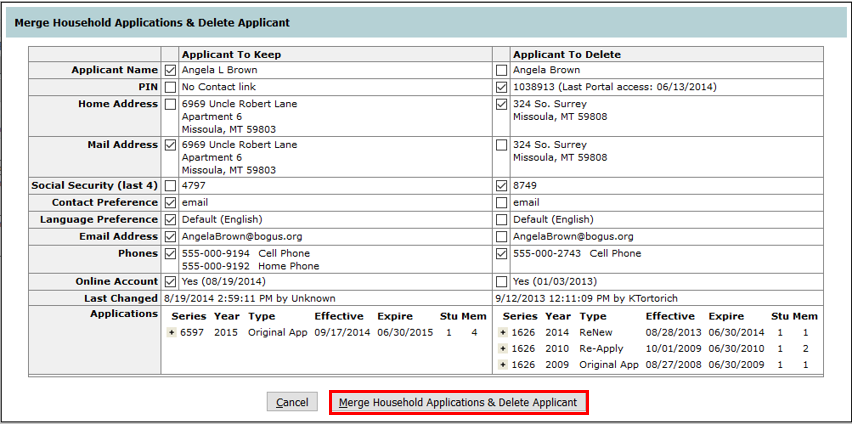
The merge window shows the data for the Applicant to Keep and the Applicant to Delete. Use the check boxes on both sides to select which data will be merged to the Applicant to Keep. There can only be one choice for each item except for Phones. Selecting phones from both sides will cause all phone numbers to be merged to the Applicant to Keep.
To see the details of applications, click the plus (+) sign next to the application.
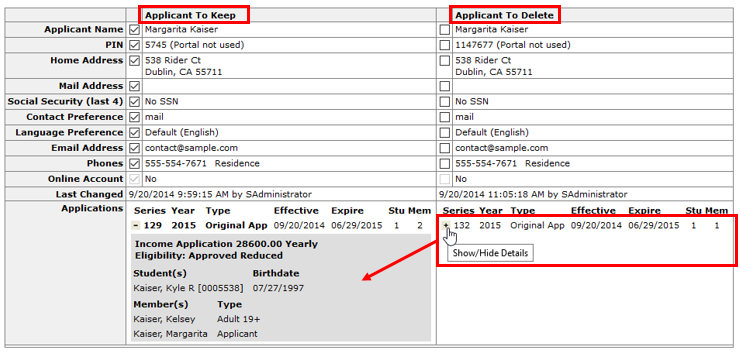
Select the elements to merge and click Merge Household Applications & Delete Applicant.
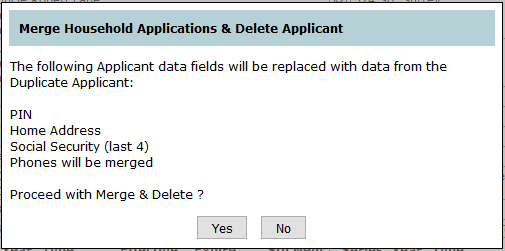
A confirmation window will appear so that the user can review the merge details. This should be checked carefully as there is NO UNDO of this process.
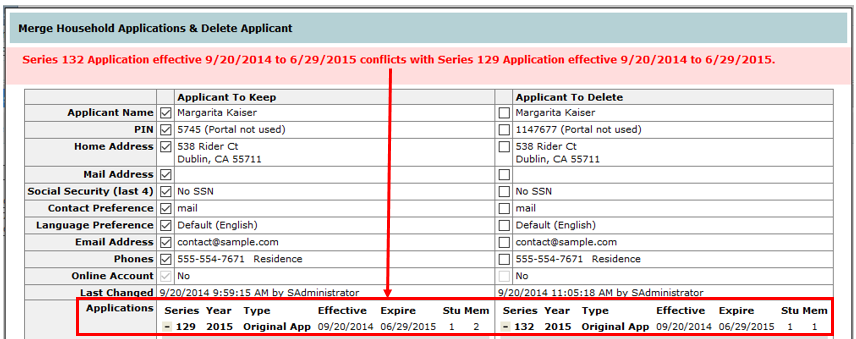
Issues preventing a merge will appear at the top of the window in an error message. As shown below, effective dates of applications to be merged cannot be overlapping.
The error shown below is generated by the fact that the merge is attempting to join an earlier series with a later one. The system is designed to find the earliest original application and then merge the duplicates of that.
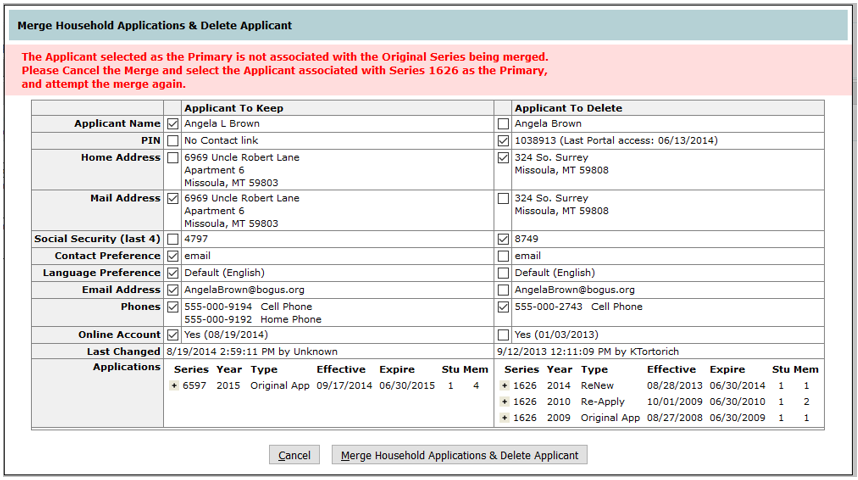
To change an Applicant to Primary, click Make Primary. The applicants will be switched.
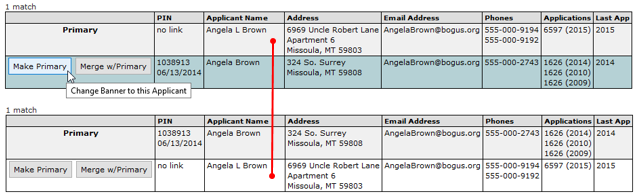
The applicants shown above are now merged, including the Series ID (Applications).

If a duplicate applicant is found and has no applications, the Delete button will remove it.

Show all Potential Duplicates
Show all Potential Duplicates is an easy way to see the scope of possible duplications in the Food Service Applicants database.
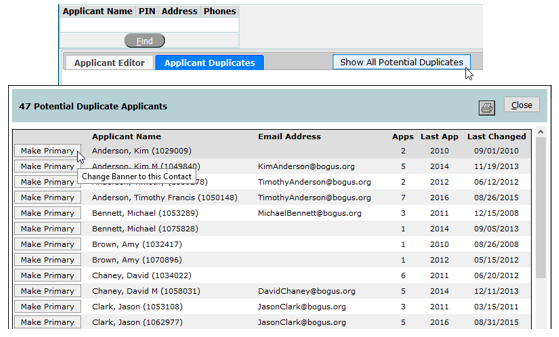
Click on Make Primary to load the selected applicant into the banner and the possible duplicates into the merge setup window.