
The Communication Manager may be used to query Communications records to retrieve a set of entries for batch deletion. This may be useful if a mistake was made using the Mass Communications procedure and a batch of records was generated in error, or an auto-generated Communications entry for a Letter report may have had to be regenerated before mailing, creating duplicate Communications records.
Communications records may be deleted one at a time using the Student Communications Editor, but in these examples, the Communication Manager is more efficient way of identifying a group of similar Communications records that are spread out across many students and deleting them.
Communications Manager is located under the Communications menu in Q.
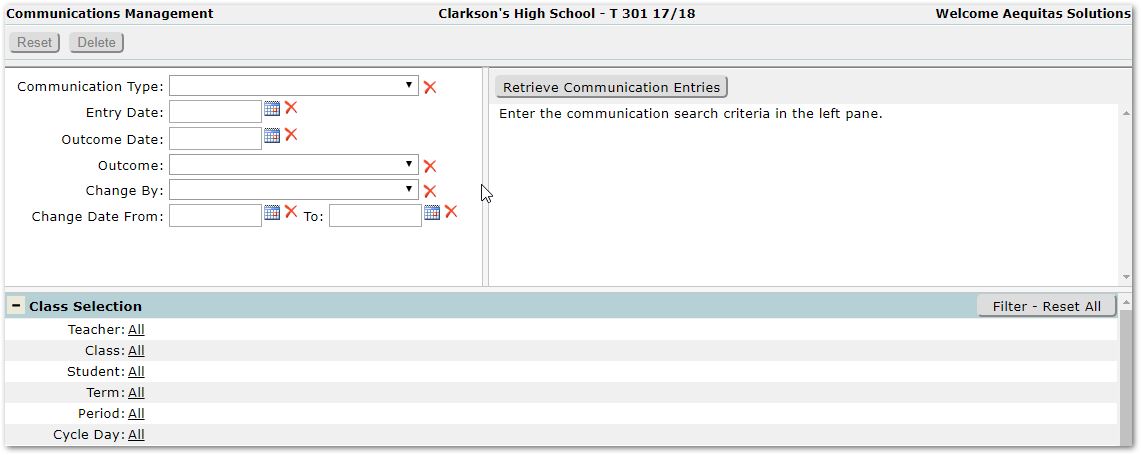
Use the filter criteria in the left pane to identify the Communications entries. Individual filter criteria may be reset by clicking the small red X beside each field.
Use either the Class or Student Filter in the bottom portion of the screen to filter the set of students with these communications records.
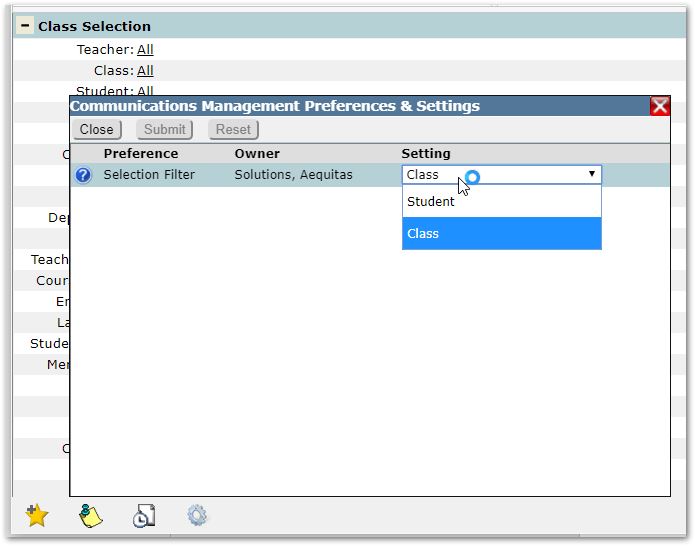
Note:
The gear wheel at the bottom of the screen allows the user to change whether the Application Selection filter is Class Selection or Student filter.
When you have input filter criteria, click the Retrieve Communications Entries button, or Reset to clear the search criteria.
Retrieved records appear in the pane at right. Select the records for deletion by clicking in the checkbox at left of ‘Student’ to select ALL retrieved records, or click individual student communication checkboxes to select specific records from the retrieved set.
To delete the selected records, click Delete. Click Reset to search again.
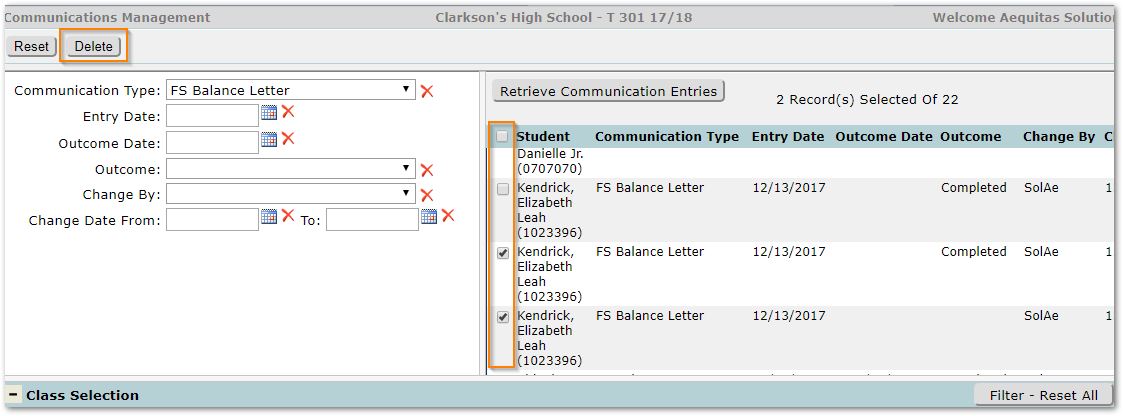
In this example, two individual FS Balance records are selected for deletion.
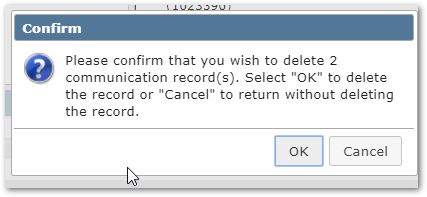
After clicking Delete, a confirmation dialog will appear showing the number of records to be deleted, and asking that you click OK to proceed, or Cancel.
